Reception
18 guides, 23 minutes in all, in the order to watch them.
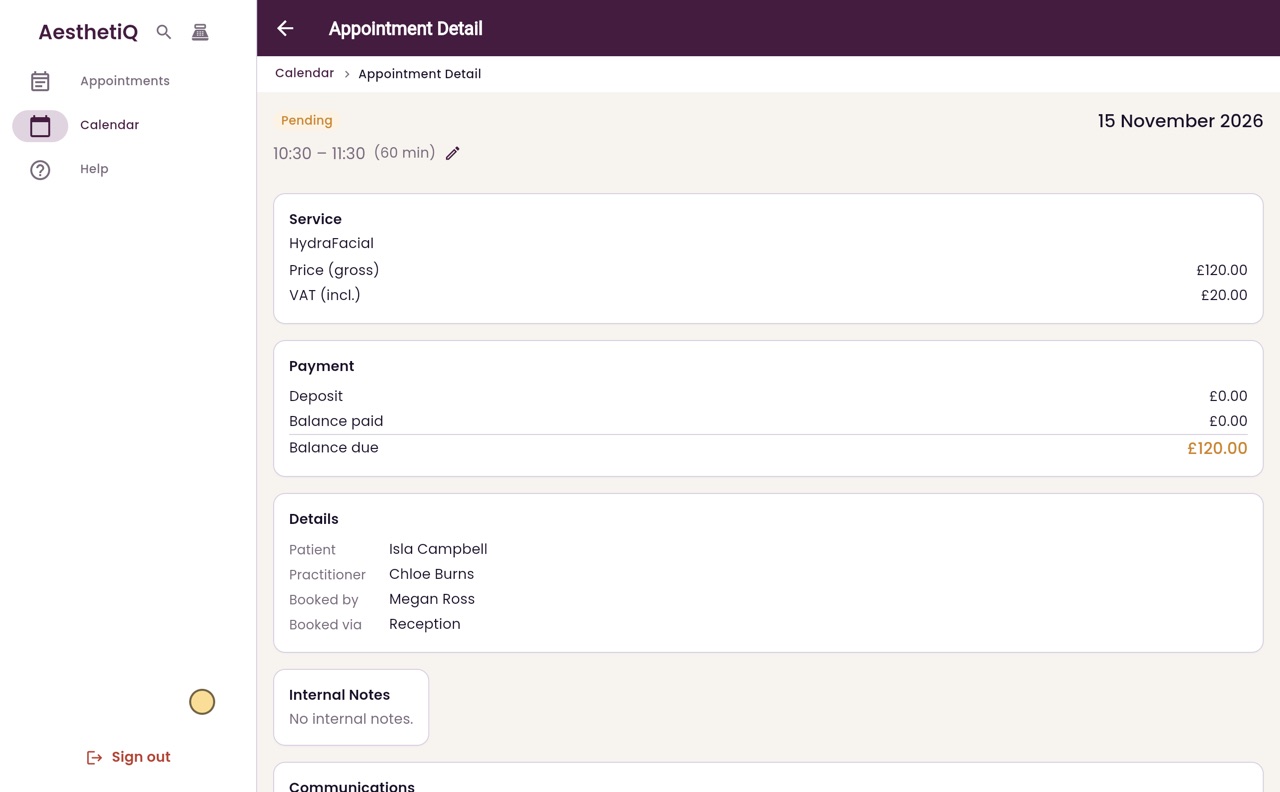
Checking a patient in
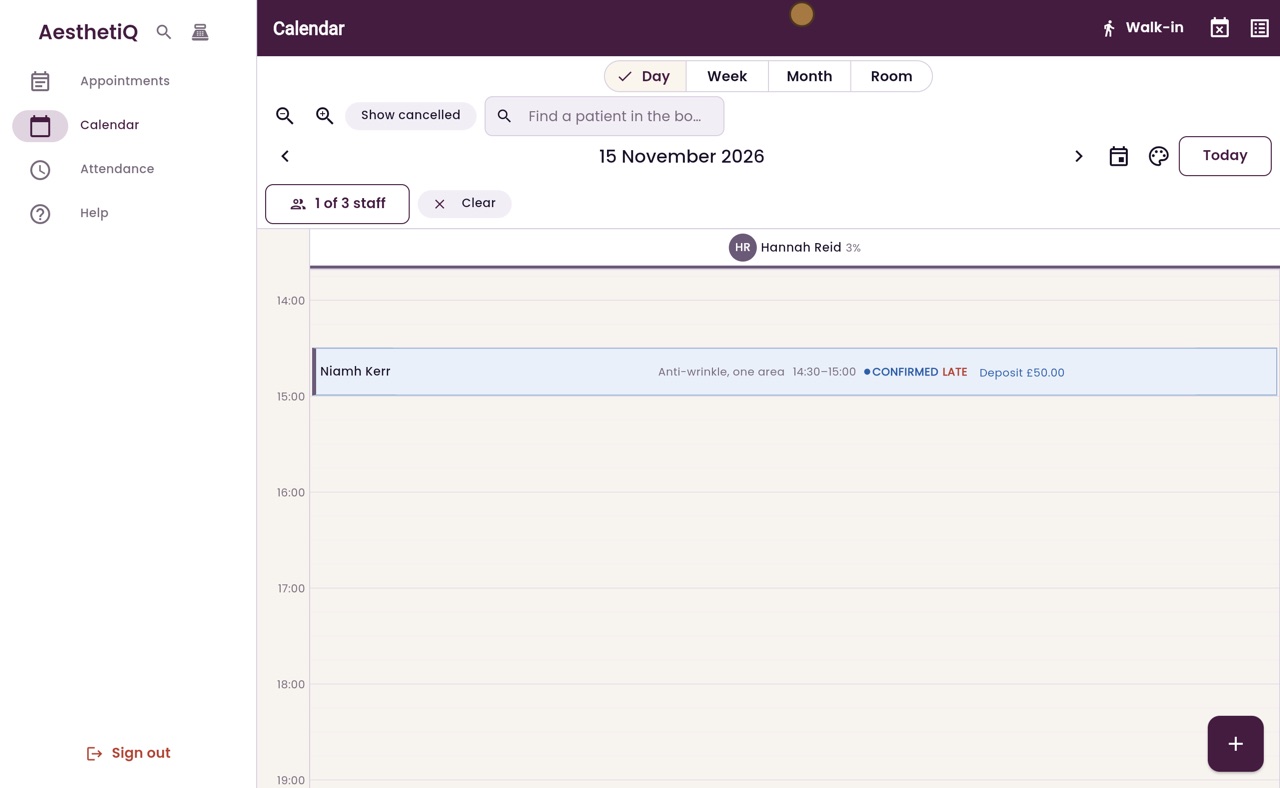
When a patient arrives, open their appointment and check them in. The calendar shows the practitioner they are waiting.
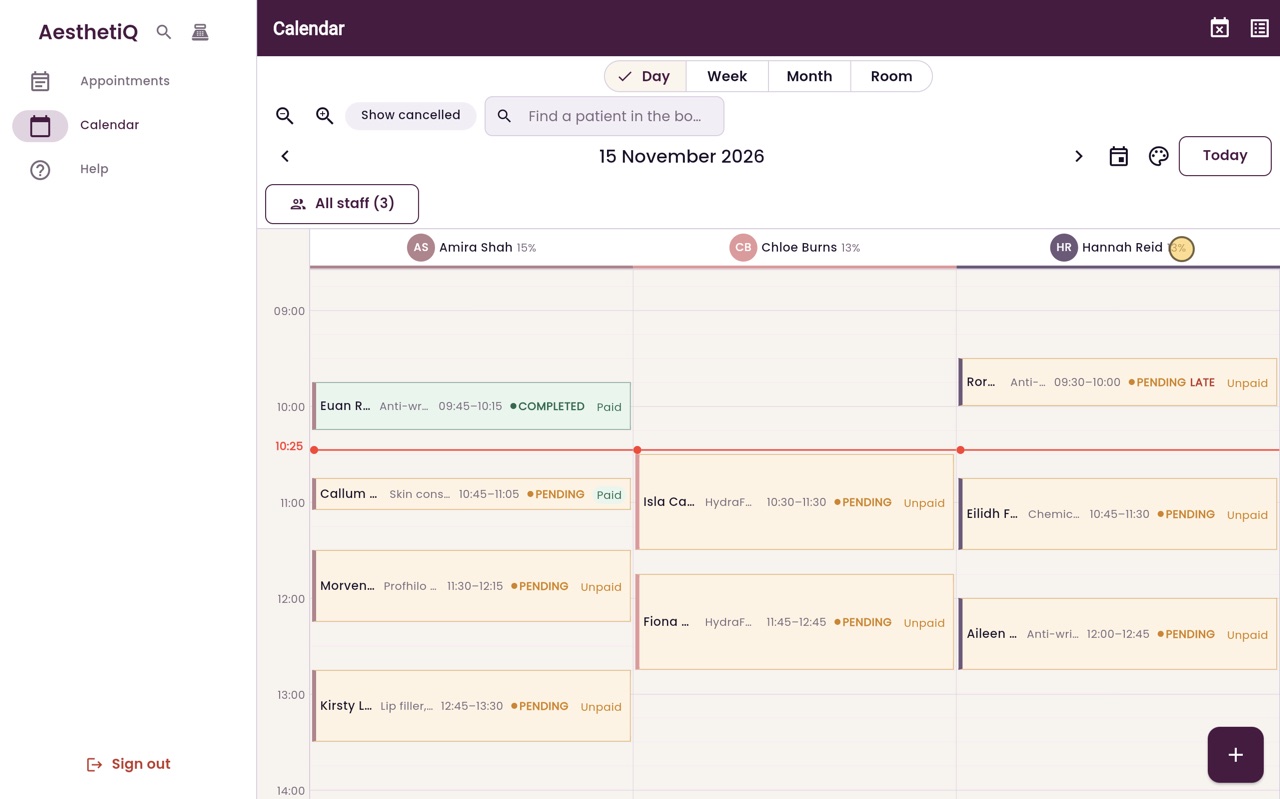
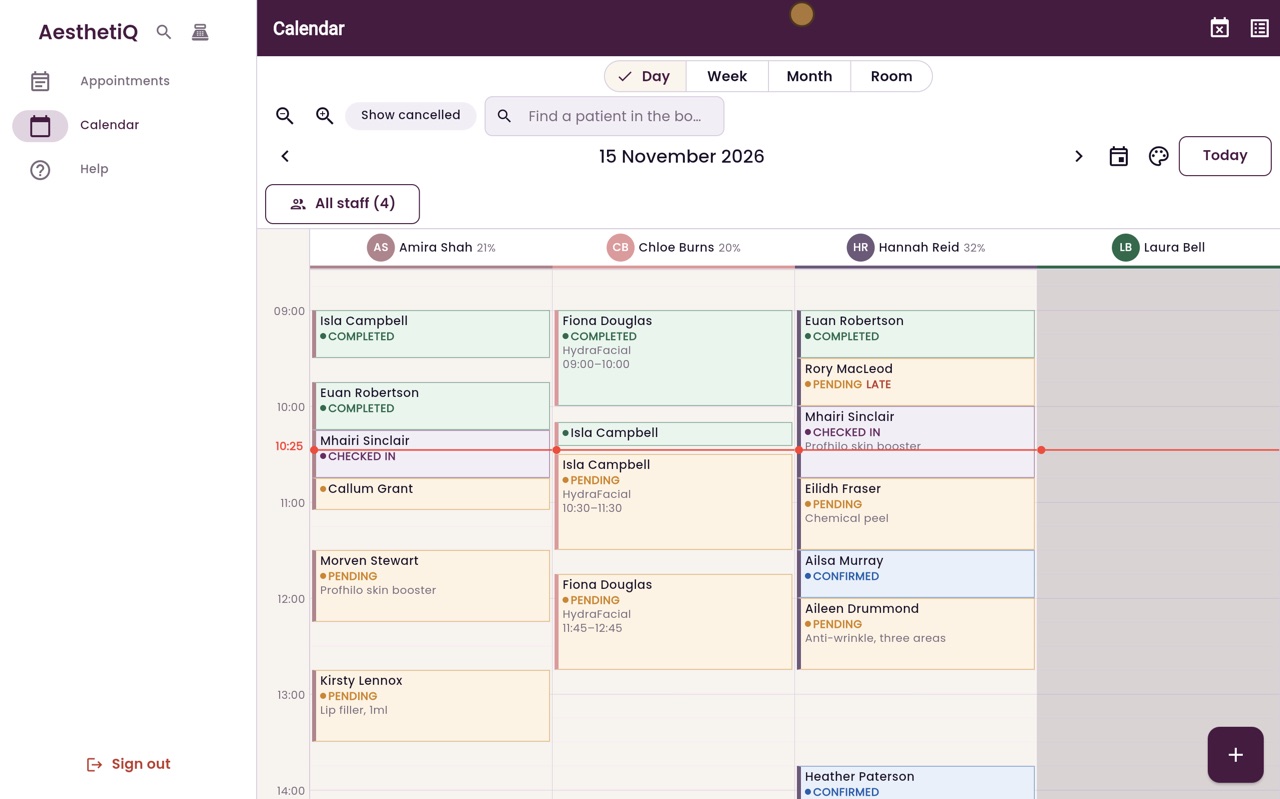
The calendar: day view
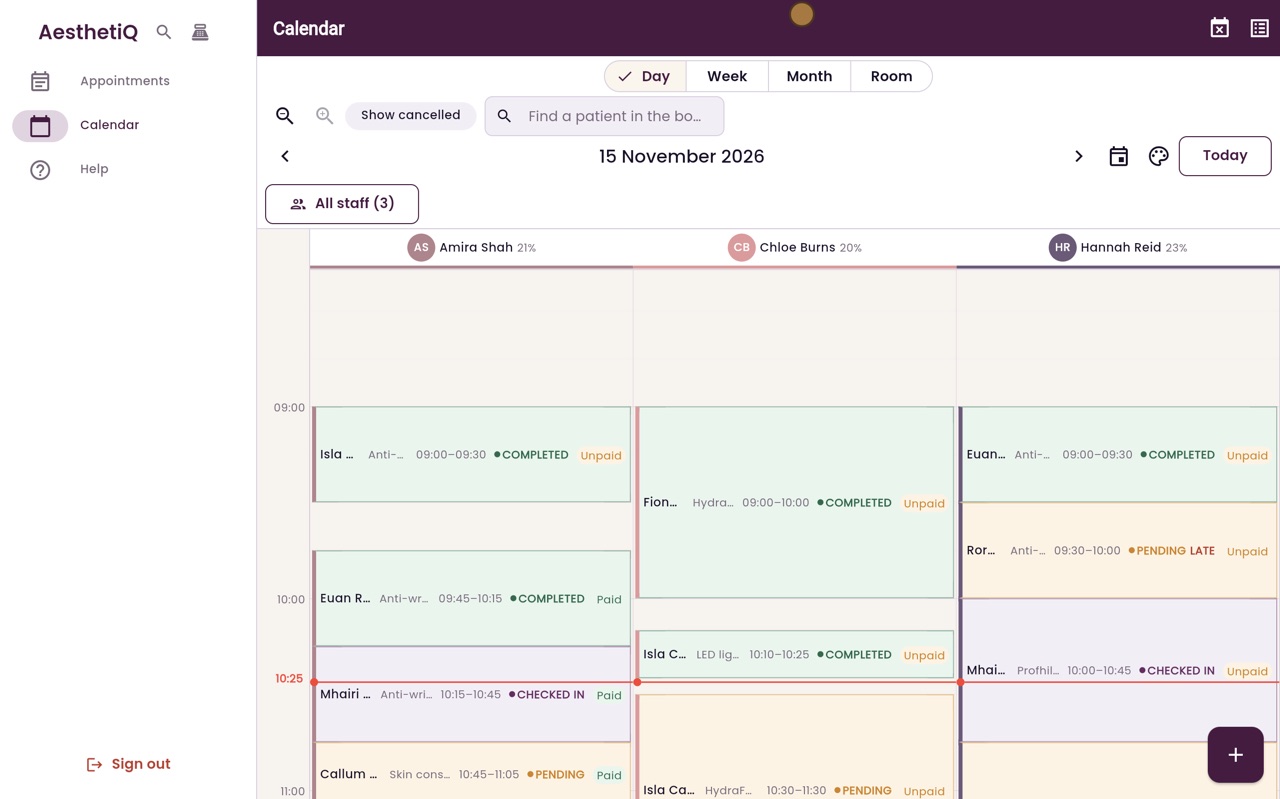
The day view shows one column for each practitioner, the time now, and every appointment with its status and payment.
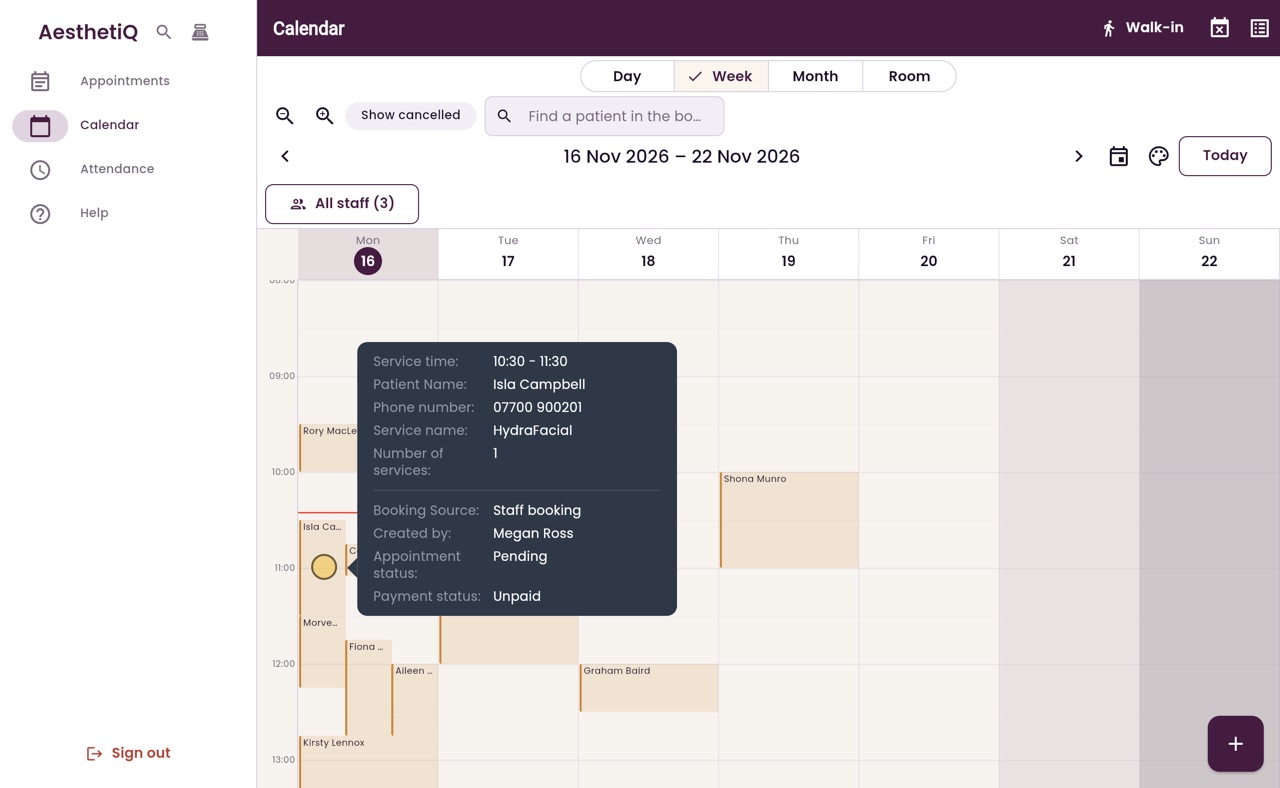
Week, month and room views
Switch the calendar between Day, Week, Month and Room at the top. Appointments at the same time sit side by side, and AesthetiQ remembers the view you chose.
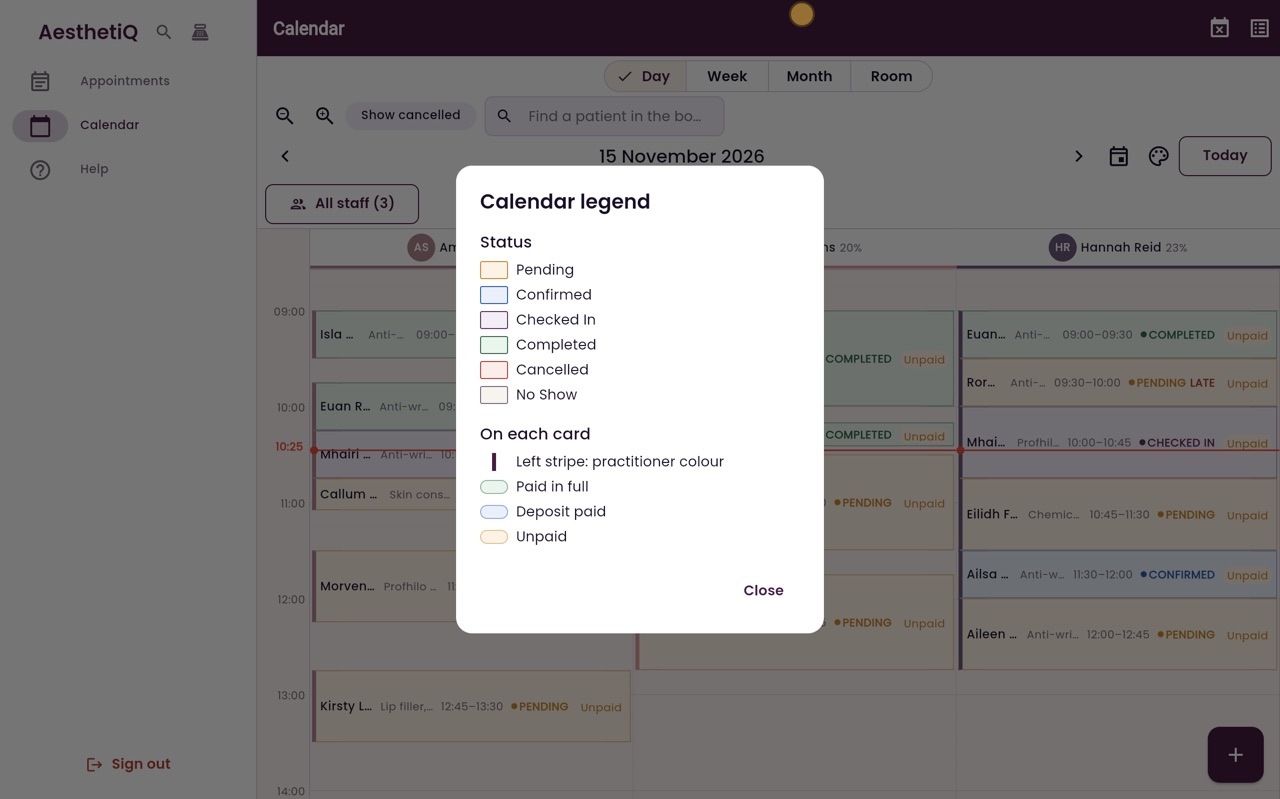
What the calendar colours mean
Each appointment's colour shows its status, the left stripe shows the practitioner, and a tag shows whether it is paid. Late patients are marked Late.
Zooming and choosing which staff to show
Zoom the calendar in to make short appointments easier to read, or out to see more of the day. Choose which practitioners' columns to show.
The run sheet
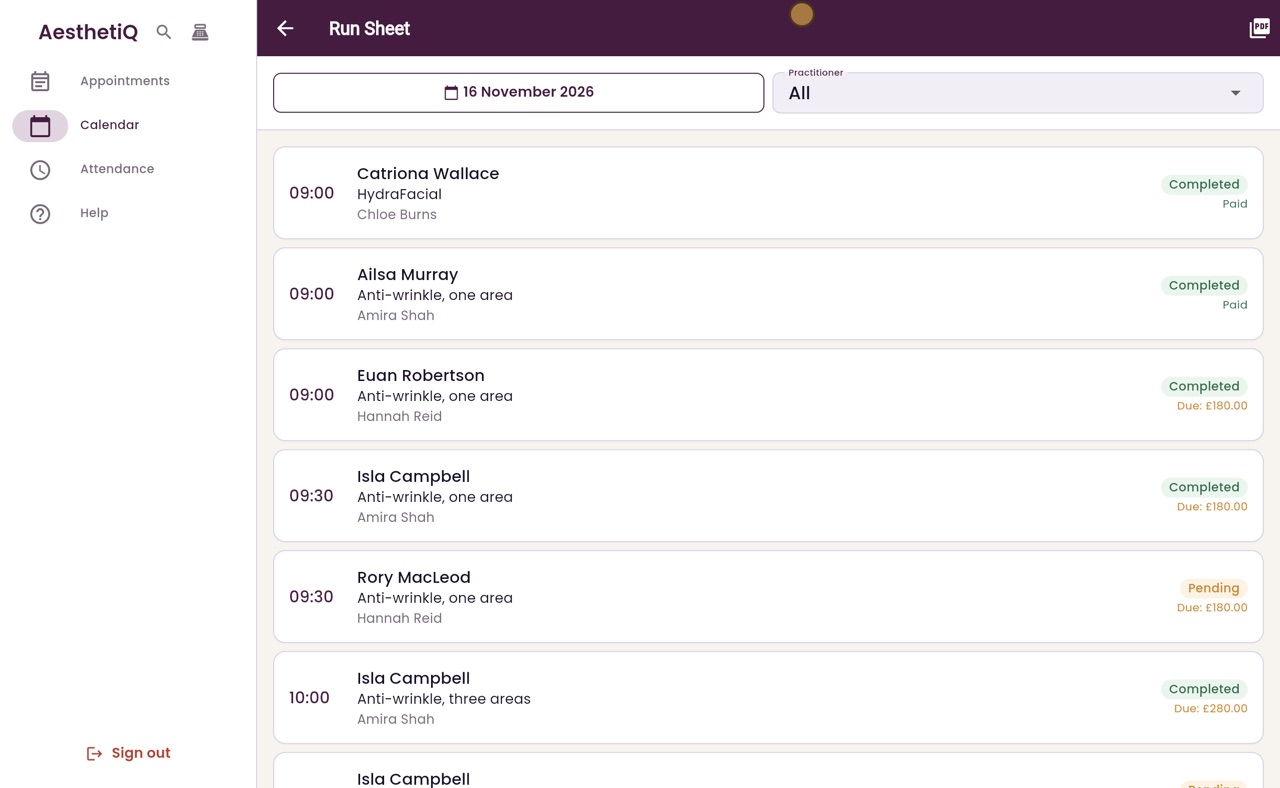
The run sheet lists a day's appointments in time order, for everyone or one practitioner, and makes a copy ready to print.
Finding a patient in the calendar
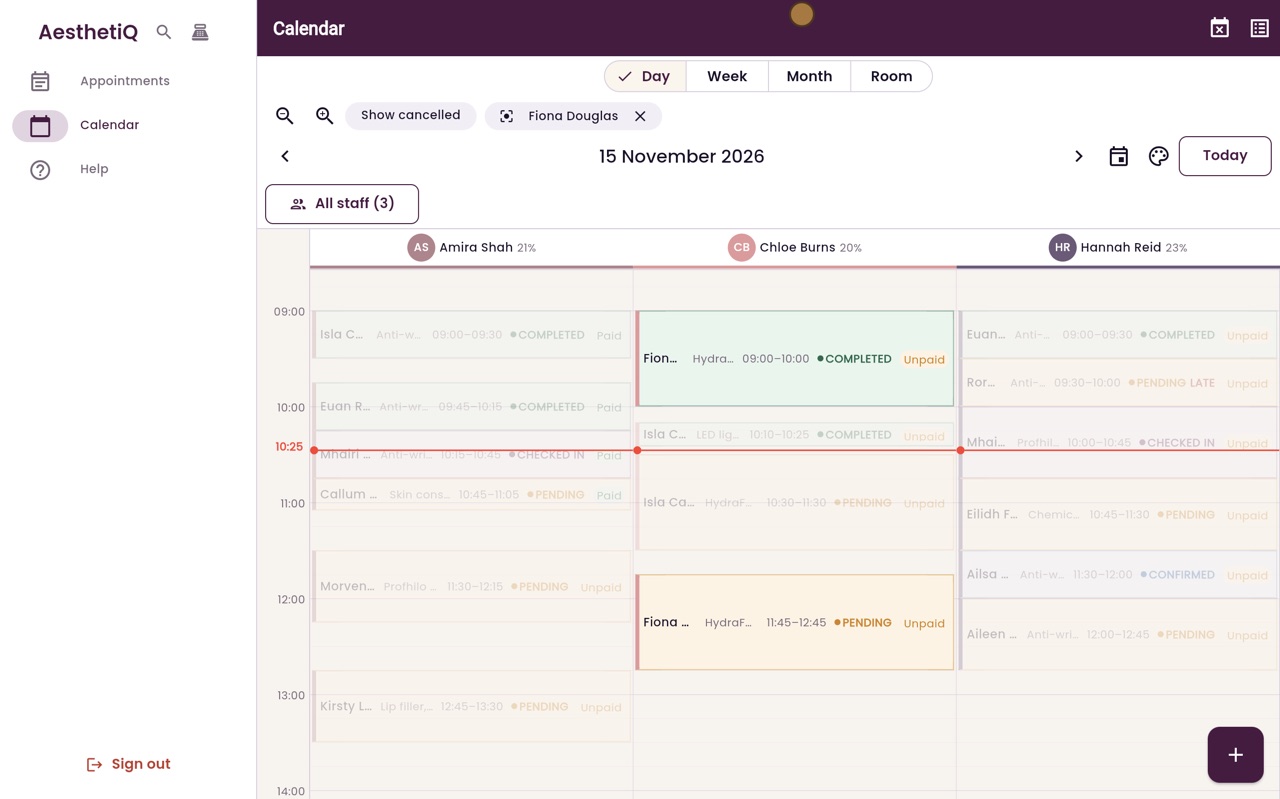
Type a patient's name in Find a patient in the book: their appointments stay bright and the rest of the calendar fades.
Booking an appointment
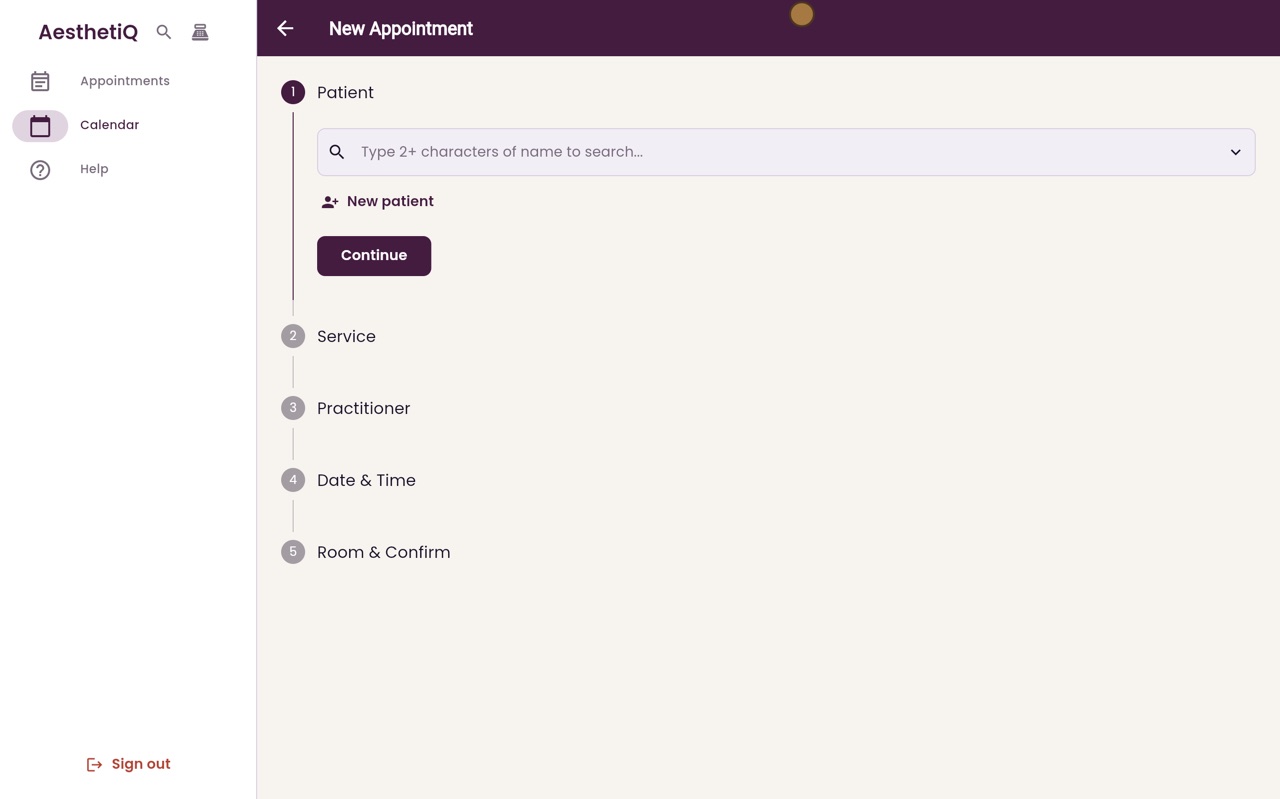
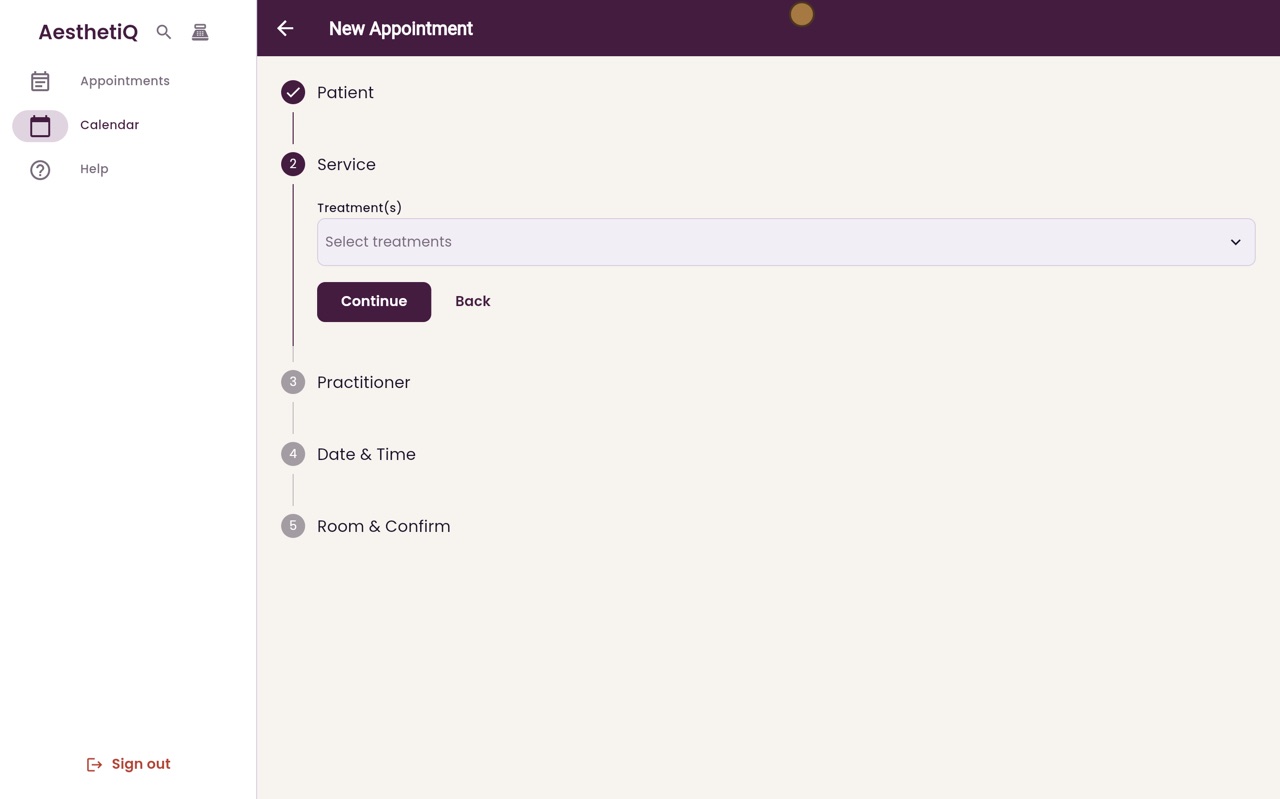
The plus button on the calendar opens New Appointment: patient, treatment, practitioner, date and time, then room and confirm.
Booking two treatments together
Tick more than one treatment in New Appointment. AesthetiQ adds up the time and price and books one appointment for both.
Booking a walk-in
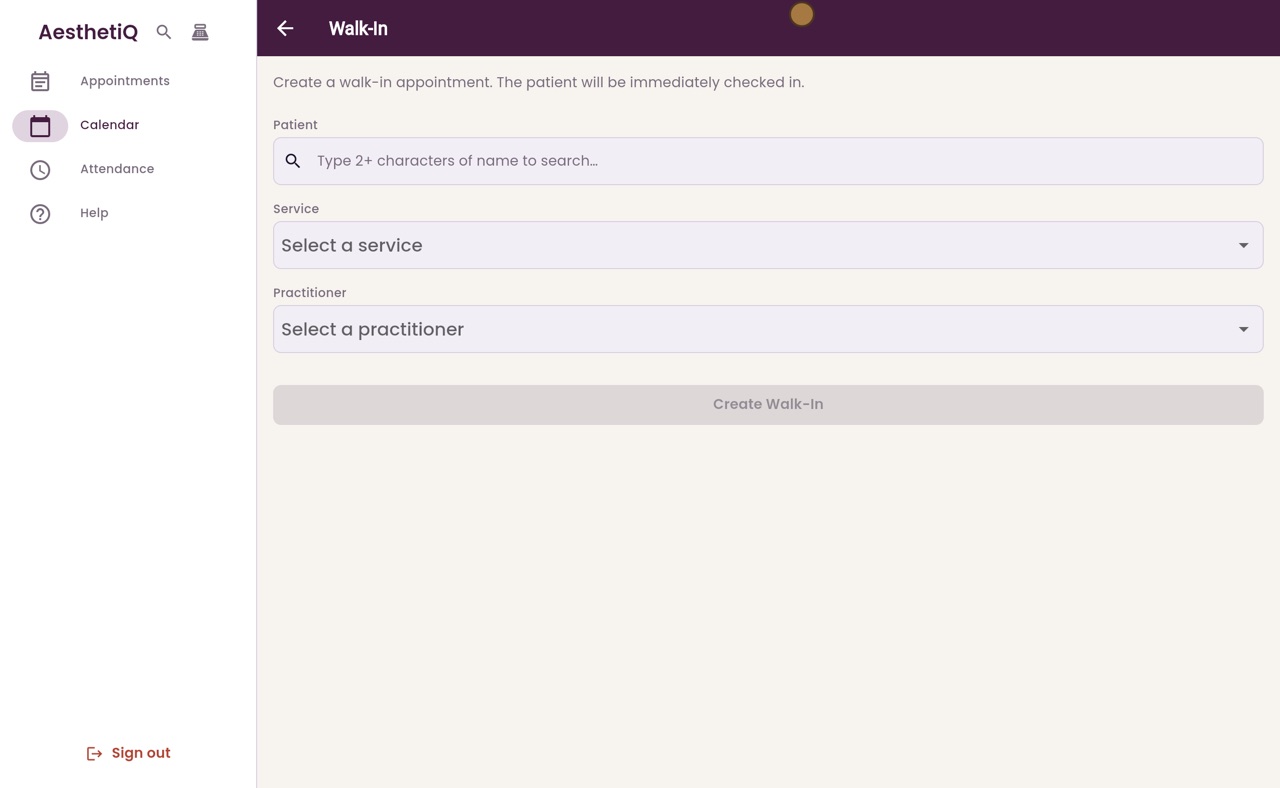
A walk-in is booked from now and the patient is checked in straight away. Open Walk-in from the button at the top of the calendar.
Booking with a promo code
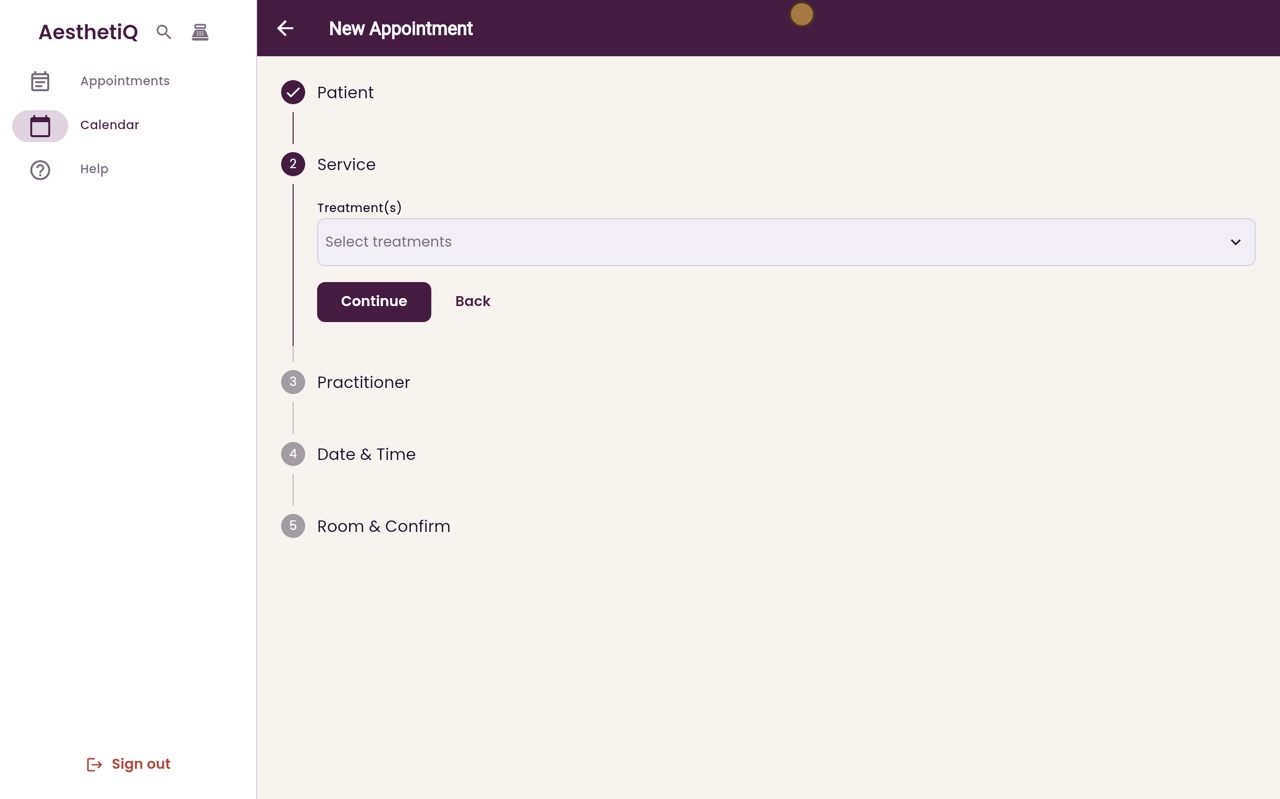
Type the patient's promo code on the last step of New Appointment. The discount is taken off the appointment straight away.
When a treatment needs a patch test
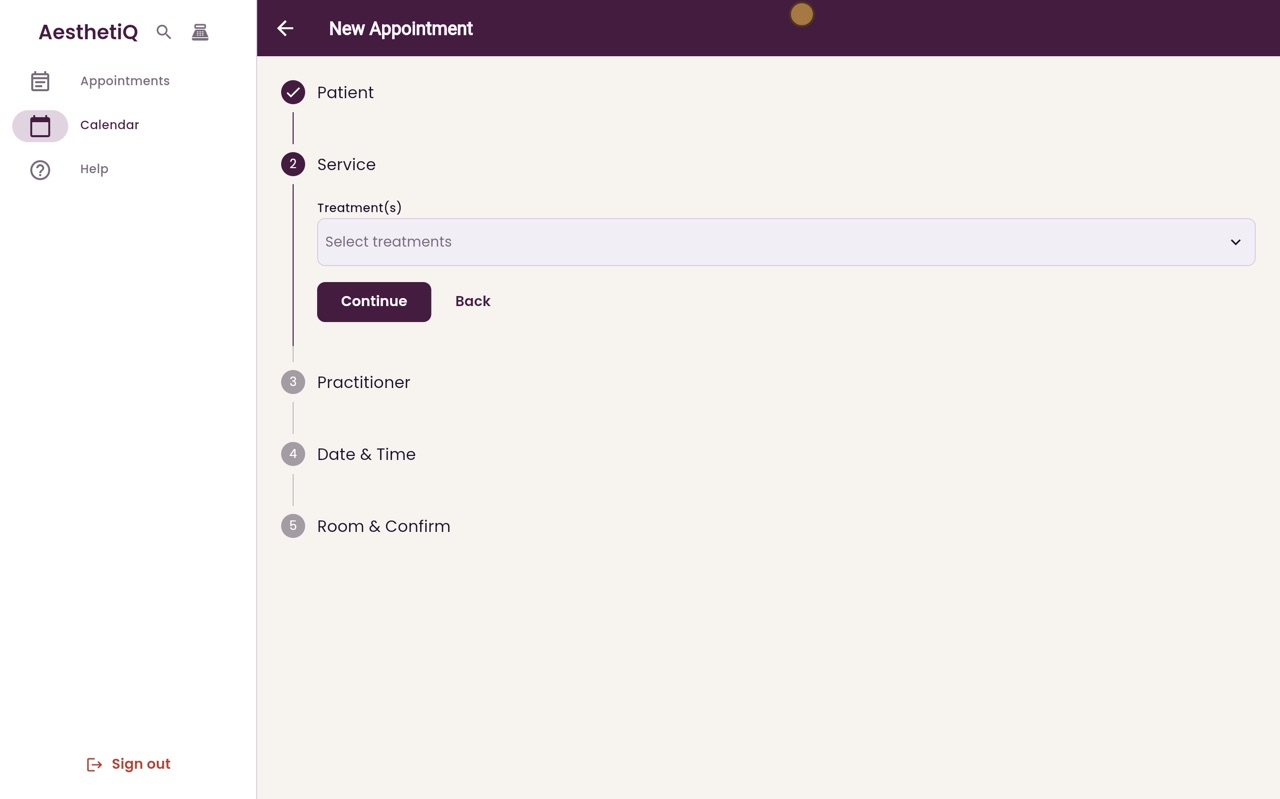
Treatments such as a chemical peel need a clear patch test in date. If there is none, AesthetiQ stops the booking and asks why you want to go ahead.
Clean-up time between appointments
Some treatments have clean-up time after them. AesthetiQ keeps it free, so the next time offered starts after the clean-up.
Confirming an appointment
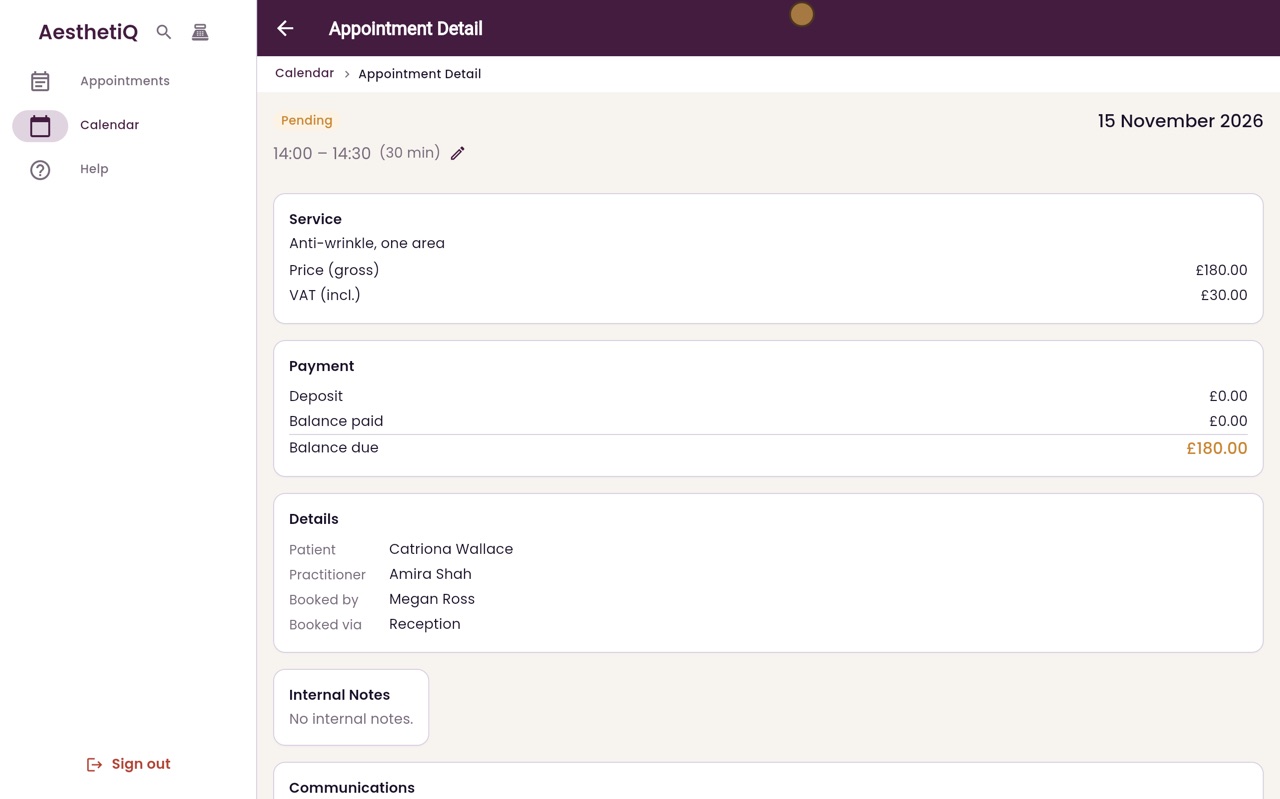
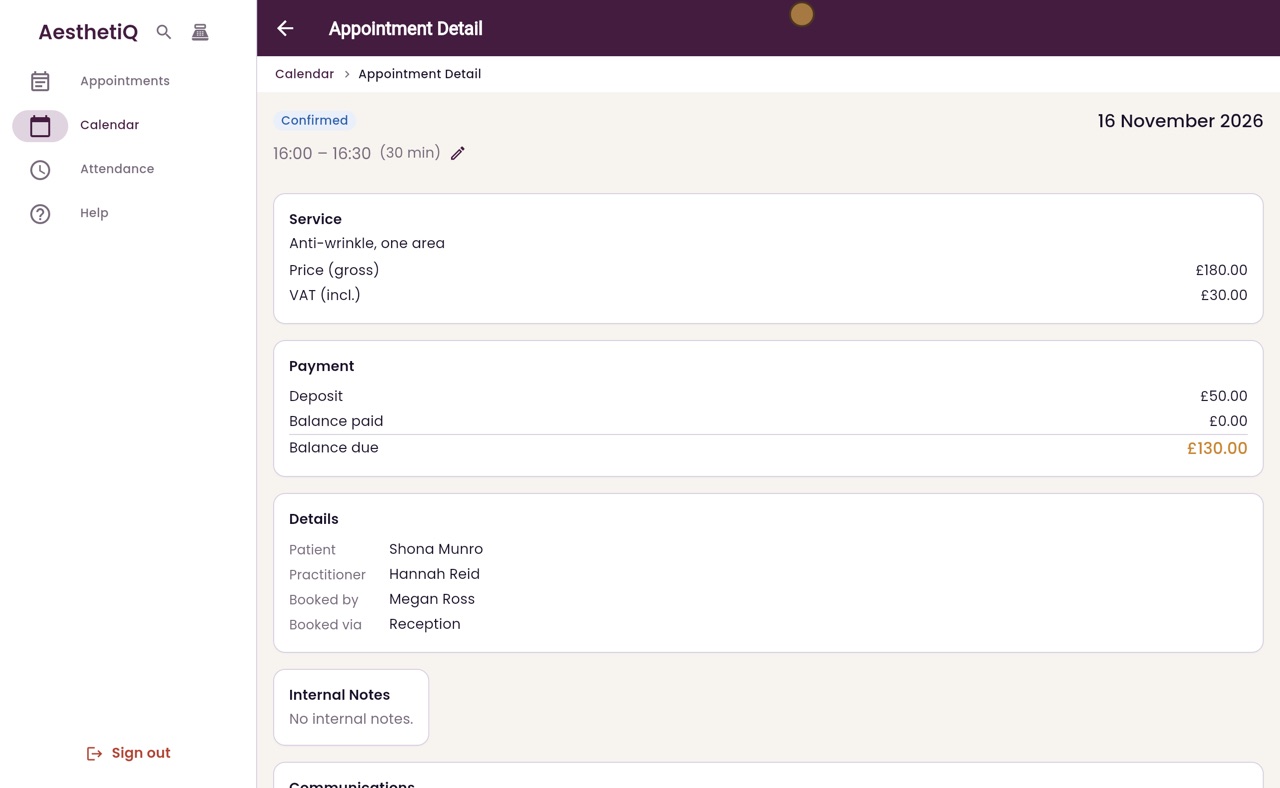
When a patient says they are definitely coming, open their appointment and click Confirm. It turns blue on the calendar.
Moving an appointment
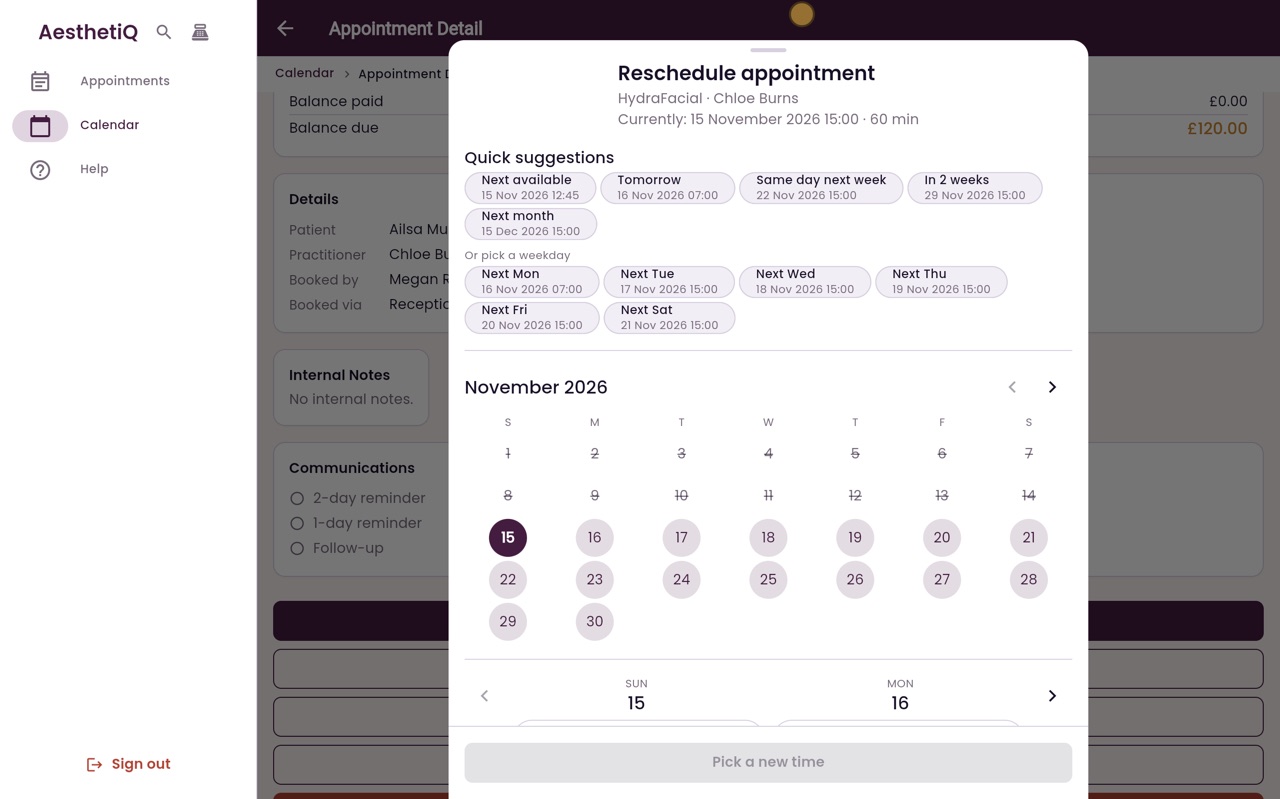
Move an appointment with Reschedule, which offers the practitioner's free times, or by dragging it on the calendar. A drag can be undone straight away.
Cancelling an appointment and the late fee
Cancel Appointment shows what the cancellation policy means for the deposit before you confirm. Afterwards the appointment shows what the clinic keeps and what is to give back.
Marking a no-show
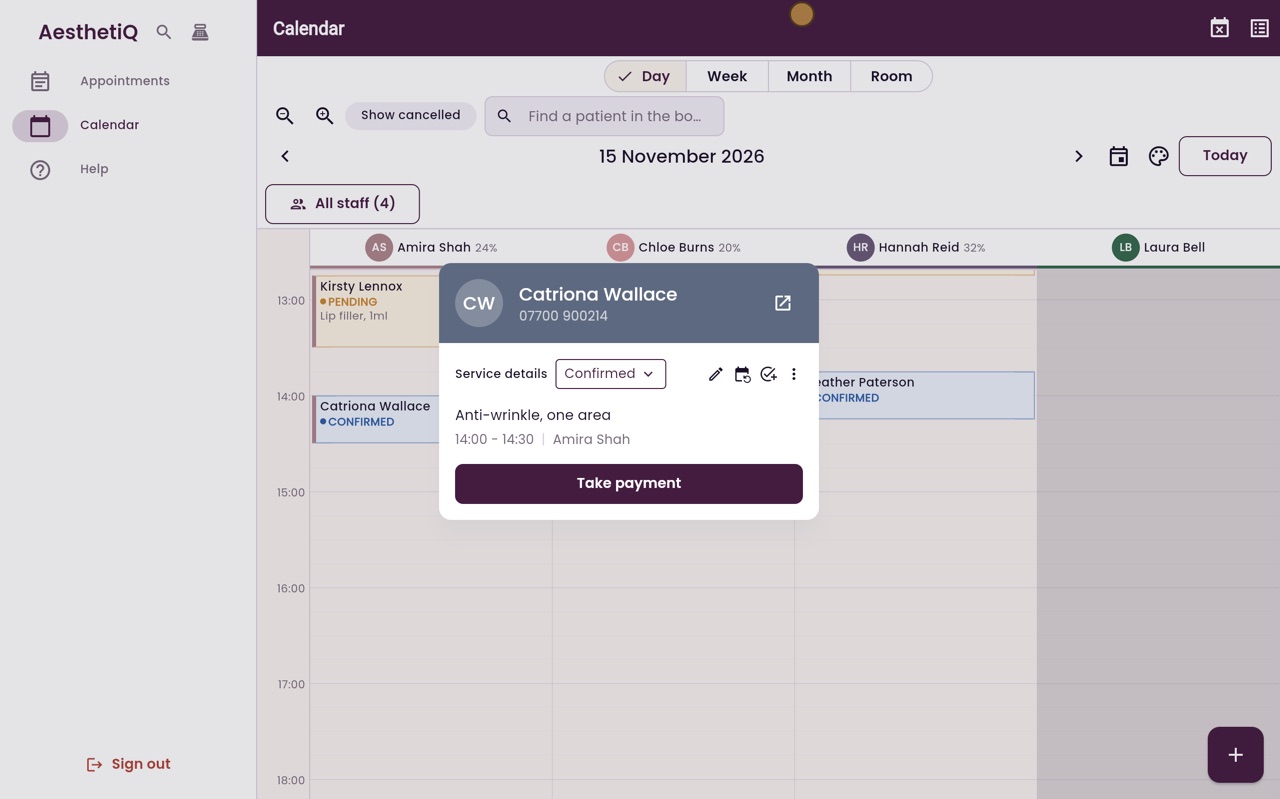
Right-click the appointment on the calendar, click the status and choose No Show. AesthetiQ asks first and shows what happens to the deposit.
Locking an appointment so it cannot move
Lock an appointment from the right-click panel on the calendar. A locked appointment shows a small lock and cannot be dragged to another time.