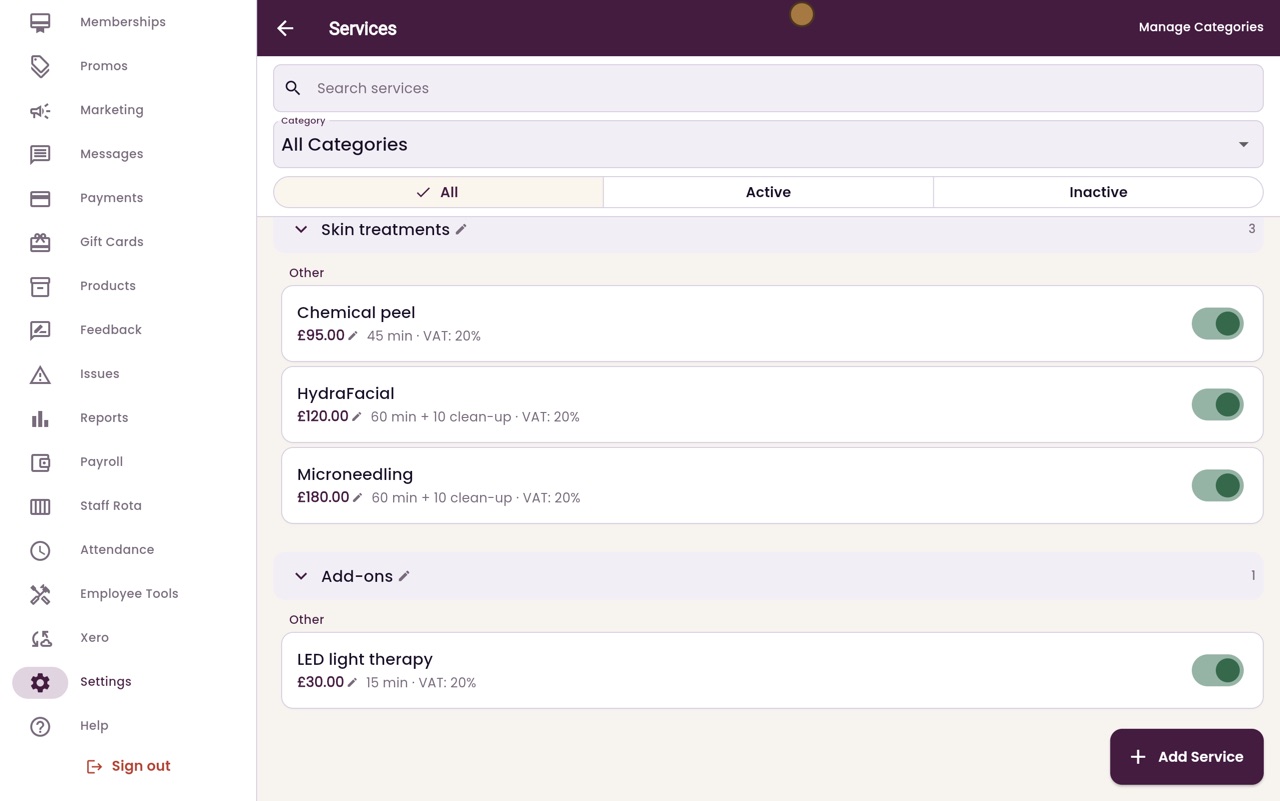
Treatments, prices and clean-up time
Set each treatment's price, duration, clean-up time, VAT rate, deposit and online booking.
Where
Settings, then Services; click a treatment to edit it.
Clean-up time
The practitioner cannot be booked for this long after the treatment.
On or off
The switch on each treatment turns it on or off.
Step by step
- 01Libby
Every treatment
Hi, I am Libby. Every treatment the clinic offers is set up in Services, with its price, how long it takes, and any clean-up time the room needs afterwards.
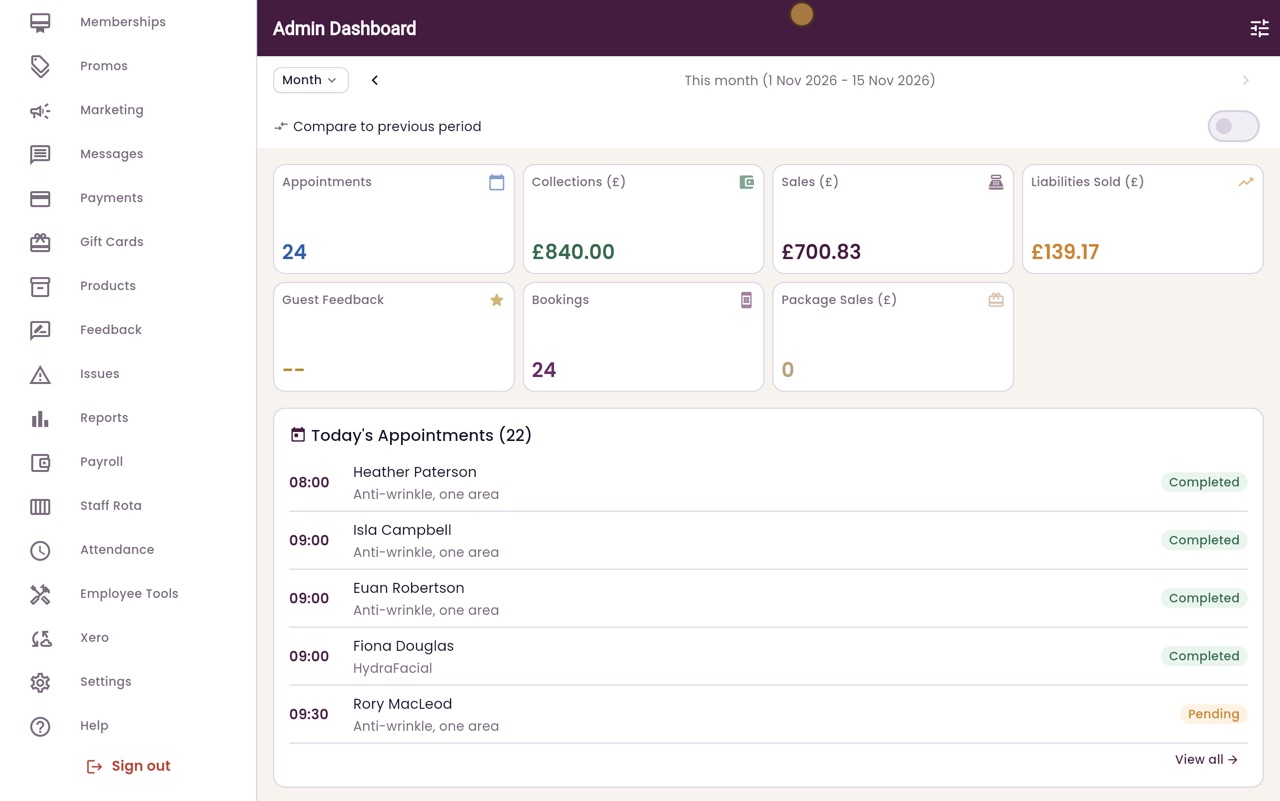
- 02Ryan
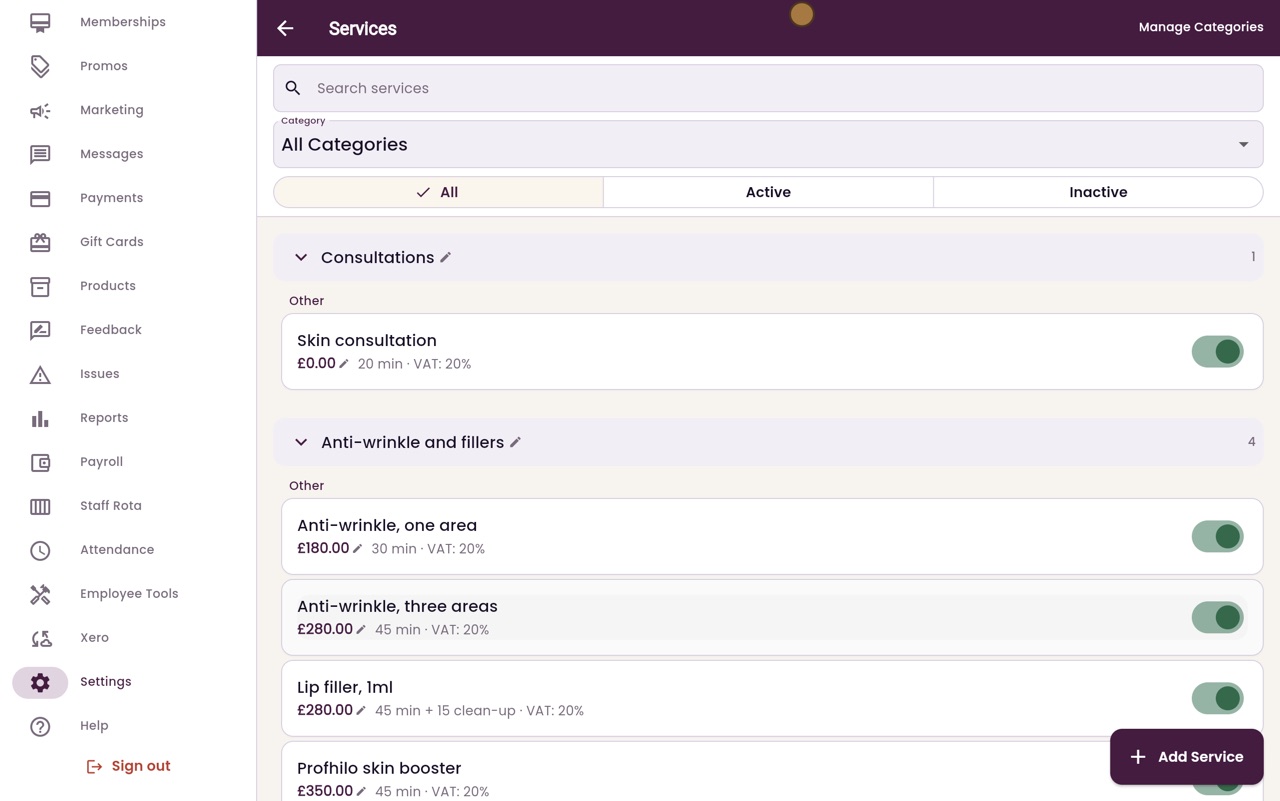
Services
Thanks Libby. In Settings, click Services. Treatments are grouped by category, each with its price, how long it takes, any clean-up time and its VAT rate. The switch turns a treatment on or off.
- 03Ryan
Open a treatment
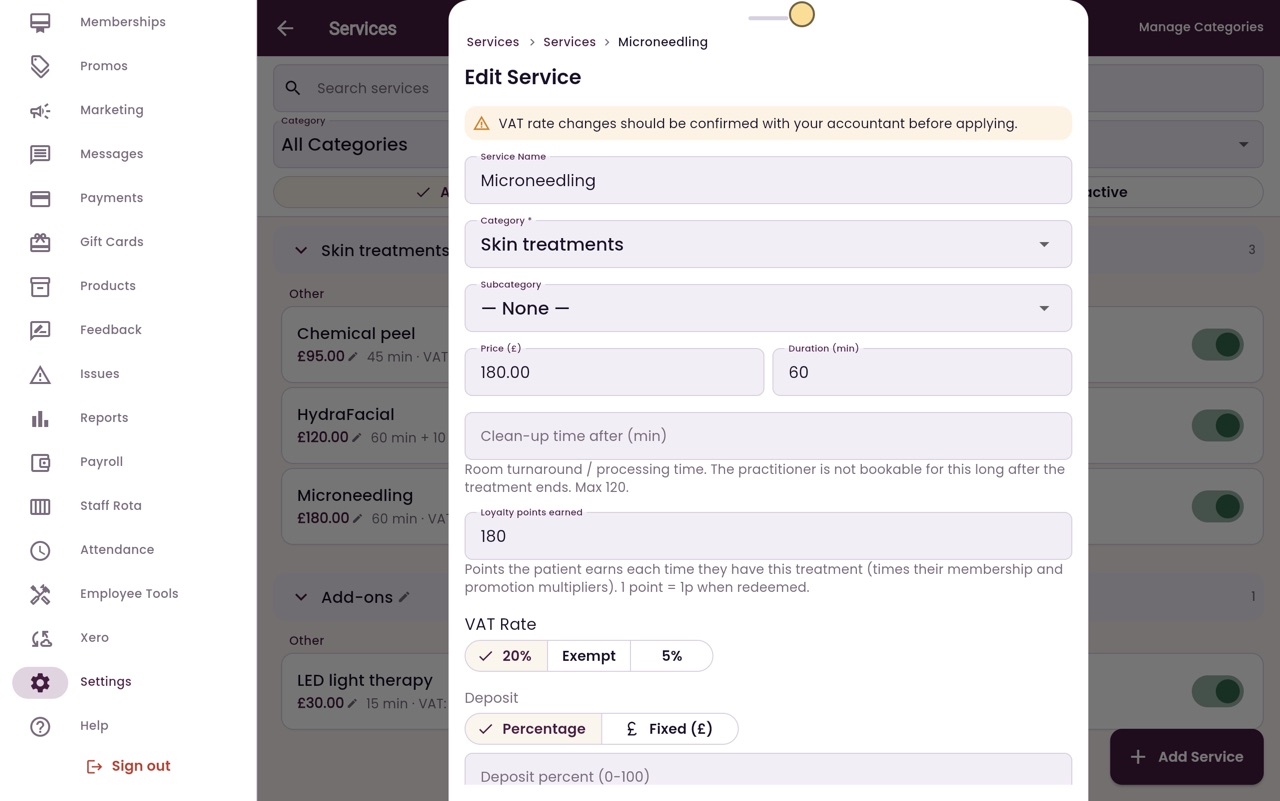
Click a treatment to change it. Here, Microneedling.
- 04Ryan
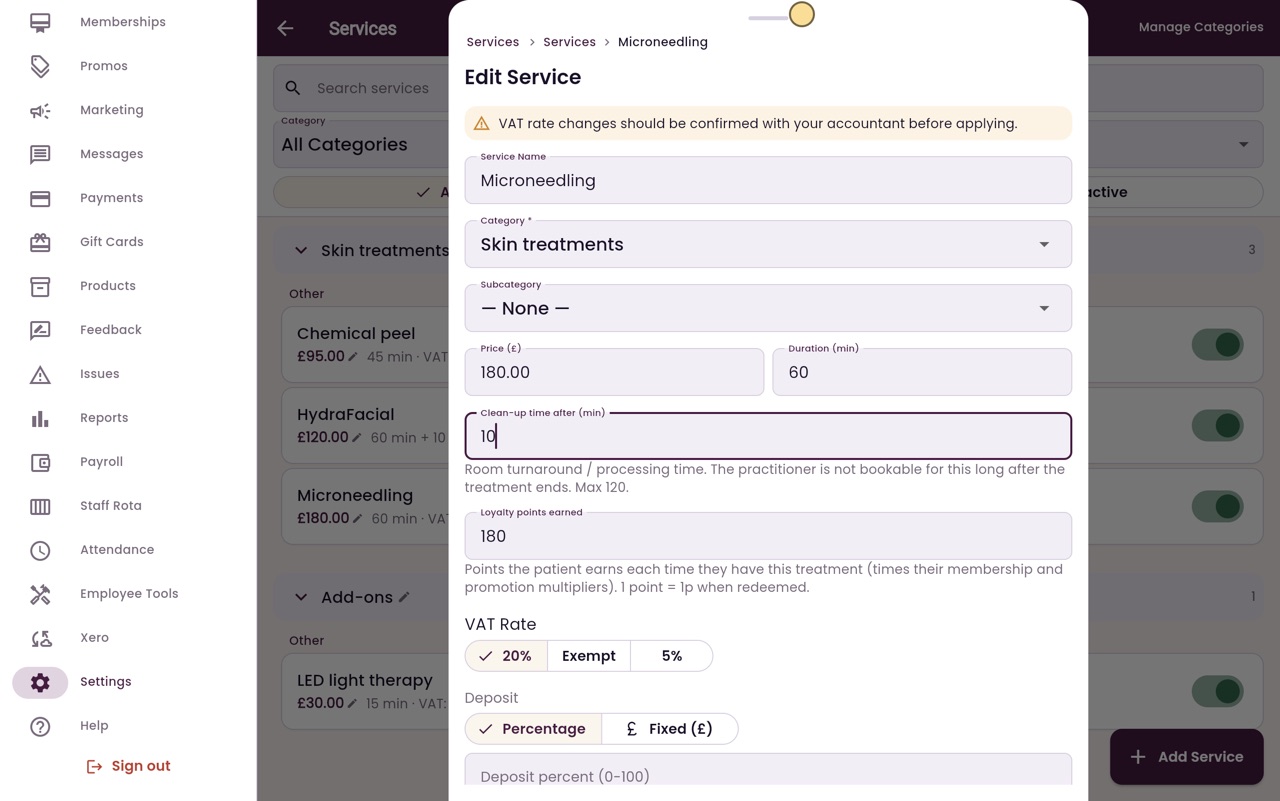
Clean-up time
The price and duration are at the top. Clean-up time after is how long the practitioner cannot be booked once the treatment ends. Here we add ten minutes.
- 05Ryan
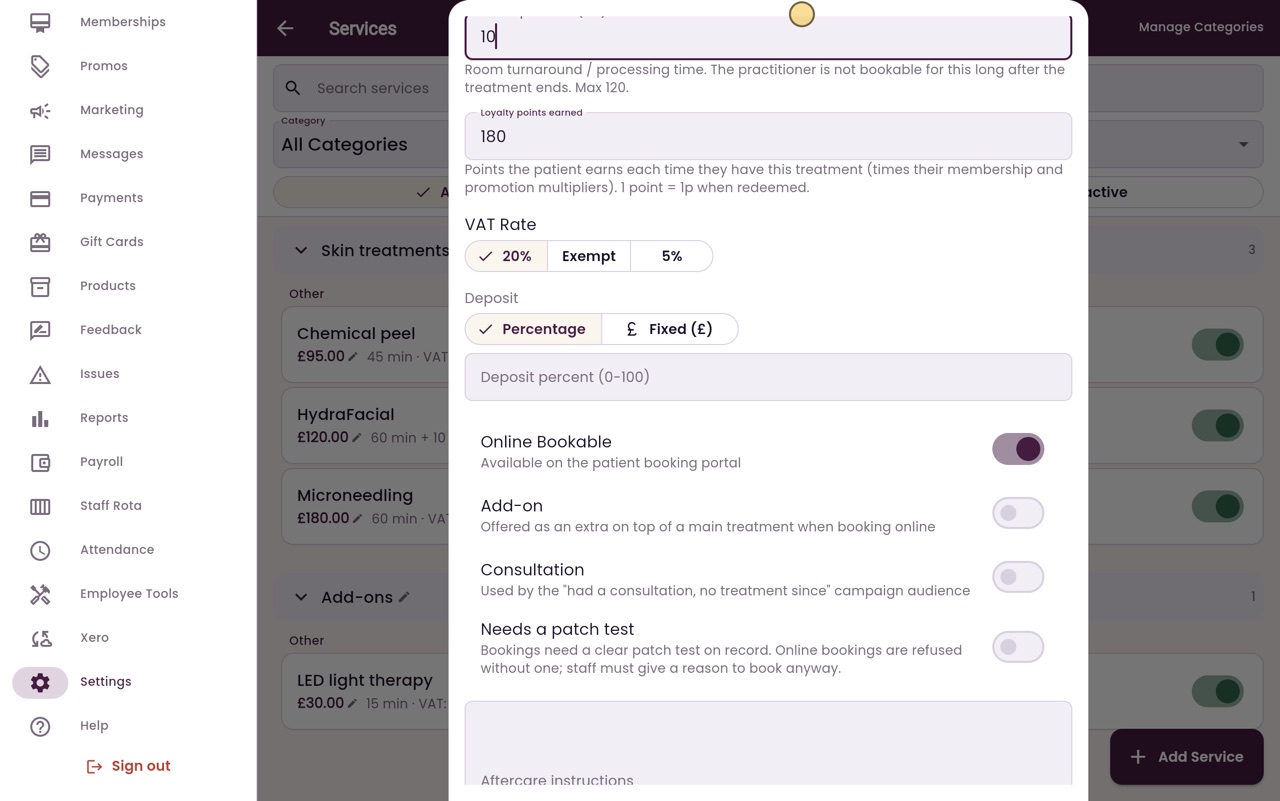
Points, VAT and deposit
Further down are the loyalty points it earns, the VAT rate, the deposit, and whether patients can book it online.
- 06Ryan
Save
Click Save at the bottom.
- 07Ryan
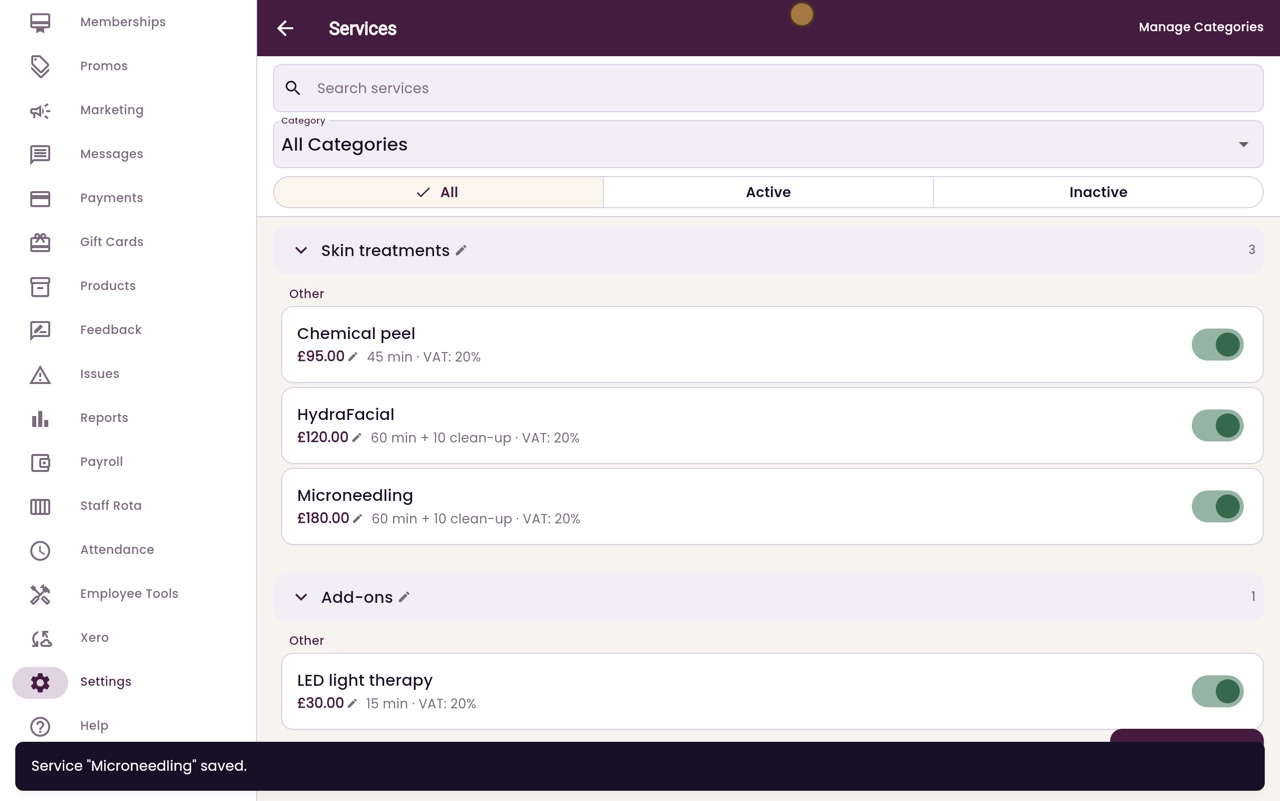
Saved
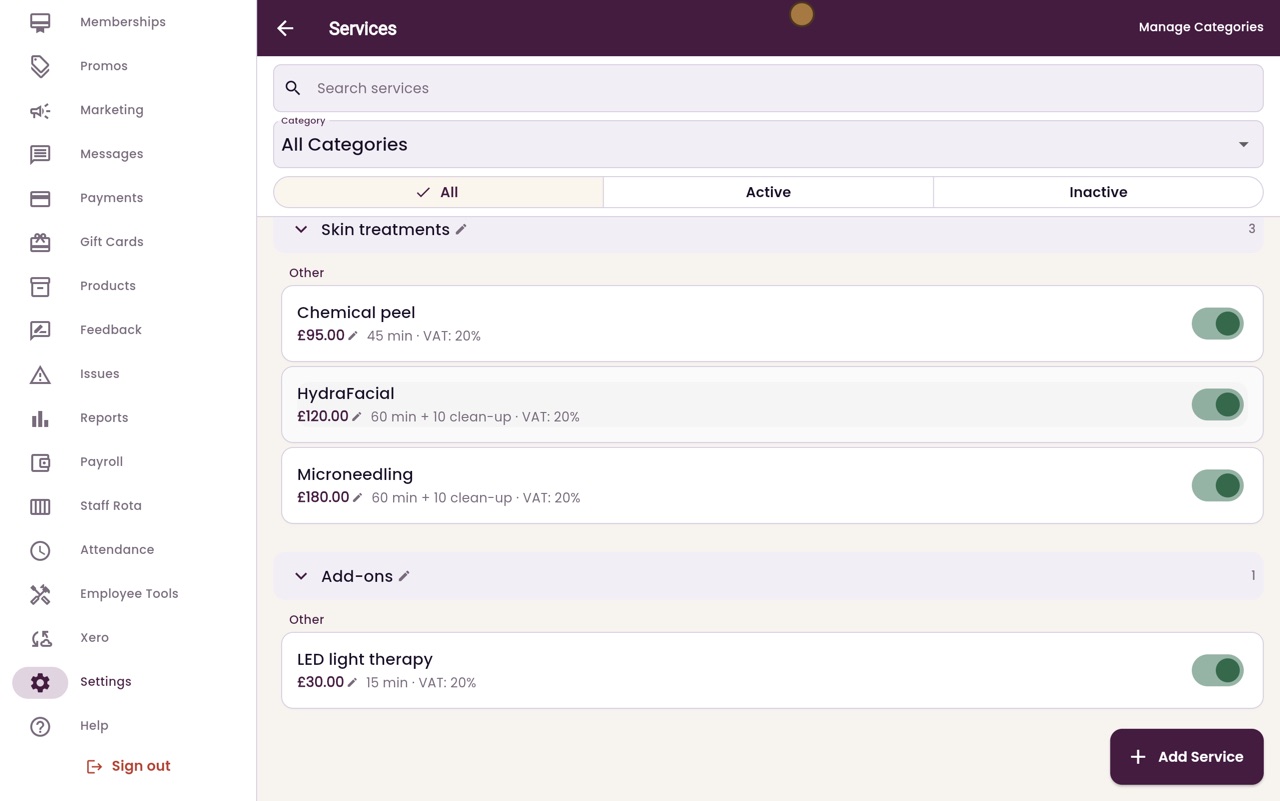
Microneedling now shows sixty minutes, plus ten minutes of clean-up.
- 08Libby
Done
That is setting up treatments and prices. New bookings now keep the clean-up time free after each Microneedling appointment.