Ordering stock with a purchase order
Order stock from a supplier with a purchase order: add the products, quantities and costs, the delivery charge and date, then mark it as ordered.
Where
Products, then Purchase orders, then New order.
Record
Supplier, products, quantities, unit costs before VAT, delivery charge, expected date and notes.
After
The order shows Ordered and goods can be received against it.
Step by step
- 01Libby
Why use purchase orders
Hi, I am Libby. When stock runs low, order more from a supplier with a purchase order. AesthetiQ keeps a record of what was ordered, what it costs and when it is due.
- 02Ryan
Start a new order
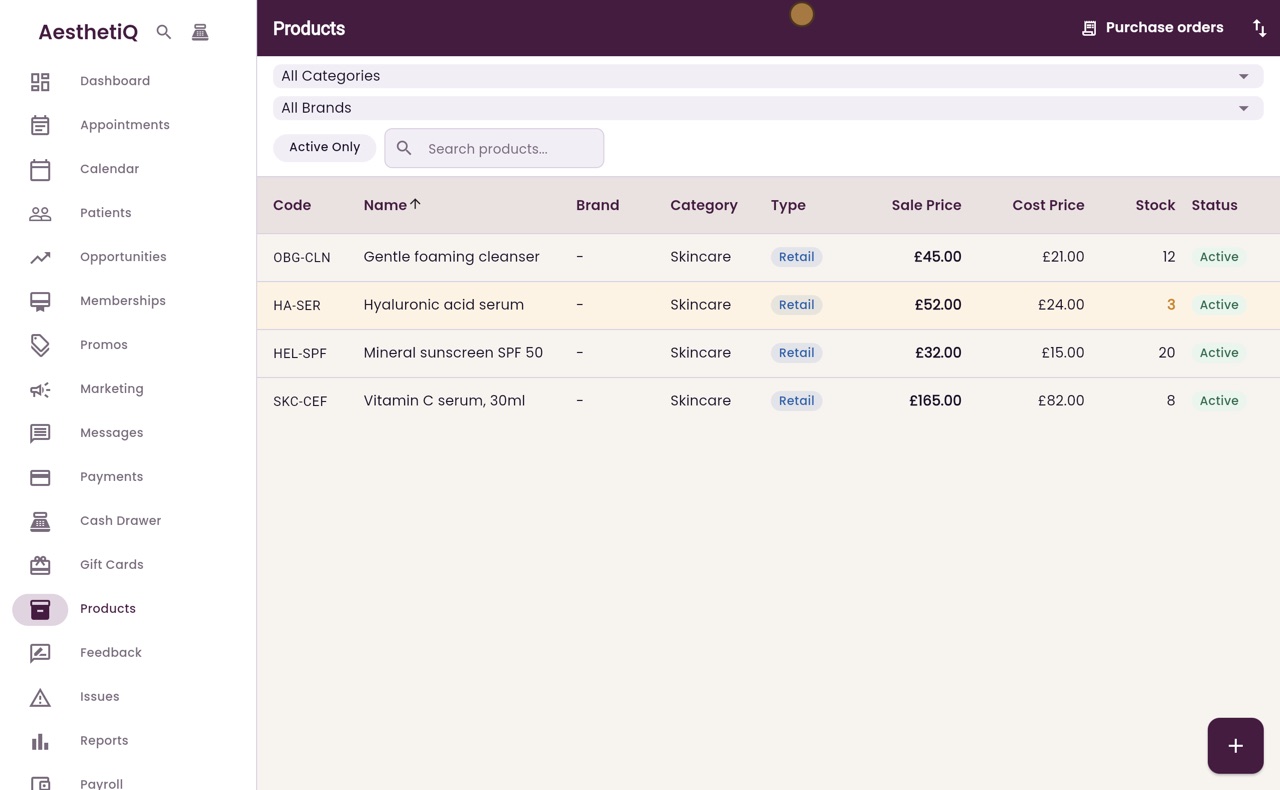
Thanks Libby. On the Products screen, click Purchase orders at the top. Click New order, then choose the supplier, here Northern Aesthetics Supplies.
- 03Ryan
The draft order
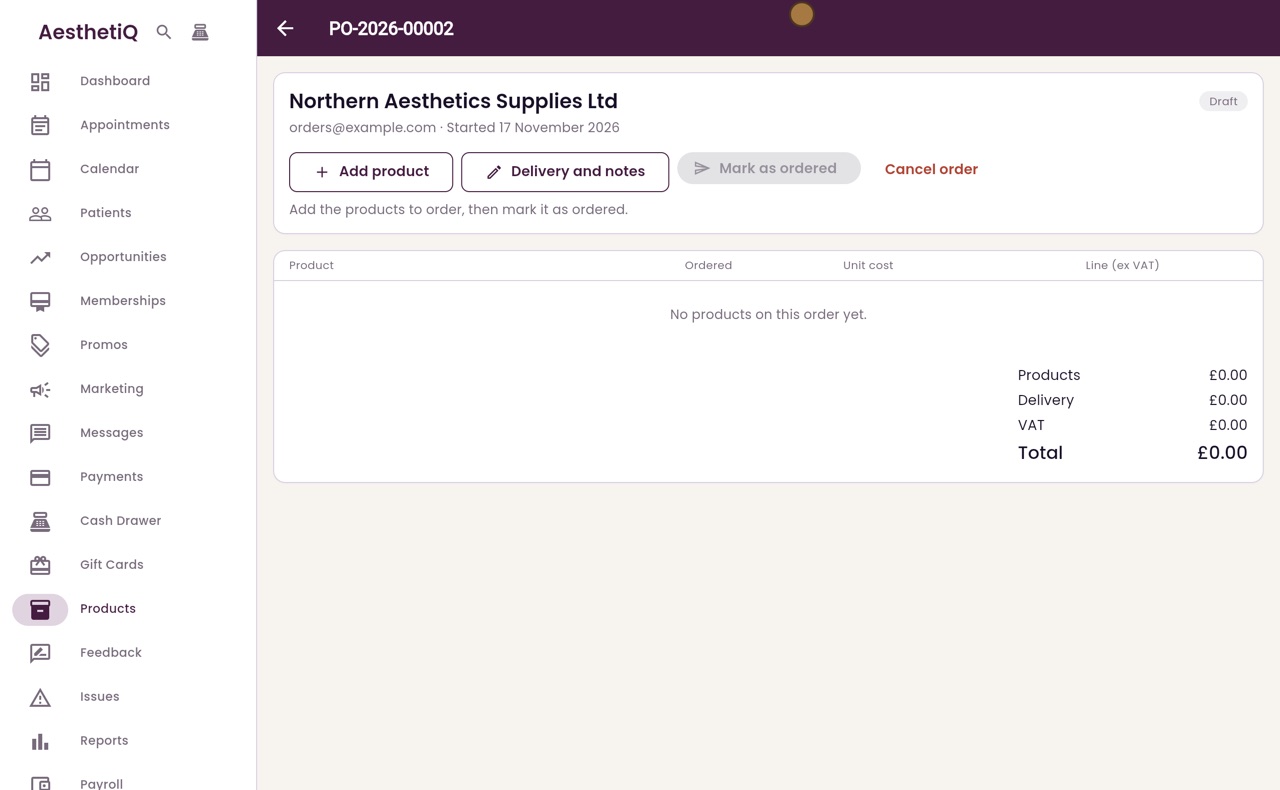
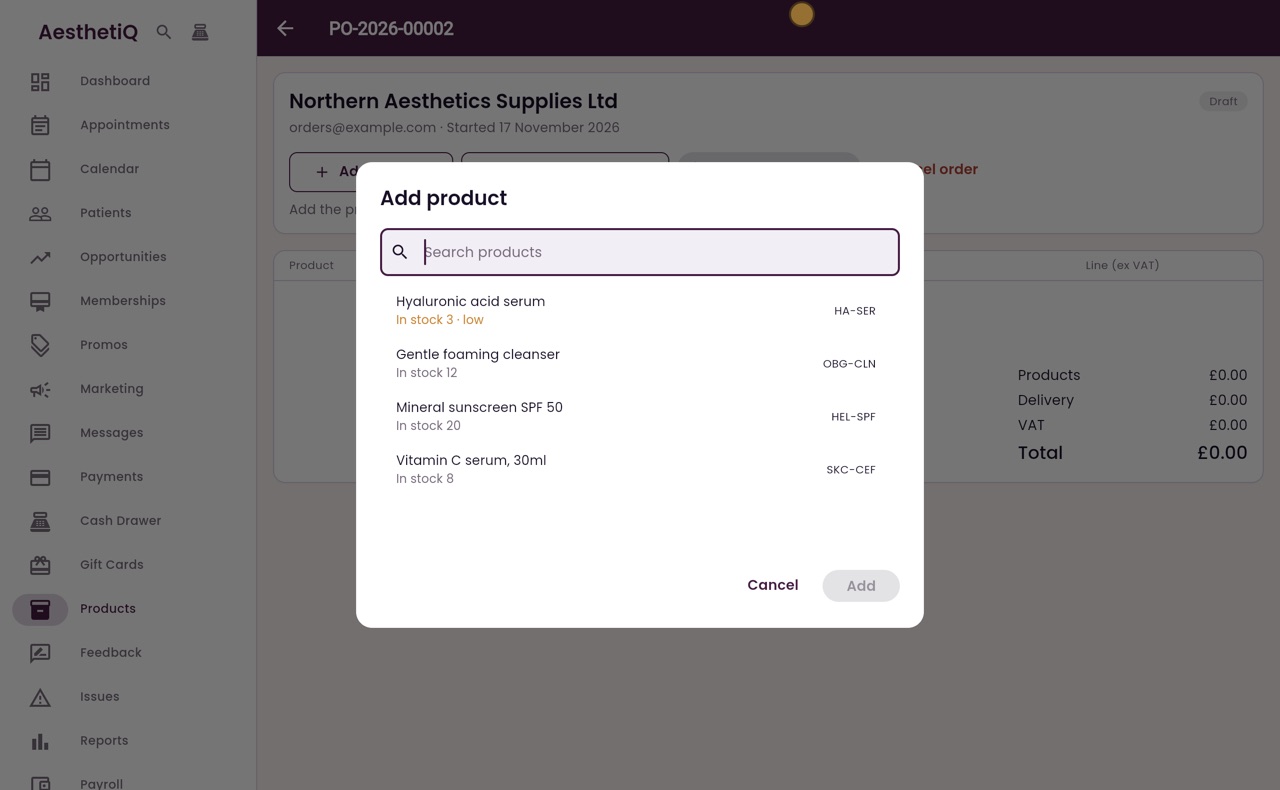
AesthetiQ starts a draft order with its own number. Click Add product. Products that are low on stock are at the top of the list.
- 04Ryan
Add a product
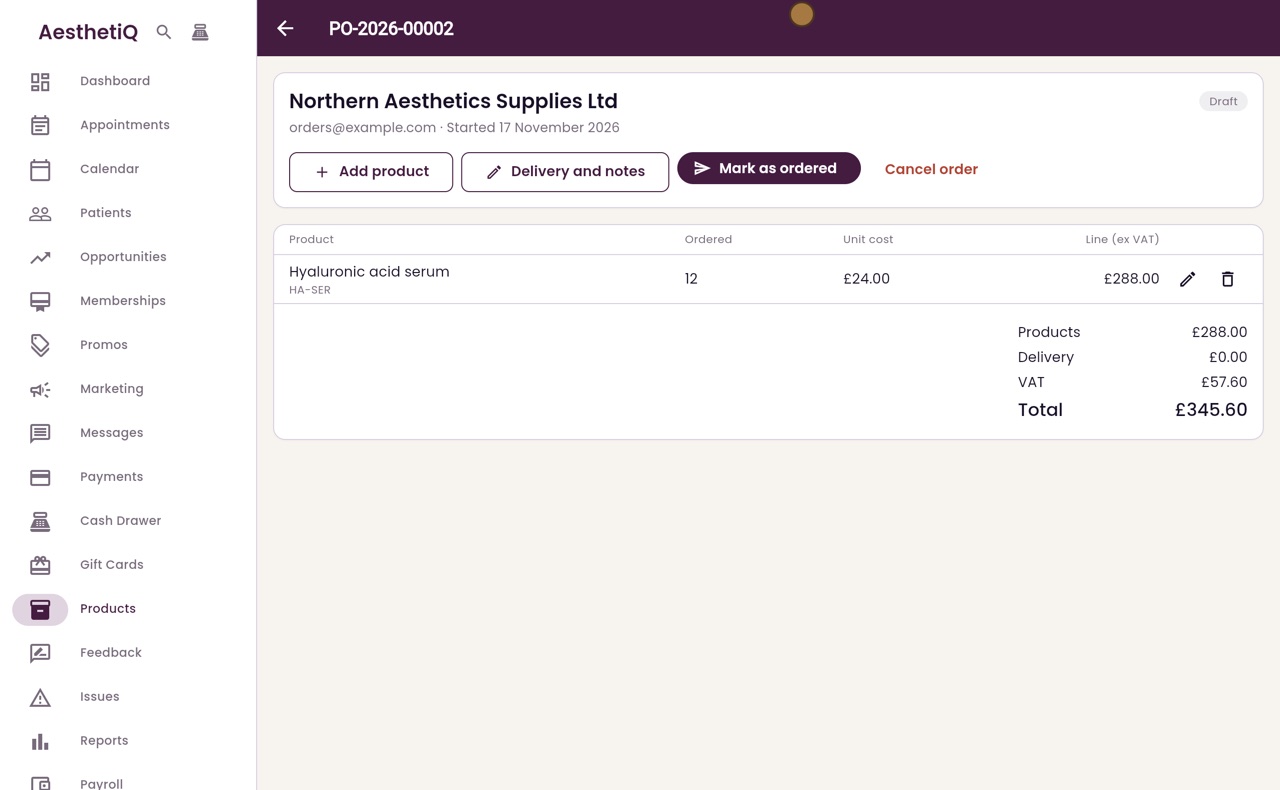
Click Hyaluronic acid serum and type the quantity, here twelve. The unit cost before VAT is filled in from the product, and you can change it. Click Add.
- 05Ryan
Add another product
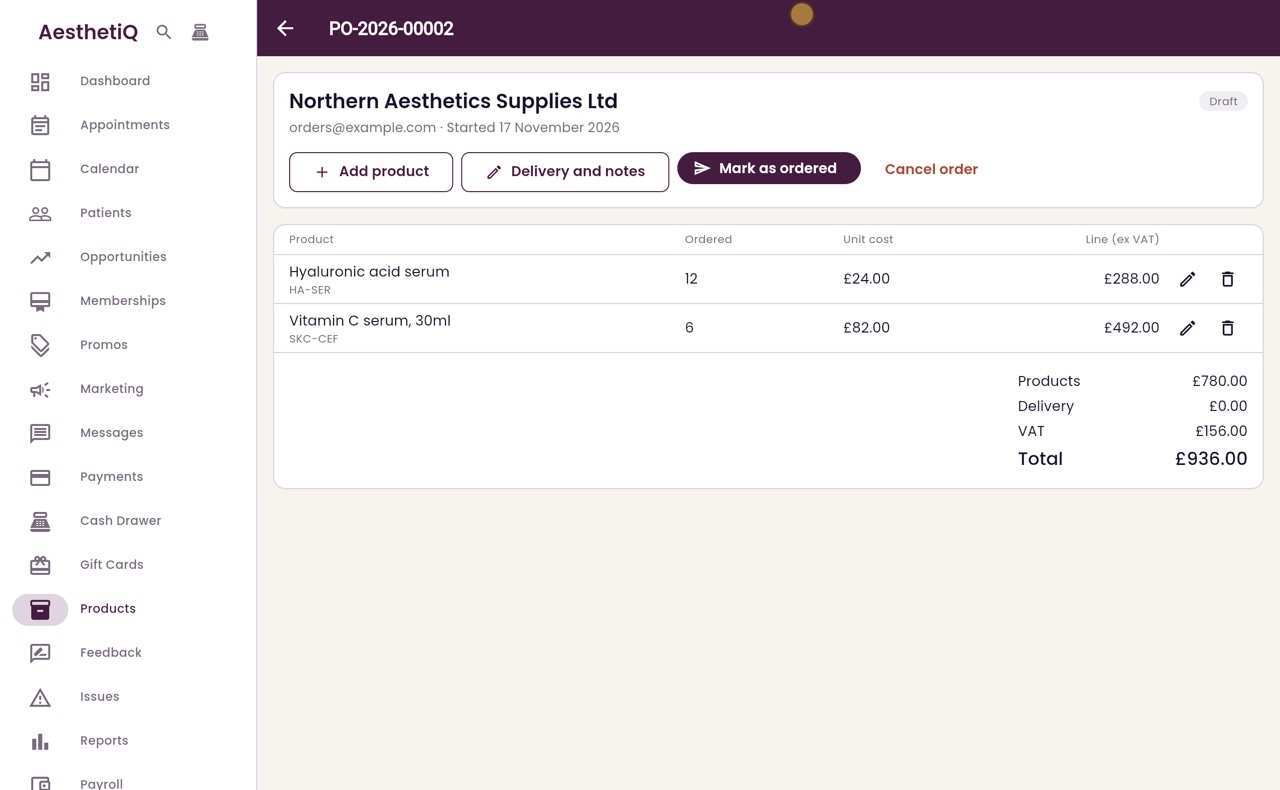
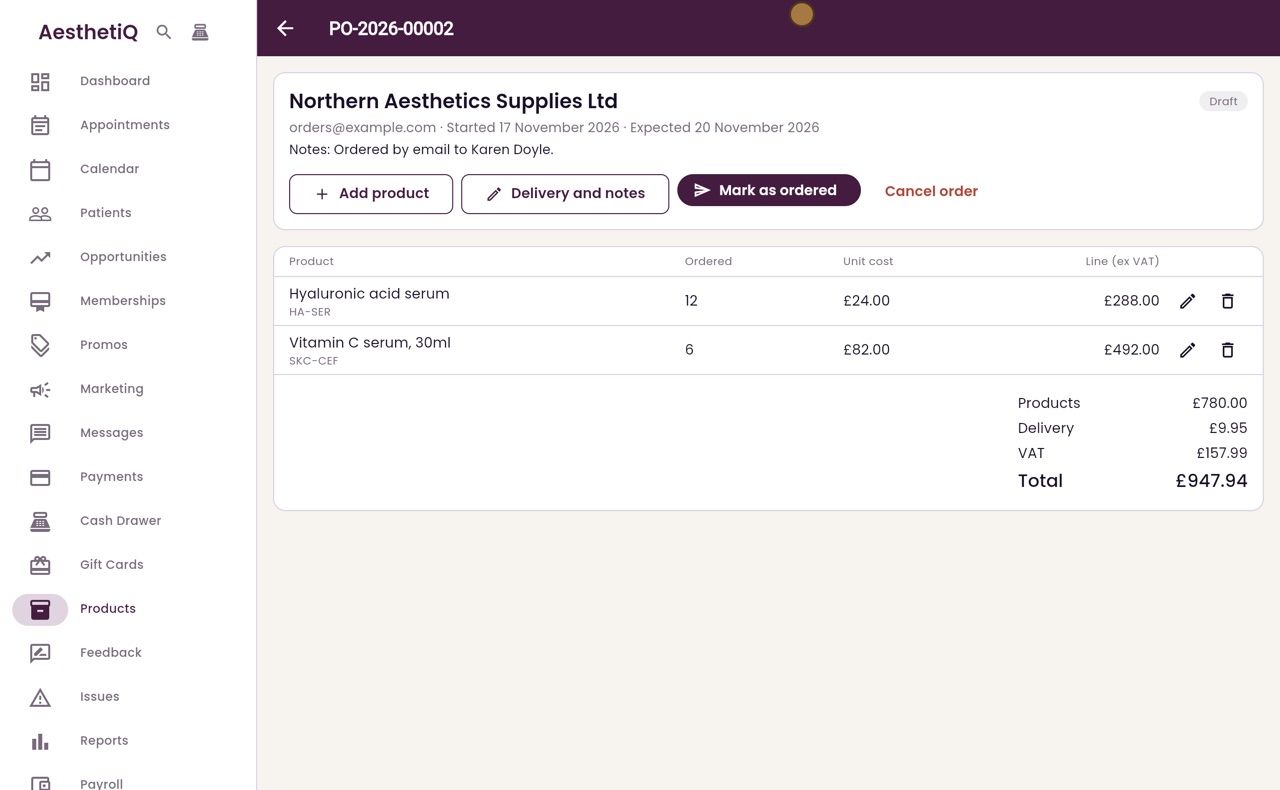
Add the second product the same way: six bottles of Vitamin C serum, at eighty two pounds each.
- 06Ryan
Lines, VAT and totals
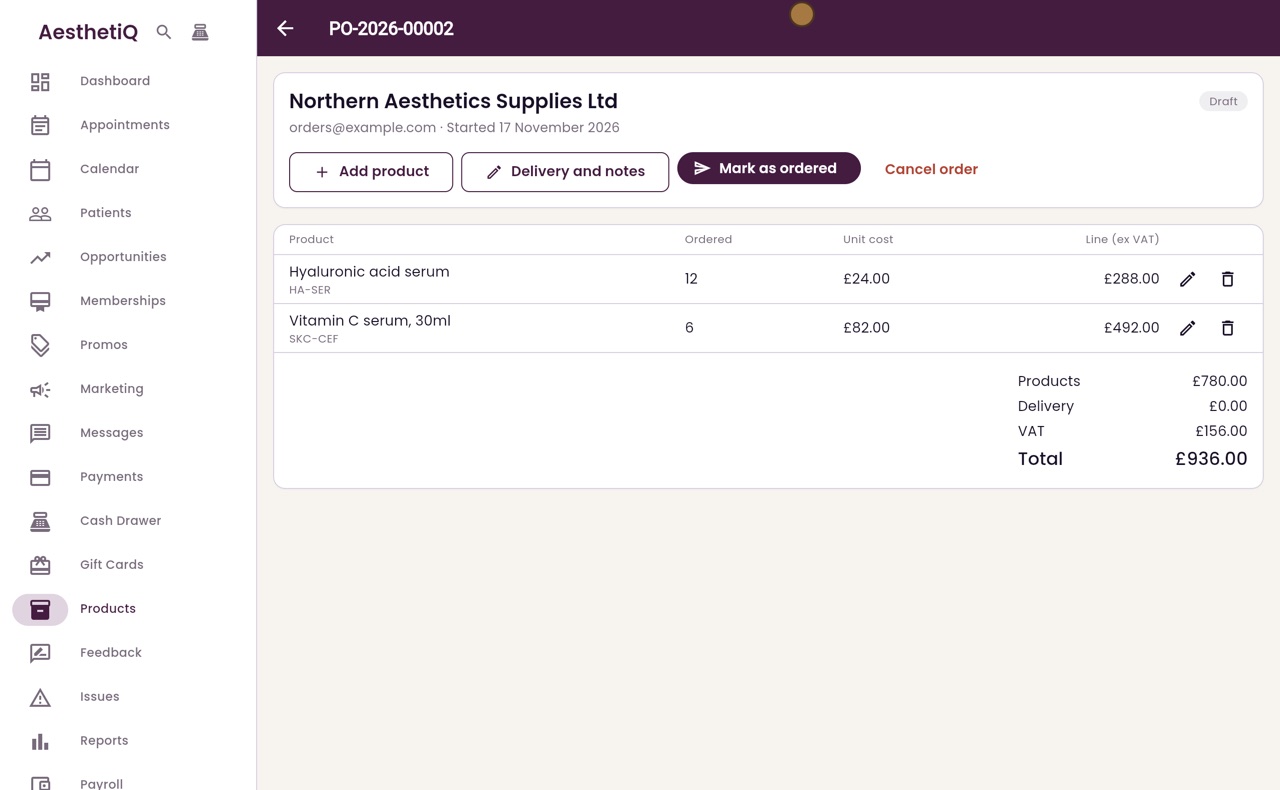
Each line shows the quantity, the unit cost and the line total before VAT. VAT is worked out on each line from the product's own VAT rate, and the totals underneath add it all up.
- 07Ryan
Delivery charge and date
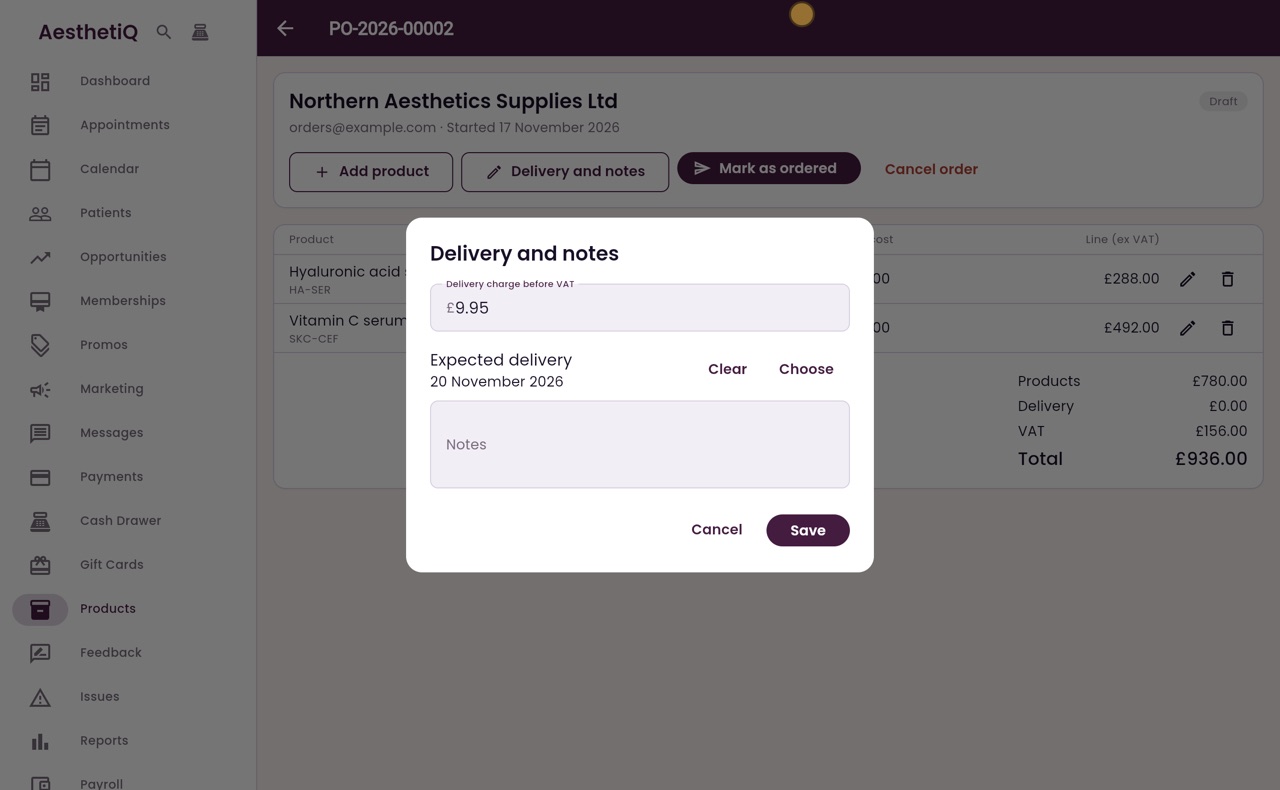
Click Delivery and notes. Type the delivery charge before VAT. Click Choose and pick the day the supplier expects to deliver, then click OK.
- 08Ryan
Notes and save
Add a note if you need one, then click Save. The delivery charge is added to the totals, and the expected date is at the top.
- 09Ryan
Mark as ordered
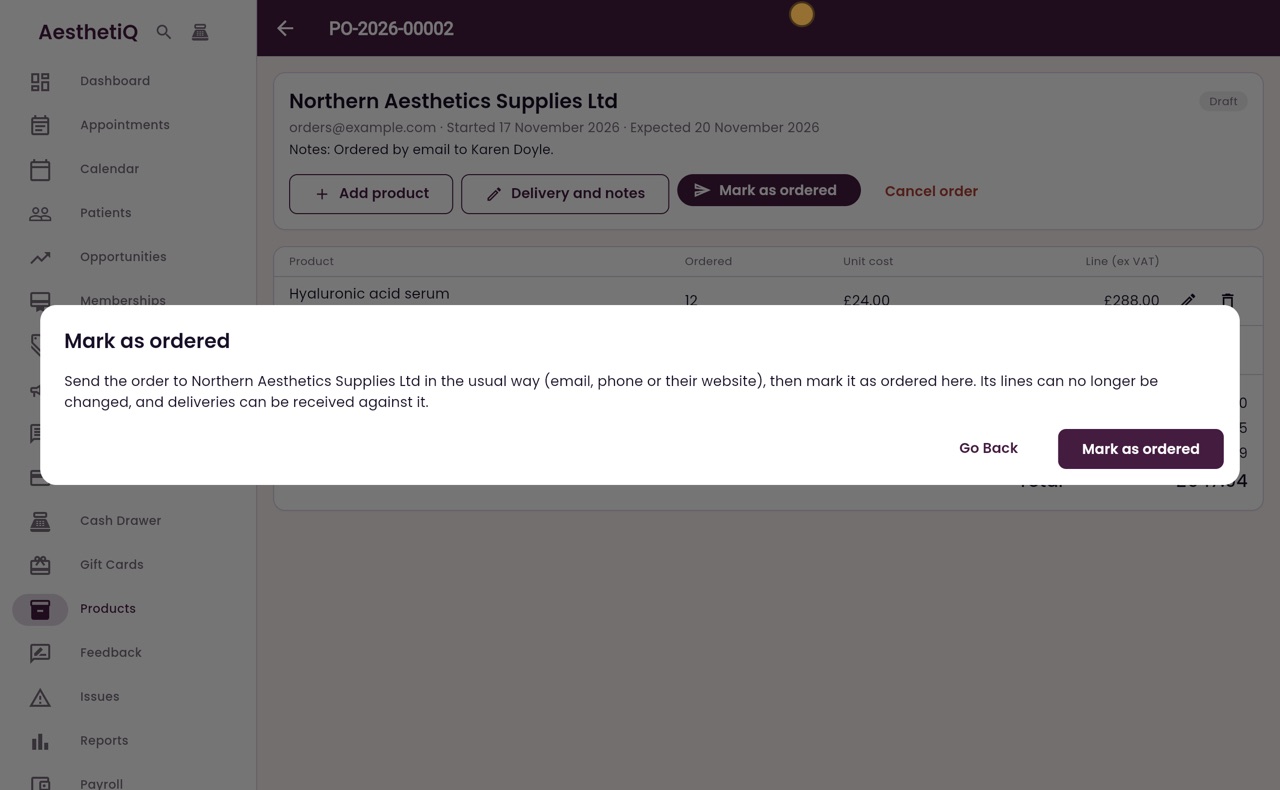
Send the order to the supplier in the usual way, by email, phone or their website. Then click Mark as ordered. AesthetiQ asks first, because the lines cannot be changed after this.
- 10Ryan
Ordered
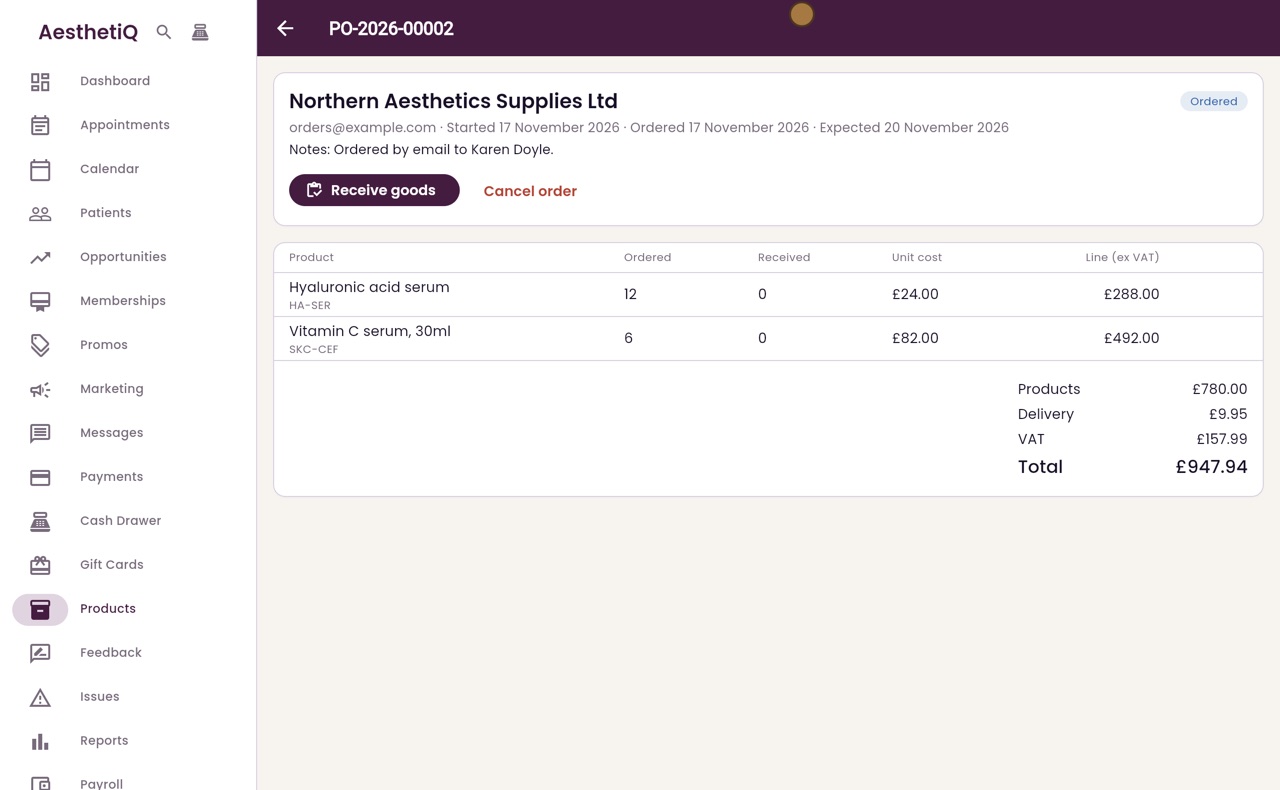
Click Mark as ordered. The order now shows Ordered, with the date it was ordered and the expected delivery date. Deliveries can now be received against it.
- 11Ryan
The orders list
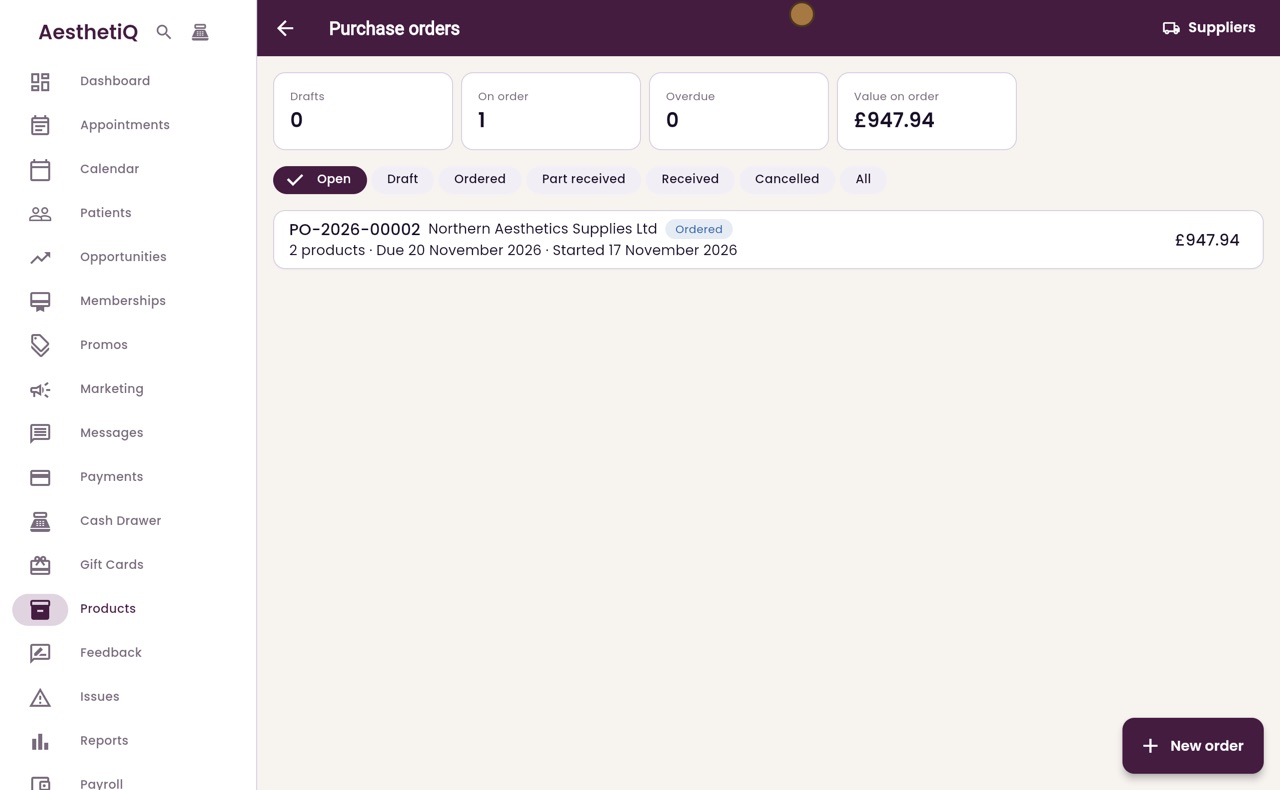
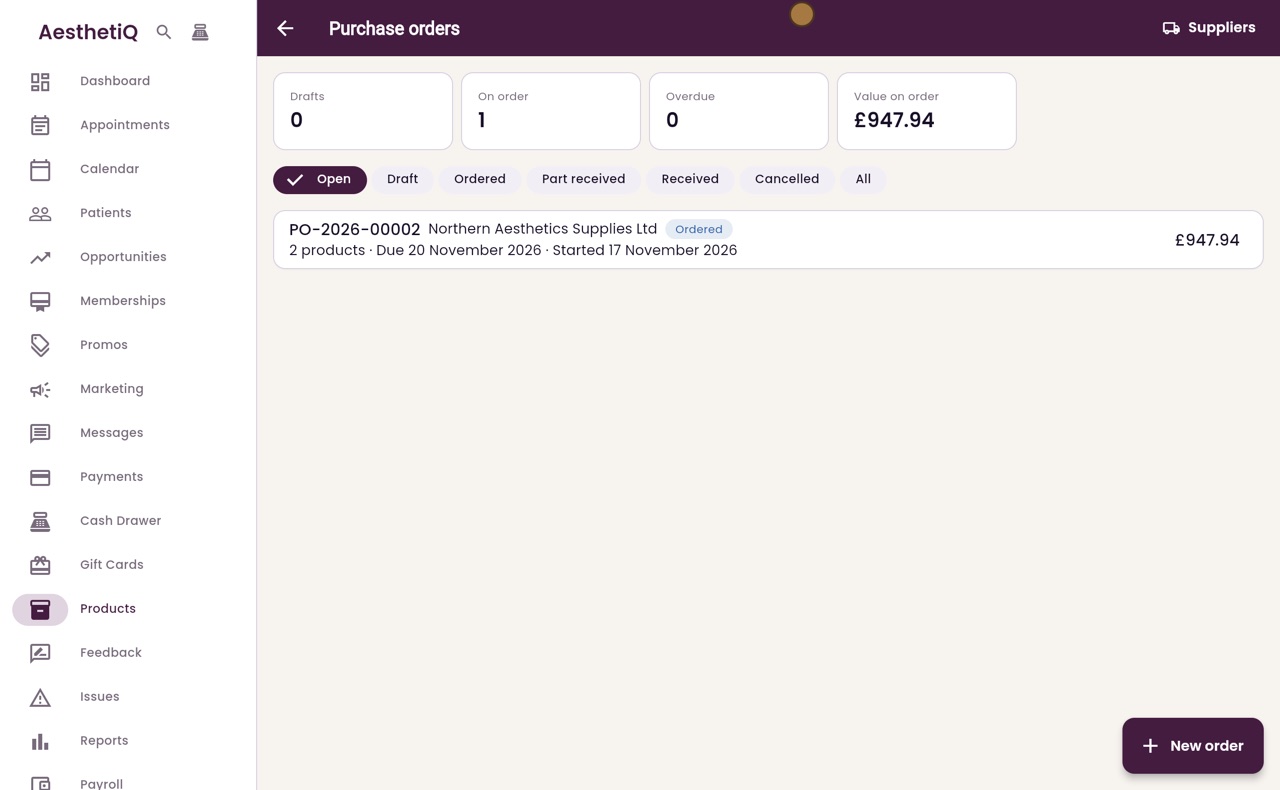
Click Back. The order is on the list, with its supplier and due date. At the top you can see how many orders are on order and their value.
- 12Libby
Done
That is ordering stock with a purchase order. When the delivery arrives, open the order and click Receive goods to add it to stock.