Adding a supplier
Add the companies you buy stock from, with a contact, email, phone, your account number and their address. They are then ready for purchase orders.
Where
Products, then Purchase orders, then Suppliers.
Record
Name, contact, email, phone, account number, address, VAT number and notes.
After
The supplier is on the list and can be chosen for a purchase order.
Step by step
- 01Libby
Why add suppliers
Hi, I am Libby. Before you order stock in AesthetiQ, add the companies you buy it from as suppliers. Their details are then on every purchase order.
- 02Ryan
Open Suppliers
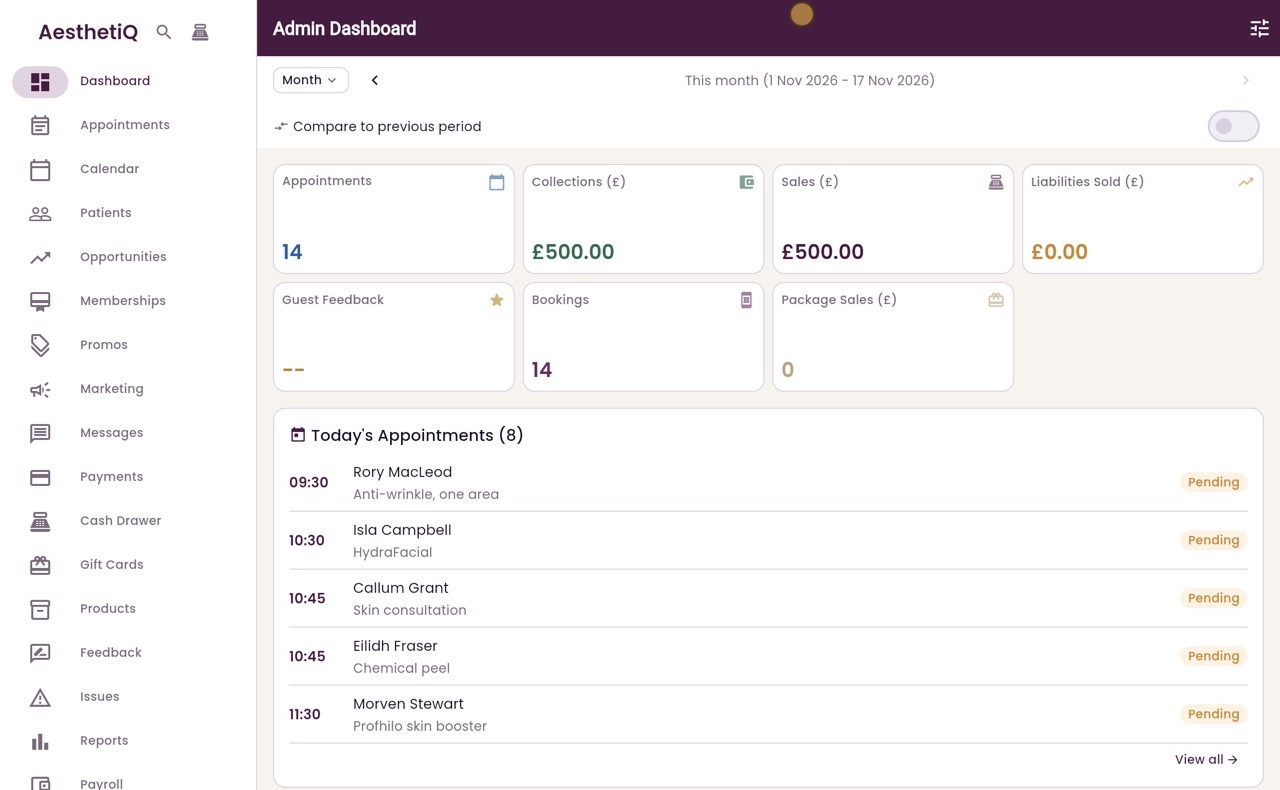
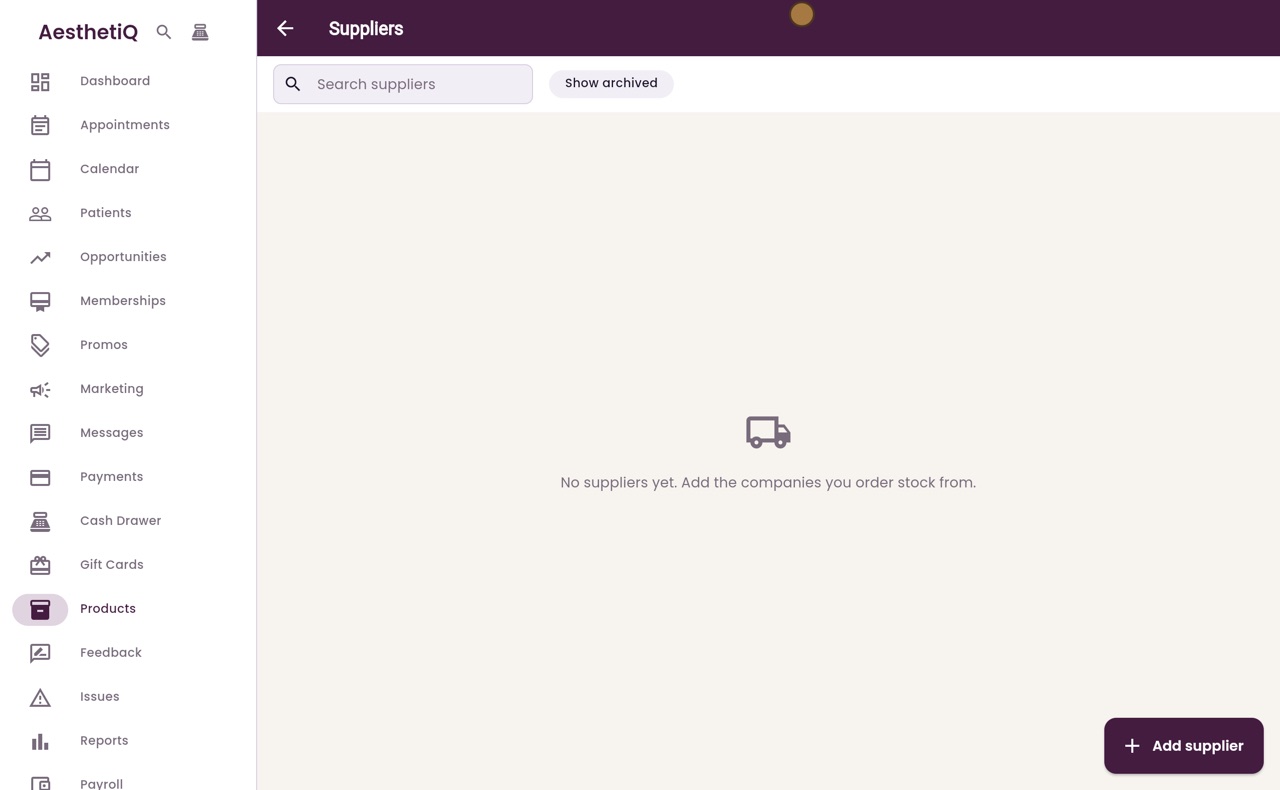
Thanks Libby. Click Products in the menu, then Purchase orders at the top. Click Suppliers. There are no suppliers yet.
- 03Ryan
Name and contact
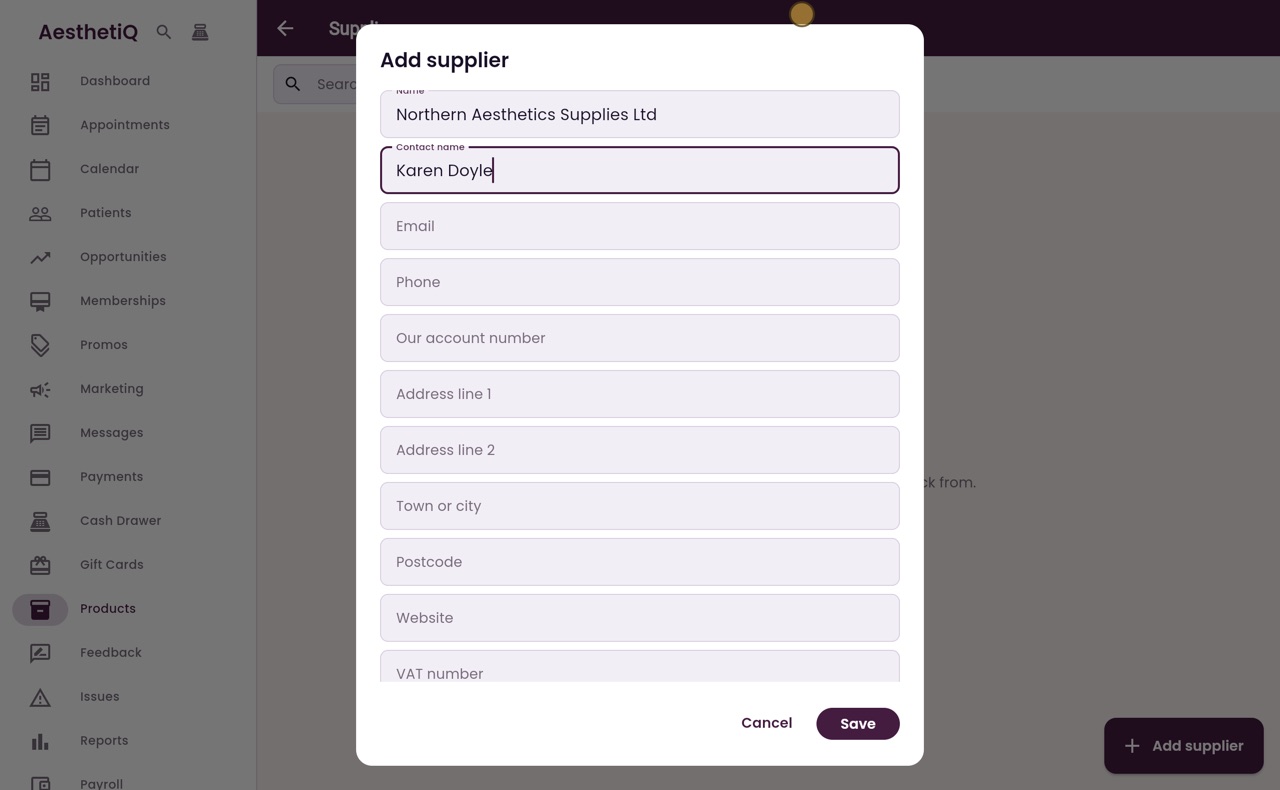
Click Add supplier, and a form opens. Type the company name as it appears on their invoices, then the name of the person you deal with there, here Karen Doyle.
- 04Ryan
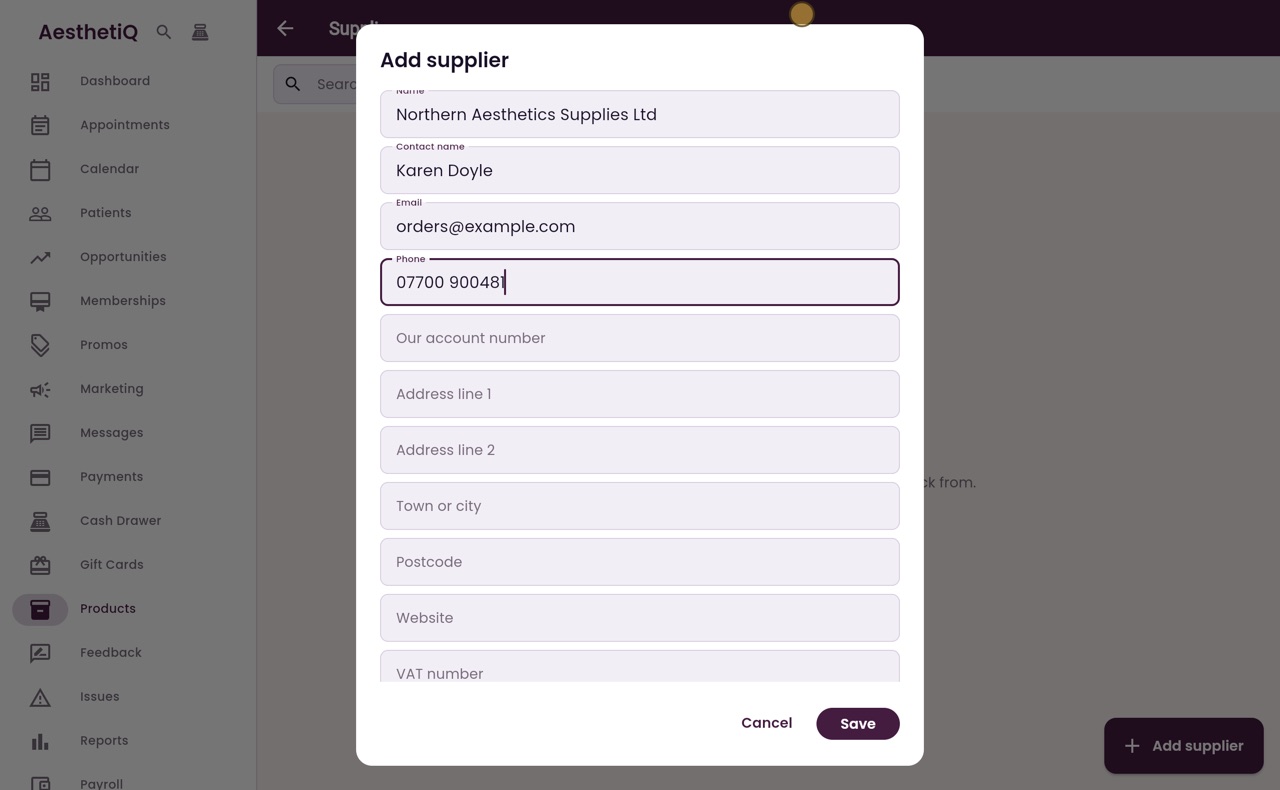
Email and phone
Add the email address for orders, and their phone number.
- 05Ryan
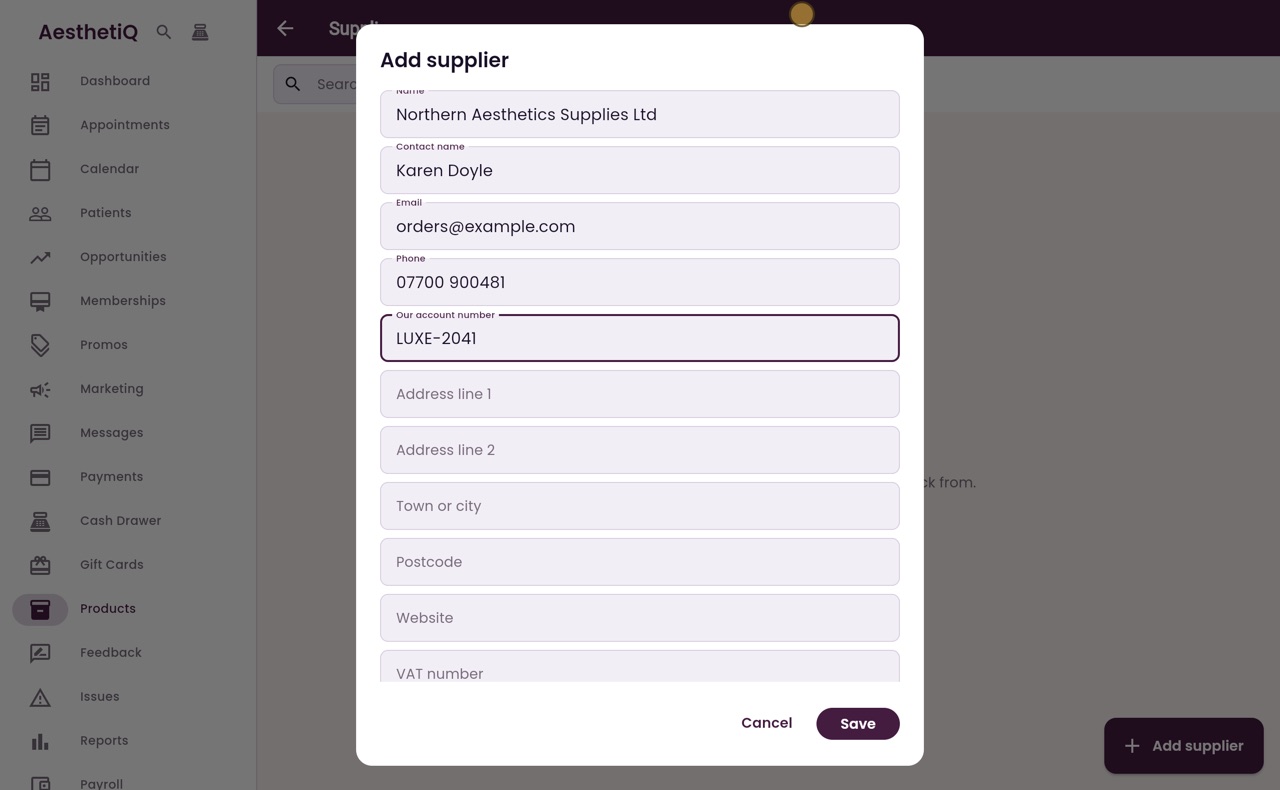
Account number
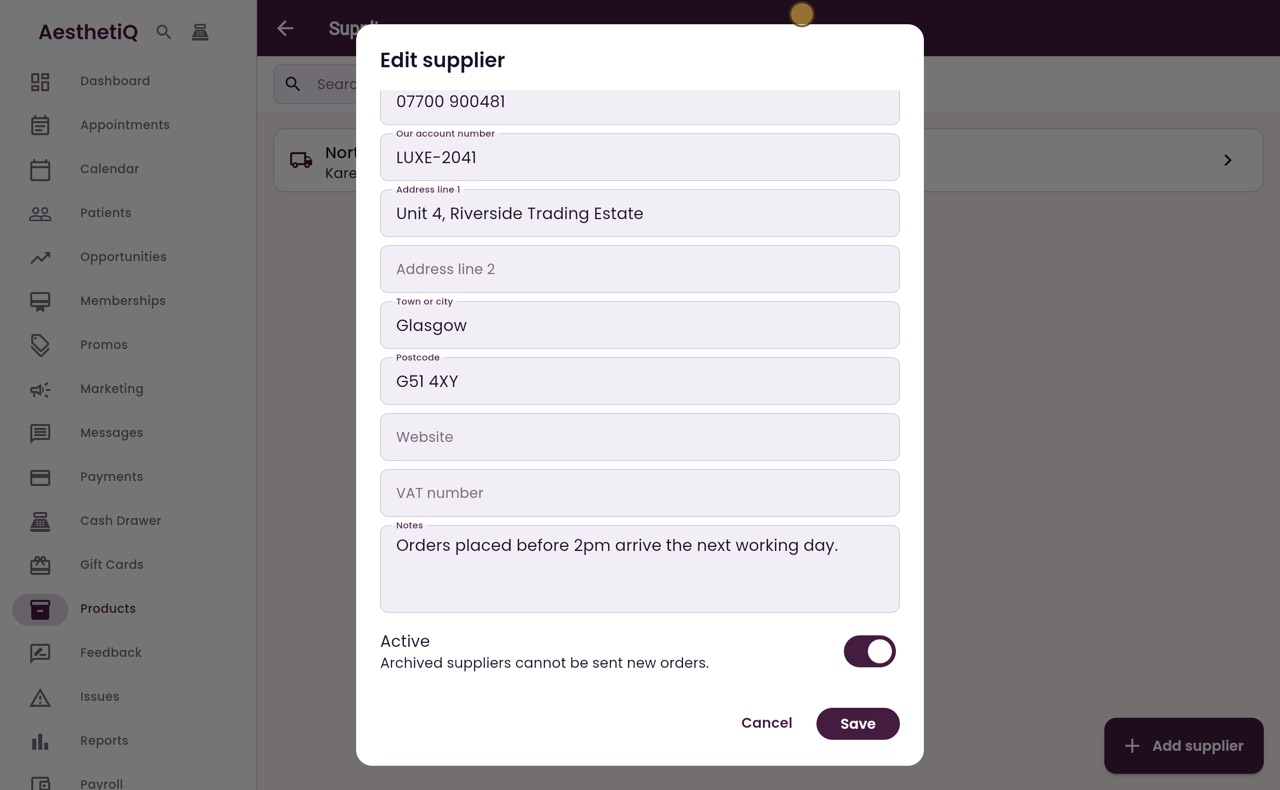
Type the account number the supplier gave the clinic. It helps them find your orders.
- 06Ryan
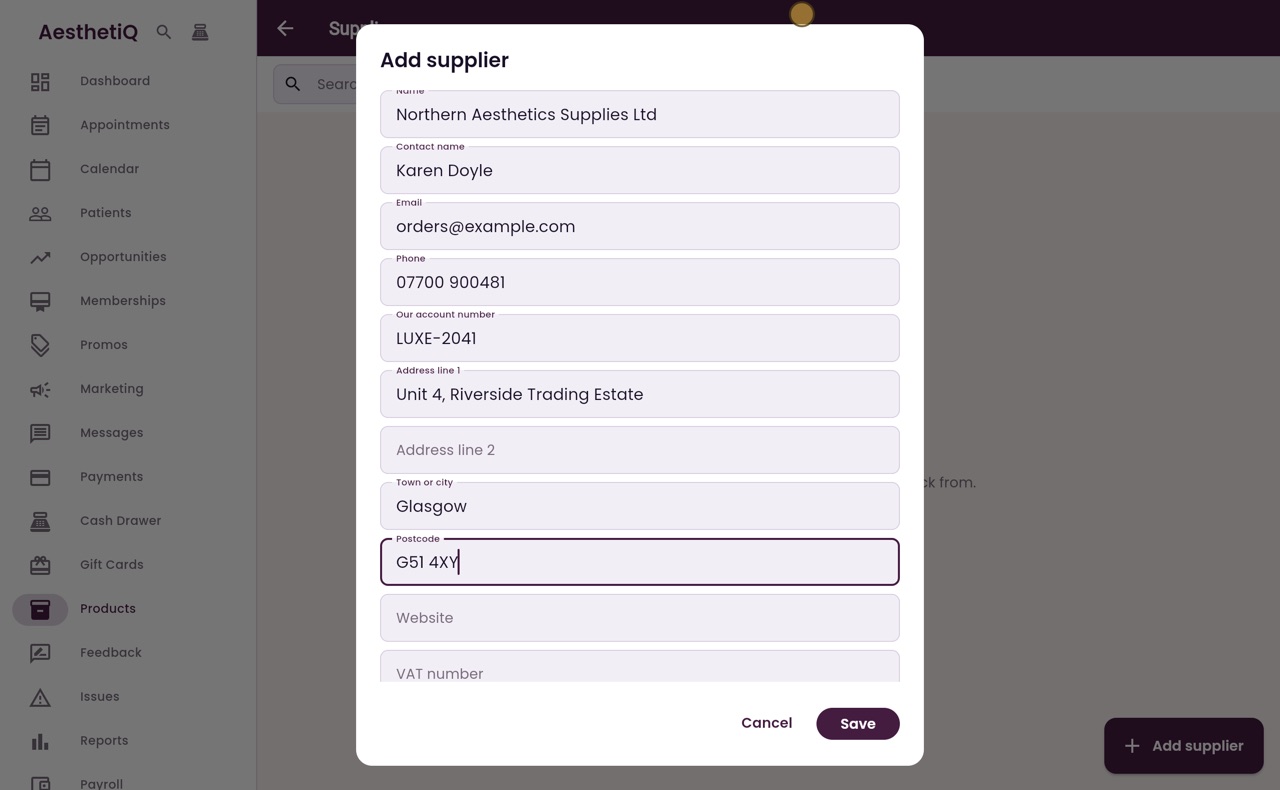
Address
Then type their address: the first line, the town or city, and the postcode. Leave any box you do not need empty.
- 07Ryan
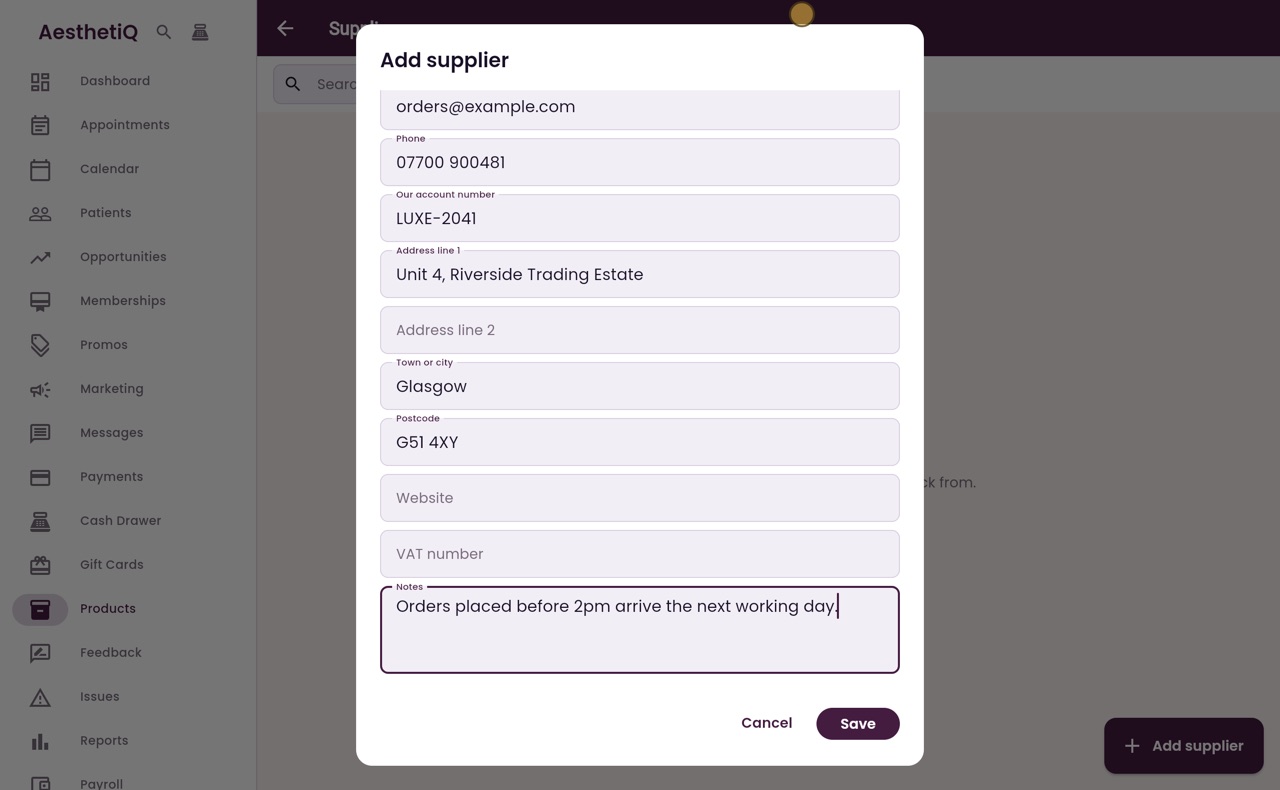
Website, VAT and notes
Further down are the website, the VAT number and notes. Here the note says when to order for next day delivery.
- 08Ryan
Save
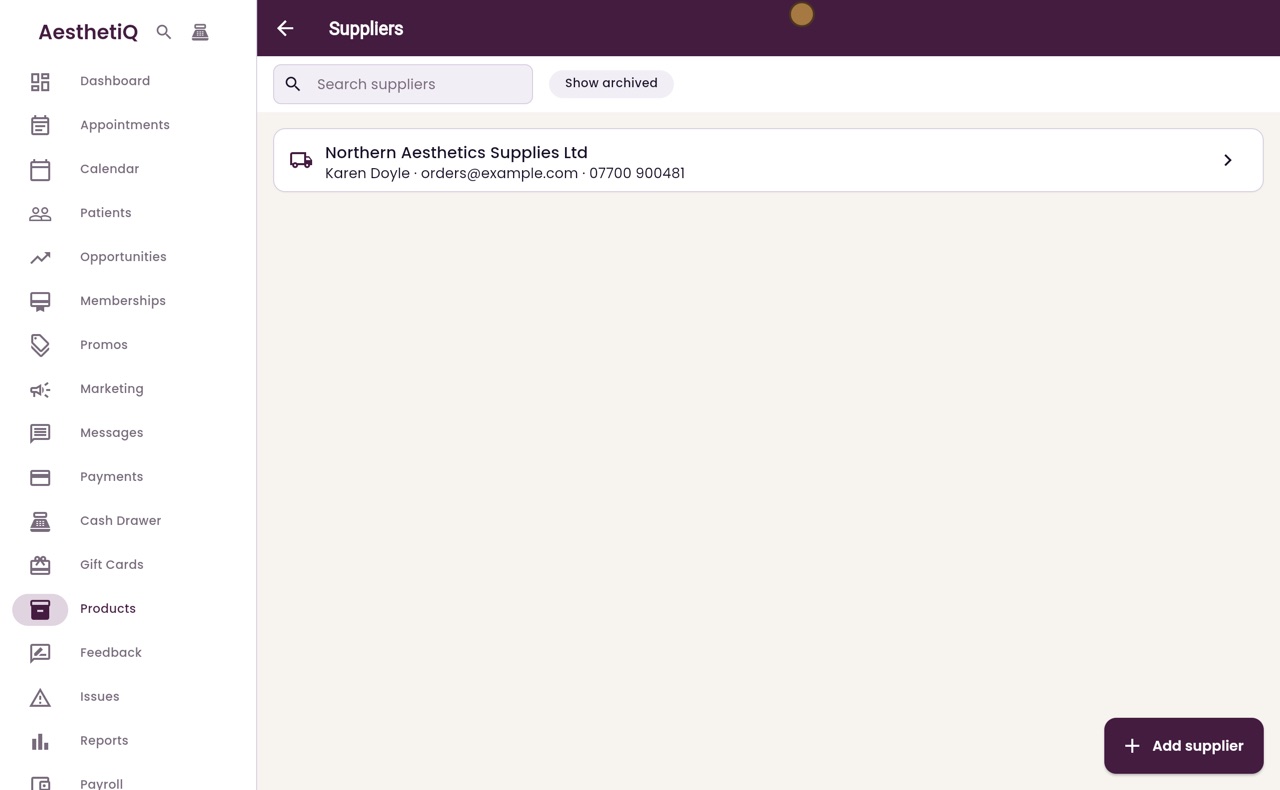
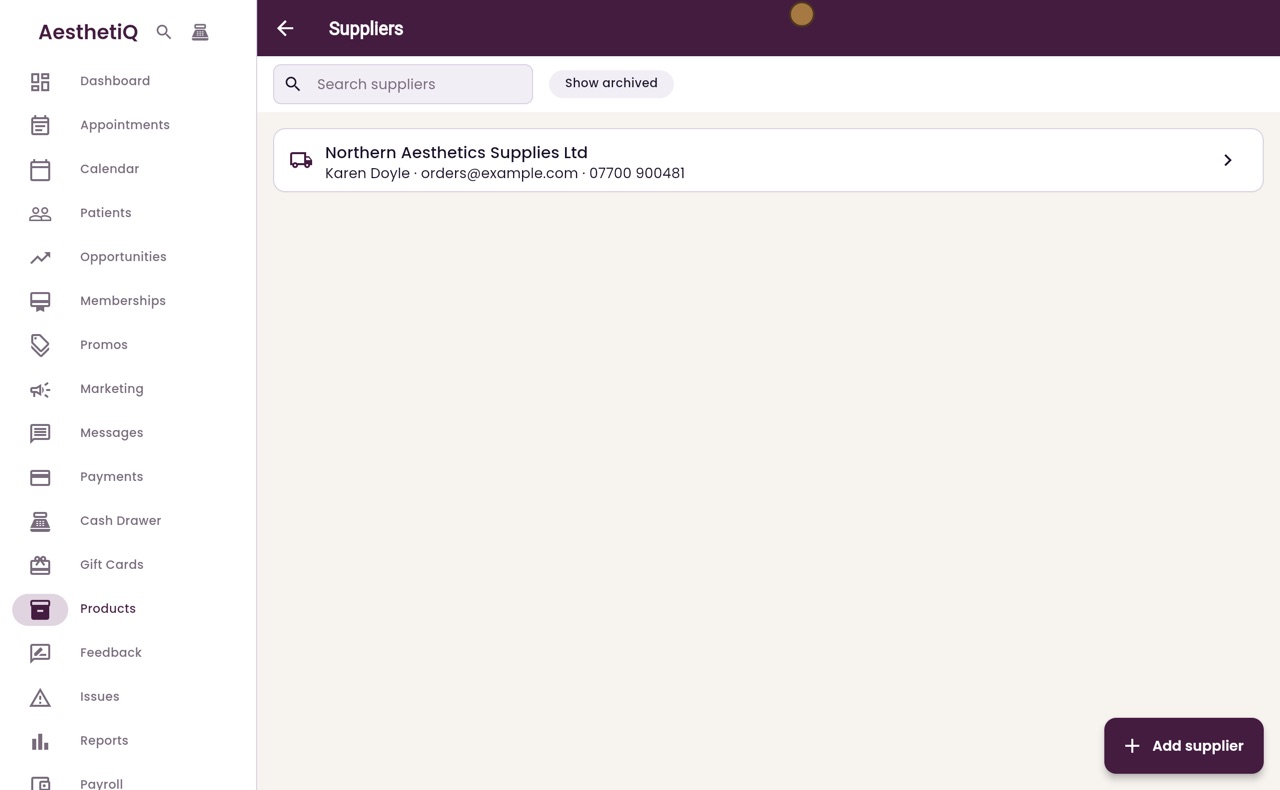
Click Save. Northern Aesthetics Supplies is now on the list, with the contact name, email and phone number underneath.
- 09Ryan
Changing or archiving
Click a supplier to change their details. When you stop using a supplier, switch off Active instead of deleting them. Archived suppliers cannot be sent new orders.
- 10Libby
Done
Click Cancel to leave the supplier as it is. That is adding a supplier. Next, you can order stock from them with a purchase order.