Booking a walk-in
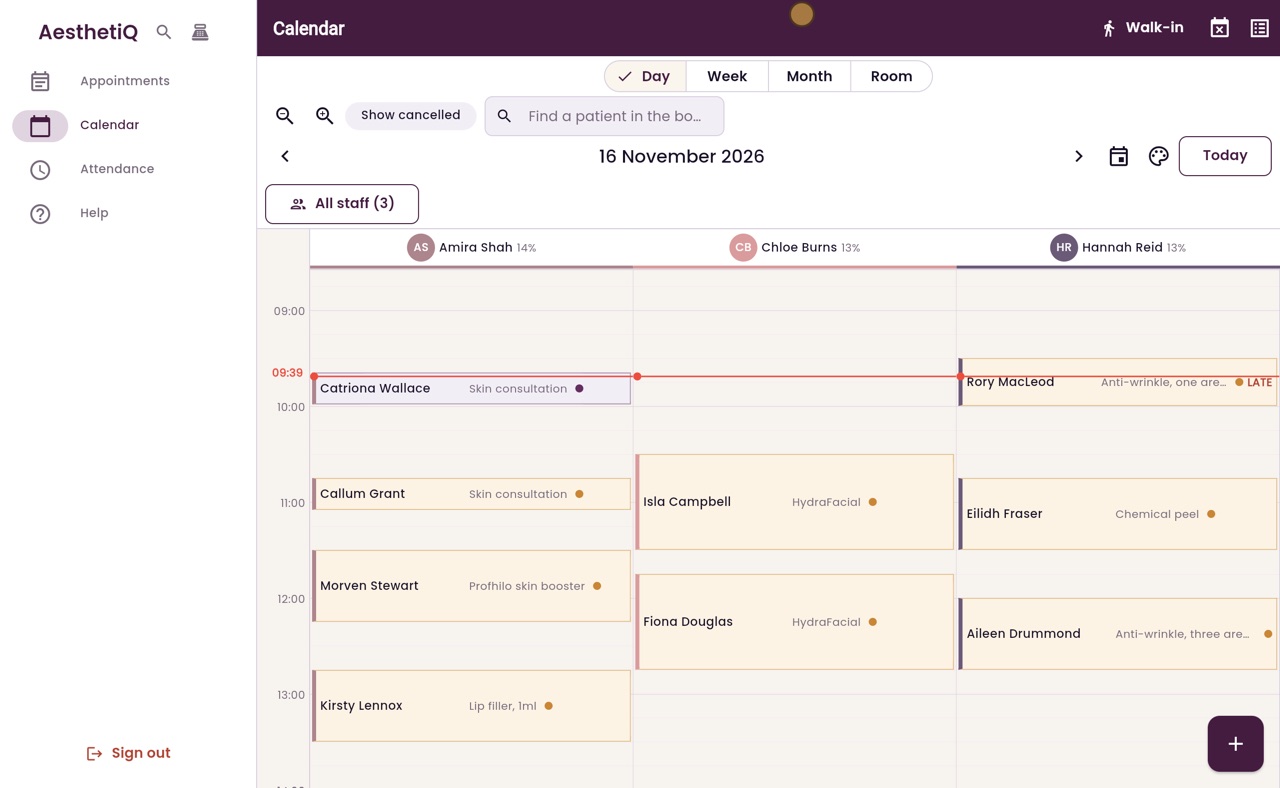
A walk-in is booked from now and the patient is checked in straight away. Open Walk-in from the button at the top of the calendar.
Open
Calendar, Walk-in at the top. Or Control and K (Command and K on a Mac), type walk, press Enter.
Fill in
Patient, treatment and practitioner.
After
The patient is checked in from now.
Step by step
- 01Libby
A patient walks in
Hi, I am Libby. Sometimes a patient walks in without an appointment. If a practitioner is free, they can be seen straight away.
- 02Ryan
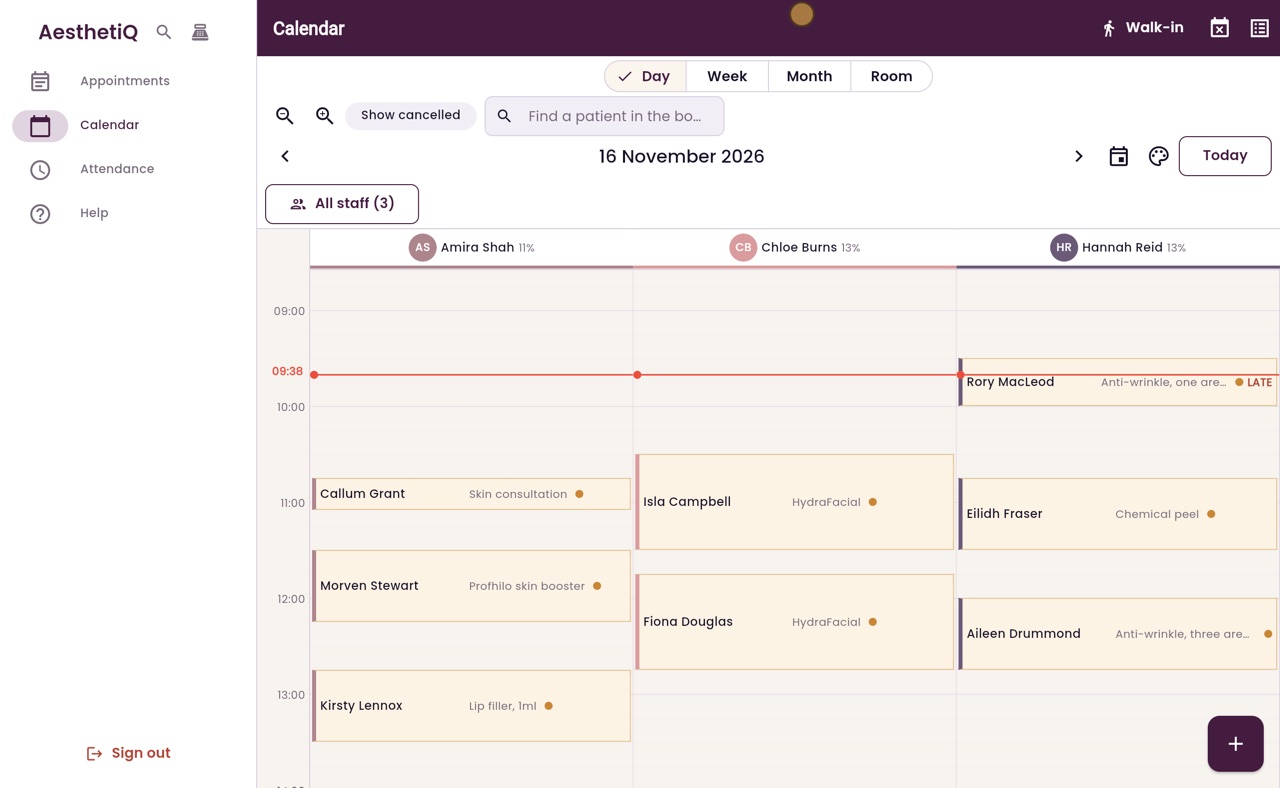
Open Walk-in
Thanks Libby. On the calendar, click Walk-in at the top.
- 03Ryan
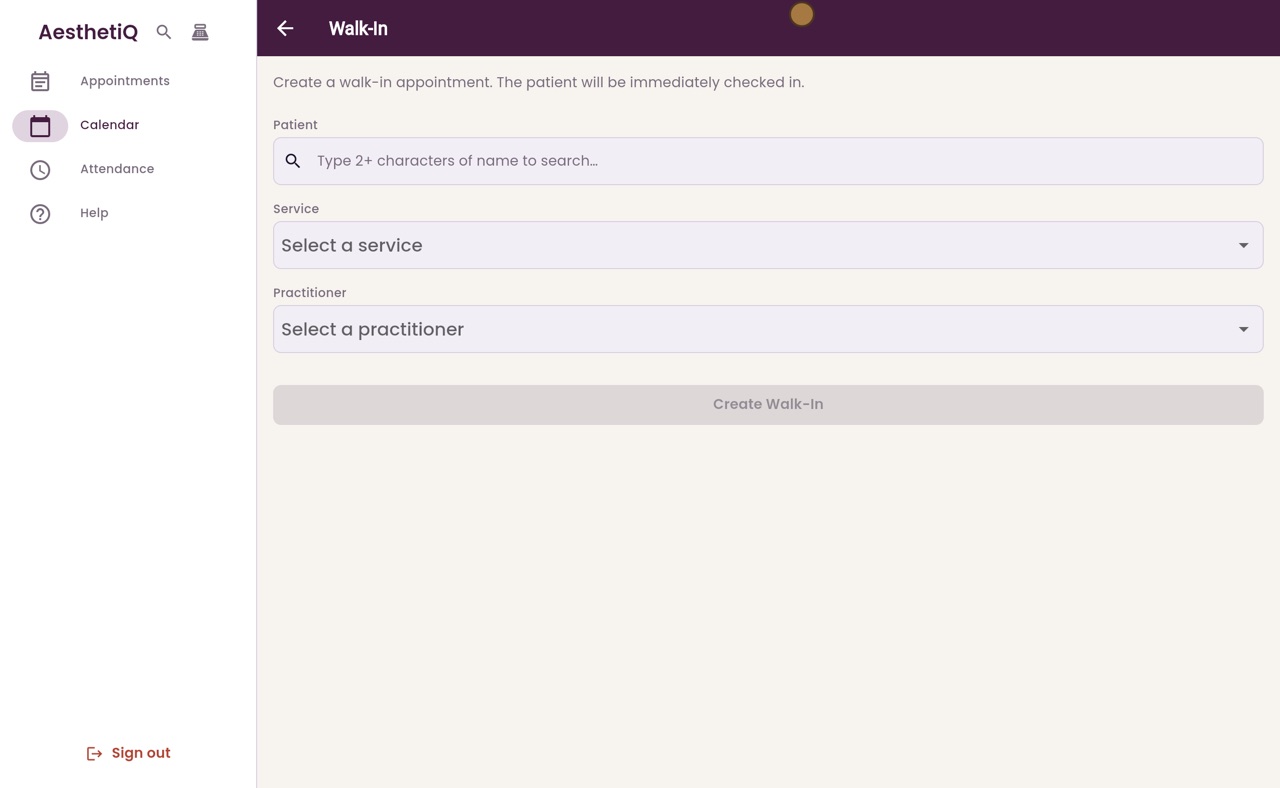
Patient
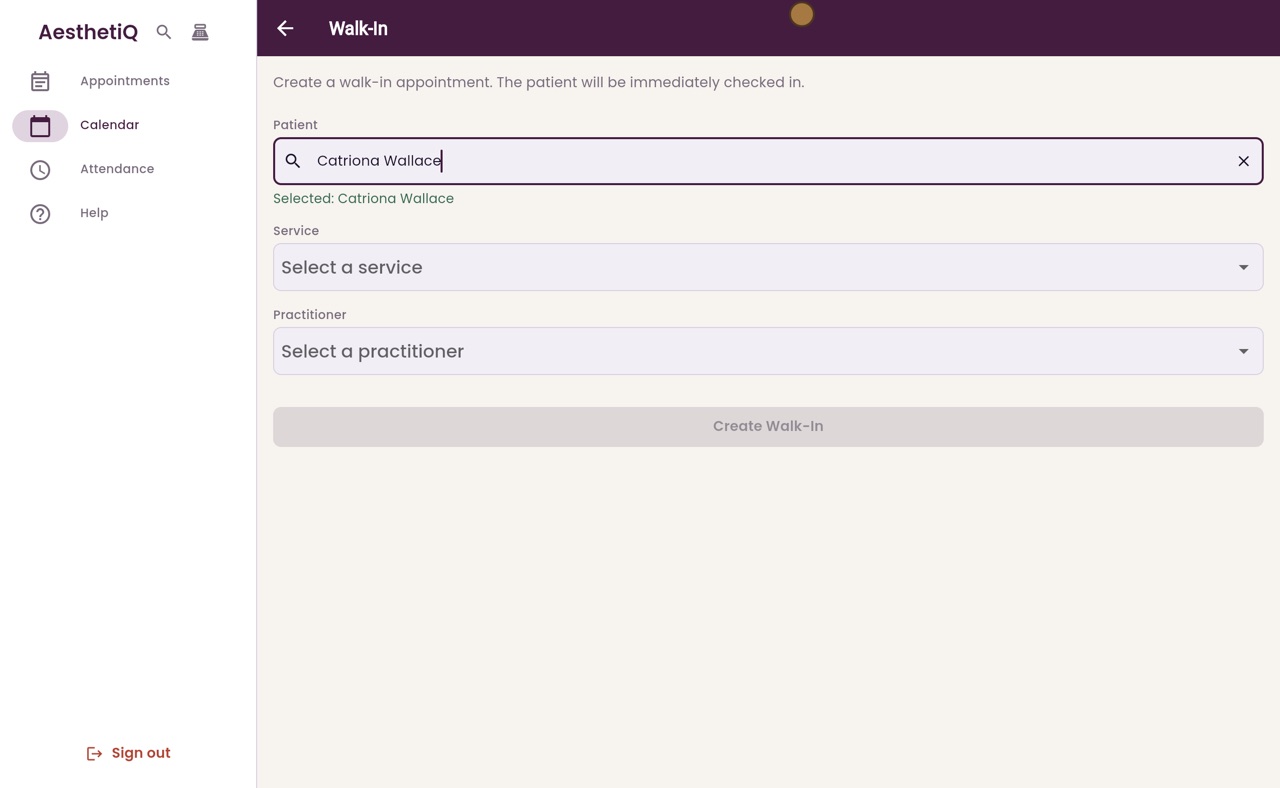
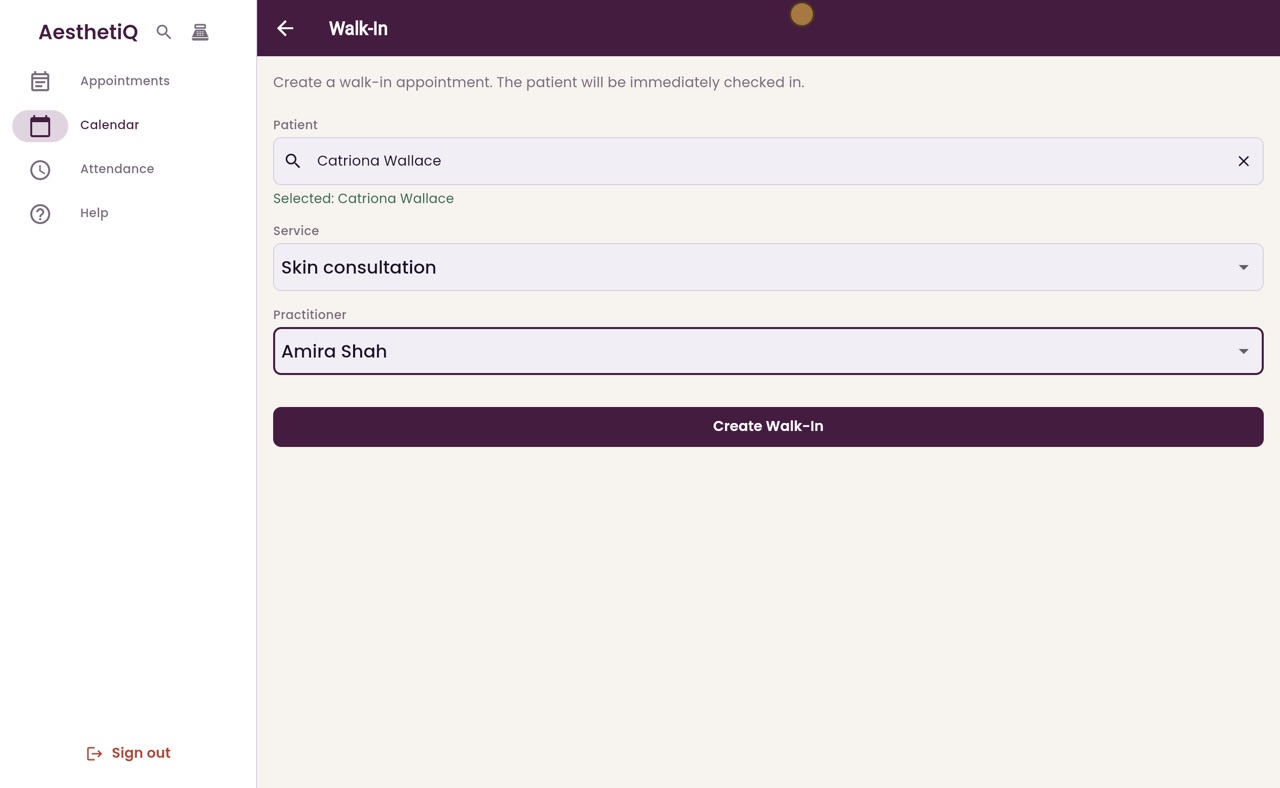
A walk-in is checked in as soon as it is made. First, find the patient. Type the first few letters of her name and choose Catriona Wallace.
- 04Ryan
Treatment and practitioner
Choose the treatment, here a skin consultation, and the practitioner who is free to see her, Doctor Amira Shah.
- 05Ryan
Create Walk-In
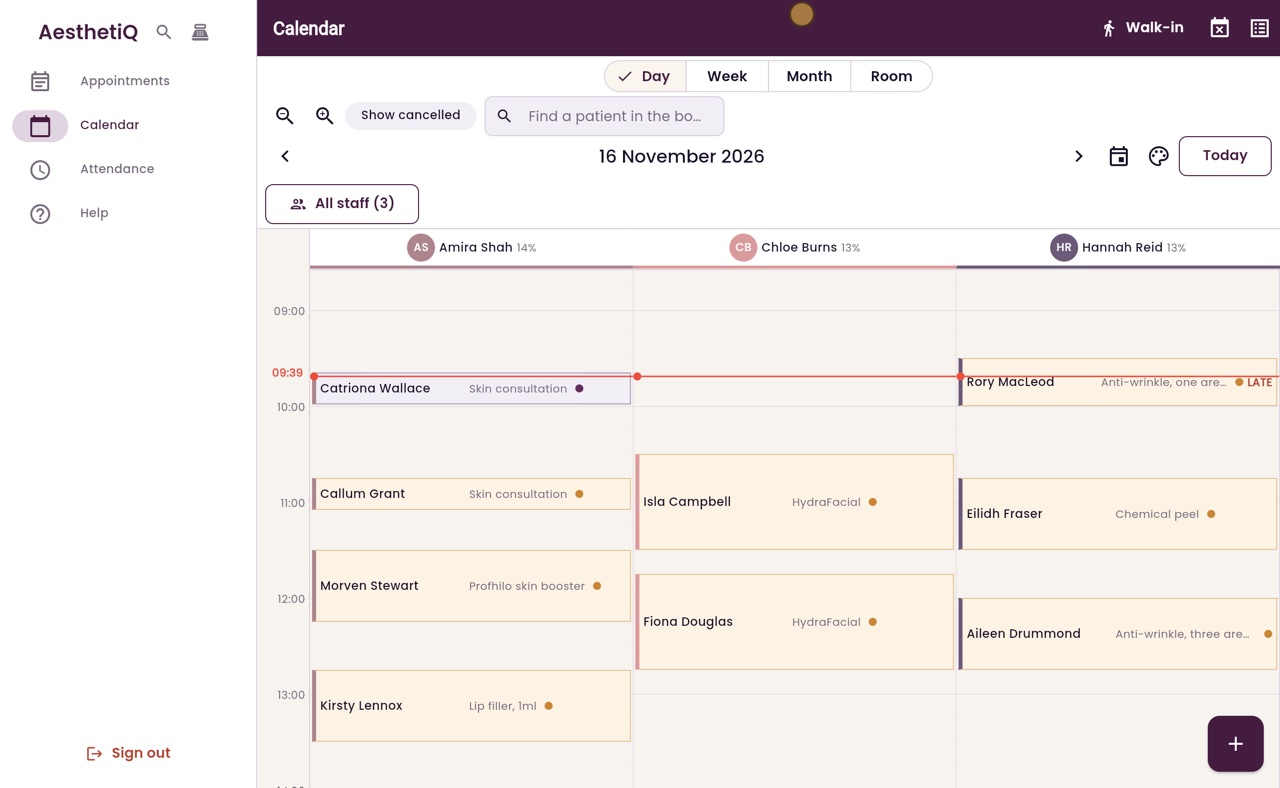
Click Create Walk-In. AesthetiQ books the appointment from now and checks Catriona in. She now appears in Amira Shah's column on the calendar.
- 06Libby
Done
That is booking a walk-in. You can also open Walk-in from the quick menu, with Control and K.