Receiving stock and batch numbers
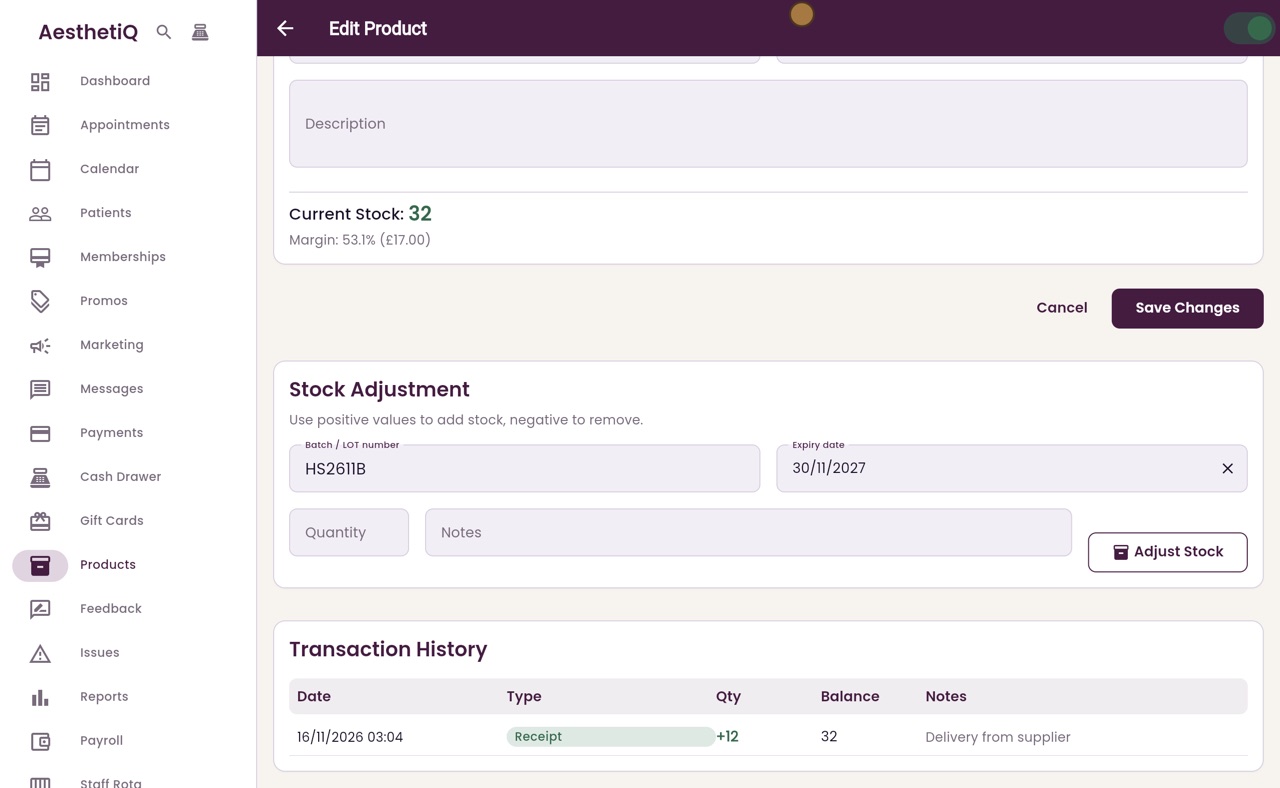
Add a delivery to stock on the product's page, with its batch number and expiry date. Current Stock goes up straight away.
Where
Products, click the product, then Stock Adjustment.
Record
Batch or lot number, expiry date, quantity and a note.
After
Current Stock goes up and the delivery is listed in Transaction History.
Step by step
- 01Libby
A delivery arrives
Hi, I am Libby. When a delivery arrives, add it to stock in AesthetiQ, with its batch number and expiry date, so the product can be traced.
- 02Ryan
Open the product
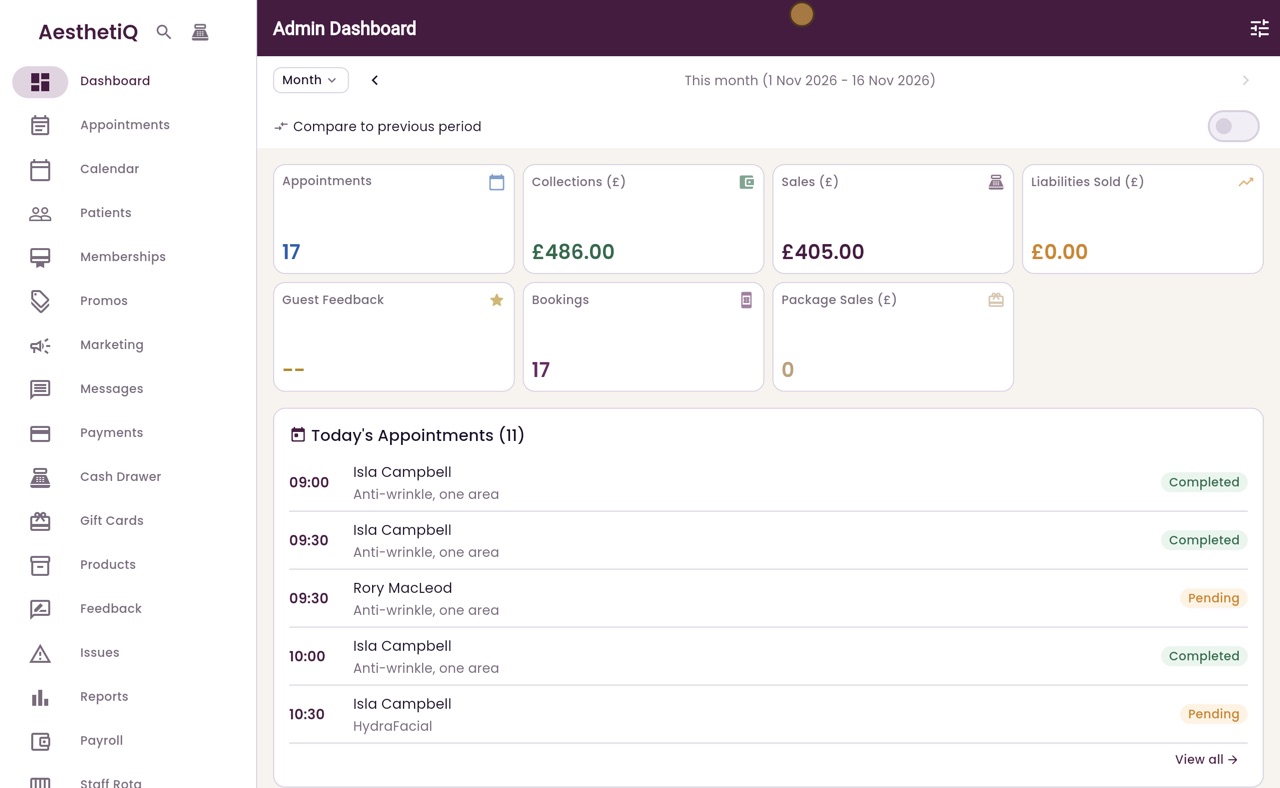
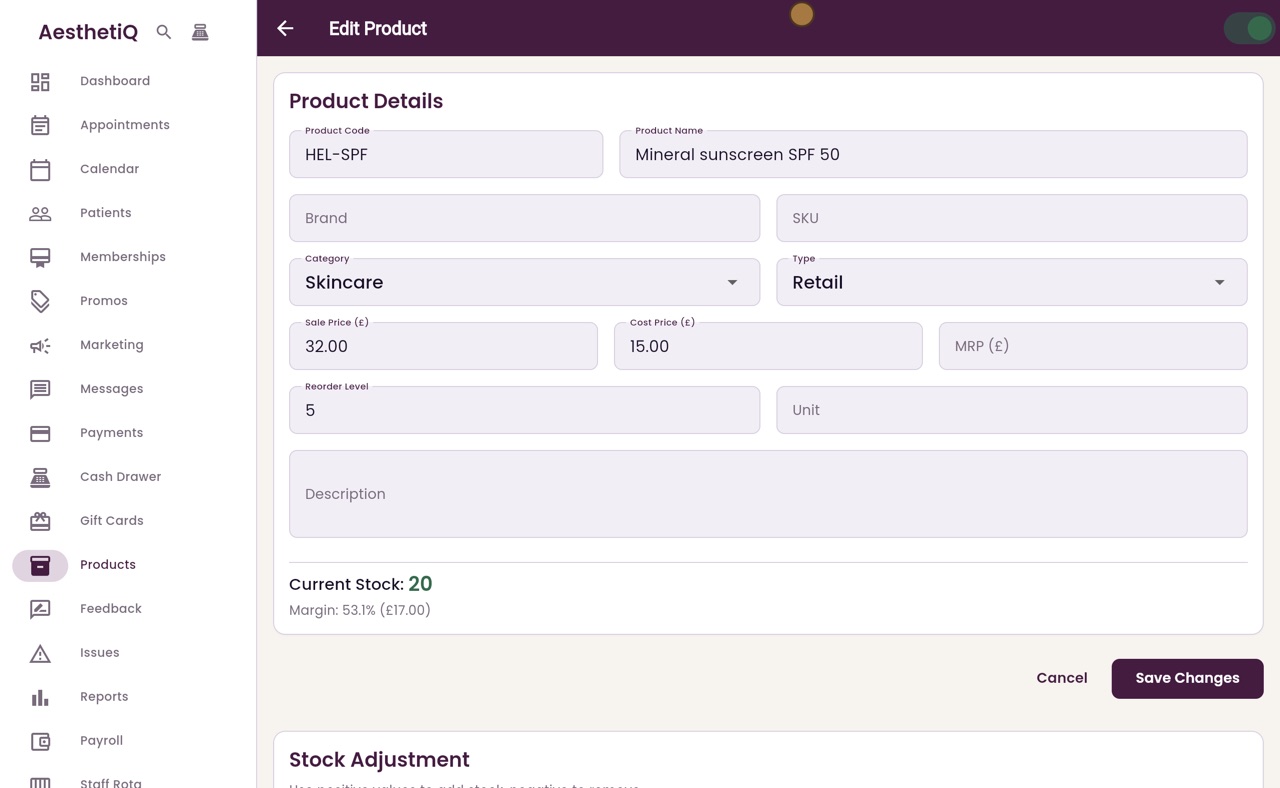
Thanks Libby. Click Products in the menu, then click the product that has arrived. Here it is the mineral sunscreen, which has twenty in stock.
- 03Ryan
Stock Adjustment
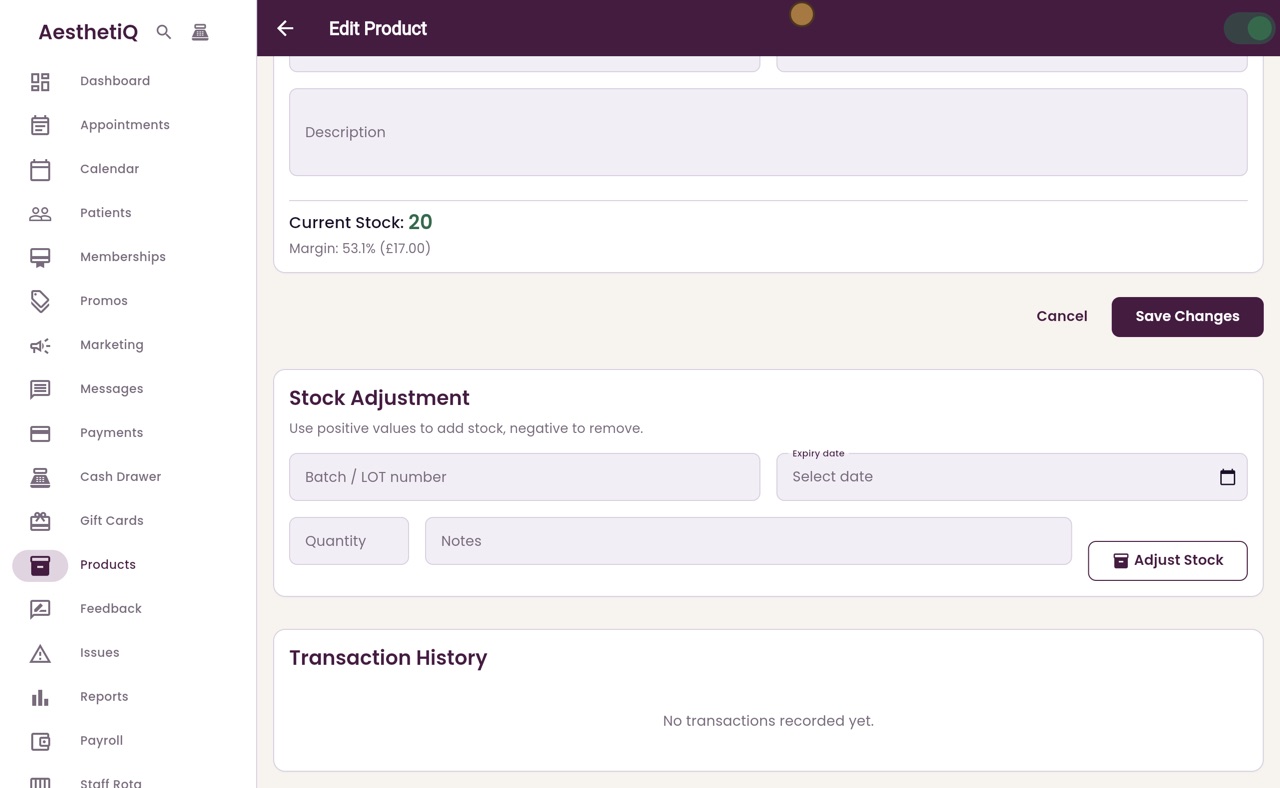
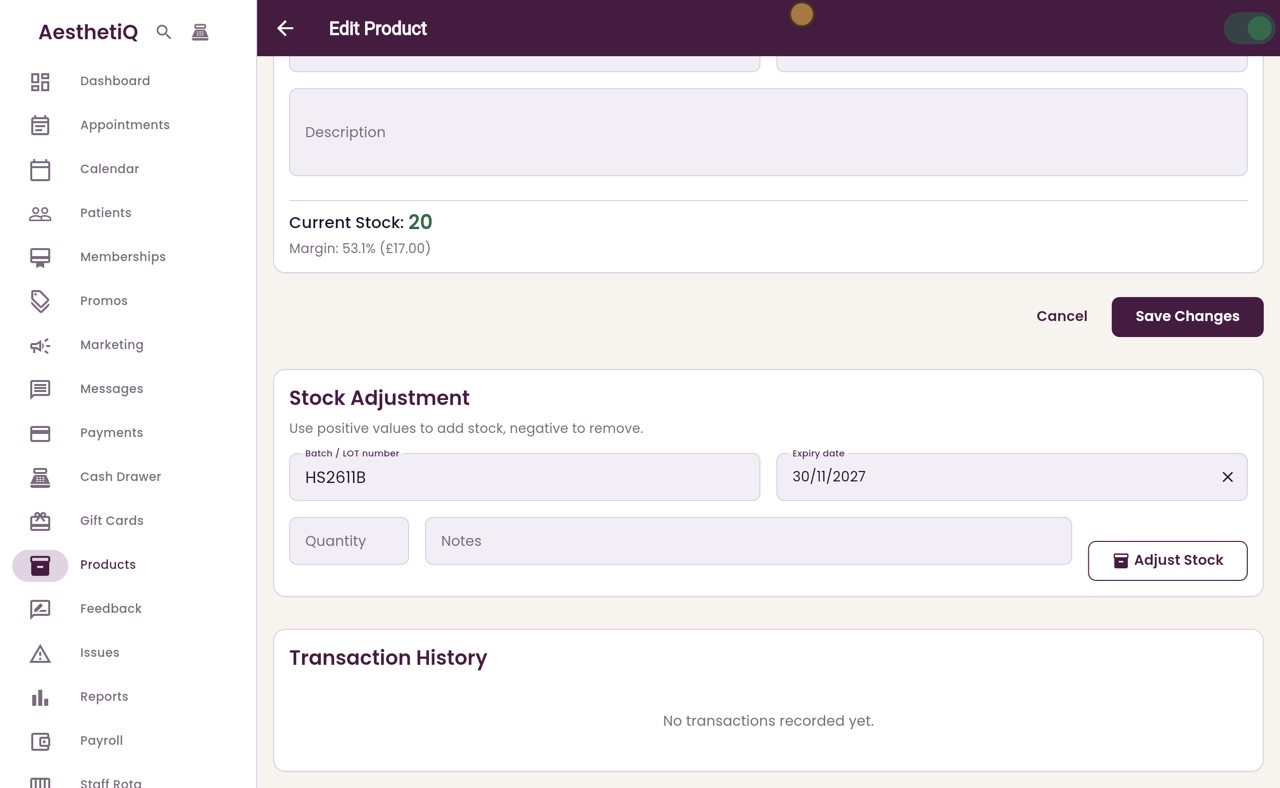
Scroll down to Stock Adjustment, just below Current Stock. Positive numbers add stock, and negative numbers take it away.
- 04Ryan
Batch and expiry
Type the batch or lot number from the box. Then click Expiry date and type the date printed on it.
- 05Ryan
Quantity and note
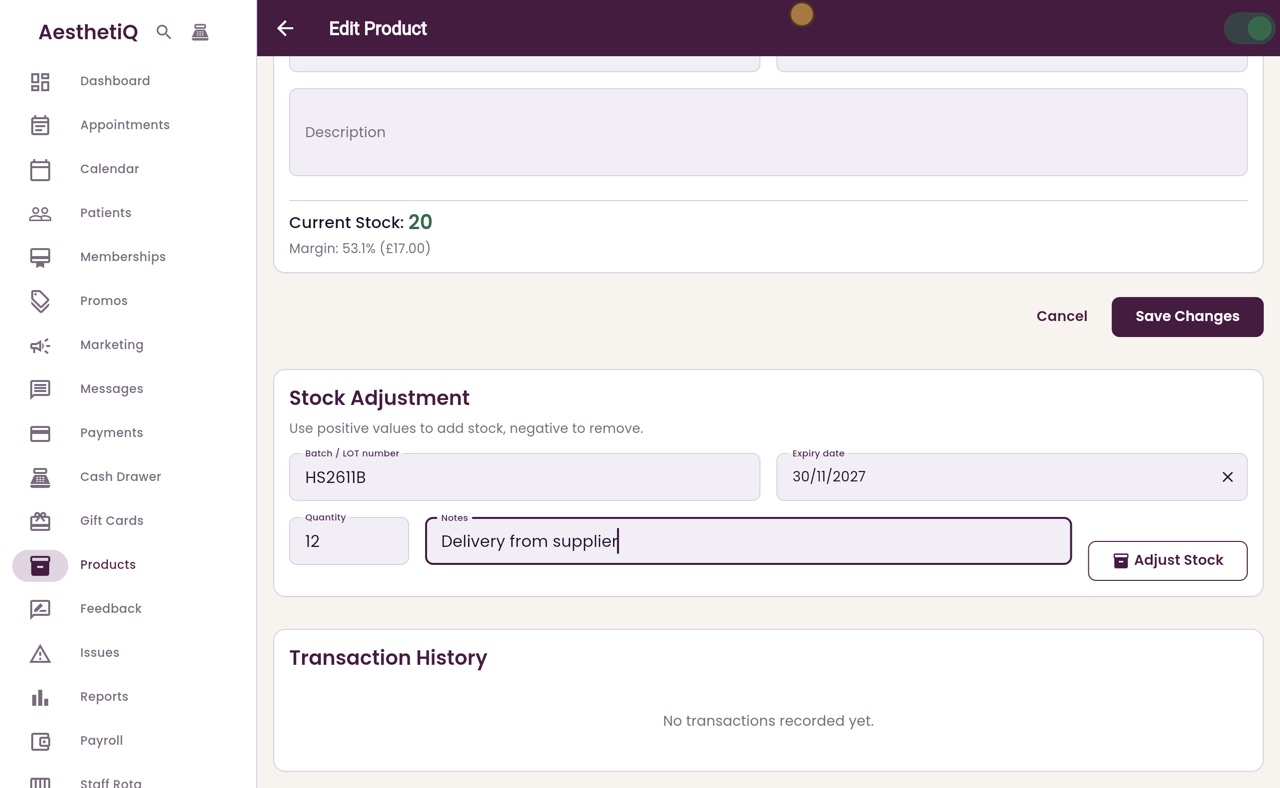
Click Quantity and type how many arrived, here twelve. Add a note, such as the supplier's delivery.
- 06Ryan
Adjust Stock
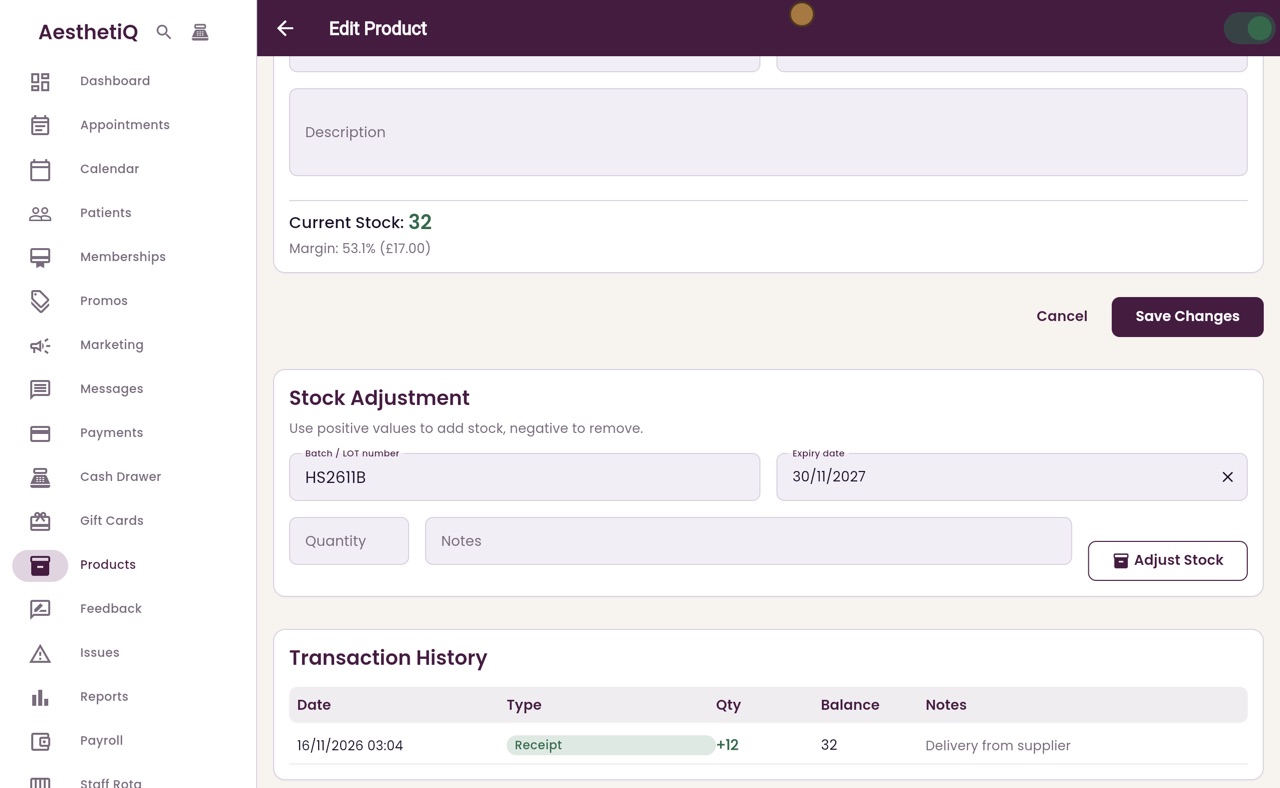
Click Adjust Stock. AesthetiQ says Stock adjusted successfully, and Current Stock goes straight from twenty to thirty two.
- 07Ryan
Transaction History
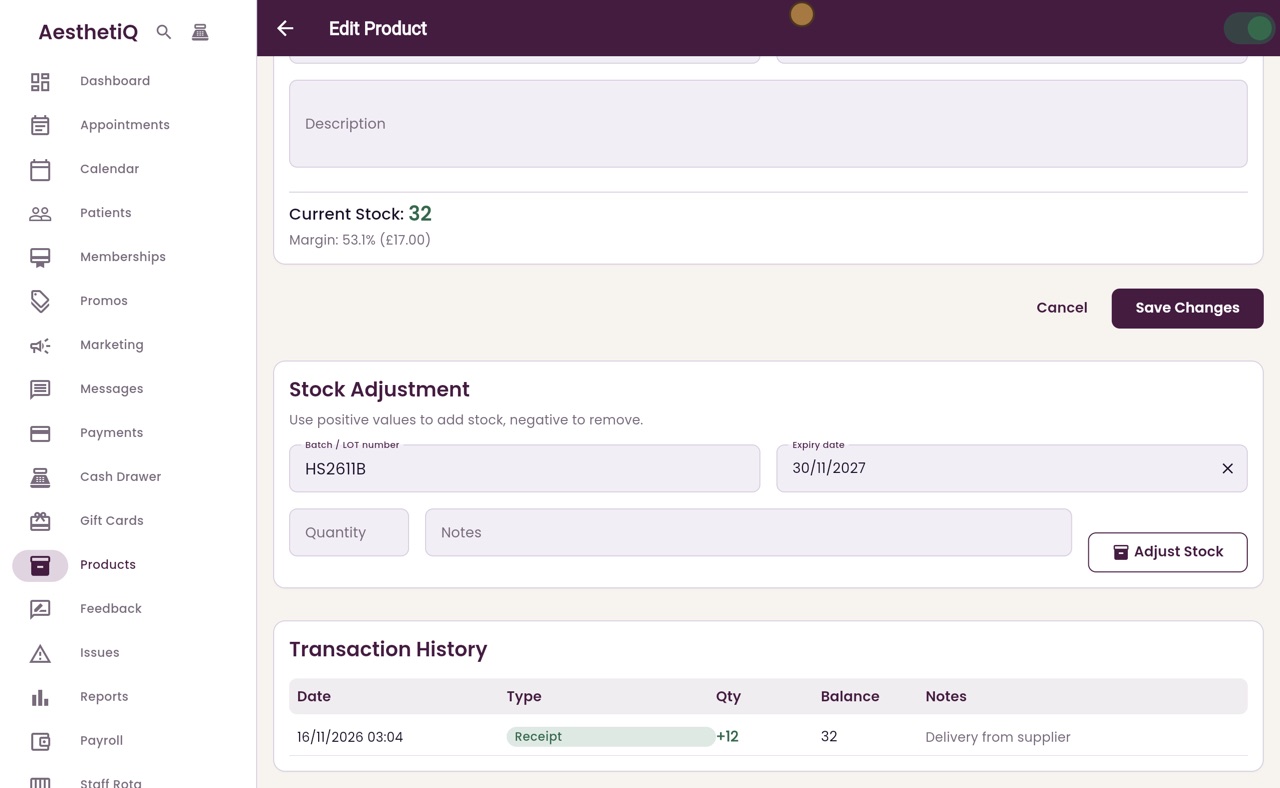
The delivery is listed under Transaction History, with the date, the type, the quantity, the new balance and the note. The batch number and expiry date stay in their boxes, because they are now the product's current batch.
- 08Libby
Done
That is receiving stock. Use a negative number in the same place to remove stock that is damaged or out of date.