Discounts at checkout
On the Payment screen, click the patient's own discount button, such as Member discount, or Apply a discount for one of the clinic's own discounts. The banner names the discount taken off.
Clinic discounts
Apply a discount lists the discounts the manager has set up.
Patient discounts
Member discount shows for an active member; Birthday discount shows in the patient's birthday month. Each goes once it is used.
After
A banner names the discount and the balance due goes down before you take the payment.
Step by step
- 01Libby
Discounts
Hi, I am Libby. At checkout, a patient can have money off the treatment. Members have their own member discount, and the clinic can set up discounts of its own.
- 02Ryan
Open the payment
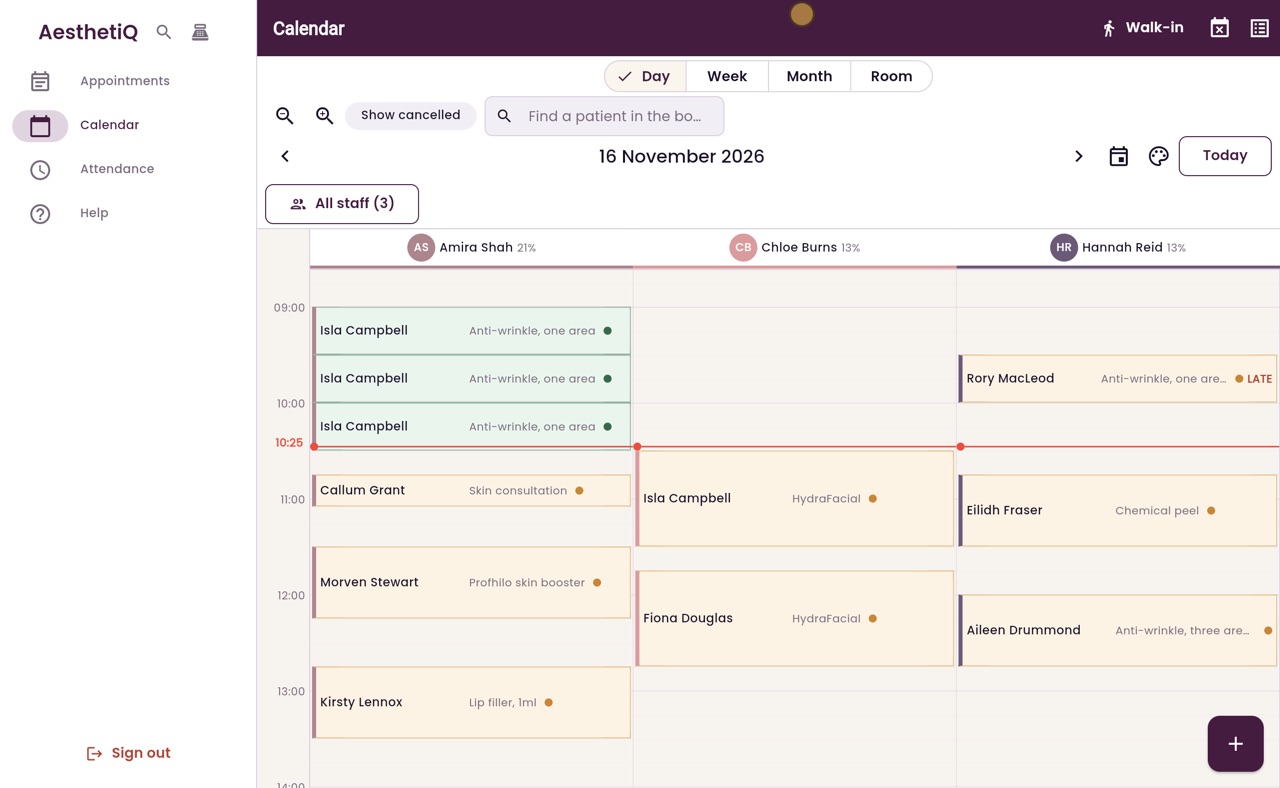
Thanks Libby. Isla Campbell has just finished her ten o'clock anti-wrinkle treatment with Amira Shah. Open her appointment, scroll down and click Take Payment.
- 03Ryan
The discount buttons
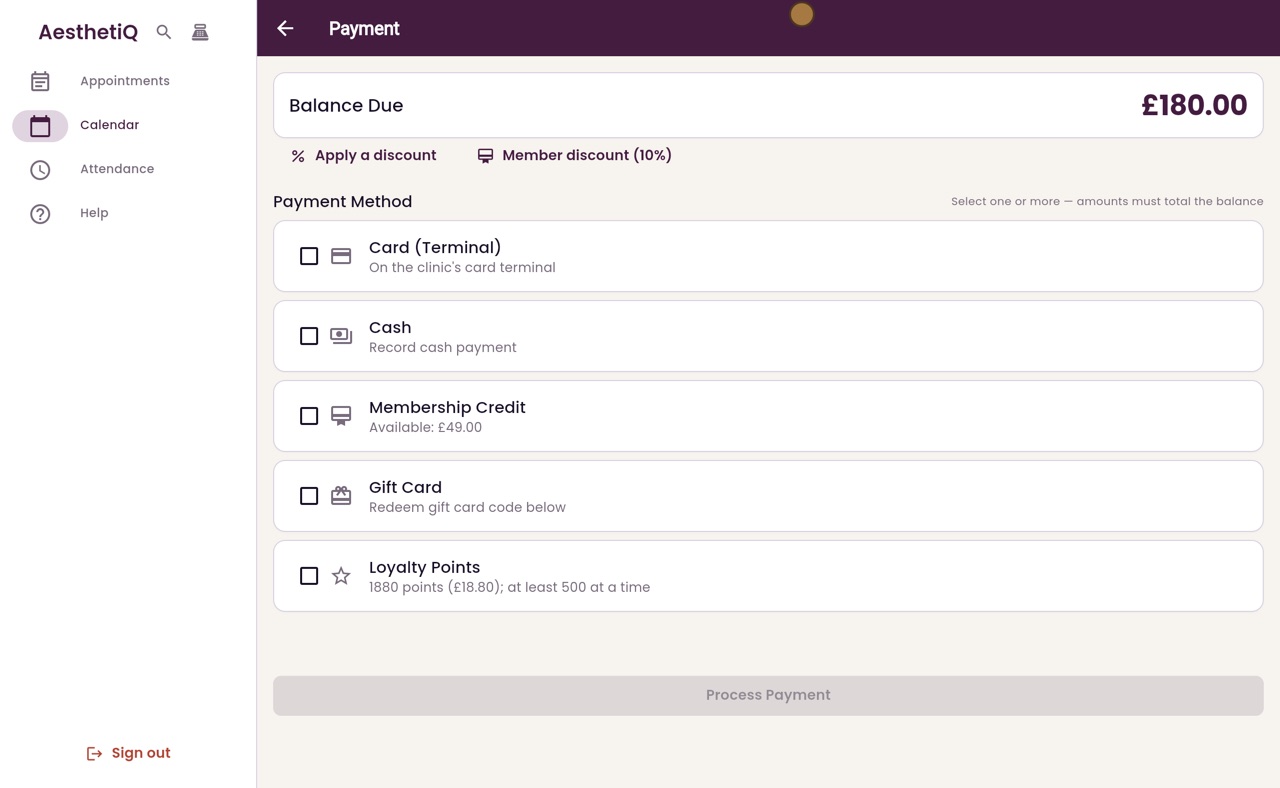
The discount buttons are under the balance due. Apply a discount lists the clinic's own discounts, which the manager sets up. Isla is a Glow Club member, so she also has a Member discount button, for ten percent off.
- 04Ryan
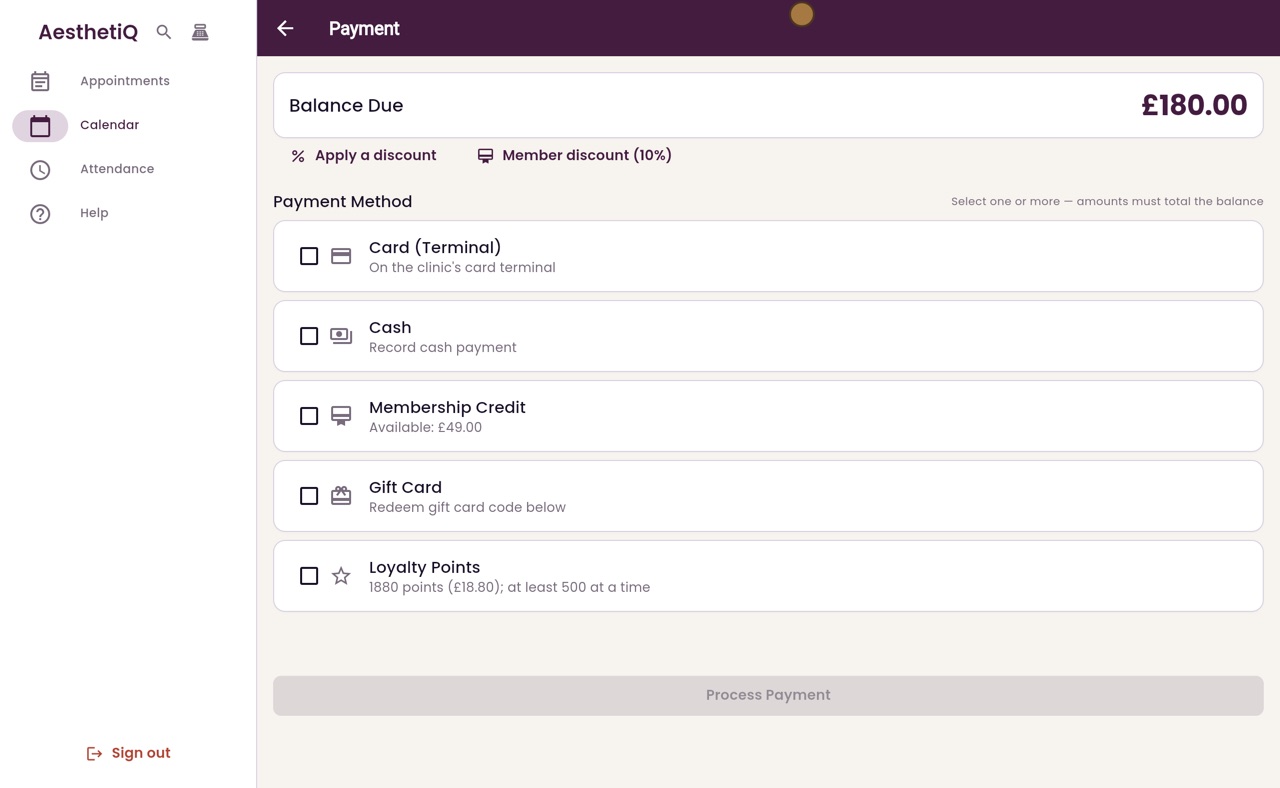
Member discount
Click Member discount.
- 05Ryan
The new balance
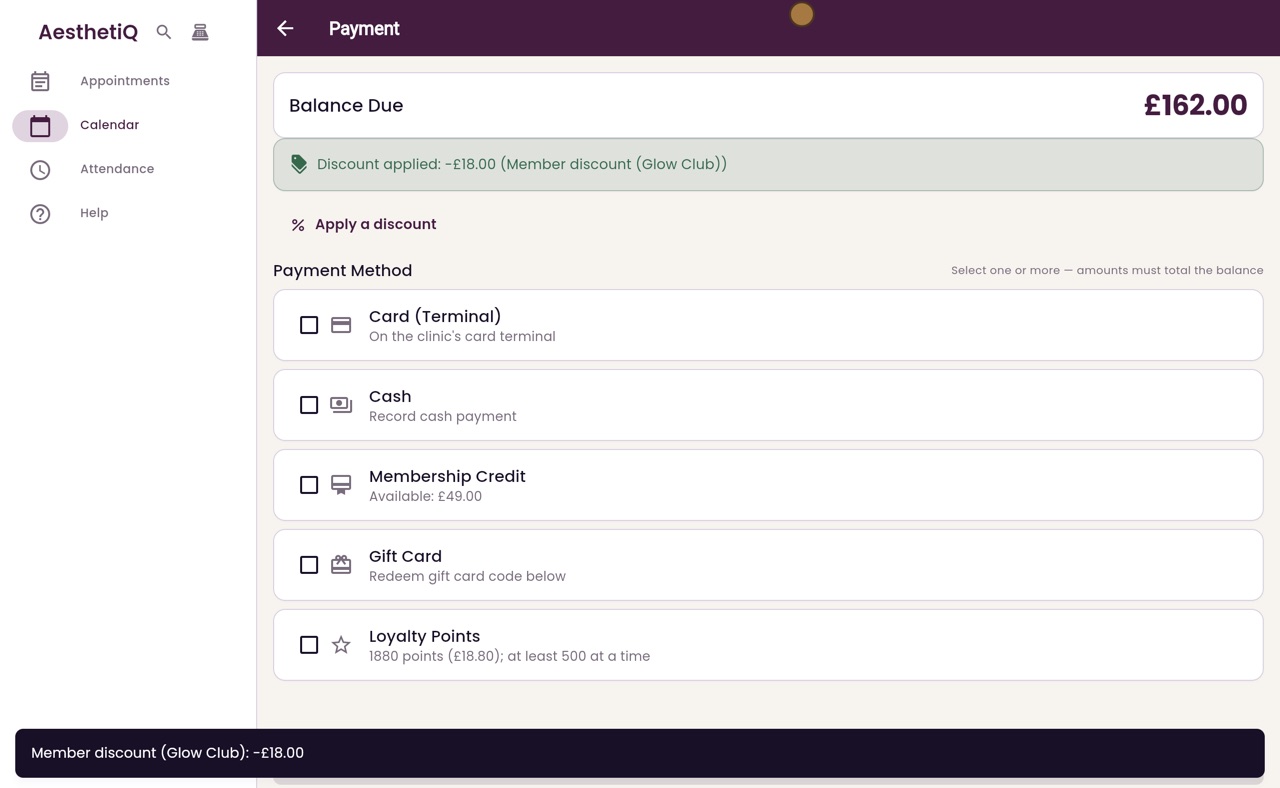
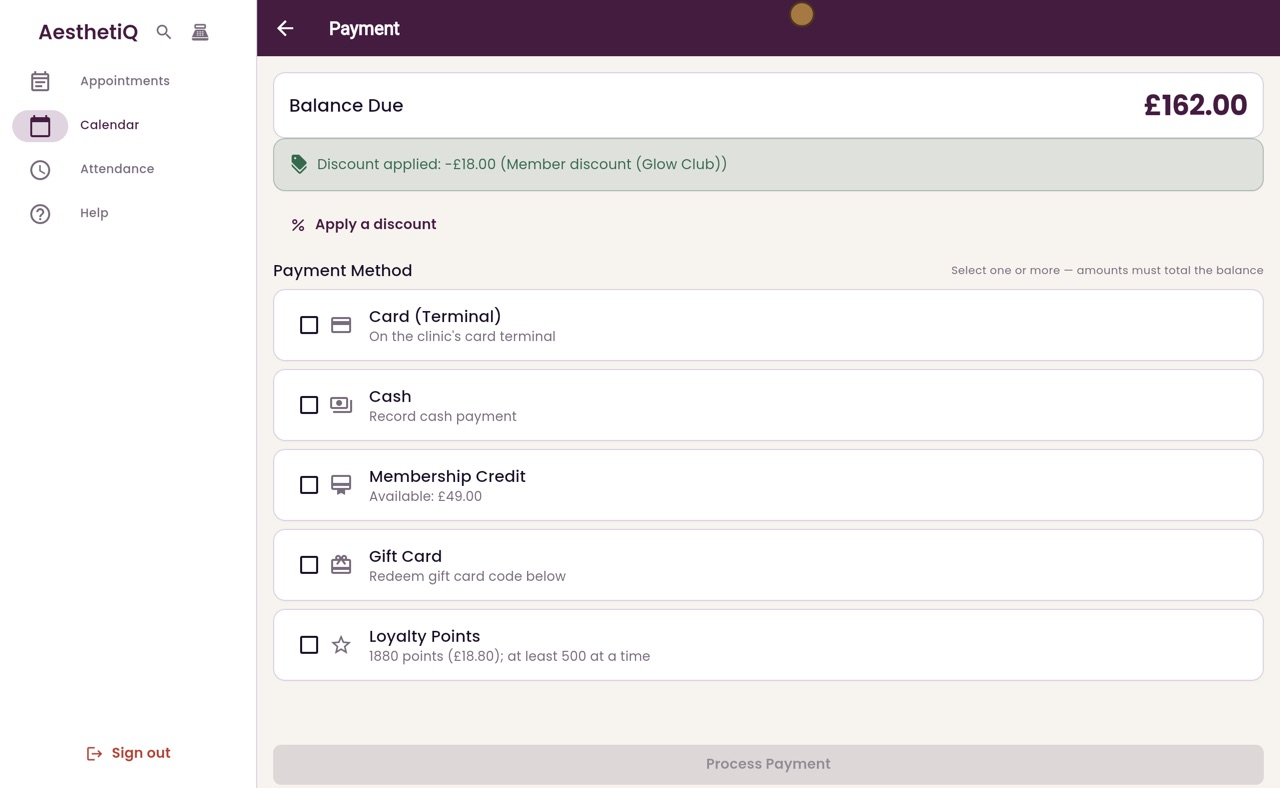
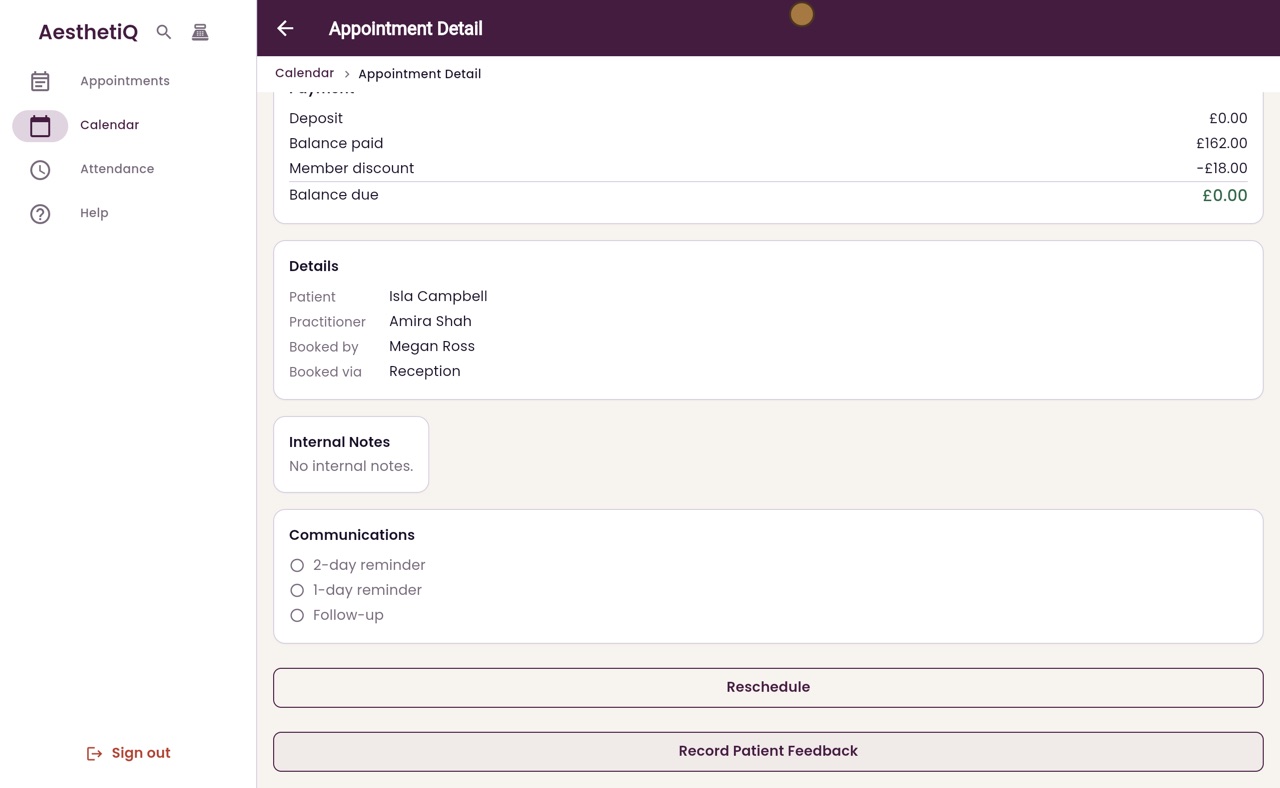
The green banner names the discount, the Glow Club member discount, and shows the eighteen pounds taken off. The balance due is now one hundred and sixty two pounds. The Member discount button has gone, so the discount cannot be given twice.
- 06Ryan
Pay the rest
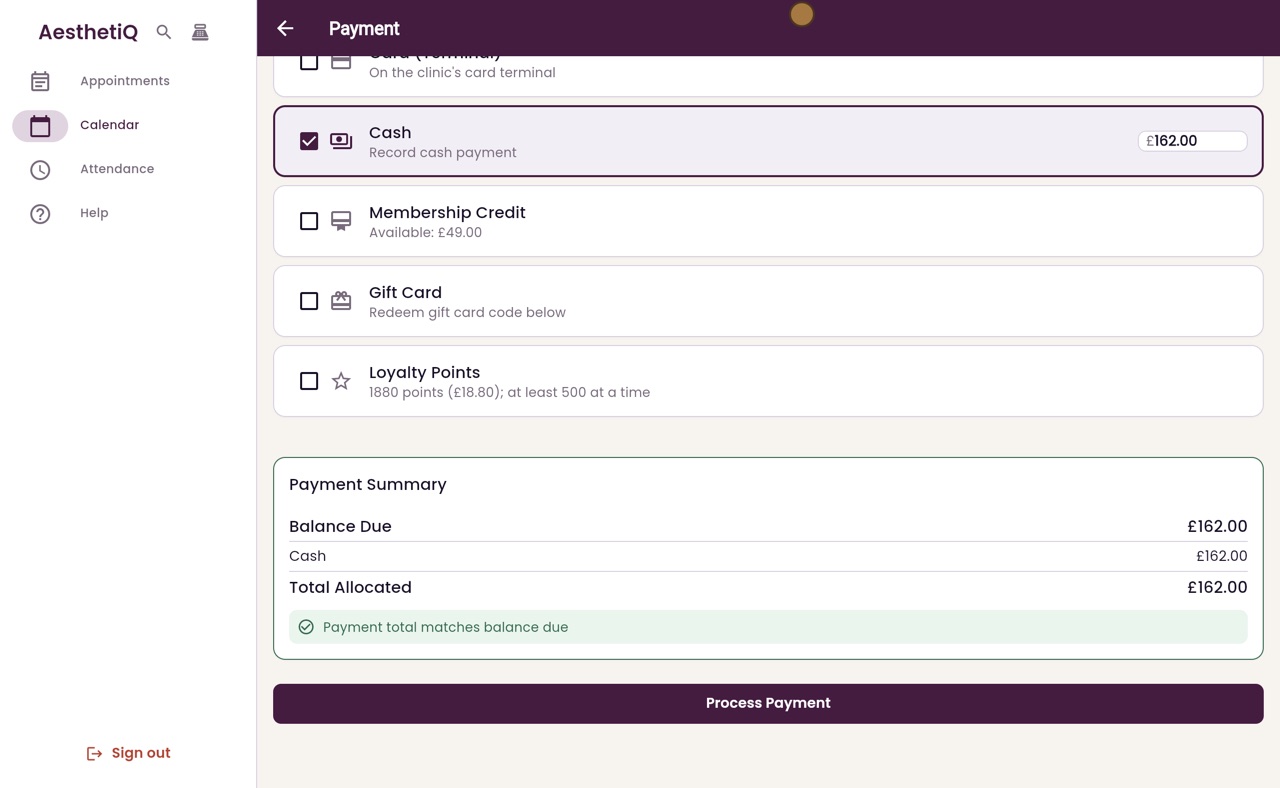
Isla pays in cash. Tick Cash, and the amount fills in. The summary shows the payment matches the balance due.
- 07Ryan
Rating the visit
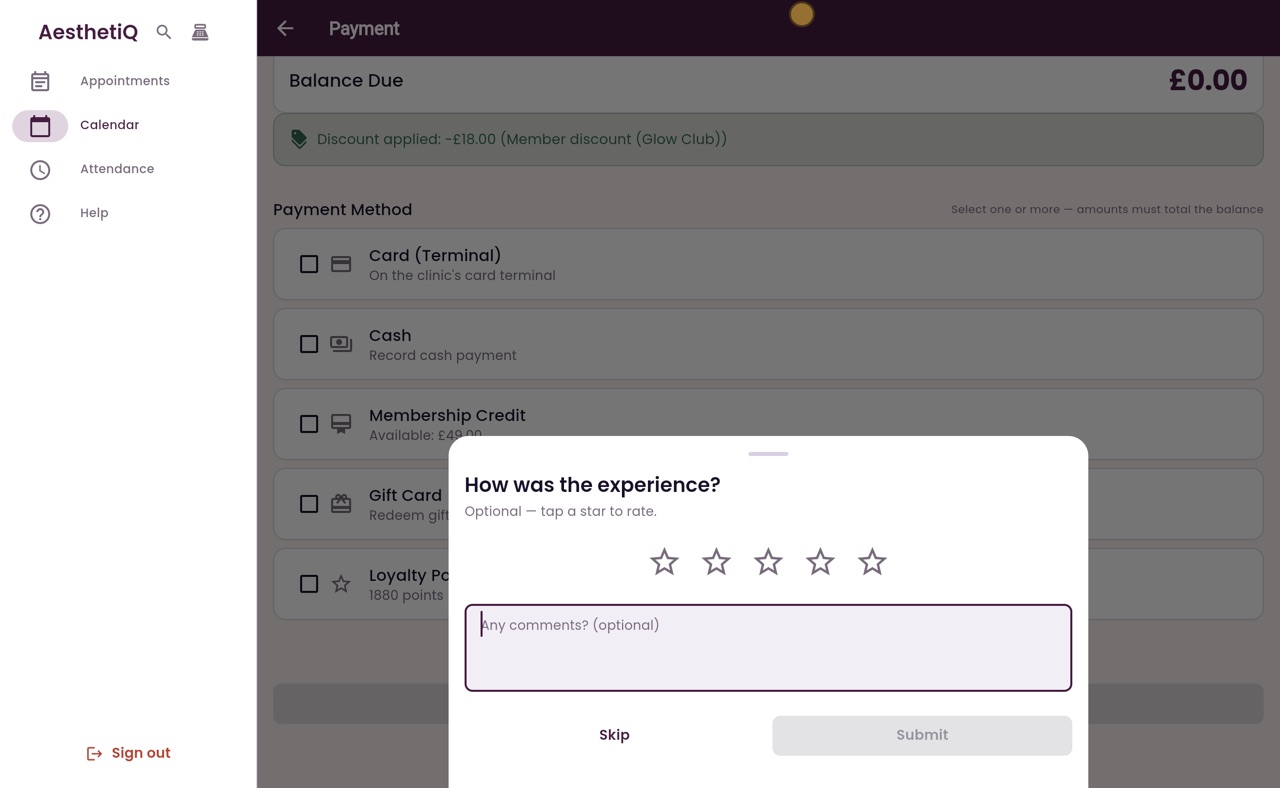
Click Process Payment. AesthetiQ records the payment, and asks how the visit was. Isla can tap a star to rate it, or you can click Skip.
- 08Ryan
Paid
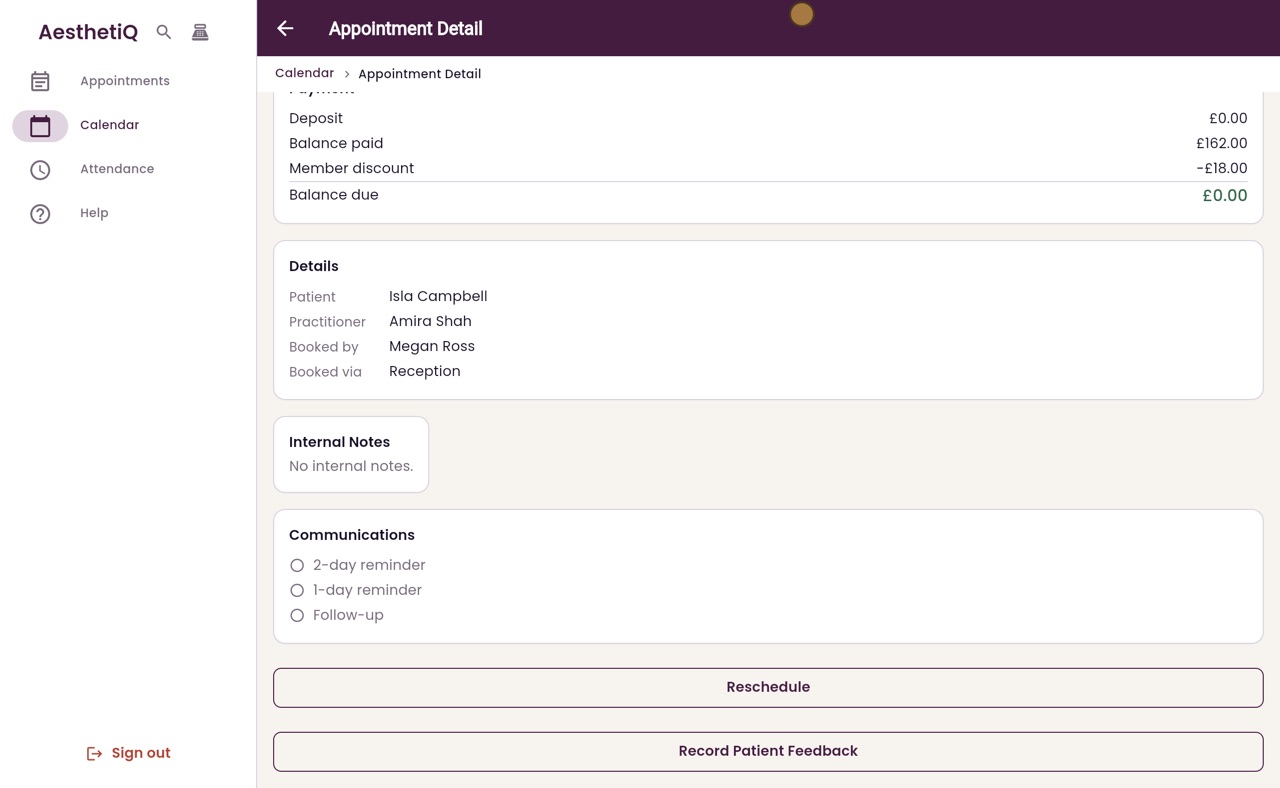
Click Skip. The appointment now shows the member discount, and nothing left to pay.
- 09Libby
Done
That is discounts at checkout. In a patient's birthday month, a Birthday discount button shows there as well.