Recovery codes for your authenticator
Make a new set of recovery codes in Settings, and use one to sign in if you lose the phone with your authenticator app.
New codes
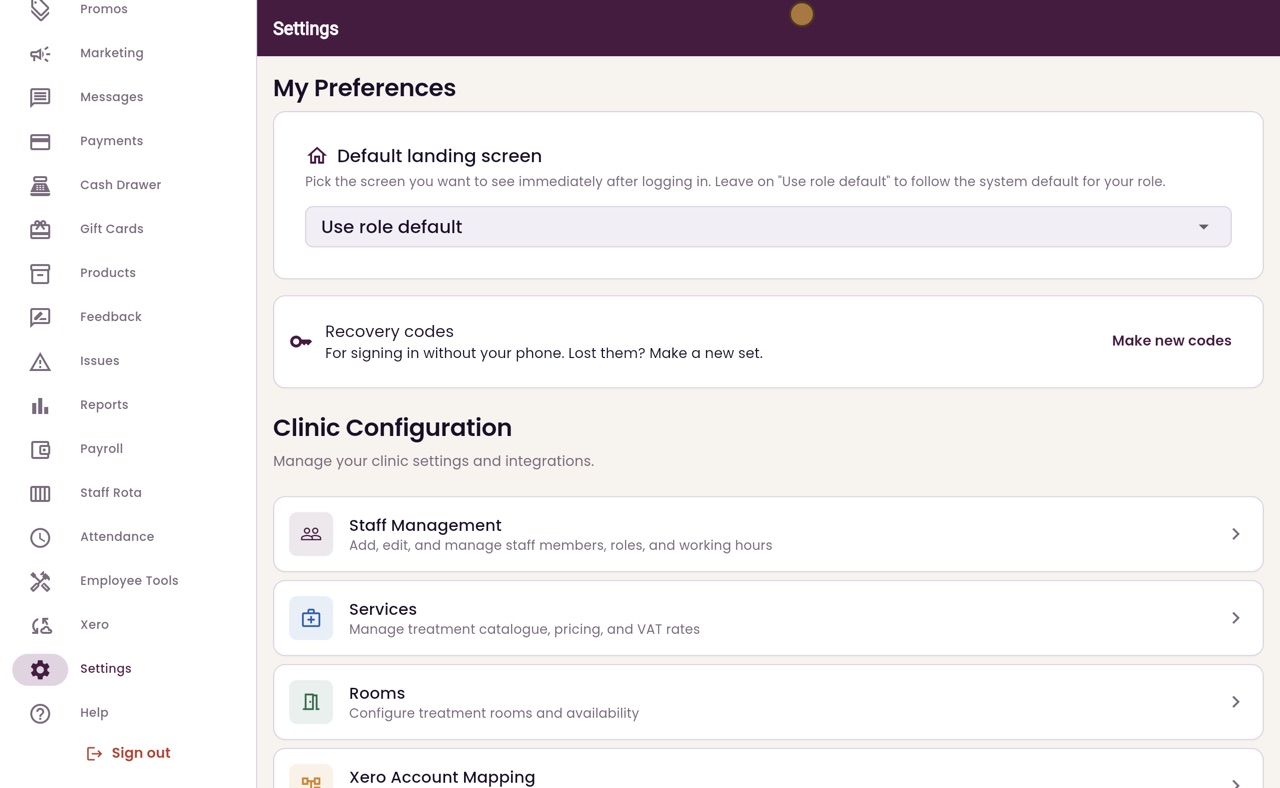
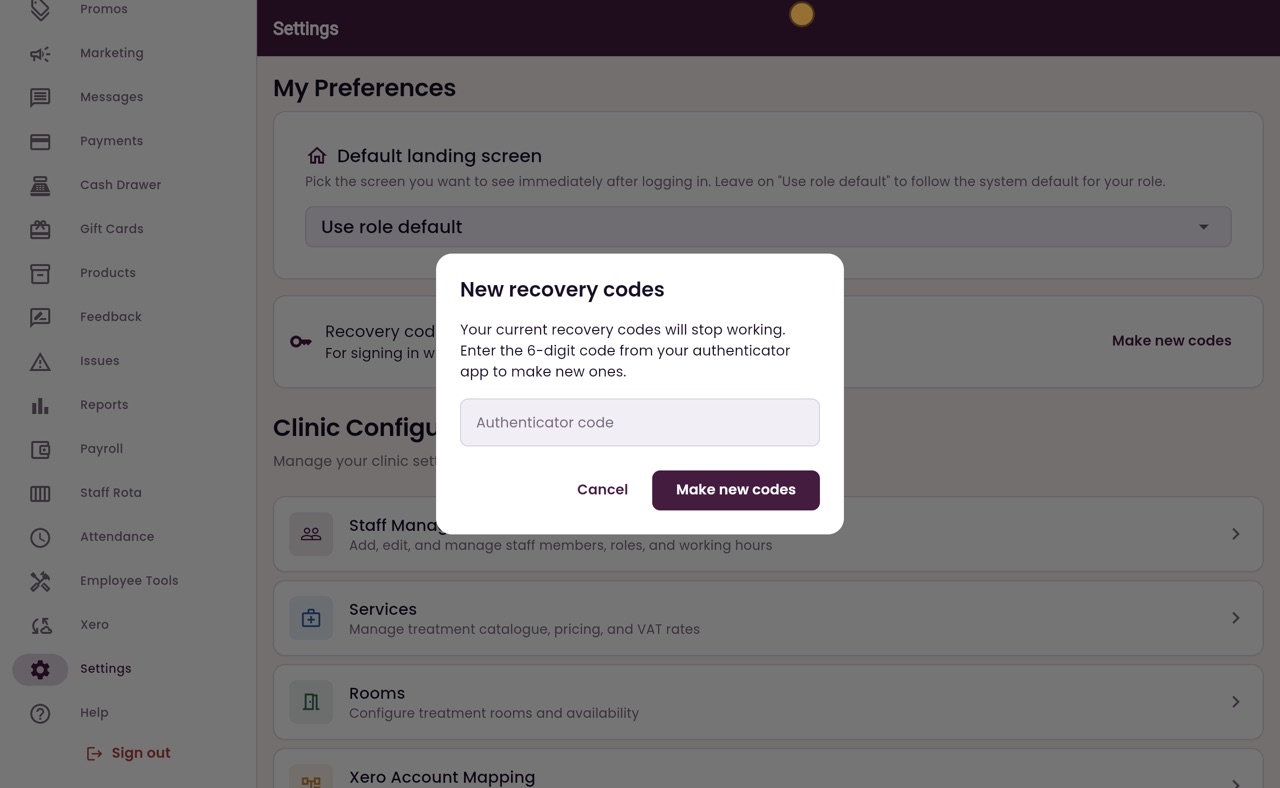
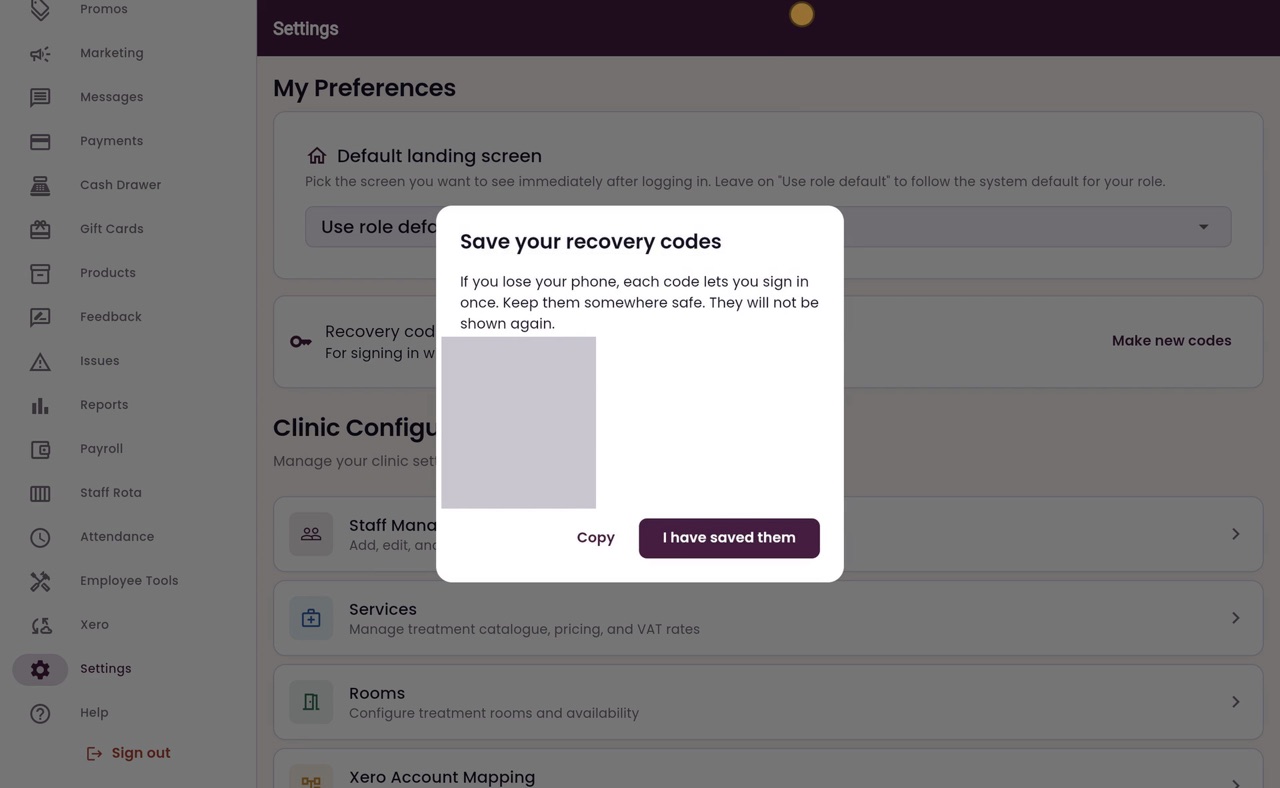
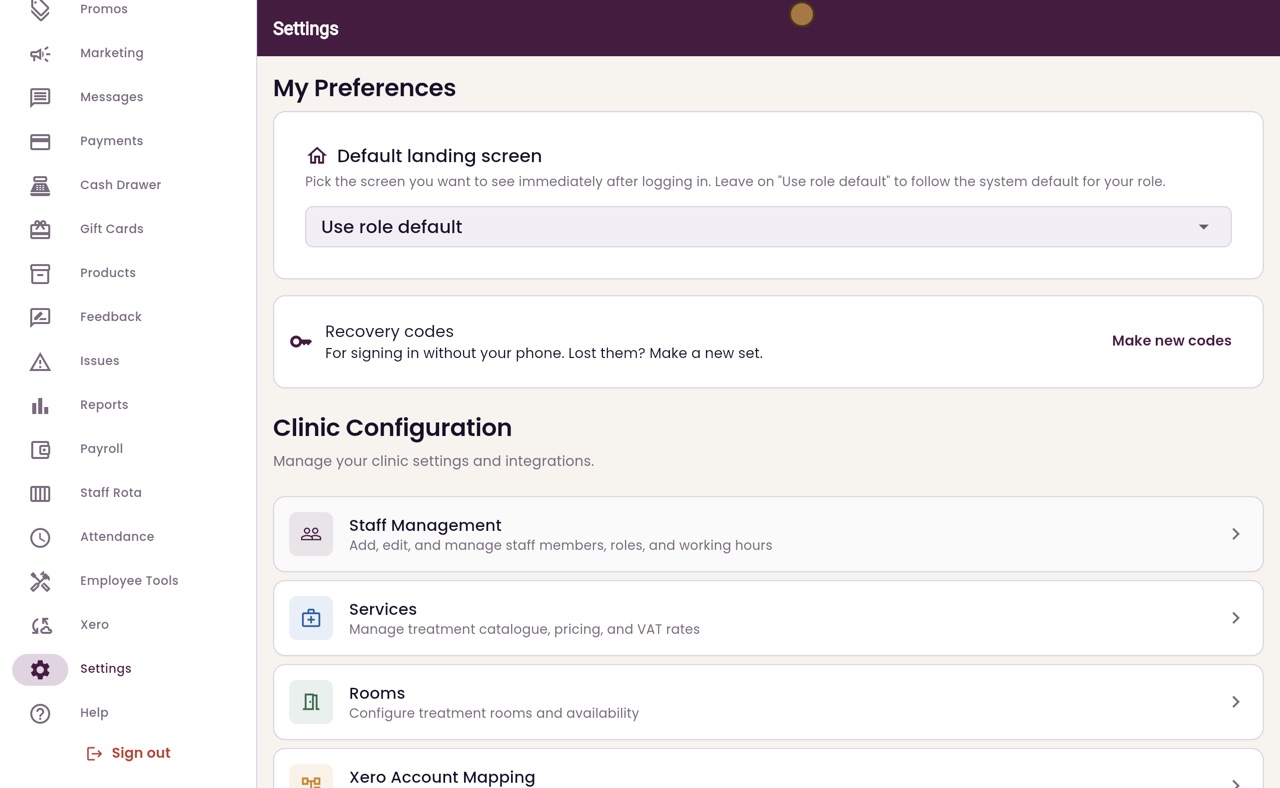
Settings, Recovery codes, Make new codes, then your current authenticator code. Click I have saved them when they are safe.
Lost phone
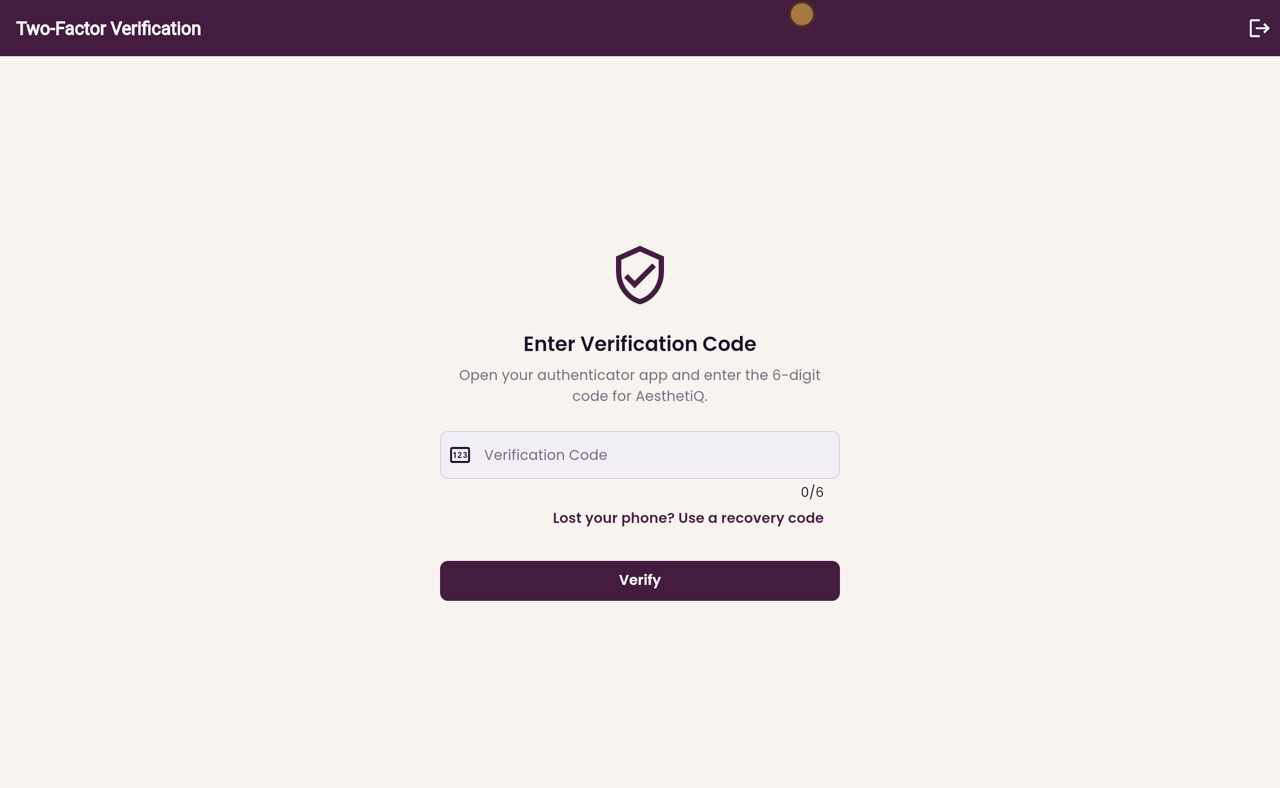
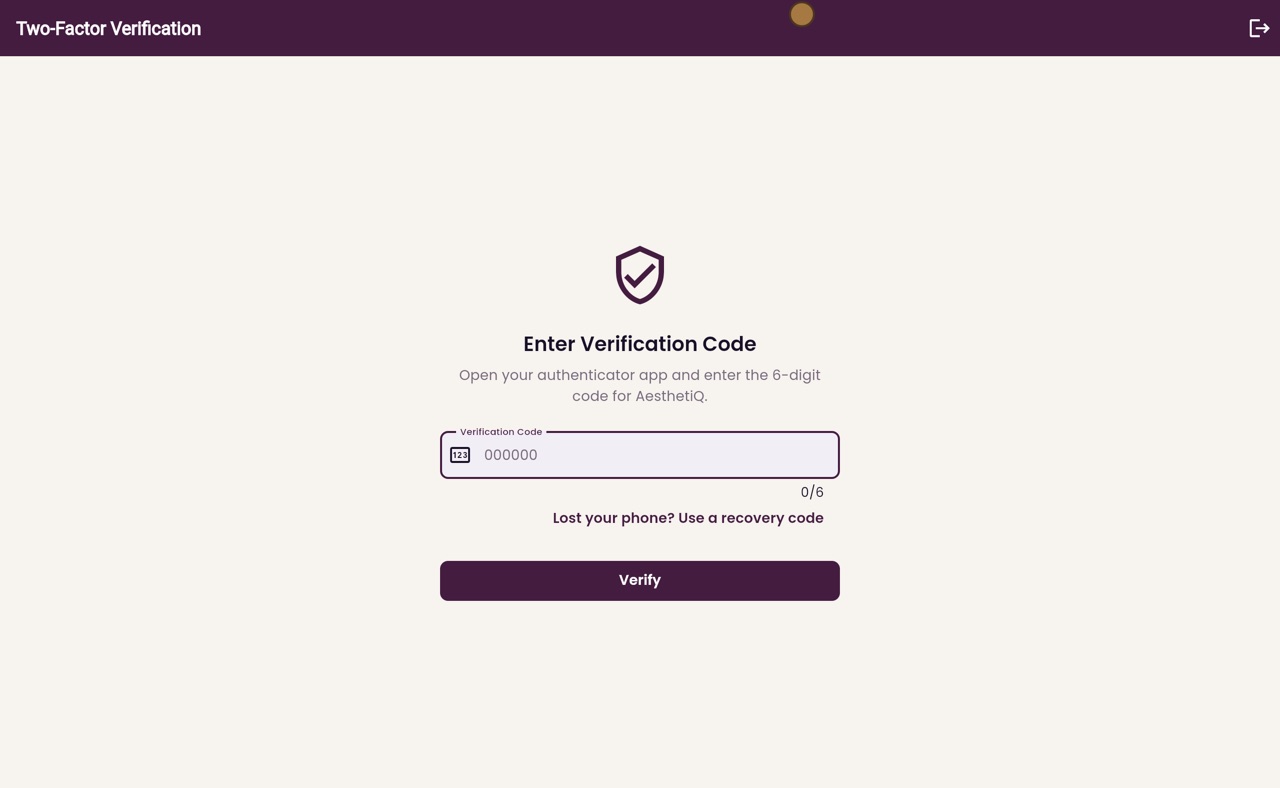
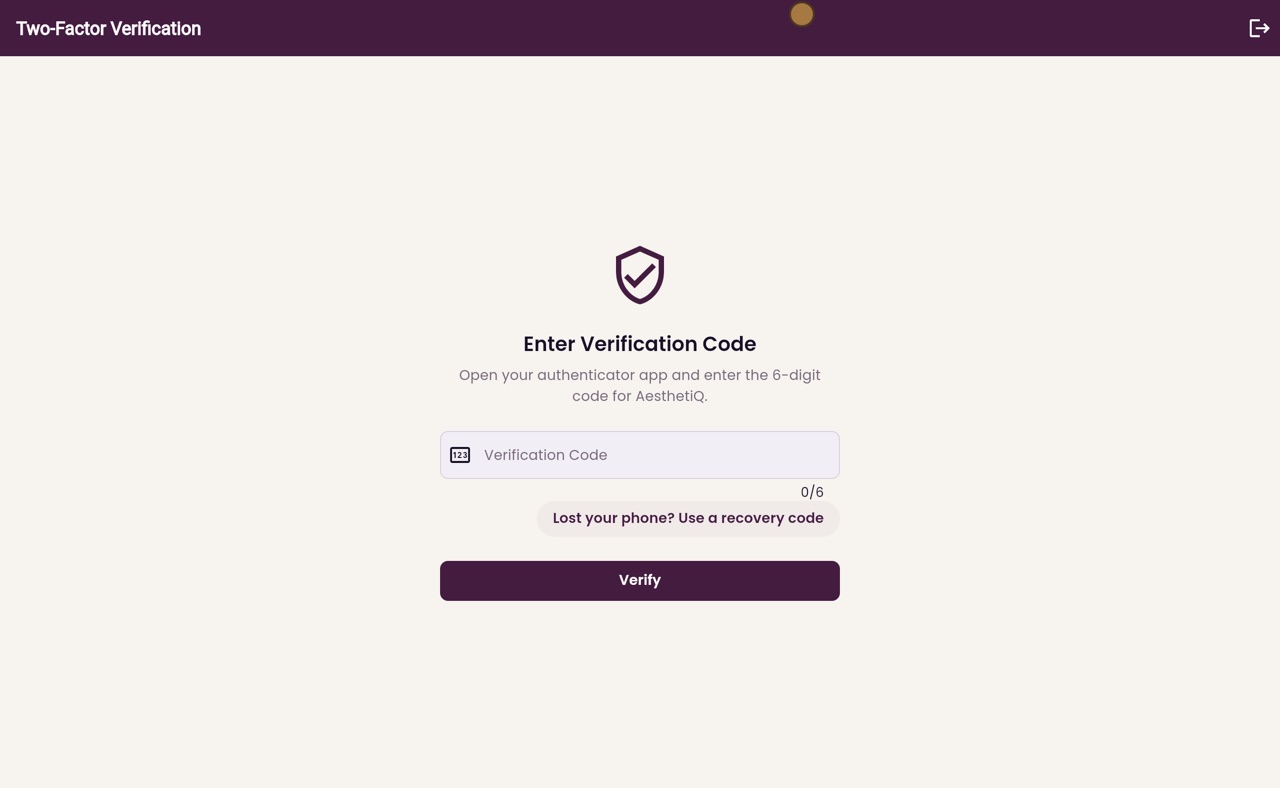
On the verification screen: Lost your phone? Use a recovery code.
Each code
Works once. Cross it off your list when you use it.
Step by step
- 01Libby
Your recovery codes
Hi, I am Libby. Recovery codes let you sign in without your phone if you lose it. Each code works once. You can make a new set at any time in Settings.
- 02Ryan
Recovery codes in Settings
Thanks Libby. In Settings, under My Preferences, is Recovery codes. Click Make new codes.
- 03Ryan
Your authenticator code
Your current recovery codes will stop working. Type the six-digit code from your authenticator app, then click Make new codes.
- 04Ryan
Save the new codes
The new codes are shown only once, so they are hidden in this video. Copy them or write them down, and keep them somewhere safe away from your phone. Then click I have saved them.
- 05Ryan
Lost your phone
If you lose your phone, start signing in as usual. Here Joanne signs out, then types her email address and password, and clicks Sign In.
- 06Ryan
Use a recovery code
On the verification screen, click Lost your phone? Use a recovery code.
- 07Ryan
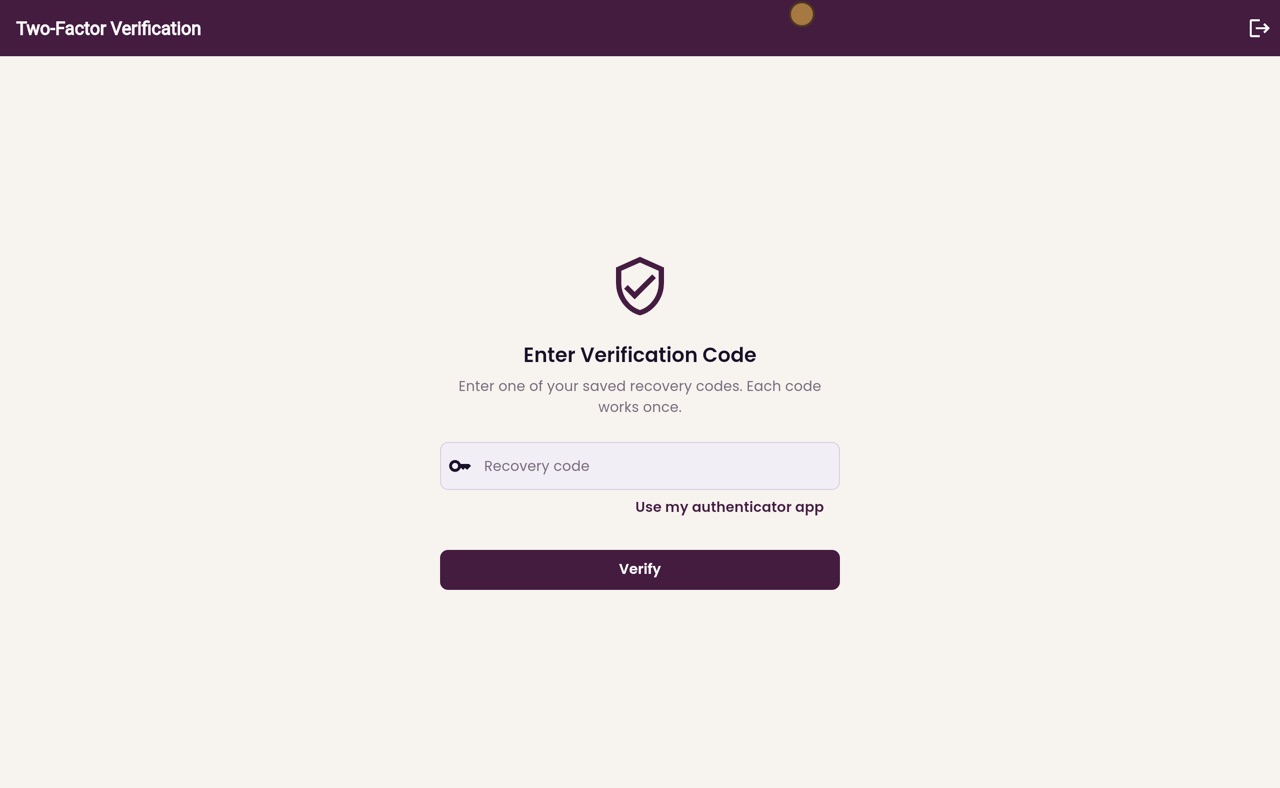
Type a code
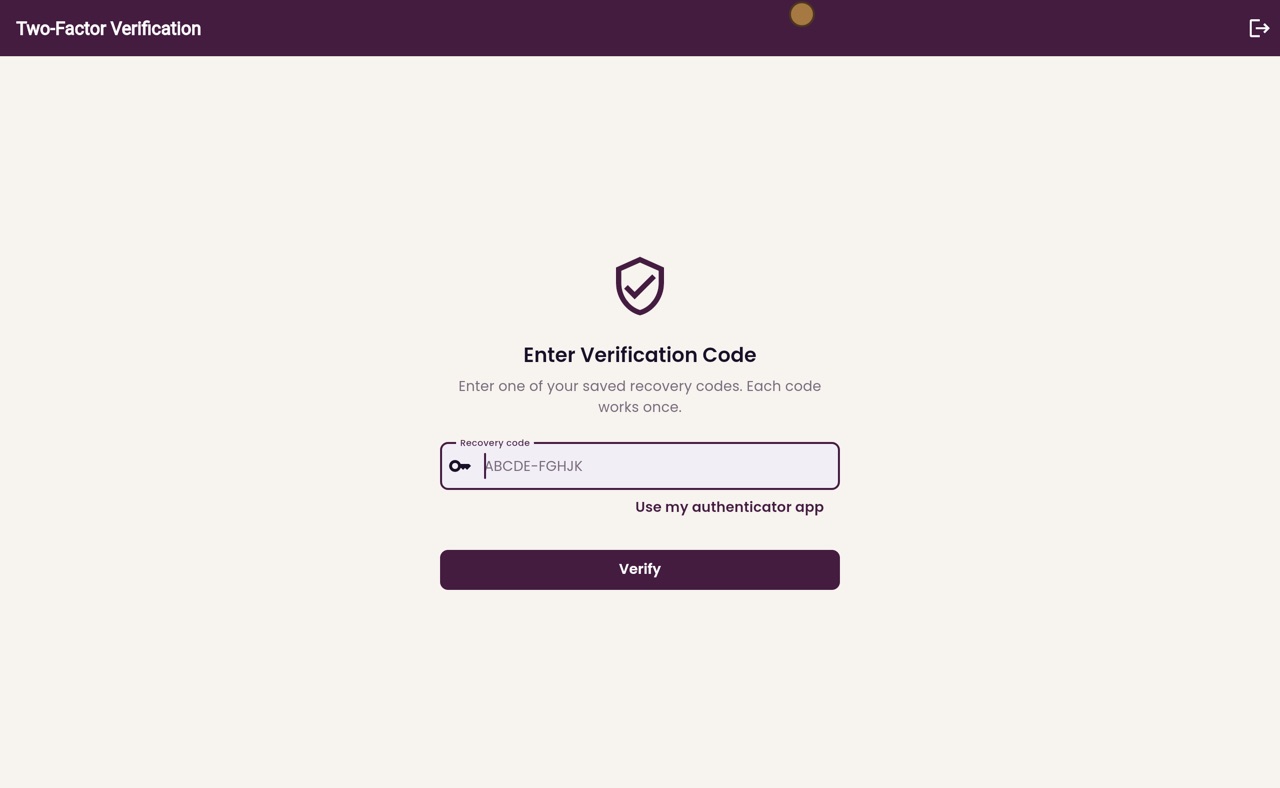
The box now asks for a recovery code. Type one of your codes here and click Verify. Each code works only once, so cross it off your list.
- 08Ryan
Back to the app
If you find your phone after all, click Use my authenticator app to go back to the six-digit code.
- 09Libby
Done
That is recovery codes. If your codes are used up or lost, ask another admin to reset your authenticator, and set it up again at your next sign in.