Taking a cash payment
Open the appointment, choose Cash and process the payment. The appointment then shows Paid.
Where
Calendar, the patient's appointment, then Take Payment.
Who
Reception and the clinic manager.
After
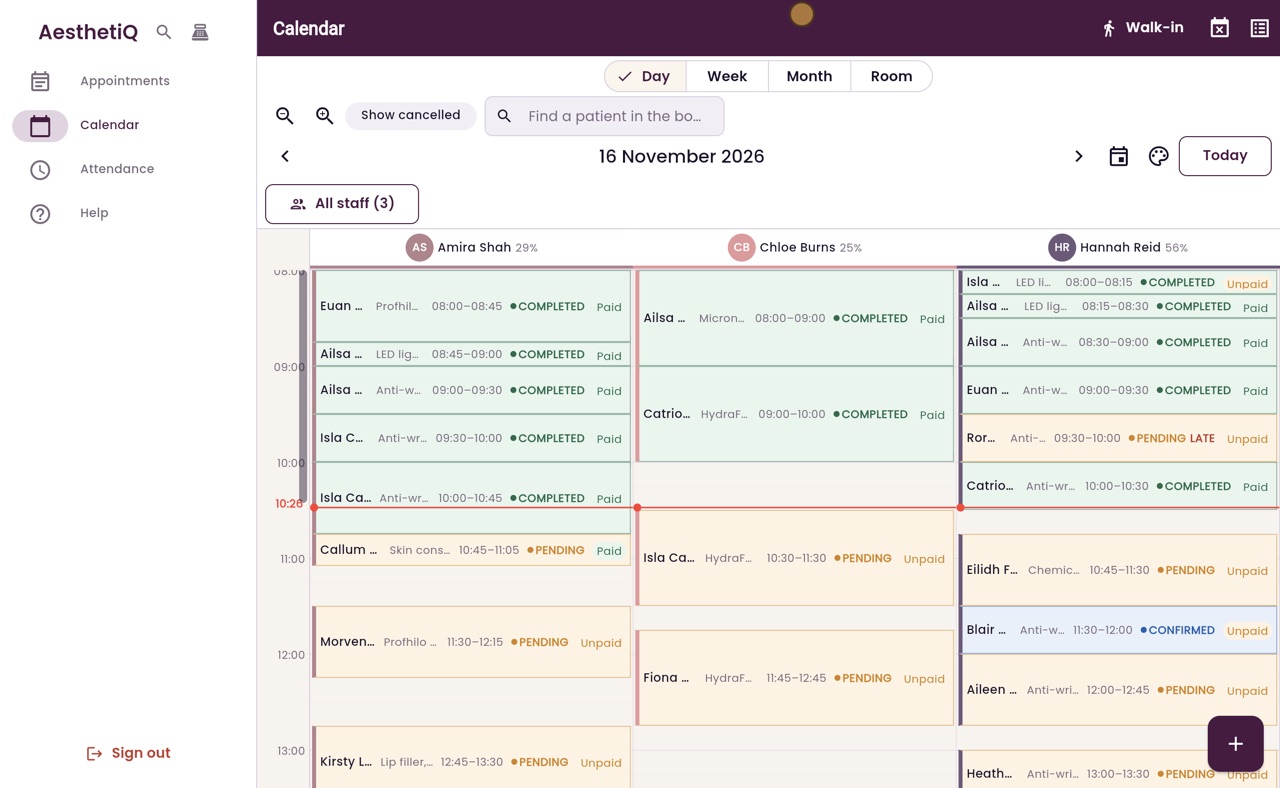
The balance due is zero and the calendar shows Paid.
Step by step
- 01Libby
Paying in cash
Hi, I am Libby. When a patient pays in cash, reception records it against their appointment. The takings and the patient's account then stay right.
- 02Ryan
Open the appointment
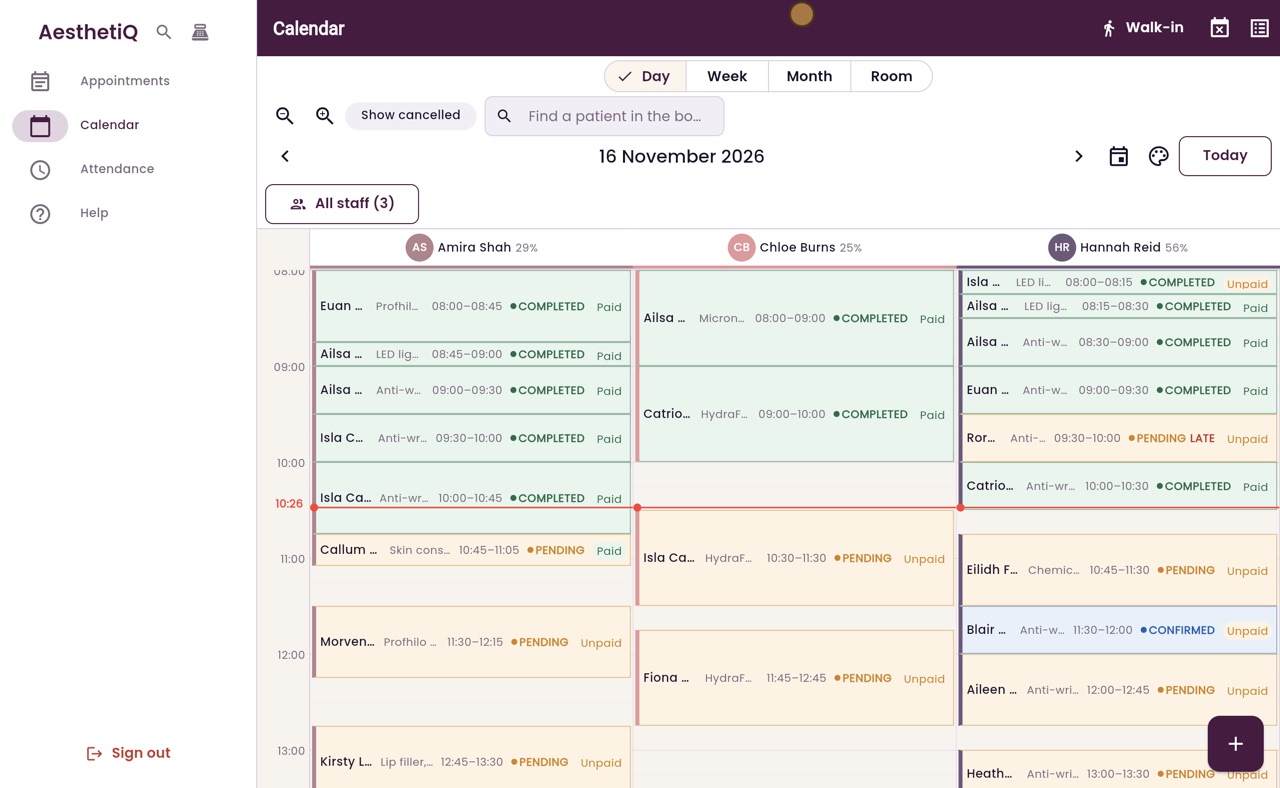
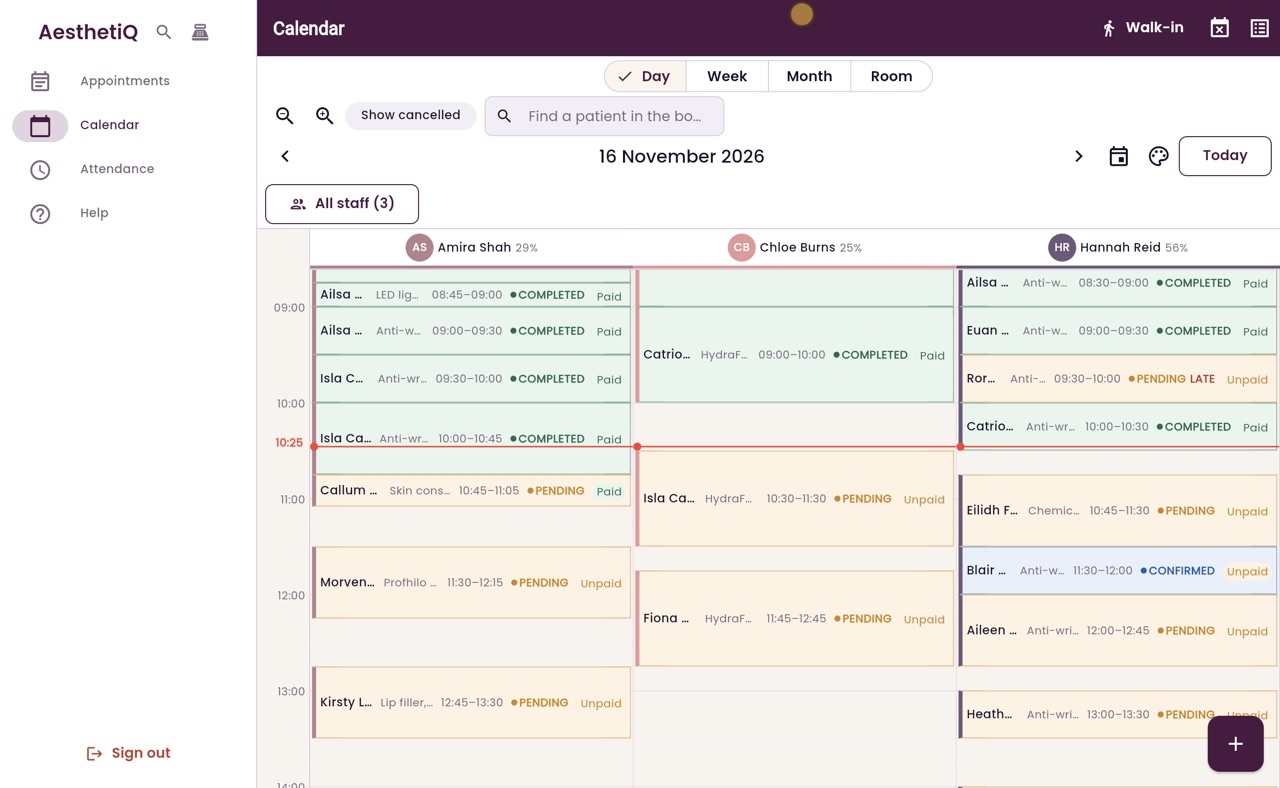
Thanks Libby. Euan Robertson has finished his Profhilo skin booster with Amira Shah, and he would like to pay in cash. Scroll up to the start of the day, and click his appointment to open it.
- 03Ryan
Take Payment
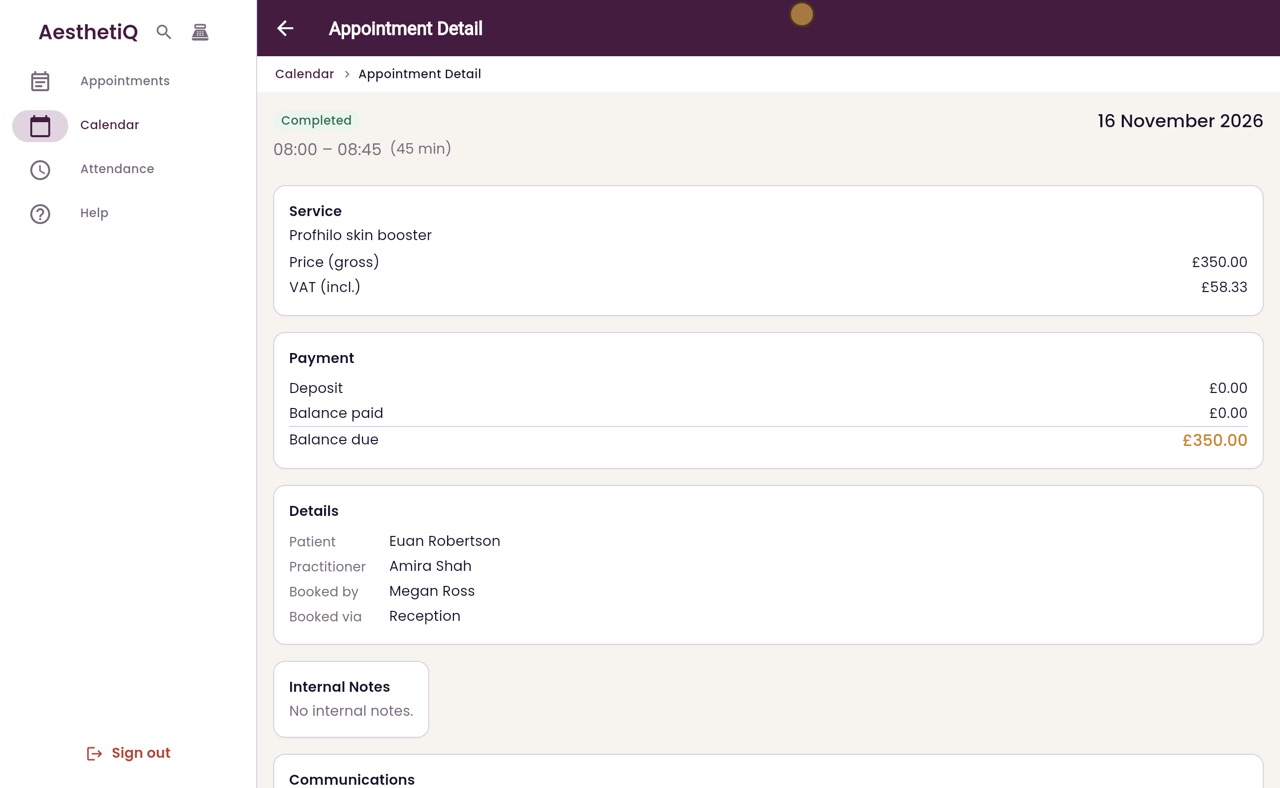
The Payment section shows three hundred and fifty pounds still to pay. Scroll down and click Take Payment.
- 04Ryan
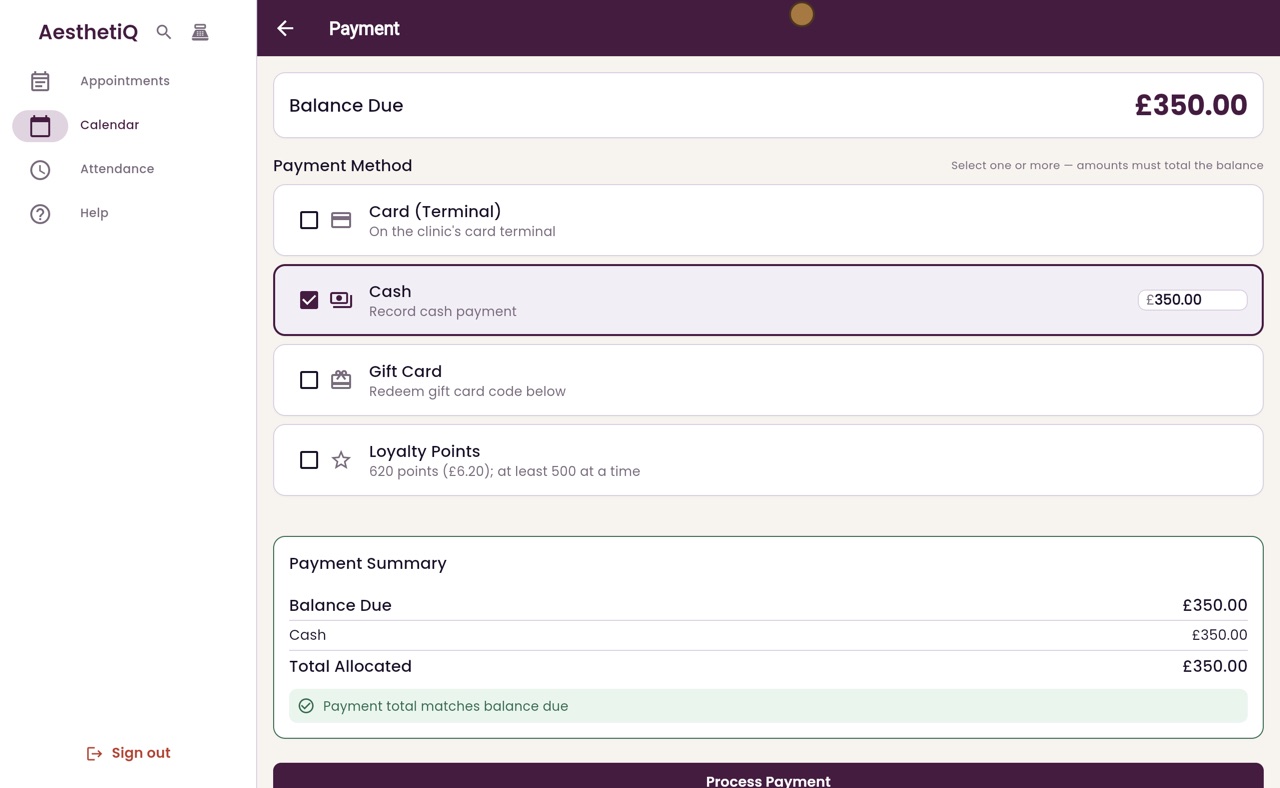
Choose Cash
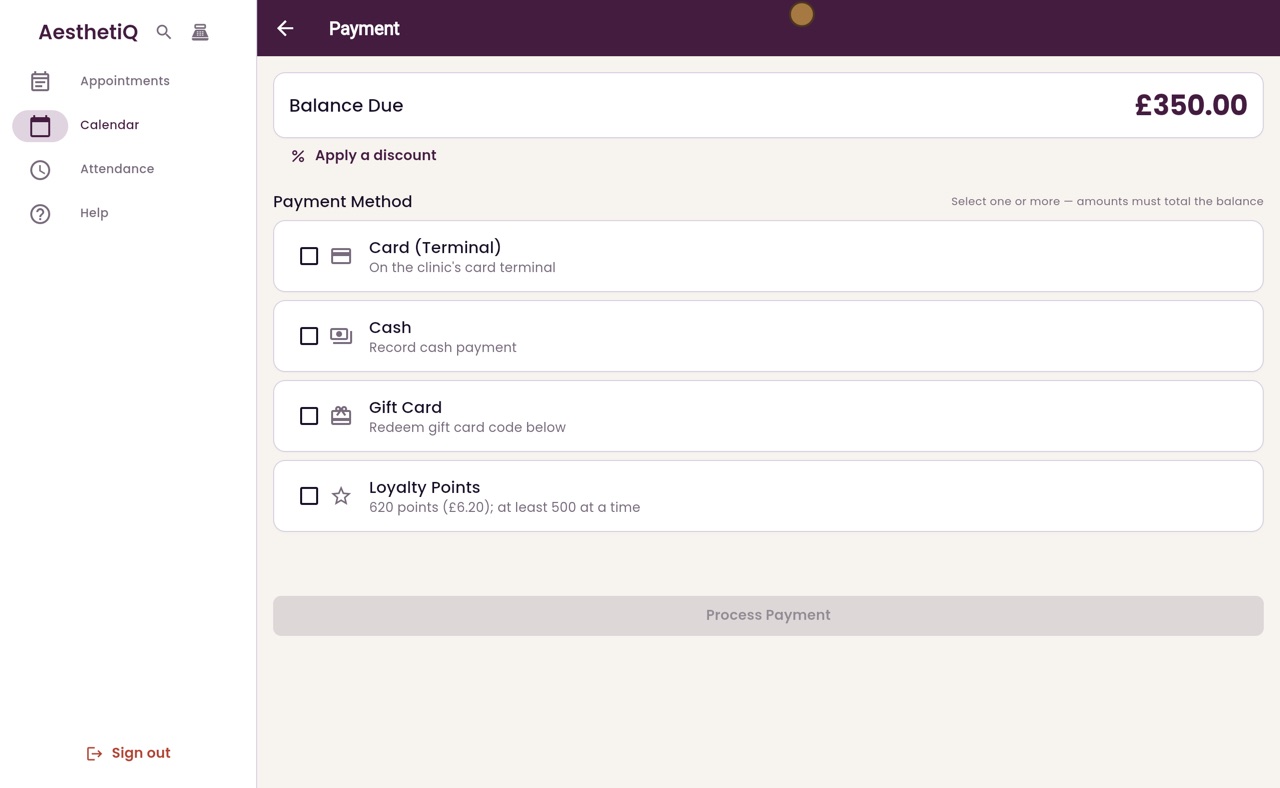
The Payment screen lists the ways to pay. Tick Cash. The amount fills in with the whole balance, and the summary shows the payment matches the balance due.
- 05Ryan
Process the payment
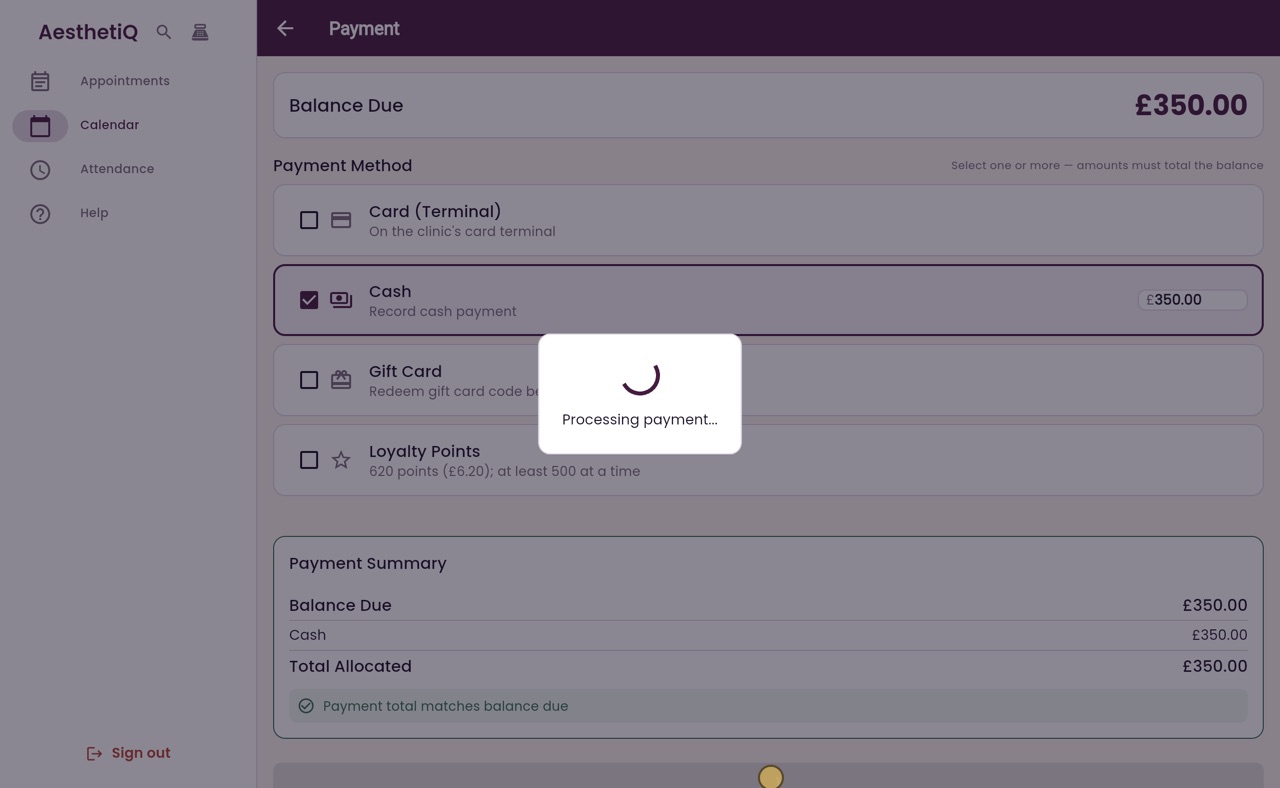
Take the cash from Euan, then click Process Payment.
- 06Ryan
Rating the visit
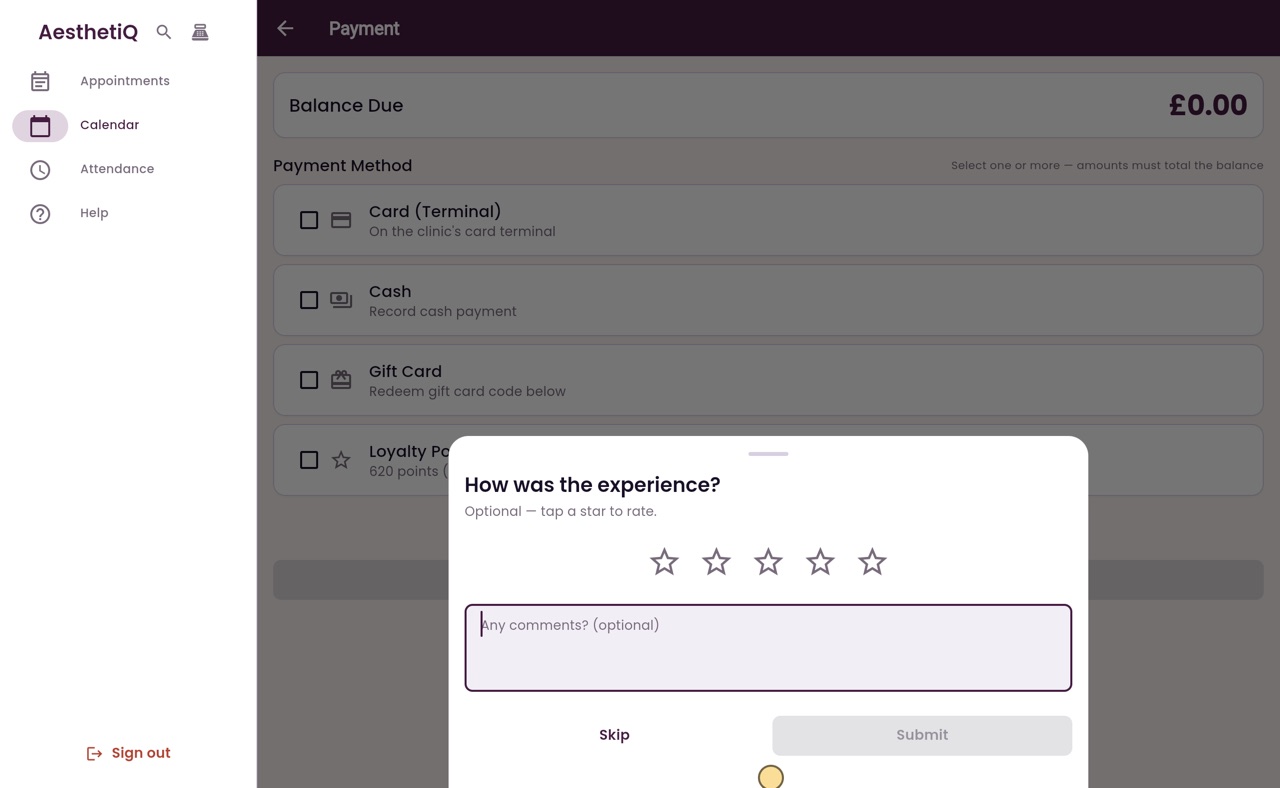
AesthetiQ records the payment, and asks how the visit was. Euan can tap a star to rate it, or you can click Skip.
- 07Ryan
Paid
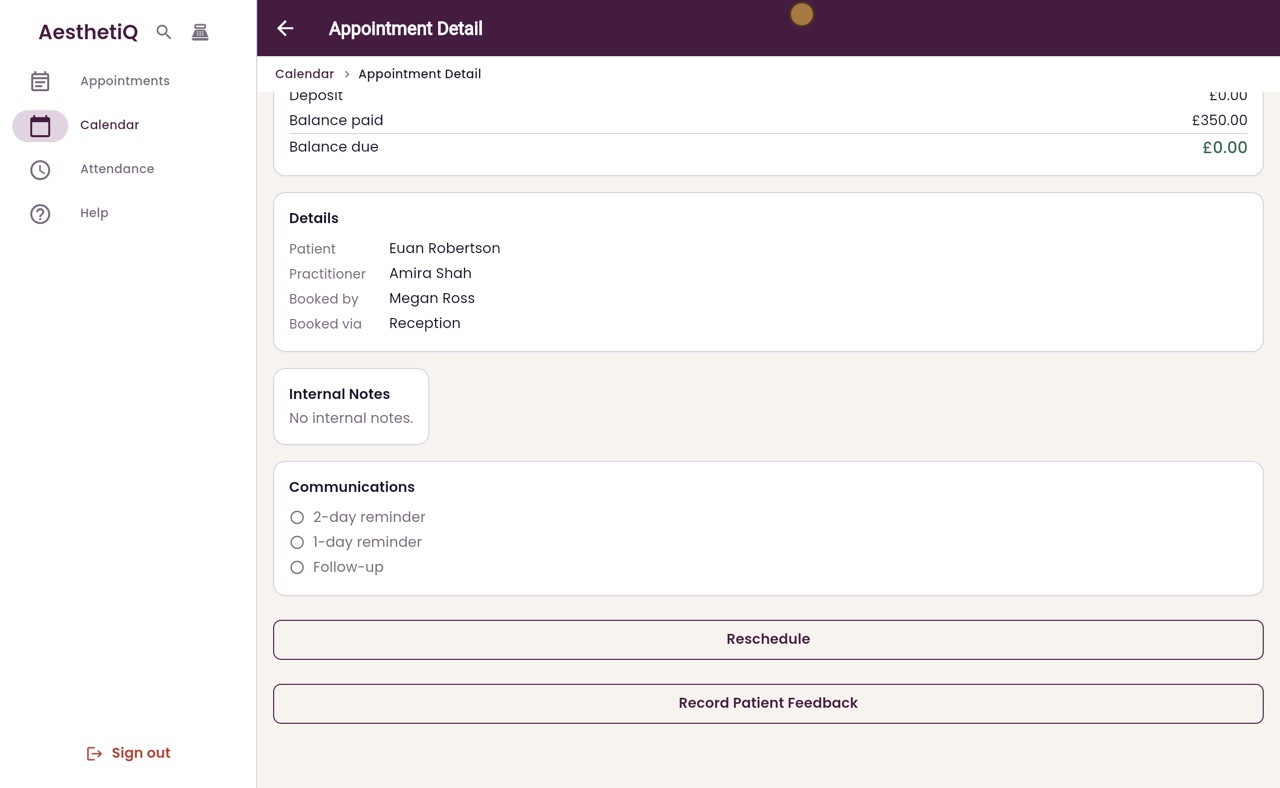
Click Skip. A message confirms the payment. The appointment now shows three hundred and fifty pounds paid, and nothing left to pay.
- 08Ryan
Back on the calendar
Click Back. On the calendar, Euan's appointment now shows Paid.
- 09Libby
Done
That is taking a cash payment. Every payment is recorded against the patient's appointment.