Adding a product to sell
Add a skincare product with its code, prices and reorder level, so it can be sold at the till.
Where
Products in the menu, then the plus button.
Prices
Sale price and cost price; the margin is worked out for you.
Reorder Level
At this number or below, the product shows as low stock.
Step by step
- 01Libby
A new product
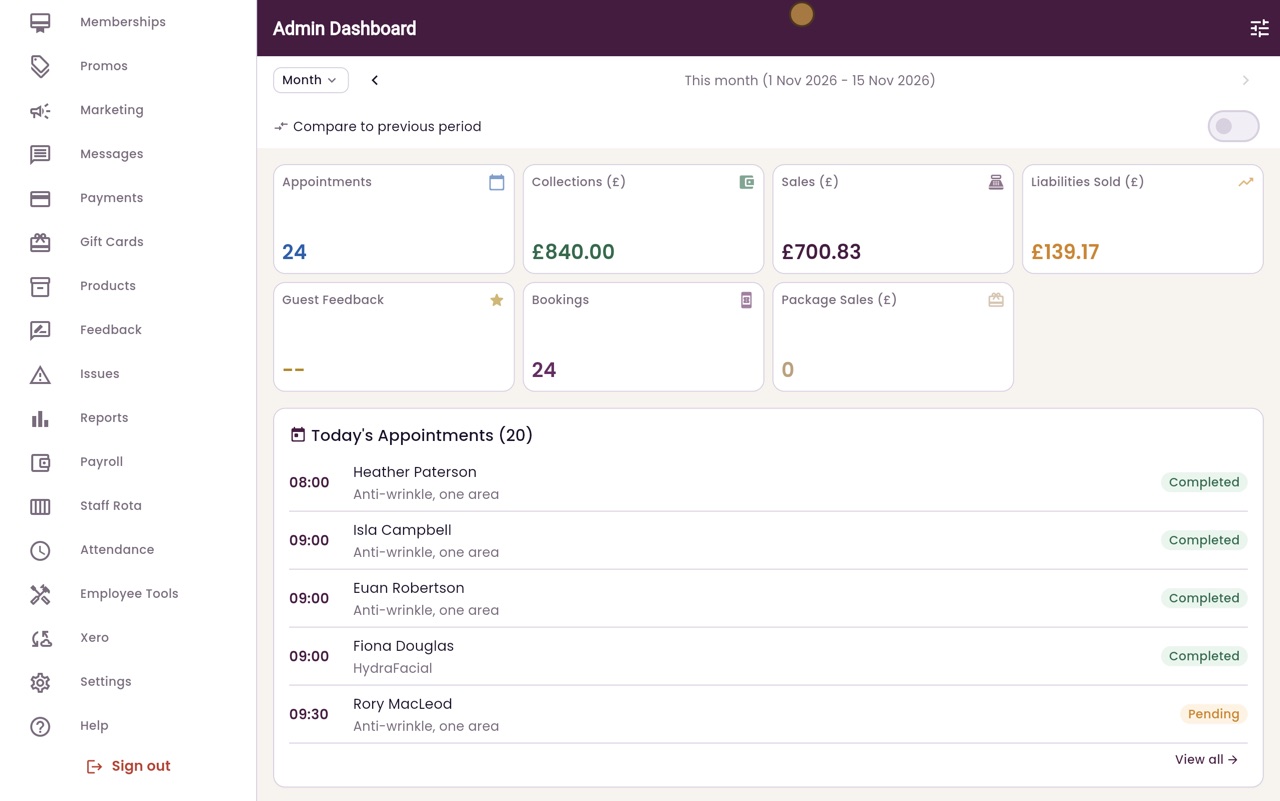
Hi, I am Libby. Before a skincare product can be sold at the till, it needs to be added to Products. Here we add a retinol night cream.
- 02Ryan
Products
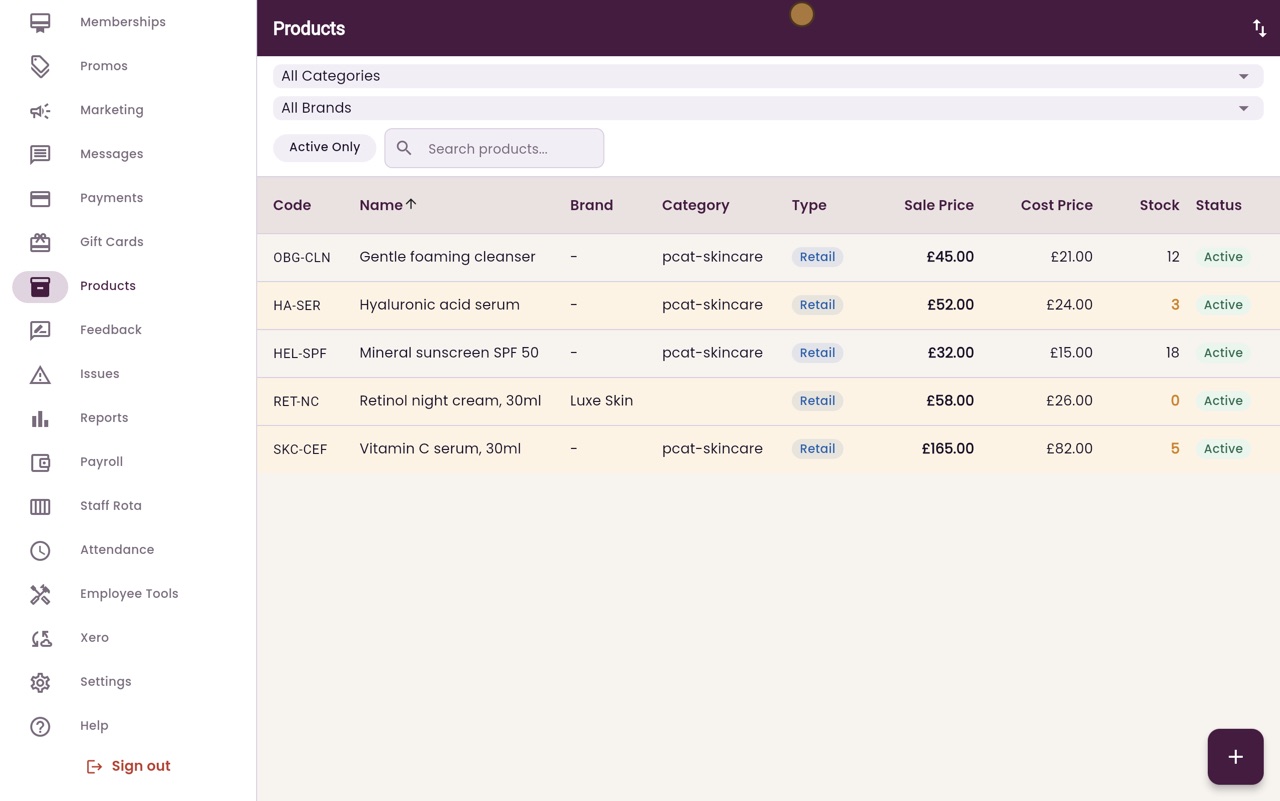
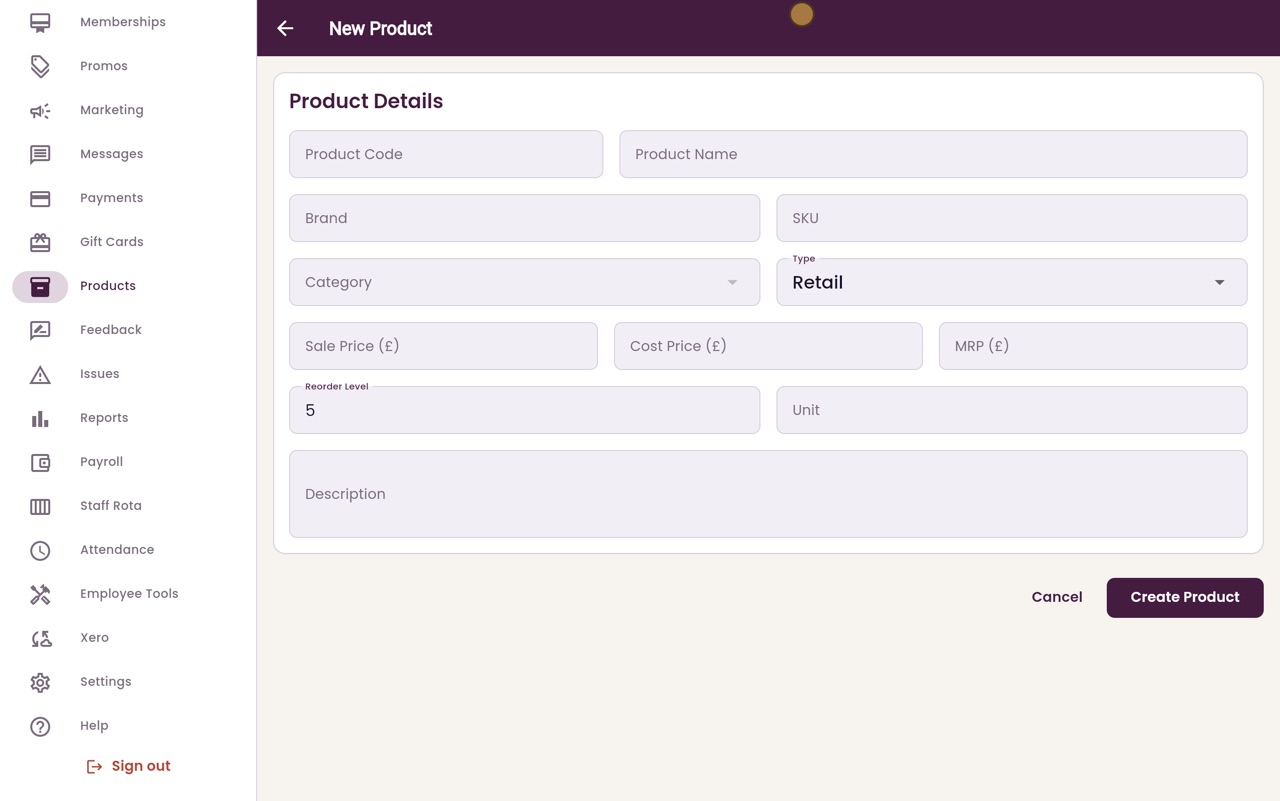
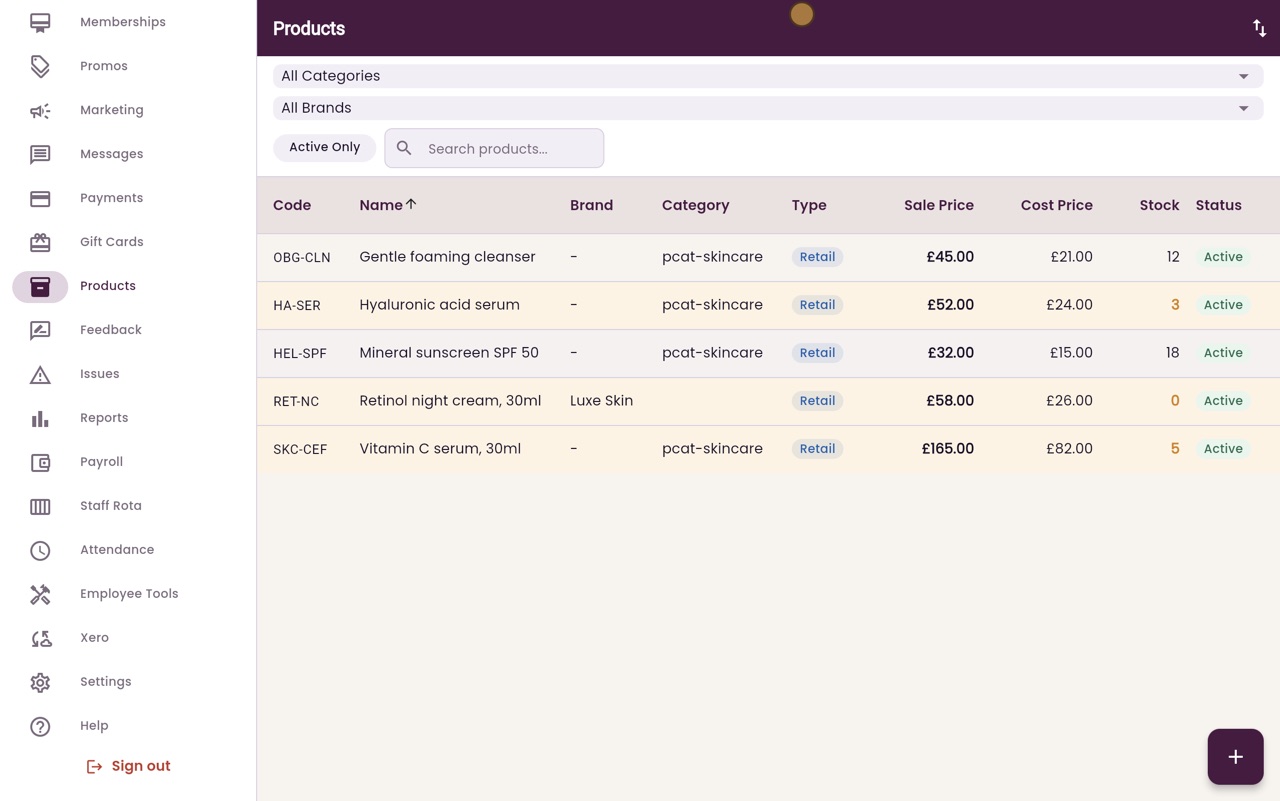
Thanks Libby. Click Products in the menu. Every product is listed with its code, its prices and how many are in stock. Click the plus button to add one.
- 03Ryan
Code, name and brand
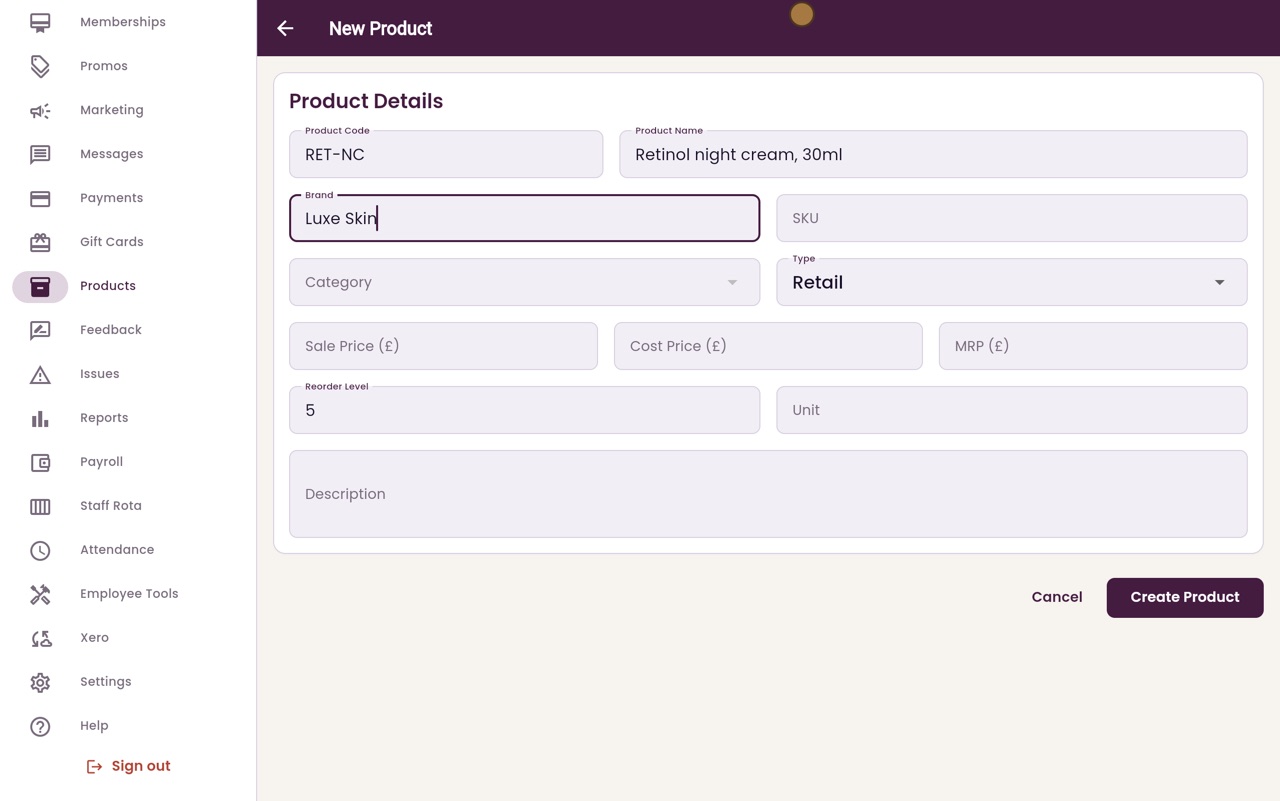
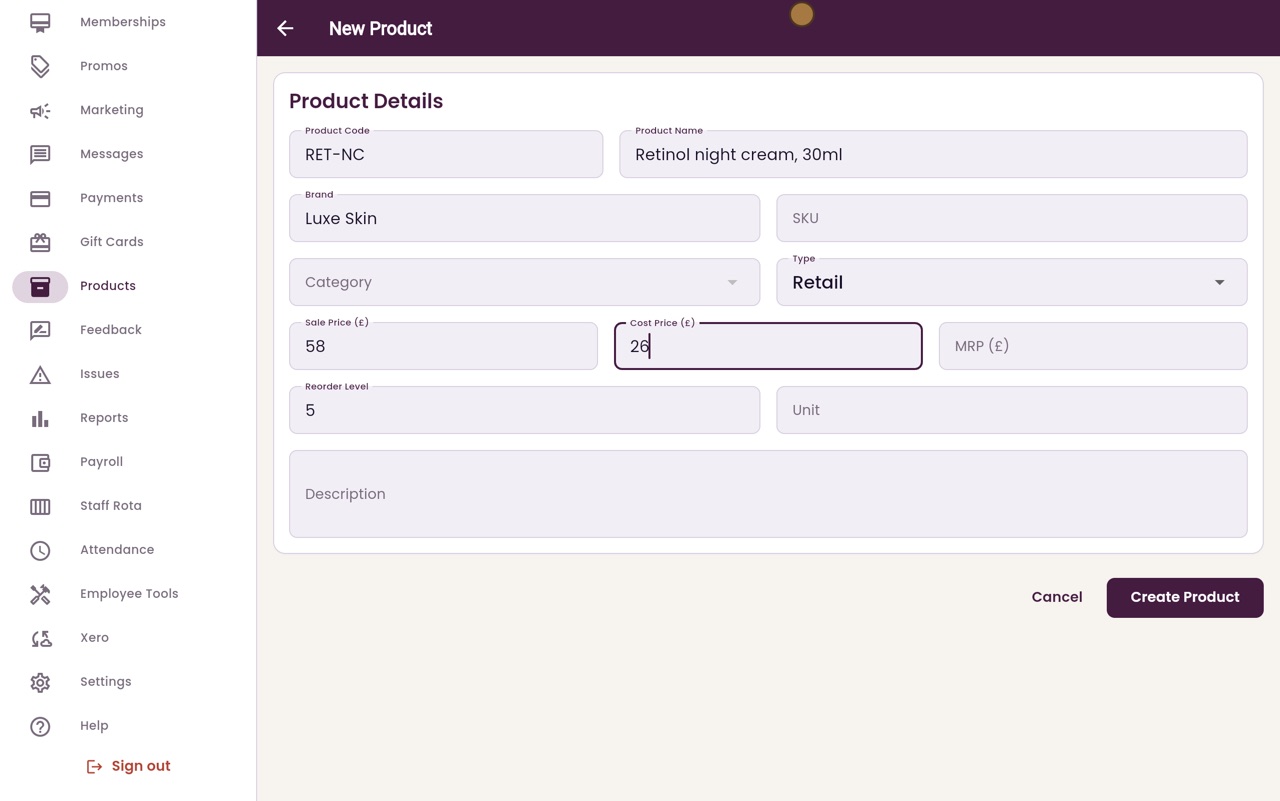
Type a short product code, the product name with its size, and the brand. A short code makes the product quick to find in the list.
- 04Ryan
Type and prices
Leave the type as Retail for products you sell to patients. Type the sale price and the cost price. AesthetiQ uses them to work out your margin.
- 05Ryan
Reorder Level
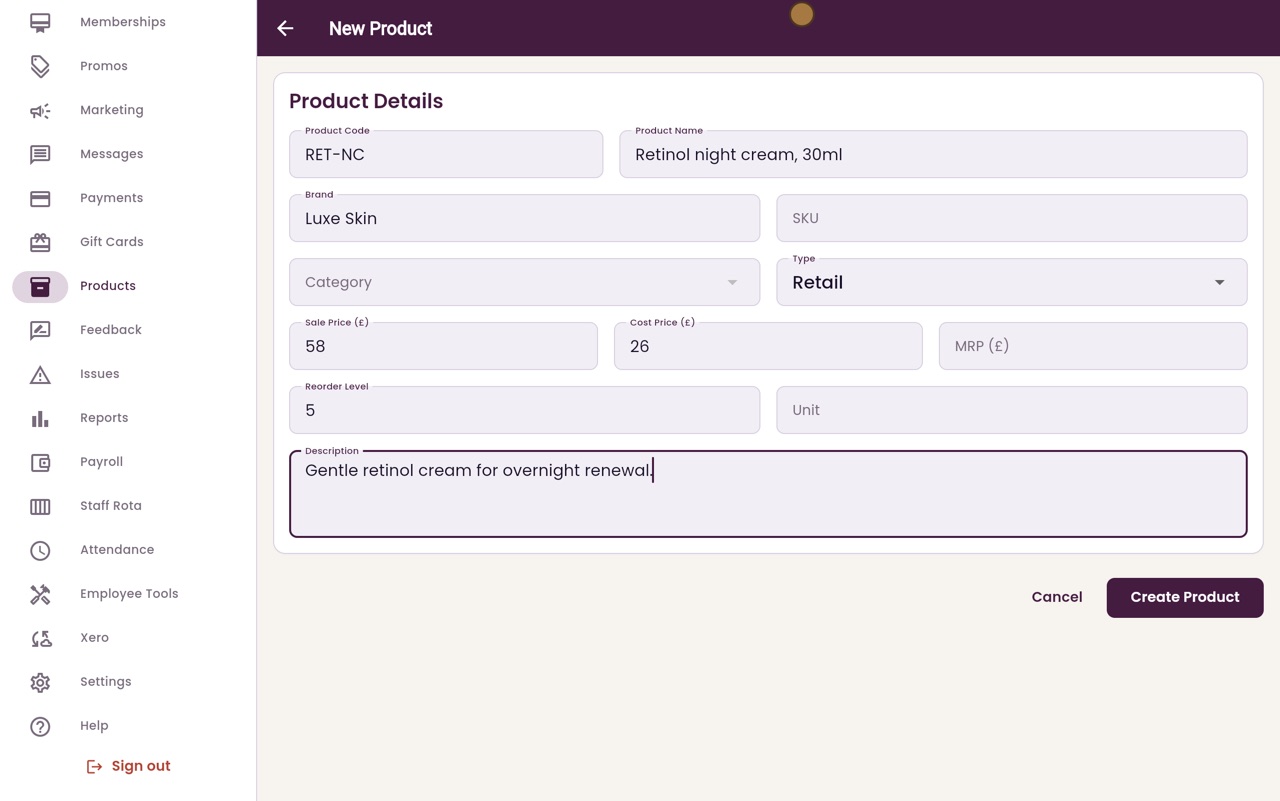
Reorder Level is the number that counts as low. When stock falls to this number or below, the product shows as low stock. Add a short description if you like.
- 06Ryan
Create Product
Click Create Product. The new night cream is added to the list, with no stock yet.
- 07Libby
Done
That is adding a product. Next, receive stock into it, with its batch number and expiry date.