Signing in
Sign in with your own email address and password. AesthetiQ opens the screens for your role.
Where
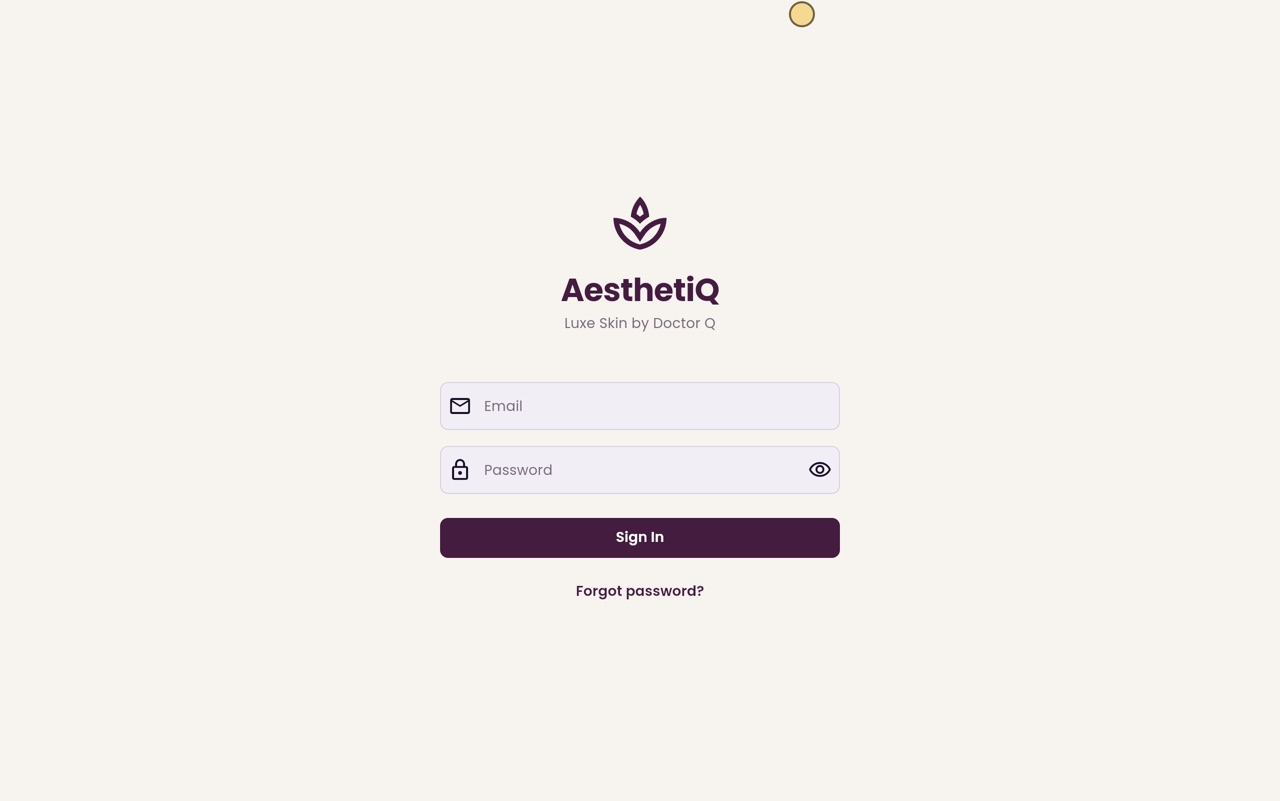
The sign in screen, when AesthetiQ opens.
Who
Everyone who works at the clinic, each with their own login.
After
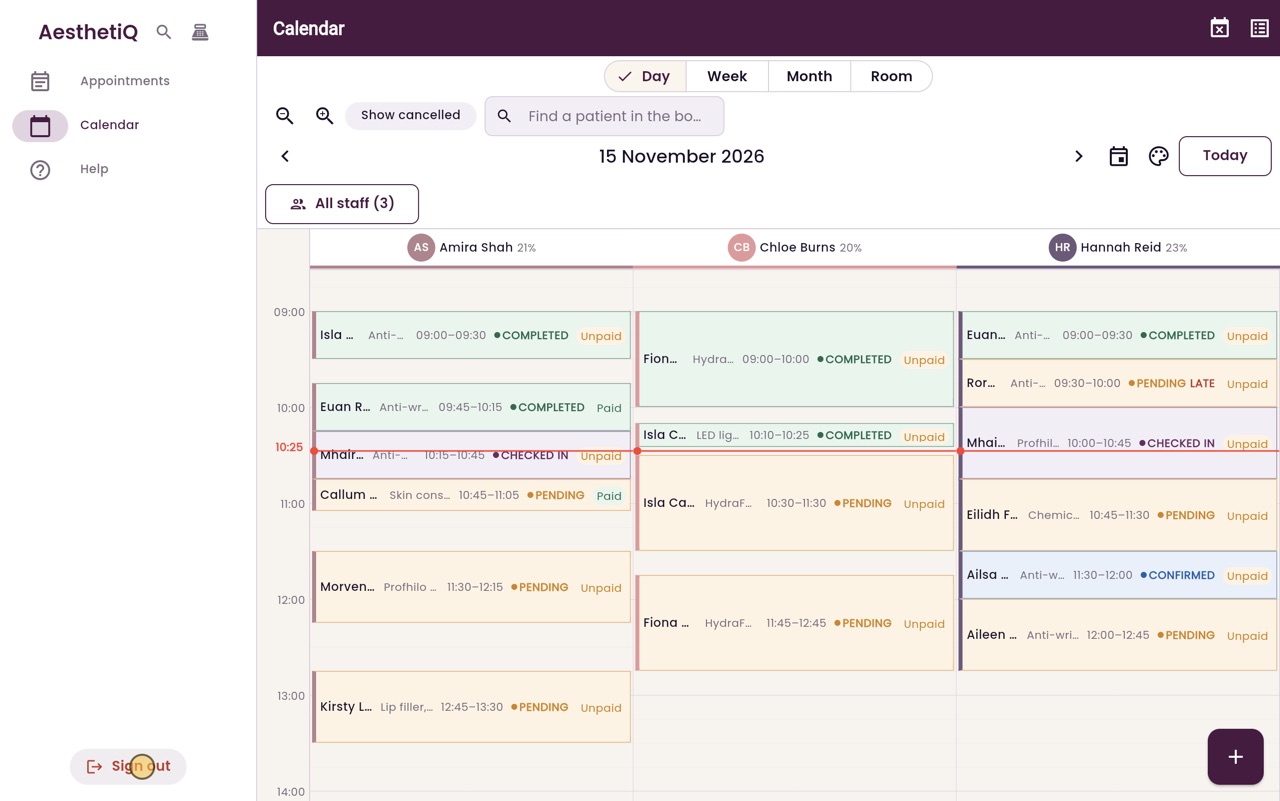
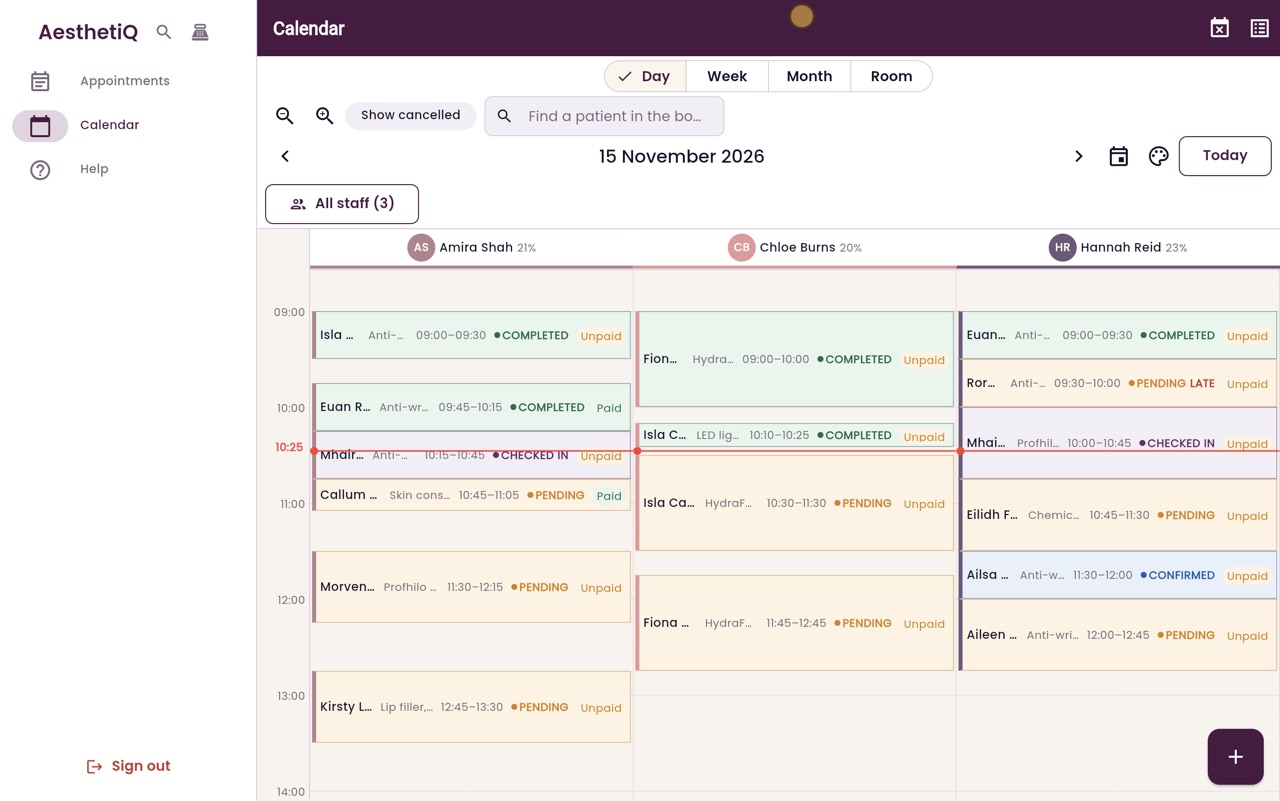
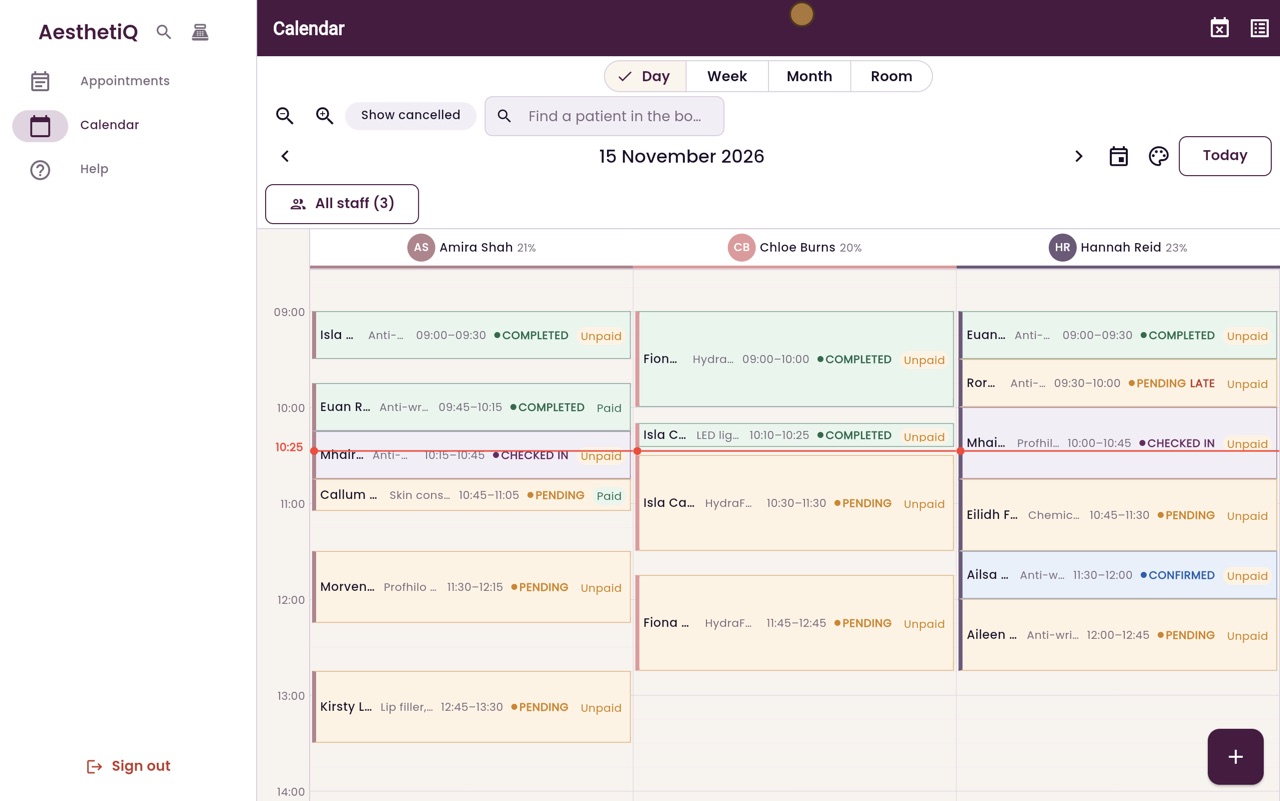
Reception lands on today's calendar.
Step by step
- 01Libby
Your own login
Hi, I am Libby. Everyone at the clinic signs in to AesthetiQ with their own email address and password. Here is how reception signs in at the start of the day.
- 02Ryan
Email
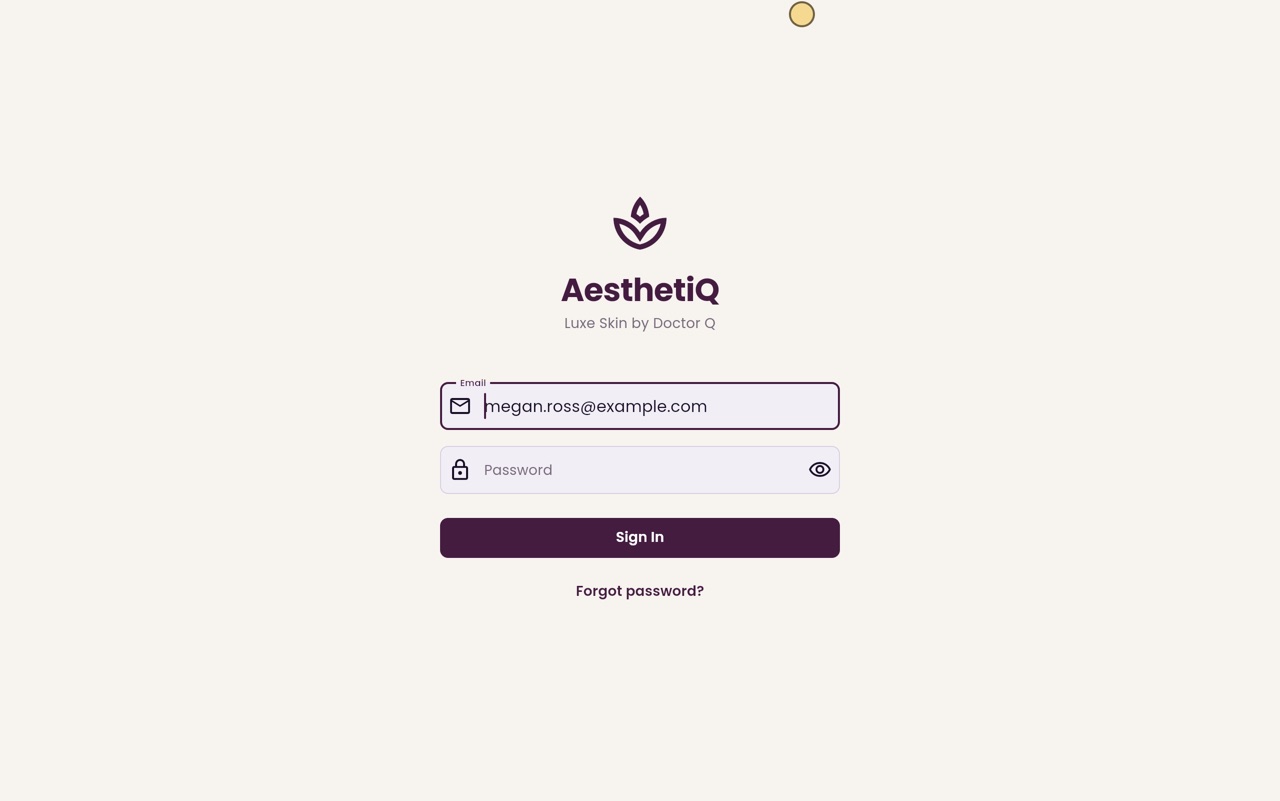
Thanks Libby. AesthetiQ opens on the sign in screen for Luxe Skin by Doctor Q. Click Email and type your work email address.
- 03Ryan
Password
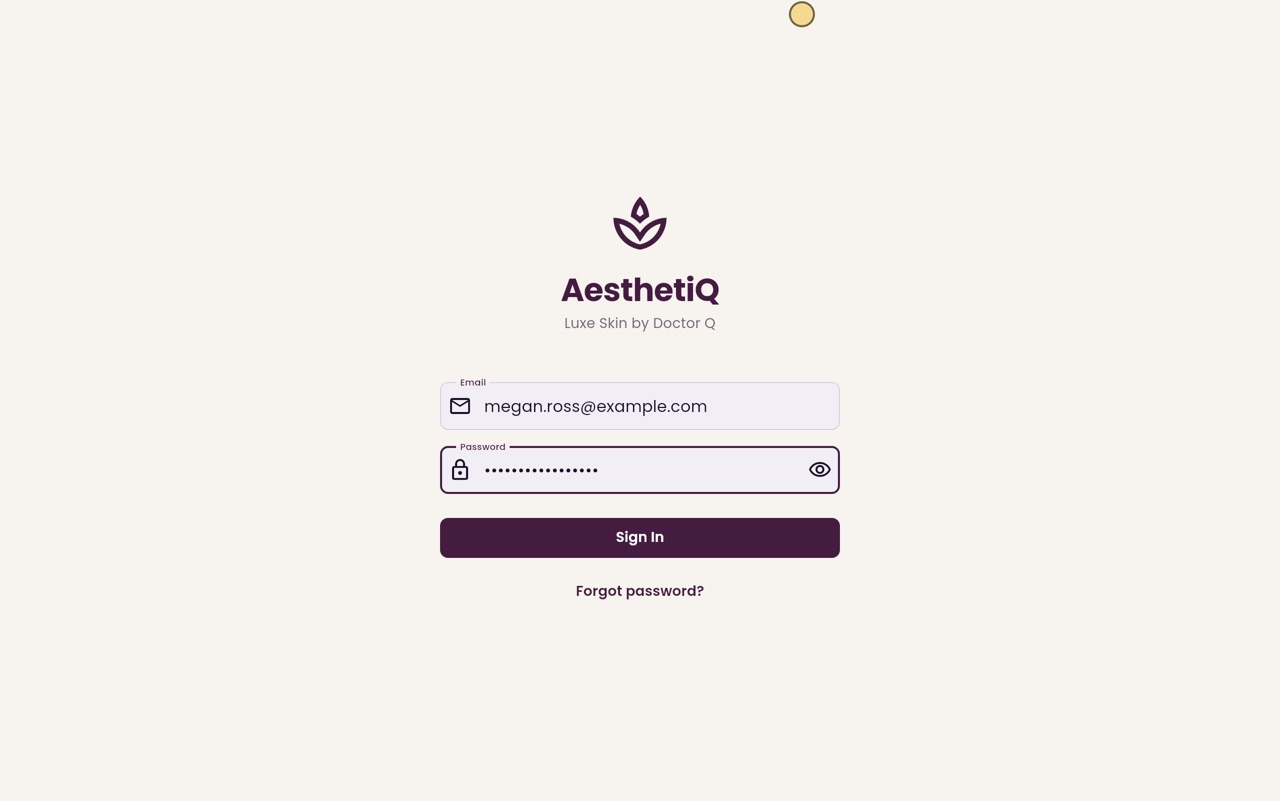
Click Password and type your password. It shows as dots, so nobody nearby can read it.
- 04Ryan
Sign In
Click Sign In. AesthetiQ checks your details and opens the screens for your role.
- 05Ryan
Today's calendar
Reception opens straight on today's calendar. The menu on the left has Appointments, Calendar and Help.
- 06Libby
Signing out
That is signing in. When you finish for the day, click Sign out at the bottom of the menu. If you forget your password, click Forgot password on the sign in screen.