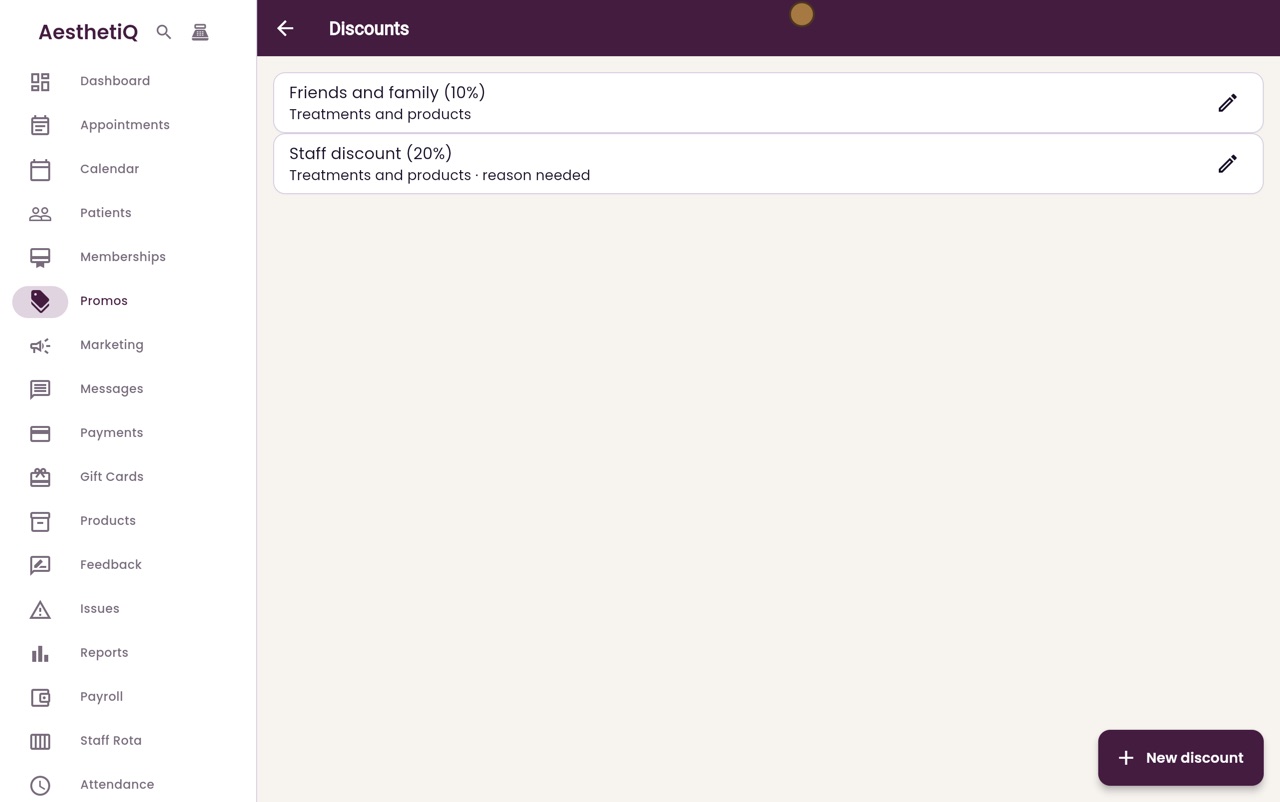
Setting up staff discounts
Set up the named discounts staff can add at checkout, so everyone gives the same amounts.
Where
Promos, then the percentage icon, Discounts.
Who
The clinic manager.
After
Staff can pick the discount at checkout and at the till.
Step by step
- 01Libby
Named discounts
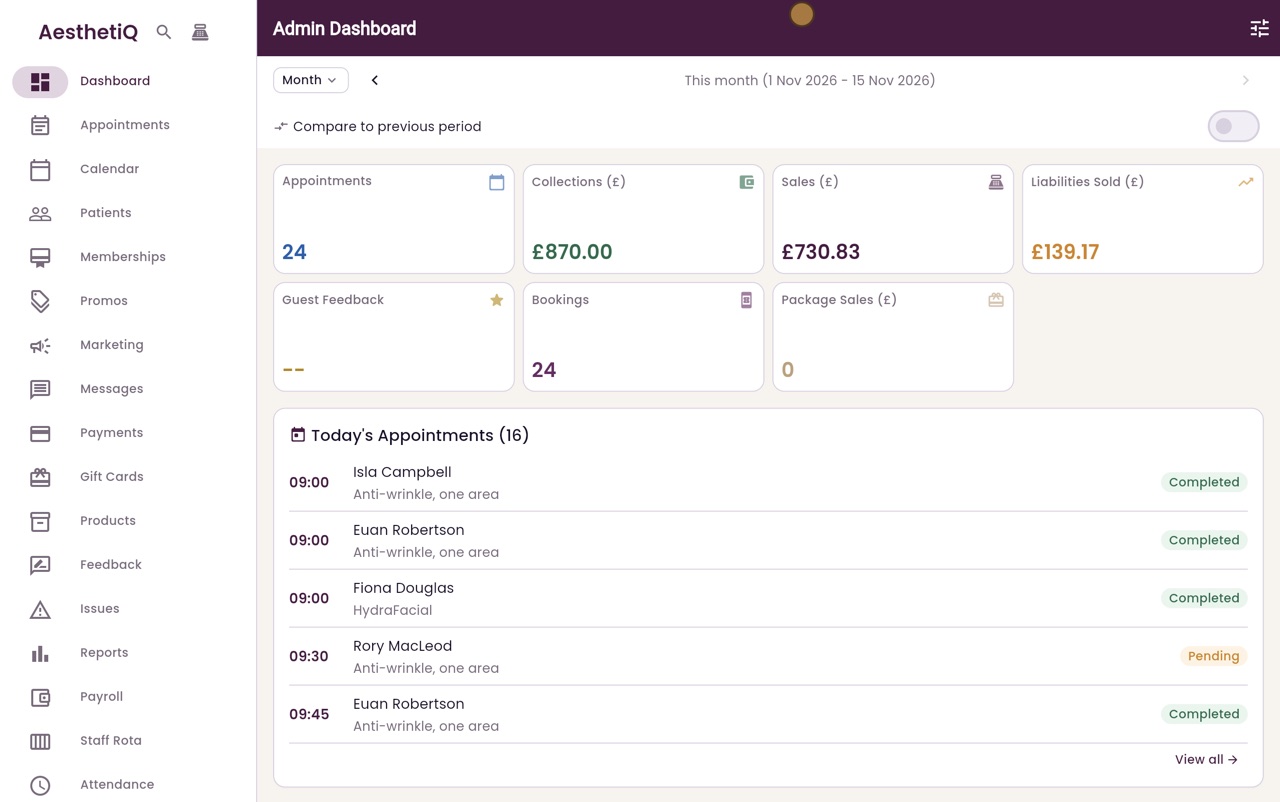
Hi, I am Libby. Named discounts are the discounts staff can add at checkout, such as friends and family. The clinic manager sets them up, so everyone gives the same amounts.
- 02Ryan
Open Discounts
Thanks Libby. Click Promos in the menu on the left, then the percentage icon at the top right, Discounts.
- 03Ryan
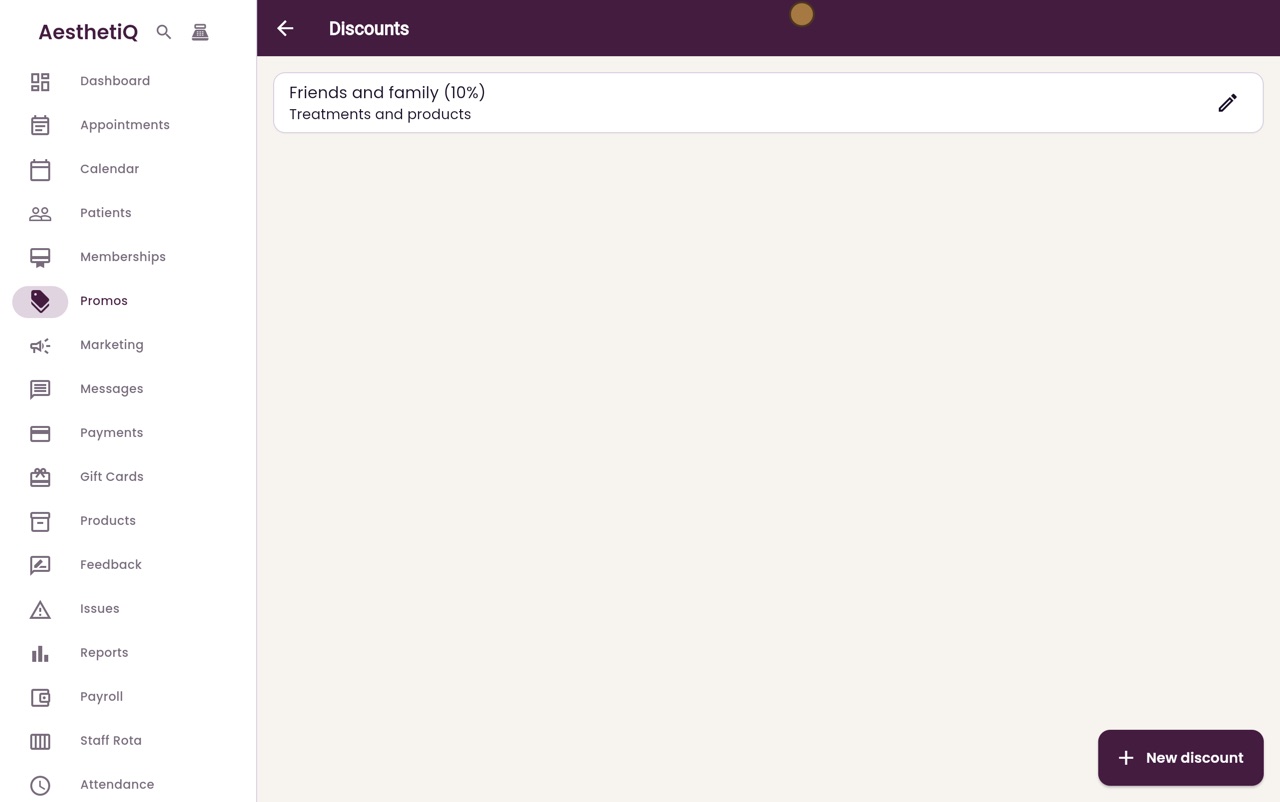
The discounts
The list shows the discounts already set up, here Friends and family at ten percent. Click New discount.
- 04Ryan
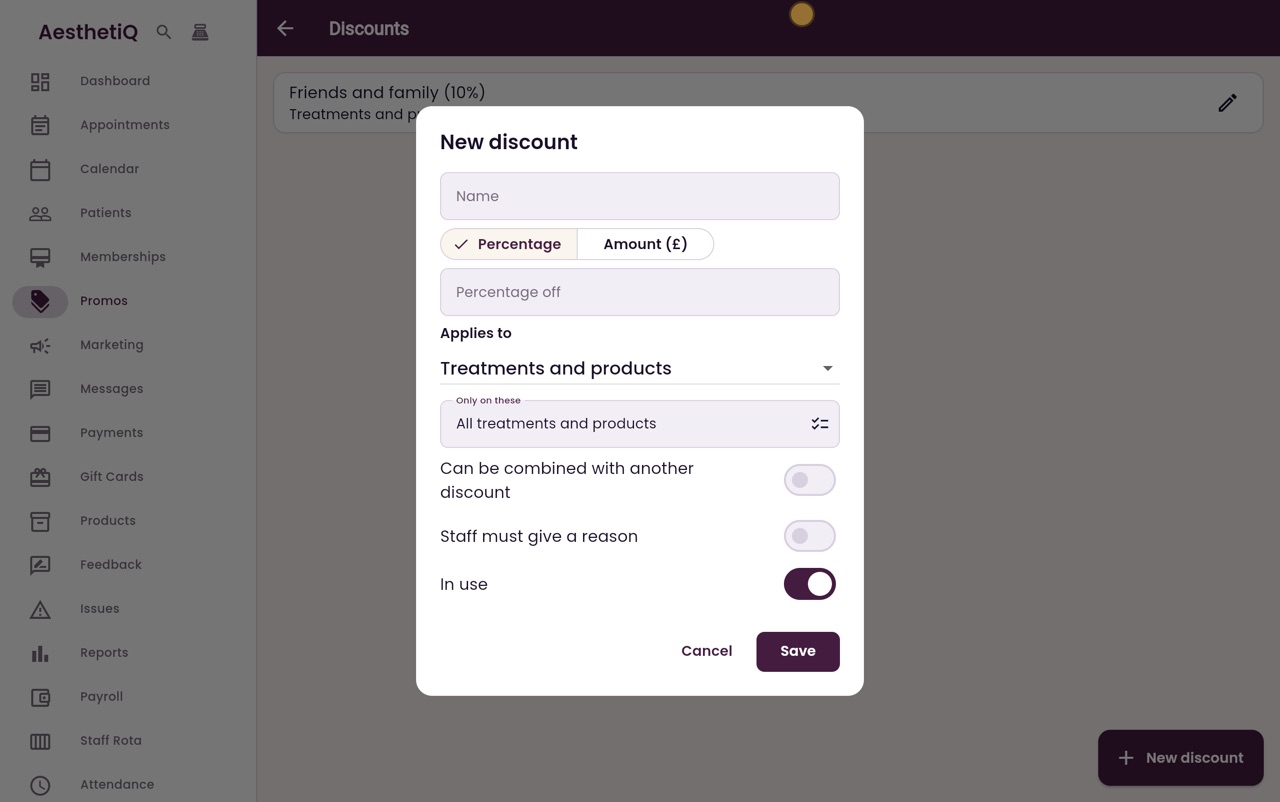
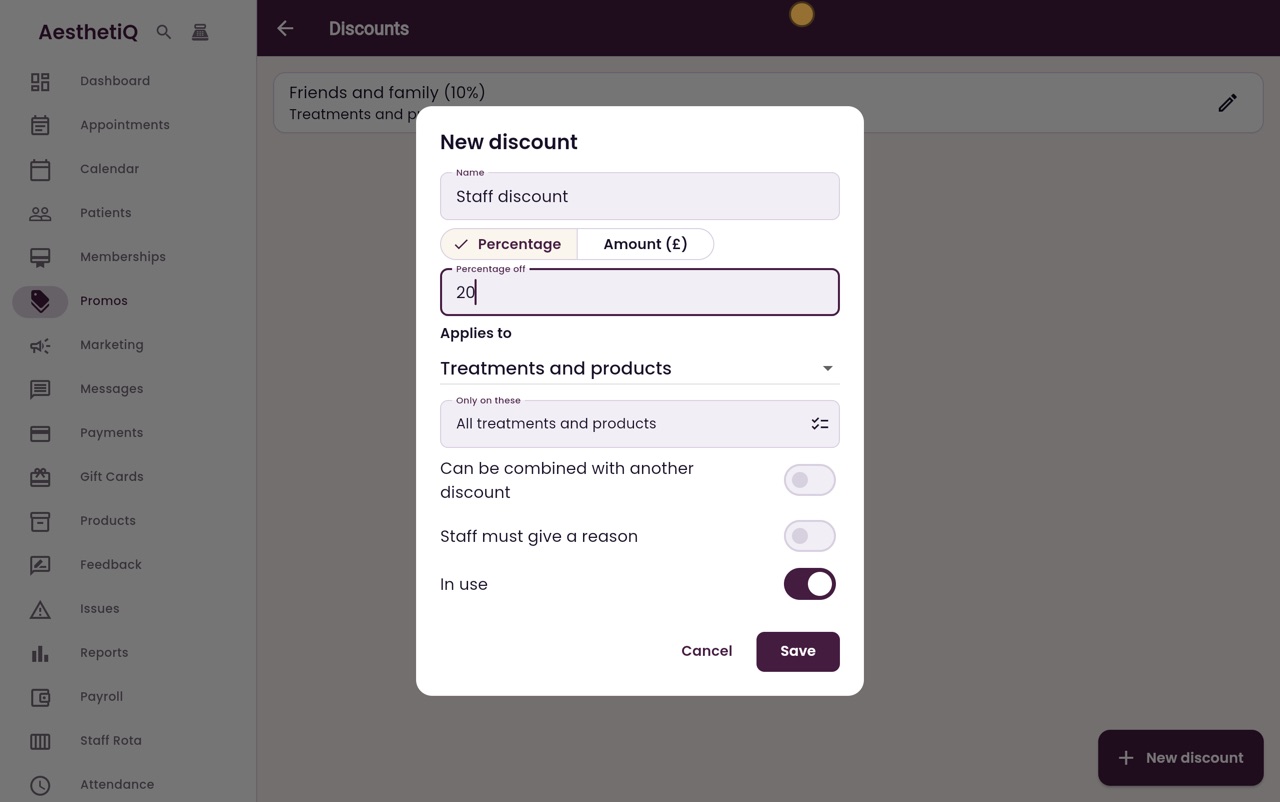
Name and amount
Give it a name, Staff discount. Leave it on Percentage and type 20, for twenty percent off.
- 05Ryan
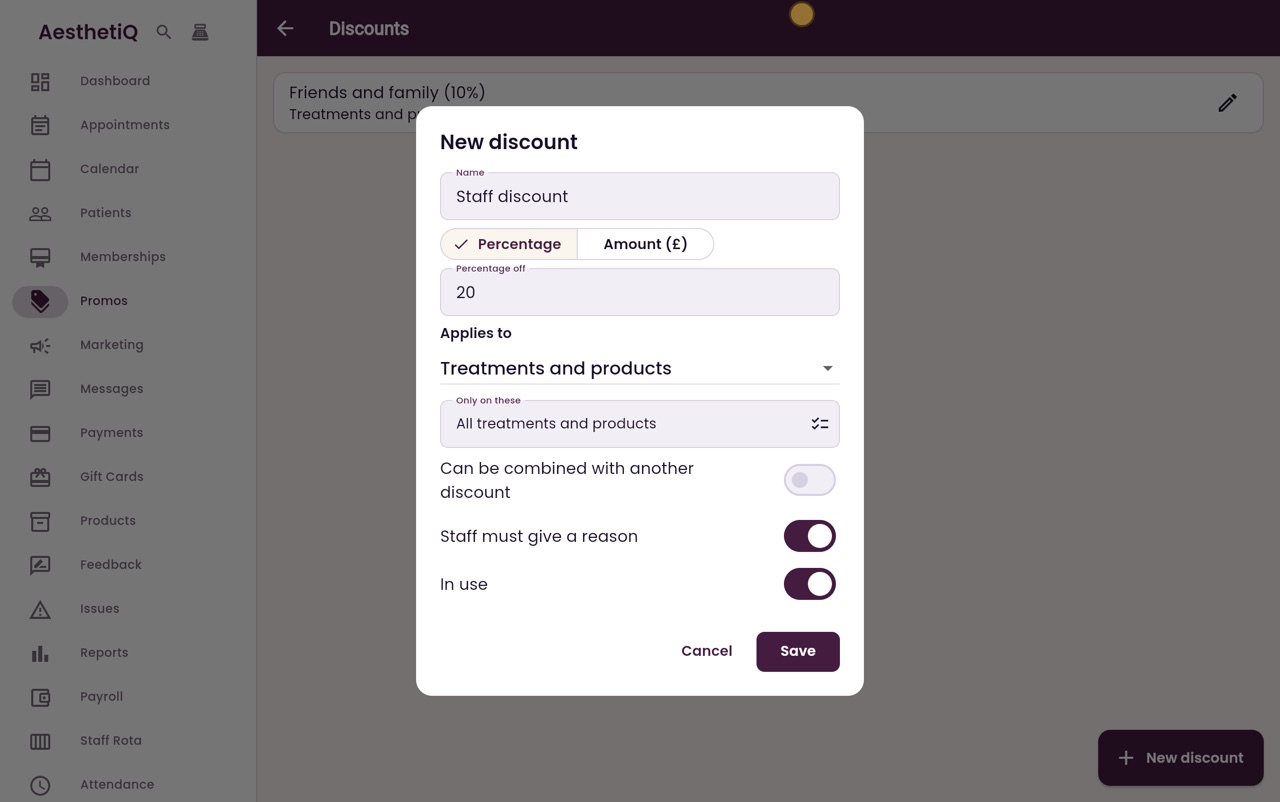
Where it applies
Applies to is set to Treatments and products, so it works at appointments and at the till. Switch on Staff must give a reason, so every use is explained.
- 06Ryan
Save
In use is already on. Click Save.
- 07Ryan
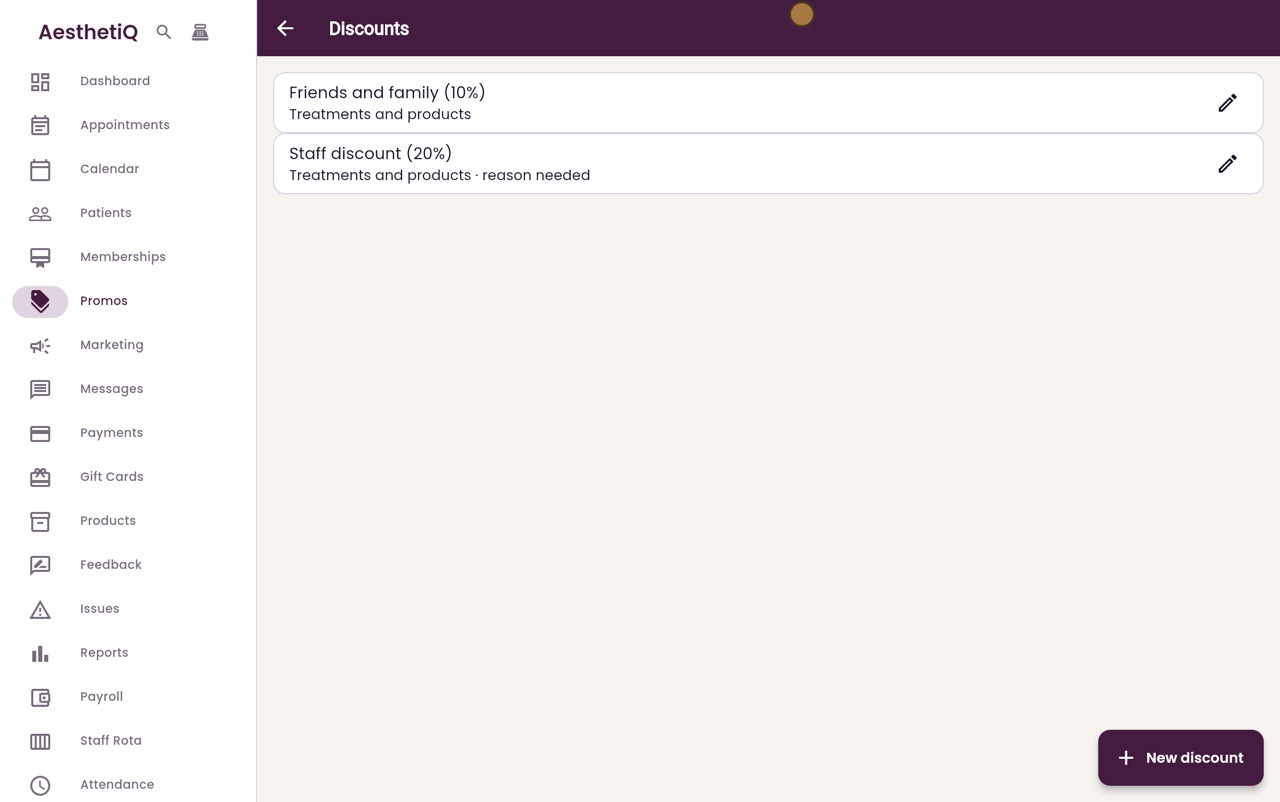
In the list
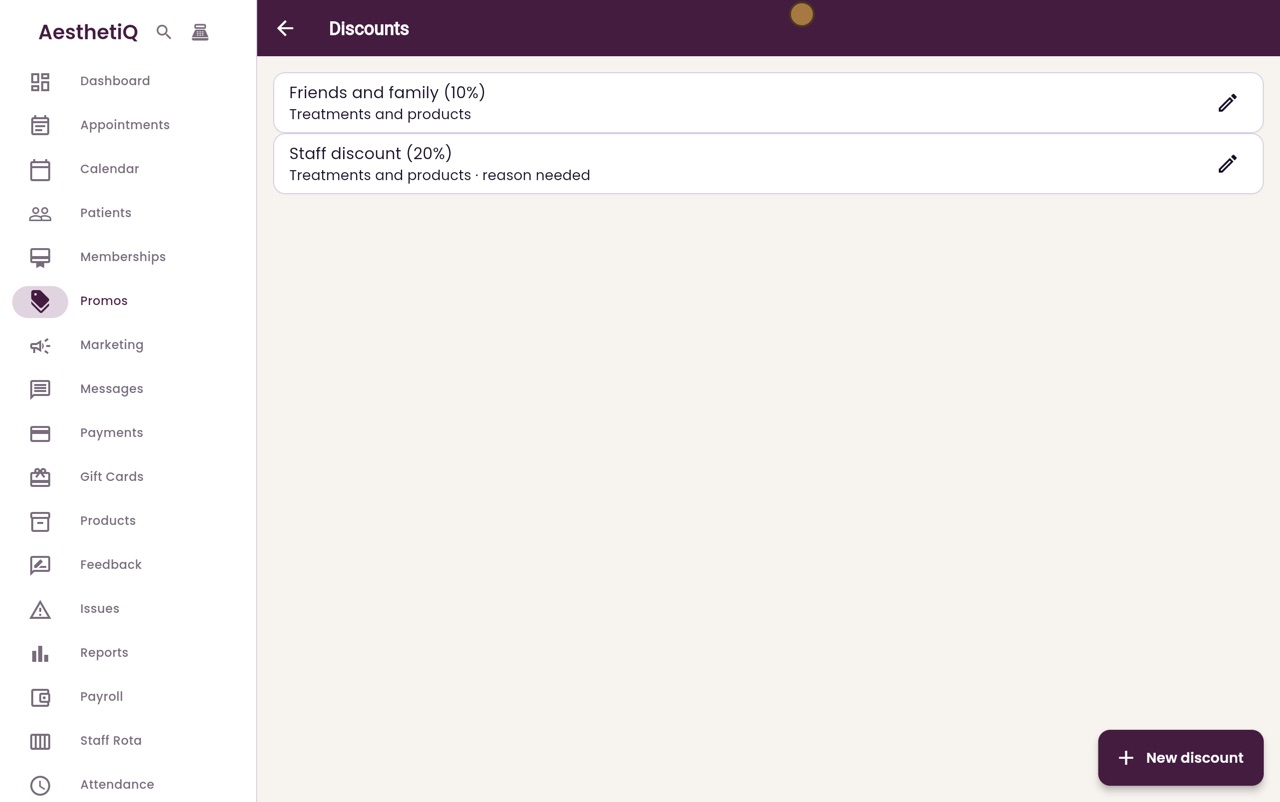
Staff discount is now in the list. At checkout, staff pick it from the list of discounts and type the reason.
- 08Libby
Done
That is setting up a named discount. To change one, click the pencil next to it. To stop it being used, switch off In use.