Joining the waiting list online
When a day has no free times, the booking page offers Join Waitlist. The patient leaves their details and hears when a time comes free.
When
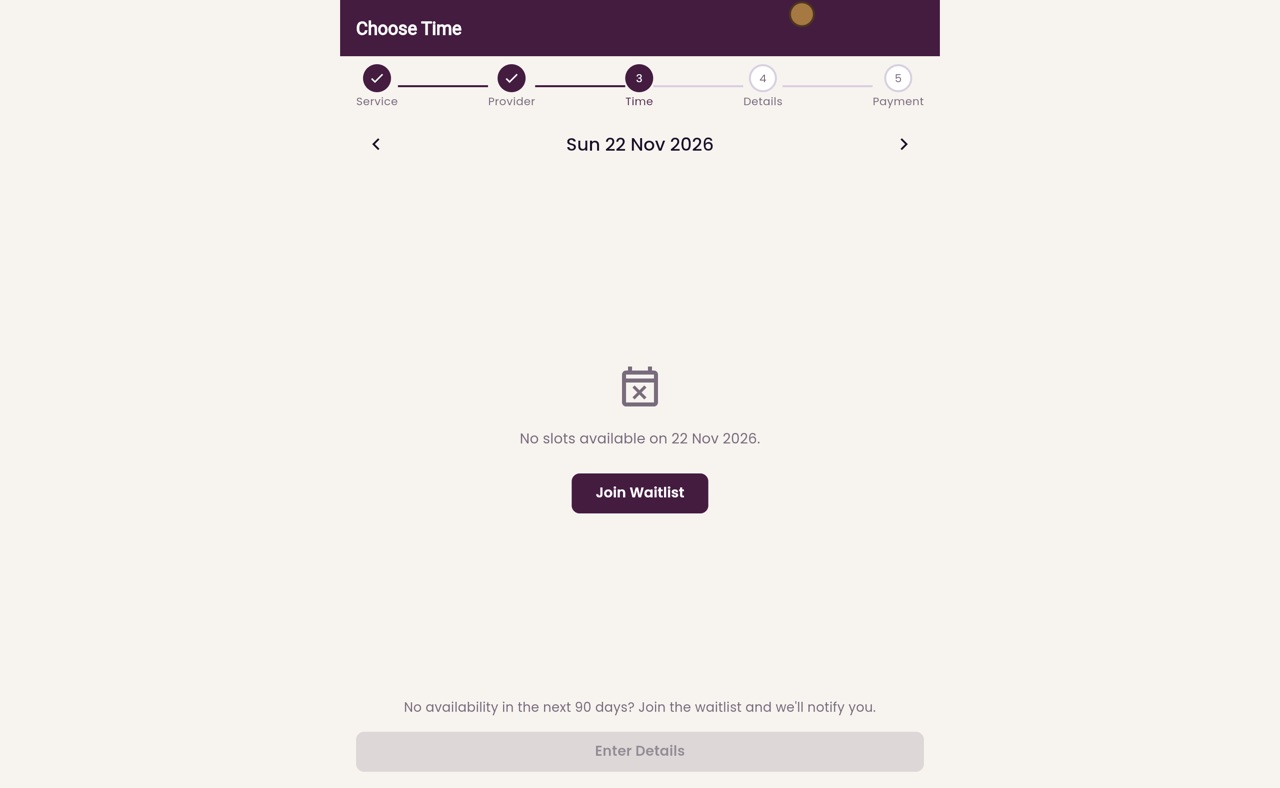
The time step shows No slots available on the day chosen.
Details
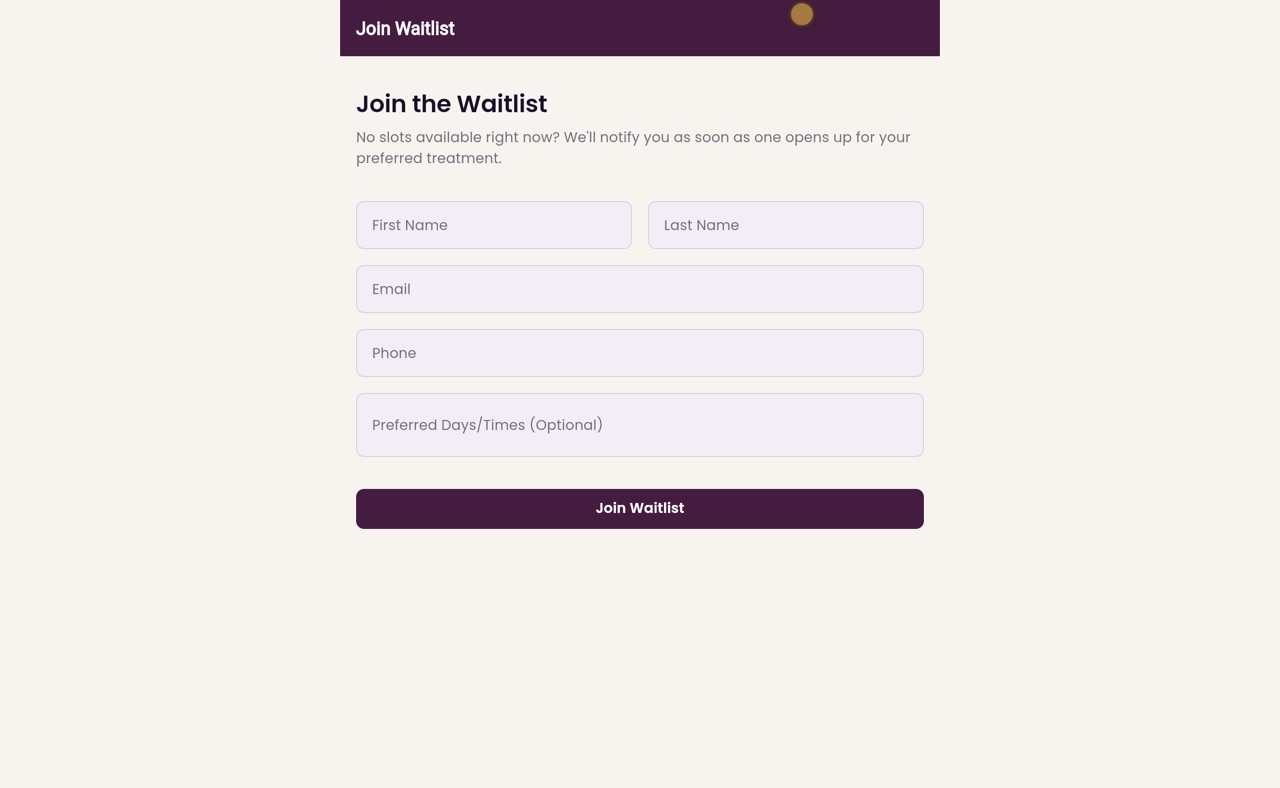
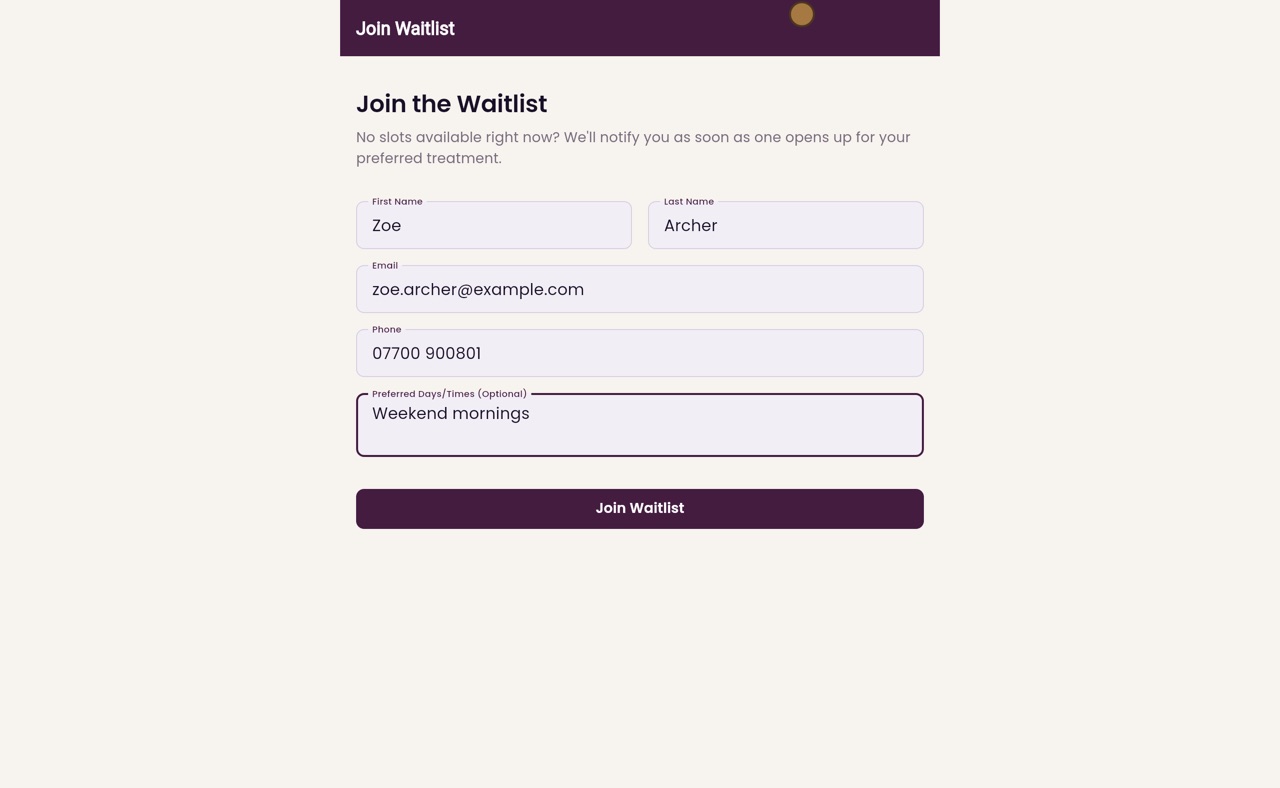
Name, email, mobile and, if they like, the days and times that suit them.
After
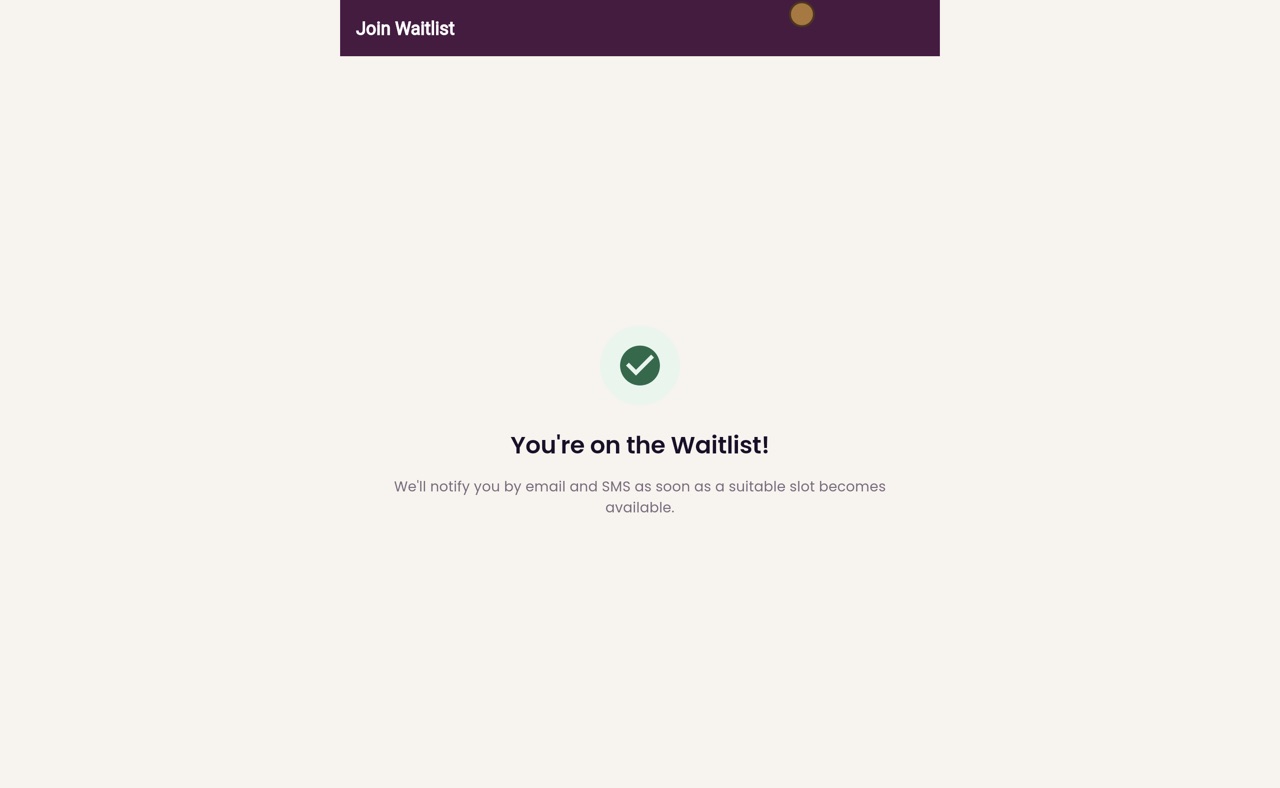
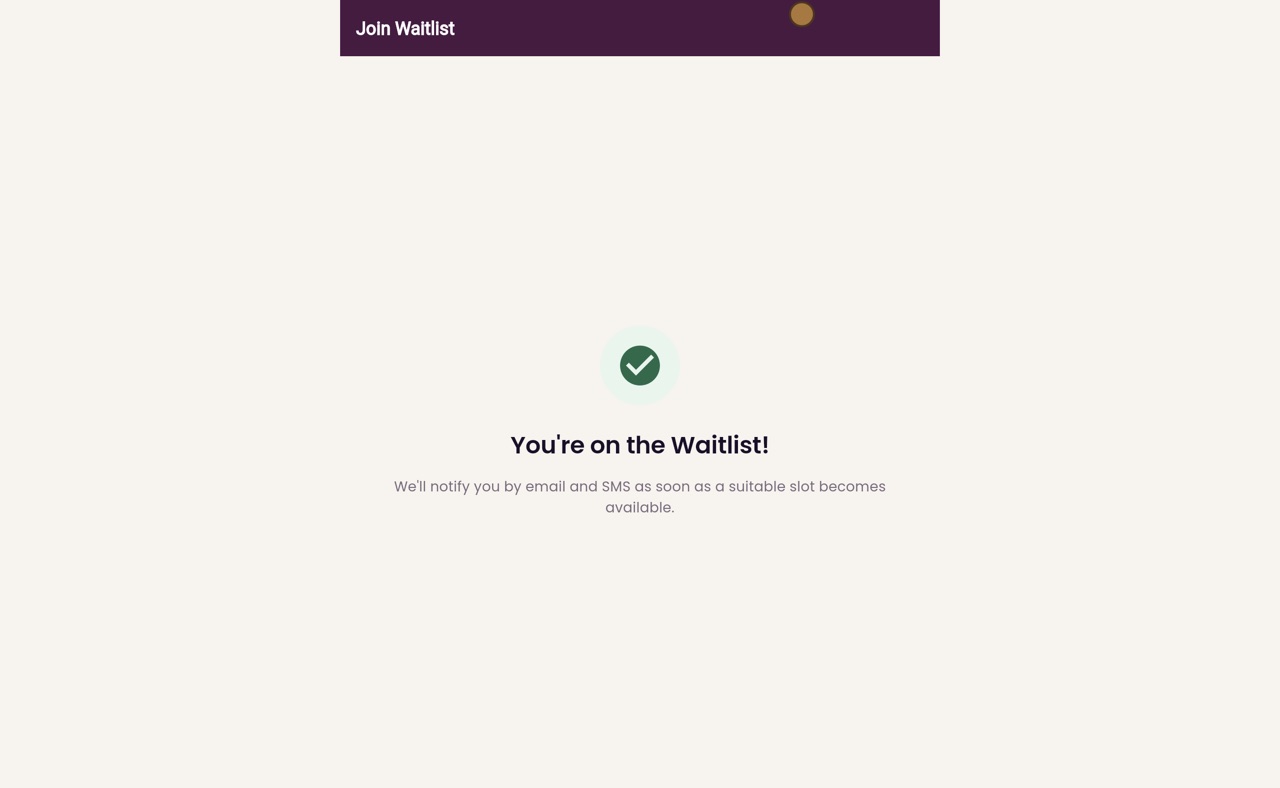
The patient is told they will hear by email and text when a suitable time comes free.
Step by step
- 01Libby
The waiting list
Hi, I am Libby. When there are no free times on the day a patient wants, they can join the waiting list from the booking page. The clinic then lets them know when a time comes free.
- 02Ryan
Choose a treatment
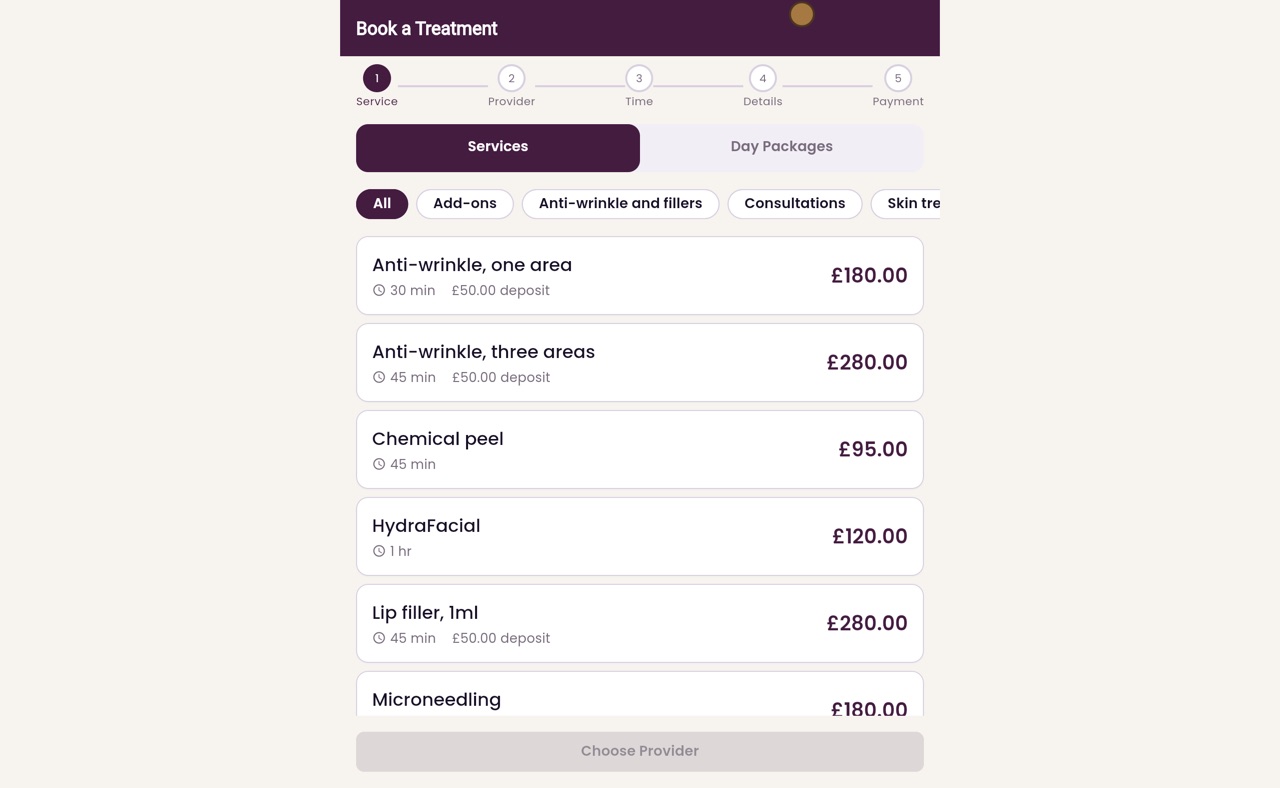
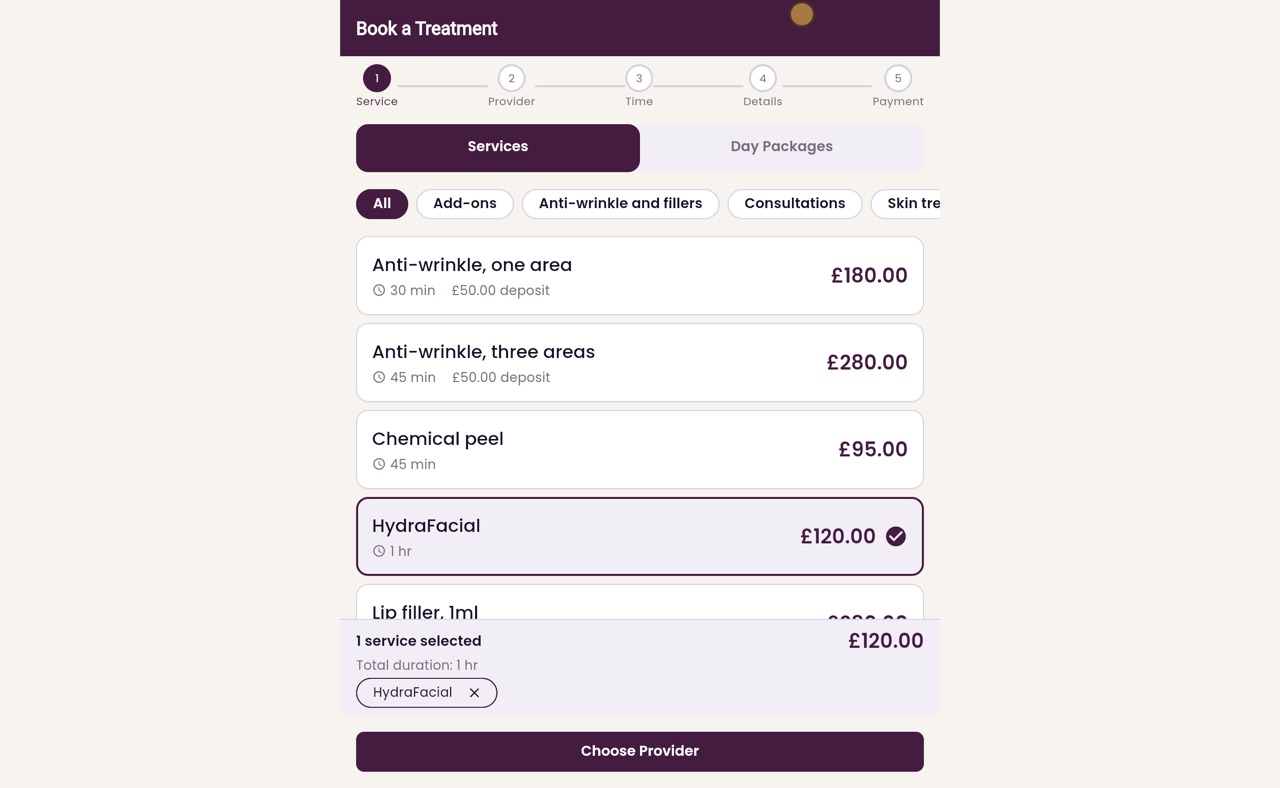
Thanks Libby. Zoe Archer would like a HydraFacial, so she clicks it.
- 03Ryan
Any Available
She clicks Choose Provider. Any Available is already chosen, so any practitioner will do. She clicks Choose Time.
- 04Ryan
Choose the day
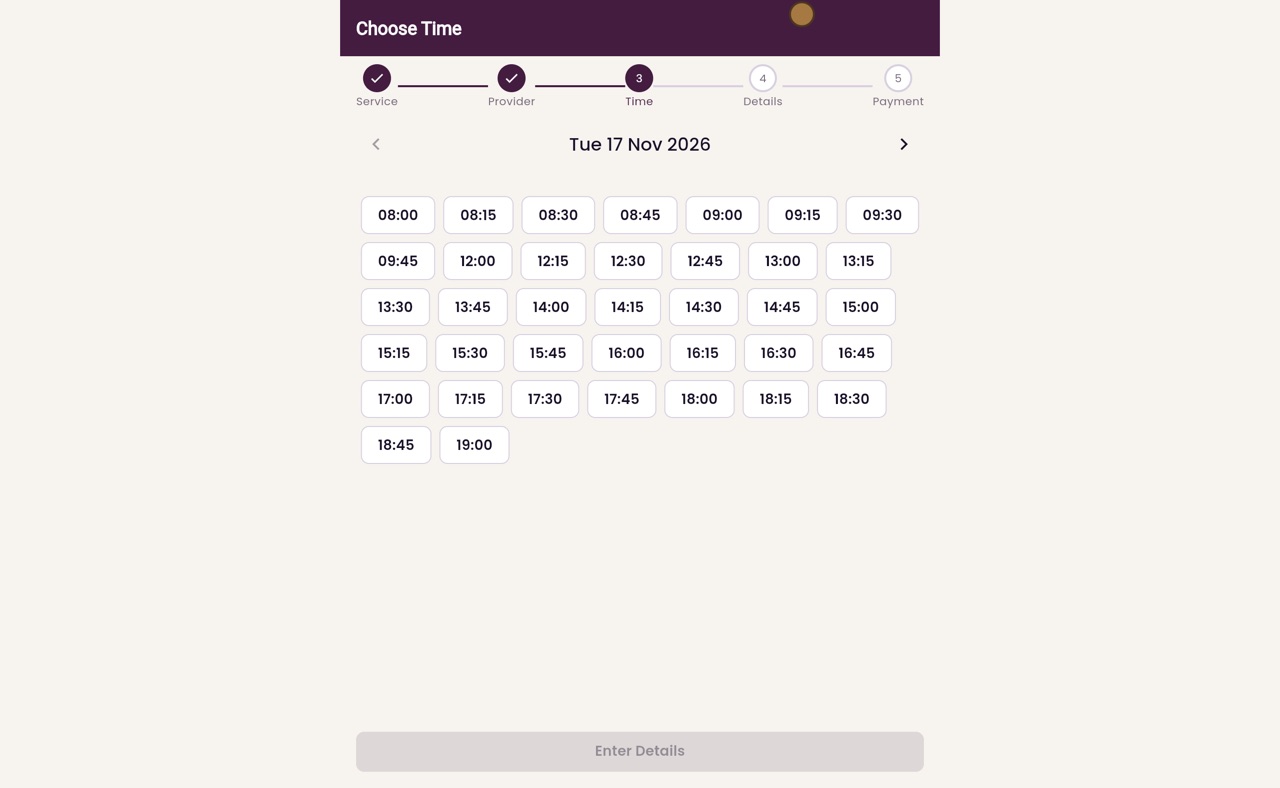
The free times show one day at a time. Zoe would like Sunday the twenty second, so she clicks the arrow to move on a day at a time.
- 05Ryan
No free times
There are no free times that day, so the page offers Join Waitlist. She clicks it.
- 06Ryan
Your details
She types her name, email address and mobile number, and the days and times that suit her.
- 07Ryan
On the waiting list
She clicks Join Waitlist. The page says she is on the waiting list, and will hear by email and text as soon as a suitable time comes free.
- 08Libby
Done
That is joining the waiting list online. The waiting list keeps the treatment she chose, so the clinic knows what she is waiting for.