Choosing who a campaign goes to
Use the audience filters to choose who a campaign is for, such as the members of one membership, count how many patients it reaches, and save the audience as a segment.
Where
Marketing, New Campaign, then the Audience step.
Who
The clinic manager.
After
The segment is saved, ready to pick next time.
Step by step
- 01Libby
Who it goes to
Hi, I am Libby. Before a campaign goes out, you choose who it is for, such as the members of one of your memberships. AesthetiQ only counts patients who have agreed to receive marketing.
- 02Ryan
Start a campaign
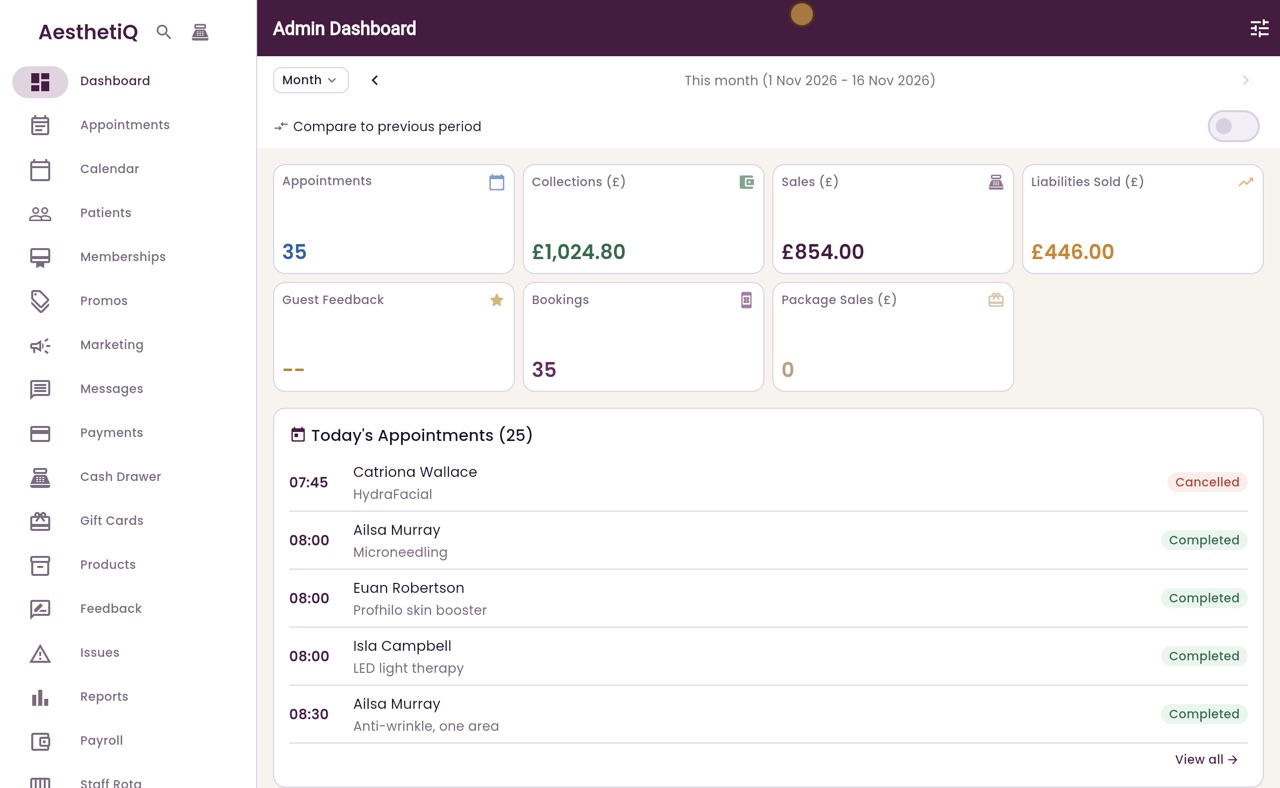
Thanks Libby. Click Marketing in the menu on the left, then New Campaign. Give the campaign a name, choose Broadcast, and click Next.
- 03Ryan
Channel
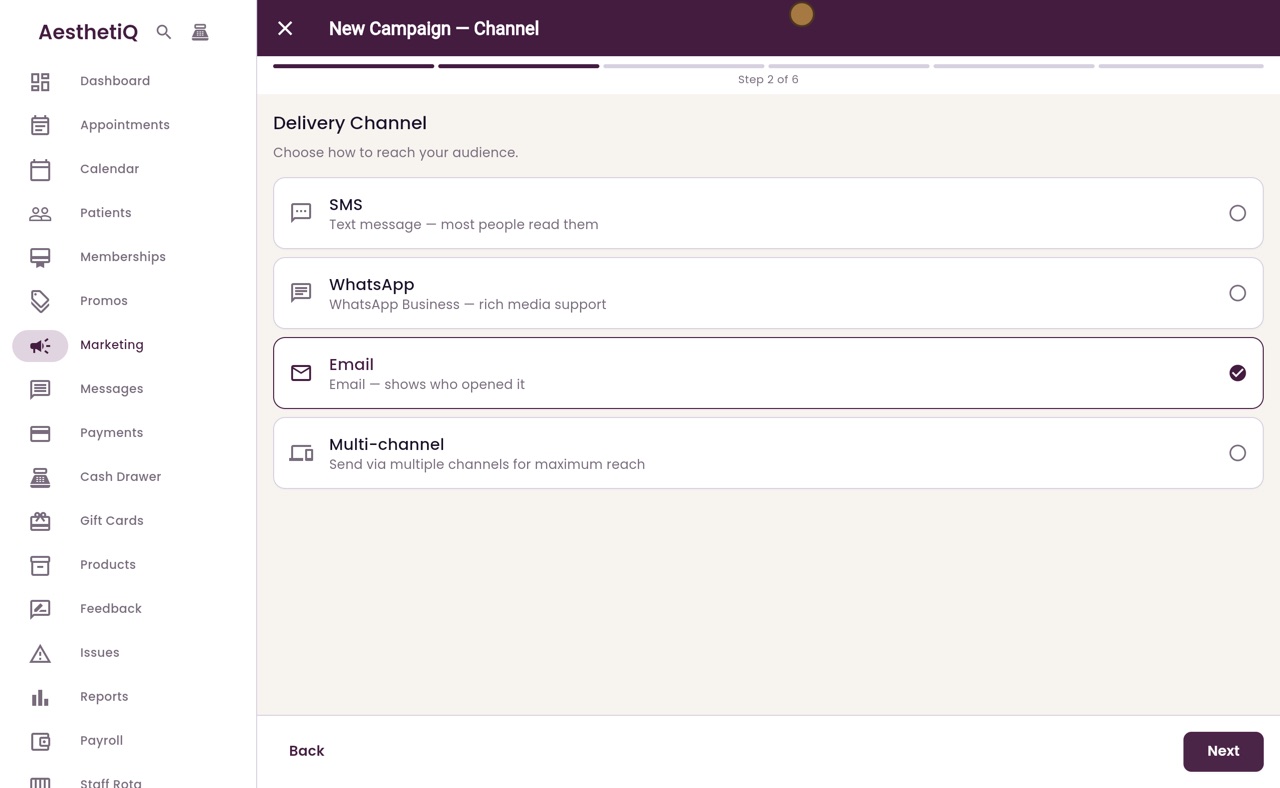
Choose how it is sent, here Email, and click Next.
- 04Ryan
The Audience step
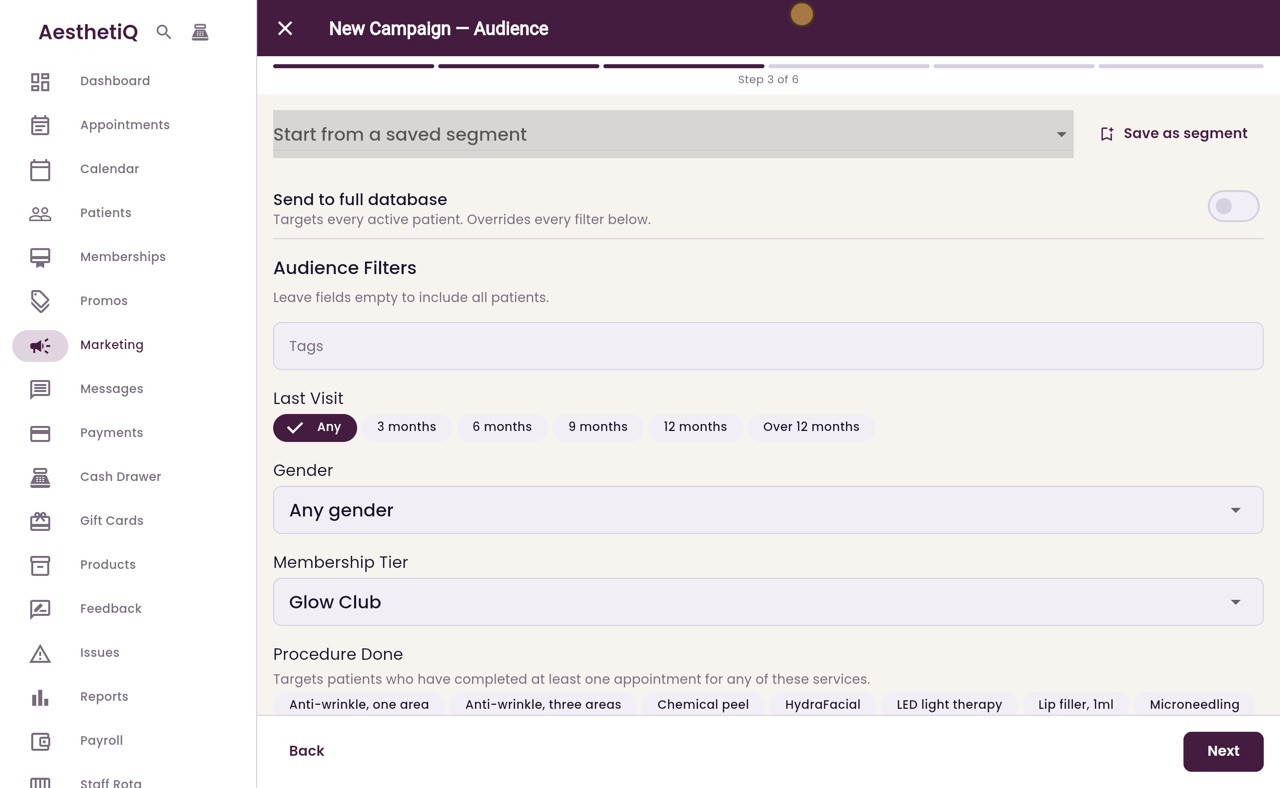
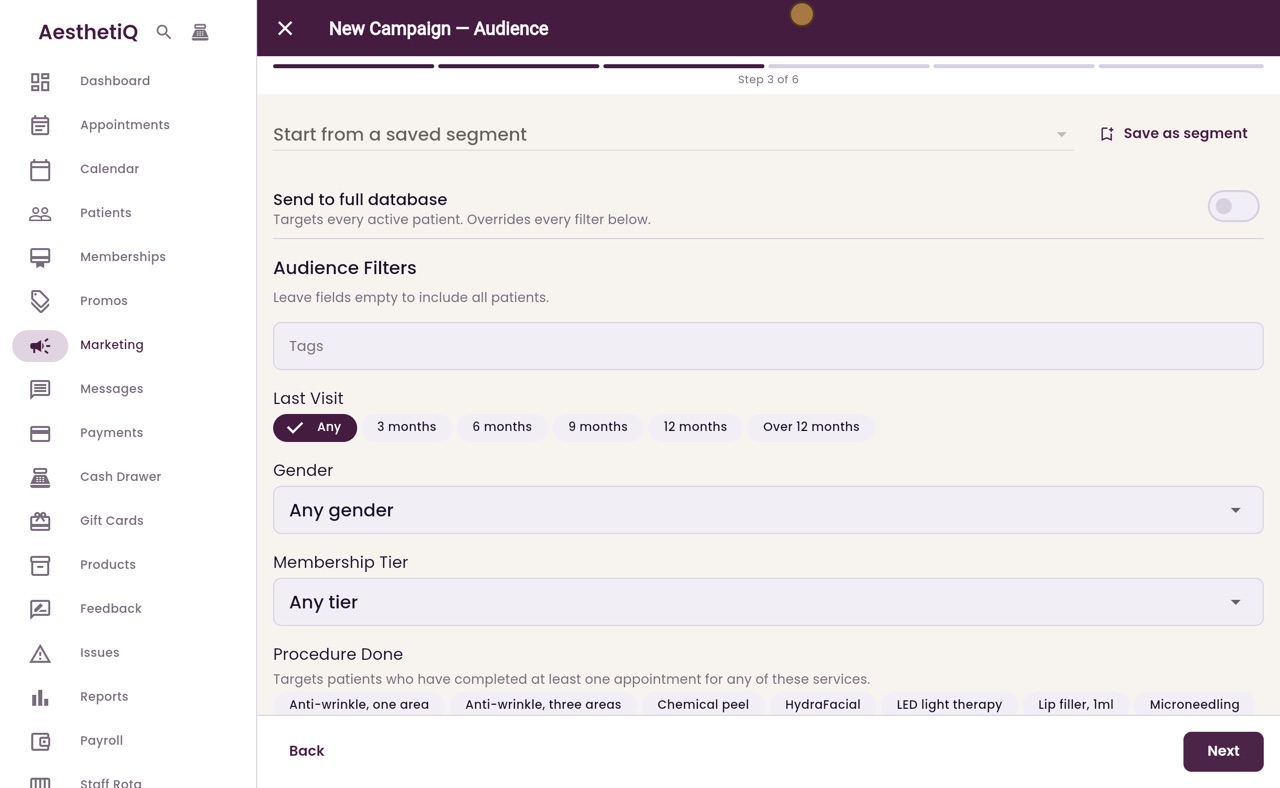
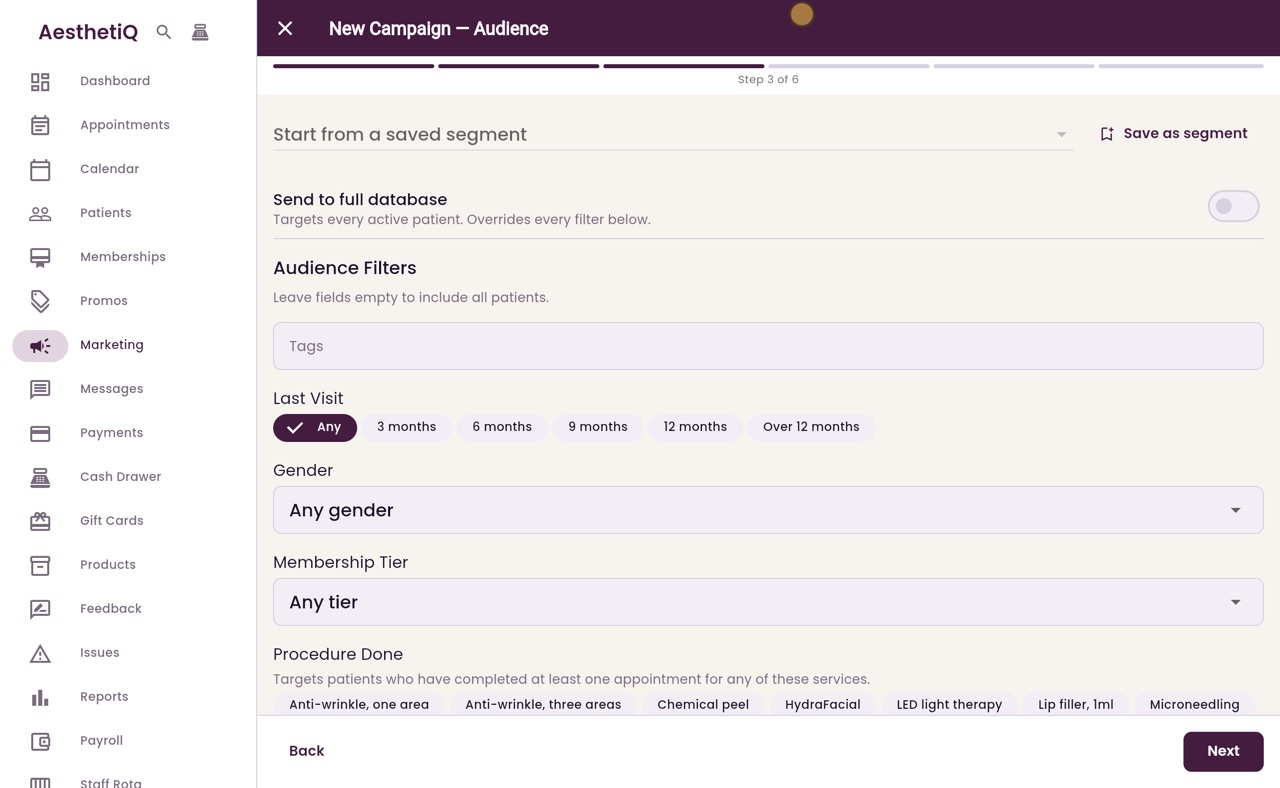
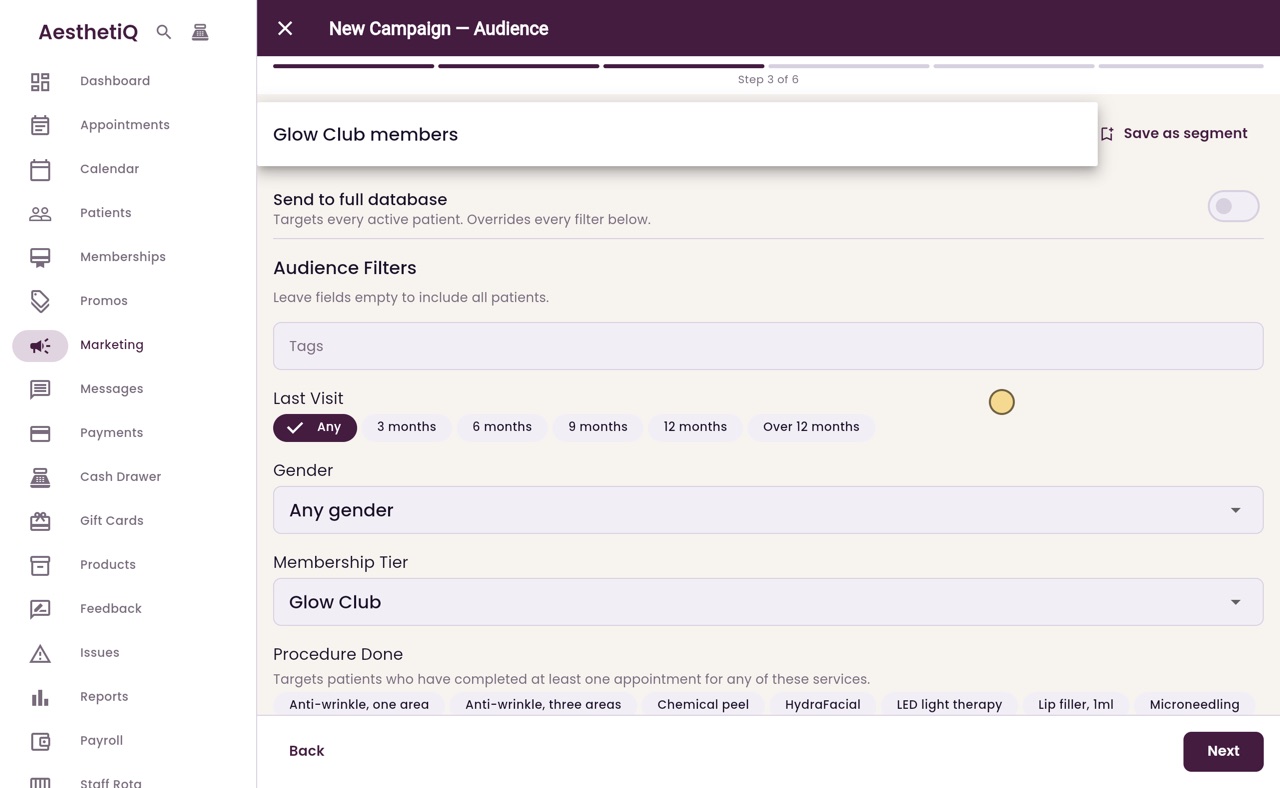
This is the Audience step. Send to full database would include every active patient. Leave it off, and use the filters below instead.
- 05Ryan
Membership
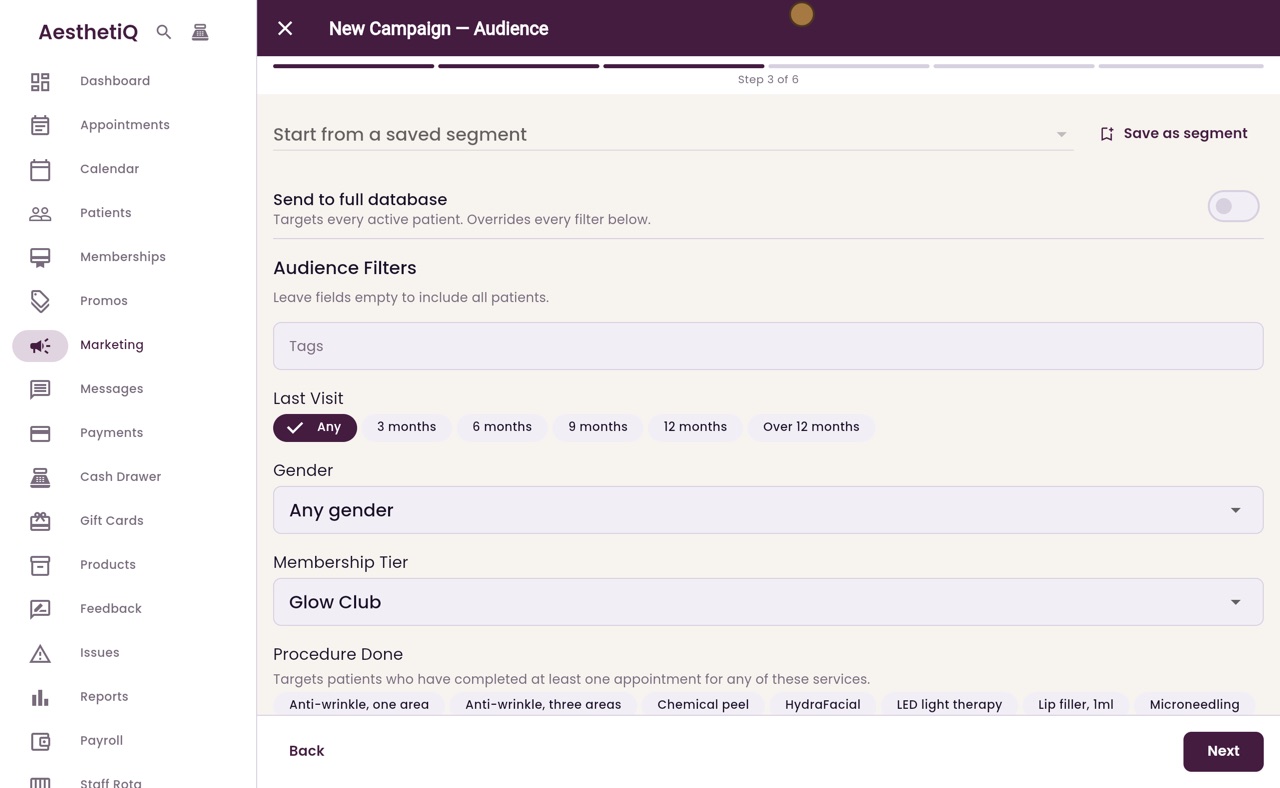
Click Membership Tier. The list shows the clinic's own memberships. Choose Glow Club, so only Glow Club members are included.
- 06Ryan
Count patients
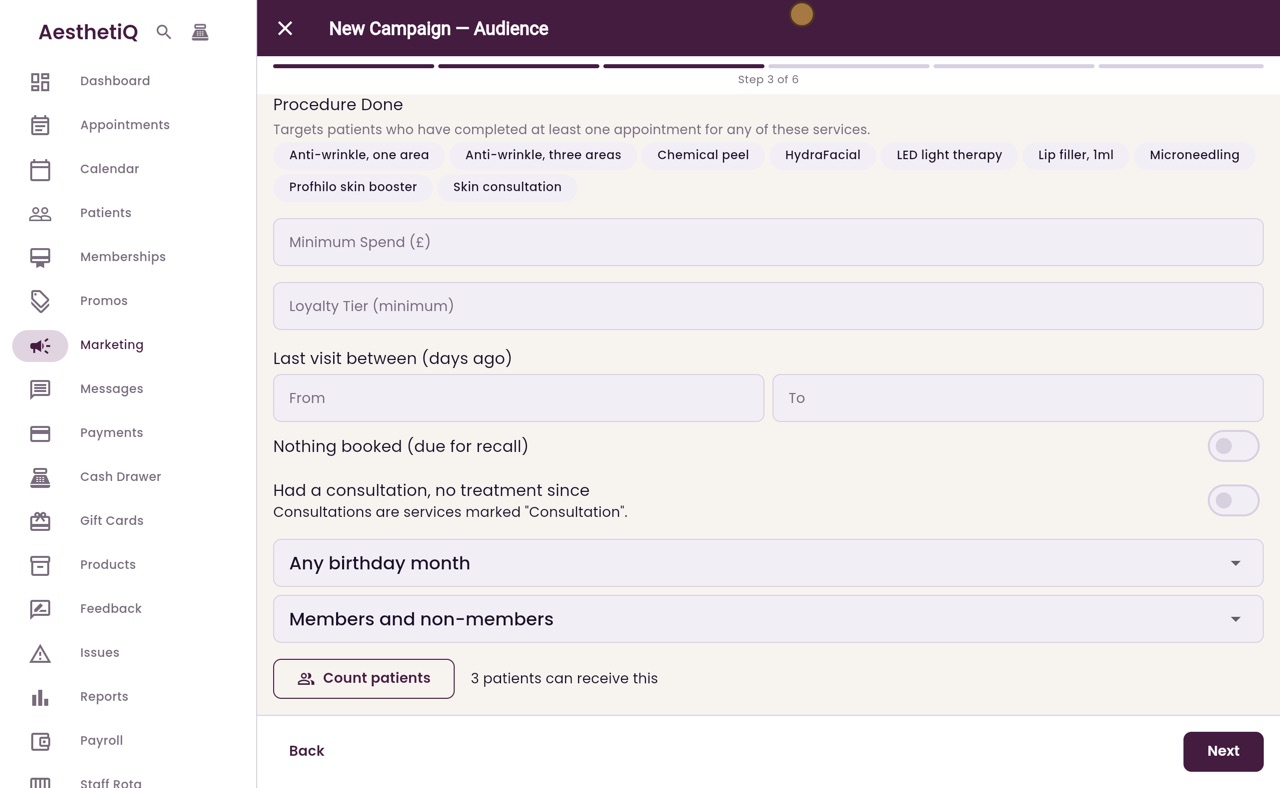
Further down are more filters, such as the treatments they have had, the least they have spent, and their birthday month. Click Count patients to see how many the campaign would reach.
- 07Ryan
Save as segment
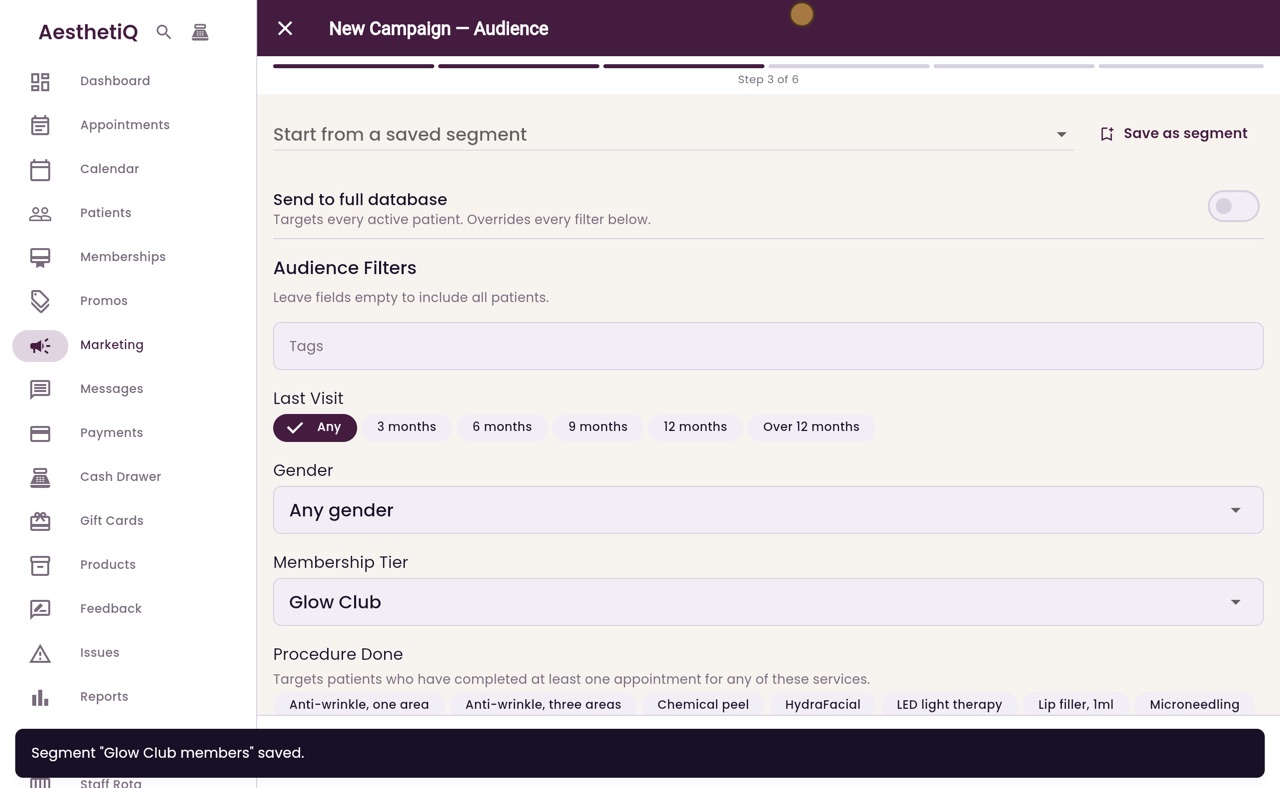
To use this audience again, click Save as segment at the top. Name it Glow Club members, and click Save.
- 08Ryan
Use it again
Next time, open Start from a saved segment and pick it from the list.
- 09Libby
Done
That is choosing who a campaign goes to. Your saved segments are also listed under Segments, at the top of the Marketing screen.