Signing in with your authenticator code
Staff with the authenticator switched on type a six-digit code from their phone after the password.
Where
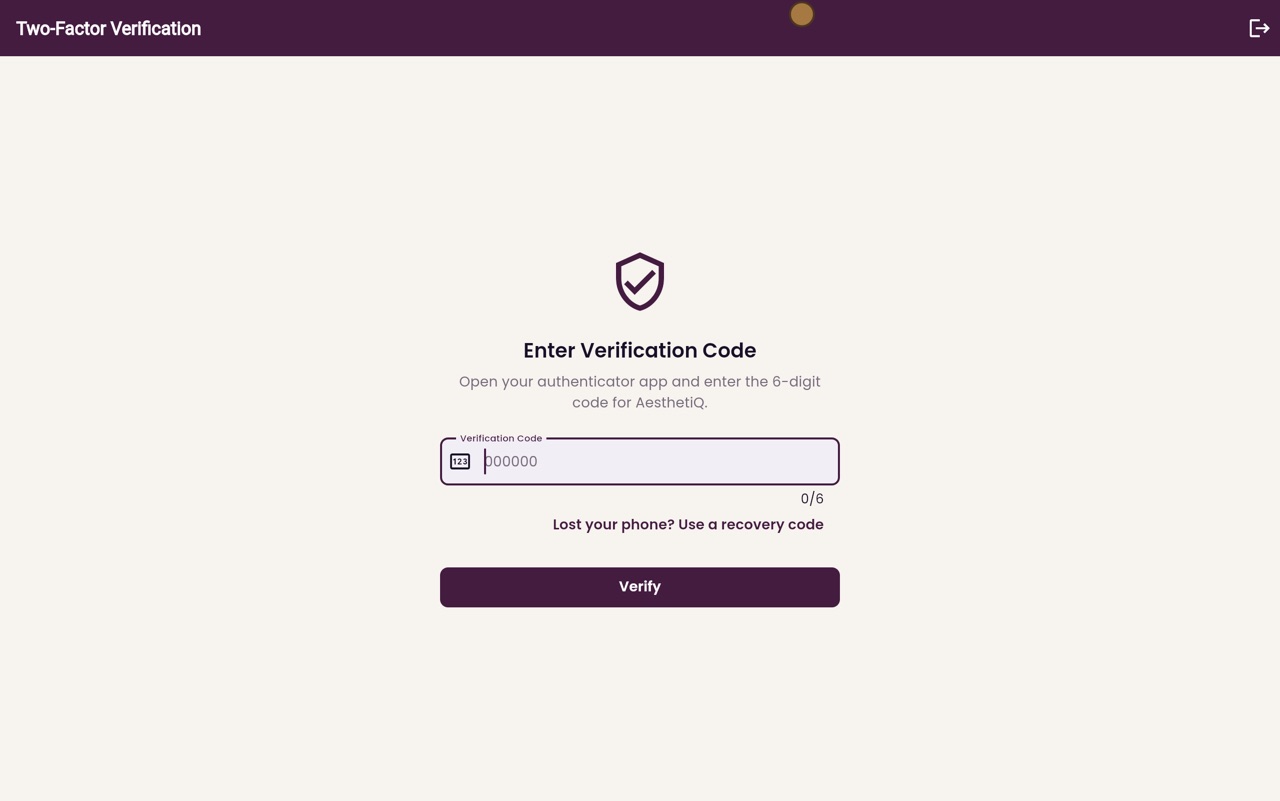
The Two-Factor Verification screen, straight after the password.
Who
The clinic manager, and any staff with the authenticator switched on.
After
The code is checked as soon as the sixth digit is typed.
Step by step
- 01Libby
An extra lock
Hi, I am Libby. The clinic manager's login has an extra lock: an authenticator app on their phone. After the password, AesthetiQ asks for a six-digit code from the app.
- 02Ryan
Email and password
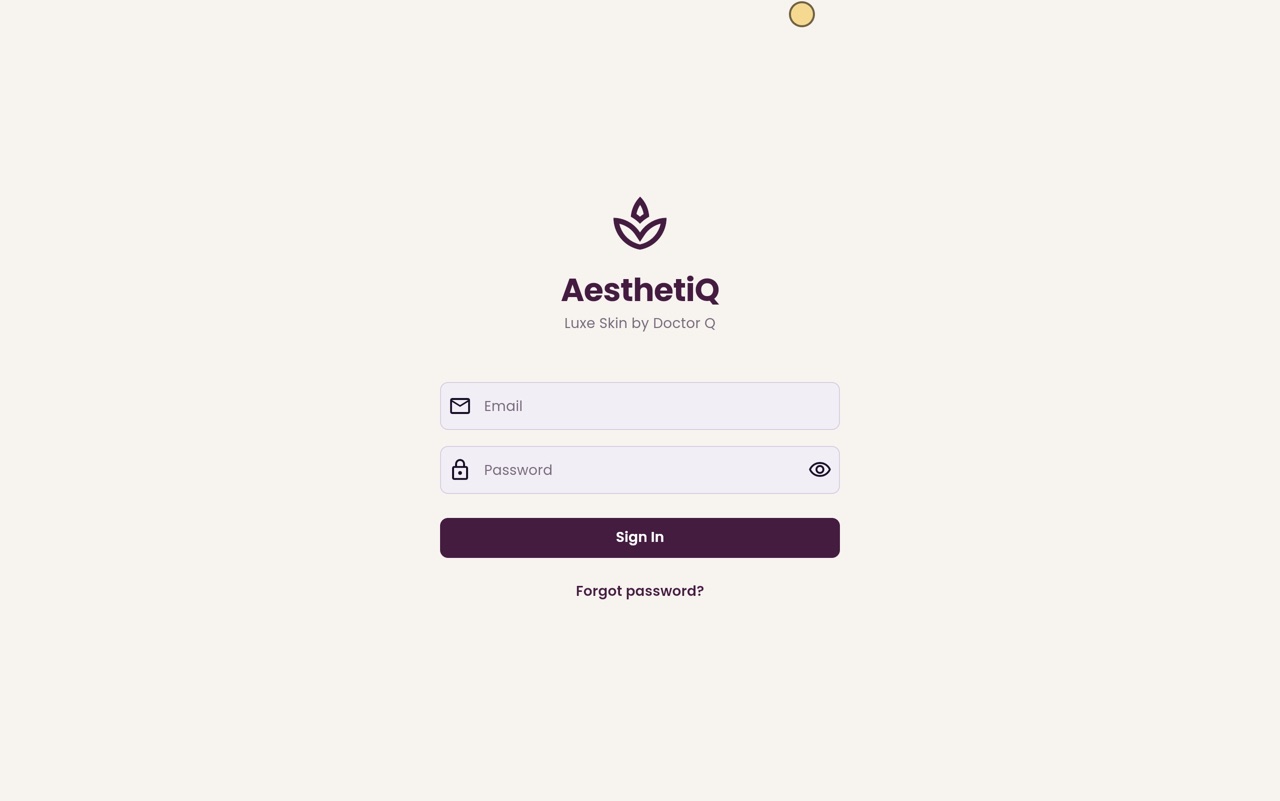
Thanks Libby. Type your email address and your password as usual, then click Sign In. So far, this is the same as for everyone else.
- 03Ryan
The six-digit code
AesthetiQ now asks for a verification code. If you have lost your phone, the link under the box lets you use a recovery code instead. Otherwise, open your authenticator app, find AesthetiQ, and type the six digits it shows.
- 04Ryan
Signed in
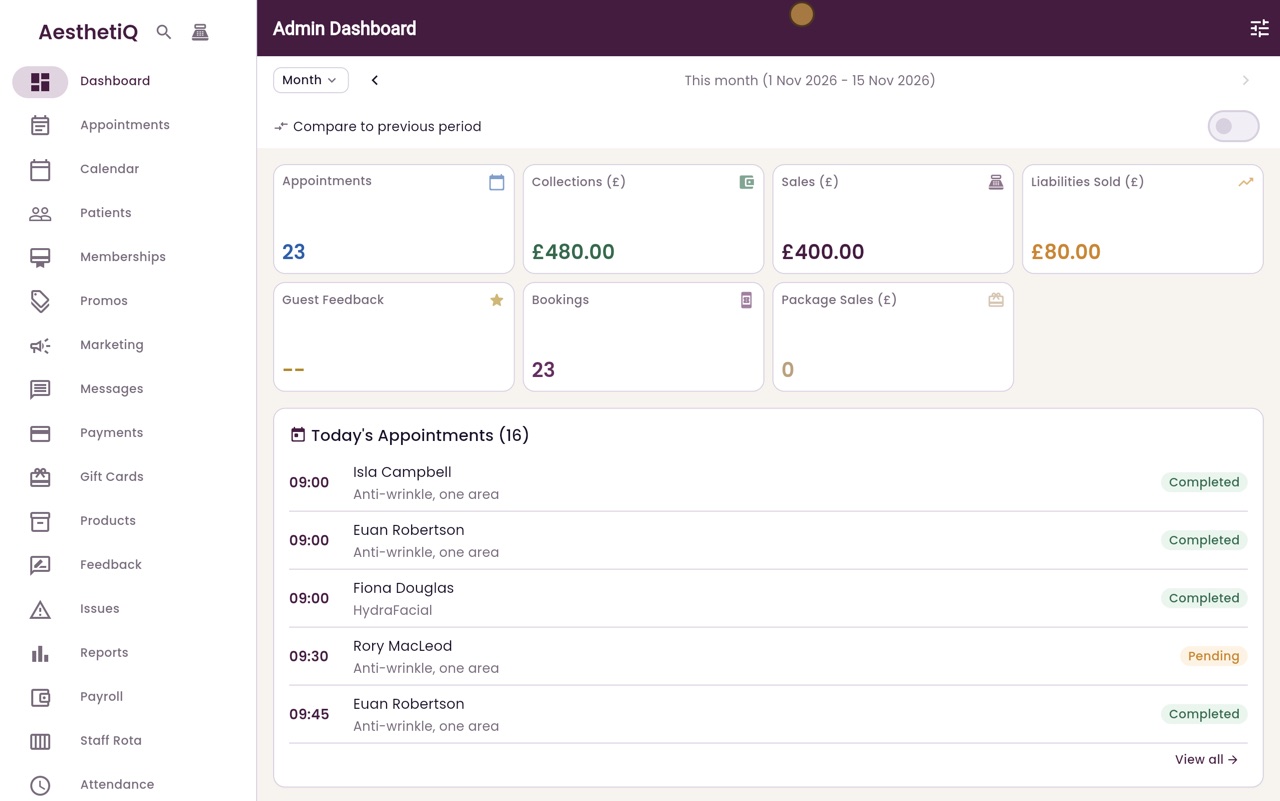
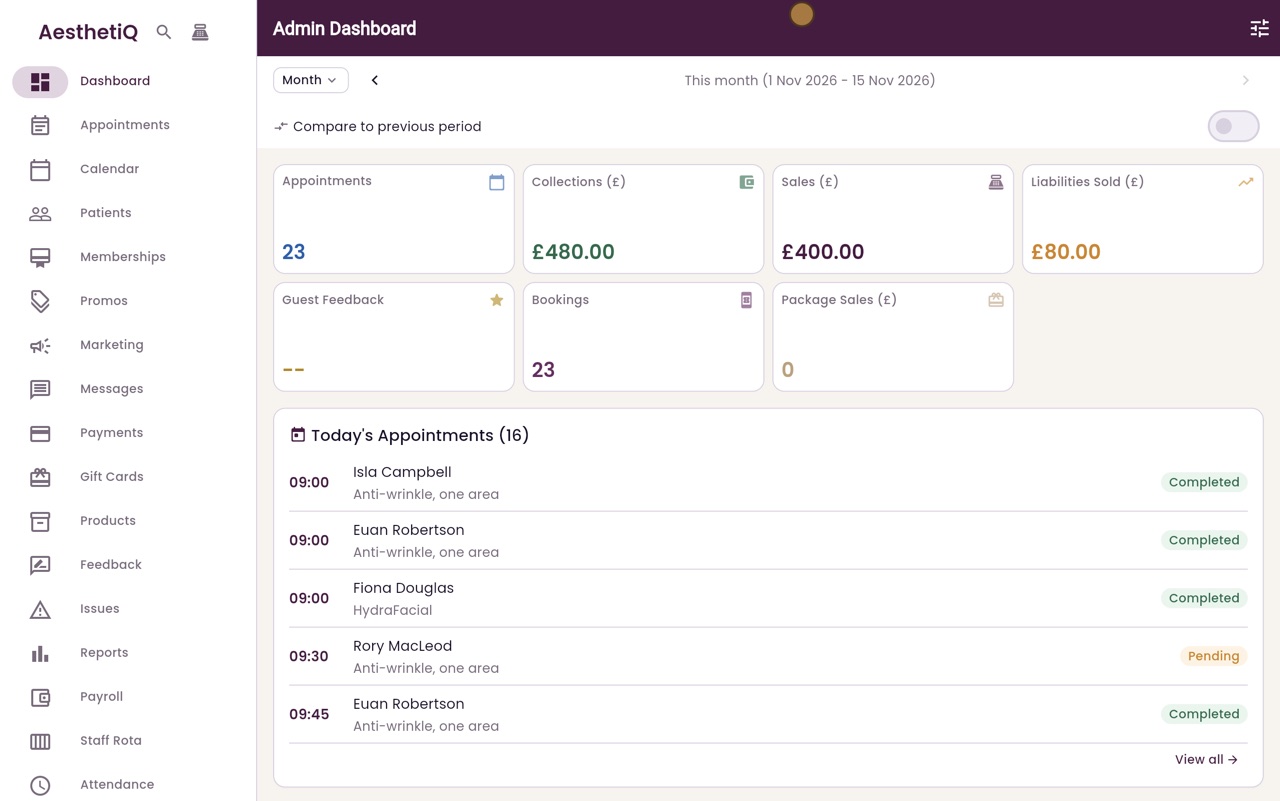
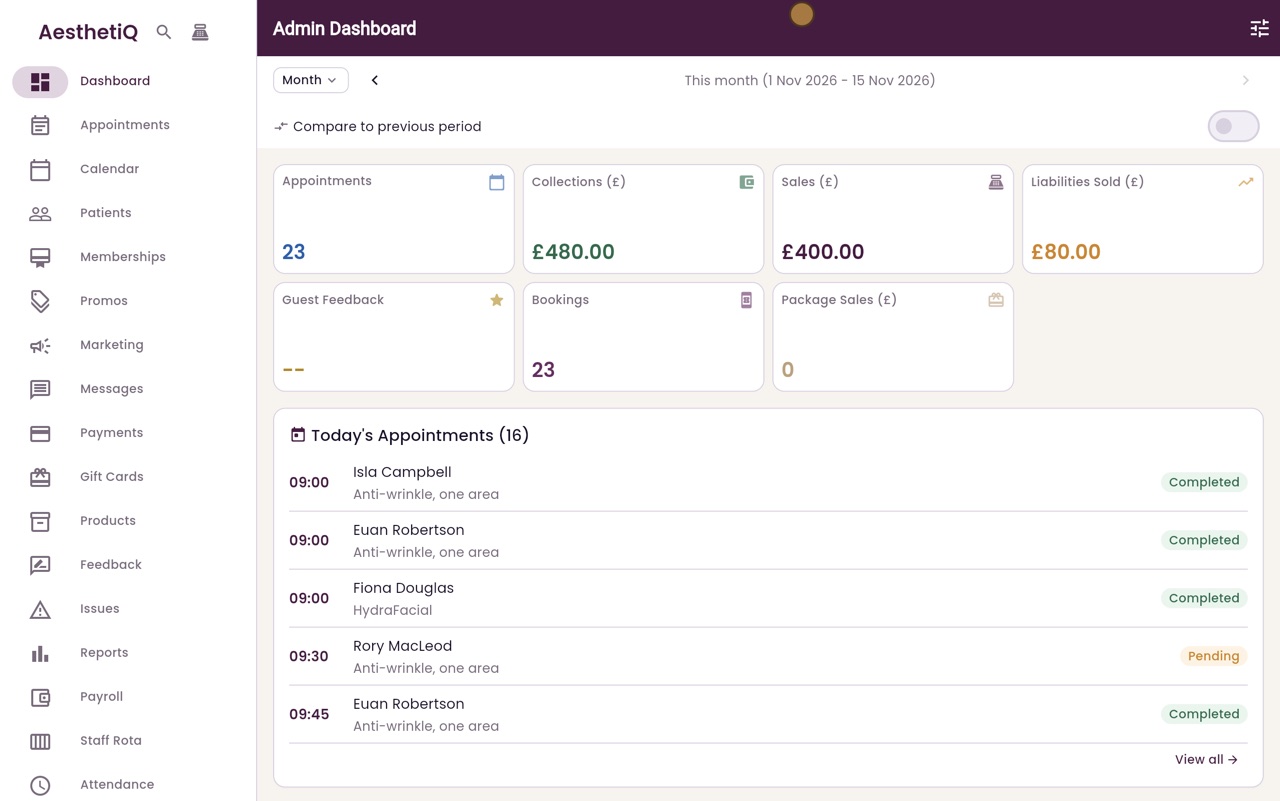
As soon as the sixth digit is in, AesthetiQ checks the code and opens the dashboard, with today's figures and appointments.
- 05Libby
Done
That is signing in with your authenticator. Staff who do not have the authenticator switched on skip the code screen and go straight in.