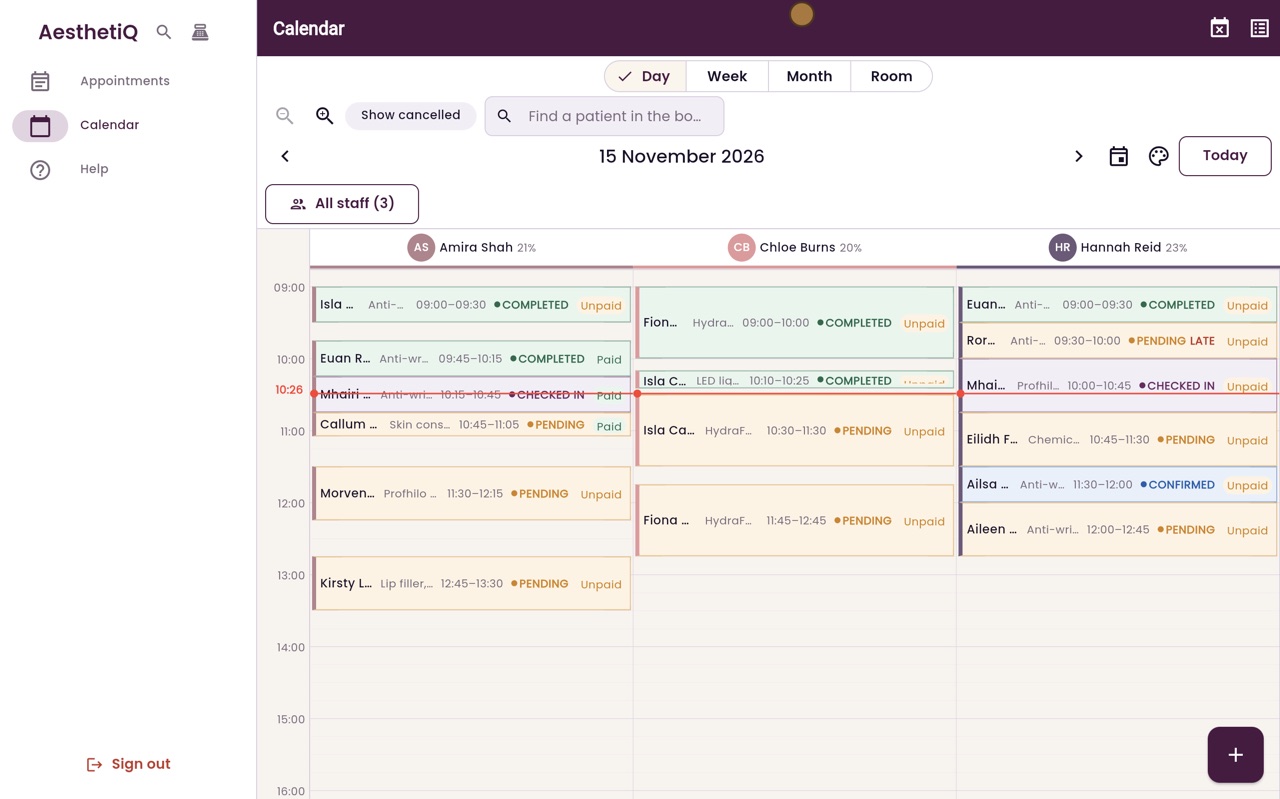
Zooming and choosing which staff to show
Zoom the calendar in to make short appointments easier to read, or out to see more of the day. Choose which practitioners' columns to show.
Zoom
Zoom in and Zoom out, beside Show cancelled.
Staff
All staff opens a list: untick, then Apply.
Clear
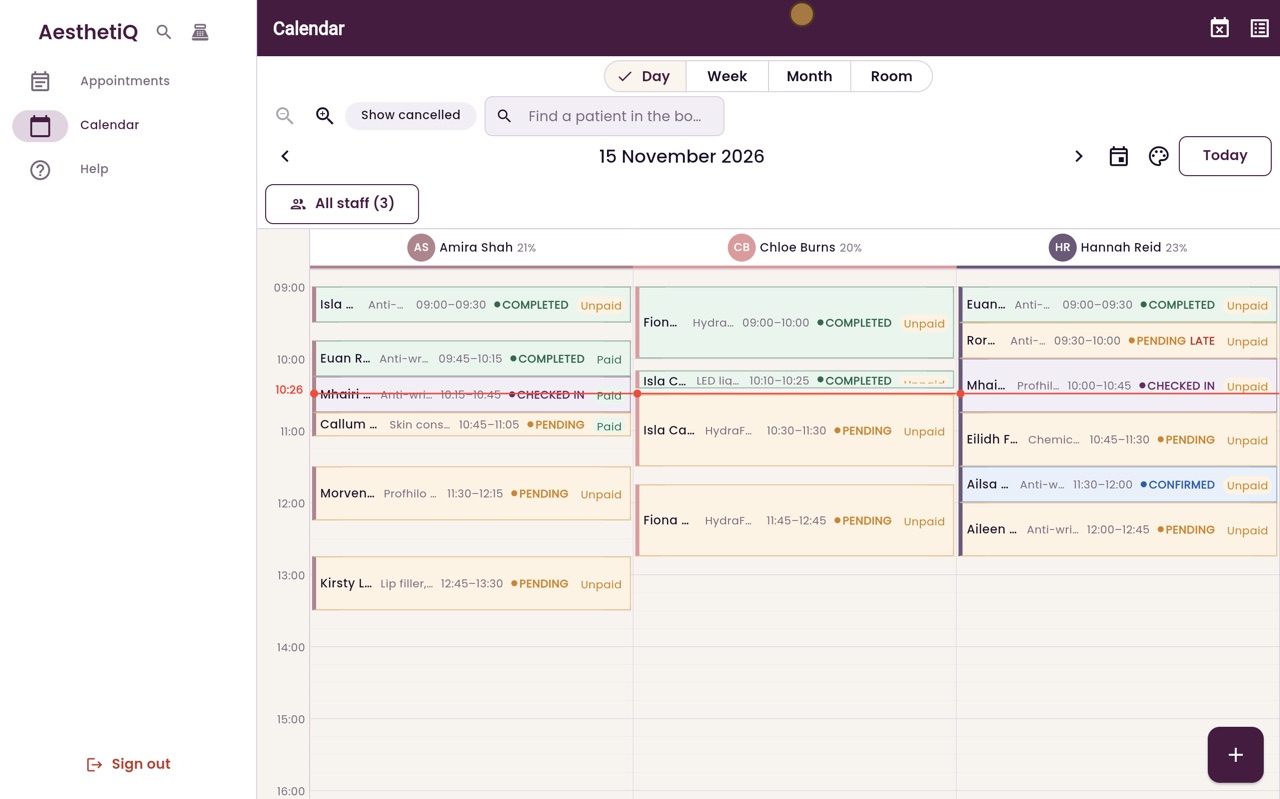
Shows every practitioner again.
Step by step
- 01Libby
Zoom and staff
Hi, I am Libby. On a busy day you can zoom the calendar in or out, and choose which practitioners to show.
- 02Ryan
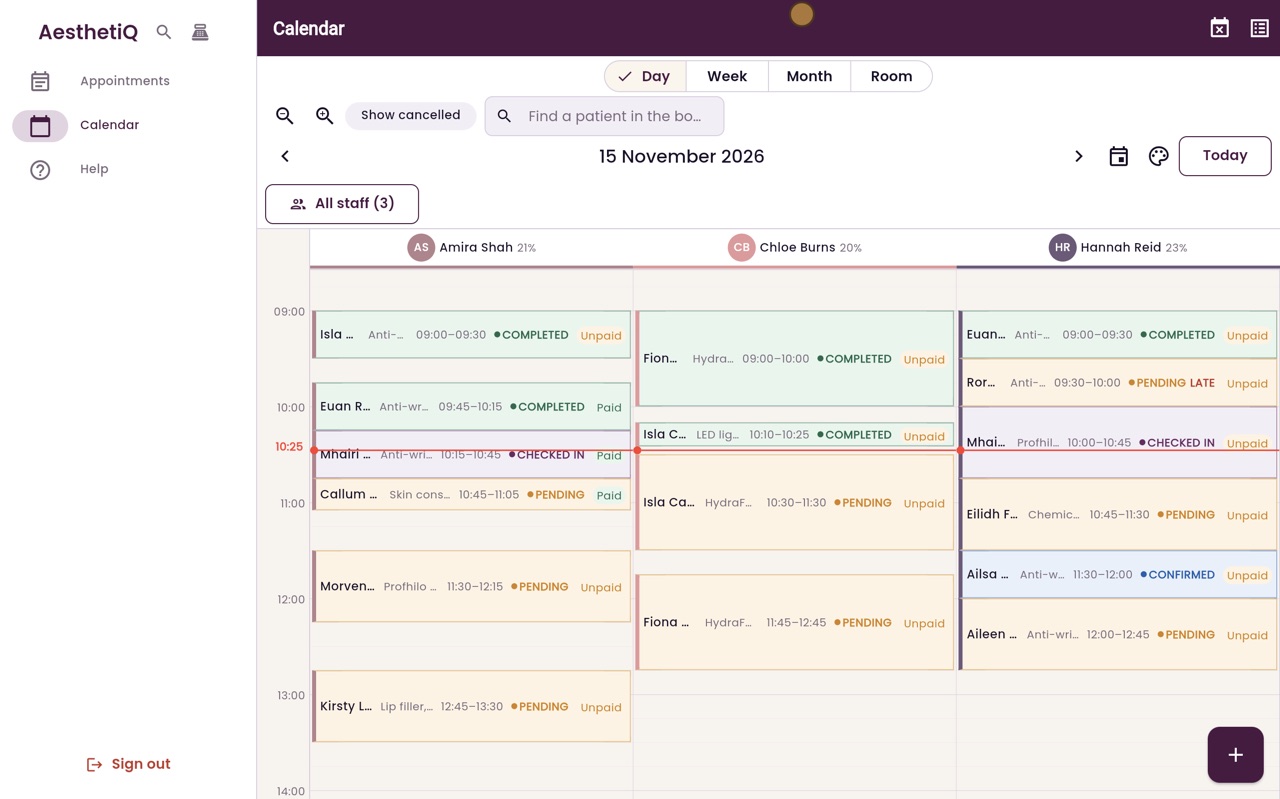
Zoom in
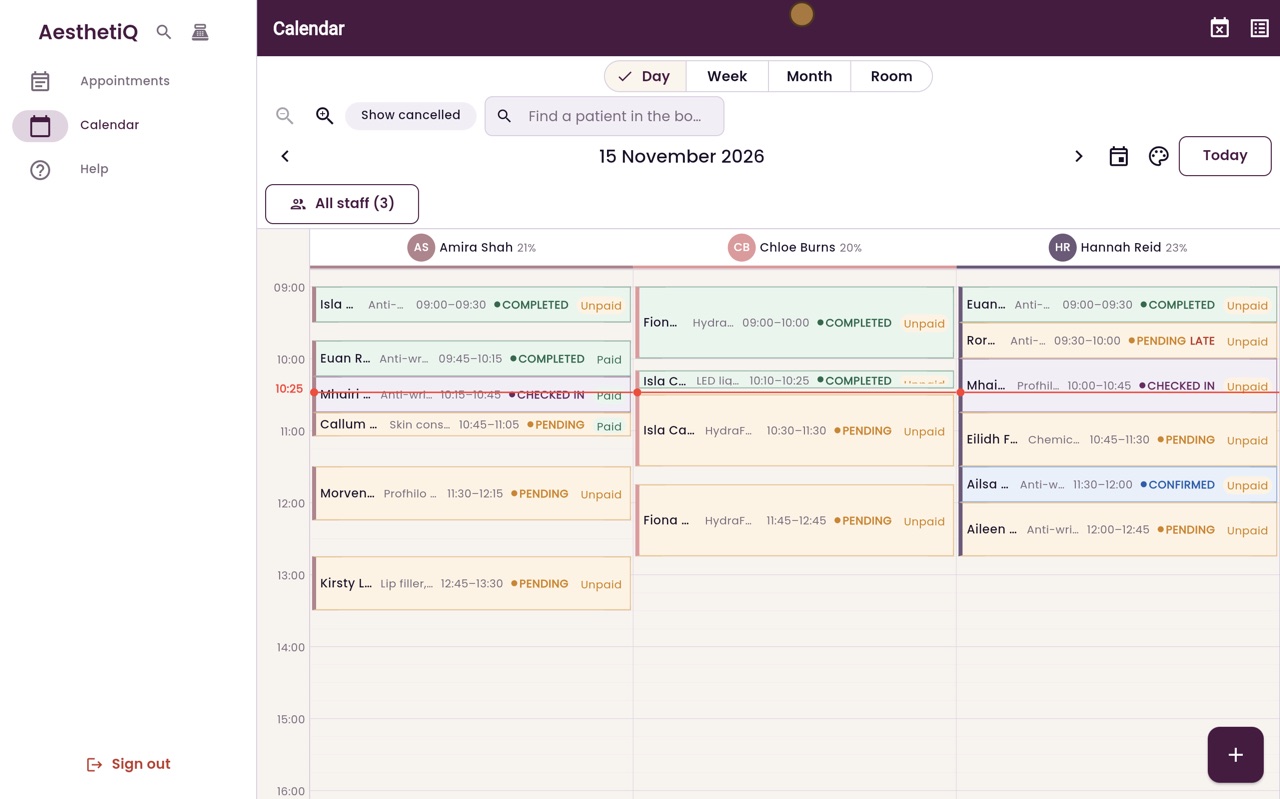
Thanks Libby. Click Zoom in, the magnifying glass with a plus. Each appointment gets taller, so short appointments are easier to read and to click.
- 03Ryan
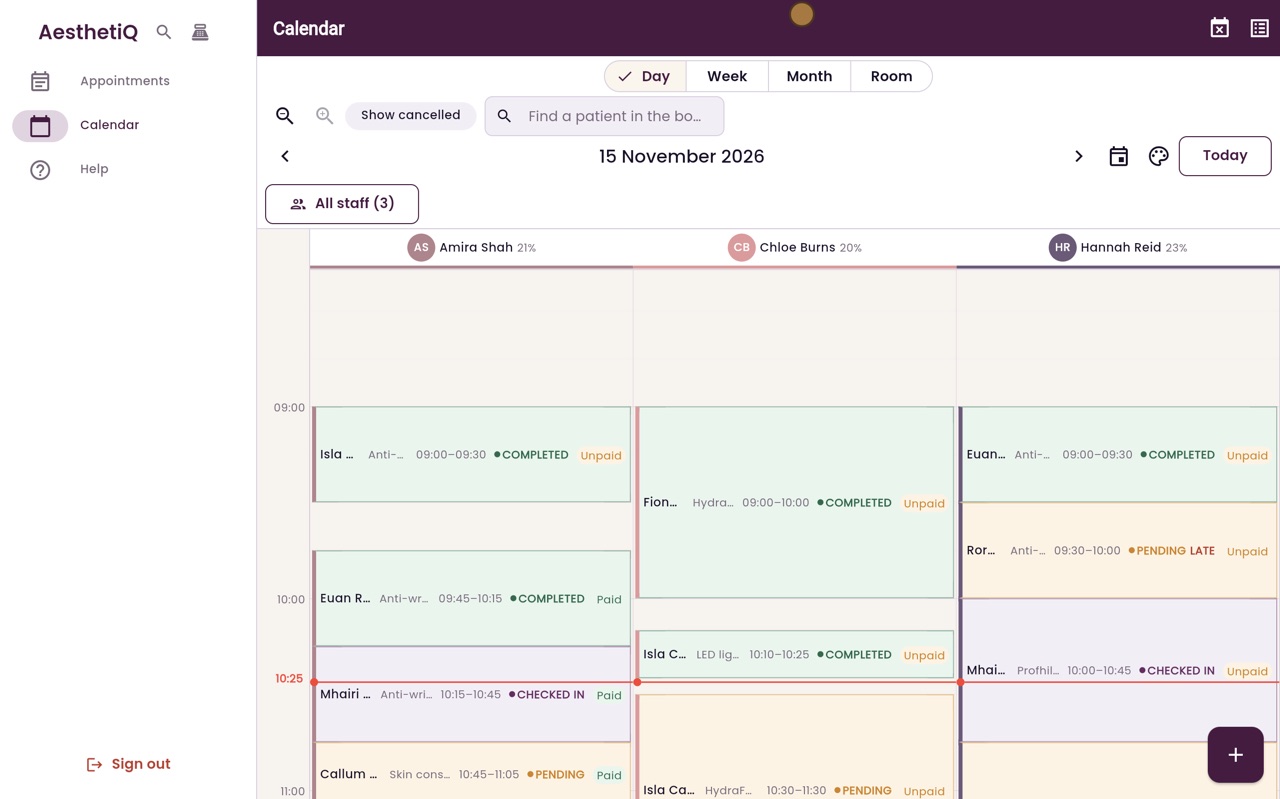
Zoom out
Click Zoom out to fit more of the day on the screen.
- 04Ryan
Choose staff
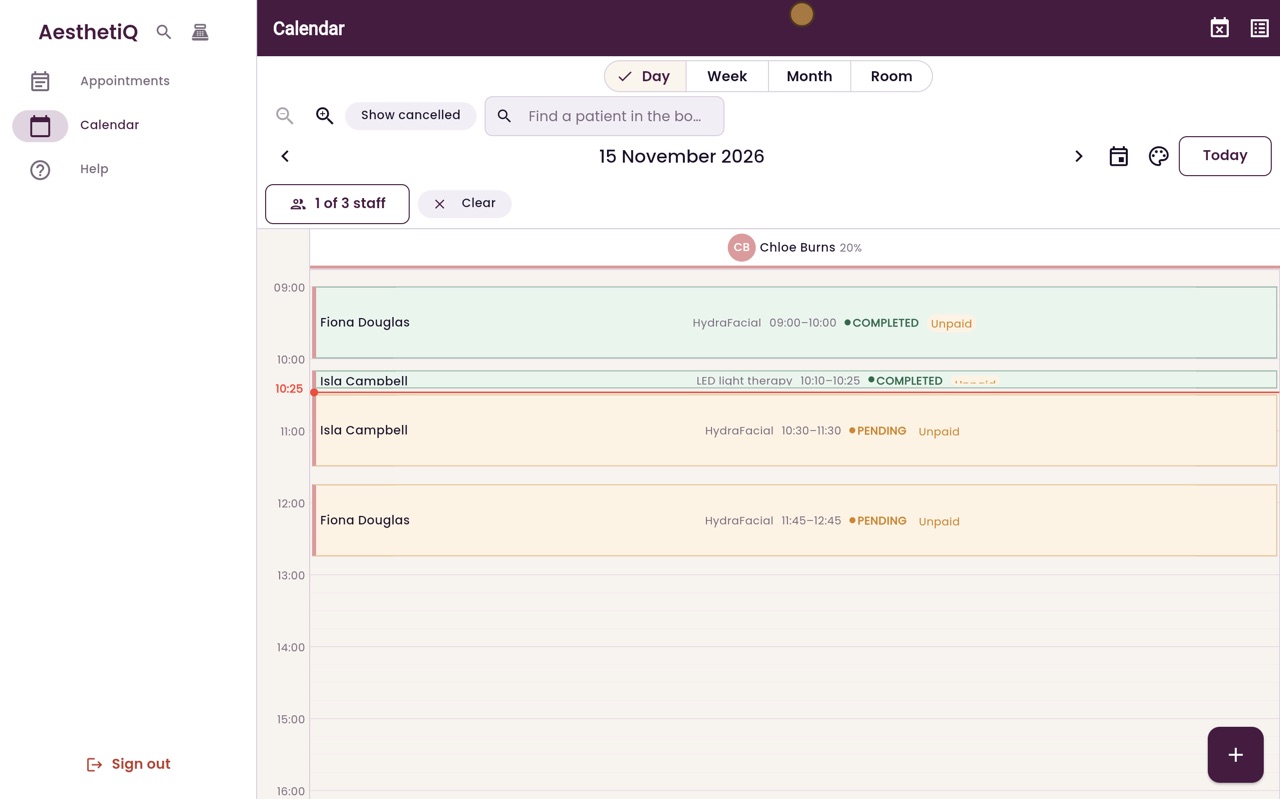
To show only some practitioners, click All staff. Untick the ones you do not need. Here, only Chloe Burns is left ticked. Click Apply.
- 05Ryan
One column
The calendar now shows only Chloe's column, and the button says 1 of 3 staff. Click Clear to show everyone again.
- 06Libby
Done
That is zooming and choosing staff. These choices only change your own screen. Nothing changes for anyone else.