Clocking in and out
Every member of staff clocks themselves in when they arrive, takes breaks, and clocks out when they leave, on the Attendance screen.
Where
Attendance in the menu, then My Shift.
Breaks
Start Break and End Break; each break is listed with its minutes.
Manager
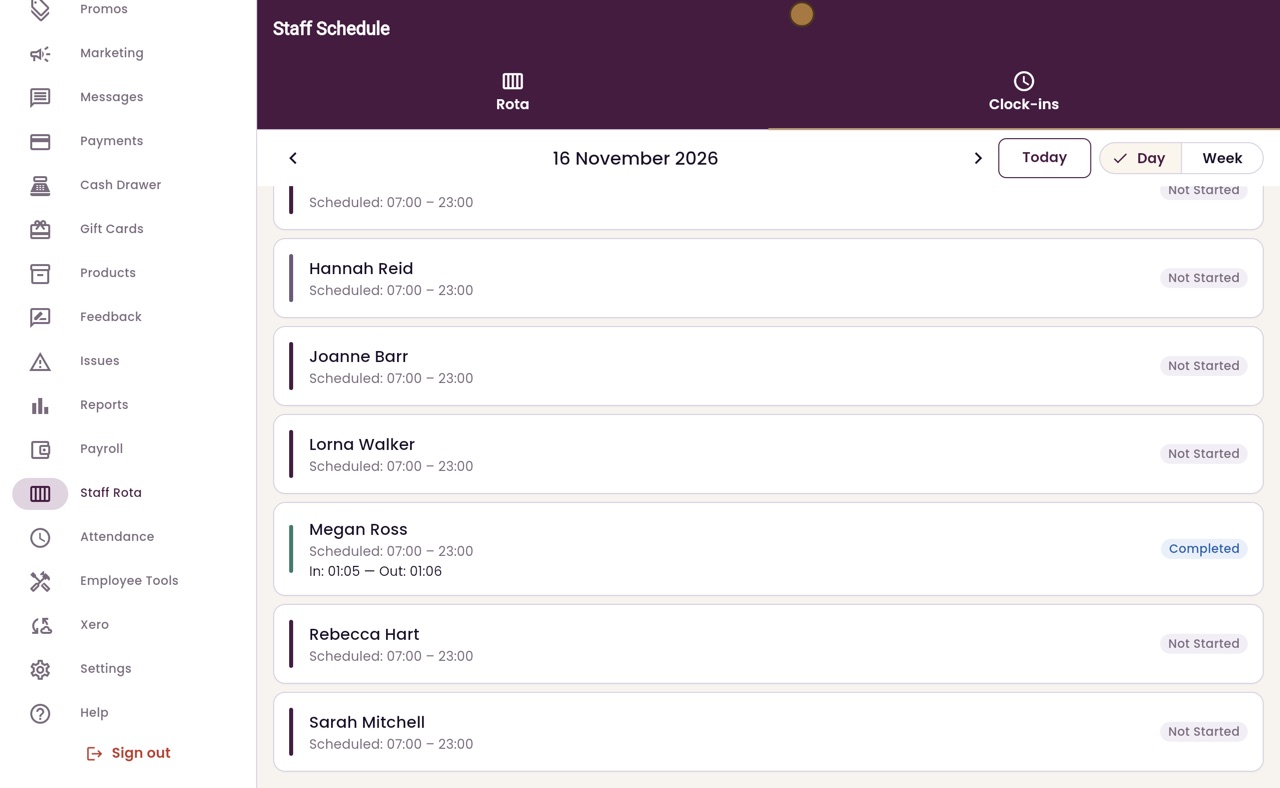
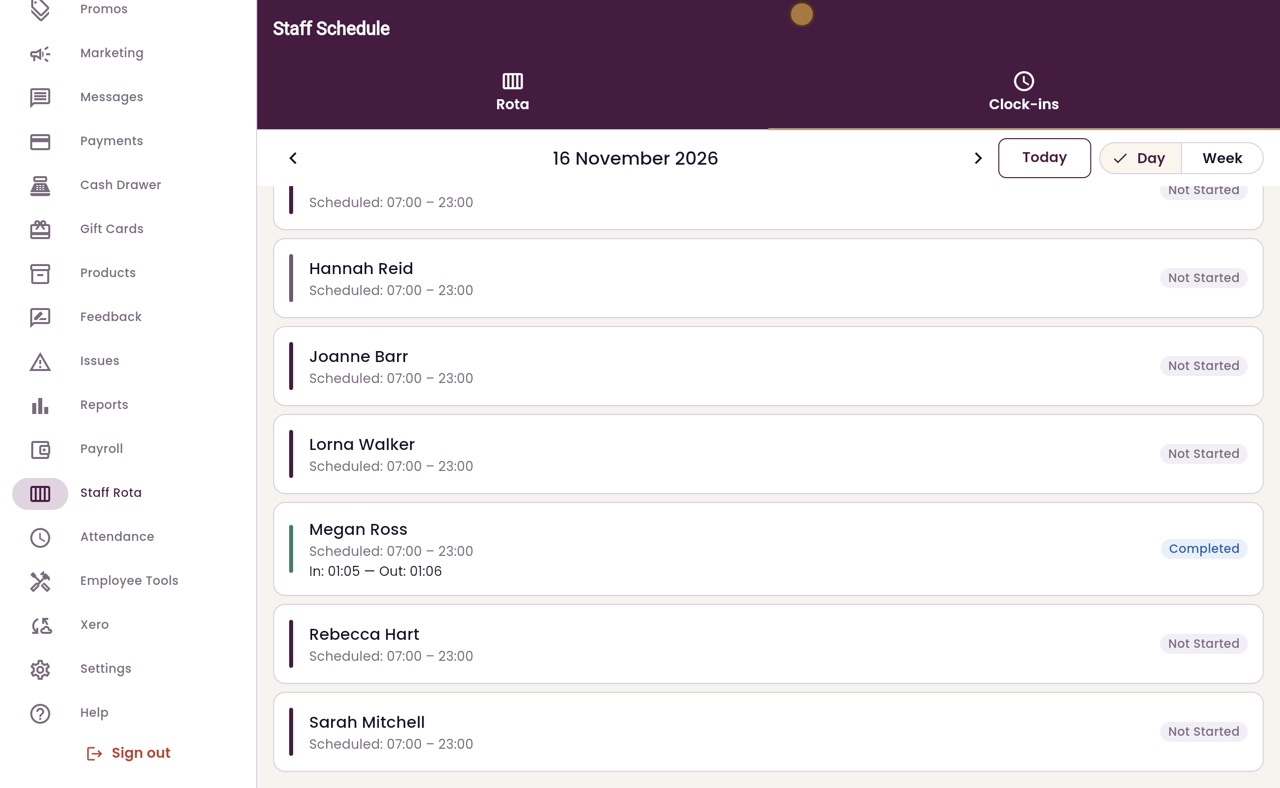
Staff Rota, Clock-ins: everyone's shift for the day.
Step by step
- 01Libby
Recording hours
Hi, I am Libby. Everyone at the clinic clocks themselves in and out on the Attendance screen, so there is a record of the hours worked and the breaks taken.
- 02Ryan
Clock In
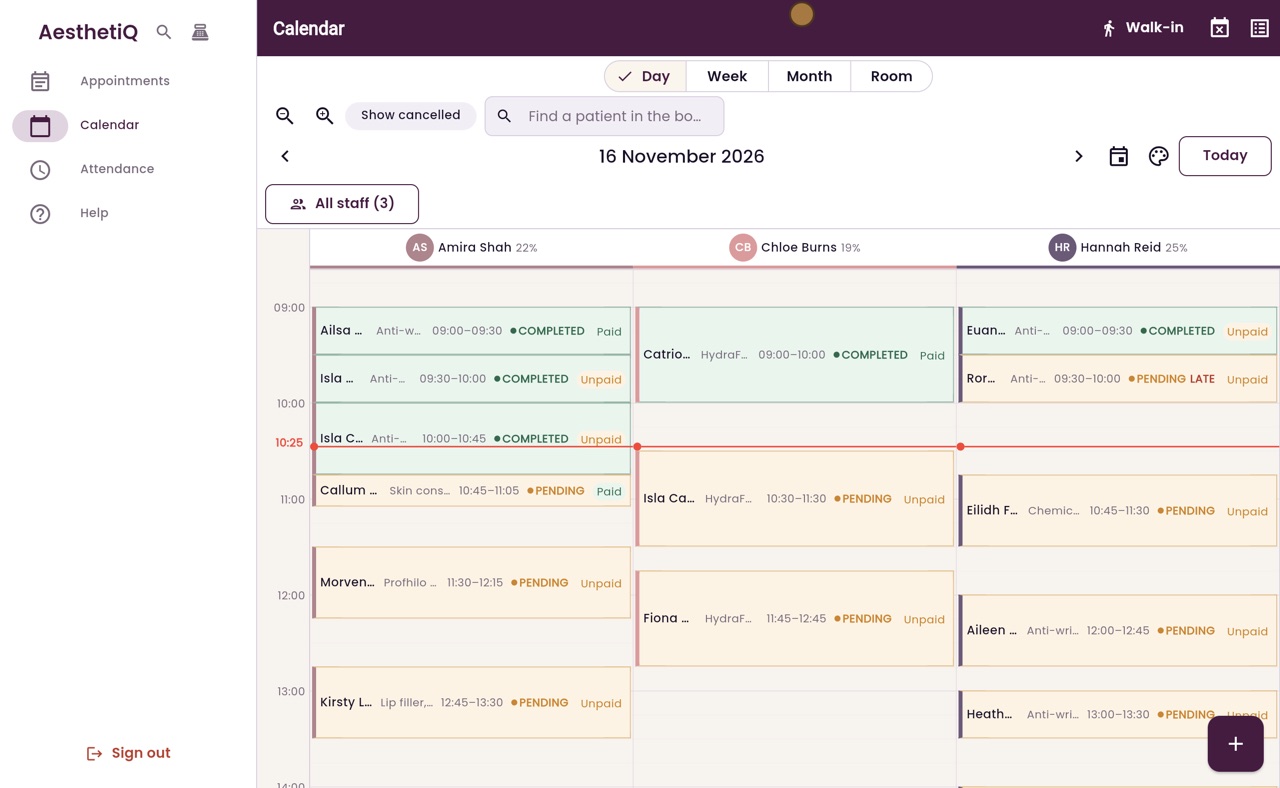
Thanks Libby. Megan is on reception. She clicks Attendance in the menu. My Shift shows Not Started, ready to start her shift. She clicks Clock In.
- 03Ryan
Shift details
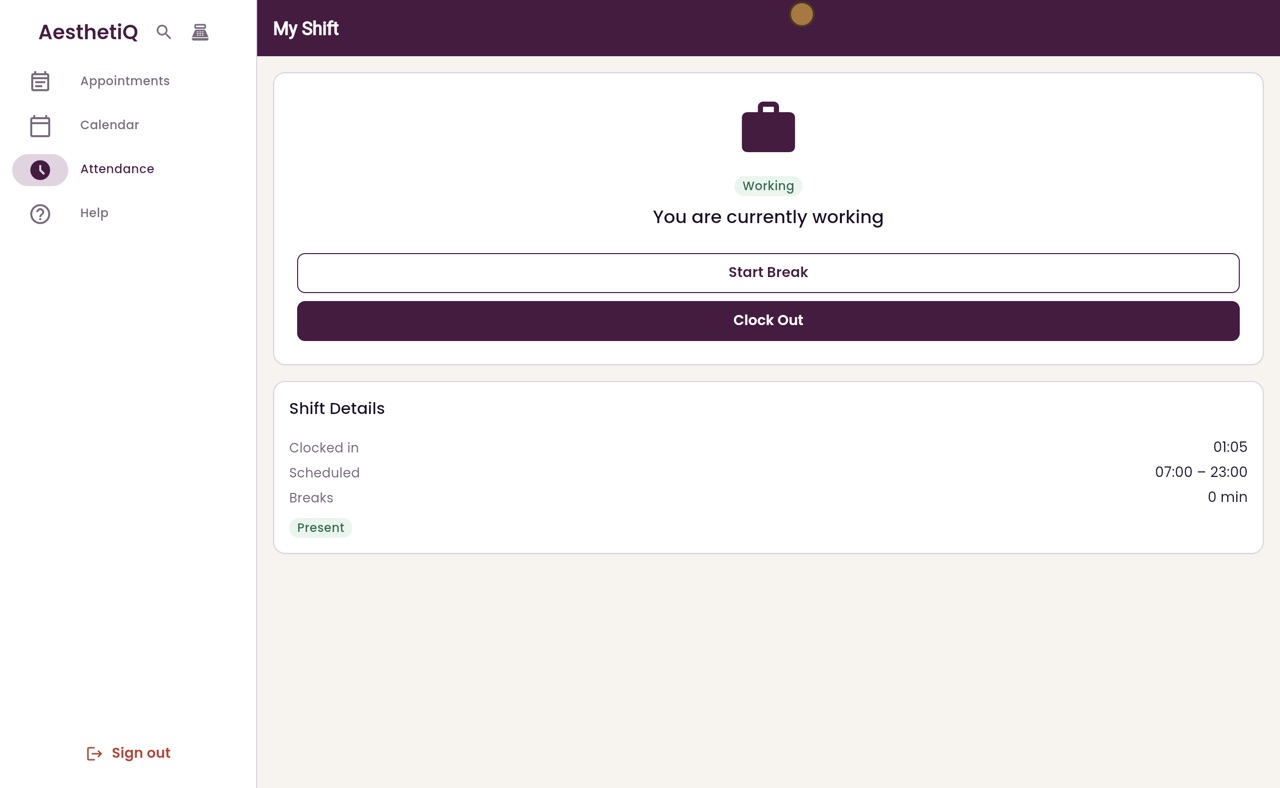
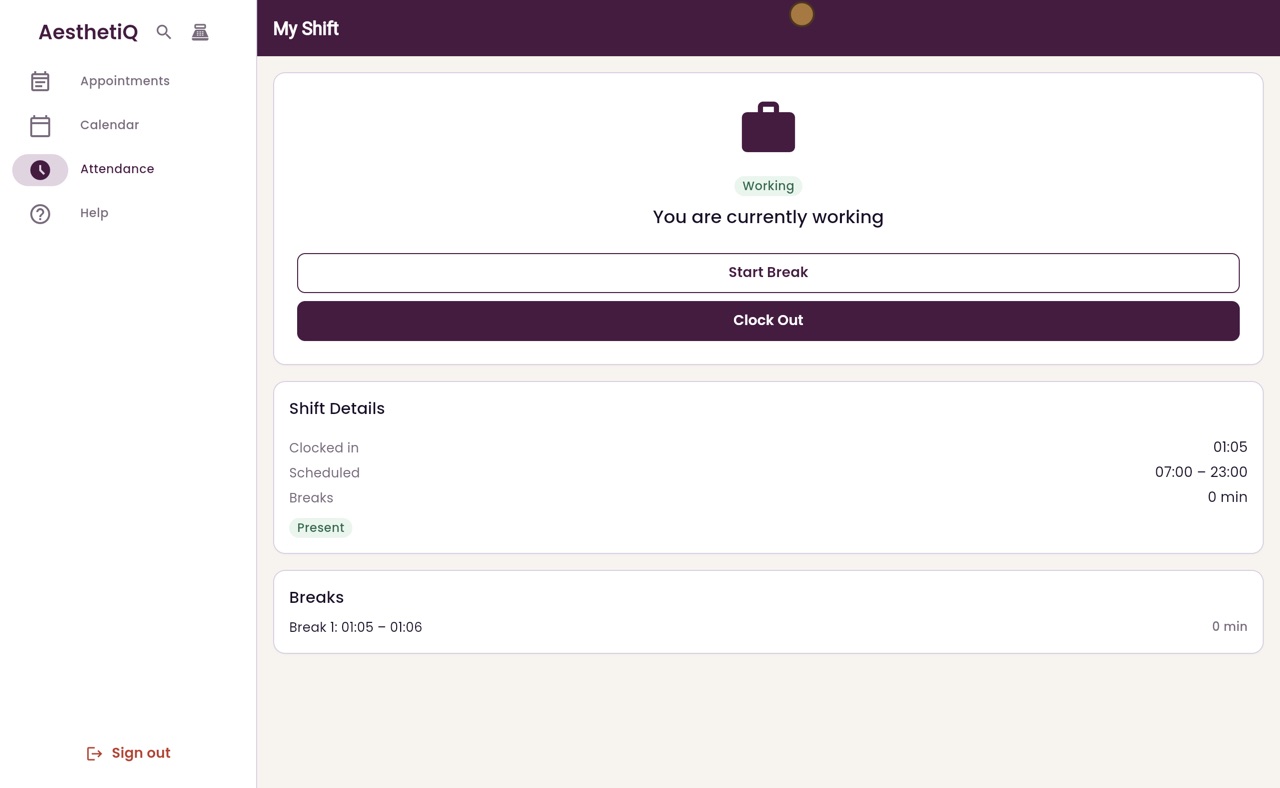
Megan is now working. Shift Details shows the time she clocked in, her scheduled hours and her breaks so far. The badge shows she started on time.
- 04Ryan
Breaks
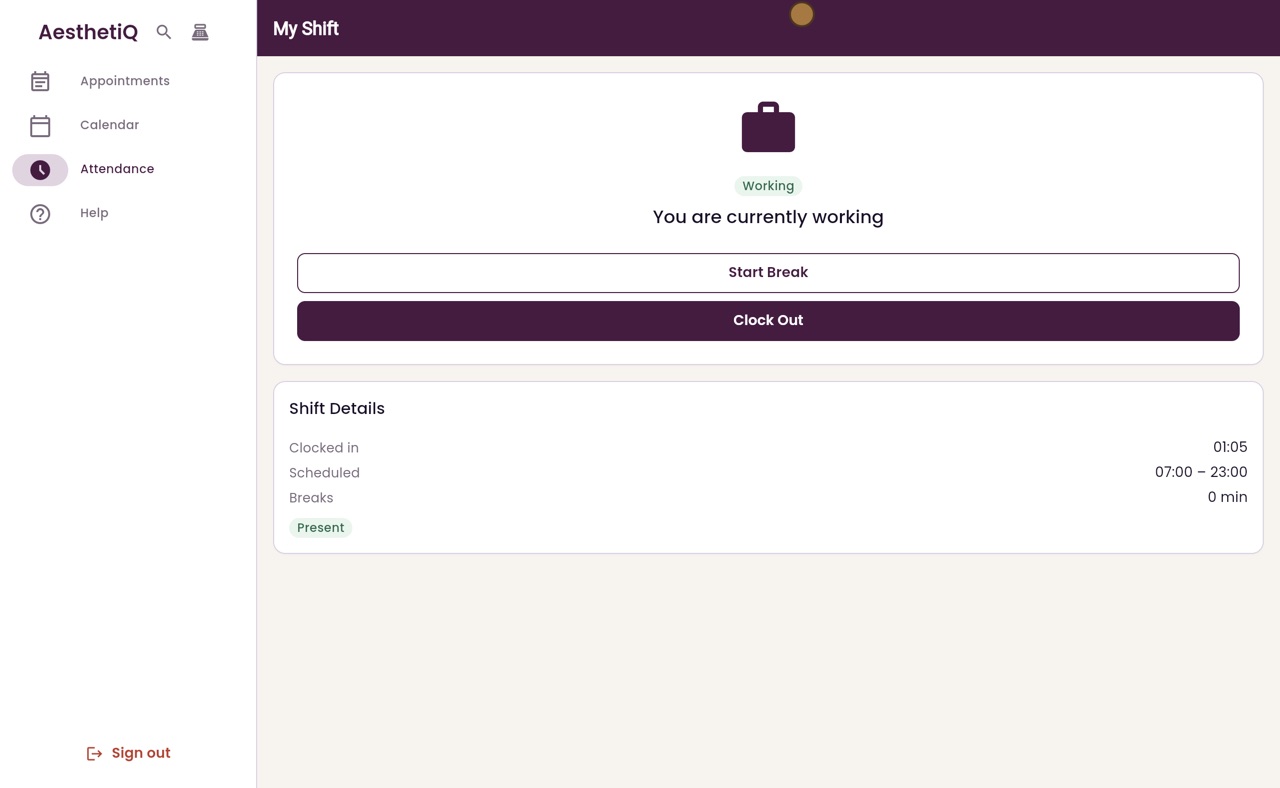
When she takes a break, she clicks Start Break. When she is back, she clicks End Break, and the break is listed under Breaks.
- 05Ryan
Clock Out
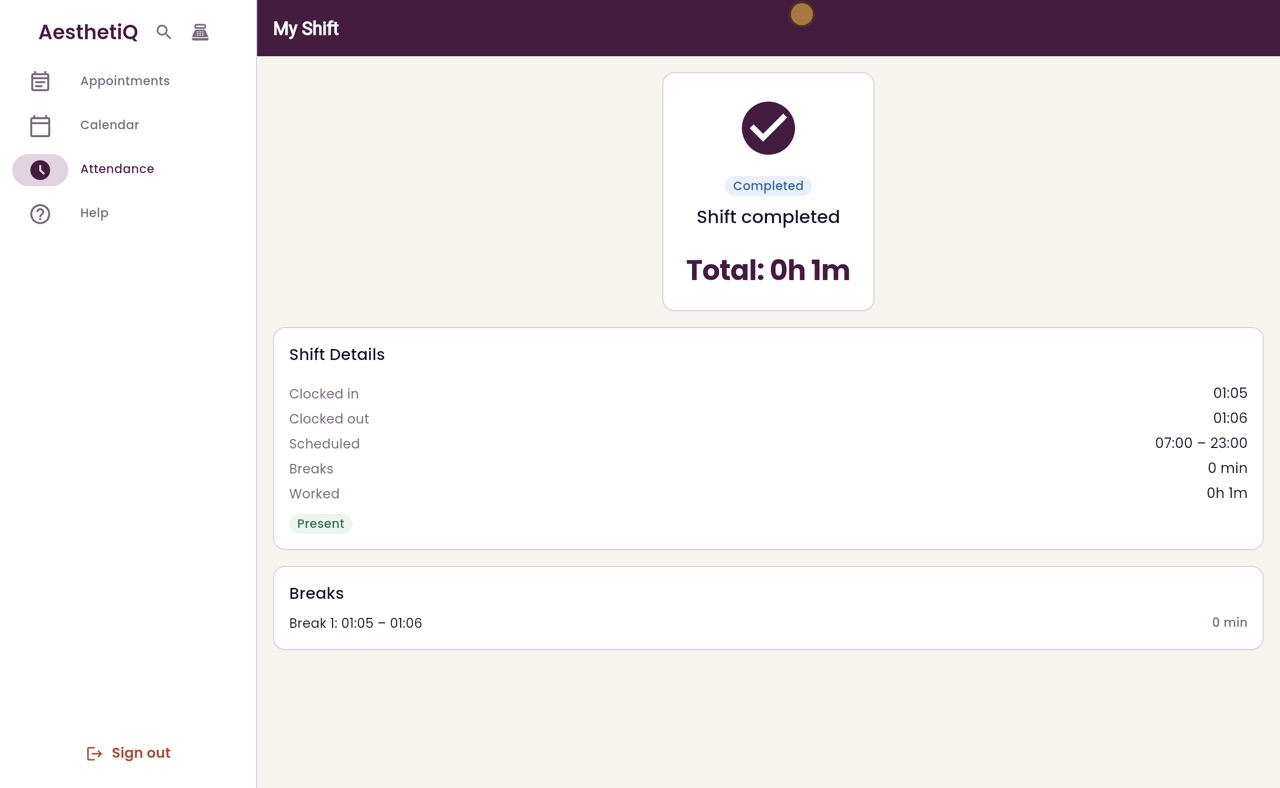
At the end of the day, she clicks Clock Out. The shift shows as completed, with the total time worked.
- 06Ryan
The manager's view
The clinic manager can see everyone's clock-ins. Claire Nisbet, the clinic manager, opens Staff Rota and clicks Clock-ins. Each member of staff is listed for the day, with their scheduled hours and whether they have started. Megan's shift shows as completed, with the times she clocked in and out.
- 07Libby
Done
That is clocking in and out. Each clock in, break and clock out is recorded against your own login.