Moving an appointment
Move an appointment with Reschedule, which offers the practitioner's free times, or by dragging it on the calendar. A drag can be undone straight away.
Reschedule
Quick suggestions, or pick a day and a free time.
Drag
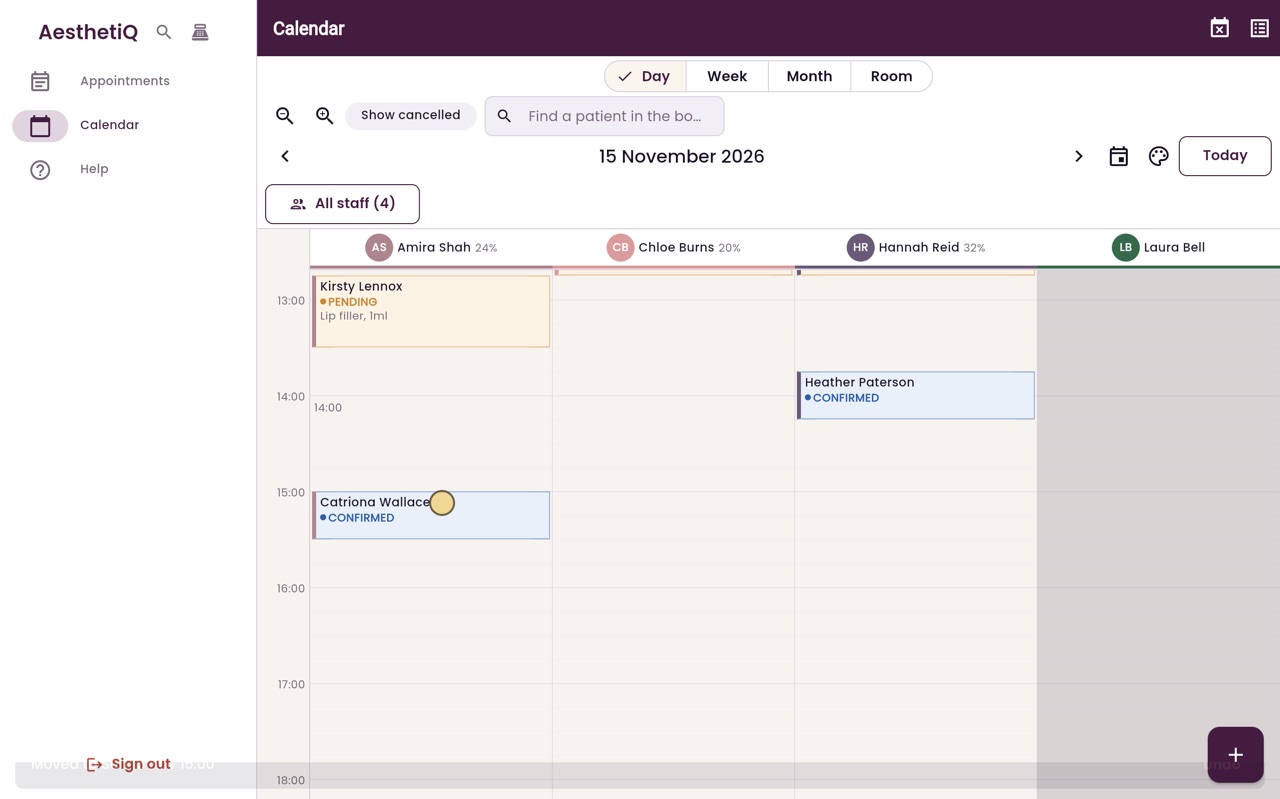
Press and hold an appointment, drag it, let go.
Undo
On the message at the bottom, straight after a drag.
Step by step
- 01Libby
Moving
Hi, I am Libby. When a patient needs a different time, you can move their appointment. There are two ways to do it.
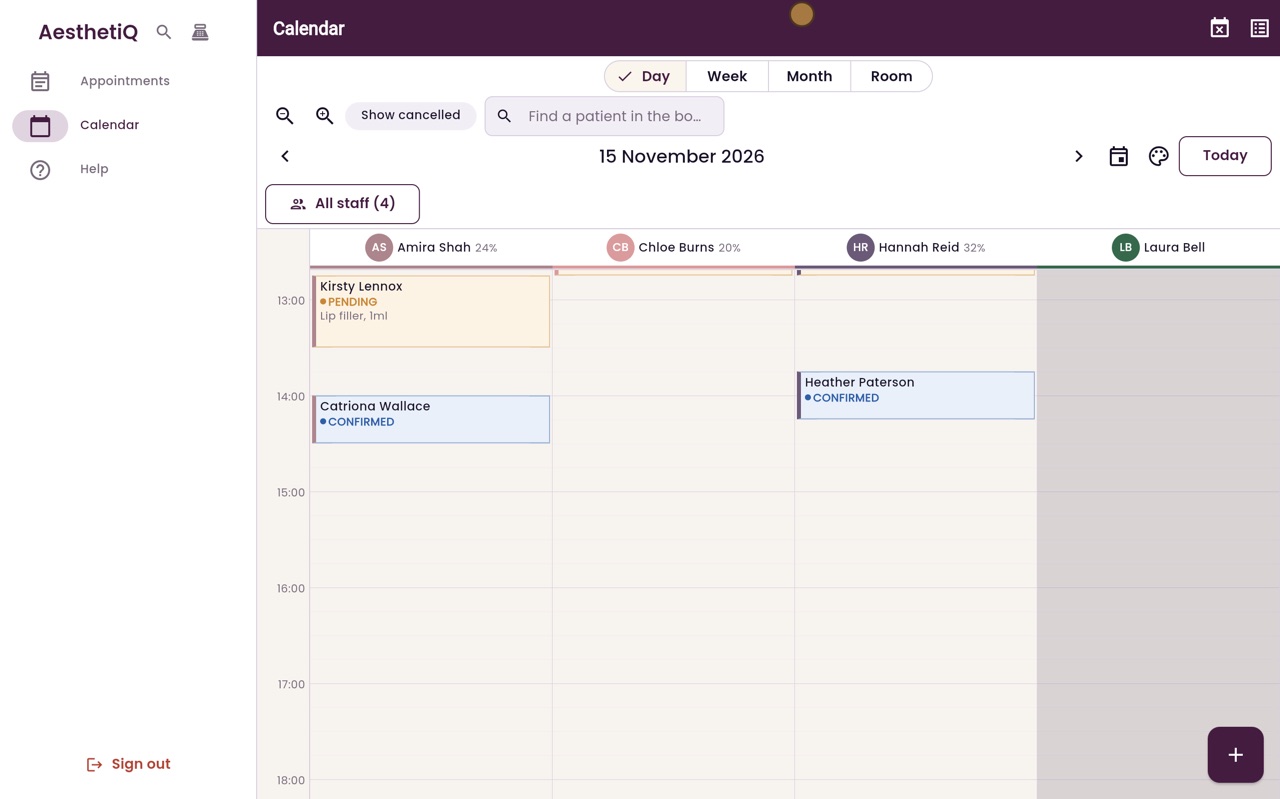
- 02Ryan
Open and Reschedule
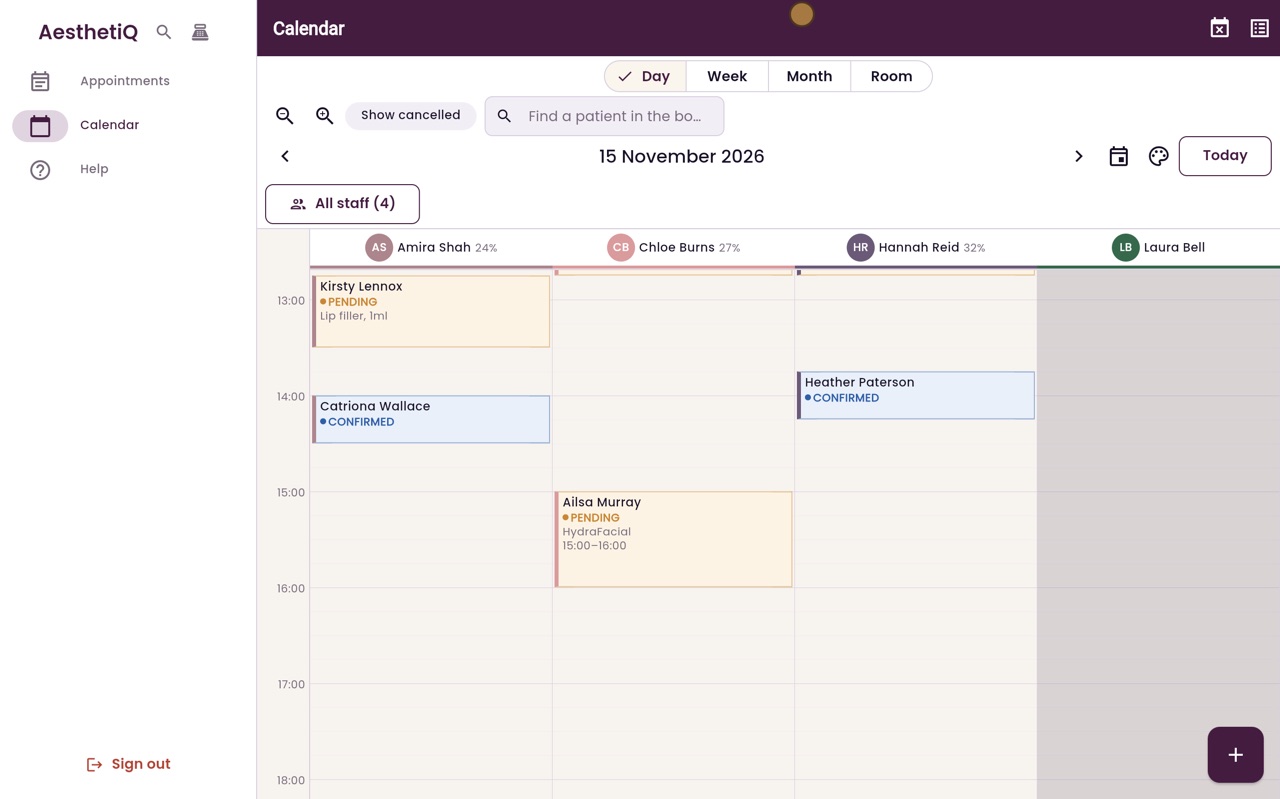
Thanks Libby. Ailsa Murray has rung to move her three o'clock HydraFacial with Chloe Burns to next week. Open her appointment, and click Reschedule.
- 03Ryan
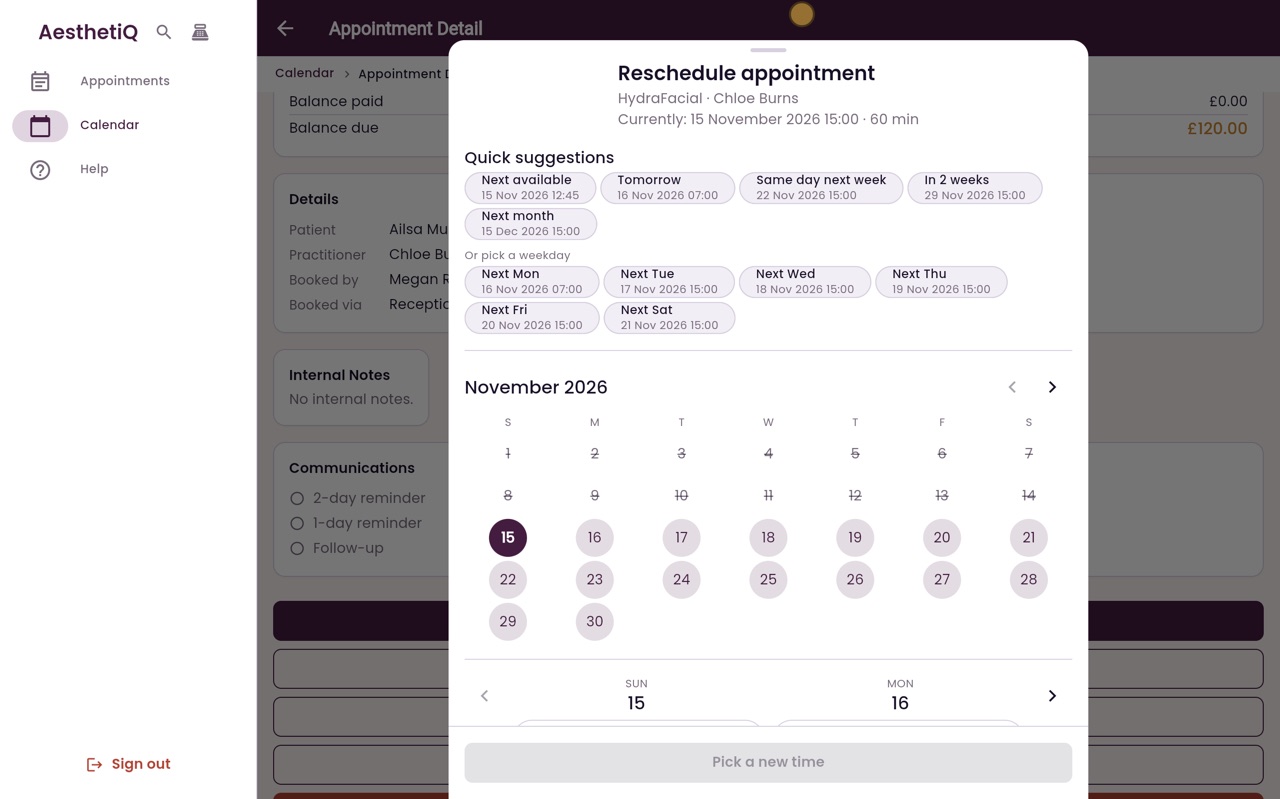
Quick suggestions
Quick suggestions offer Chloe's next free times. Ailsa would like the same time next week, so click Same day next week: Sunday the twenty second, at three o'clock.
- 04Ryan
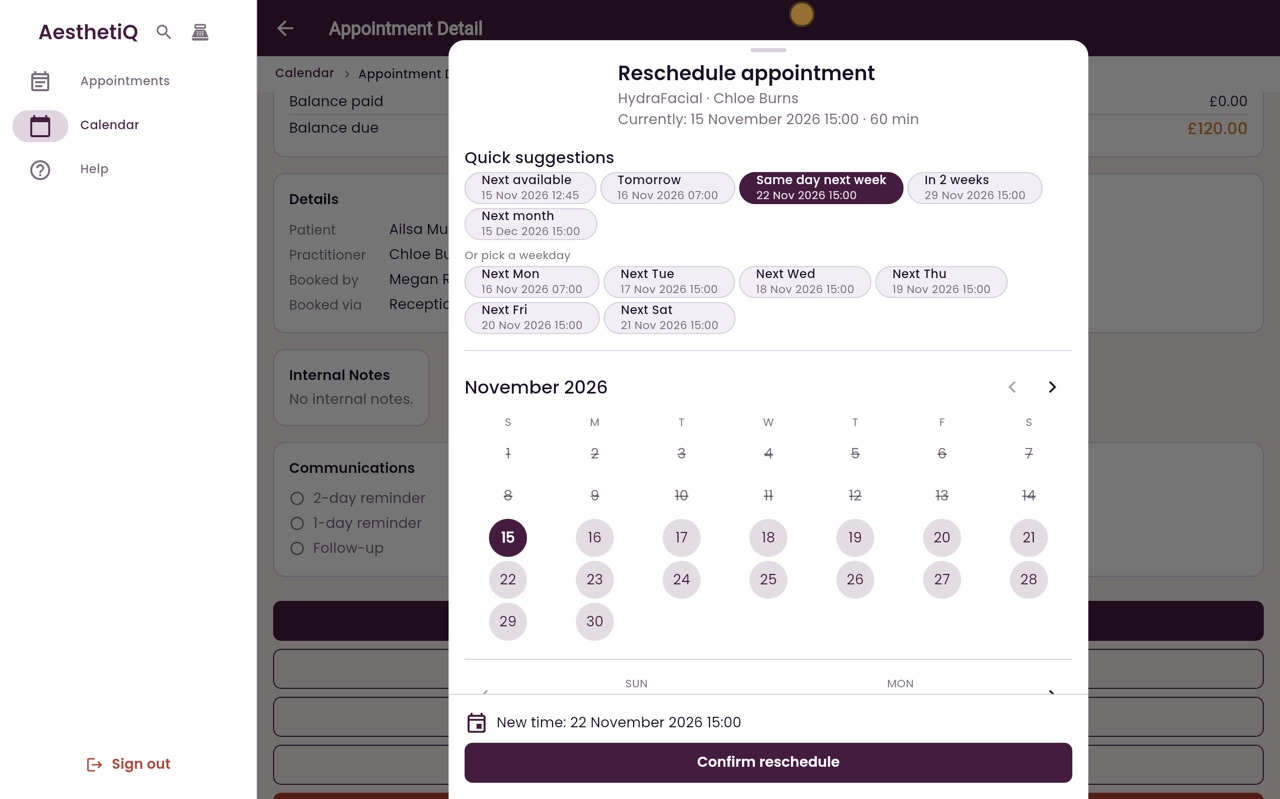
Confirm reschedule
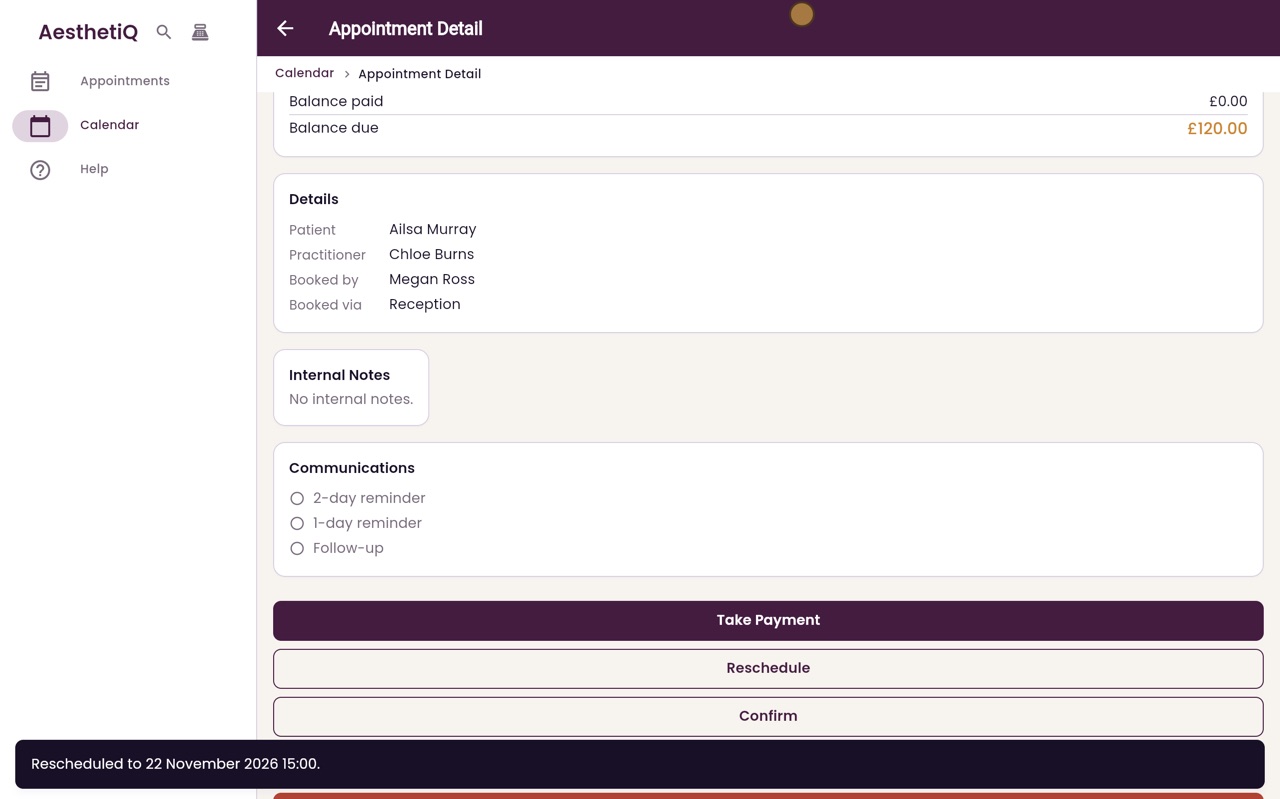
The new time shows at the bottom. Click Confirm reschedule.
- 05Ryan
Moved
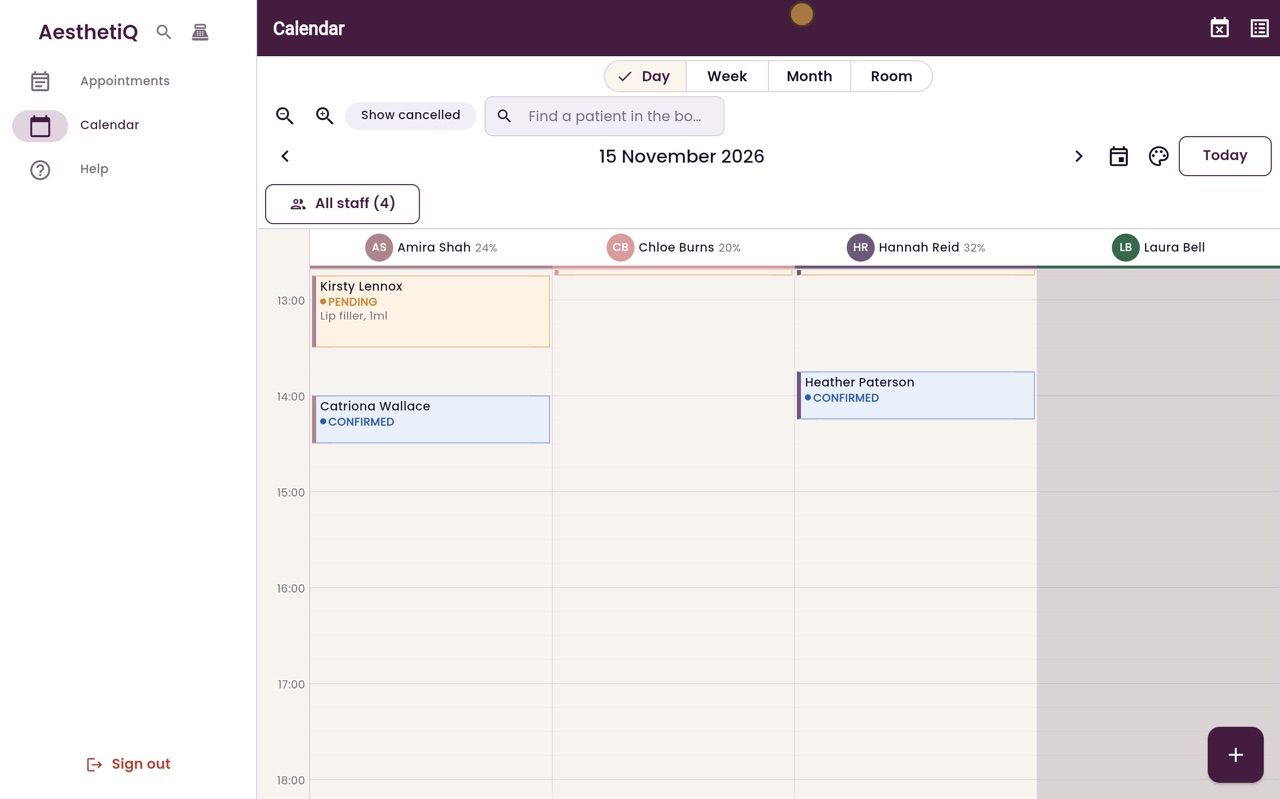
The message confirms the new date and time. Click Back, and Ailsa's appointment has gone from today's calendar.
- 06Ryan
Drag on the calendar
You can also drag an appointment on the calendar. Press and hold Catriona Wallace's two o'clock with Amira, drag it down to three o'clock, and let go.
- 07Ryan
Undo
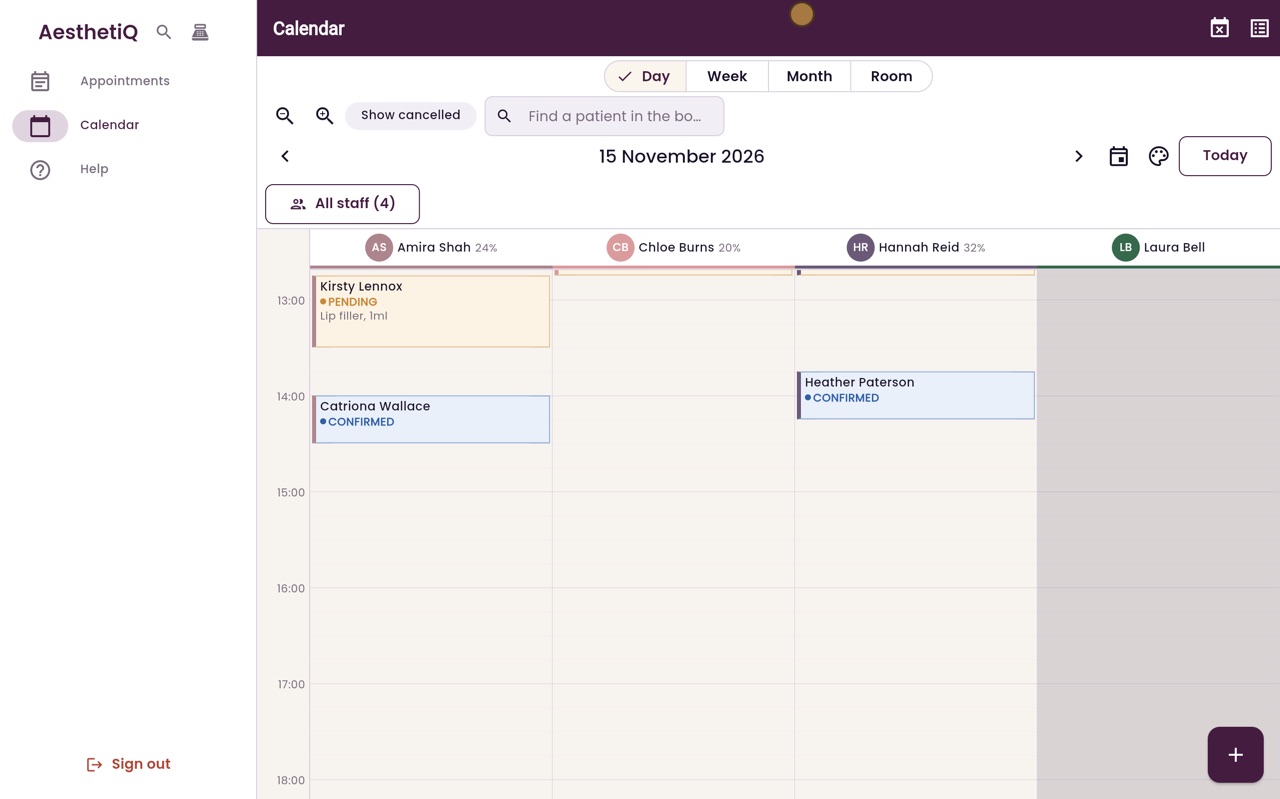
If that was a mistake, click Undo on the message at the bottom straight away, and the appointment goes back.
- 08Libby
Done
That is moving an appointment. A locked appointment cannot be dragged, so it never moves by accident.