Resetting a staff member's authenticator
When someone loses the phone with their authenticator app, an admin resets it and they set up a new one at their next sign-in.
Where
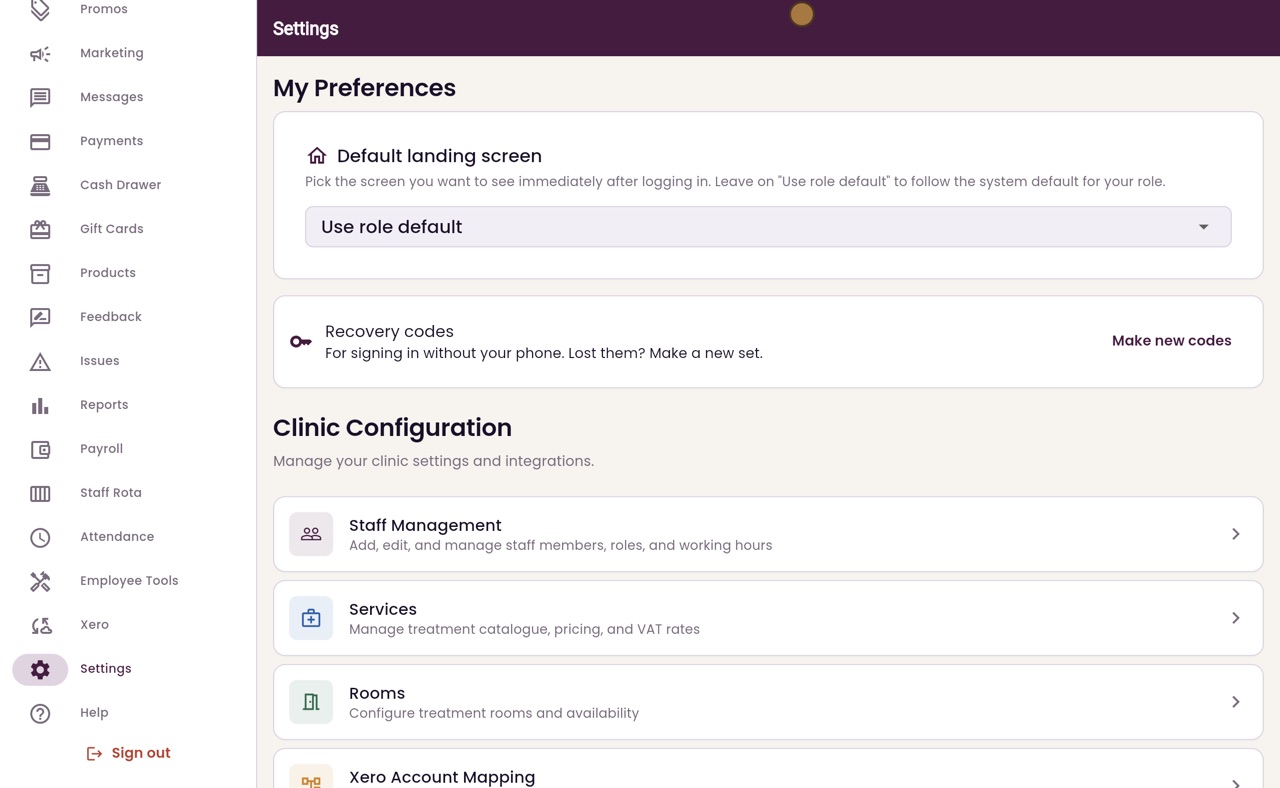
Settings, Staff Management, the menu next to the person, then Quick Edit.
Reset
Reset authenticator, then Reset to confirm. The button only shows for staff who have an authenticator.
After
They are signed out and set up a new authenticator at their next sign-in.
Step by step
- 01Libby
A lost phone
Hi, I am Libby. If a member of staff loses the phone with their authenticator app, and has no recovery codes left, an admin can reset their authenticator.
- 02Ryan
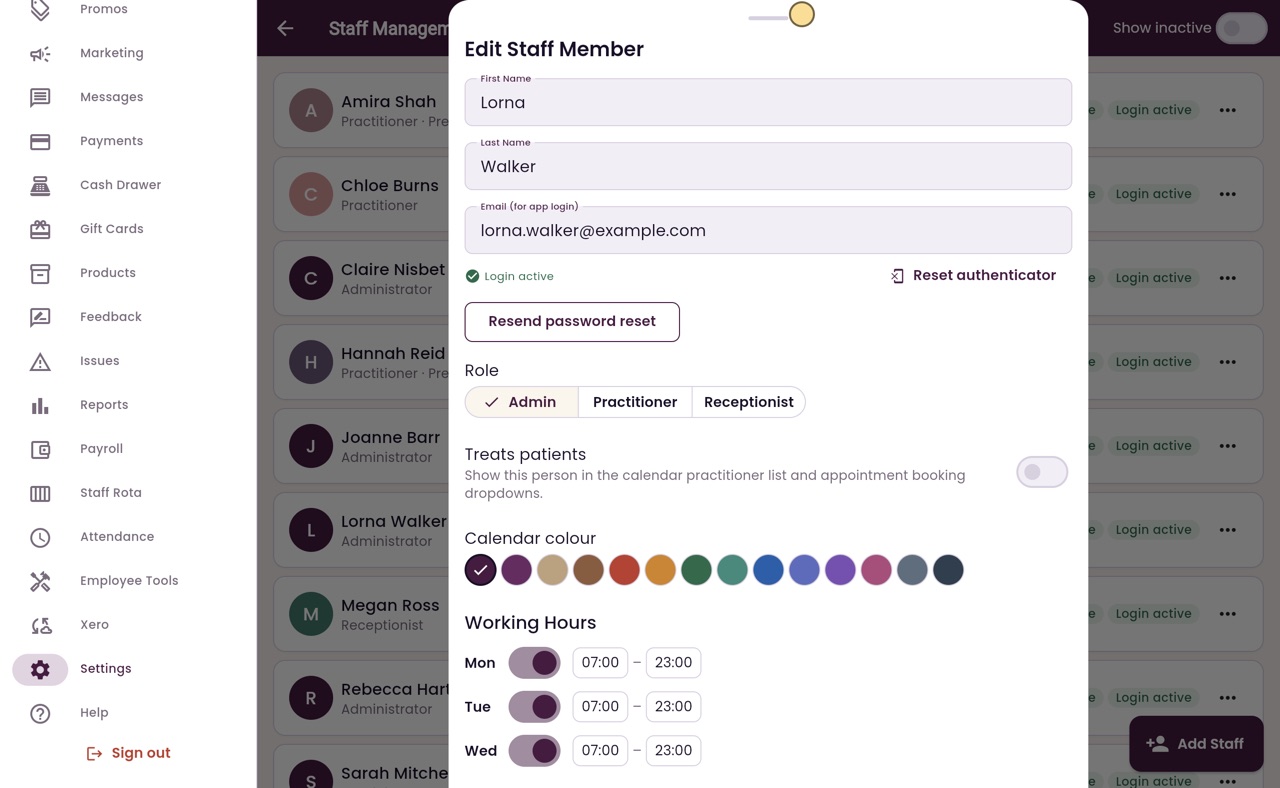
Quick Edit
Thanks Libby. In Settings, open Staff Management. Click the menu next to the person, here Lorna Walker, and choose Quick Edit.
- 03Ryan
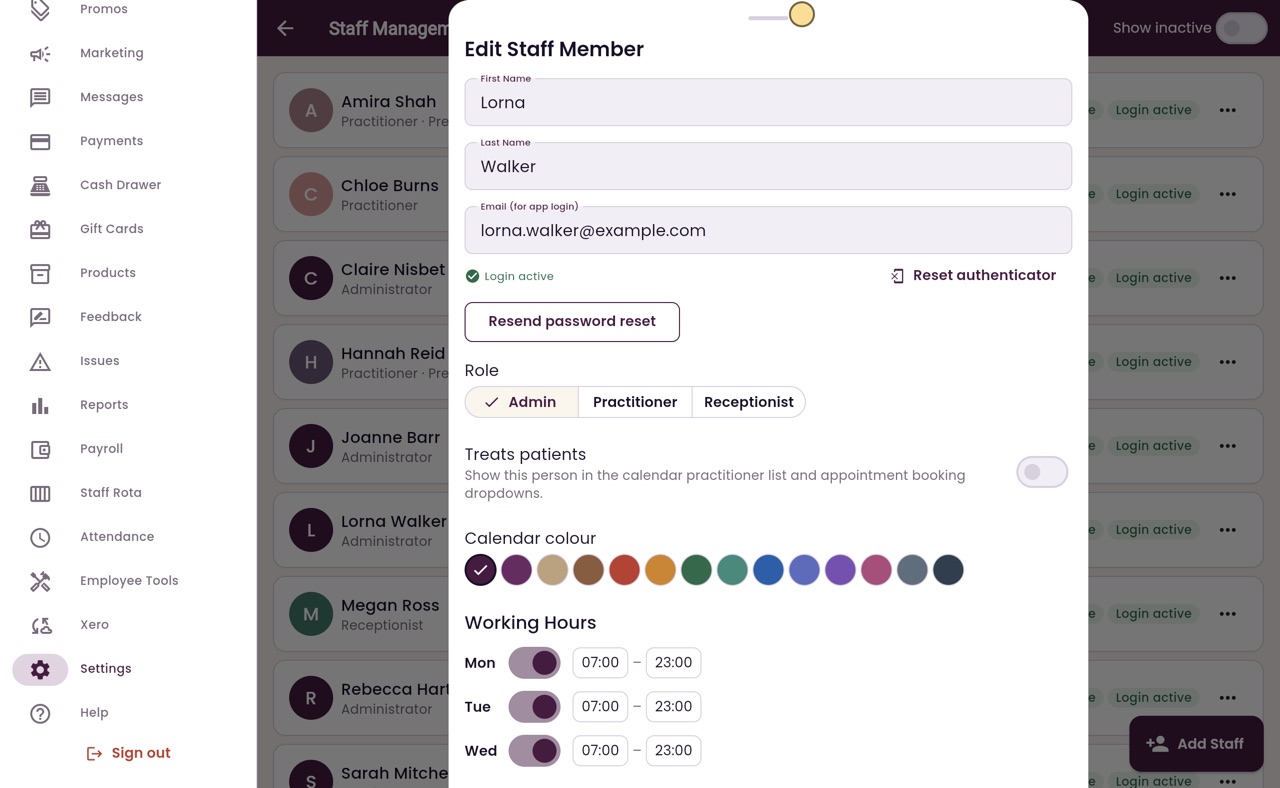
Reset authenticator
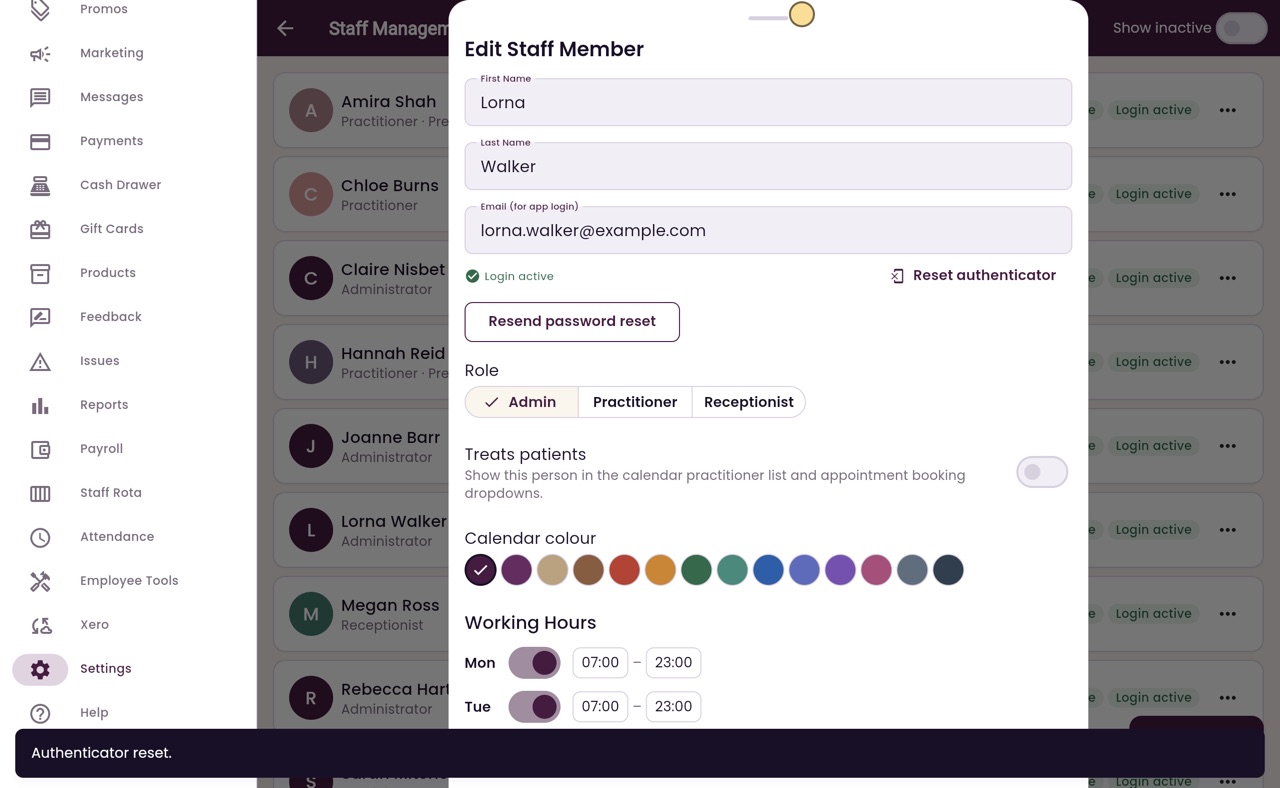
Under her email address, Login active shows that she can sign in. Reset authenticator only appears for staff who have set one up. Click Reset authenticator.
- 04Ryan
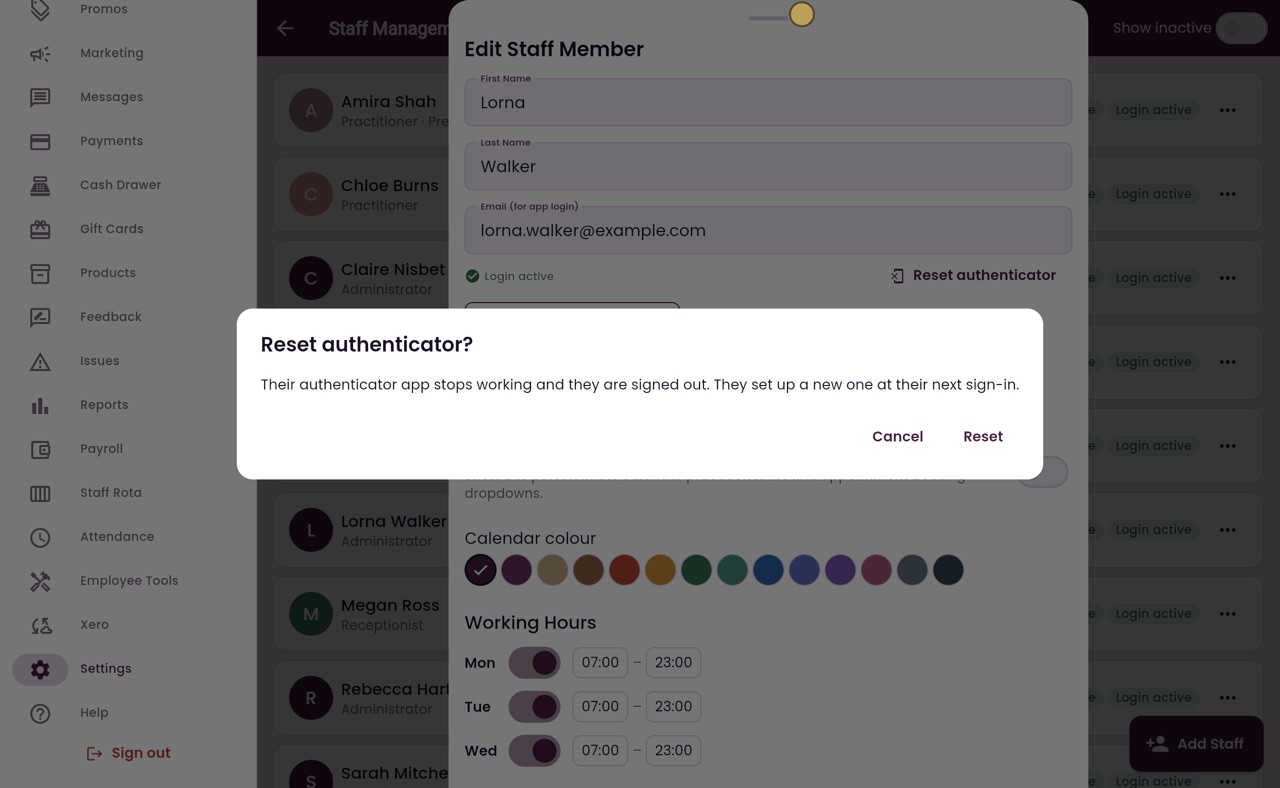
Confirm
AesthetiQ explains what happens. Her authenticator app stops working and she is signed out. She sets up a new one the next time she signs in. Click Reset.
- 05Ryan
Authenticator reset
AesthetiQ confirms that the authenticator has been reset.
- 06Libby
Done
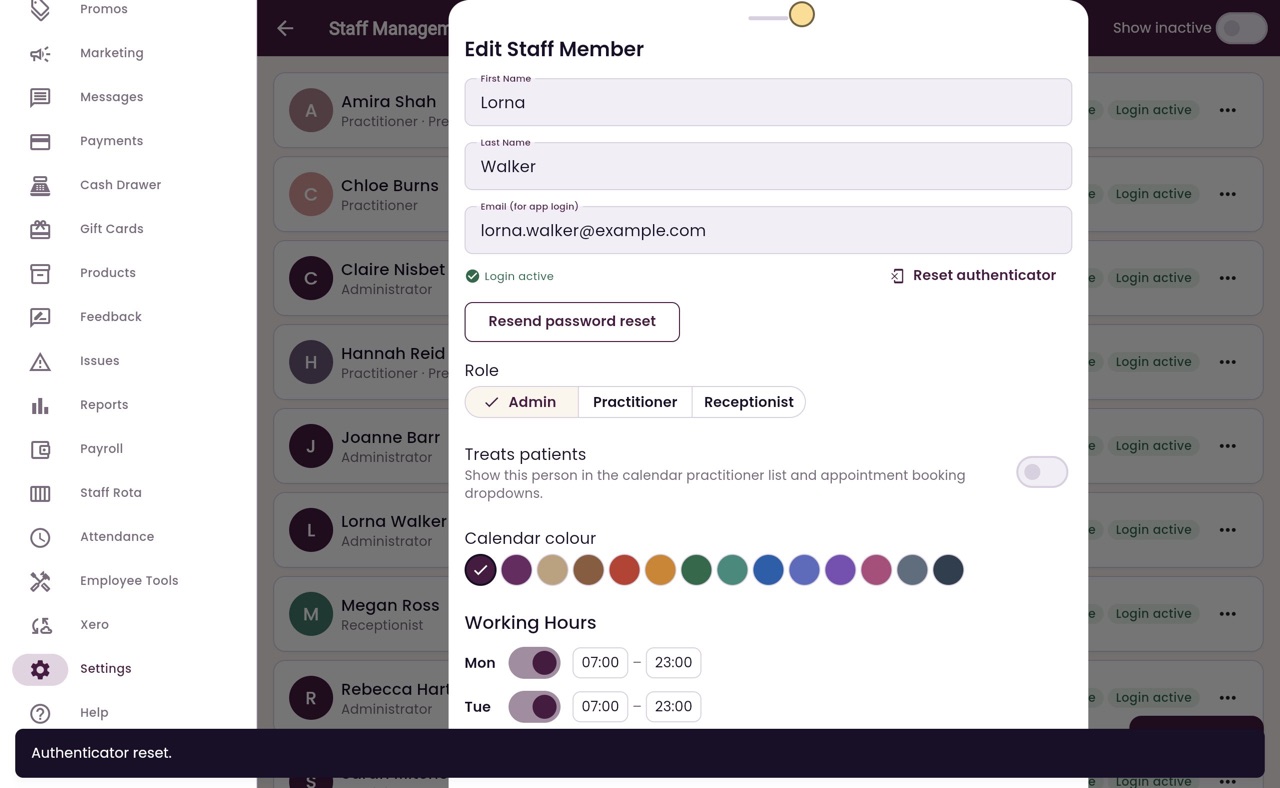
That is resetting a staff member's authenticator. You cannot reset your own. If you lose your own phone, use a recovery code, or ask another admin.