A patient's appointments and payments
See every appointment a patient has had or booked, filter them by status, and see every payment they have made.
Where
The patient's profile, Appointments tab and Payments tab.
Who
Reception and the clinic manager.
Filter
Choose a status at the top left of the Appointments tab.
Step by step
- 01Libby
Appointments and payments
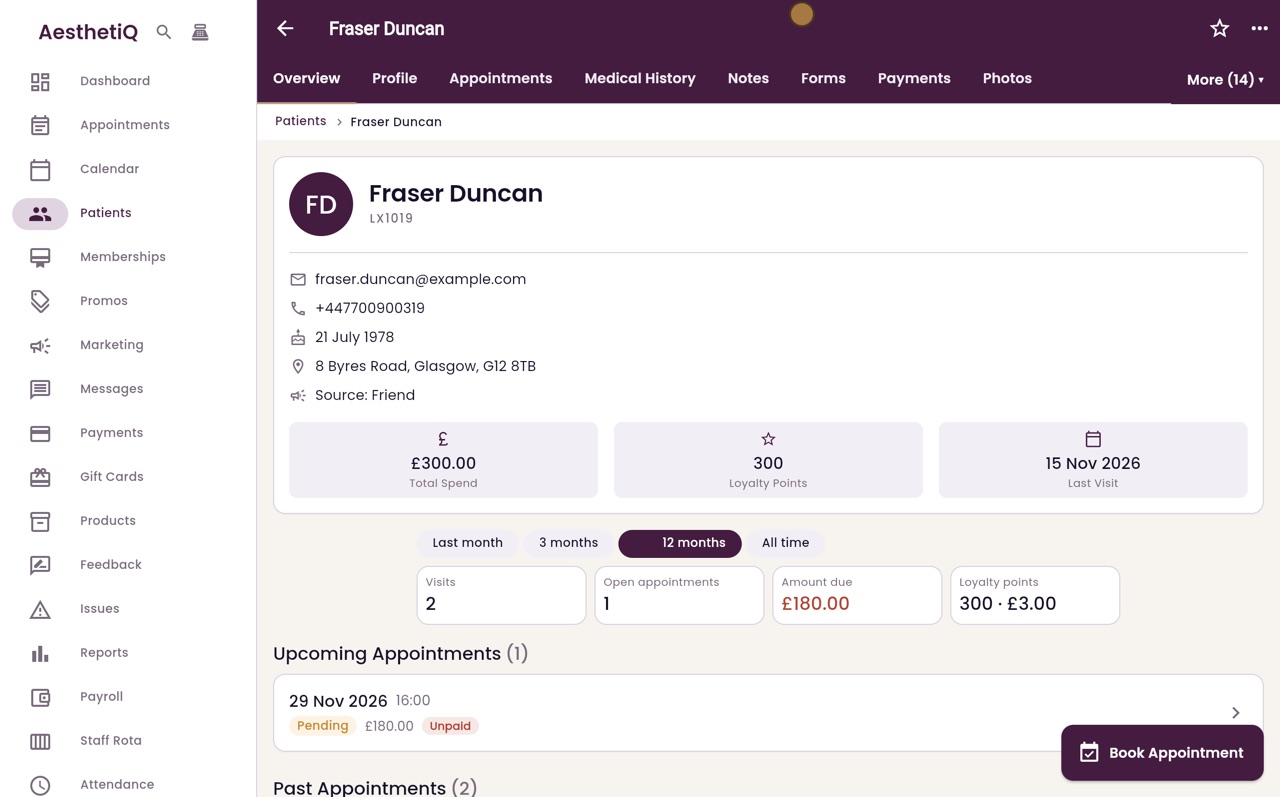
Hi, I am Libby. A patient's profile lists every appointment they have had or booked, and every payment they have made.
- 02Ryan
The Appointments tab
Thanks Libby. On Fraser Duncan's profile, click the Appointments tab. Upcoming appointments are at the top and past ones below, each with its date, time, status, price, and whether it is paid.
- 03Ryan
Filter by status
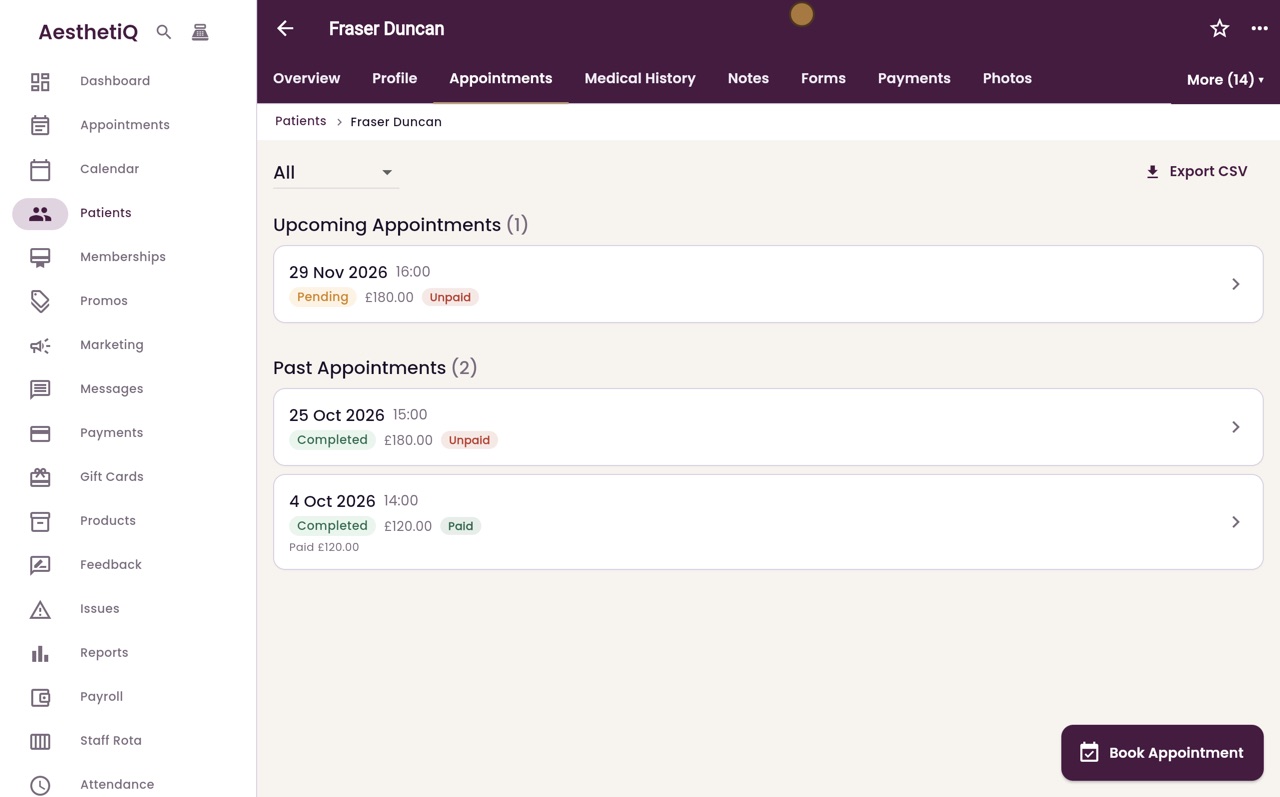
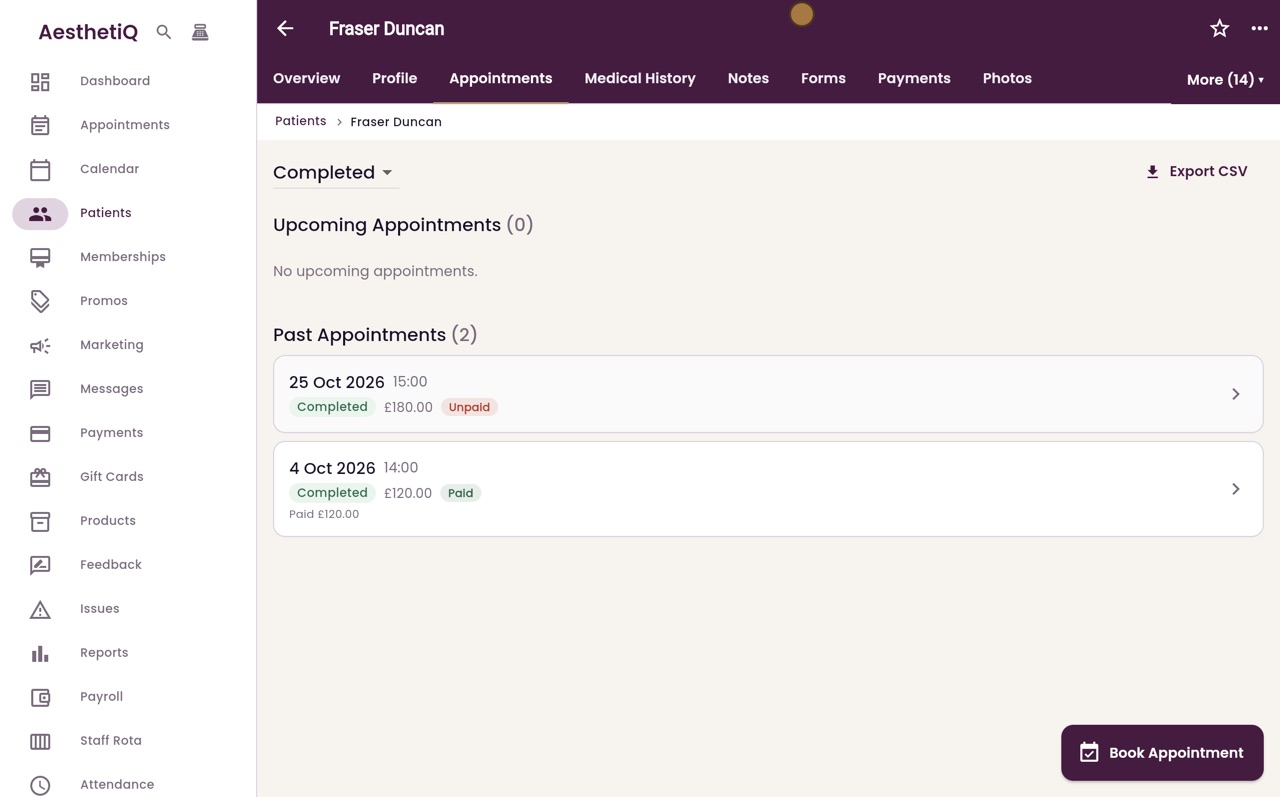
To see only some of them, choose a status from the list at the top left. Here, Completed.
- 04Ryan
The Payments tab
Now click the Payments tab. It shows the total paid, after any refunds, and each payment with its amount, how it was paid and the date.
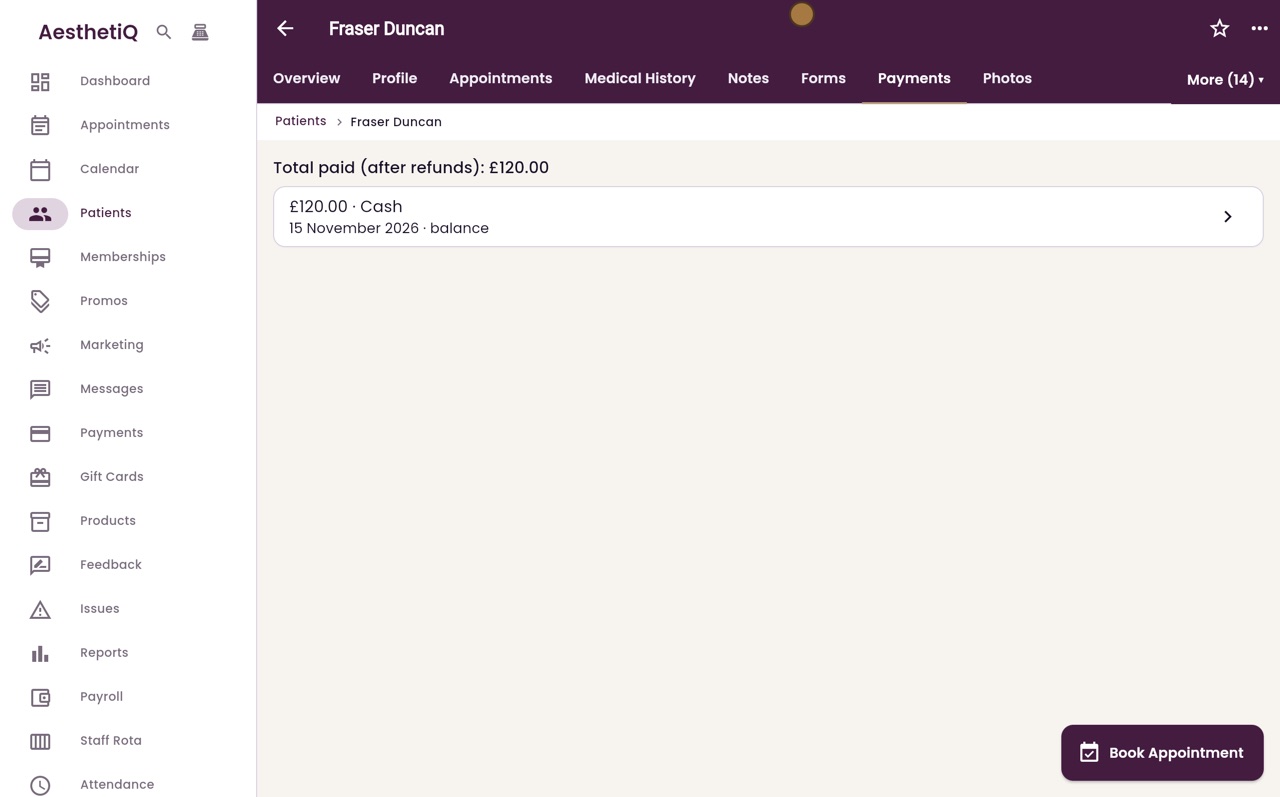
- 05Ryan
Open the appointment
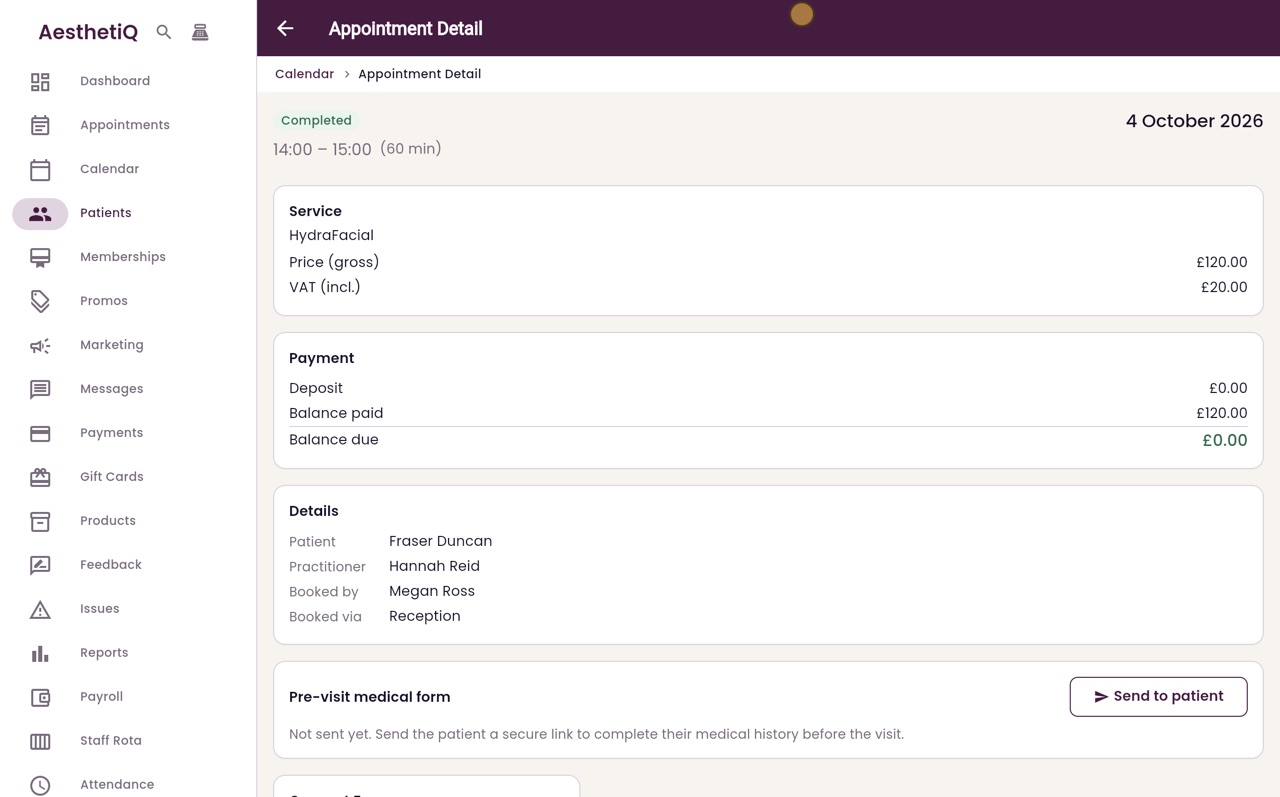
Click a payment to open the appointment it was for. This one paid for his HydraFacial on 4 October.
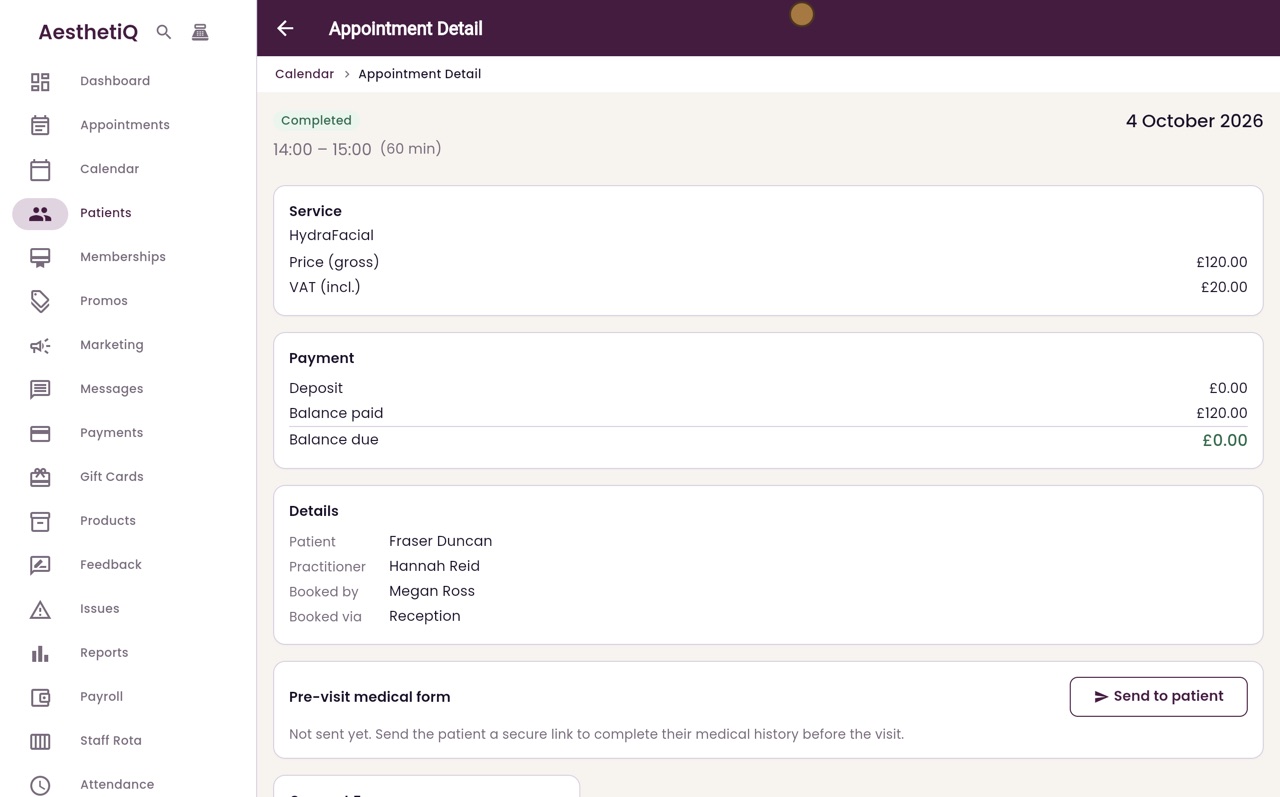
- 06Libby
Done
That is a patient's appointments and payments. An appointment in the Appointments tab opens in the same way when you click it.