Reports and exports
Find any report in its group, choose the dates, and save it as a CSV file. Reports with tabs export the tab you are on.
Where
Reports, in the menu on the left.
Who
The clinic manager.
After
A CSV file of the report, ready for Excel.
Step by step
- 01Libby
Reports
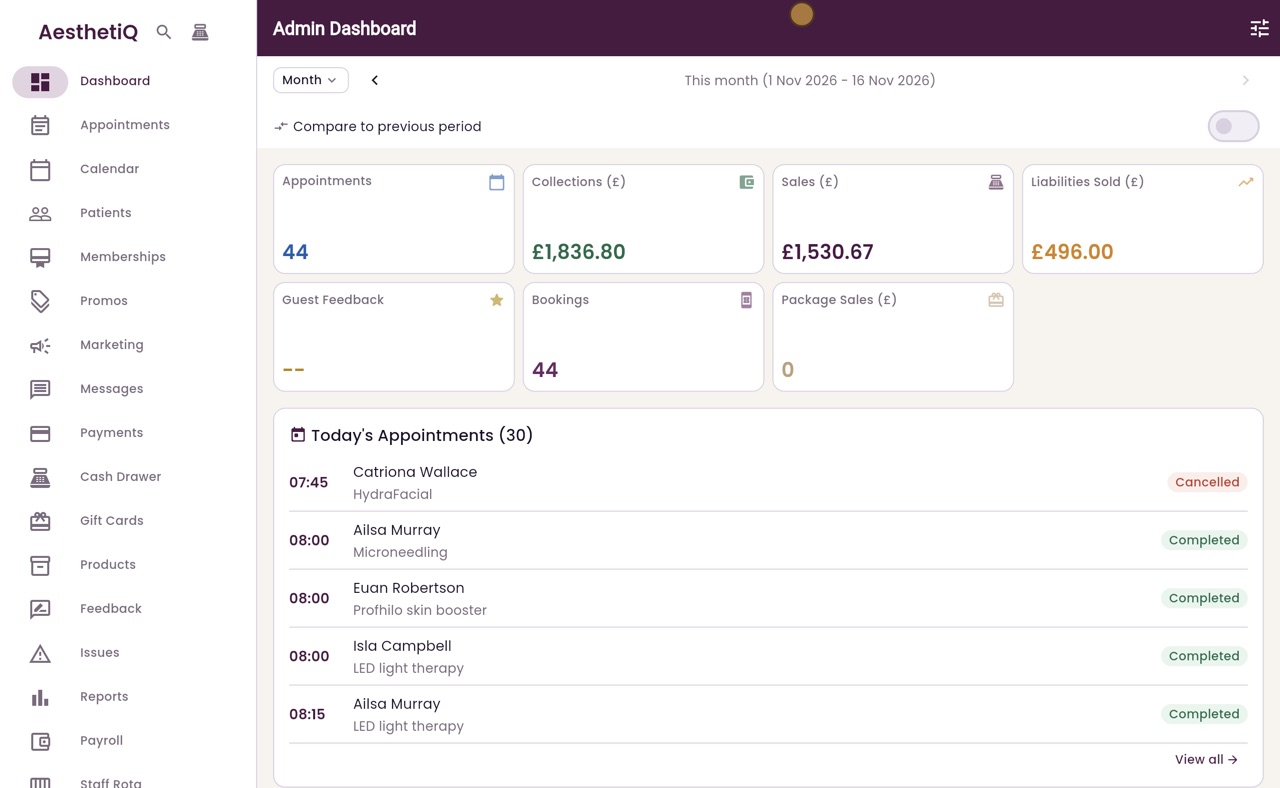
Hi, I am Libby. The Reports screen gathers the clinic's figures in one place, and every report can be saved as a CSV file to open in Excel.
- 02Ryan
The six groups
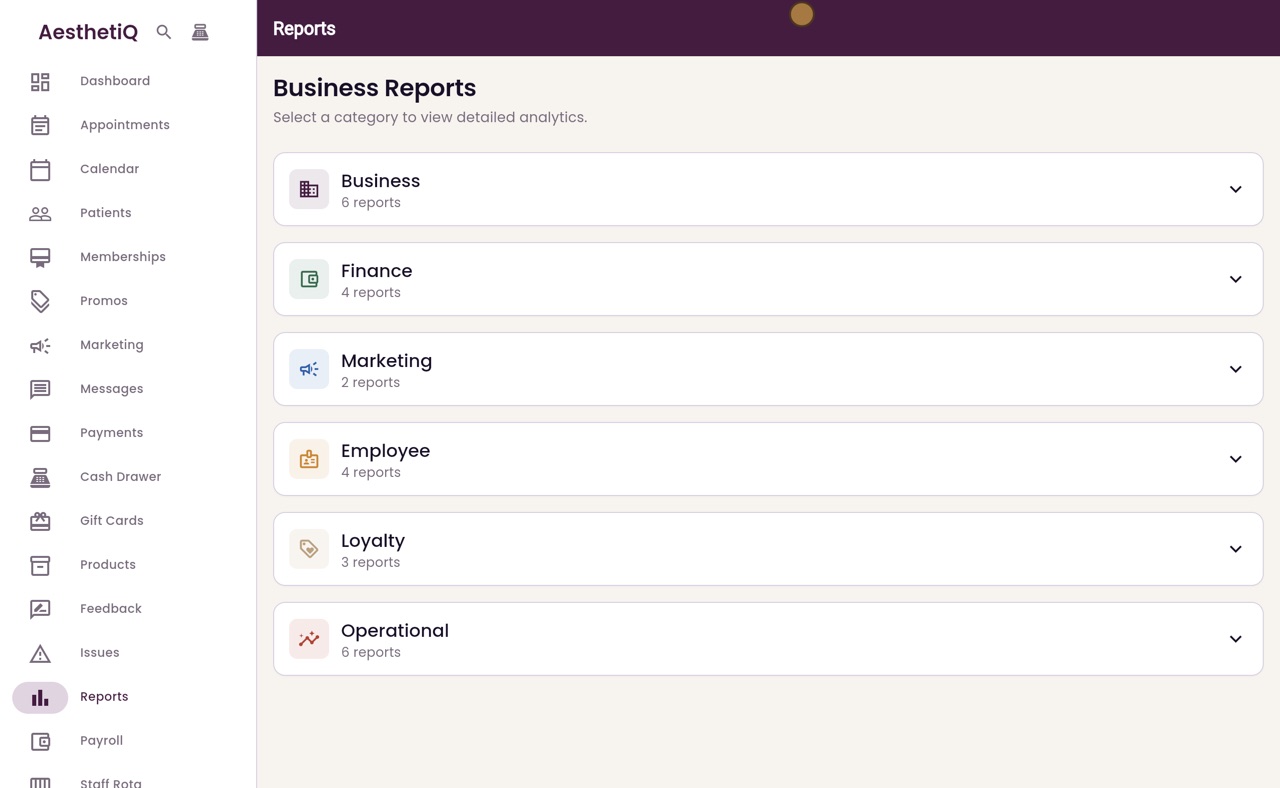
Thanks Libby. Click Reports in the menu on the left. The reports are in six groups: Business, Finance, Marketing, Employee, Loyalty and Operational. Each group shows how many reports it holds.
- 03Ryan
Open a report
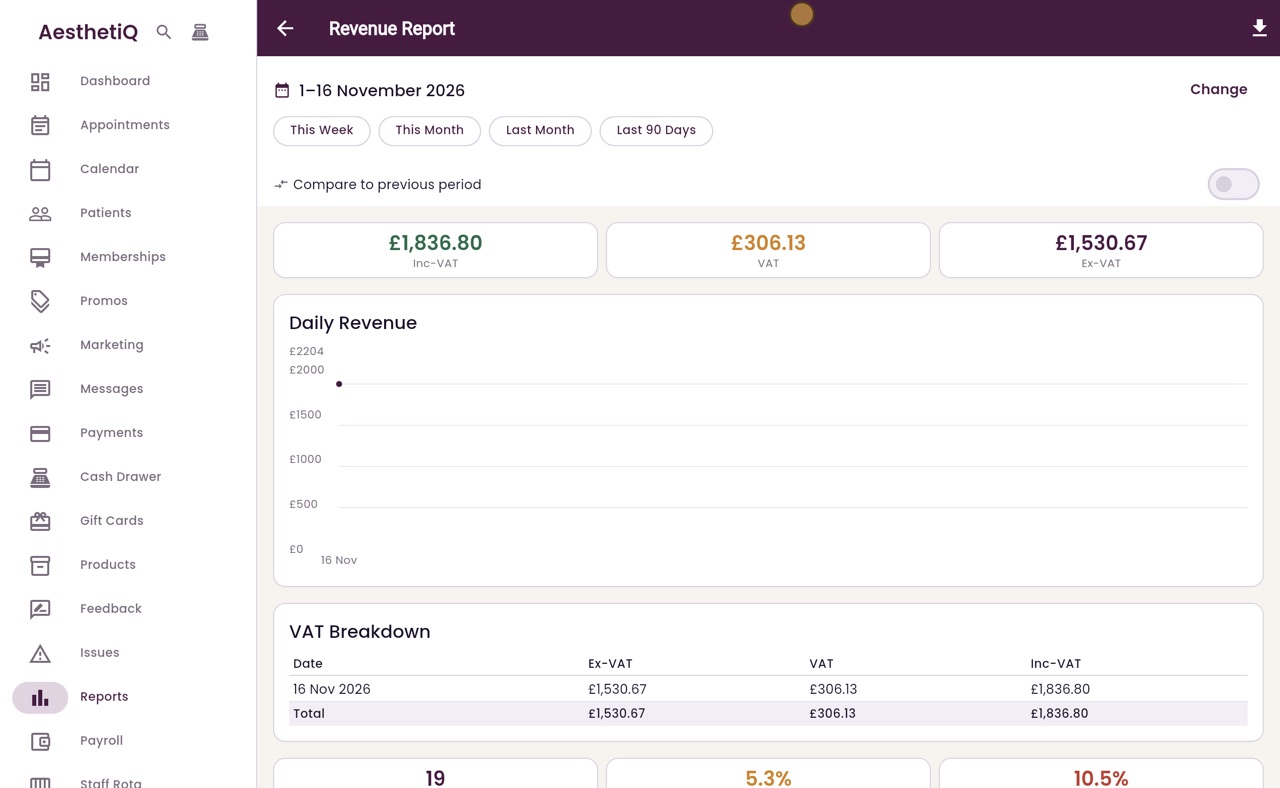
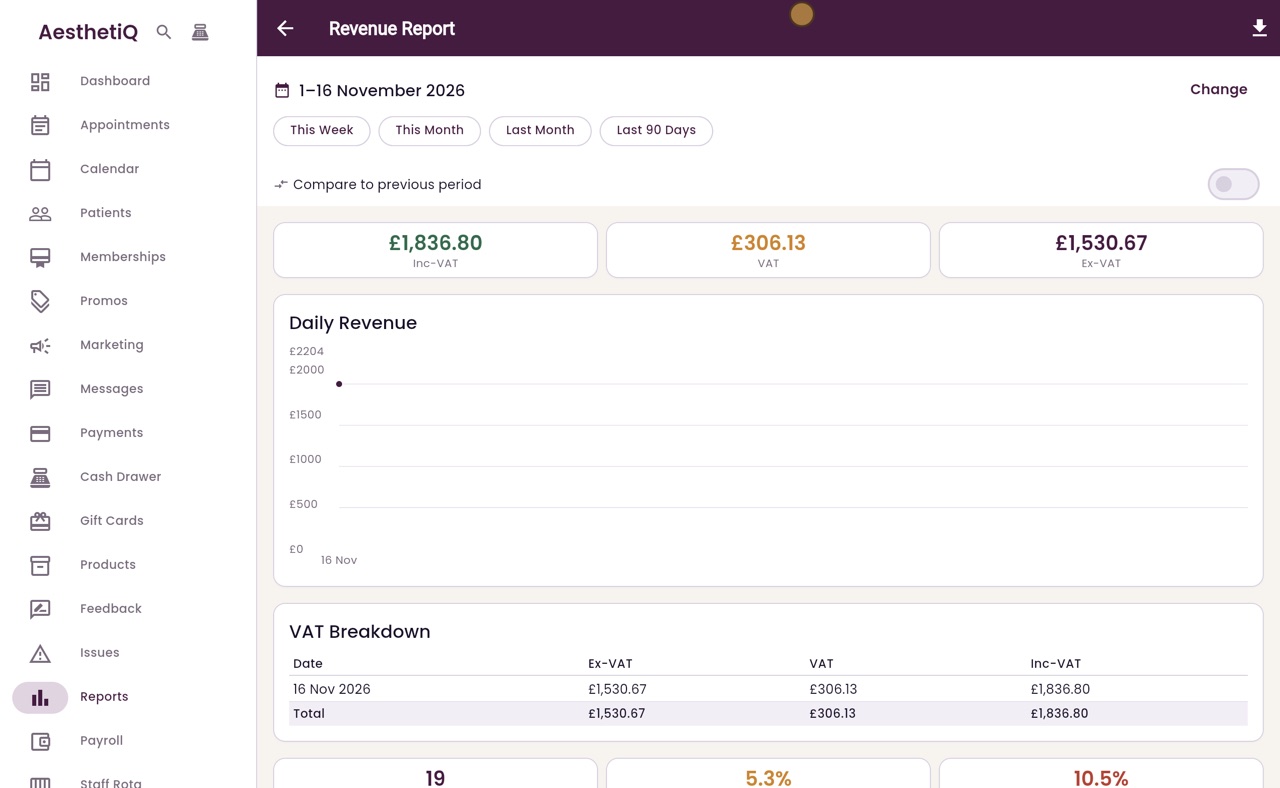
Click a group to see its reports, each with a line saying what it shows. Click Business, then Revenue / KPI.
- 04Ryan
Choose the dates
A report starts with this month so far. The buttons at the top choose another period, and Change lets you pick your own dates.
- 05Ryan
Export as CSV
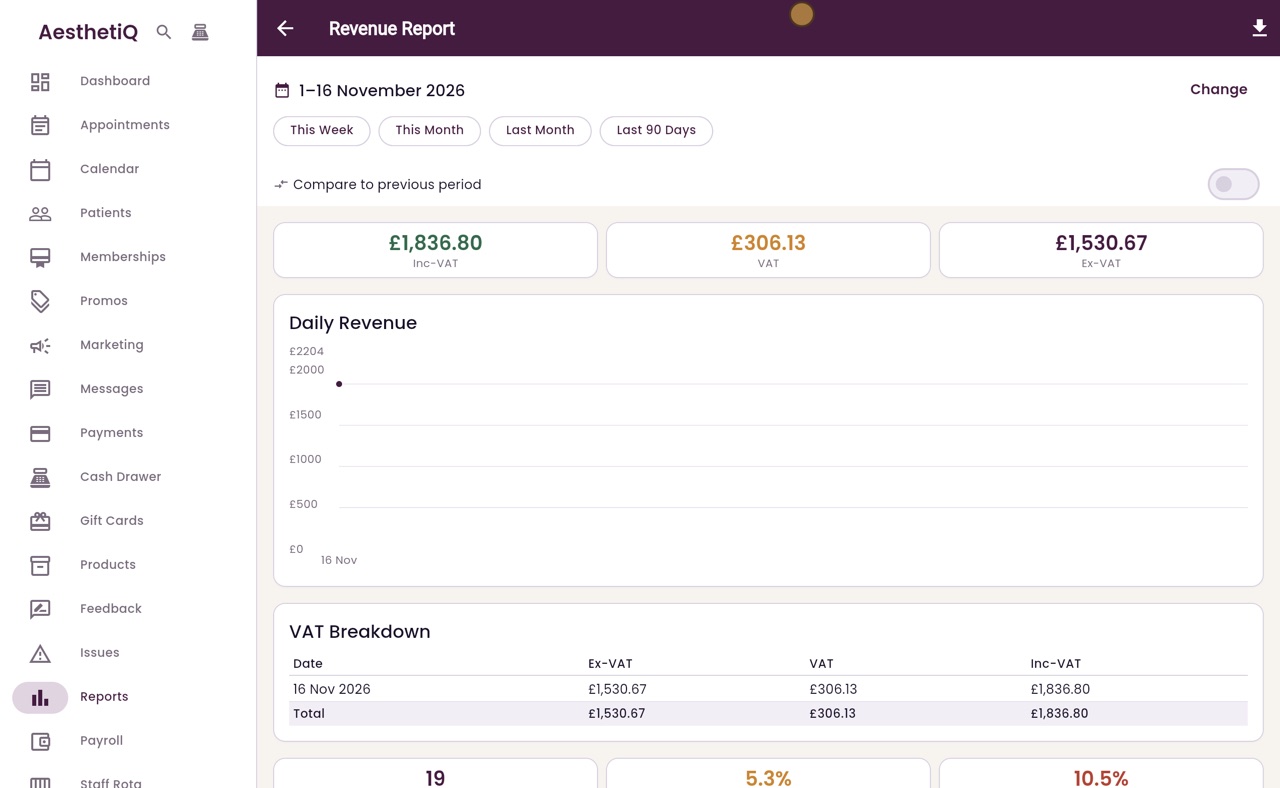
To save the report, click the export button at the top right, then Export as CSV. AesthetiQ saves the file. Export as PDF gives a copy to print instead.
- 06Ryan
Reports with tabs
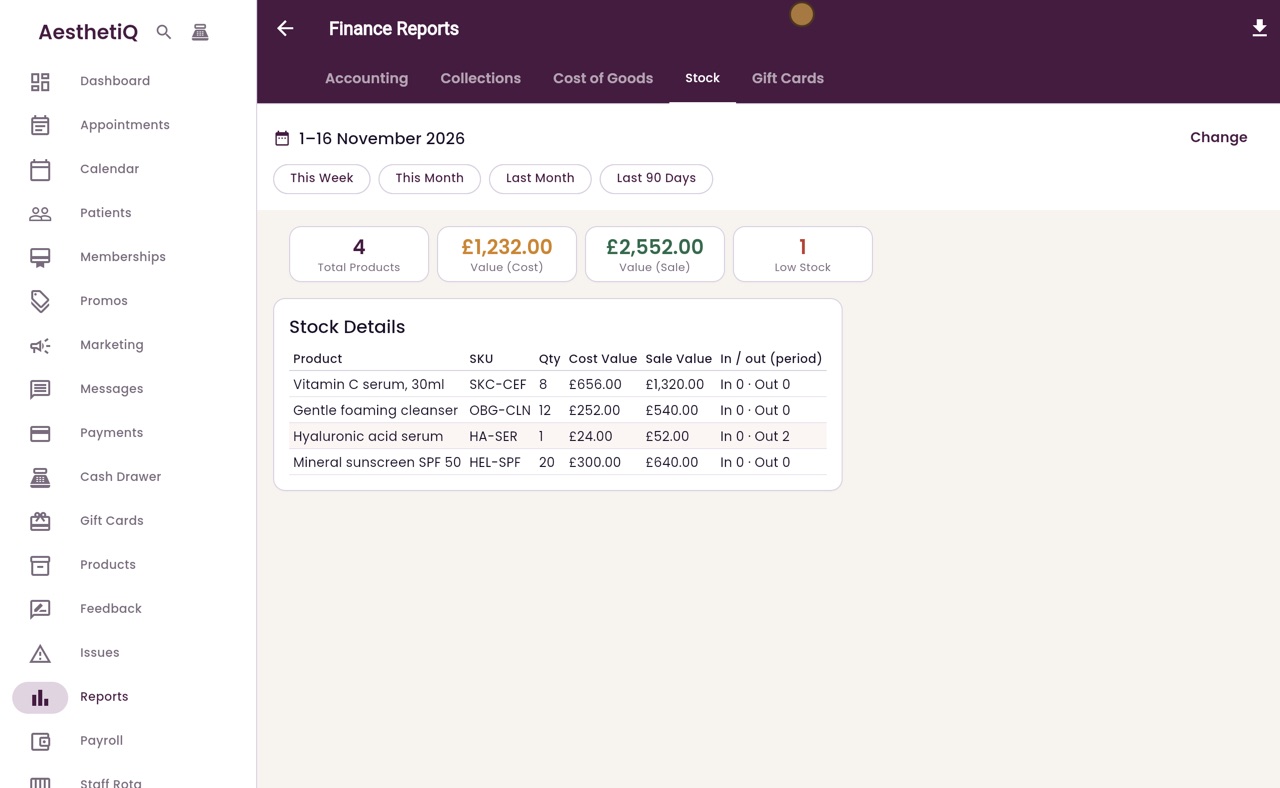
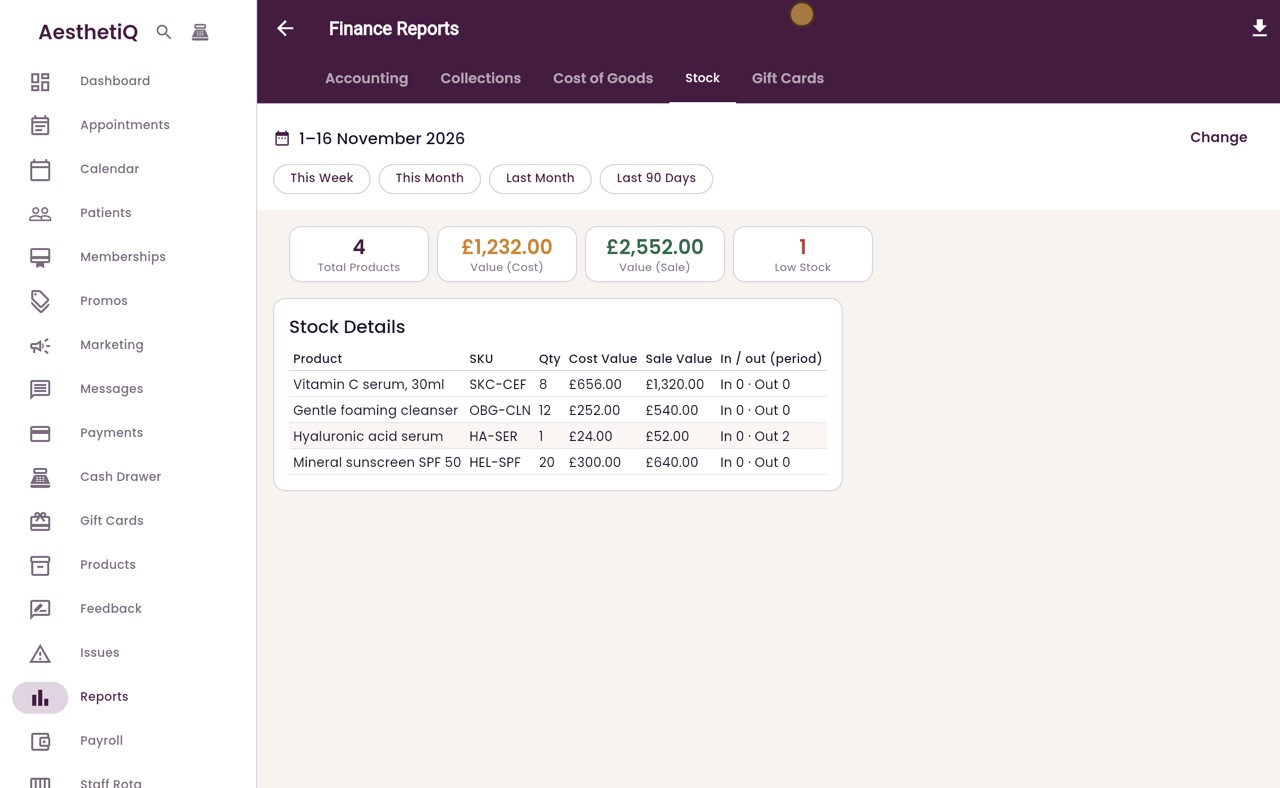
Some reports have tabs. Click Back, open Finance, and click Current Stock. The Finance reports open on the Stock tab, with each product's quantity and value.
- 07Ryan
Export a tab
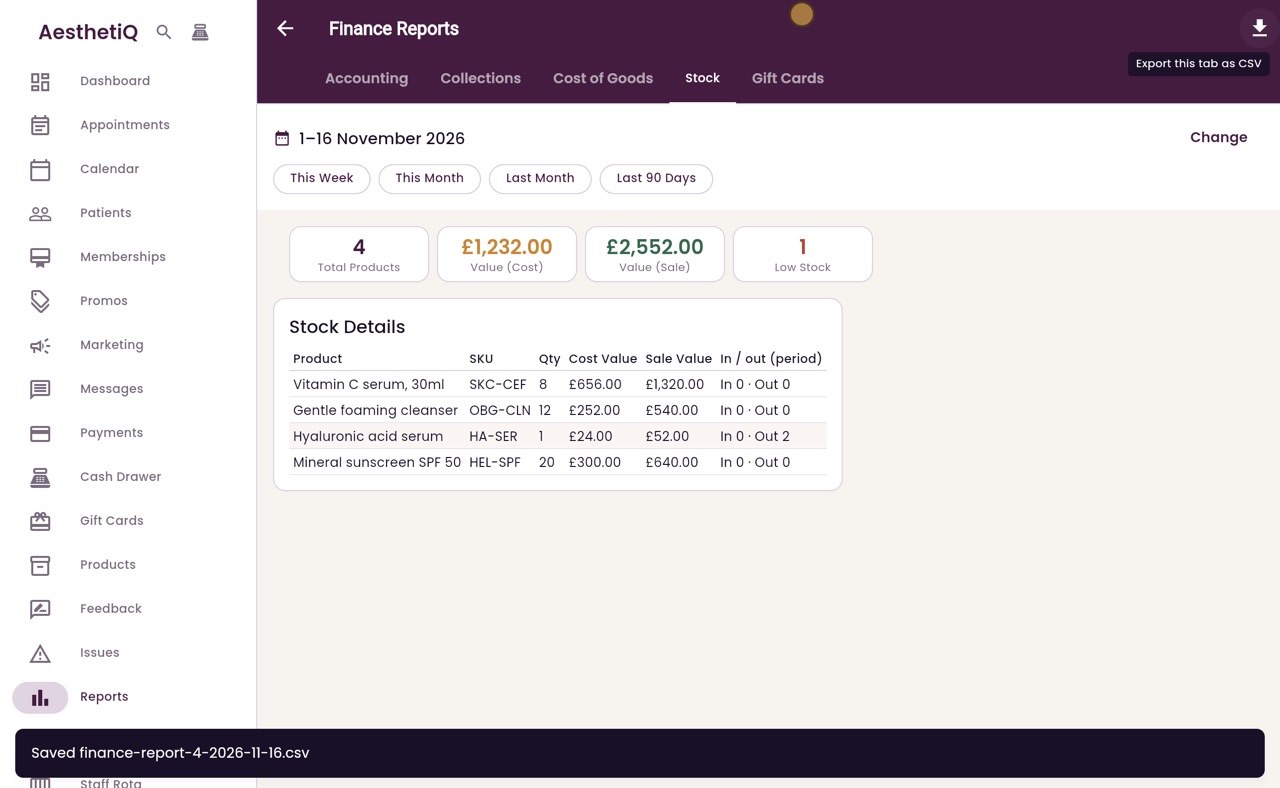
Here the button at the top right is Export this tab as CSV. It saves just the tab you are looking at.
- 08Libby
Done
That is the Reports screen. Choose the group, then the report, then the dates, and export whatever you need to keep or share with your accountant.