Confirming an appointment
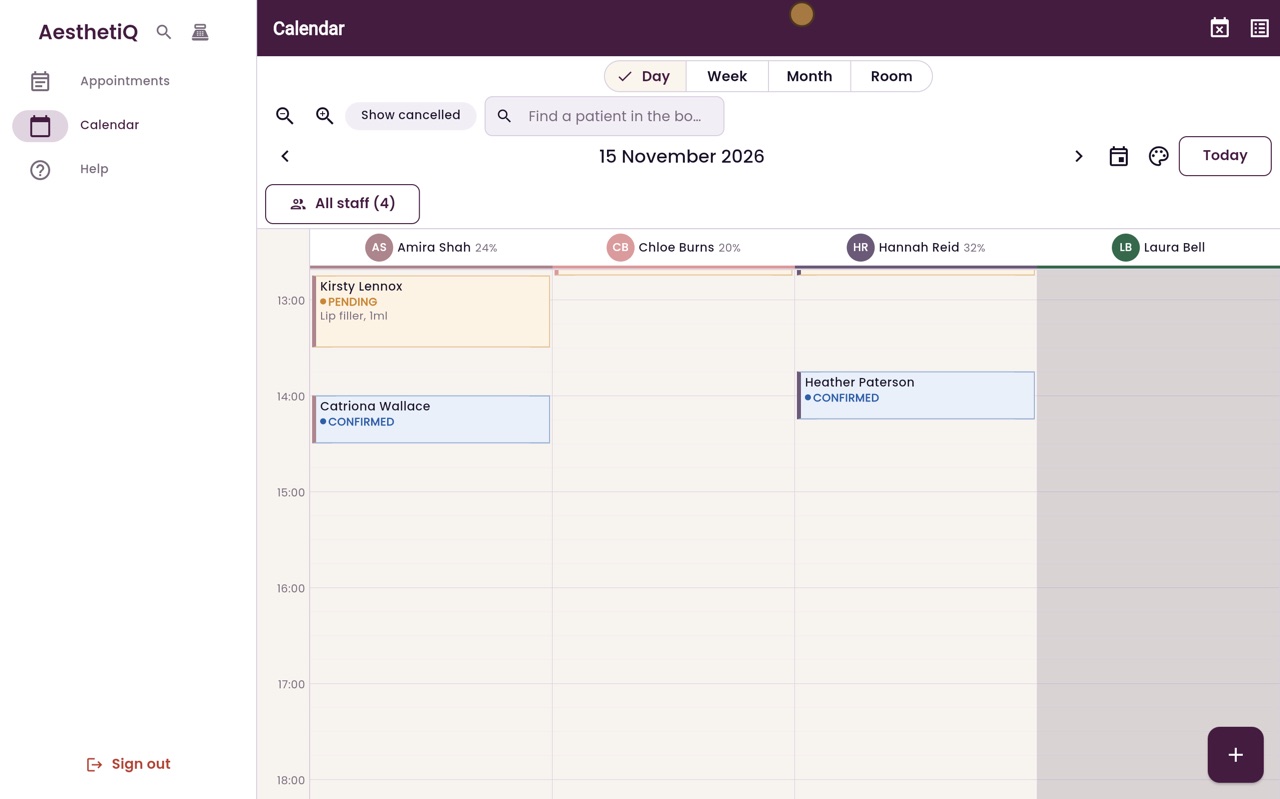
When a patient says they are definitely coming, open their appointment and click Confirm. It turns blue on the calendar.
Where
Calendar, then the patient's appointment.
Button
Confirm, at the bottom of the appointment.
After
The appointment shows Confirmed and turns blue.
Step by step
- 01Libby
Confirming
Hi, I am Libby. When a patient tells you they are definitely coming, reception marks the appointment as confirmed.
- 02Ryan
Open the appointment
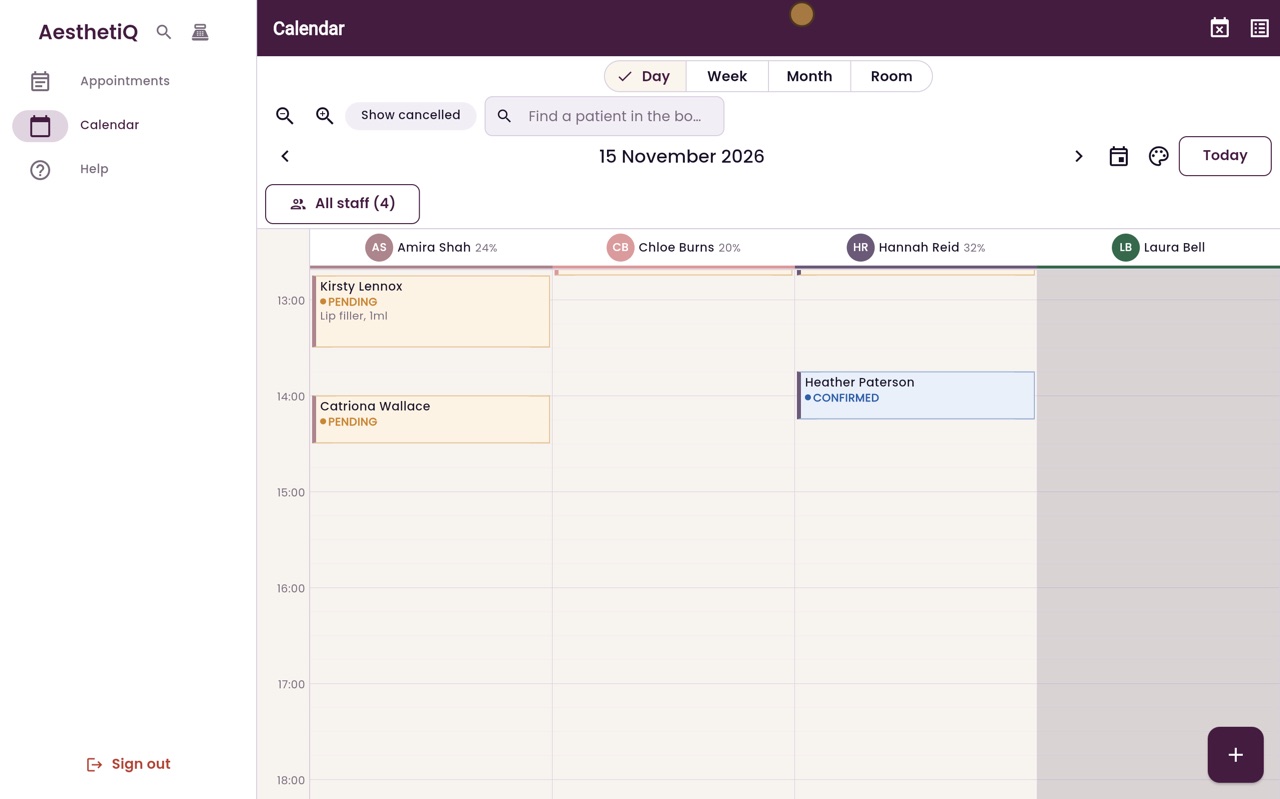
Thanks Libby. Catriona Wallace has rung to say she will be in for her two o'clock with Amira Shah. Her appointment is still Pending. Click it to open it.
- 03Ryan
Click Confirm
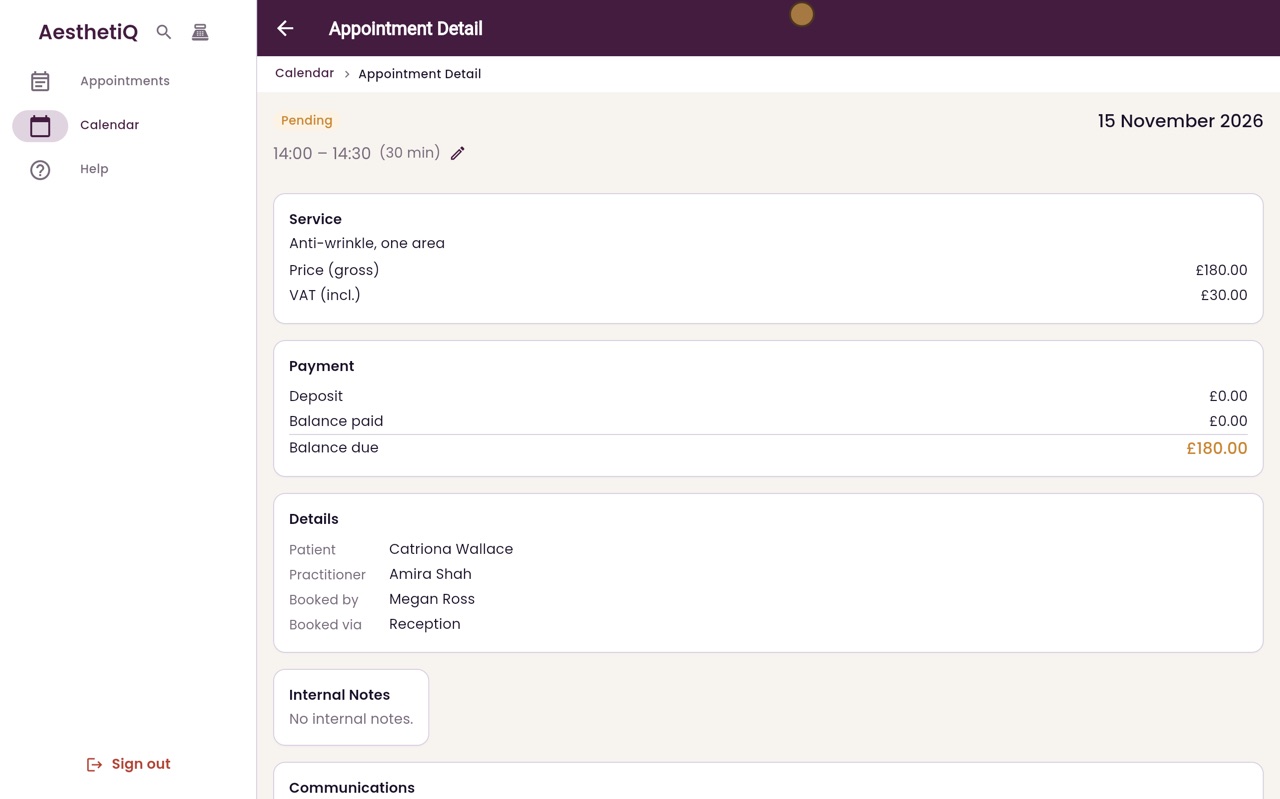
The status, Pending, is at the top. The buttons for what happens next are at the bottom. Click Confirm.
- 04Ryan
Confirm again
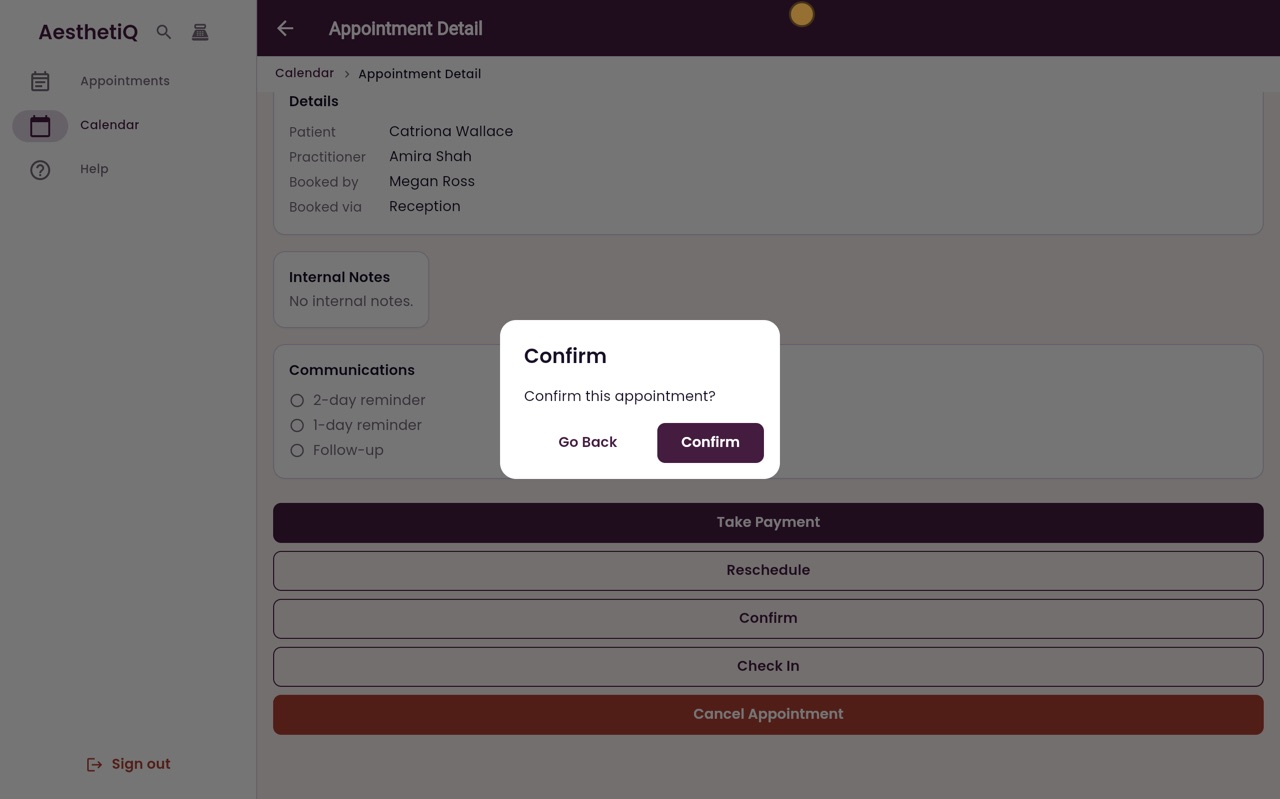
AesthetiQ asks first, so nothing changes by mistake. Click Confirm.
- 05Ryan
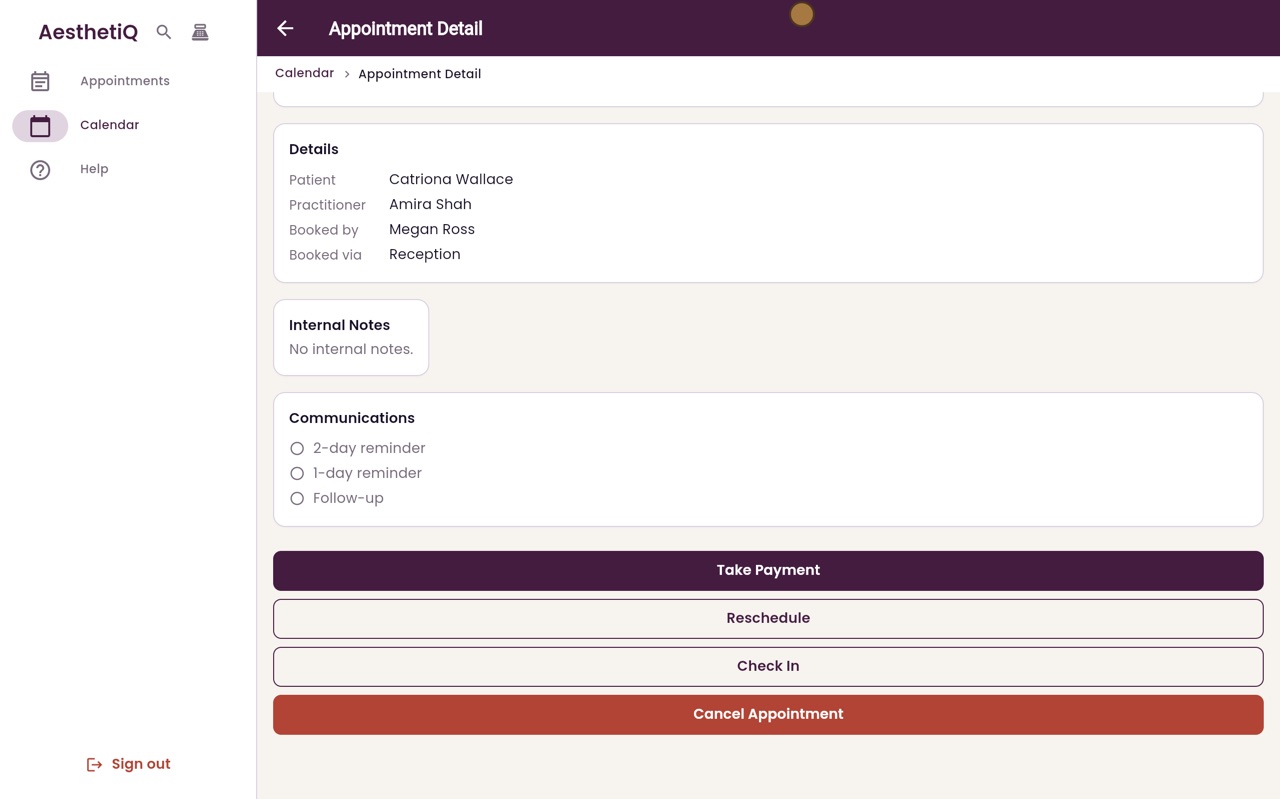
Confirmed
The appointment now shows Confirmed, at the top. Click Back to return to the calendar.
- 06Ryan
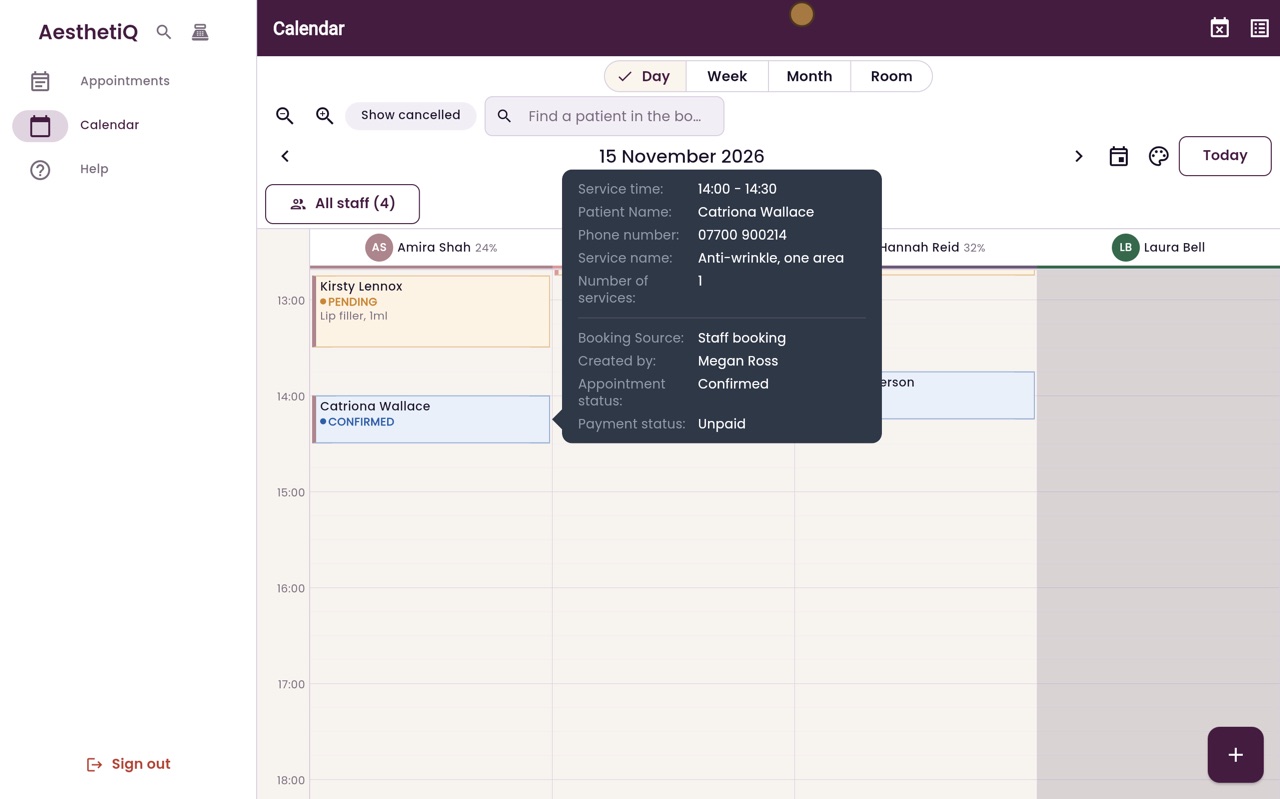
Blue on the calendar
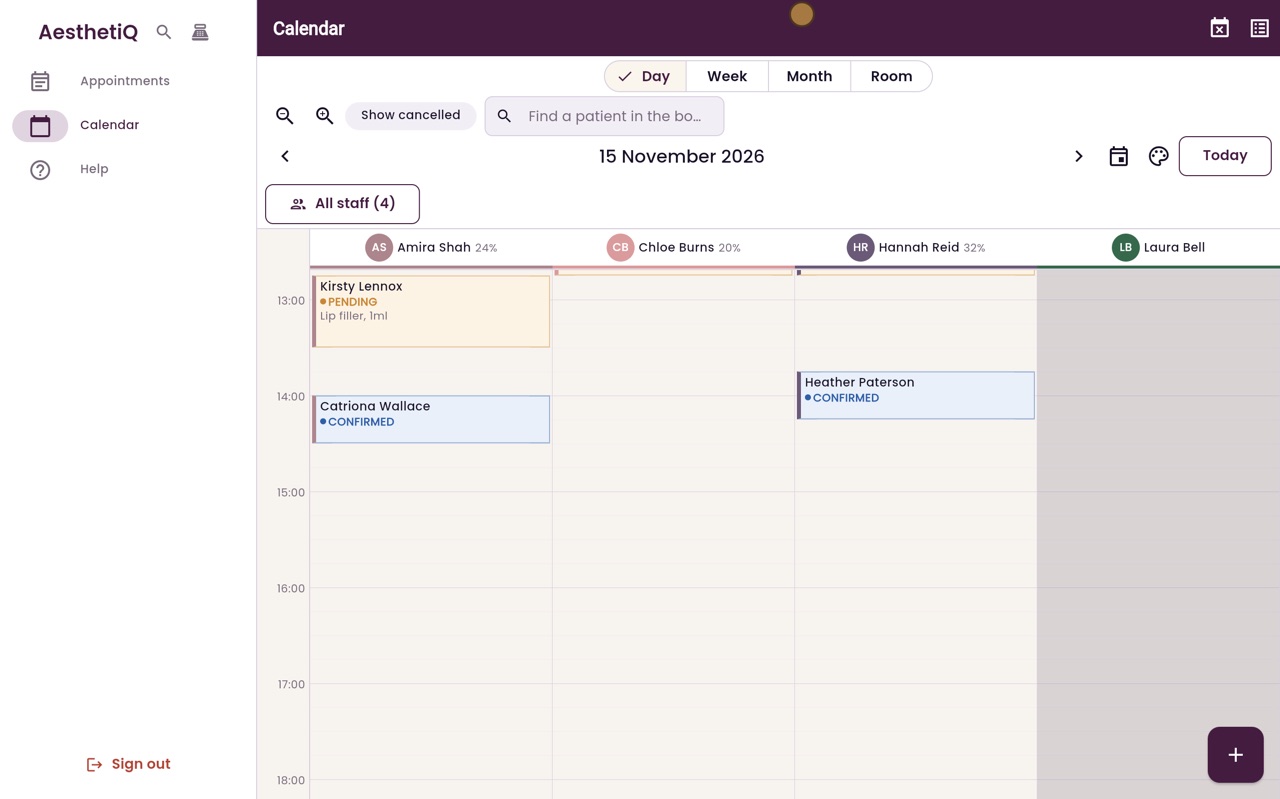
On the calendar, Catriona's appointment has turned blue, for Confirmed.
- 07Libby
Done
That is confirming an appointment. A confirmed appointment can be checked in when the patient arrives, just like a pending one.