Recording a patch test
Record the date, result, treatment and product of a patch test on the patient's record, ready for when the treatment is booked.
Where
The patient's profile, More, Patch tests, Record patch test.
Who
Practitioners and the clinic manager.
Results
Clear, Reaction, or Not read yet.
Step by step
- 01Libby
Treatments that need a patch test
Hi, I am Libby. Some treatments, such as a chemical peel, need a clear patch test first. Here is how to record one.
- 02Ryan
Open Patch tests
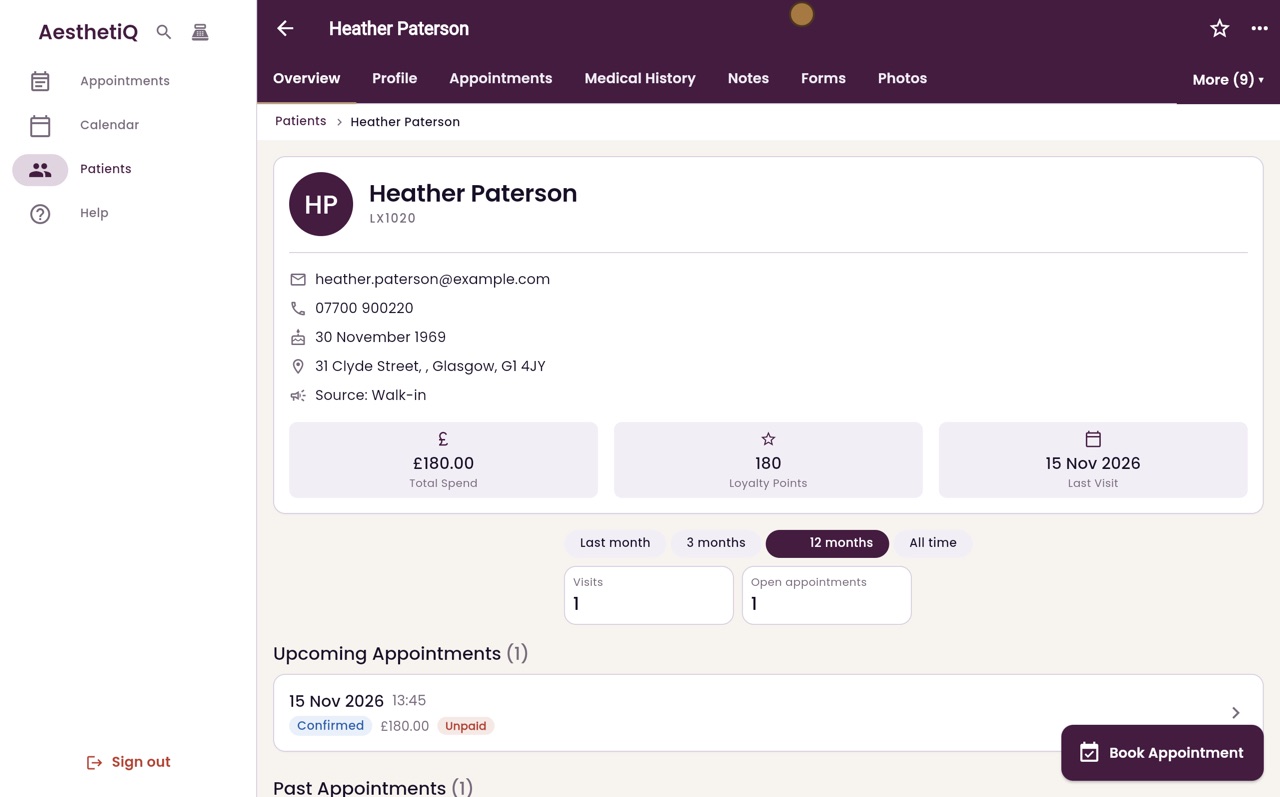
Thanks Libby. On the patient's profile, click More, then Patch tests. Heather Paterson has none yet, so click Record patch test.
- 03Ryan
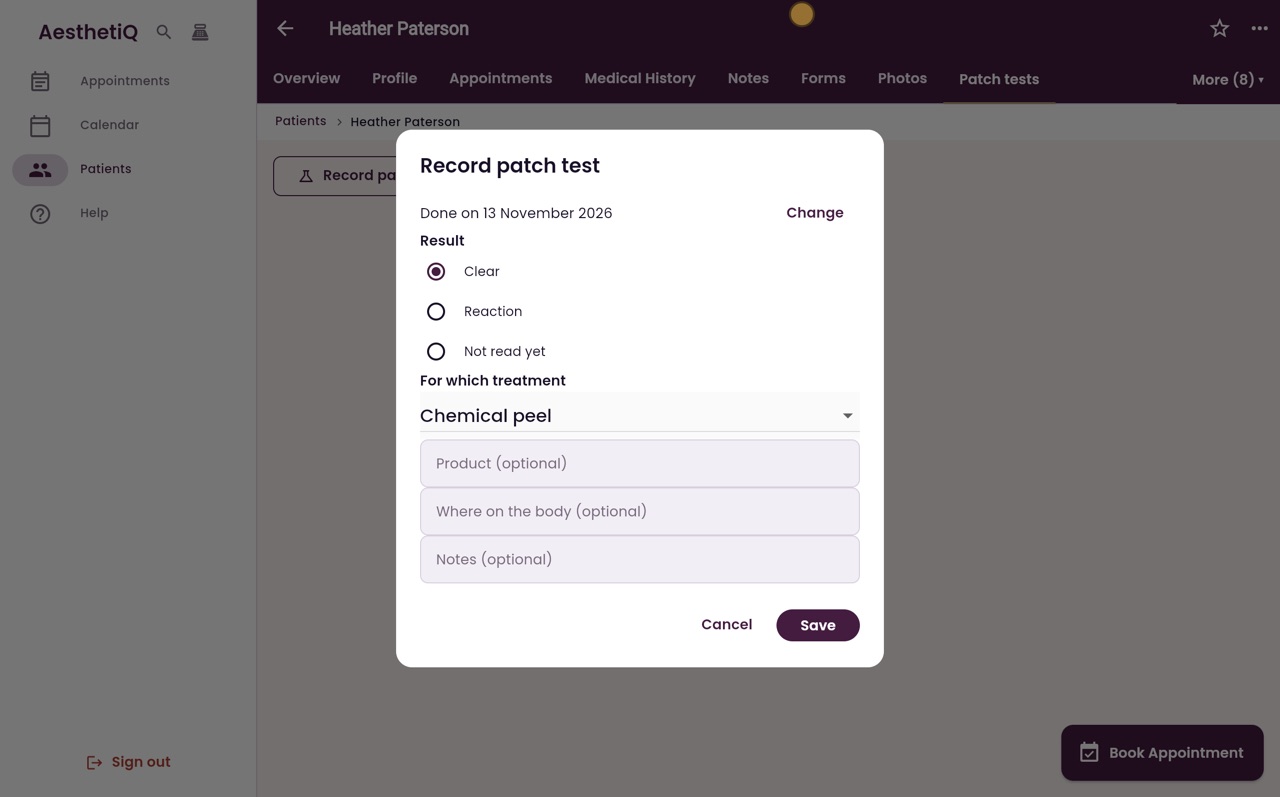
The date it was done
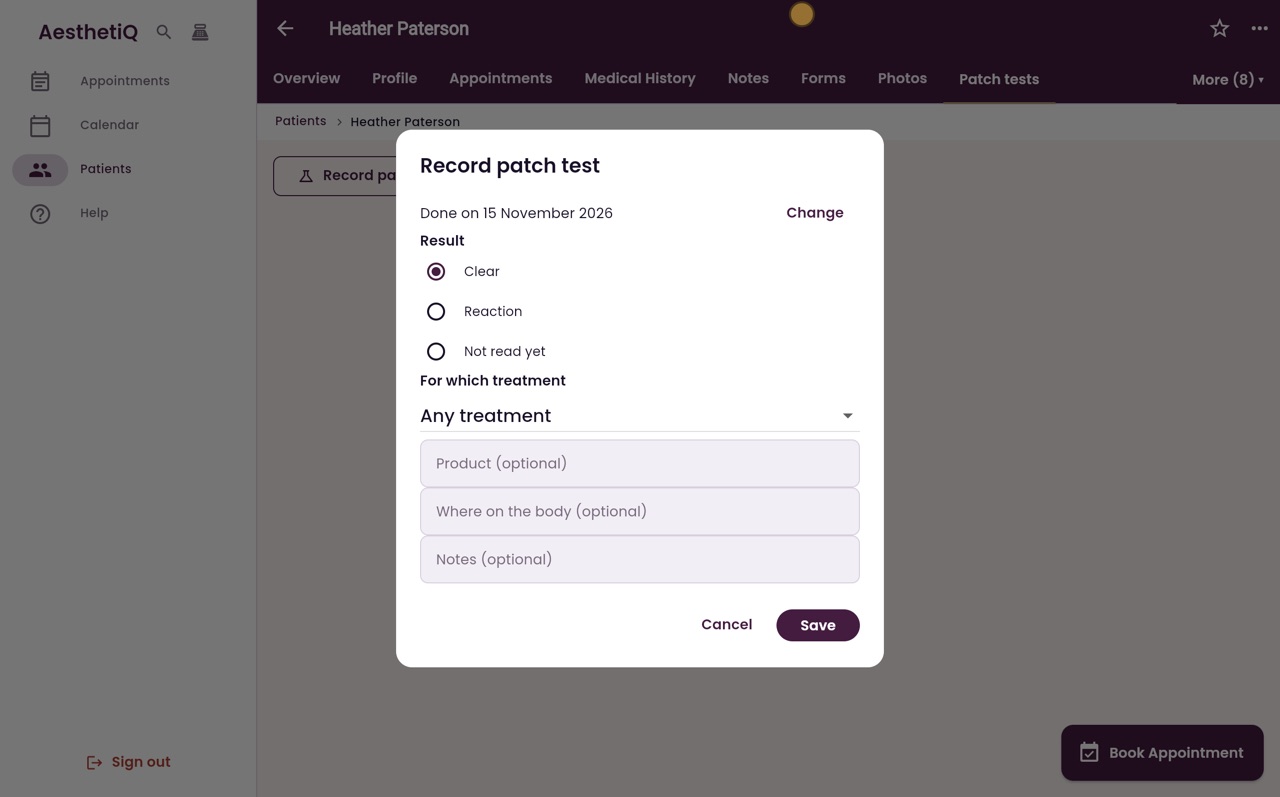
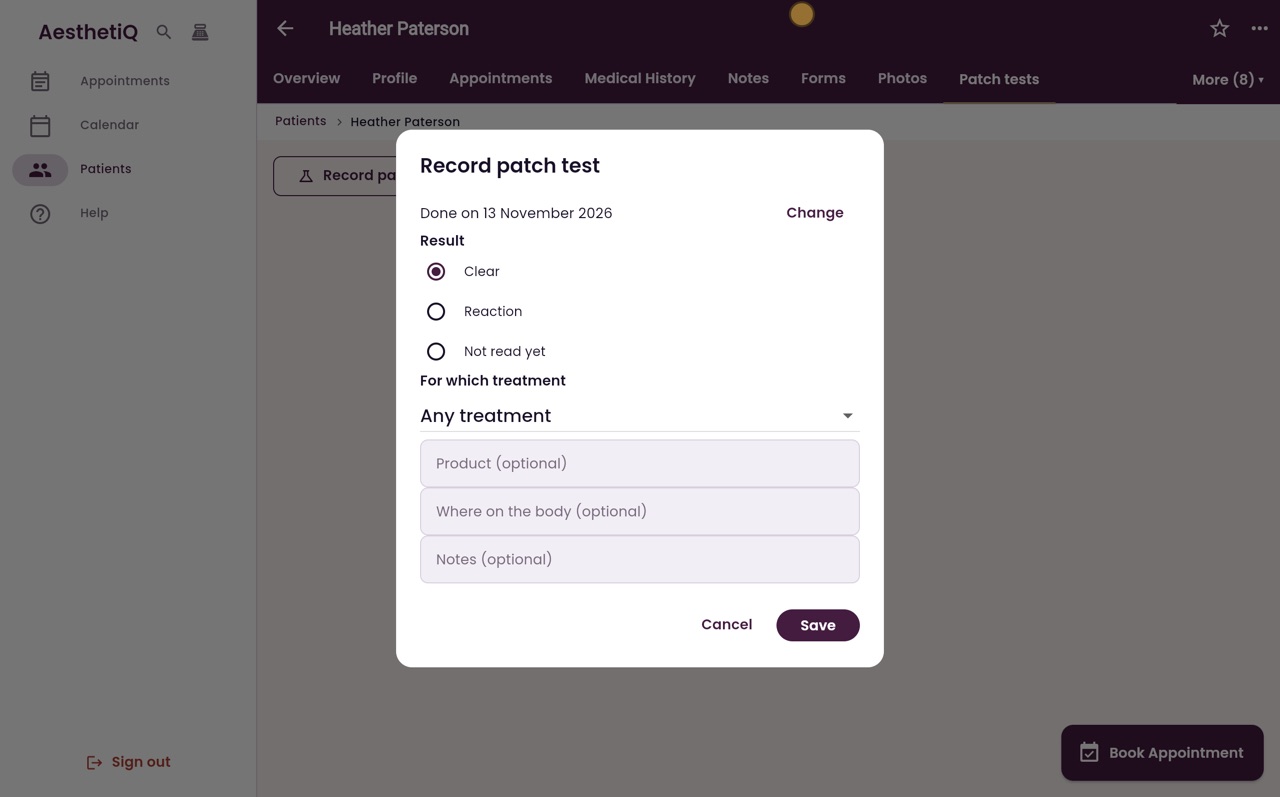
The test was done two days ago, on 13 November. Click Change, pick the date and click OK.
- 04Ryan
Result and treatment
Heather's skin showed no reaction, so choose Clear. Then choose the treatment the test is for: Chemical peel.
- 05Ryan
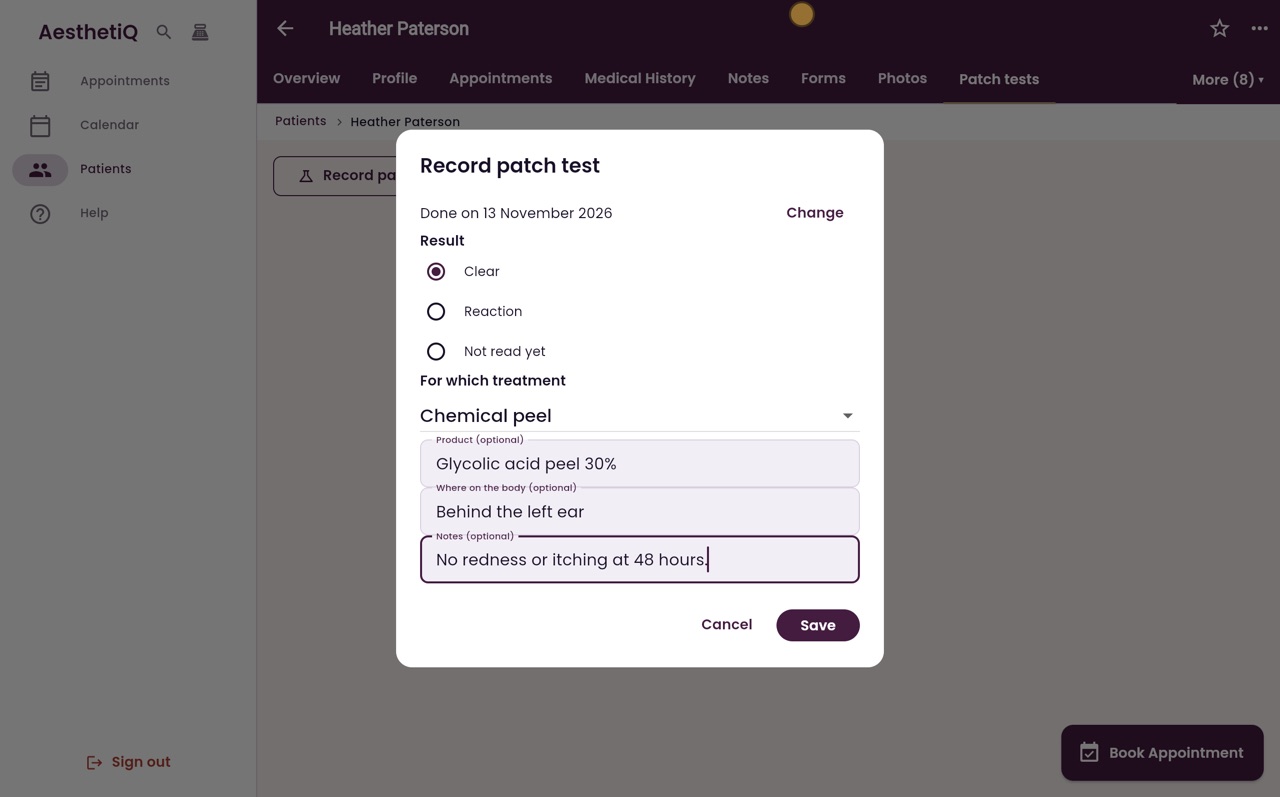
Product and site
Add the product that was tested and where on the body, and a note if you need one.
- 06Ryan
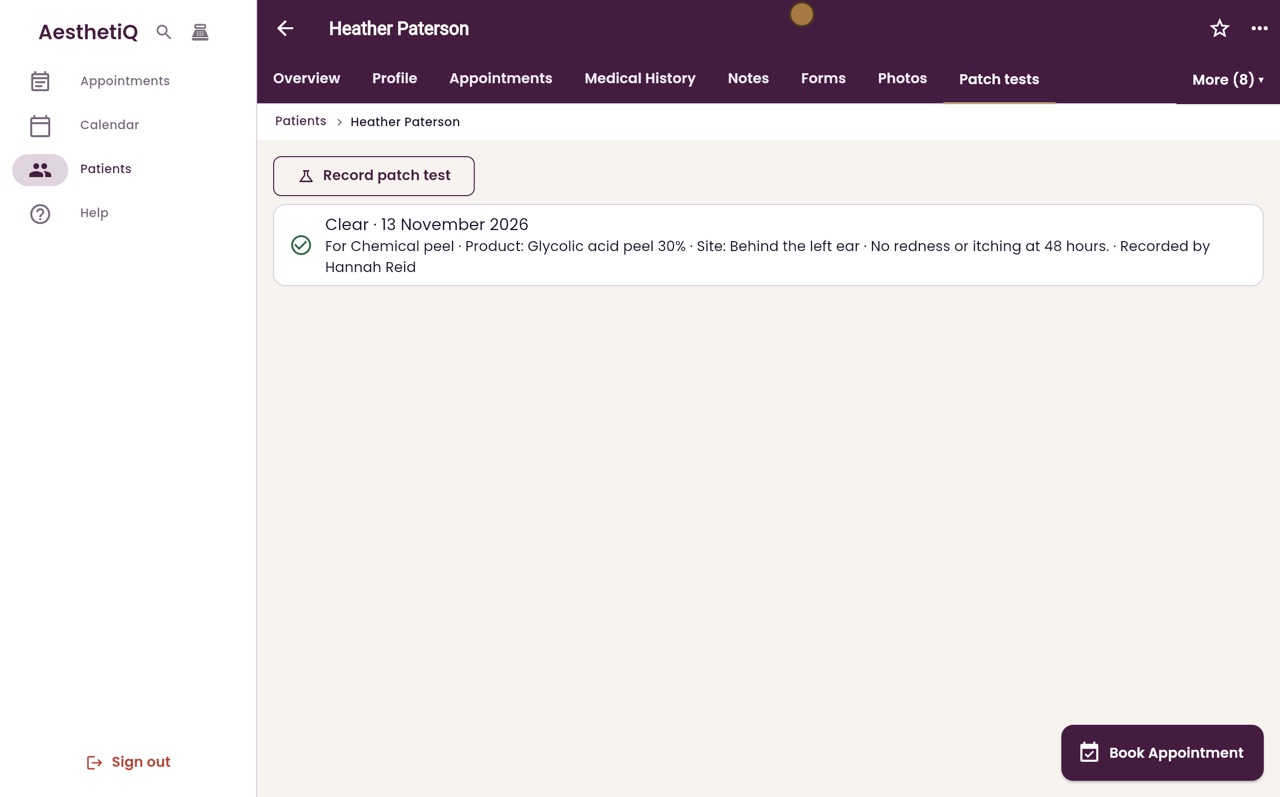
Save
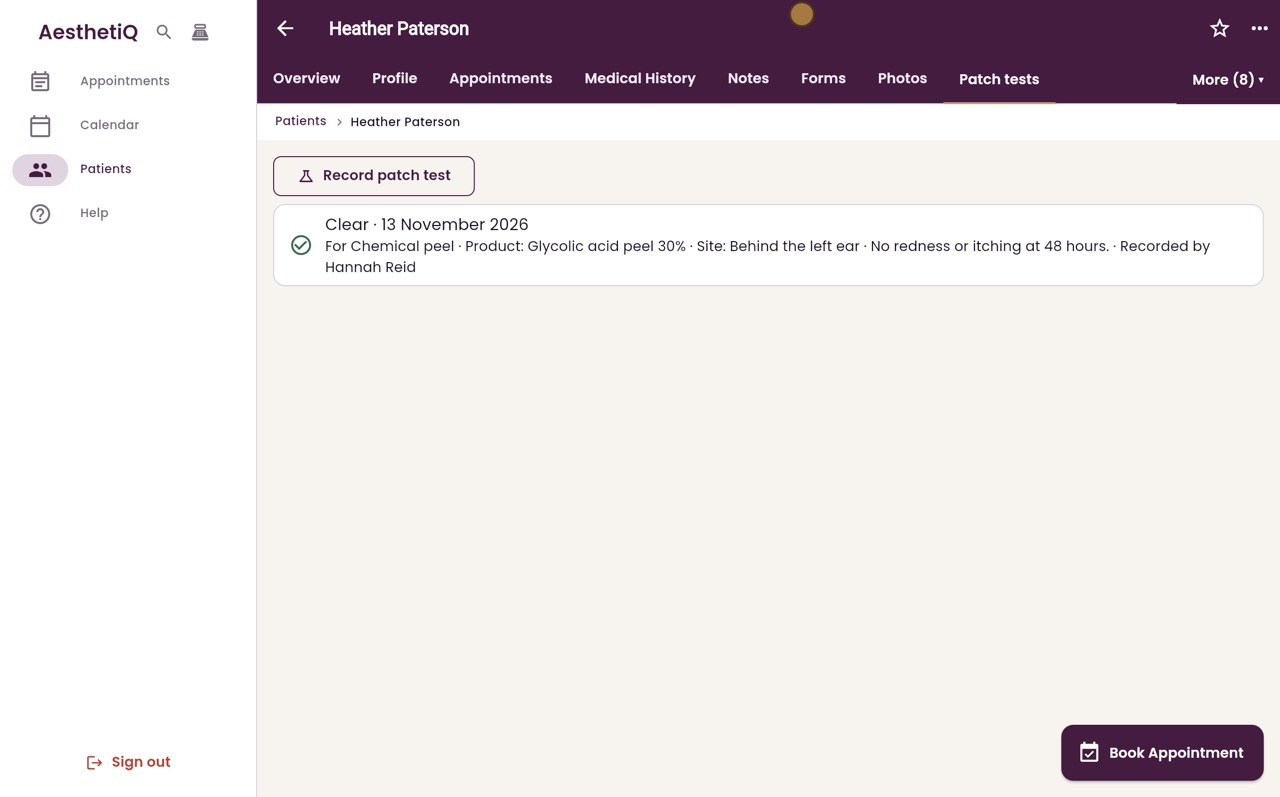
Click Save. The patch test is listed with its result and date, the treatment, the product, and who recorded it.
- 07Libby
Done
That is recording a patch test. When a chemical peel is booked for Heather, AesthetiQ looks for a clear patch test like this one.