Adding a member of staff
Add a new member of staff with their role, calendar colour and working hours, then send them a login invite.
Where
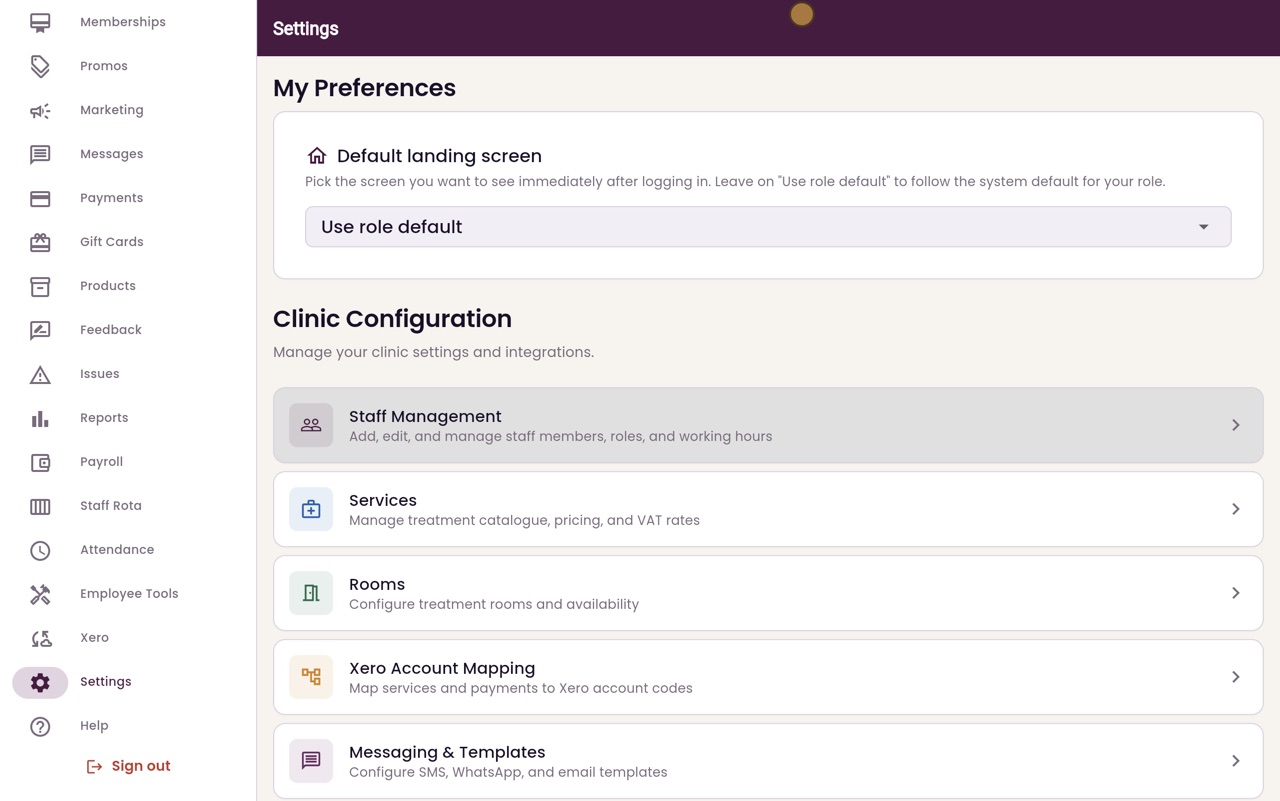
Settings, then Staff Management, then Add Staff.
Role
Admin, Practitioner or Receptionist. Treats patients puts them in the calendar.
Login
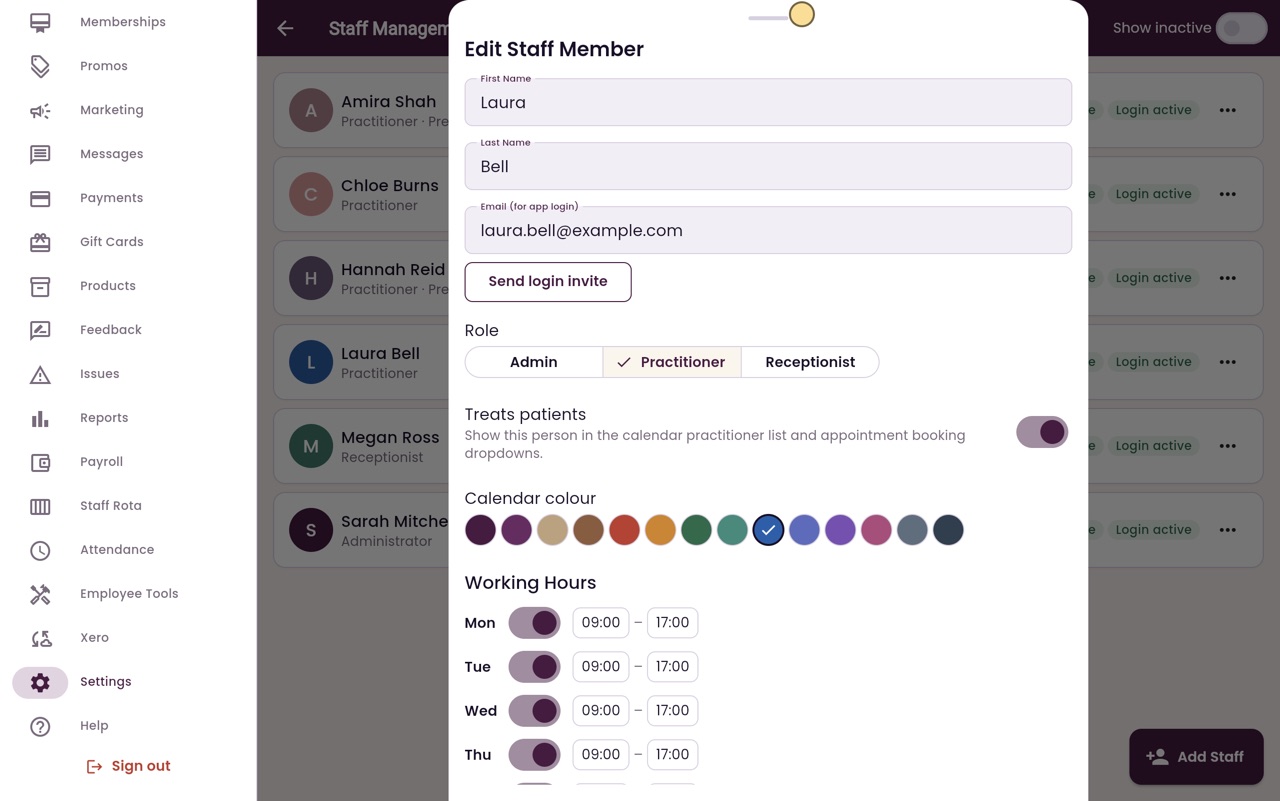
Quick Edit, then Send login invite, so they can set their own password.
Step by step
- 01Libby
Someone new
Hi, I am Libby. When someone new joins the clinic, the clinic manager adds them to AesthetiQ. Here we add Laura Bell, a new skin therapist.
- 02Ryan
Staff Management
Thanks Libby. In Settings, click Staff Management. Everyone who works at the clinic is listed with their role. Click Add Staff.
- 03Ryan
Name and email
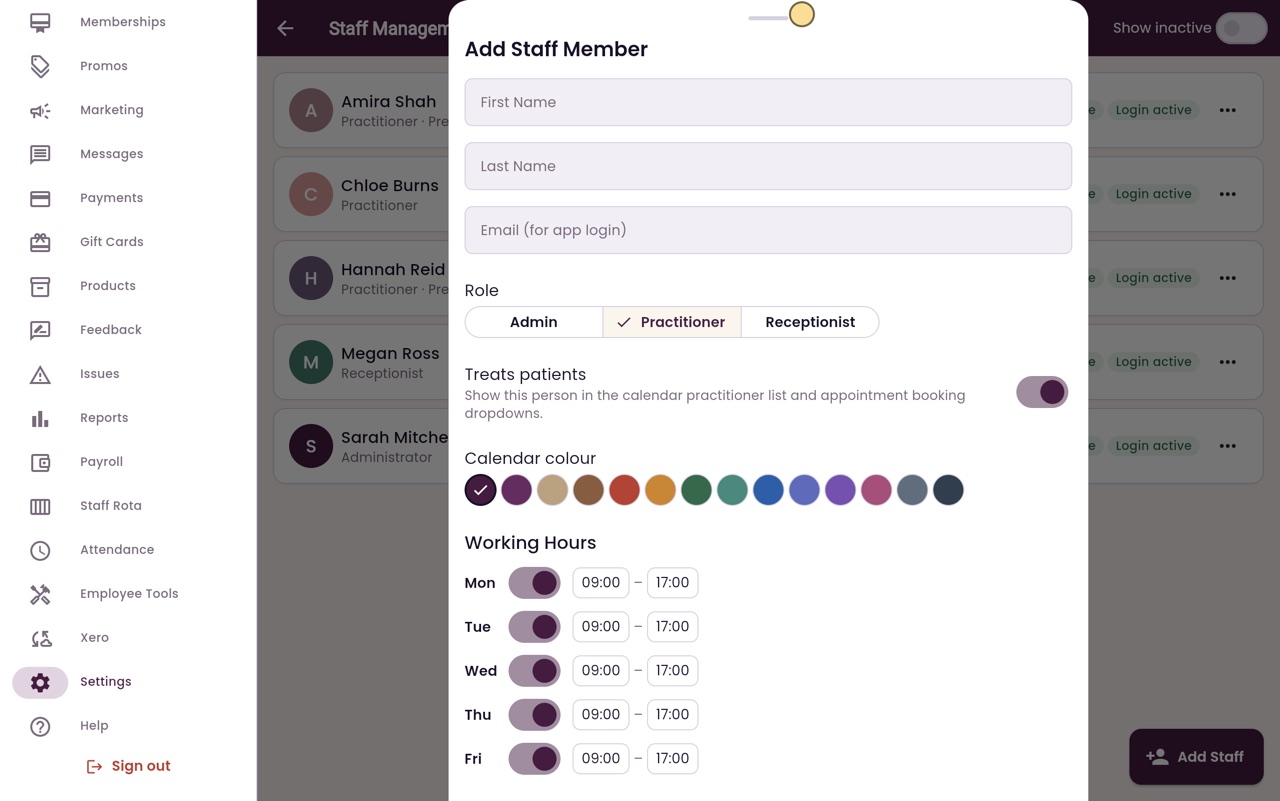
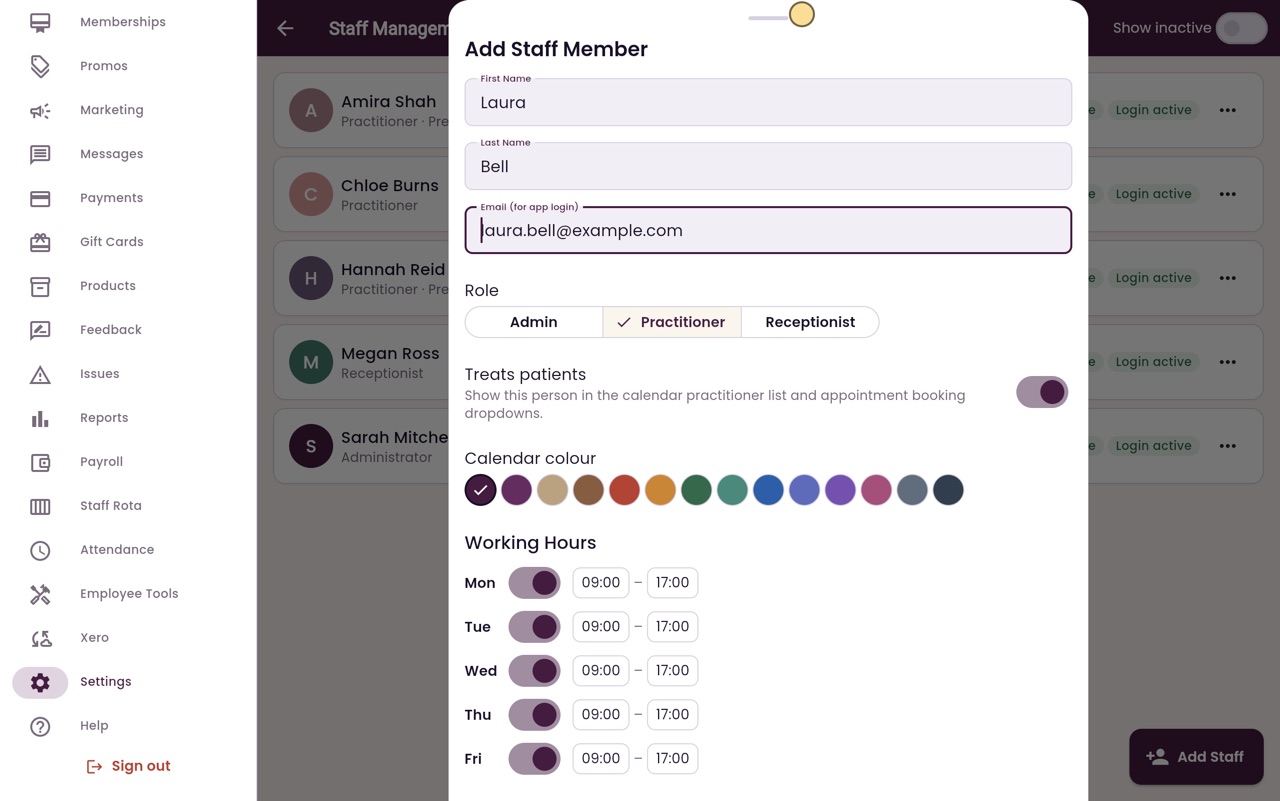
Type her first name, her last name, and the email address she will sign in with. Each person has their own email address, so AesthetiQ always knows who did what.
- 04Ryan
Role
Choose her role. Laura treats patients, so she is a Practitioner, and Treats patients is switched on. That puts her in the calendar and in the booking lists.
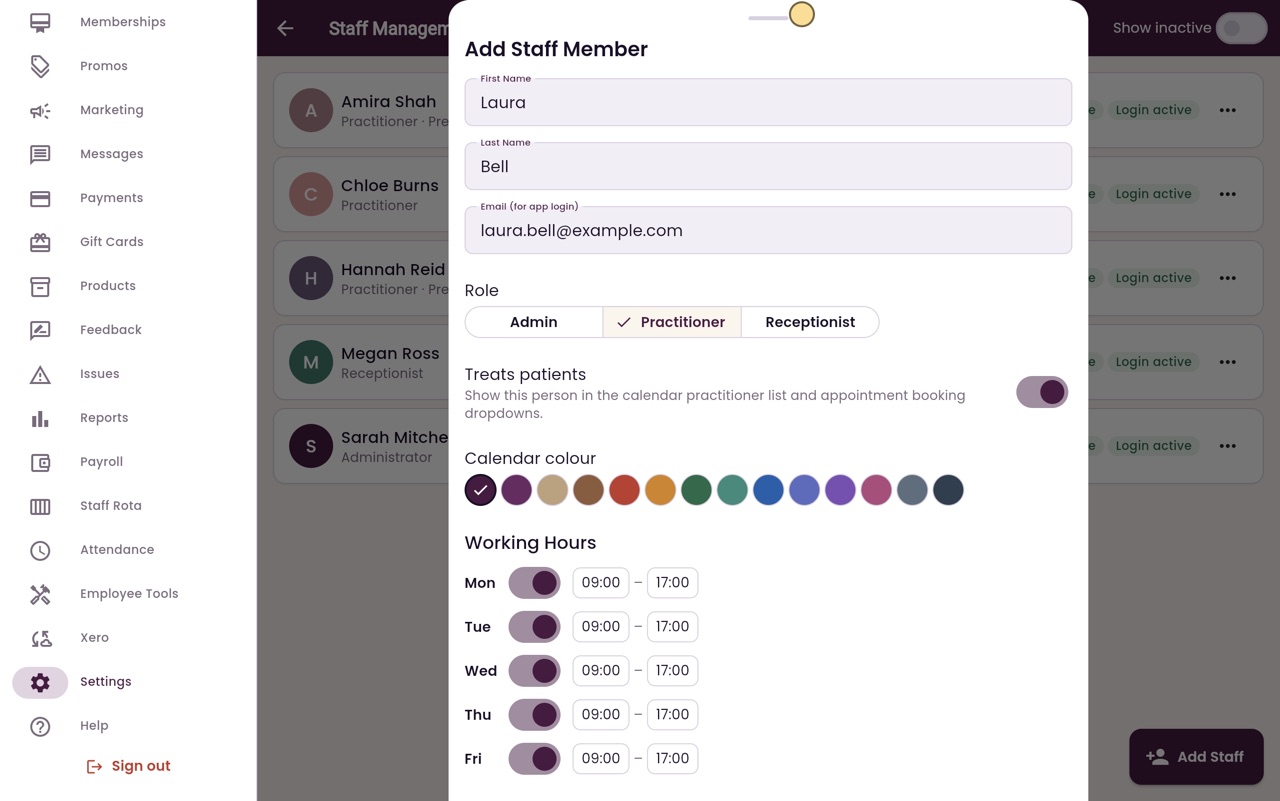
- 05Ryan
Colour and hours
Pick a colour for her appointments in the calendar. Her working hours start as Monday to Friday, nine to five. Switch a day on or off, or click a time to change it.
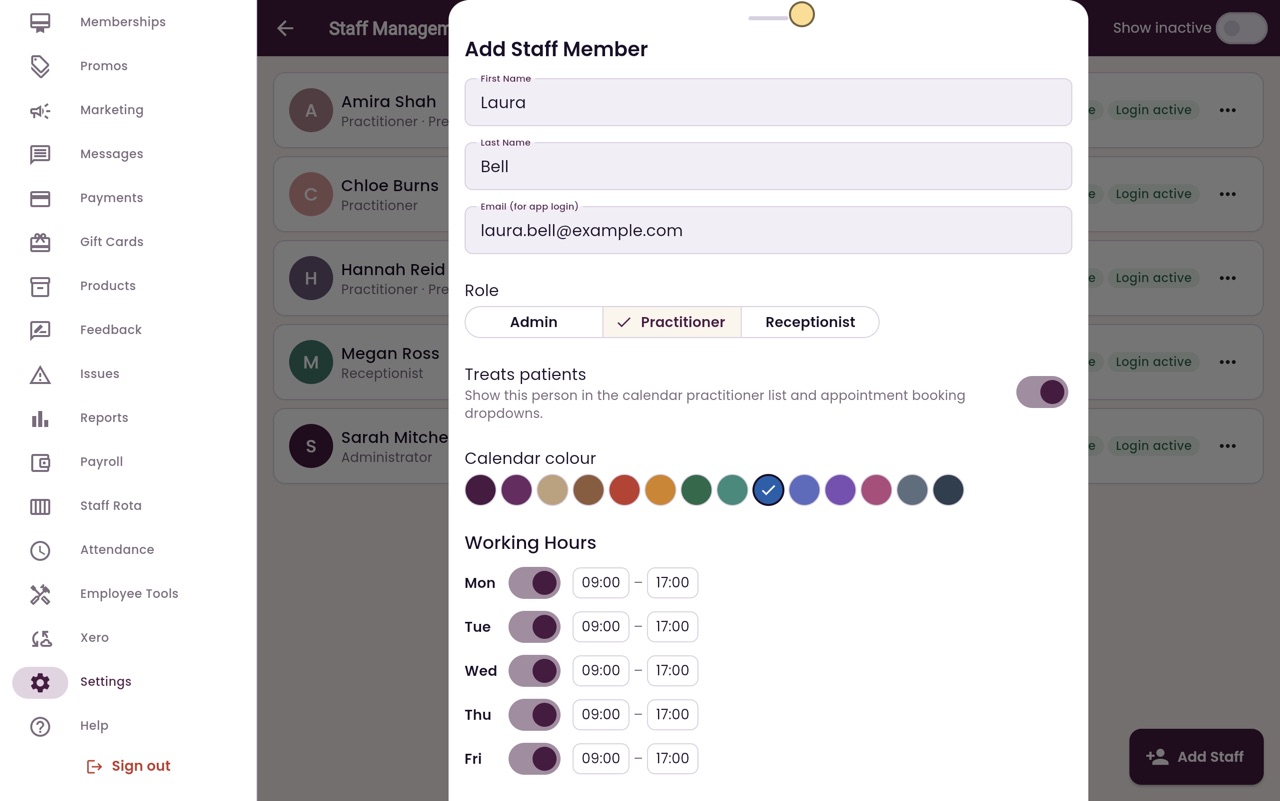
- 06Ryan
Add Staff
Click Add Staff. Laura is added to the staff list as a practitioner.
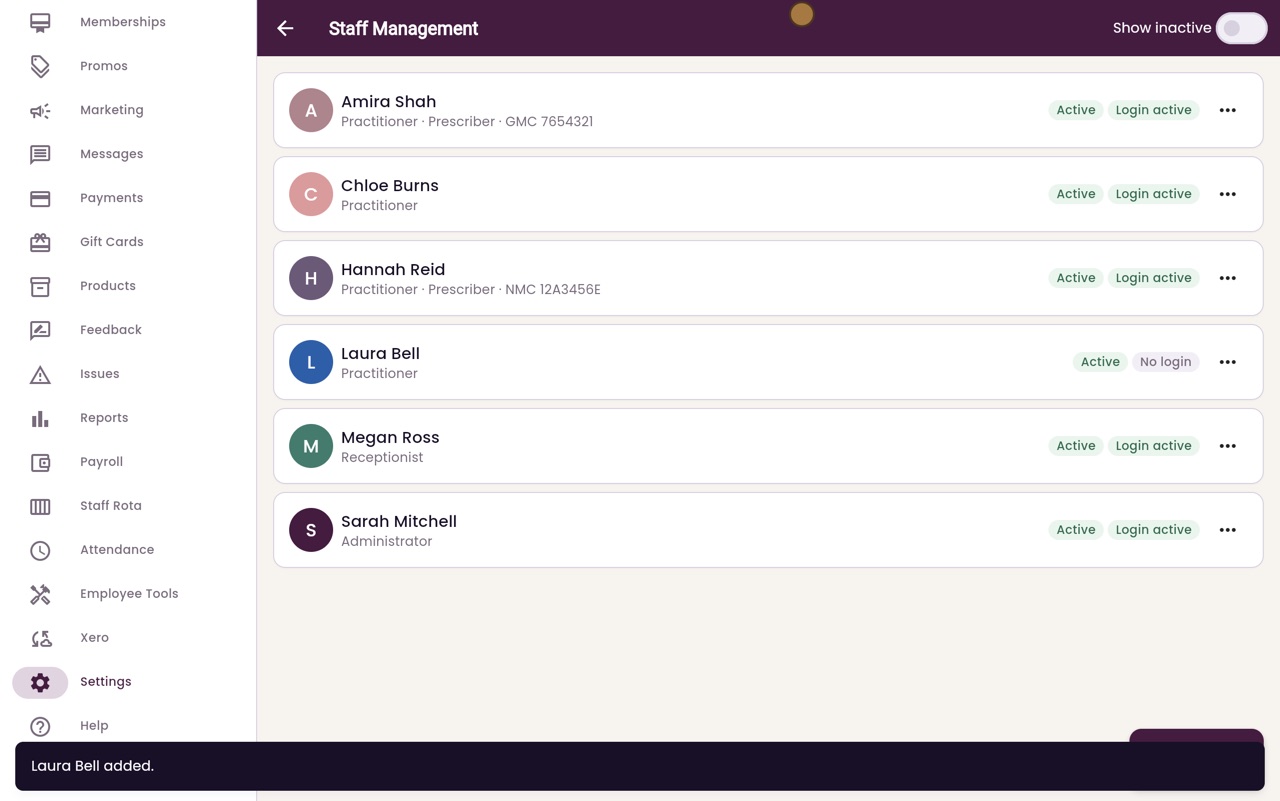
- 07Ryan
Login invite
To let her sign in, open her menu and choose Quick Edit, then click Send login invite. AesthetiQ emails her a link to set her own password.
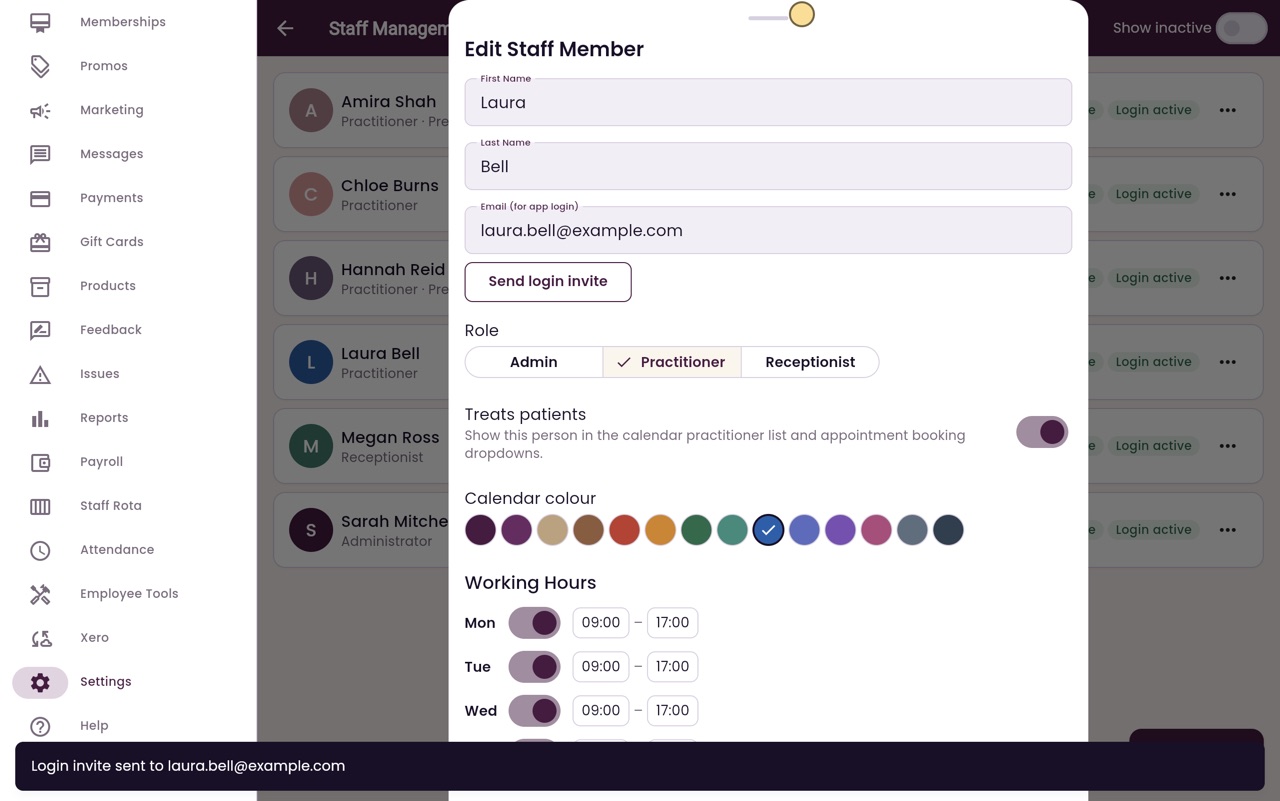
- 08Libby
Done
That is adding a member of staff. Open Settings for her from the same menu to choose the treatments she does, her working hours, and her pay.