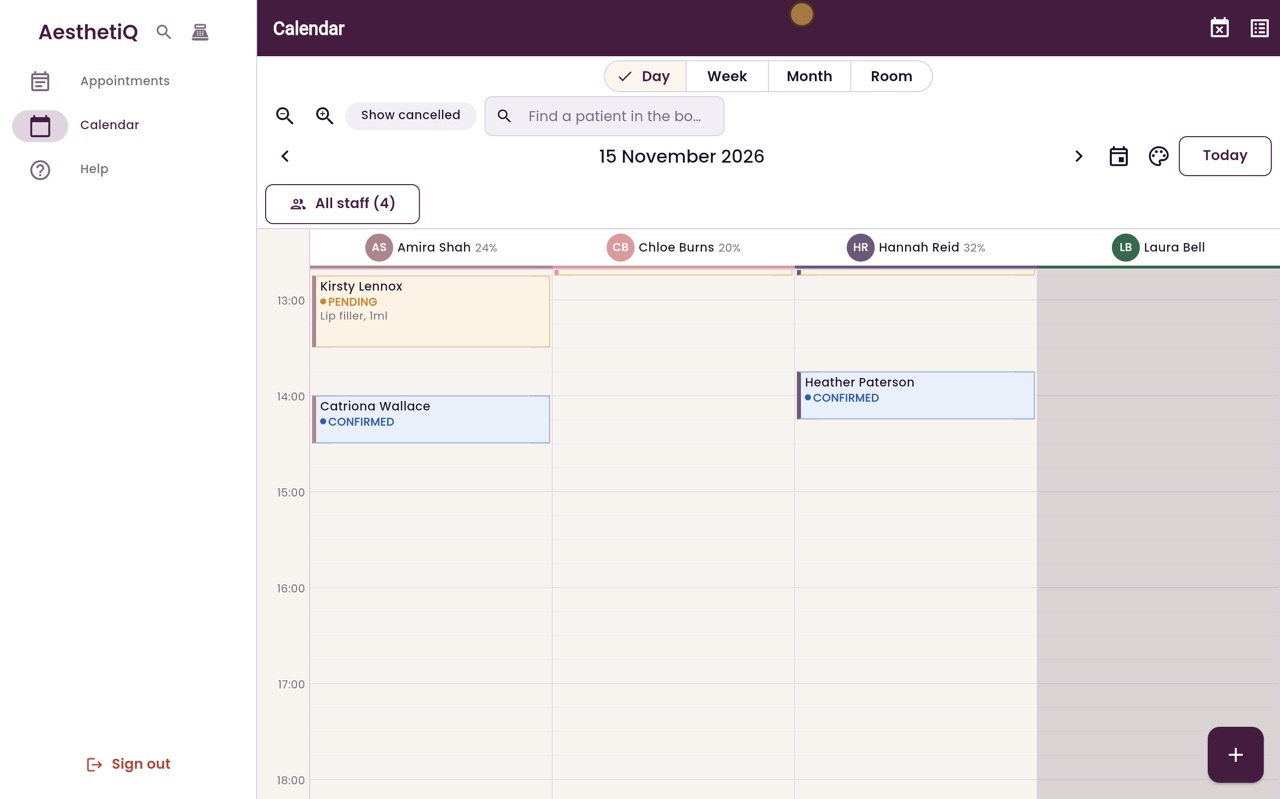
Locking an appointment so it cannot move
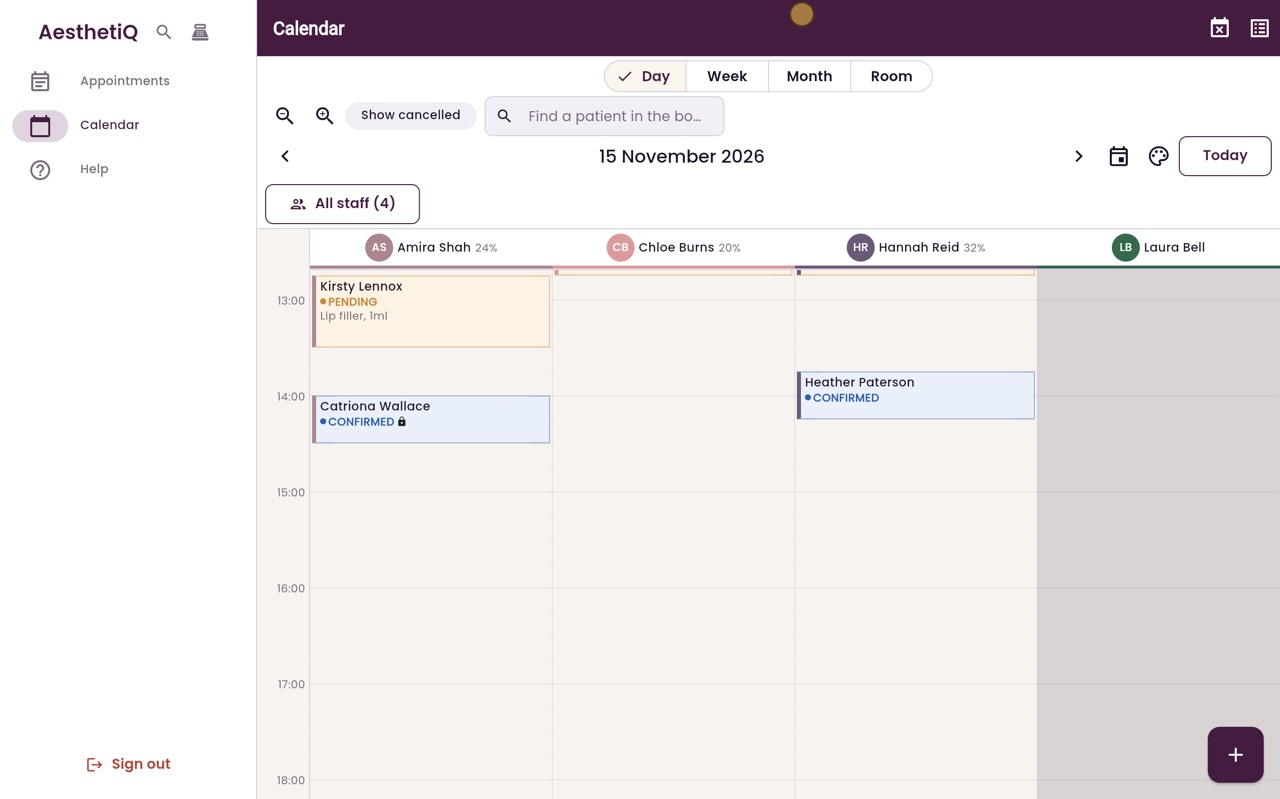
Lock an appointment from the right-click panel on the calendar. A locked appointment shows a small lock and cannot be dragged to another time.
Lock
Right-click, More, Lock appointment.
Shown
A small lock beside the status on the card.
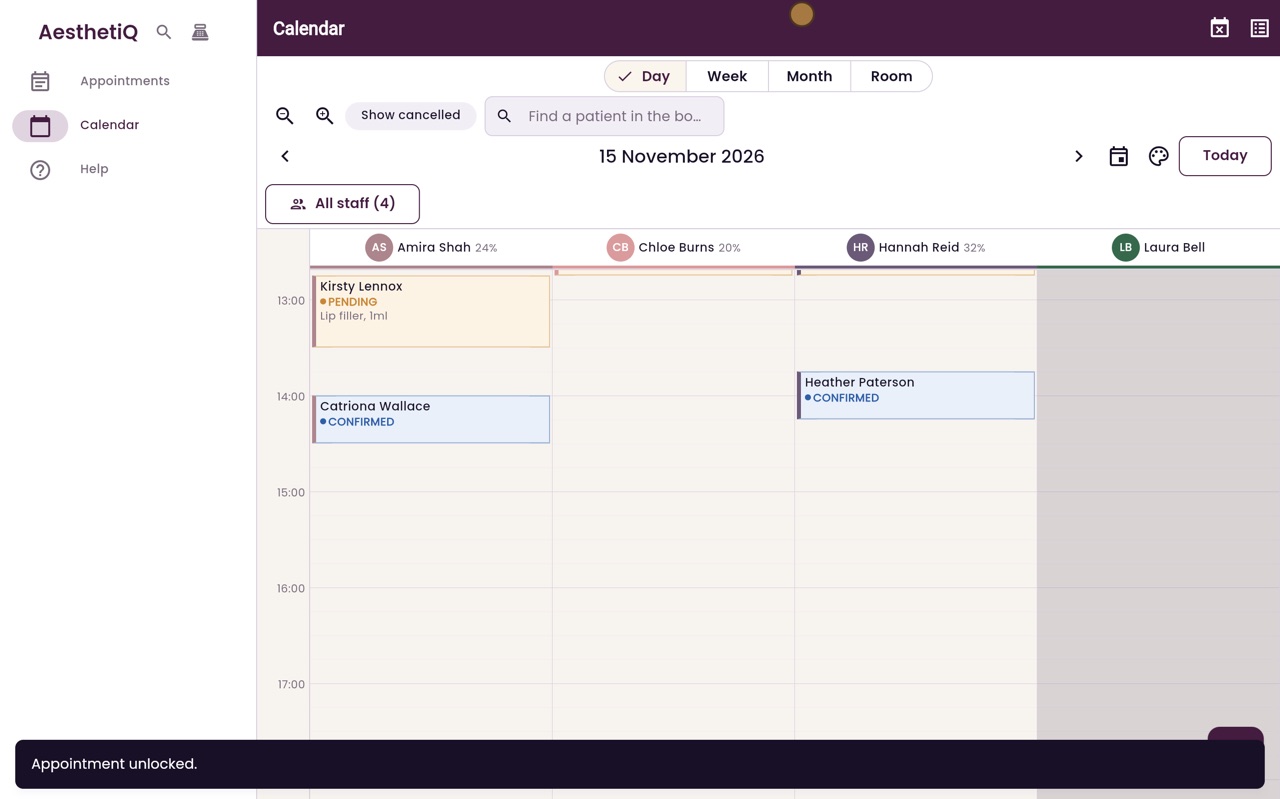
Unlock
Right-click, More, Unlock appointment.
Step by step
- 01Libby
Locking
Hi, I am Libby. Some appointments must not move, for example when the patient has arranged time off work for it. You can lock an appointment so nobody drags it by mistake.
- 02Ryan
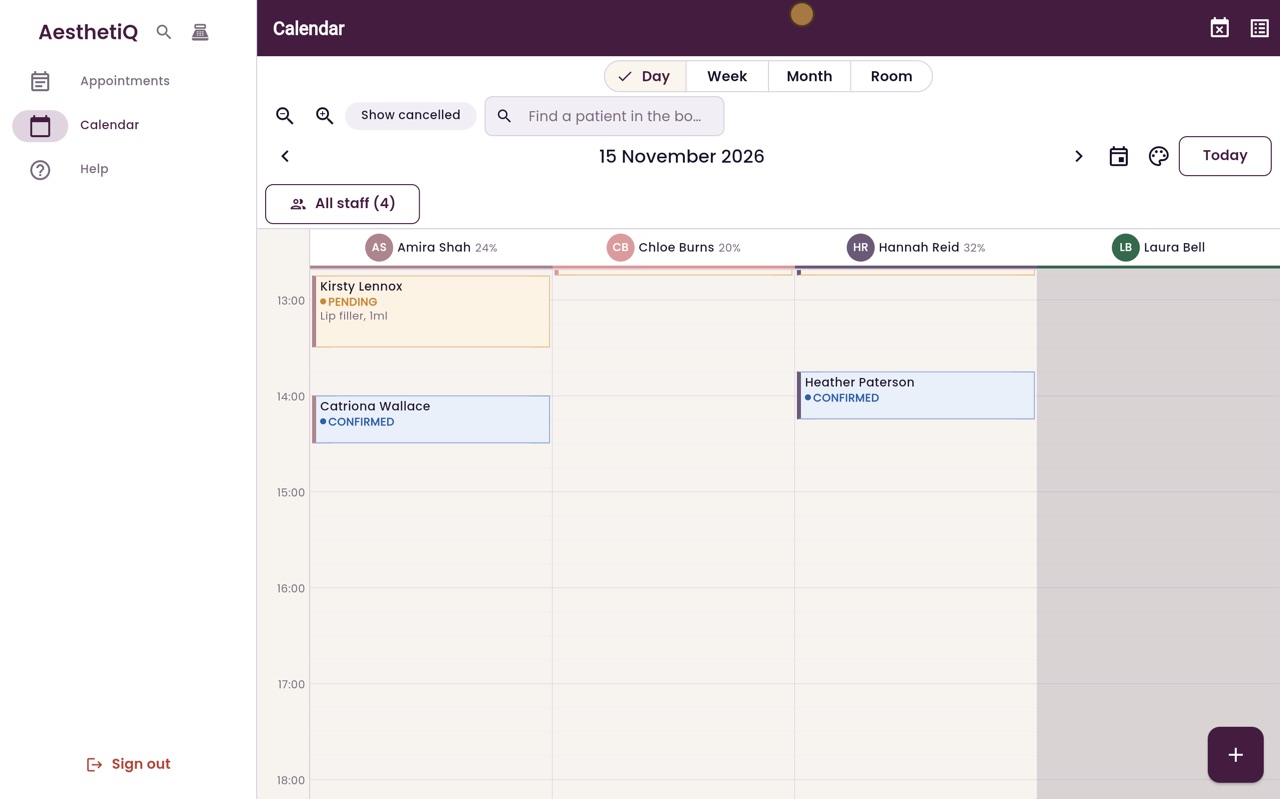
Right-click the appointment
Thanks Libby. Catriona Wallace's two o'clock with Amira Shah must stay where it is. Right-click her appointment.
- 03Ryan
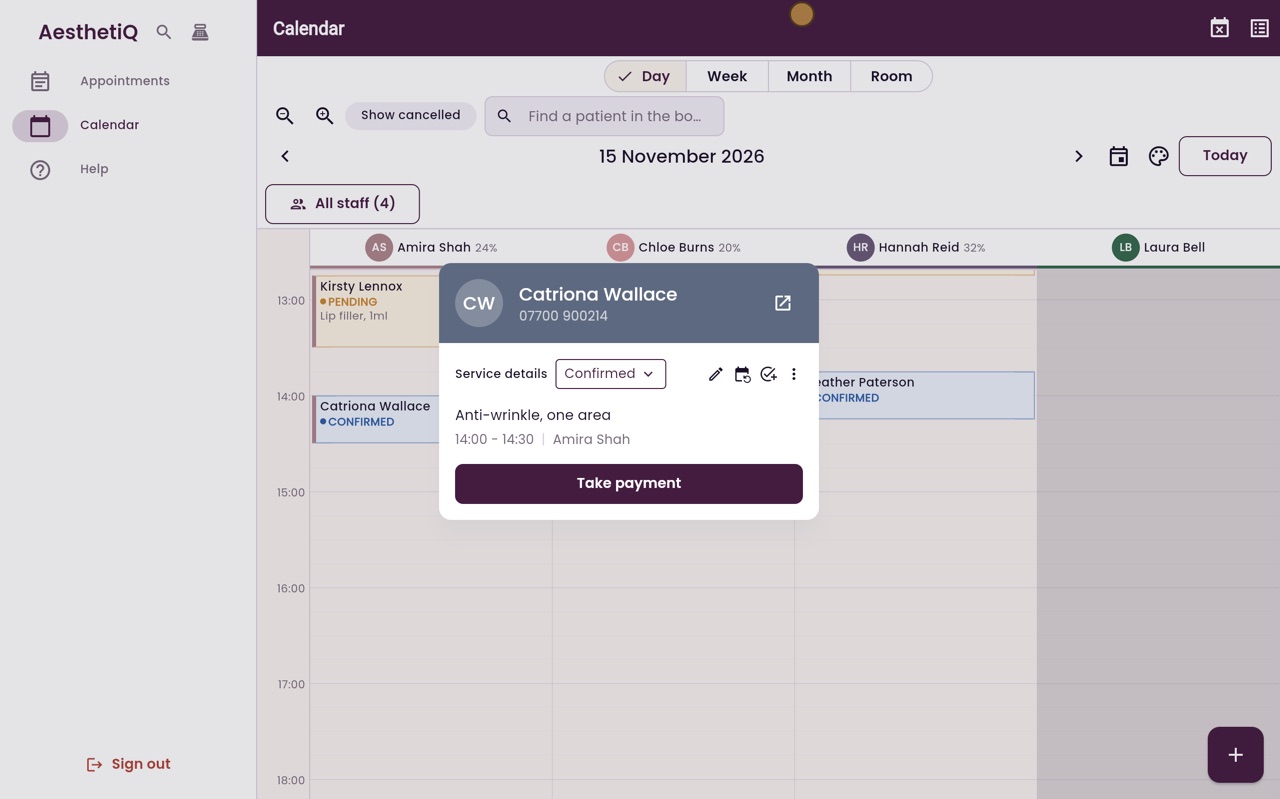
Lock appointment
In the panel, click More, the three dots on the right, and then Lock appointment.
- 04Ryan
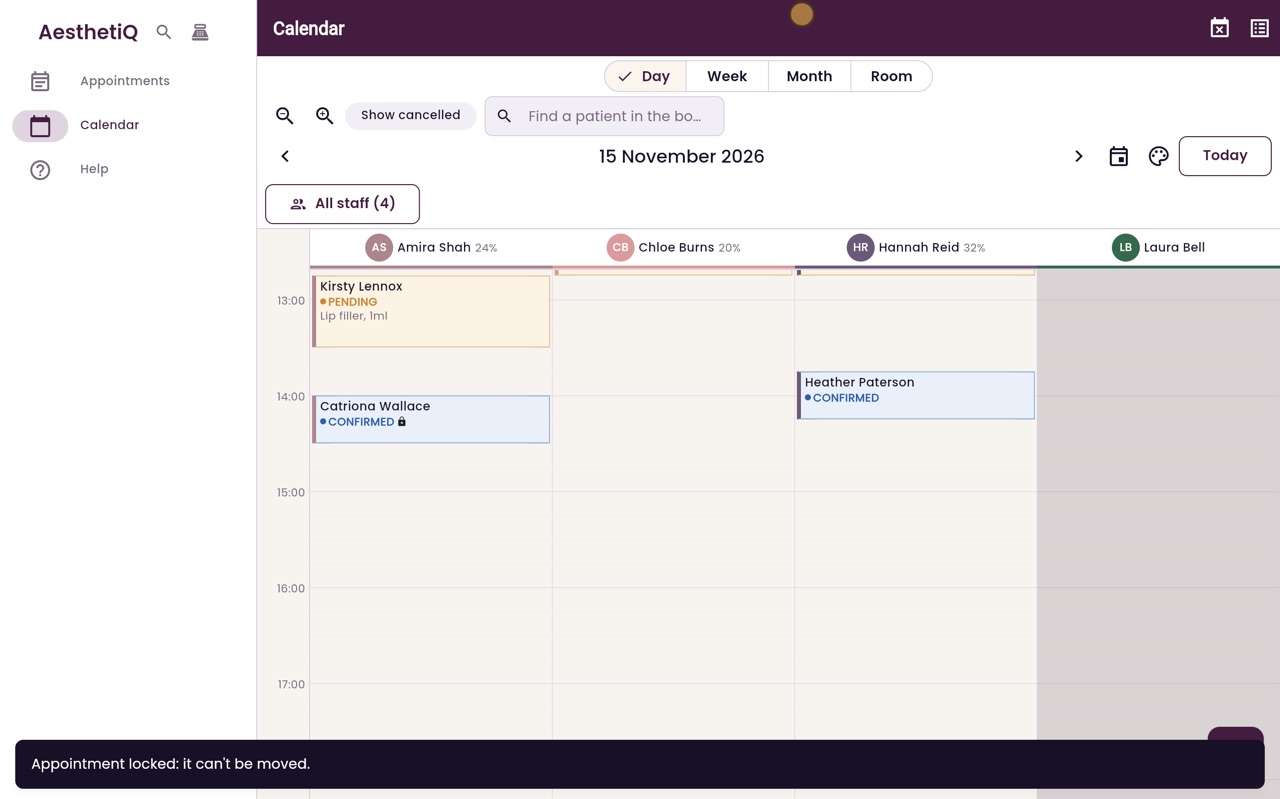
Locked
The message at the bottom says the appointment is locked and cannot be moved, and her card now shows a small lock.
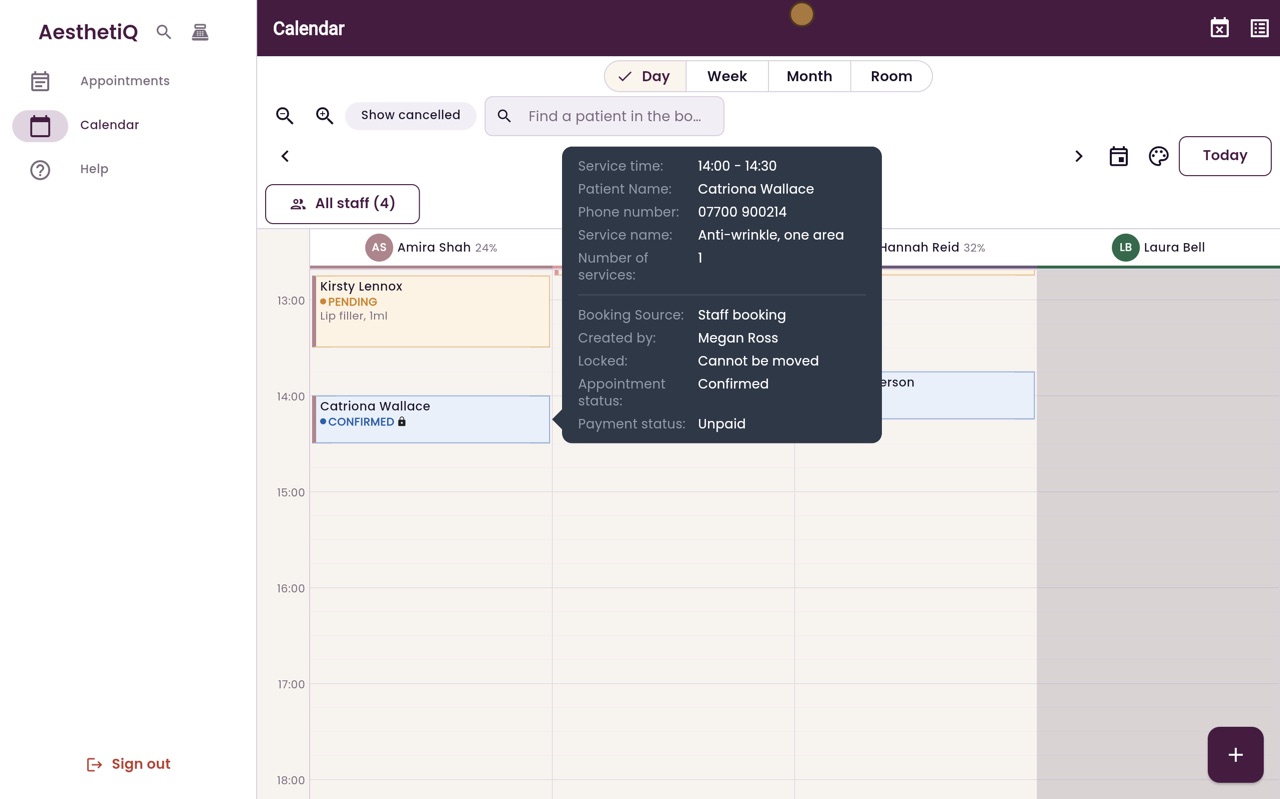
- 05Ryan
It cannot be dragged
If anyone tries to drag it to another time, it stays where it is.
- 06Ryan
Unlocking
To unlock it, right-click it again, click More, and choose Unlock appointment.
- 07Libby
Done
That is locking an appointment. A locked appointment can still be opened, checked in and paid for as usual.