The staff rota
See who is working, on leave or off each day, and change a single day without changing anyone's usual week.
Where
Staff Rota in the menu, by day, week or month.
Change a day
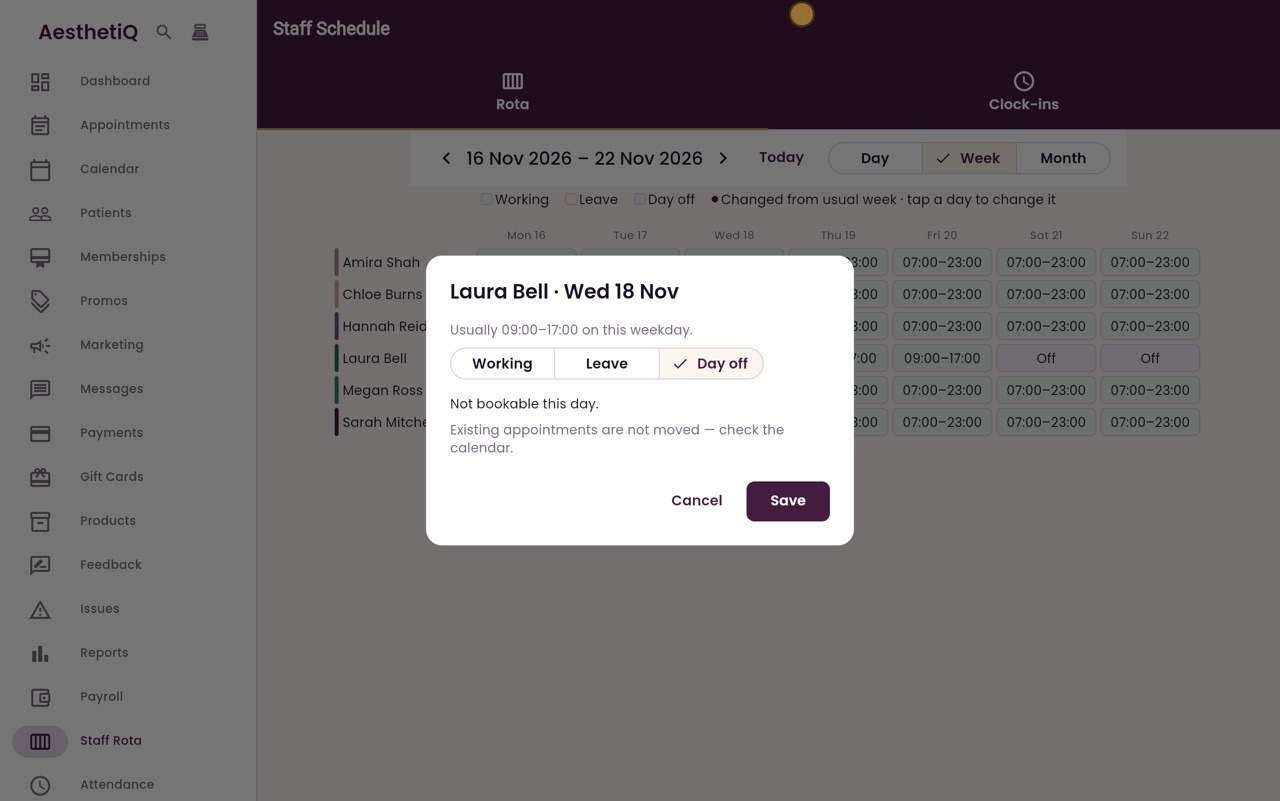
Click the day, choose Working, Leave or Day off, then Save.
Changed days
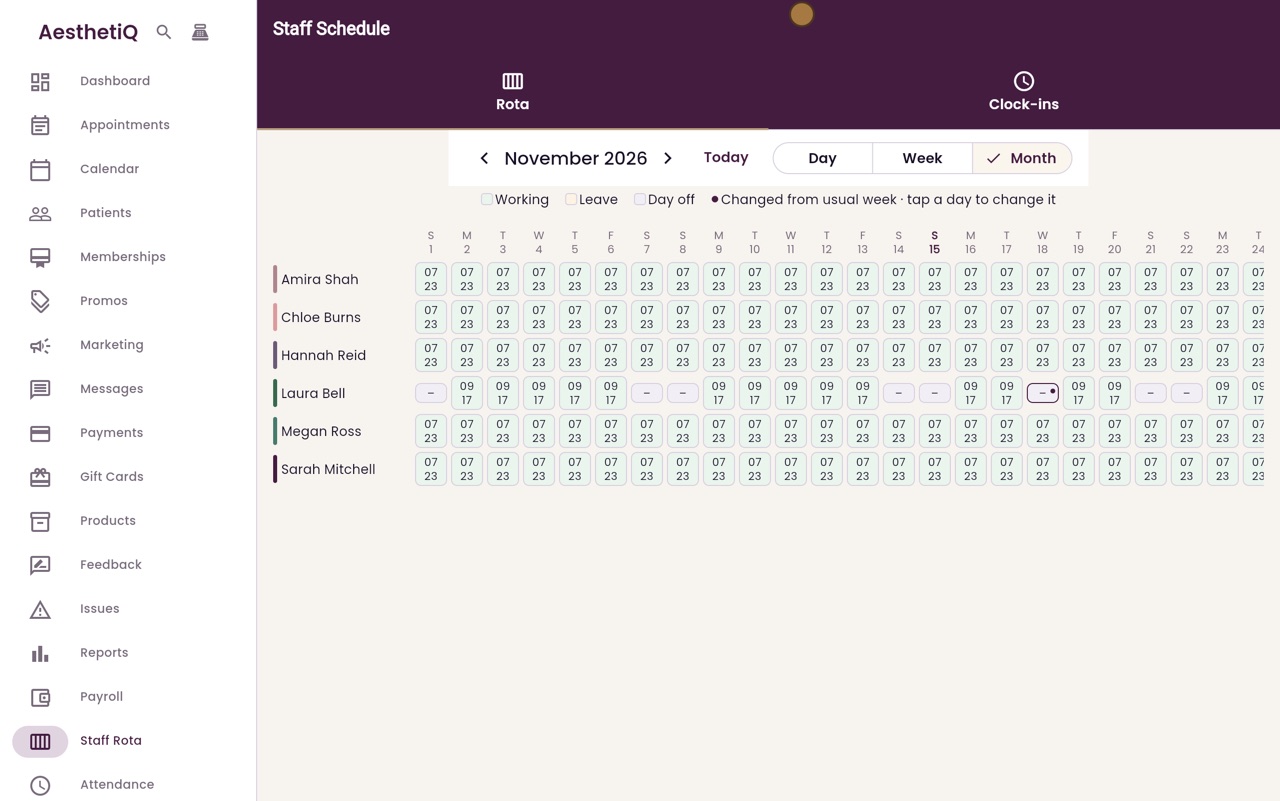
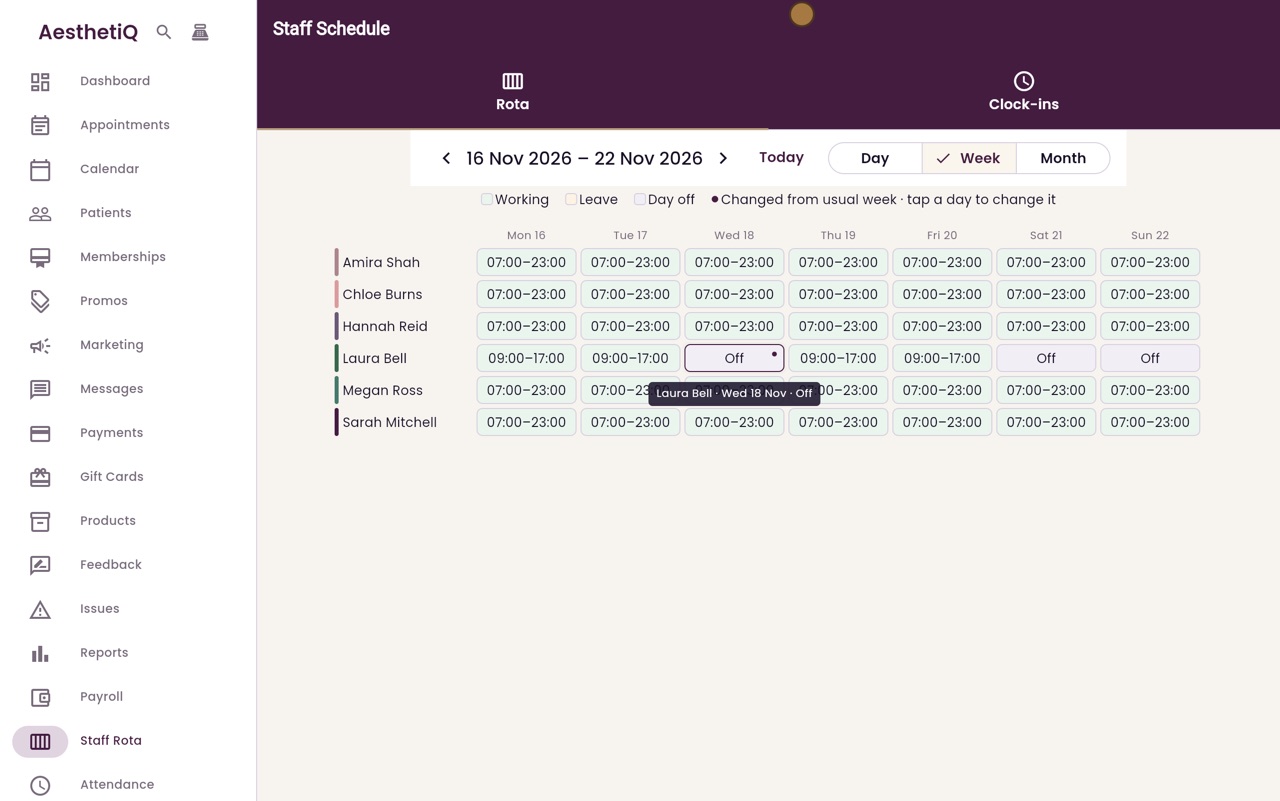
A dot shows a day that differs from the usual week.
Step by step
- 01Libby
Who is working
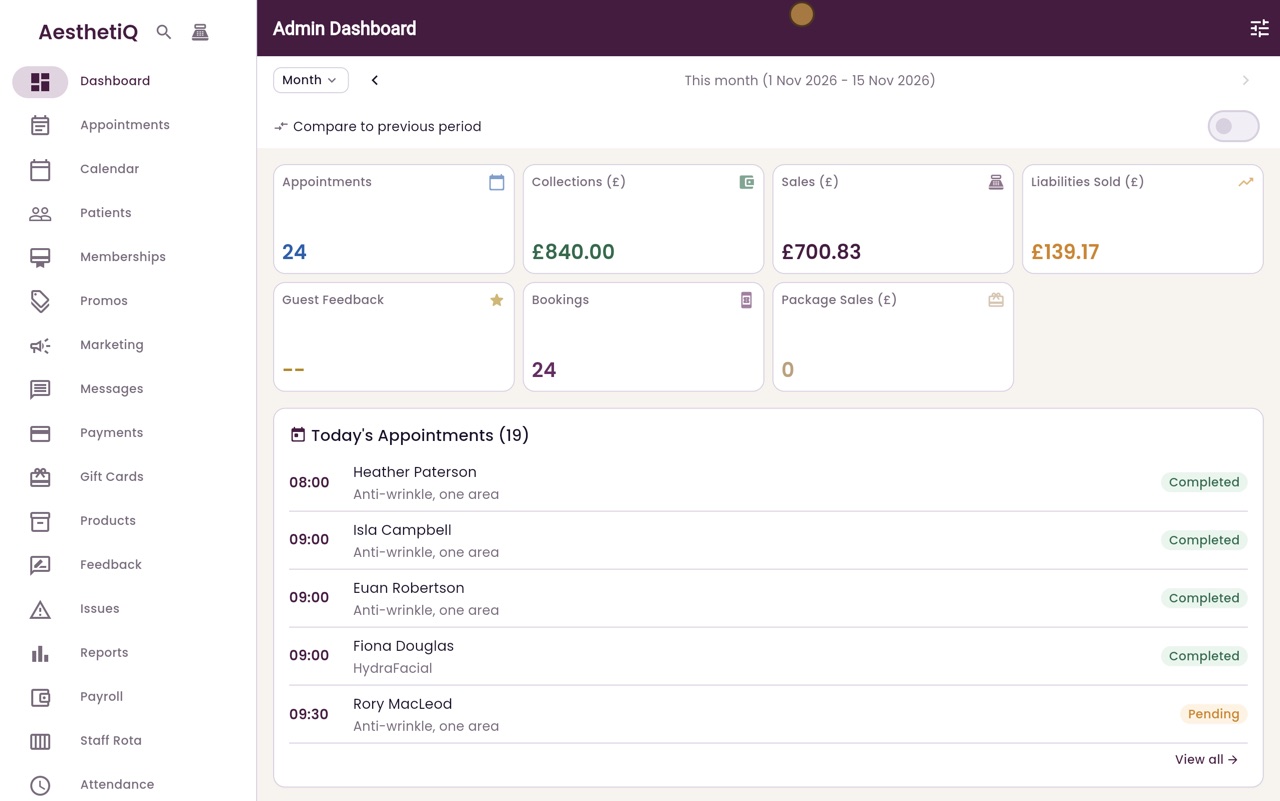
Hi, I am Libby. The staff rota shows who is working each day, who is on leave and who has a day off. You can change a single day without changing anyone's usual week.
- 02Ryan
The week
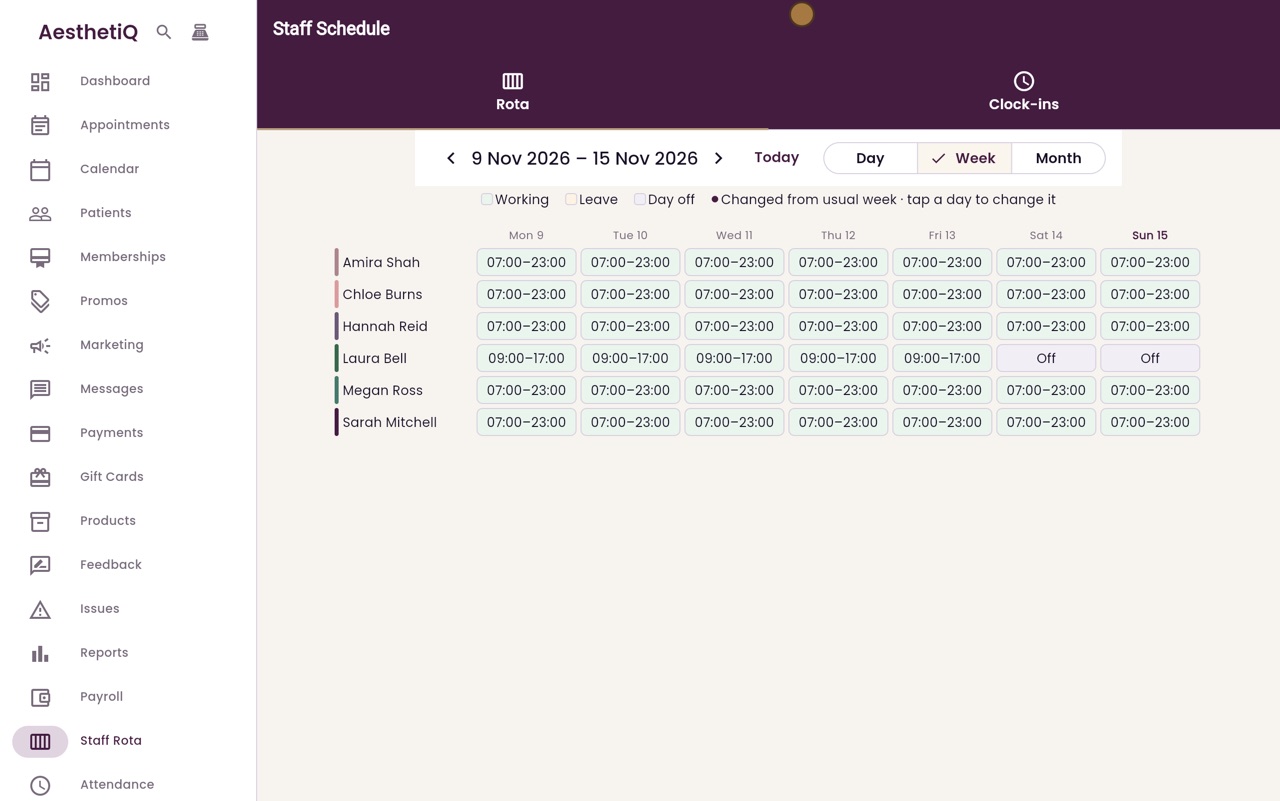
Thanks Libby. Click Staff Rota in the menu. There is a row for each member of staff, with their hours for each day of this week. The key at the top shows the colours for Working, Leave and Day off.
- 03Ryan
Choose a day
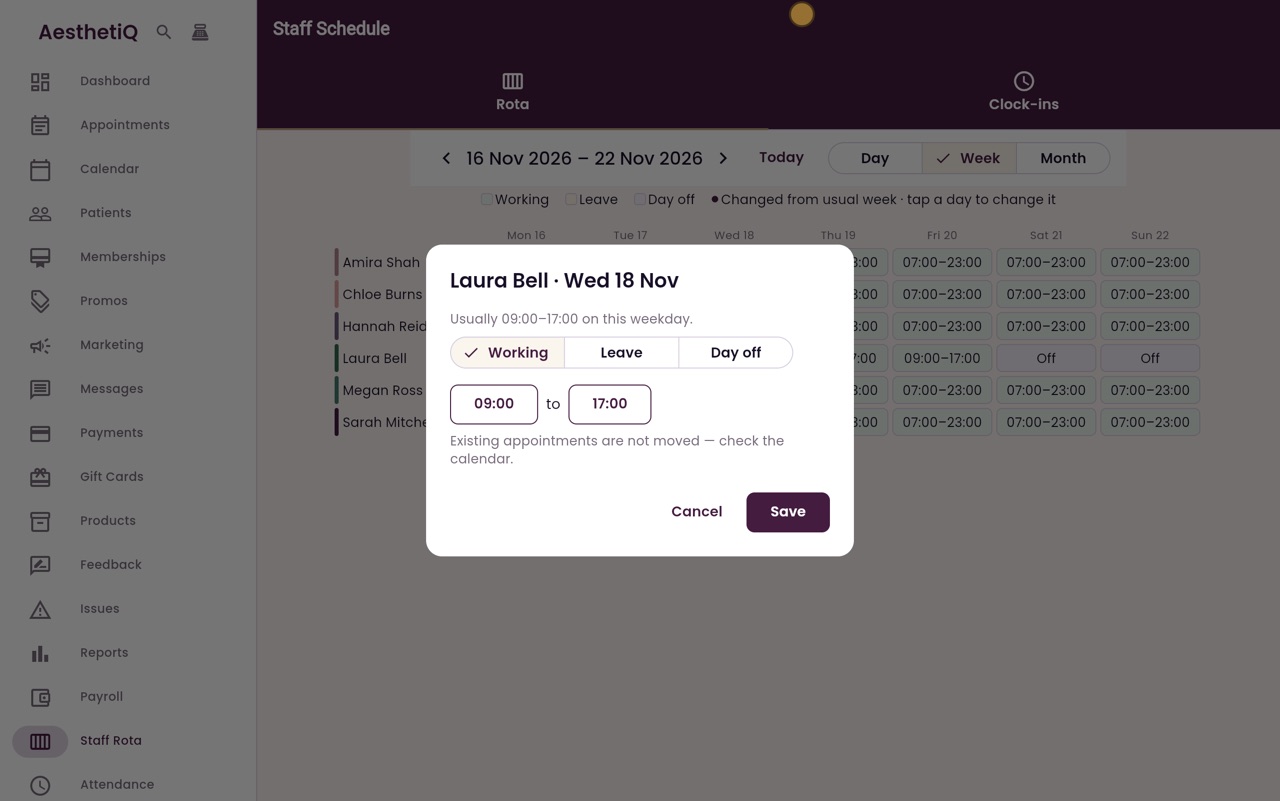
Click the arrow to go to next week. Laura Bell has asked for Wednesday off, so click her Wednesday.
- 04Ryan
Day off or leave
The box shows her usual hours for that weekday. Choose Day off. For a holiday, choose Leave instead. Appointments she already has are not moved, so check the calendar too.
- 05Ryan
Saved
Click Save. Her Wednesday now shows Off, with a dot to show that it is different from her usual week.
- 06Ryan
The month
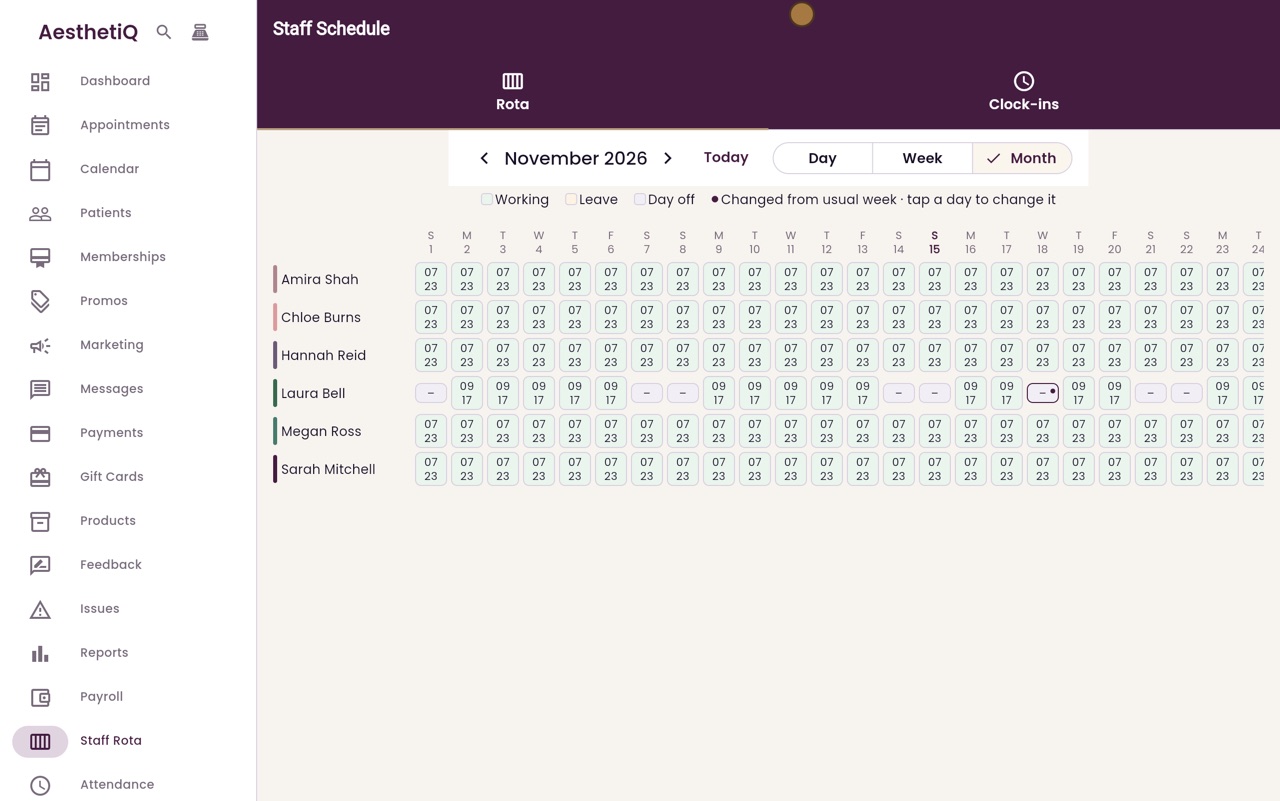
Click Month to see the whole month at a glance.
- 07Libby
Done
That is the staff rota. To change someone's usual week, change their working hours in Staff Management instead.