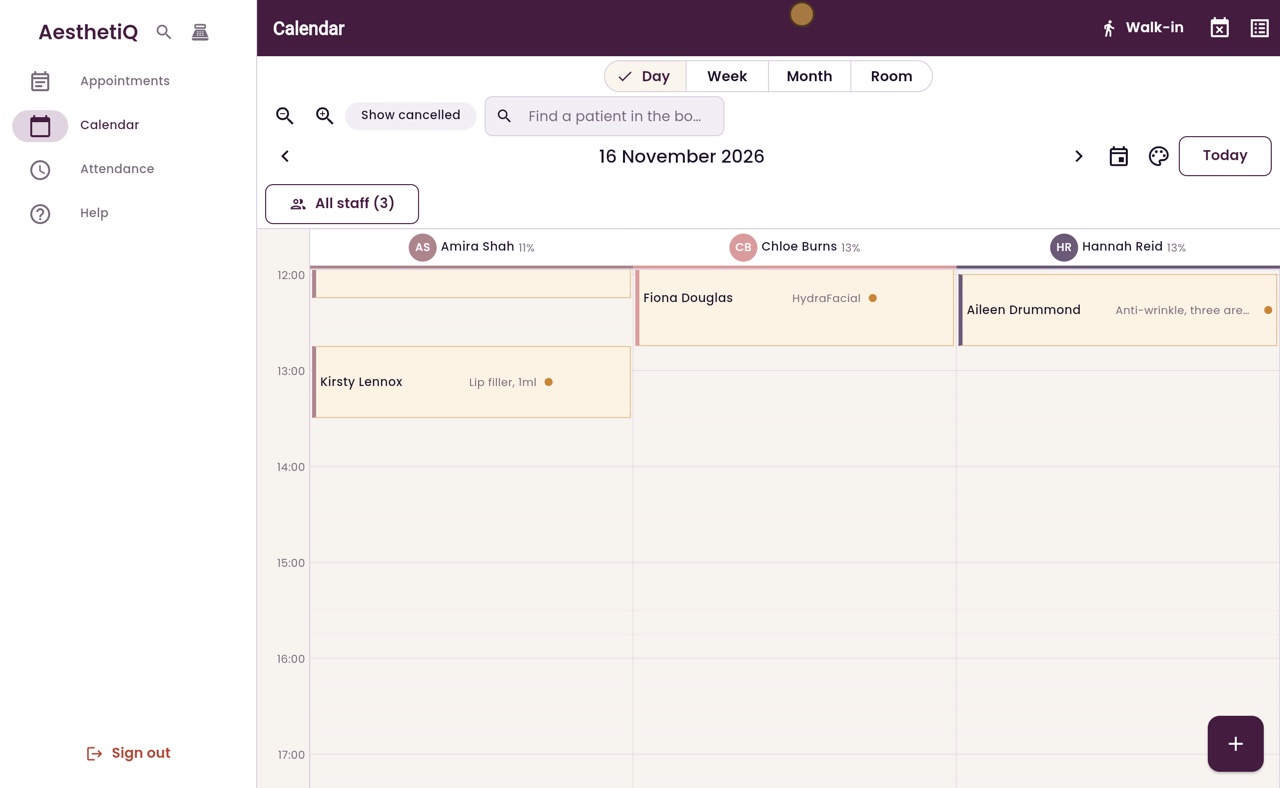
Week, month and room views
Switch the calendar between Day, Week, Month and Room at the top. Appointments at the same time sit side by side, and AesthetiQ remembers the view you chose.
Week
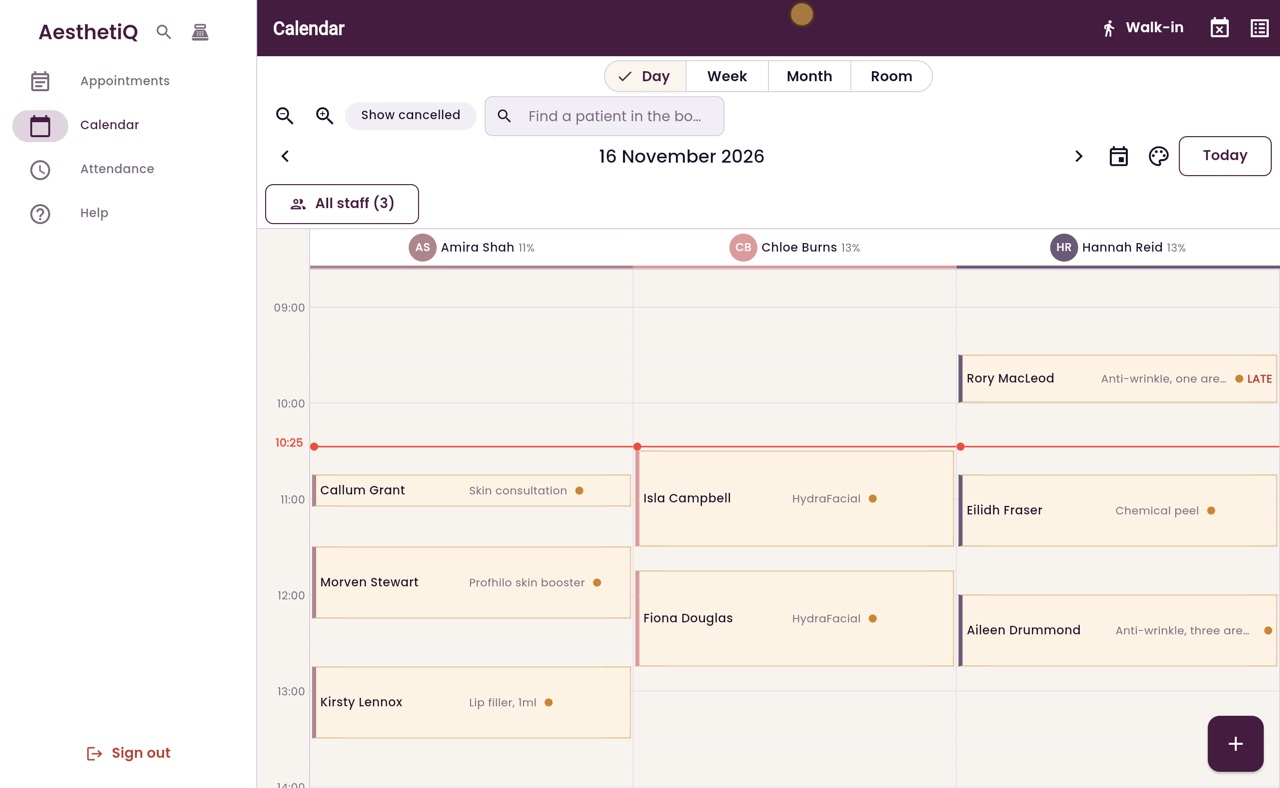
Monday to Sunday; appointments at the same time sit side by side at full length.
Month
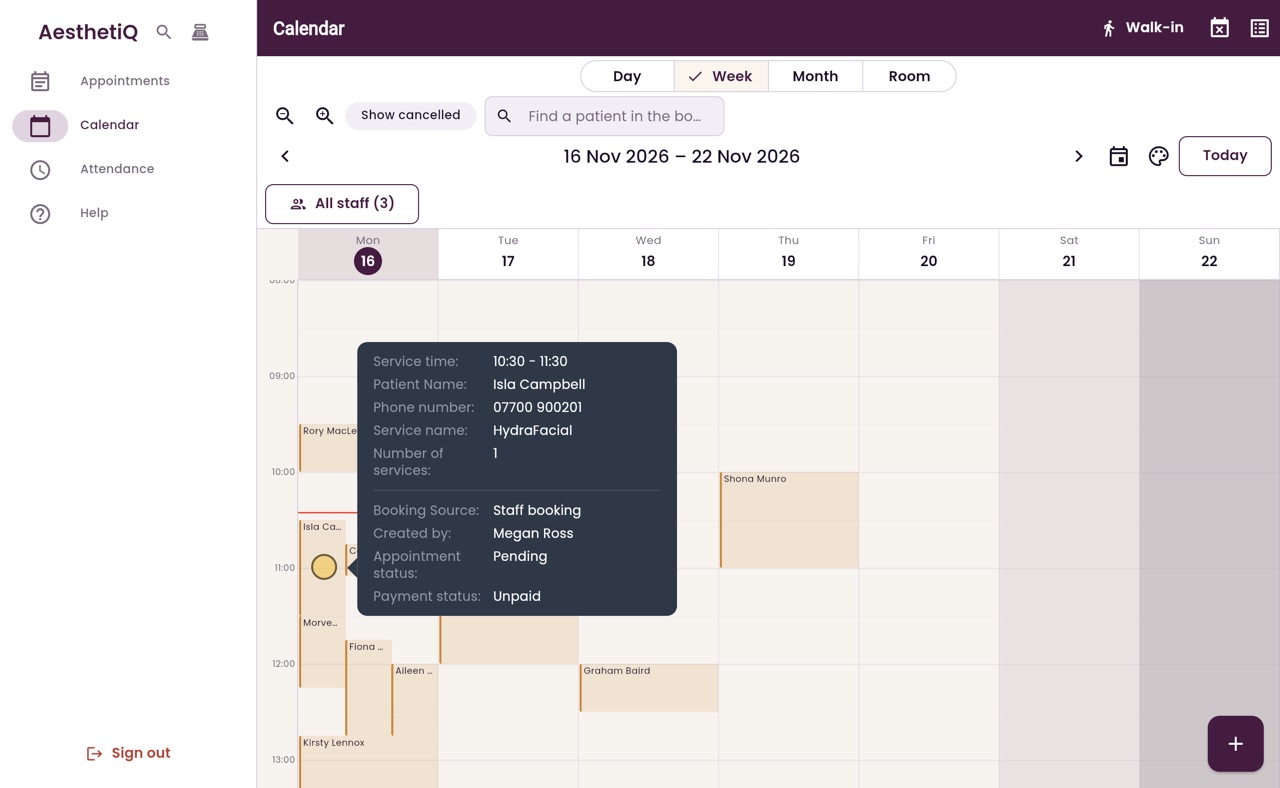
How many appointments each day has.
Room
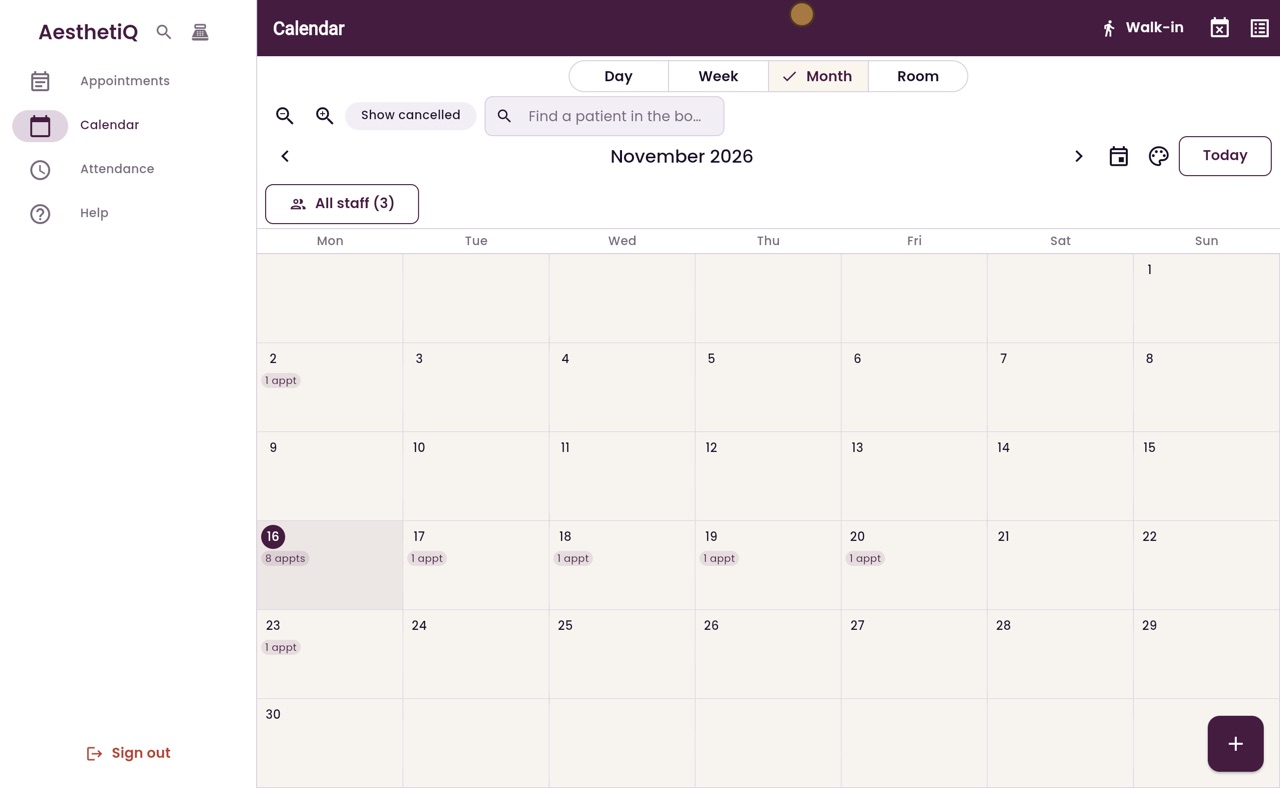
A column for each treatment room, plus Unassigned.
Step by step
- 01Libby
Other views
Hi, I am Libby. Besides the day view, the calendar can show a whole week, a whole month, or the treatment rooms. You switch between them at the top of the calendar.
- 02Ryan
Week
Thanks Libby. Click Week. The week runs from Monday to Sunday, with today on the left. Appointments at the same time sit side by side, each at its full length, so none is hidden. Rest the pointer on one to see the details.
- 03Ryan
Month
Click Month. Each day shows how many appointments it has, so you can see the busy days at a glance.
- 04Ryan
Room
Click Room. There is a column for each treatment room, so you can see which rooms are free. Appointments booked without a room are under Unassigned.
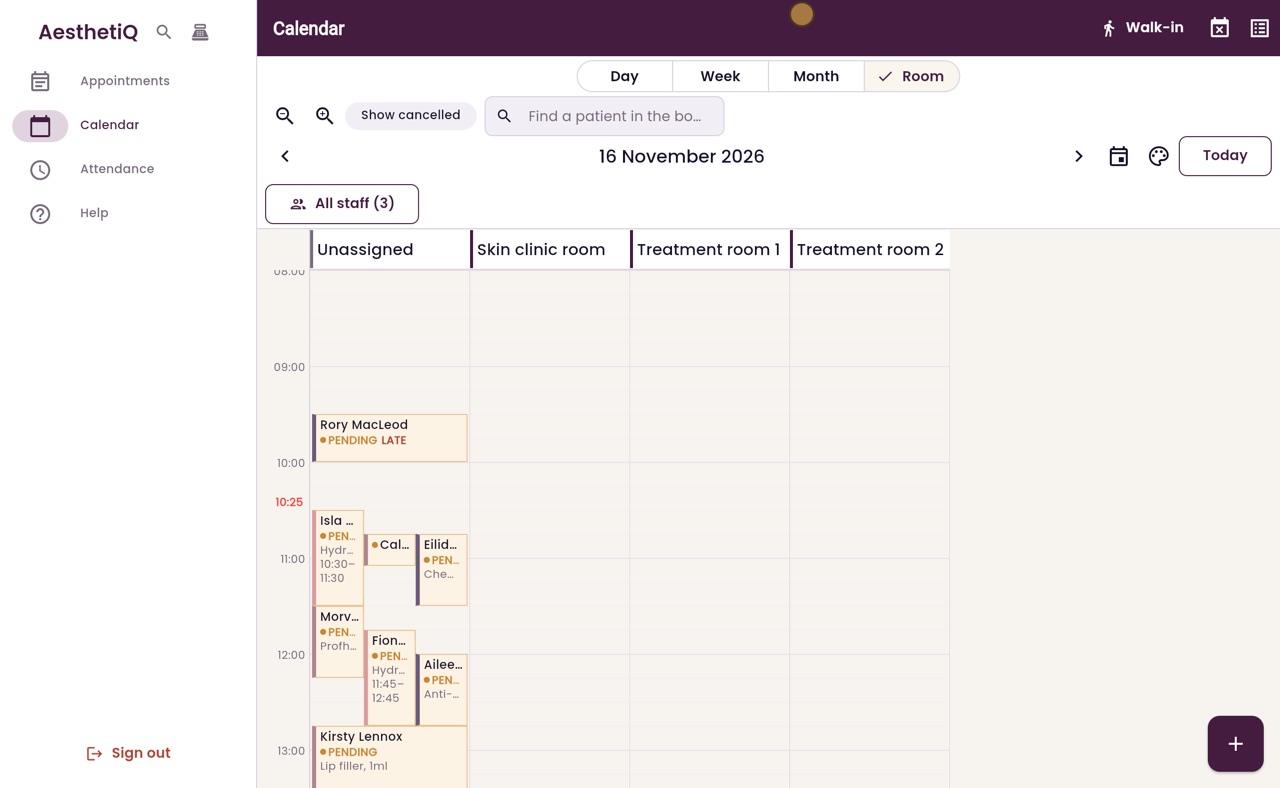
- 05Ryan
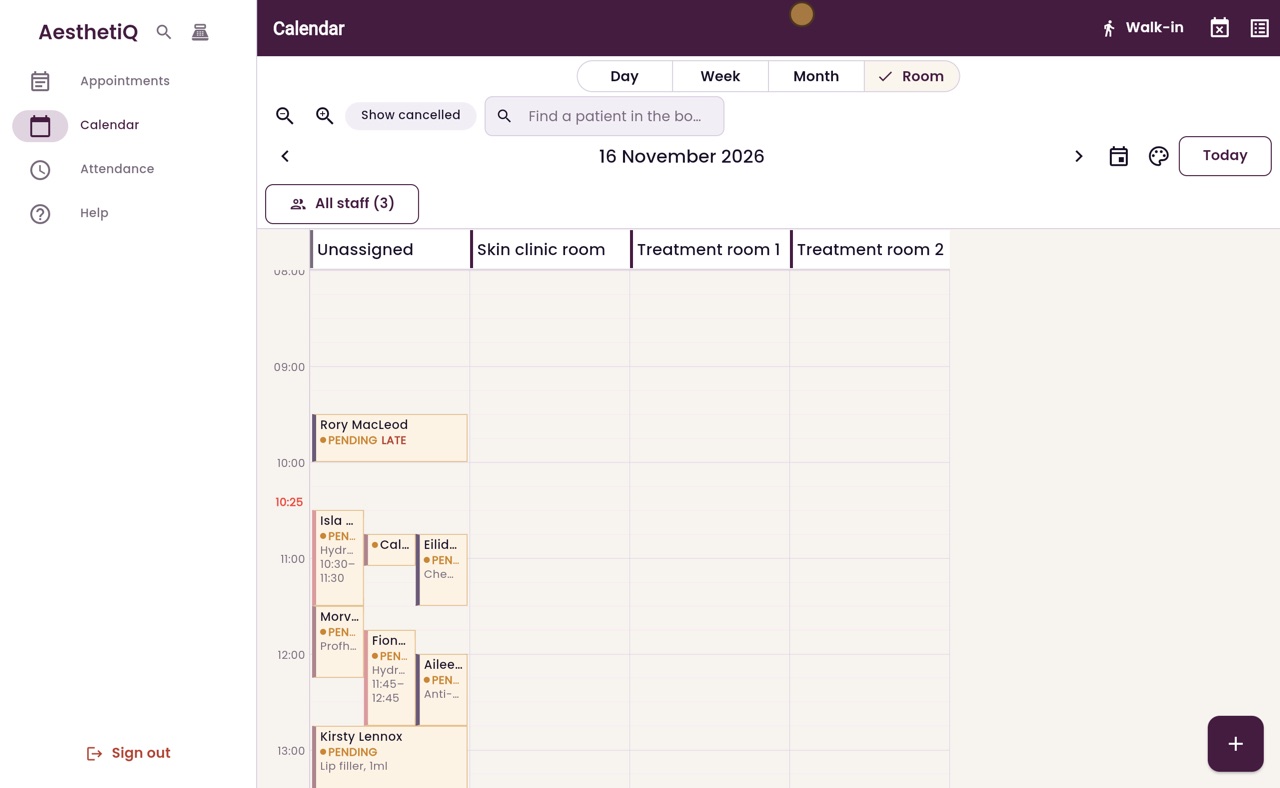
Remembered view
AesthetiQ remembers the view you chose. Go to Appointments and back to Calendar, and it opens on Room again.
- 06Ryan
Back to Day
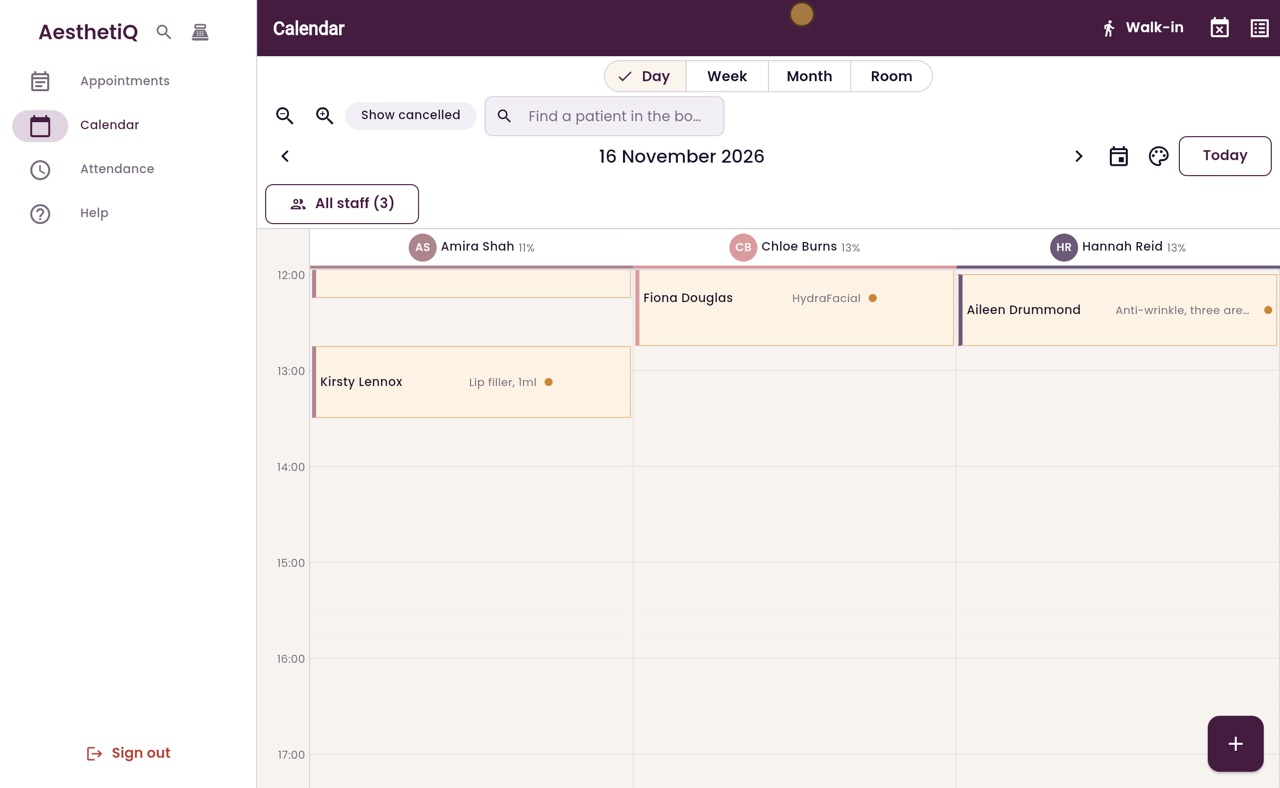
Click Day to go back to the day view, with a column for each practitioner. The whole day is there: scroll down to see the afternoon.
- 07Libby
Done
That is the week, month and room views. Whichever view you are in, click an appointment to open it.