Adding a patient
Create a record for a new patient with their name, email, mobile and date of birth, and note whether they want offers.
Where
Patients, then the add patient button at the bottom right.
Who
Reception and the clinic manager.
After
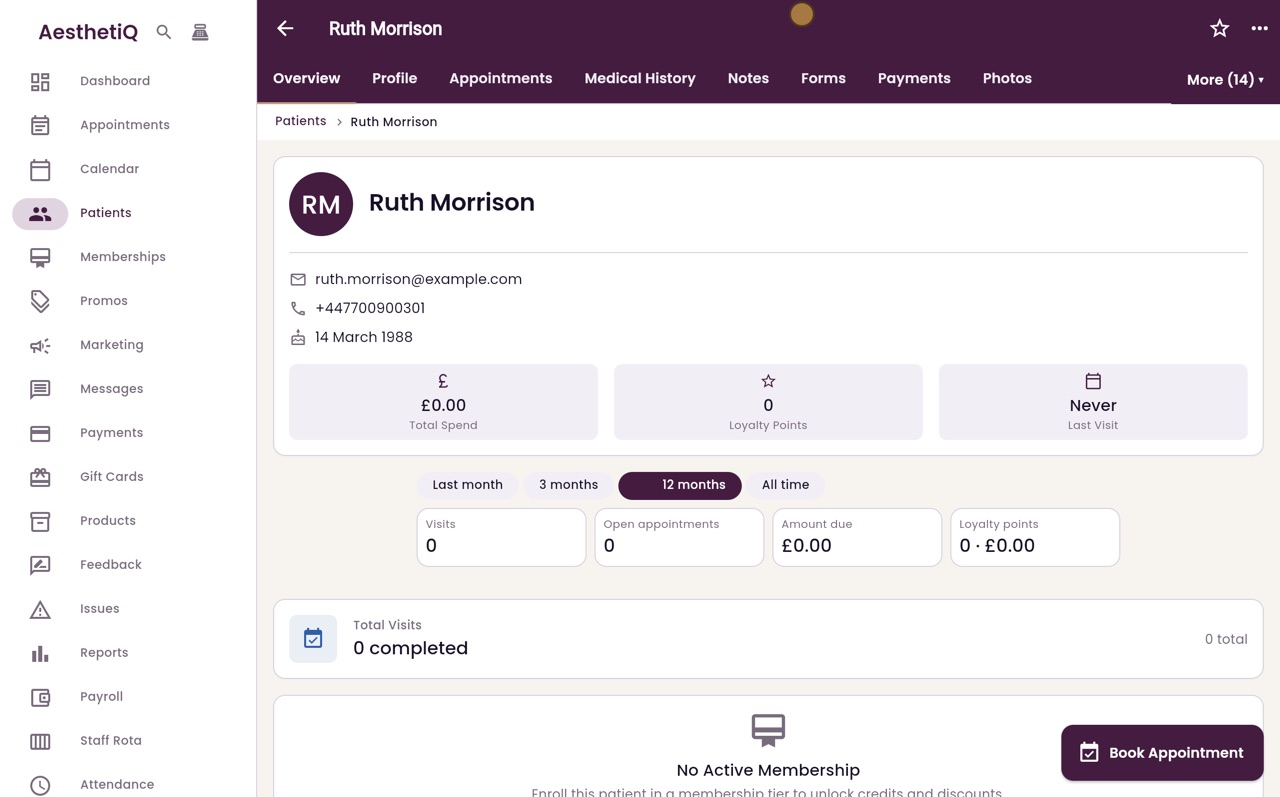
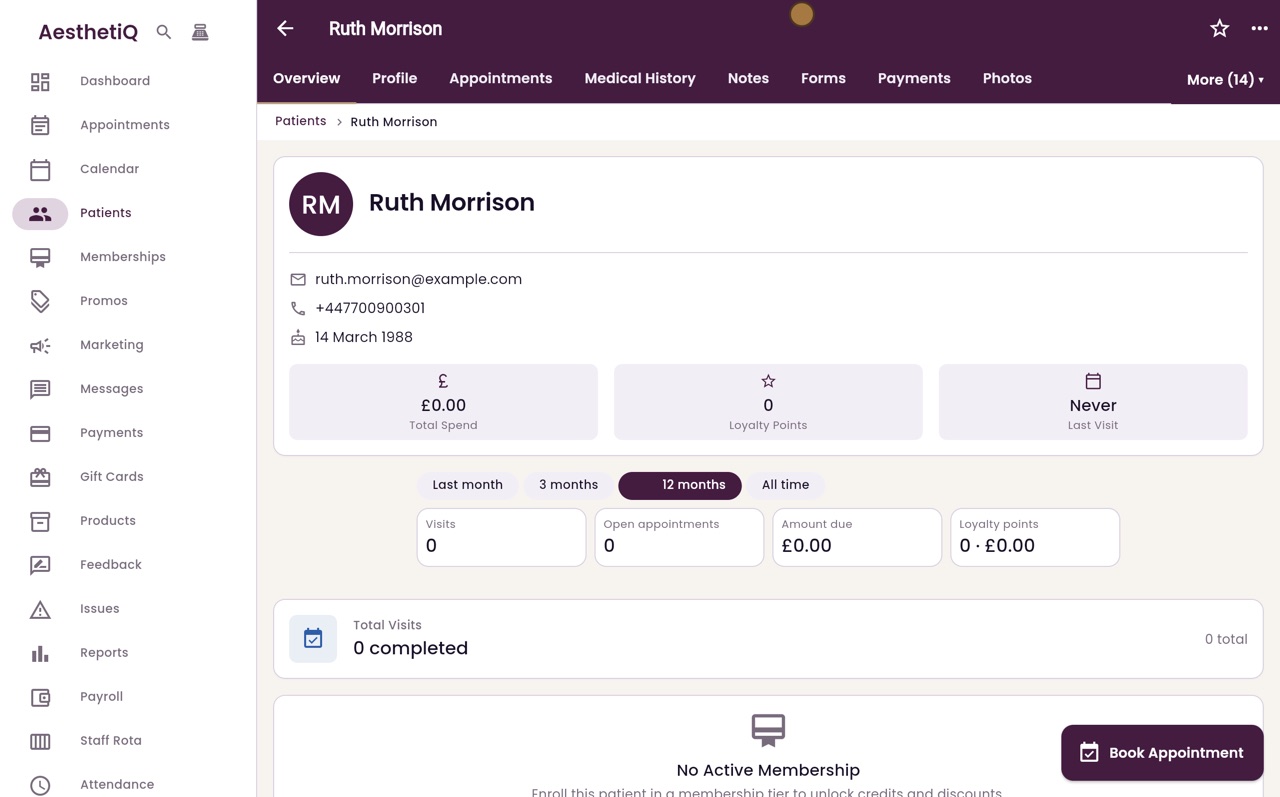
The new patient's profile opens, ready to book.
Step by step
- 01Libby
A new patient
Hi, I am Libby. Every patient needs a record in AesthetiQ before their first appointment. Here is how to add a new patient.
- 02Ryan
Open Patients
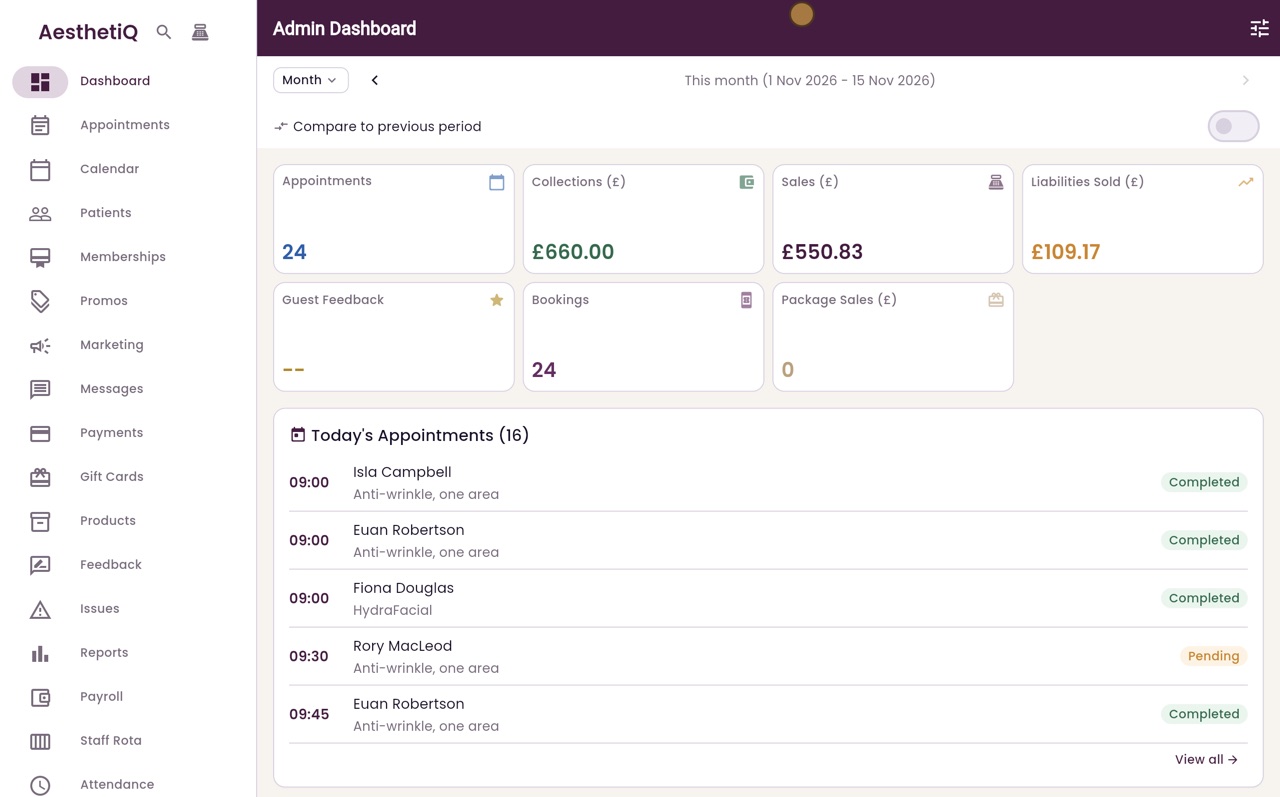
Thanks Libby. Click Patients in the menu on the left. To add someone new, click the add patient button in the bottom corner.
- 03Ryan
Name, email and mobile
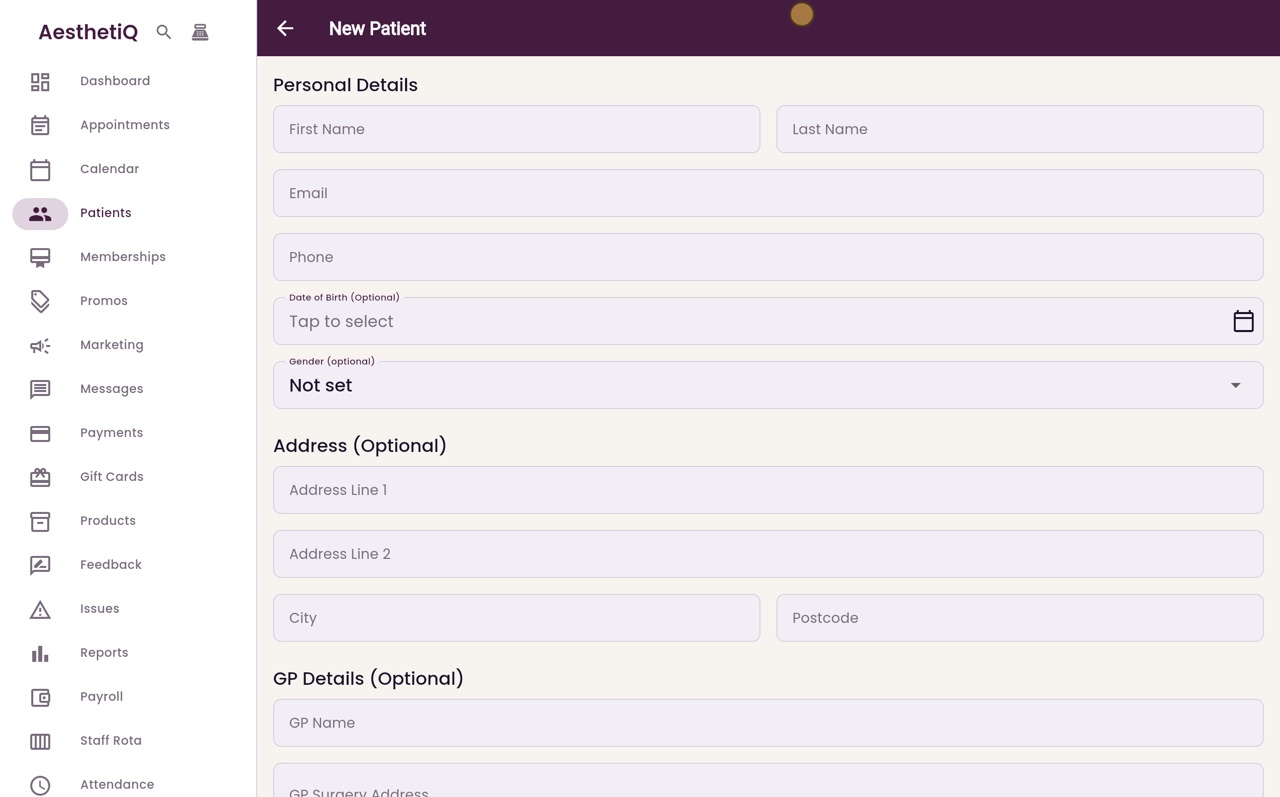
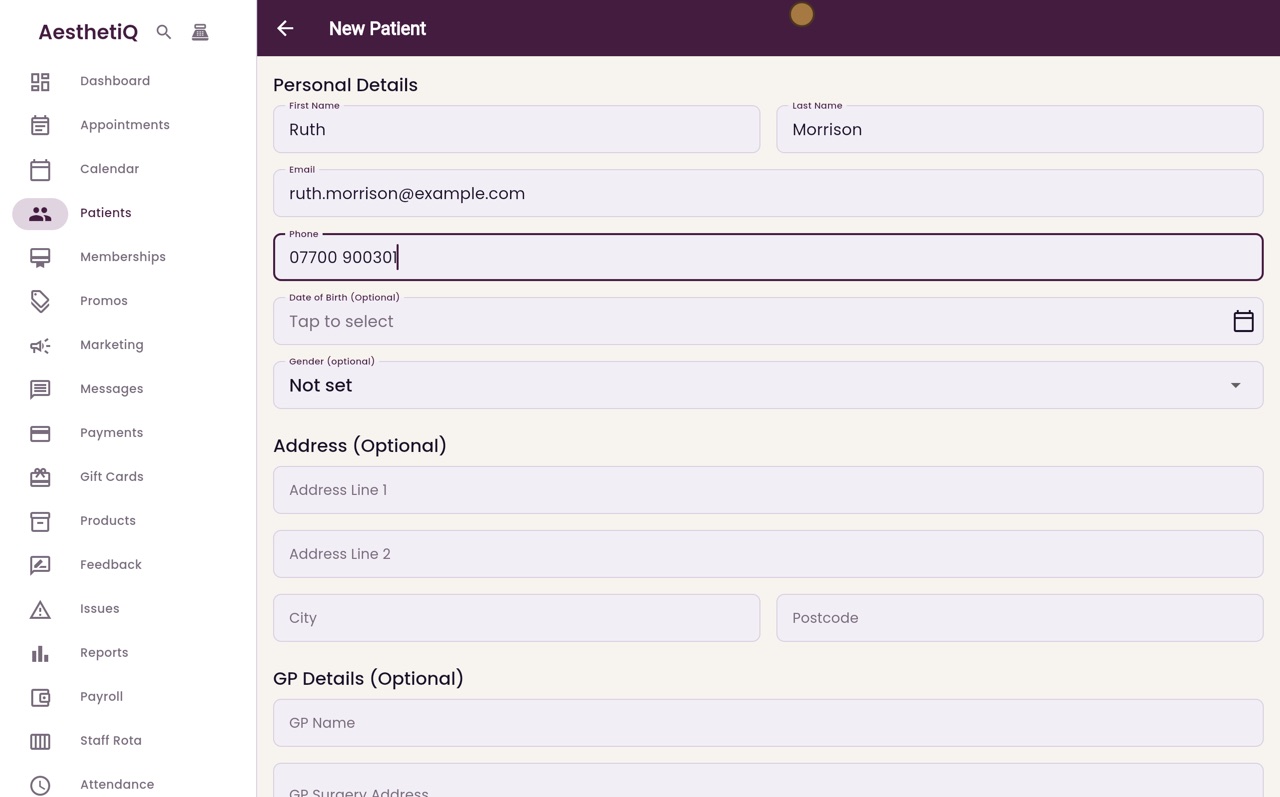
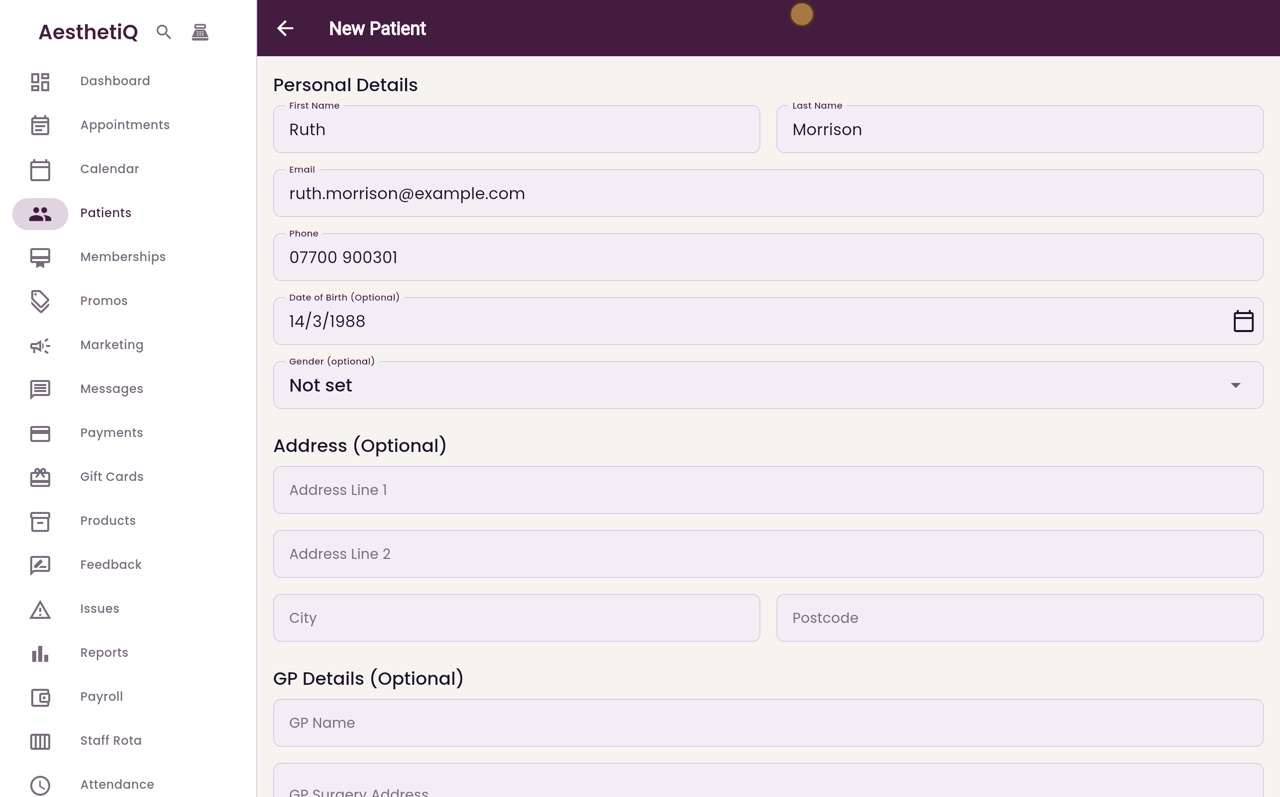
Type the first name, last name, email address and mobile number. All four are needed, because booking confirmations and reminders go out by text and email.
- 04Ryan
Date of birth
Add the date of birth as well. Click Date of Birth, switch to typing with the pencil, enter the date and click OK.
- 05Ryan
Optional details
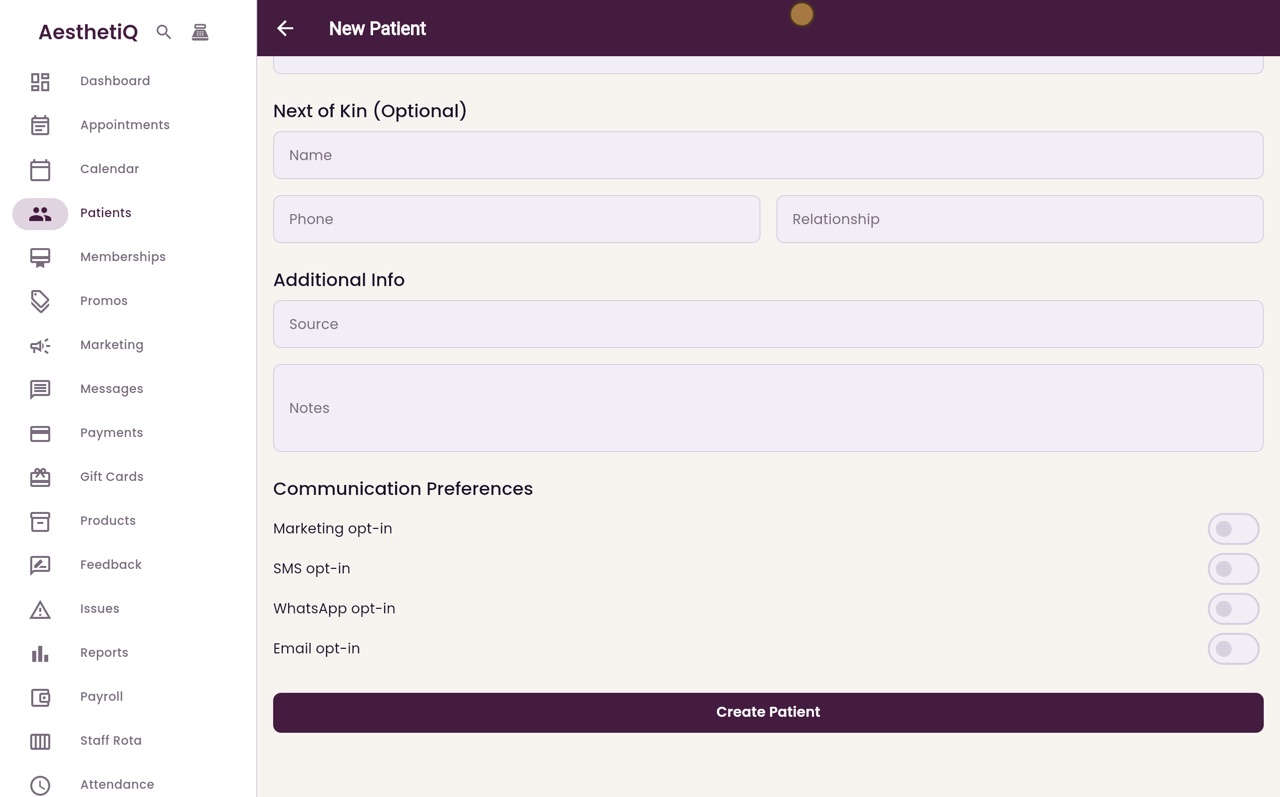
The address, the patient's GP and their next of kin are optional. Fill them in now if the patient has them to hand, or add them later.
- 06Ryan
Offers and news
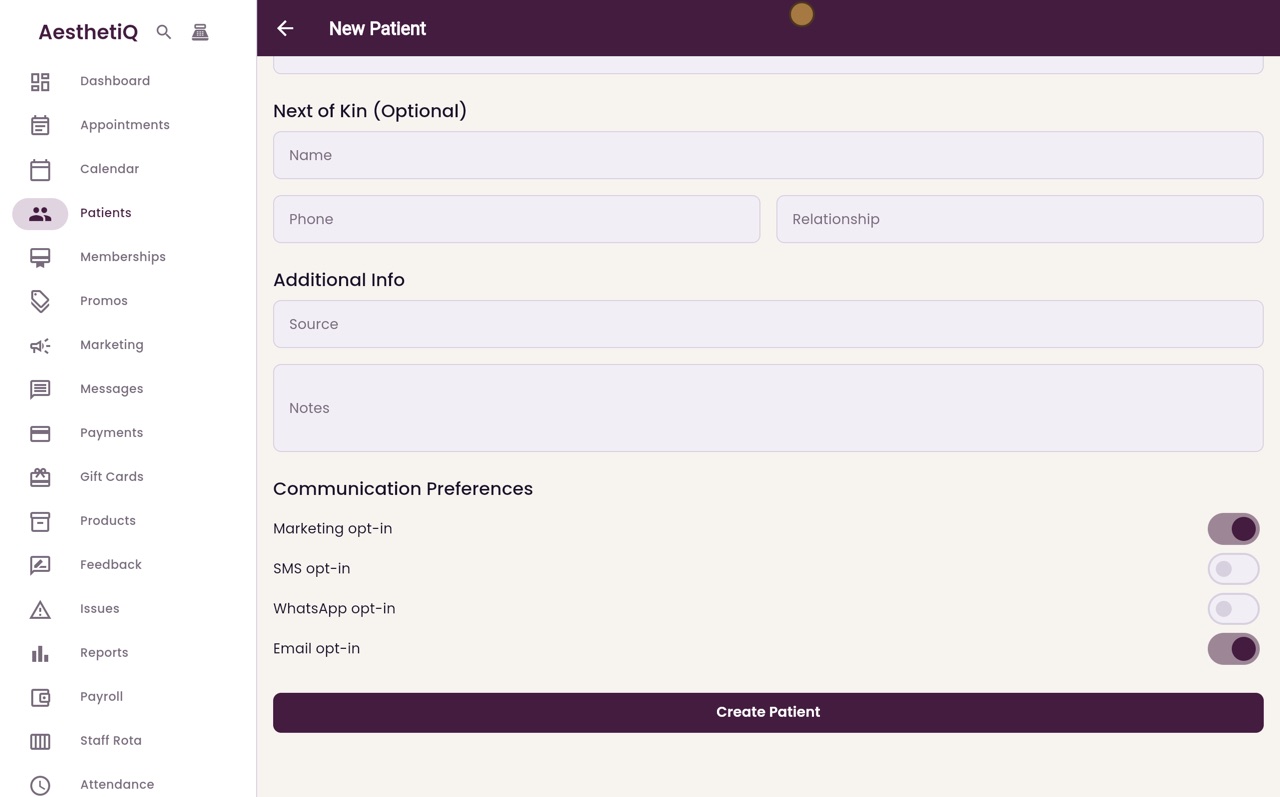
At the bottom are the patient's choices about offers and news. Turn these on only if the patient agrees. Ruth is happy to hear about offers by email, so turn on Email opt-in. Marketing opt-in comes on with it.
- 07Ryan
Create Patient
Click Create Patient. Ruth's new record opens, ready to book her first appointment.
- 08Libby
Done
That is adding a patient. To change any of these details later, open the patient and choose Edit from the menu at the top right.