Changing a patient's details
Update a patient's mobile number, email or address from the Edit screen, so reminders and letters reach them.
Where
Patients, the patient's profile, then the menu at the top right and Edit.
Who
Reception and the clinic manager.
After
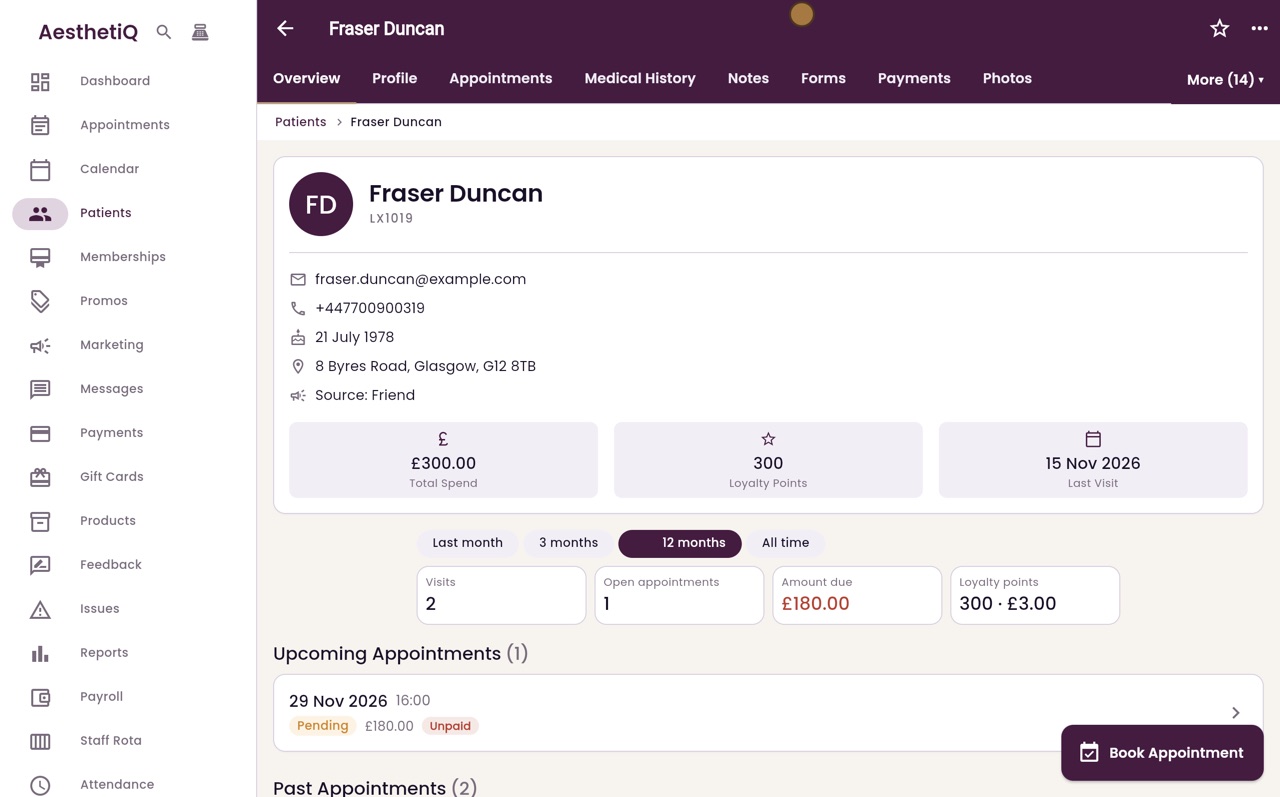
The profile shows the new details straight away.
Step by step
- 01Libby
When details change
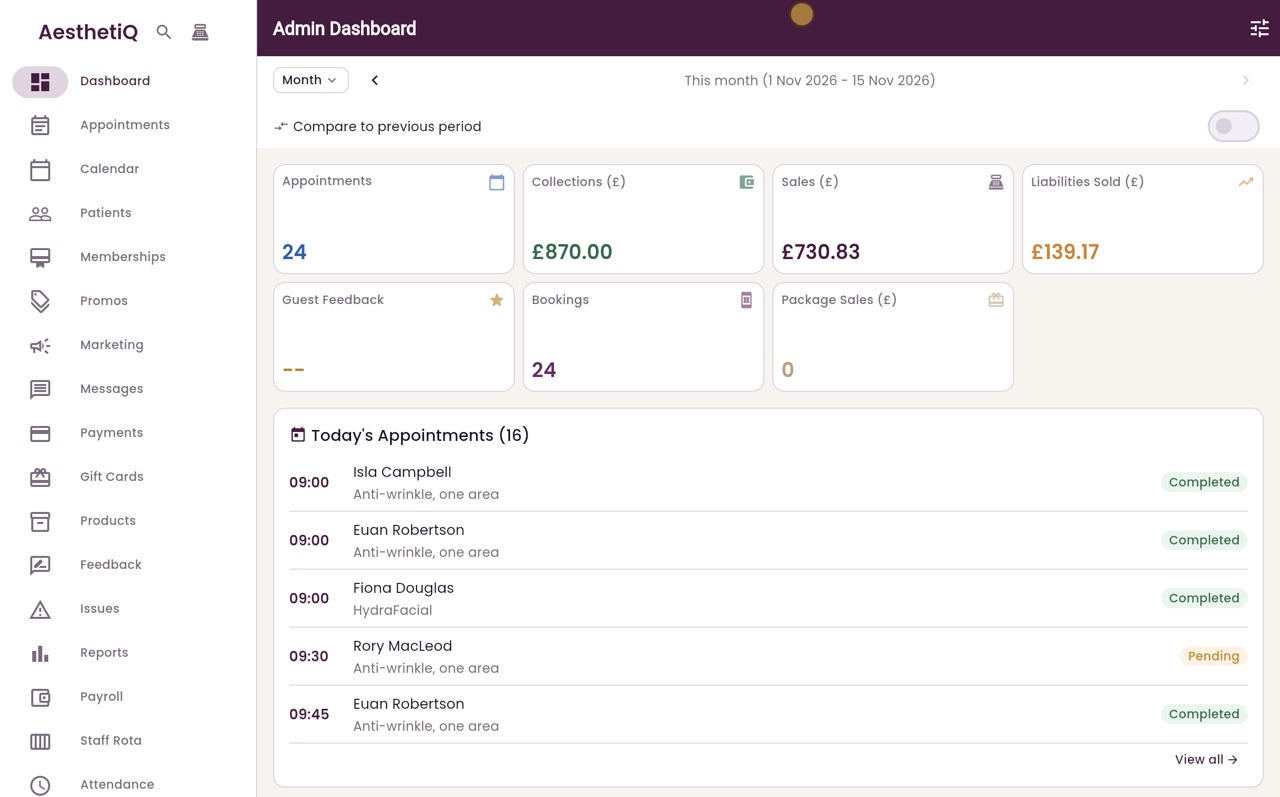
Hi, I am Libby. When a patient moves house or gets a new mobile number, update their record, so that reminders and letters reach them.
- 02Ryan
Find the patient
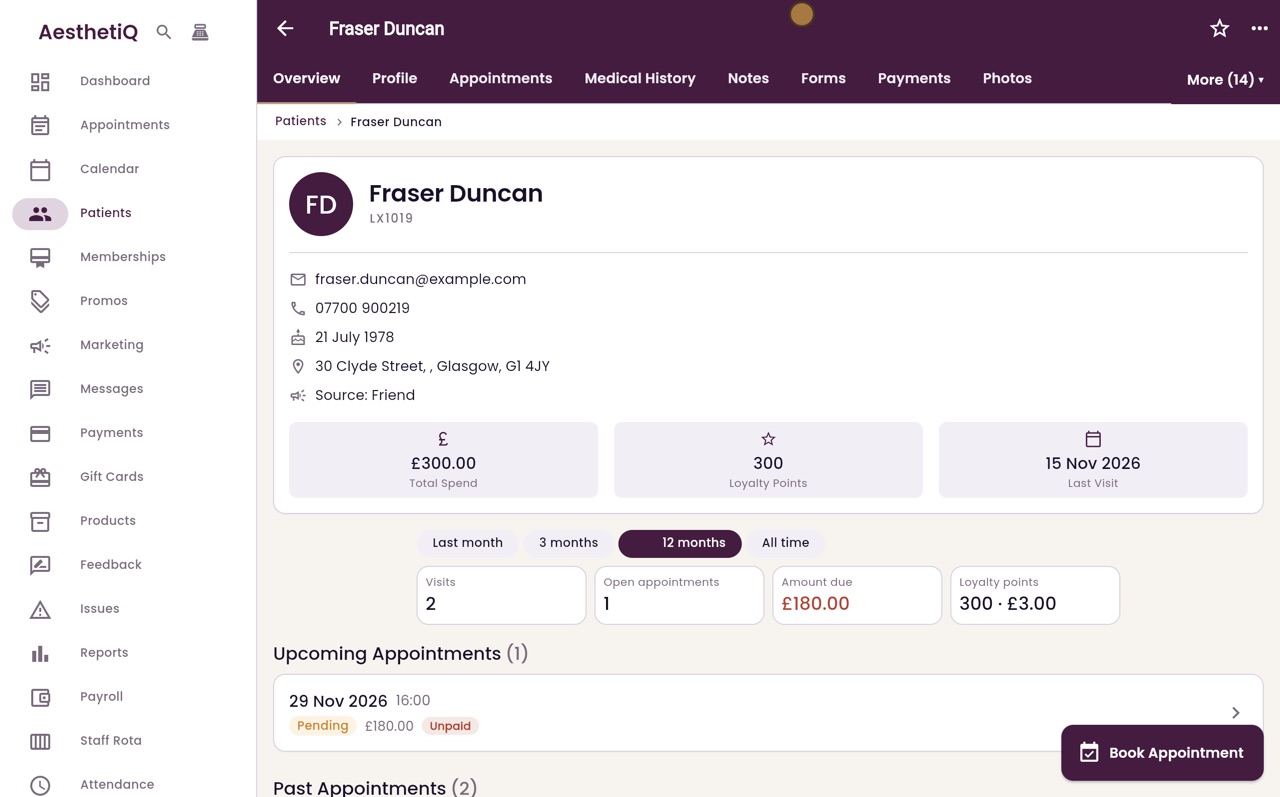
Thanks Libby. Click Patients, type the patient's name in the search box, and click their name. Here it is Fraser Duncan.
- 03Ryan
Open Edit
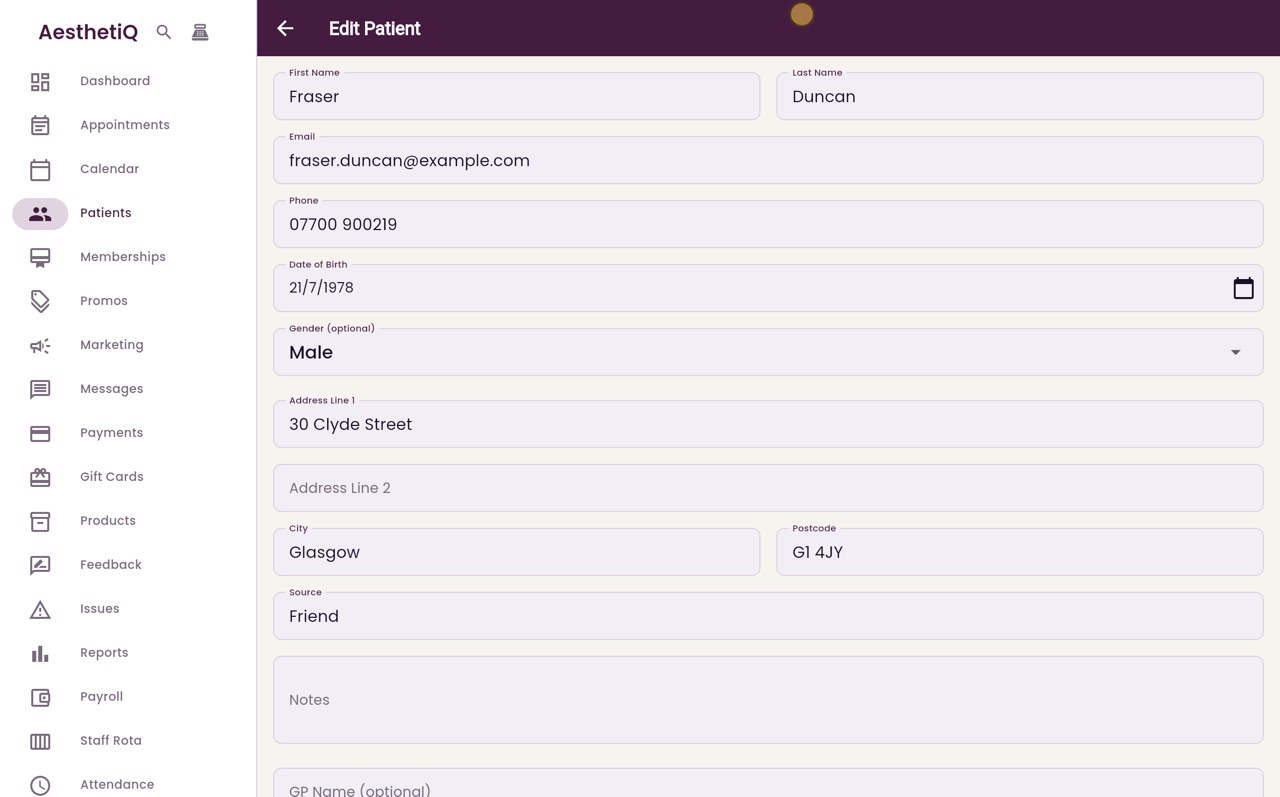
Fraser has a new mobile number and a new address. Click the menu at the top right, then click Edit.
- 04Ryan
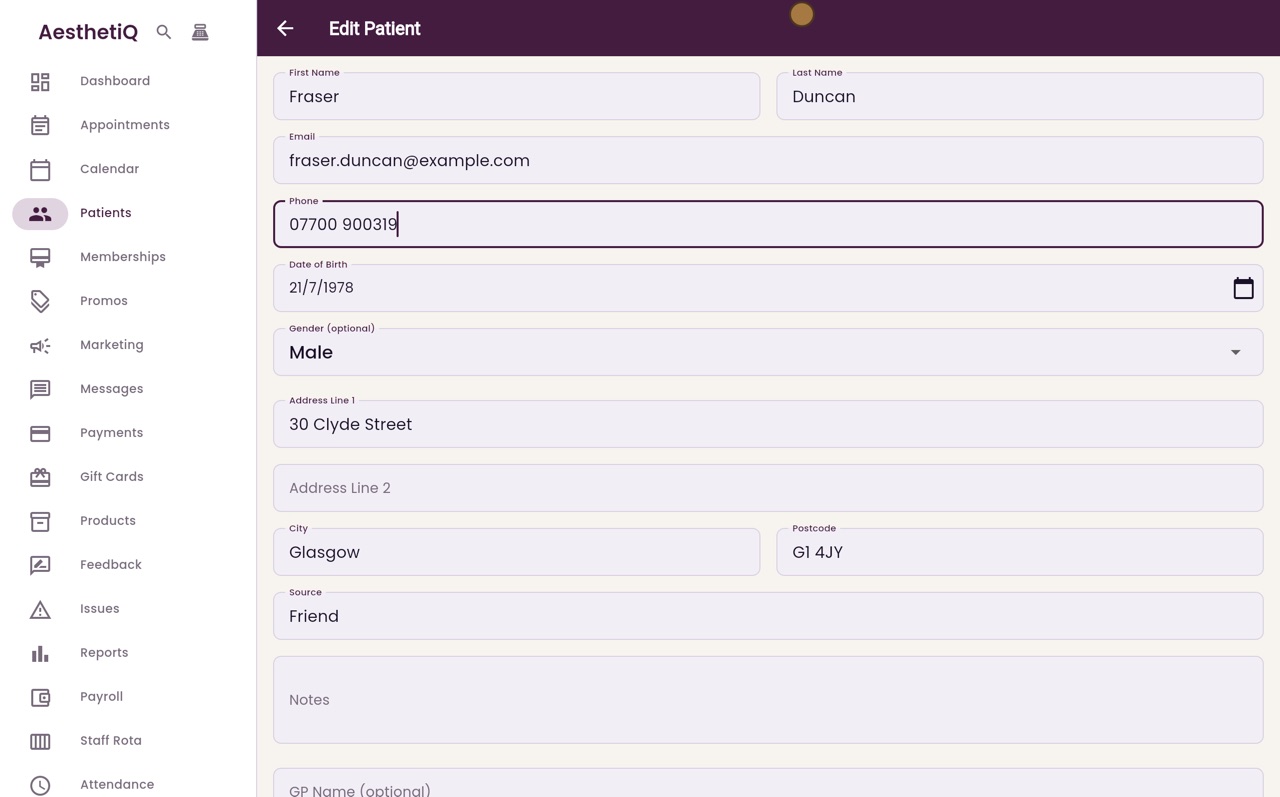
New mobile number
Click Phone, select the old number and type the new one.
- 05Ryan
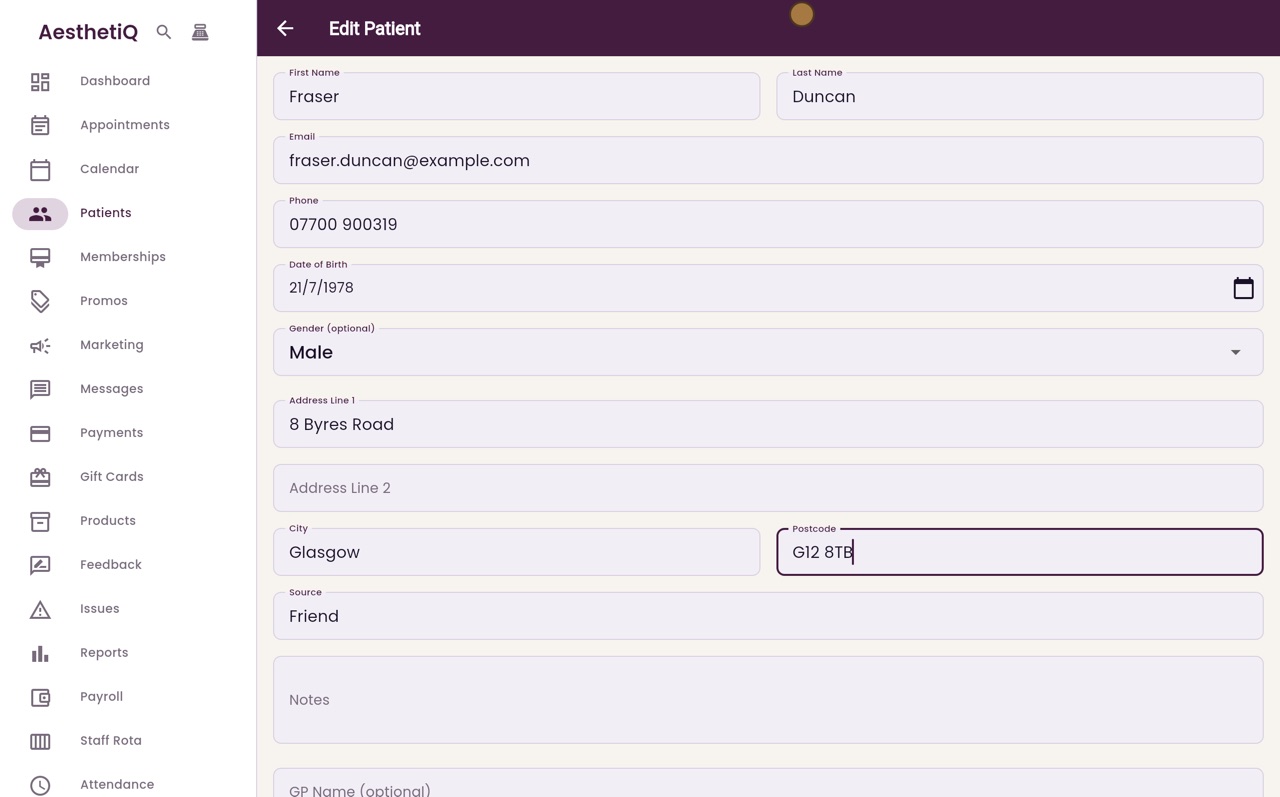
New address
Then change the first line of the address and the postcode in the same way.
- 06Ryan
Save Changes
Scroll to the bottom and click Save Changes.
- 07Ryan
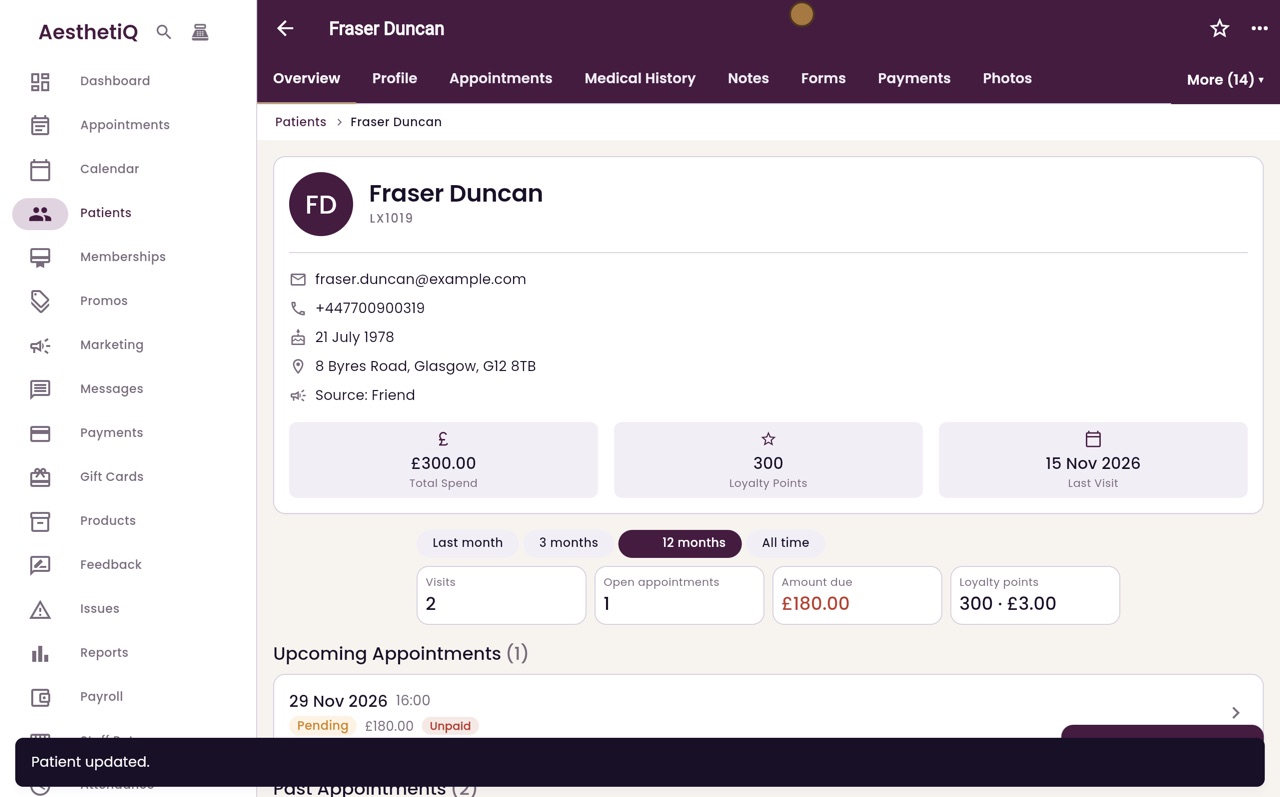
Updated
AesthetiQ says Patient updated, and Fraser's profile now shows his new number and address.
- 08Libby
Done
That is changing a patient's details. Reminders and other messages go to the new number from now on.