The payments list and export
See every payment taken, narrow the list by how it was paid and by dates, and export it as a CSV file.
Where
Payments, in the menu on the left.
Who
The clinic manager.
After
A CSV file of the payments shown, ready for Excel.
Step by step
- 01Libby
The payments list
Hi, I am Libby. Every payment taken in AesthetiQ is listed on the Payments screen. You can narrow the list by how it was paid and by dates, and export it as a spreadsheet.
- 02Ryan
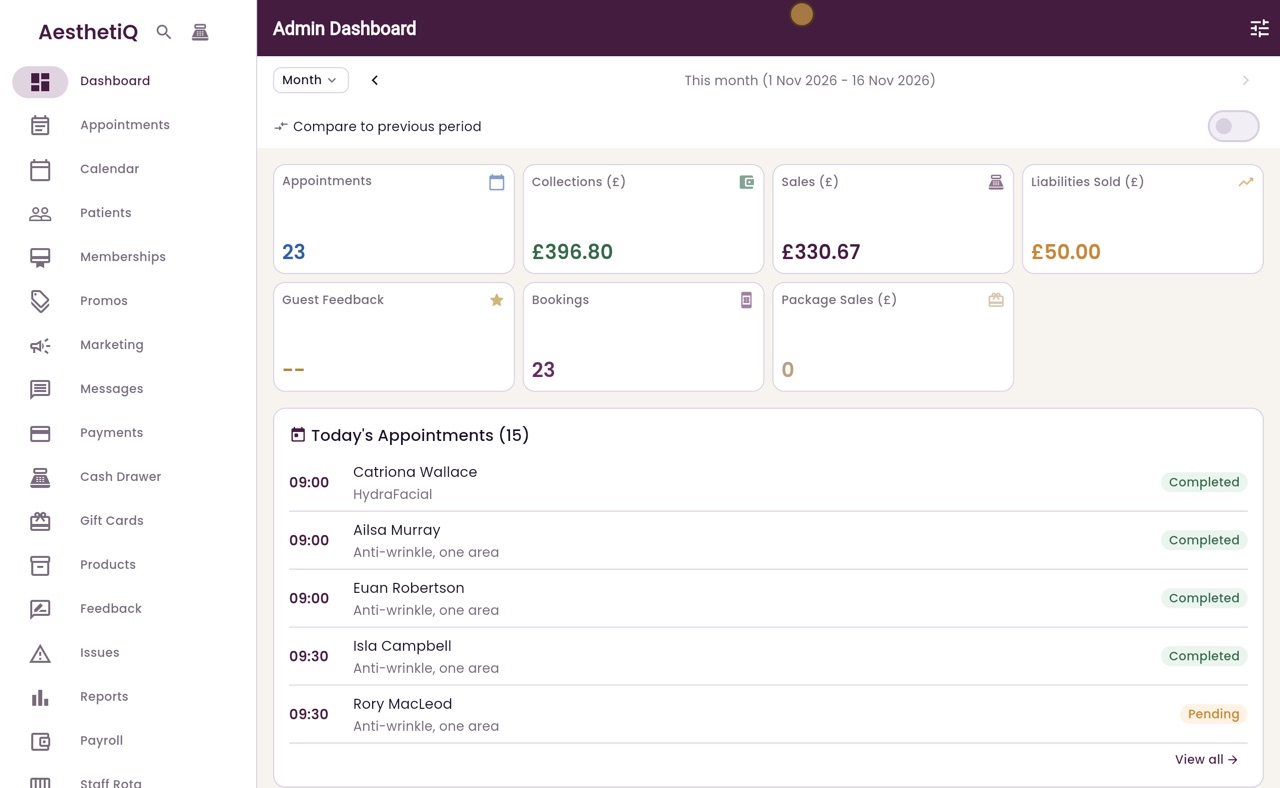
Open Payments
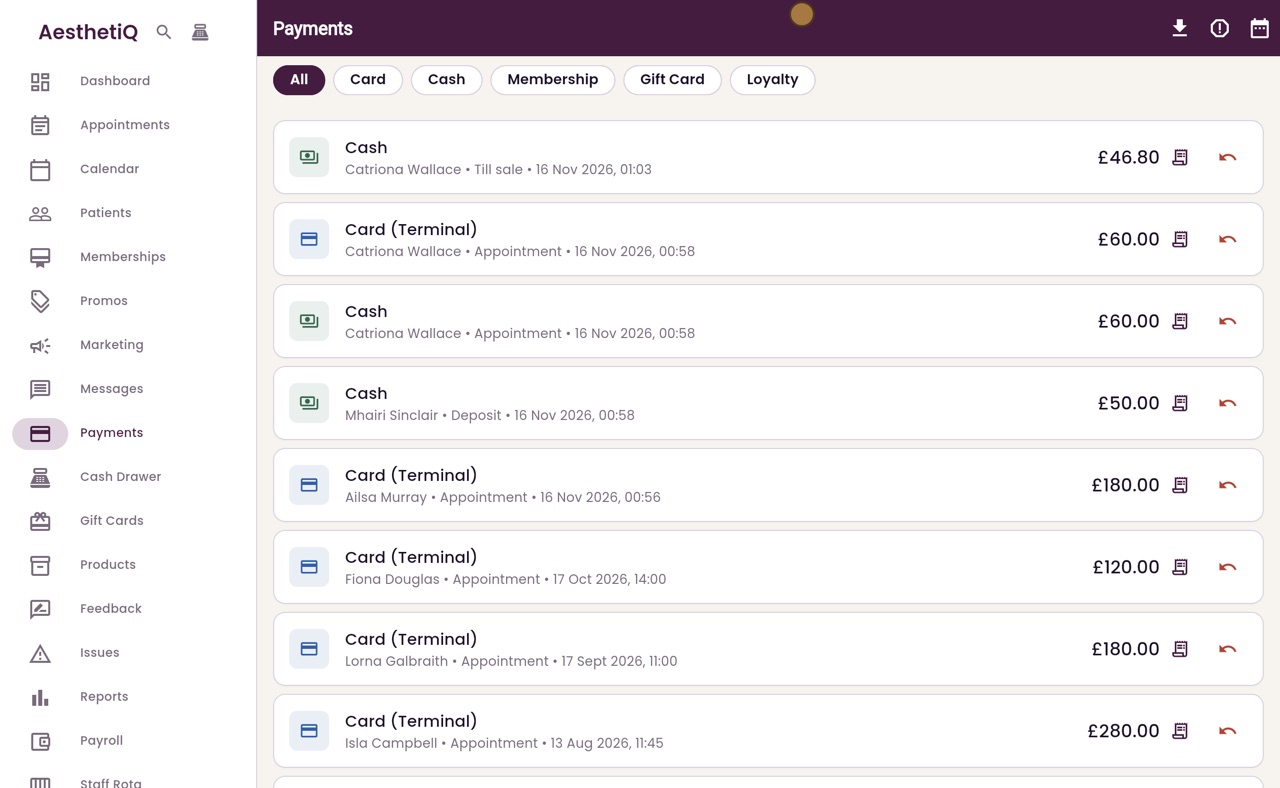
Thanks Libby. Click Payments in the menu. Each line shows how it was paid, the patient, the date and the amount, with buttons for the invoice and for a refund.
- 03Ryan
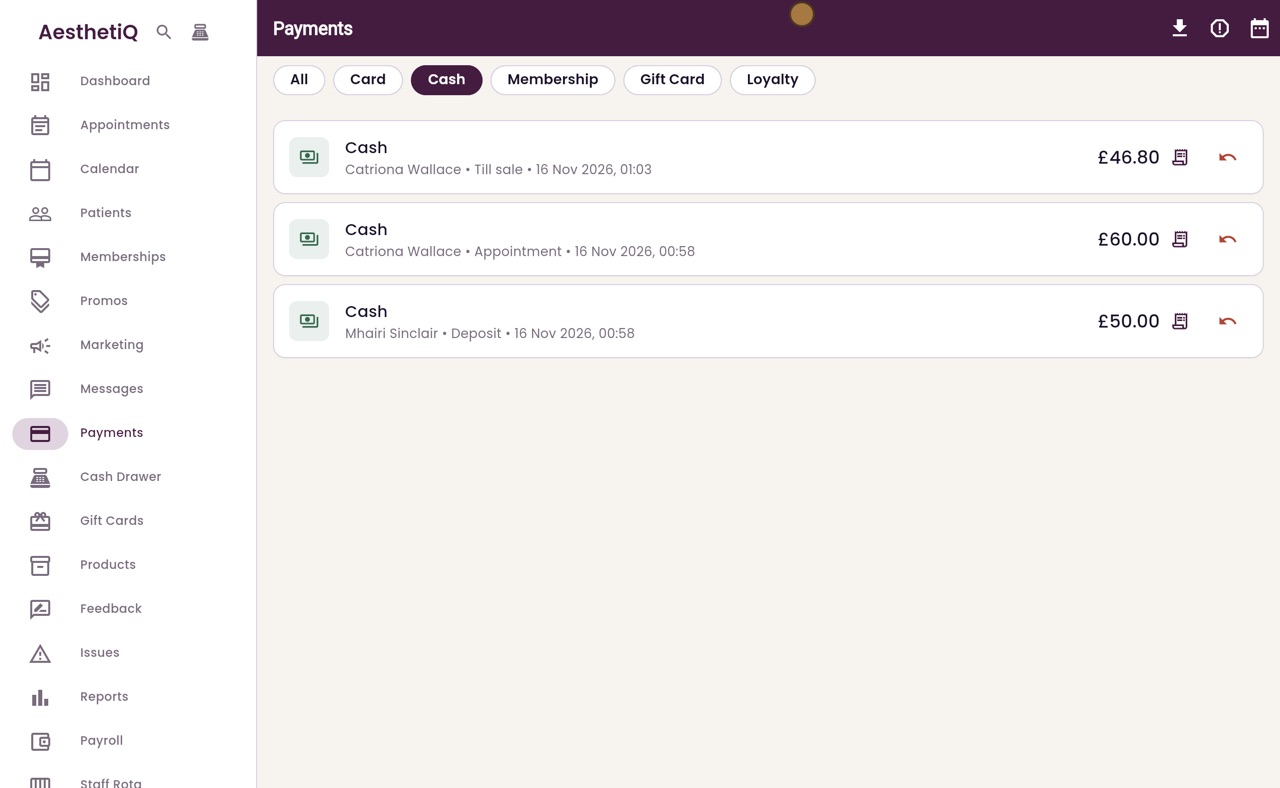
Only cash payments
The buttons along the top narrow the list. Click Cash to see only the cash payments.
- 04Ryan
Choose dates
Click All to see every payment again. To choose dates, click the calendar button at the top right.
- 05Ryan
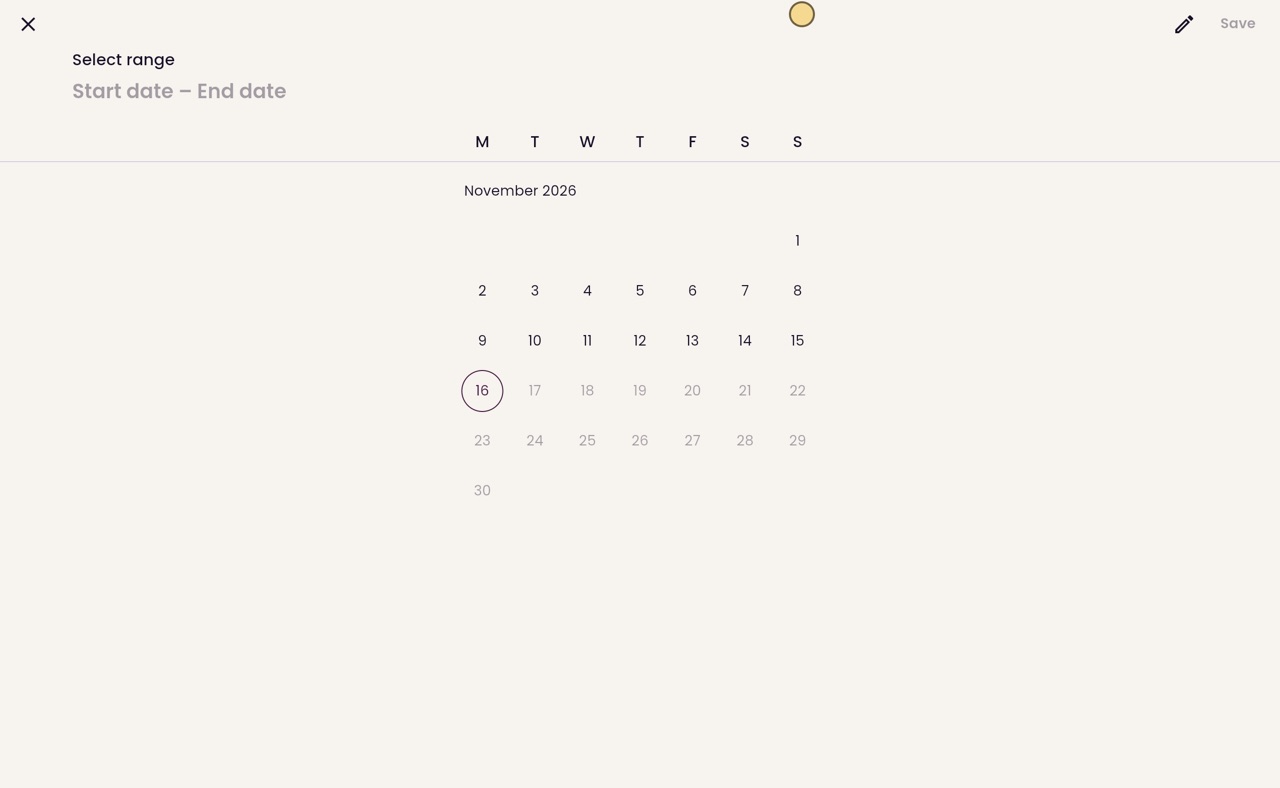
Pick the first and last day
Click the first day, then the last day, and click Save. Here we choose the first of November to today.
- 06Ryan
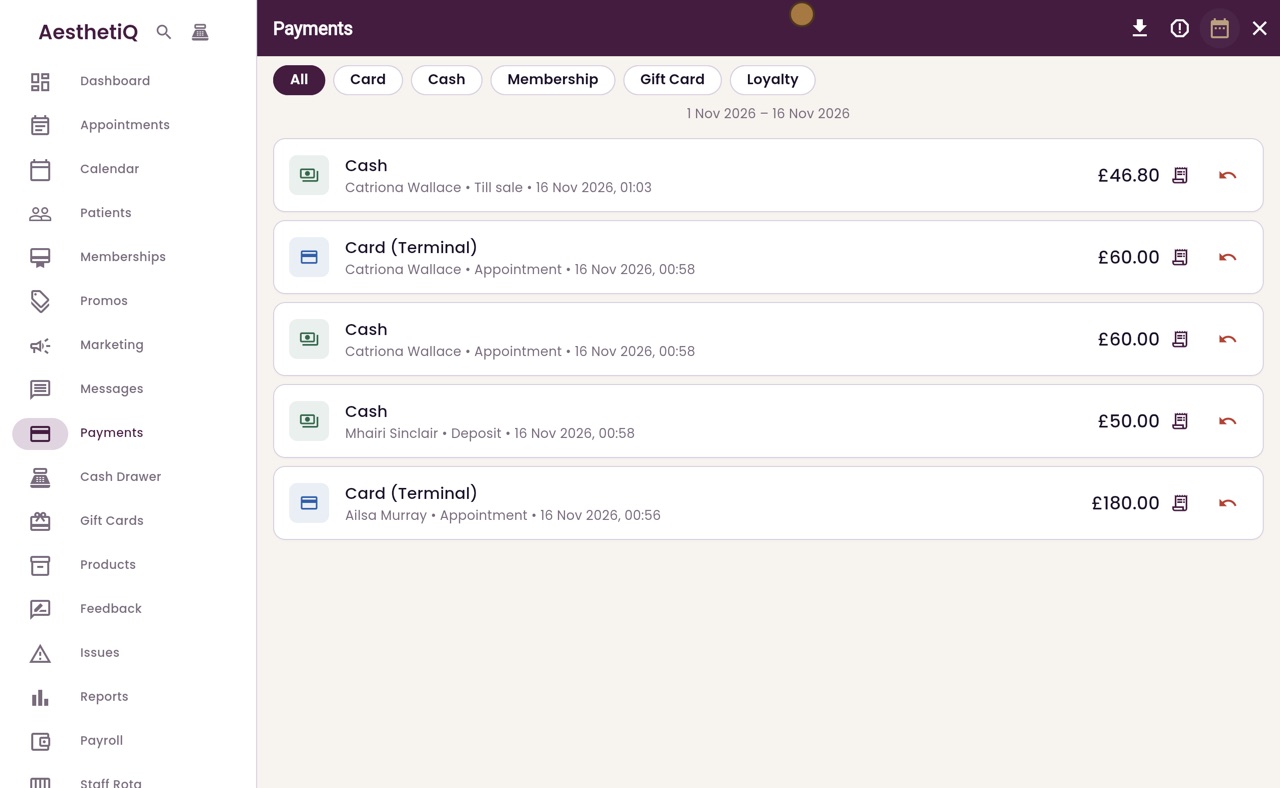
The chosen dates
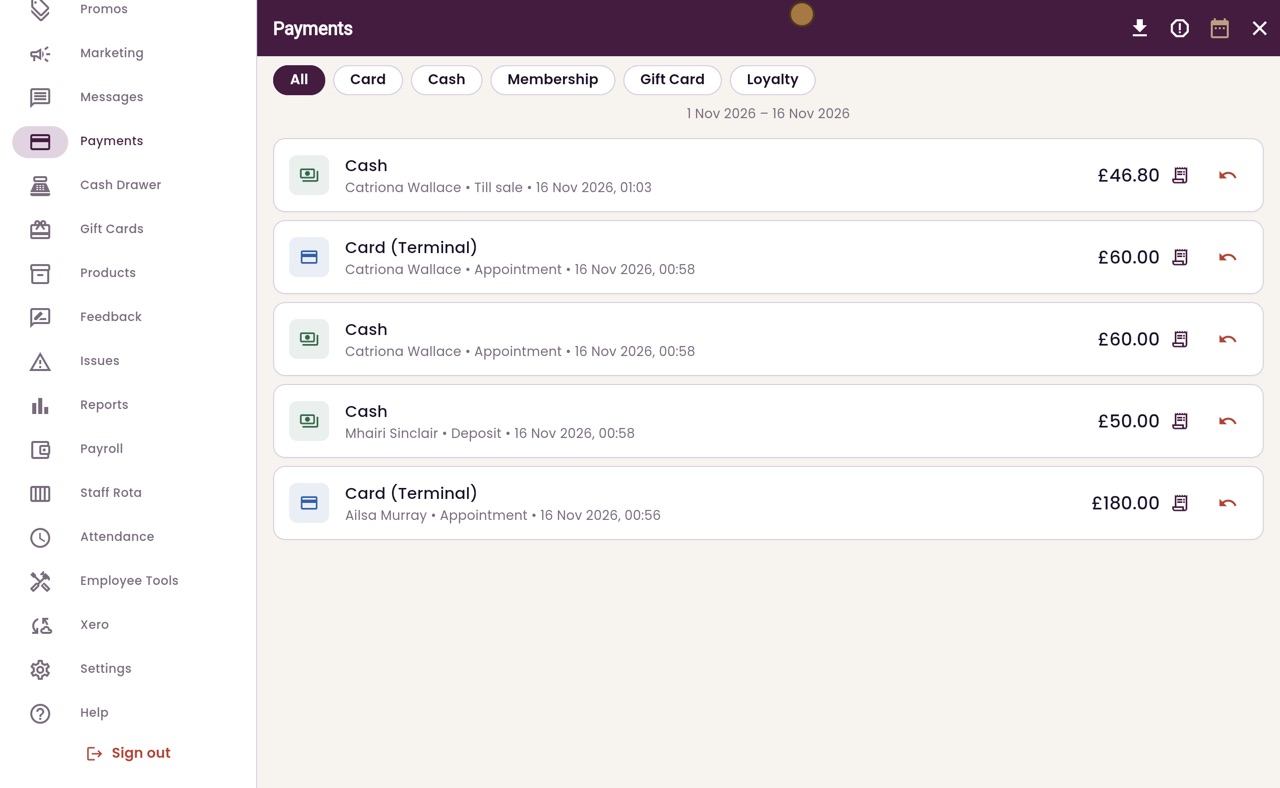
The list now shows only the payments between those dates, and the dates are written under the buttons.
- 07Ryan
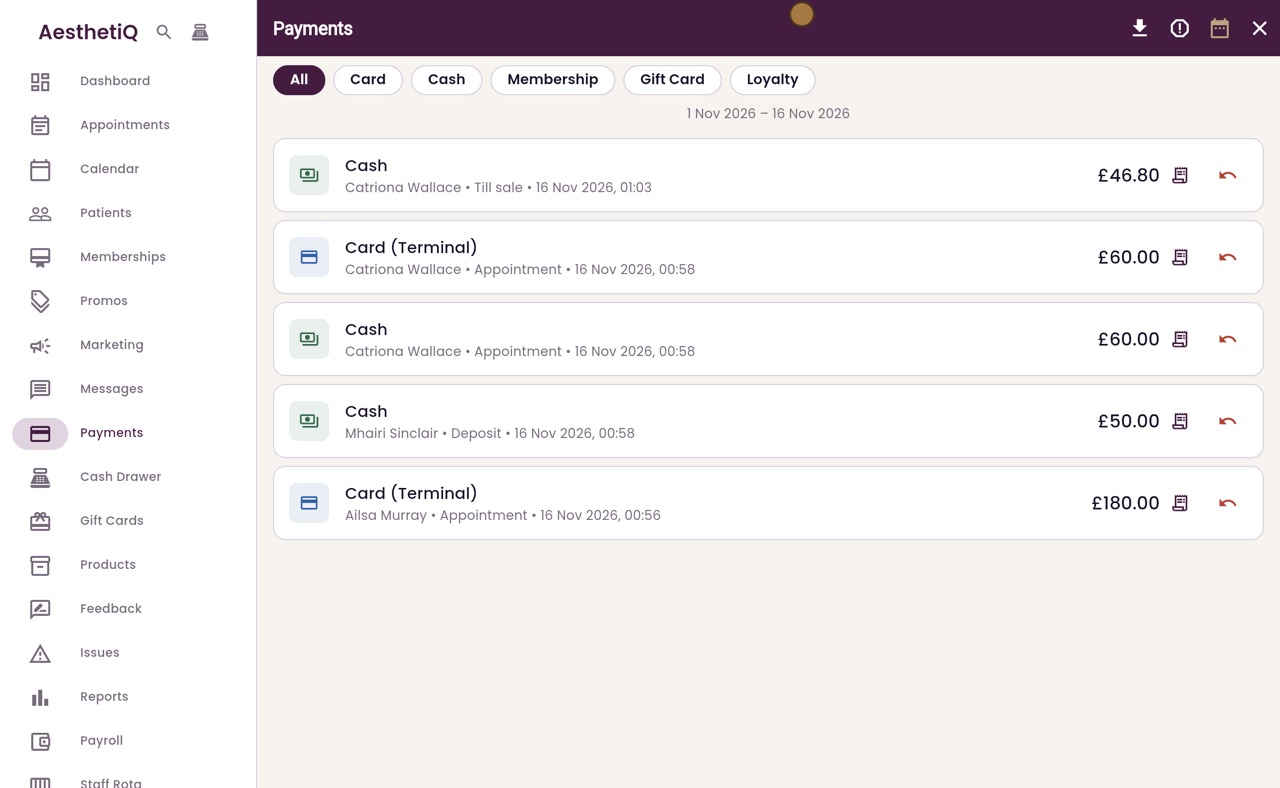
Export as CSV
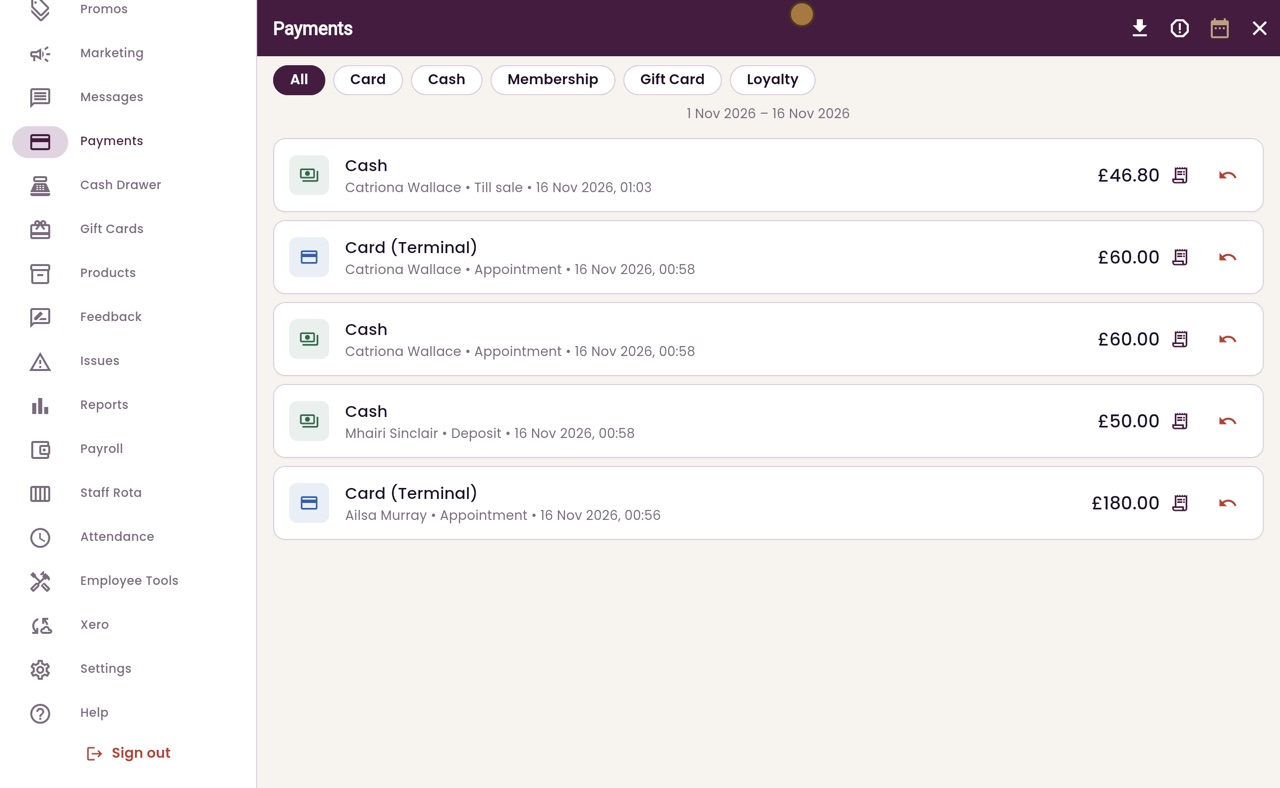
To take this list away, click the download button at the top. AesthetiQ saves it as a CSV file, which opens in Excel, with the date, the type, how it was paid, the amount, the VAT and any refund.
- 08Libby
Done
That is the payments list. The export always follows the buttons and dates you have chosen, and the cross at the top right shows every date again.