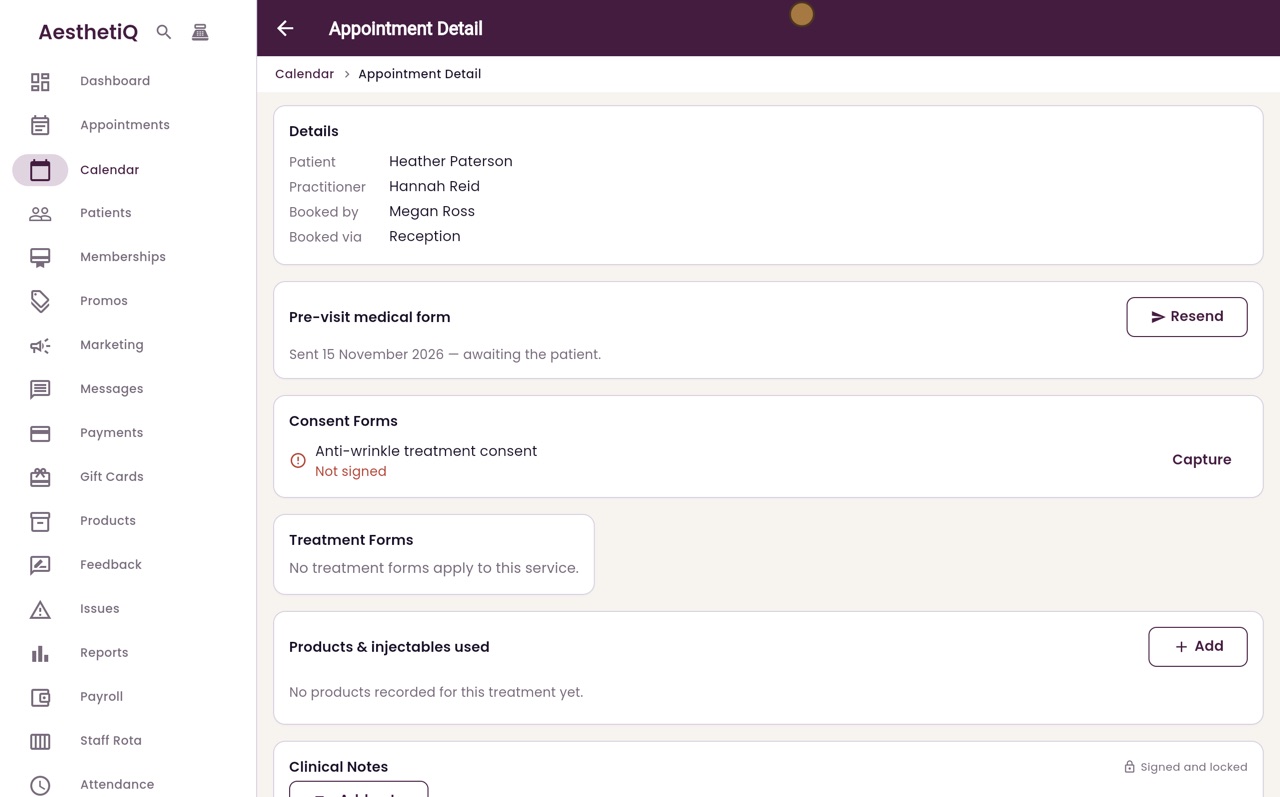
Sending the pre-visit medical form
Send the patient a secure link to fill in their medical form before the visit. Their answers come back to the appointment.
Where
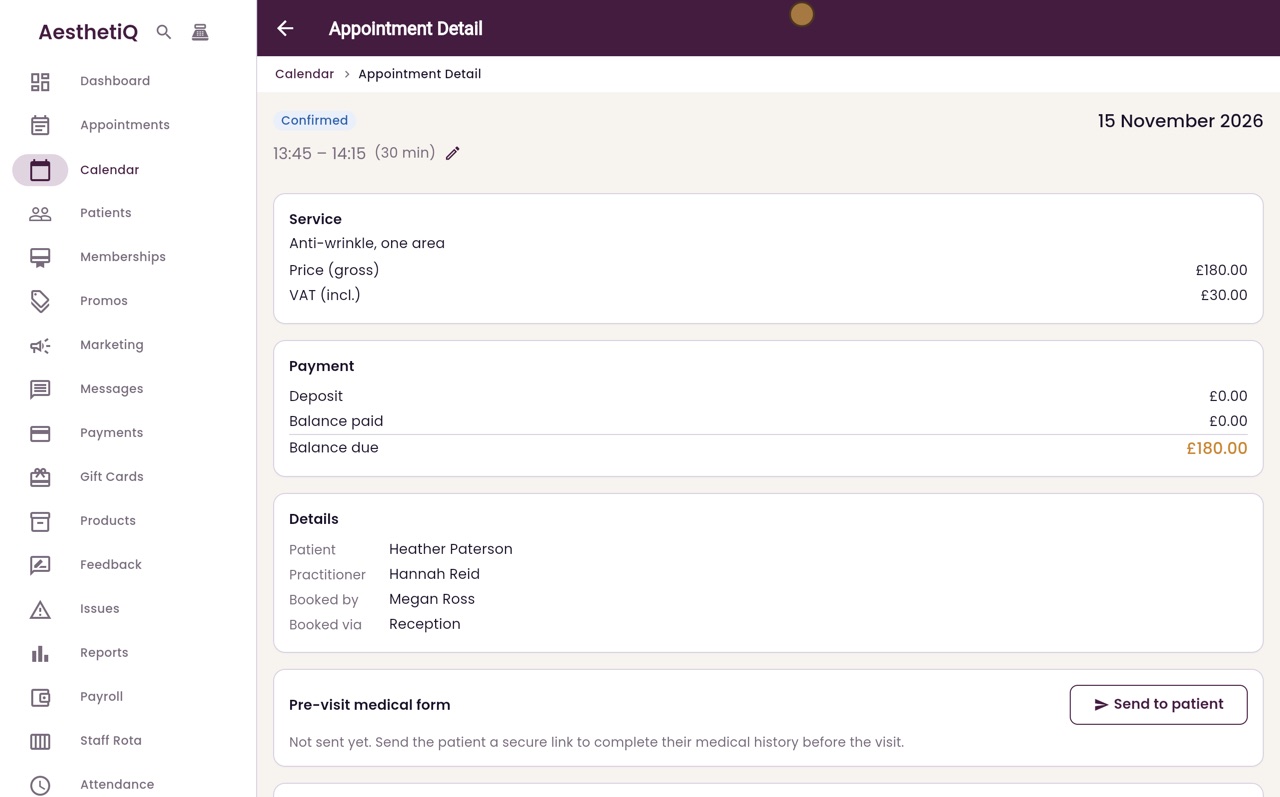
The appointment, Pre-visit medical form, Send to patient.
Who
Reception and the clinic manager.
After
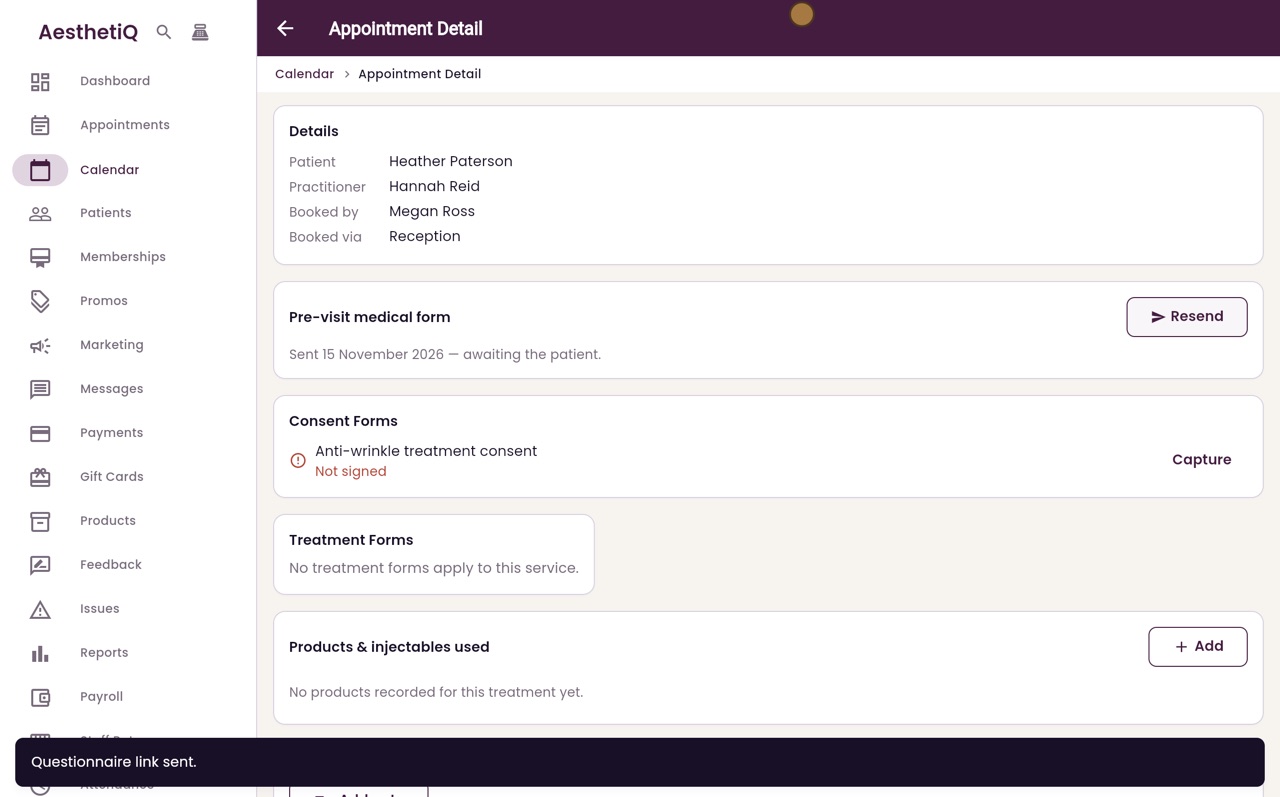
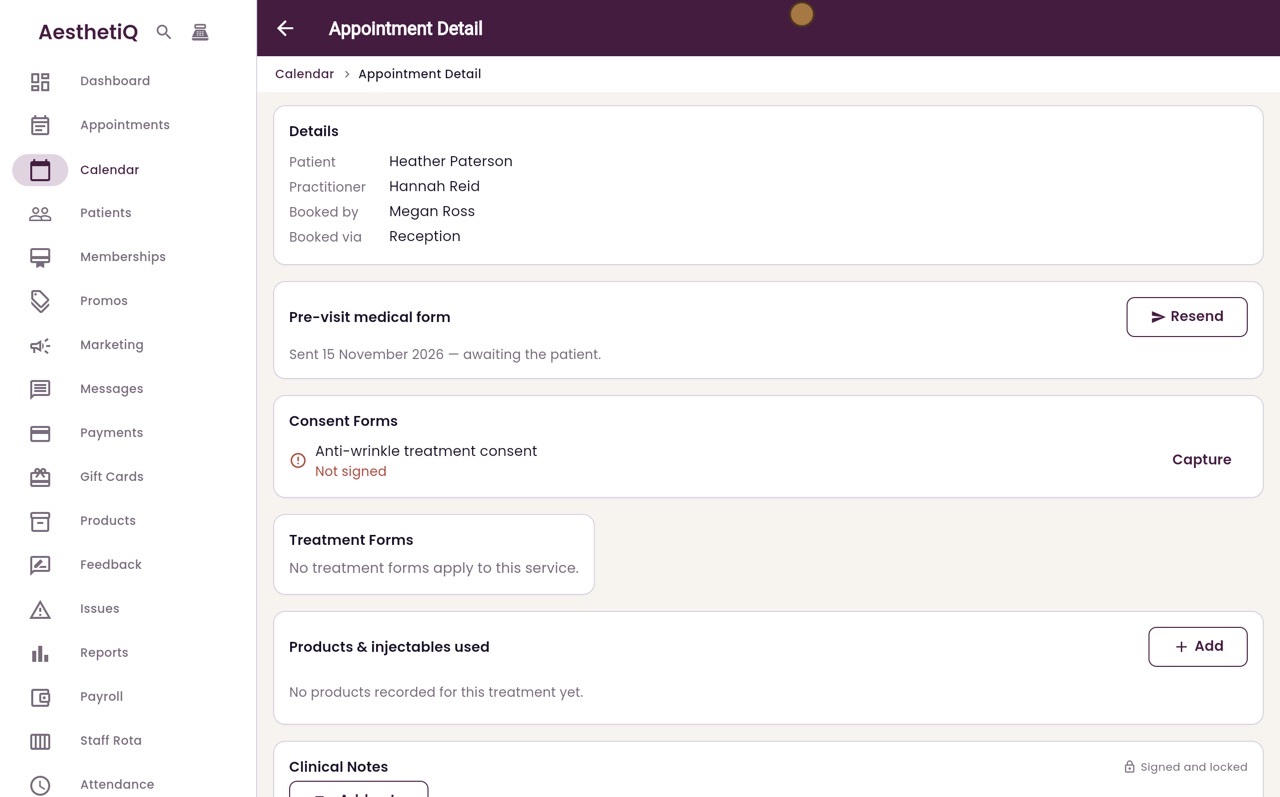
Shows Sent, awaiting the patient, until they complete it.
Step by step
- 01Libby
A form before the visit
Hi, I am Libby. Before a treatment, the patient can fill in their medical form online. You send them a secure link from the appointment.
- 02Ryan
Open the appointment
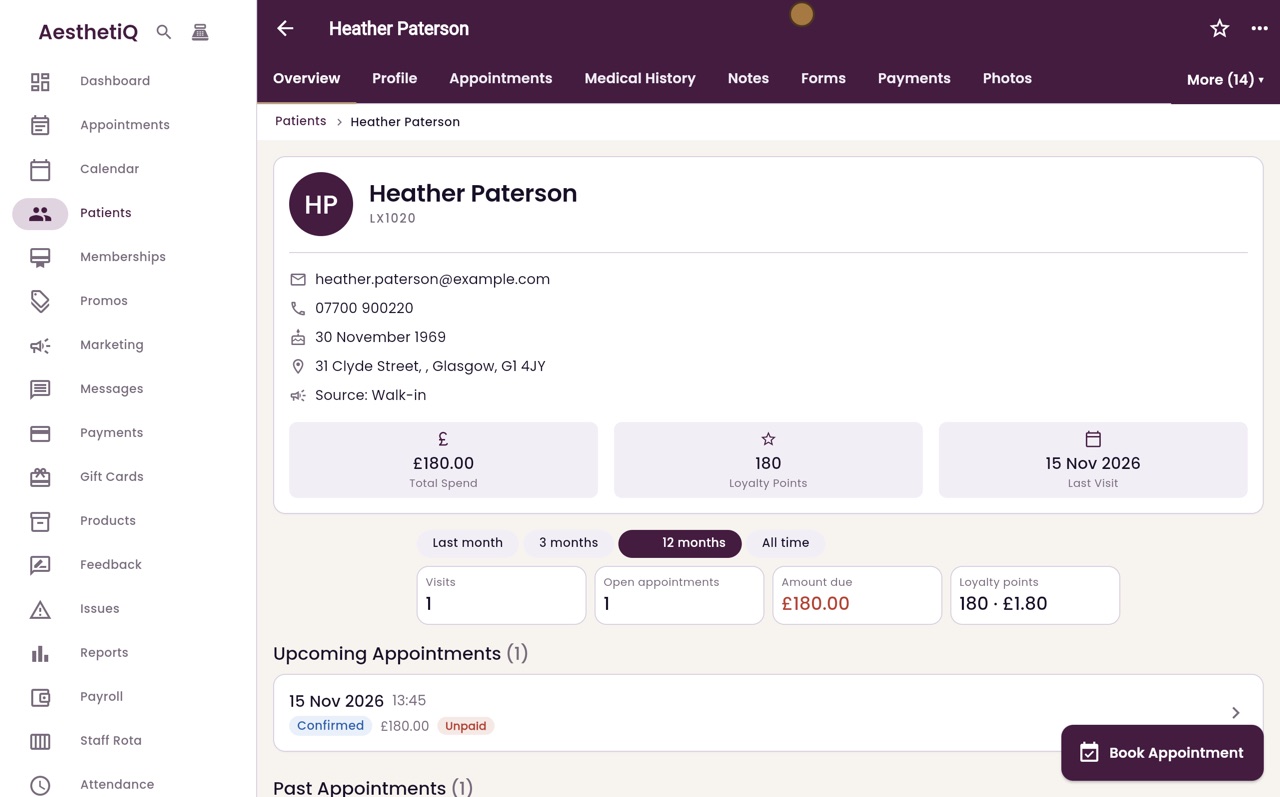
Thanks Libby. Open the appointment. Here, from Heather Paterson's profile, click Appointments, then her anti-wrinkle treatment at quarter to two today.
- 03Ryan
Send to patient
Scroll to Pre-visit medical form. It says Not sent yet. Click Send to patient.
- 04Ryan
Sent
AesthetiQ says the link was sent. The form now shows Sent, with today's date, awaiting the patient.
- 05Libby
Done
That is sending the pre-visit form. When Heather completes it, her answers appear here on the appointment.