Selling products at the till
Open the till, add the products, and take the payment on the card terminal. The receipt is shown when the sale is complete.
Where
The till icon at the top of the sidebar.
Adding items
Search by name and click a product to add it. The plus and minus buttons change the quantity.
After
The receipt is shown, and stock goes down by the amount sold.
Step by step
- 01Libby
The till
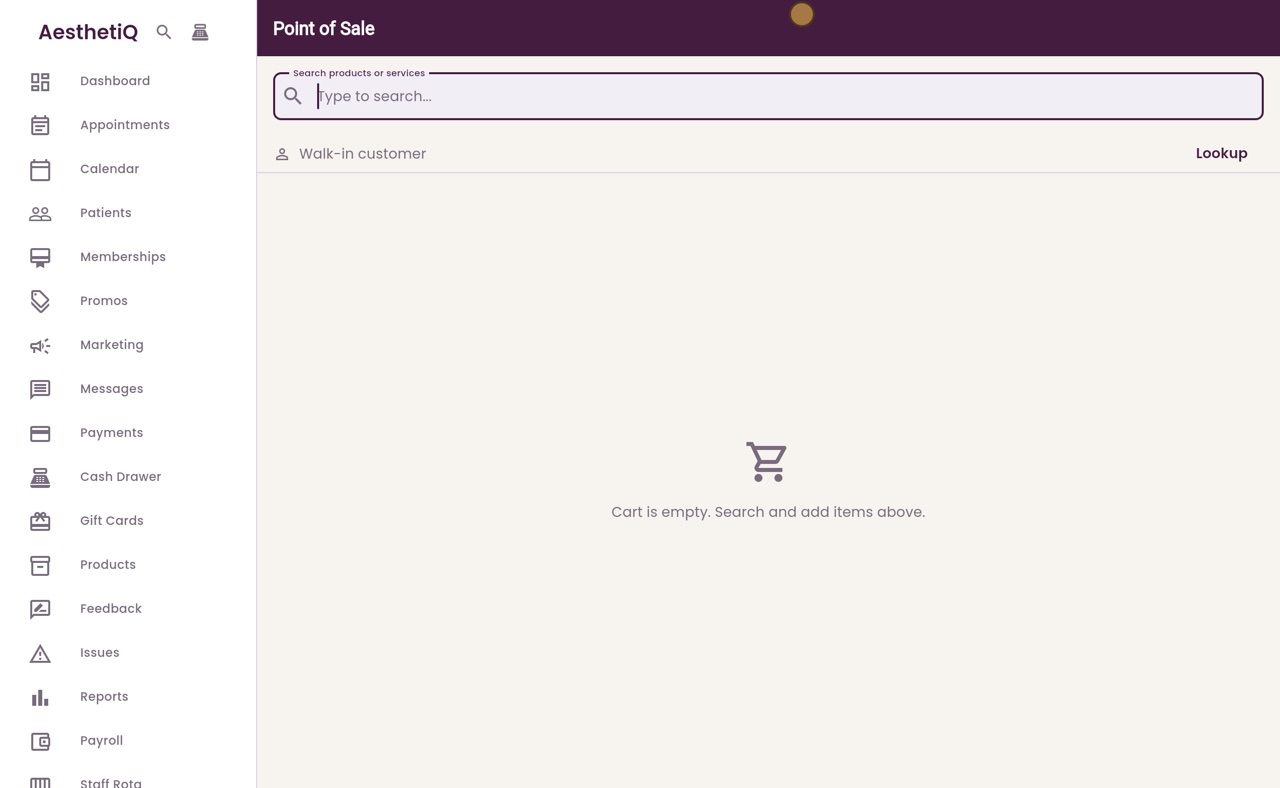
Hi, I am Libby. The till is where you sell skincare products, and treatments that are not booked as an appointment.
- 02Ryan
Open the till
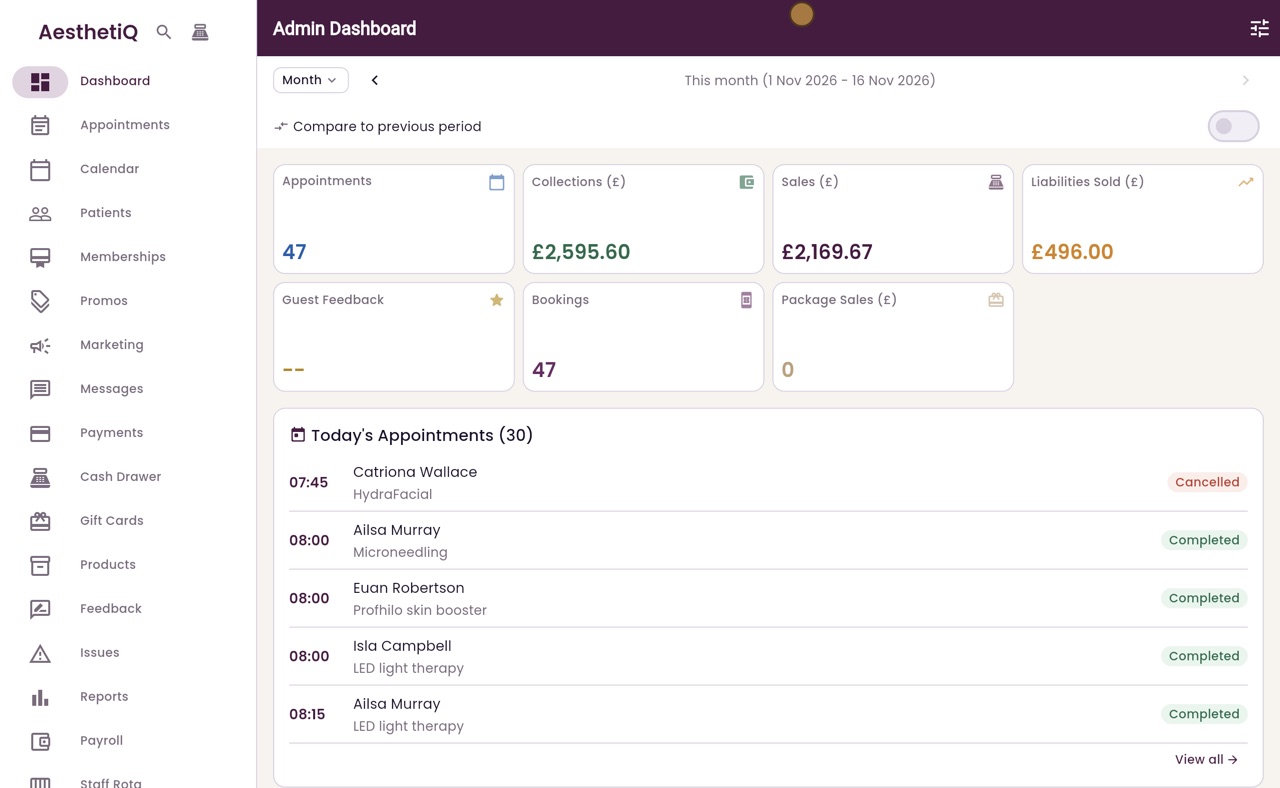
Thanks Libby. A patient at the desk would like to buy a vitamin C serum. Click the till icon at the top of the sidebar.
- 03Ryan
Add a product
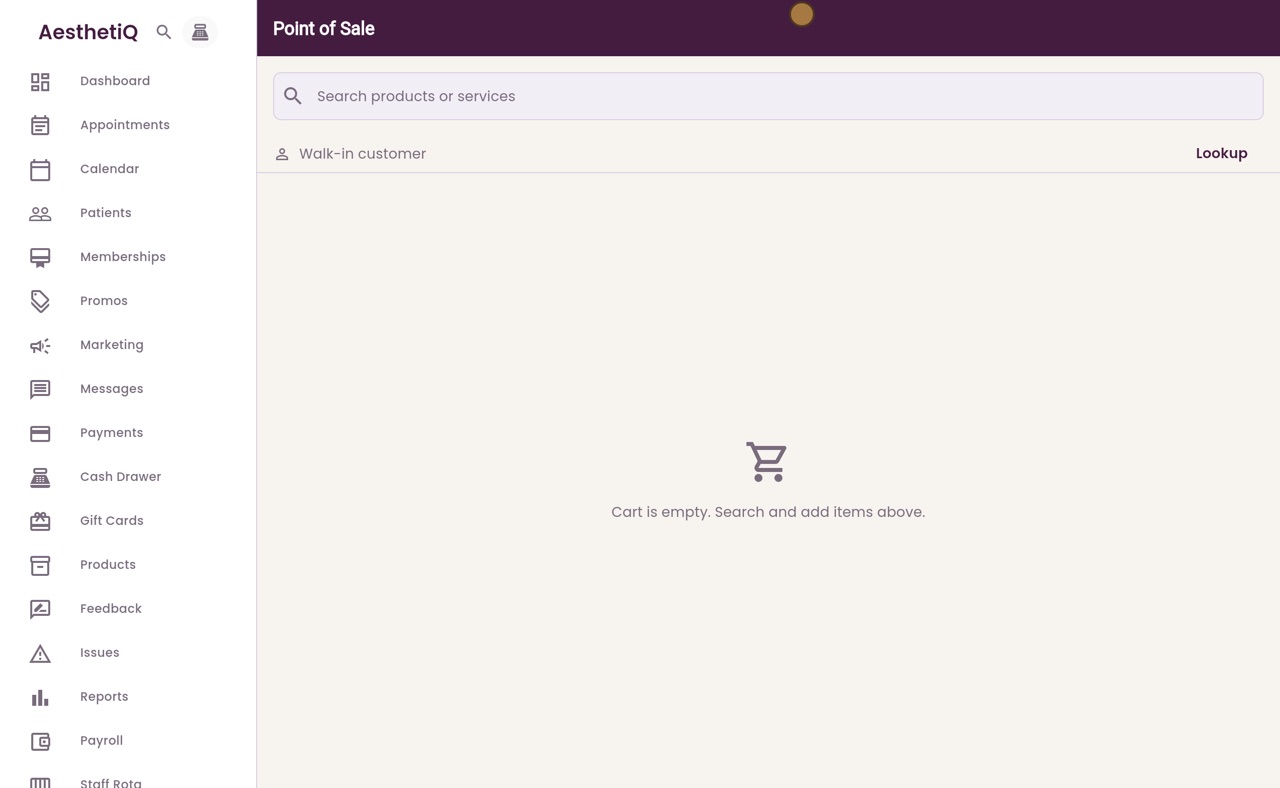
The till opens with an empty cart, for a walk-in customer. Click the search box and type serum, then click Vitamin C serum to add it.
- 04Ryan
Add another
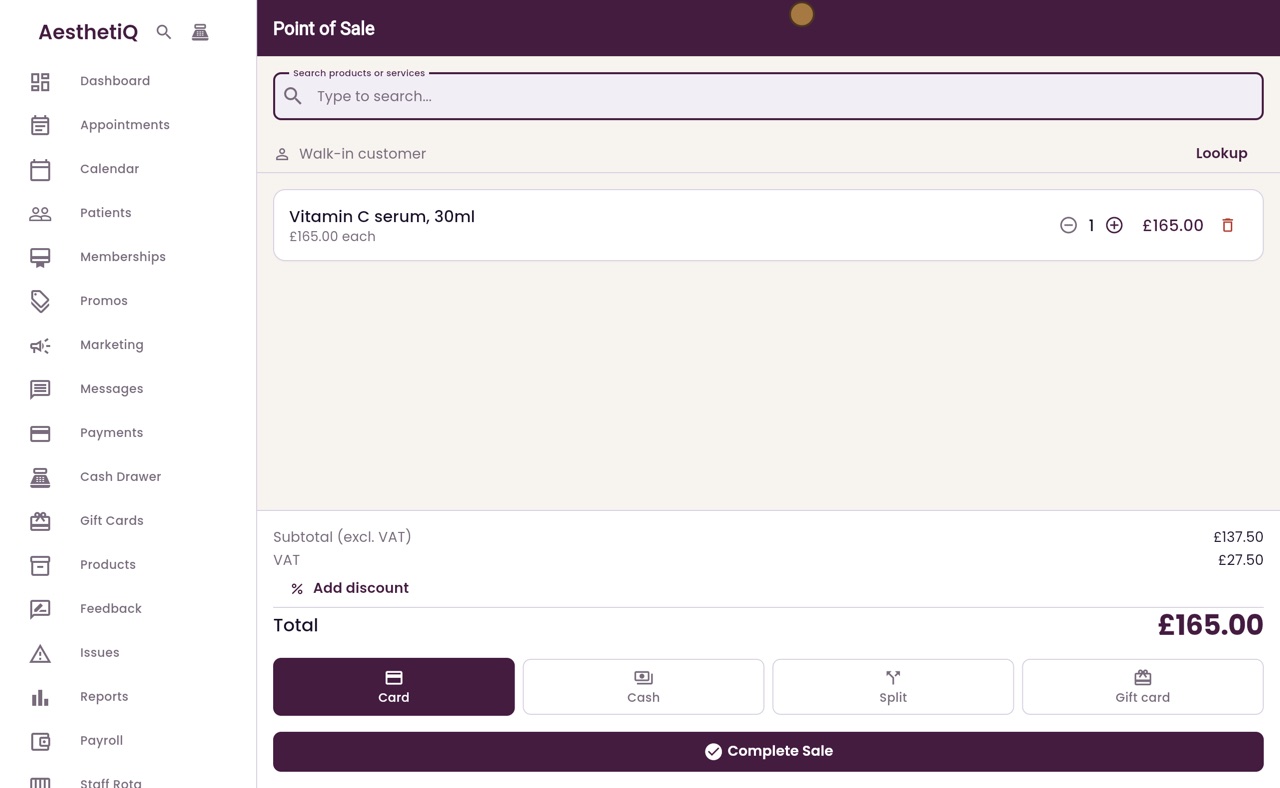
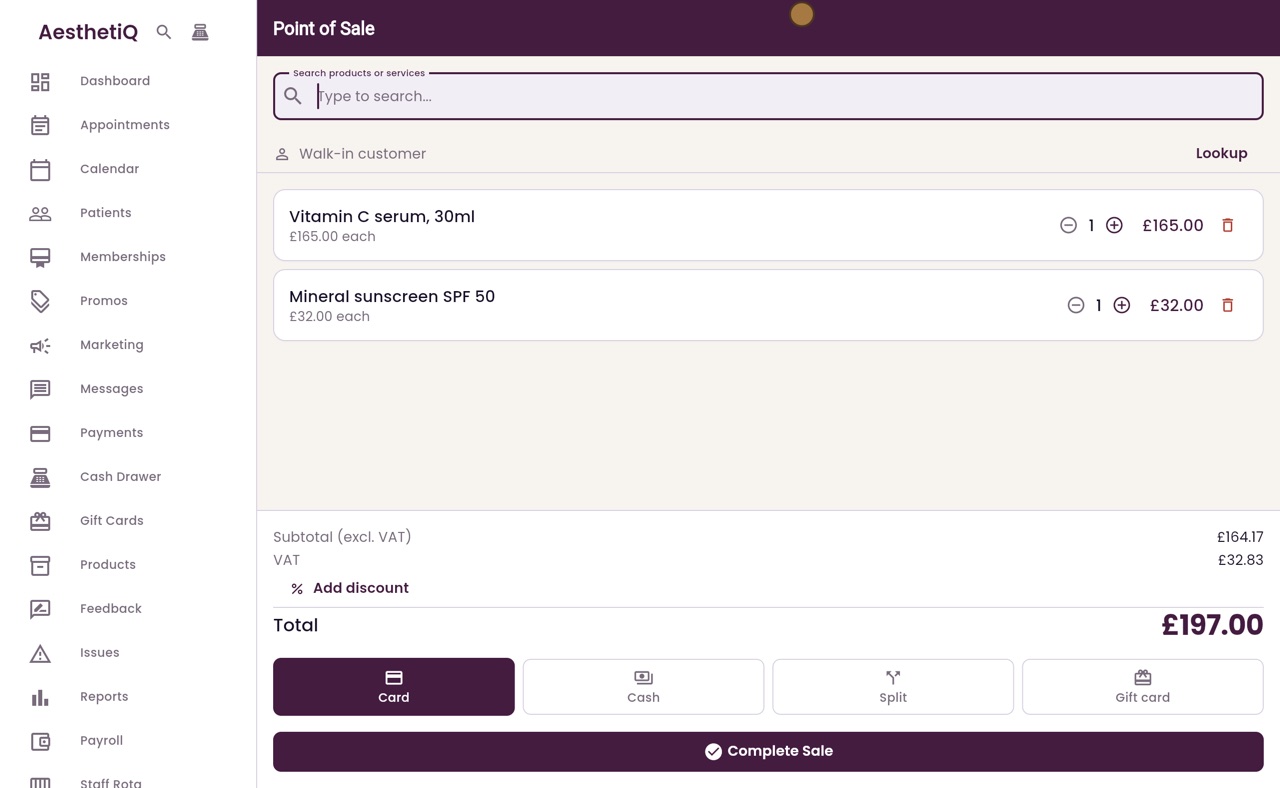
The serum is in the cart, with its price. She would like a sunscreen too, so type sun and click Mineral sunscreen.
- 05Ryan
Complete Sale
The total at the bottom includes VAT. She is paying by card, and Card is already chosen. Click Complete Sale.
- 06Ryan
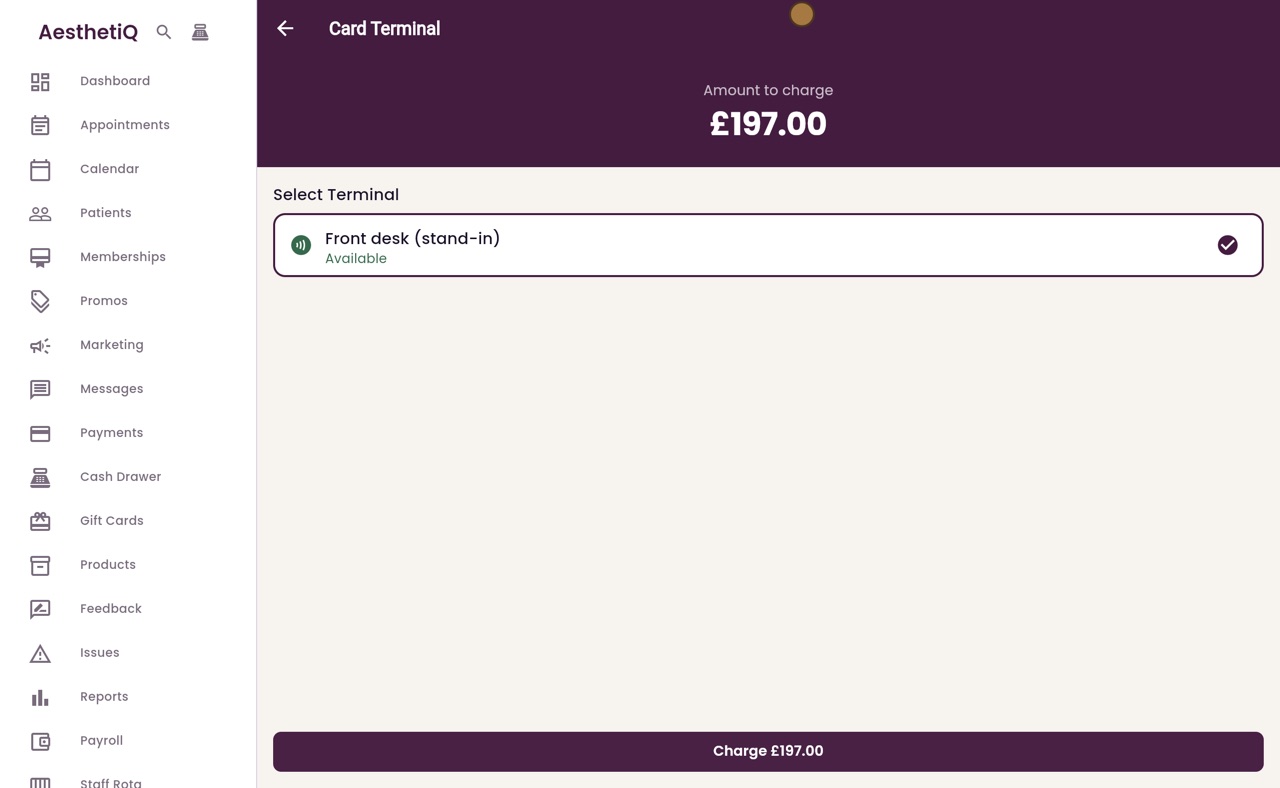
Take the card
The card terminal screen shows the amount, with the front desk terminal selected. Click Charge, and the patient taps their card on the terminal. When the payment is approved, the sale is complete.
- 07Ryan
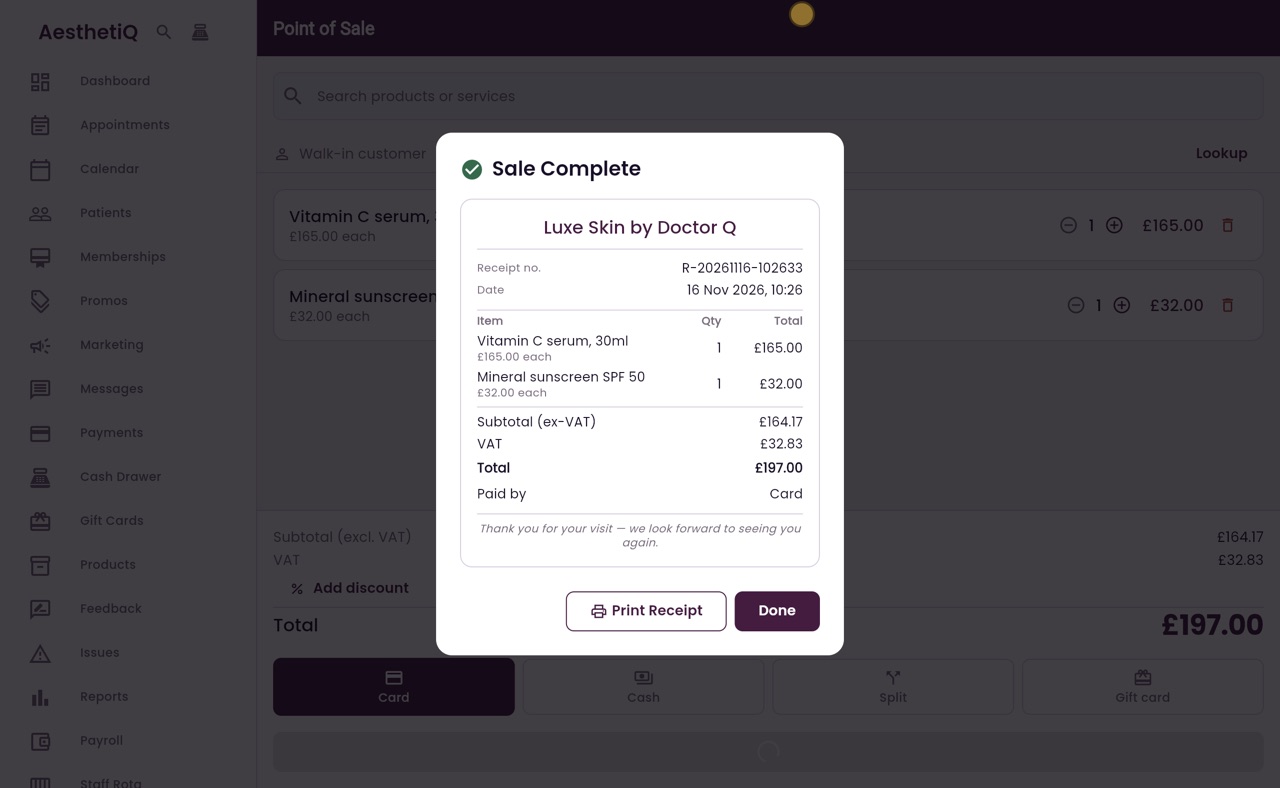
The receipt
AesthetiQ shows the receipt, with the products, the total including VAT, and how it was paid.
- 08Ryan
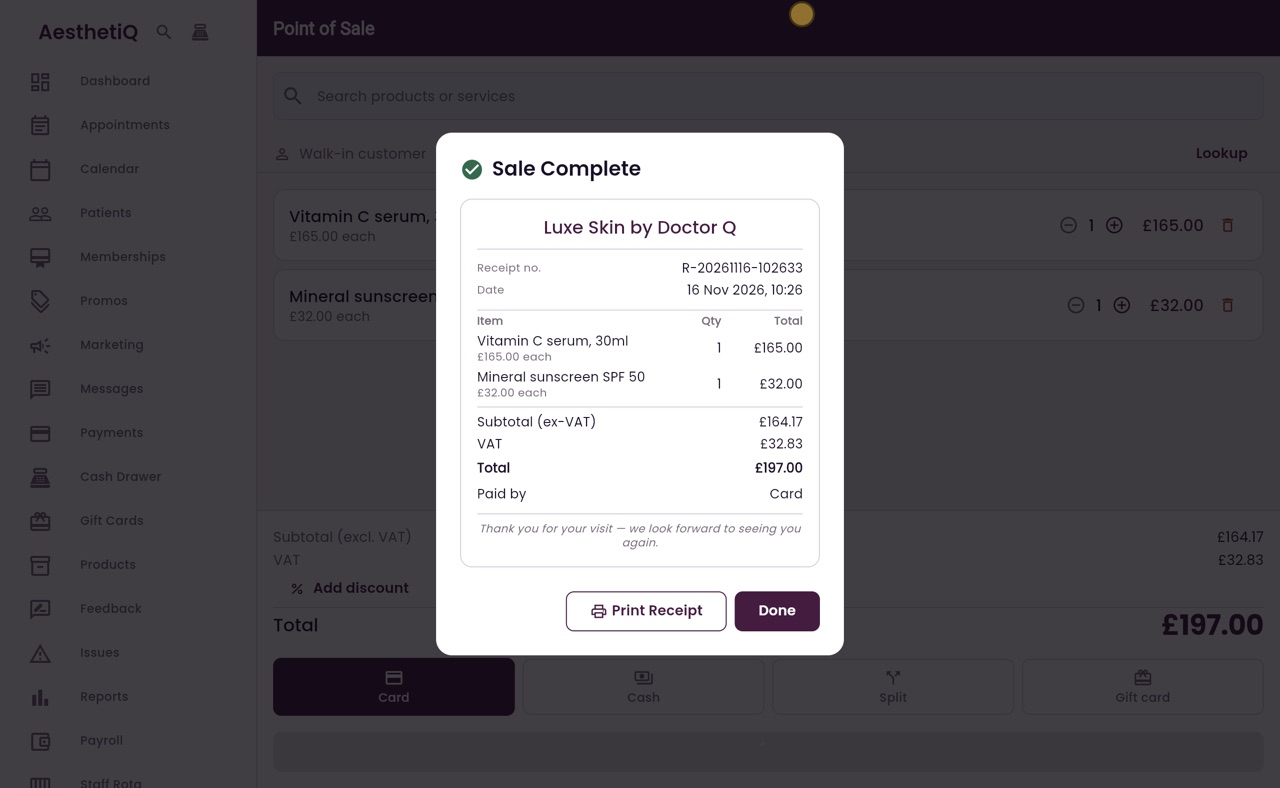
Next sale
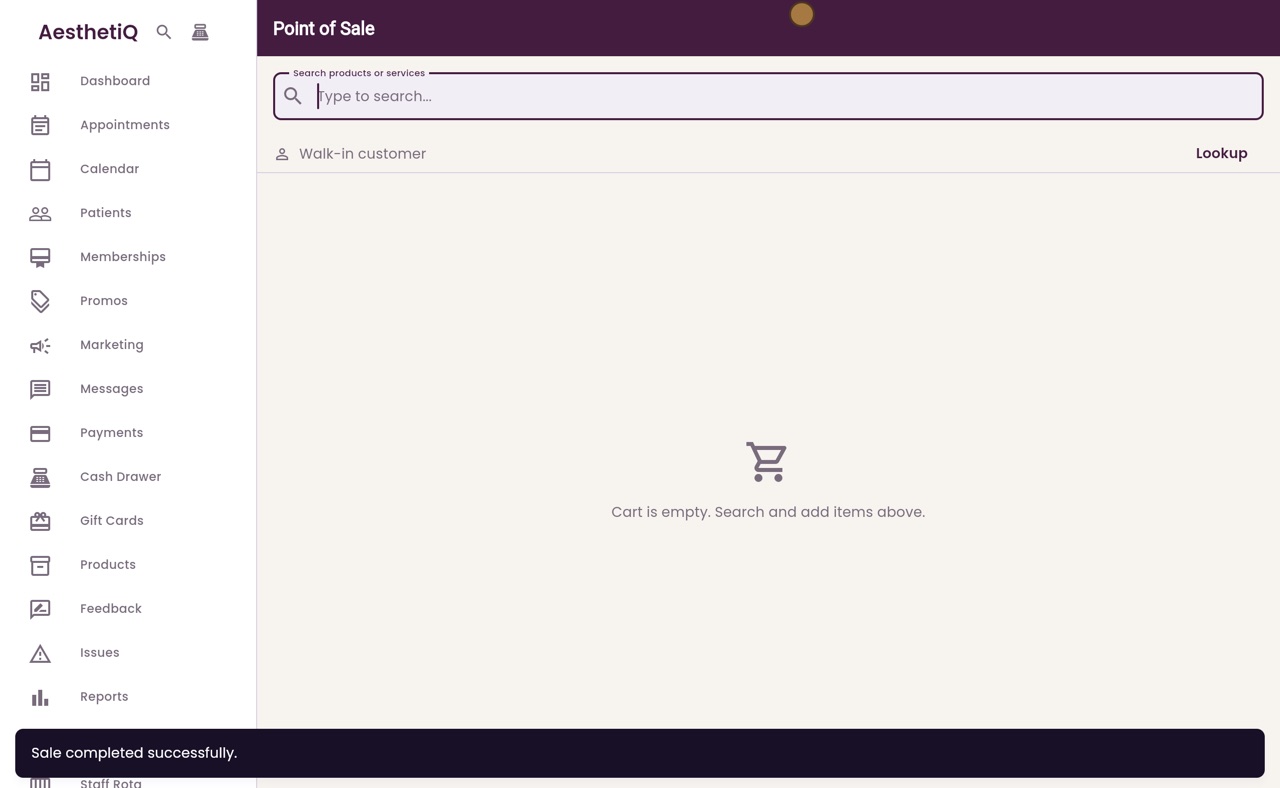
Click Done, and the till is ready for the next sale.
- 09Libby
Done
That is selling products at the till. The stock count for each product goes down by the amount sold.