Printing a receipt
When a sale at the till is complete, the receipt appears on screen. Print Receipt sends it to the printer.
When
The receipt appears as soon as a till sale is paid.
Print Receipt opens the print window. Choose the receipt printer and click Print.
After
Click Done to start the next sale.
Step by step
- 01Libby
The receipt
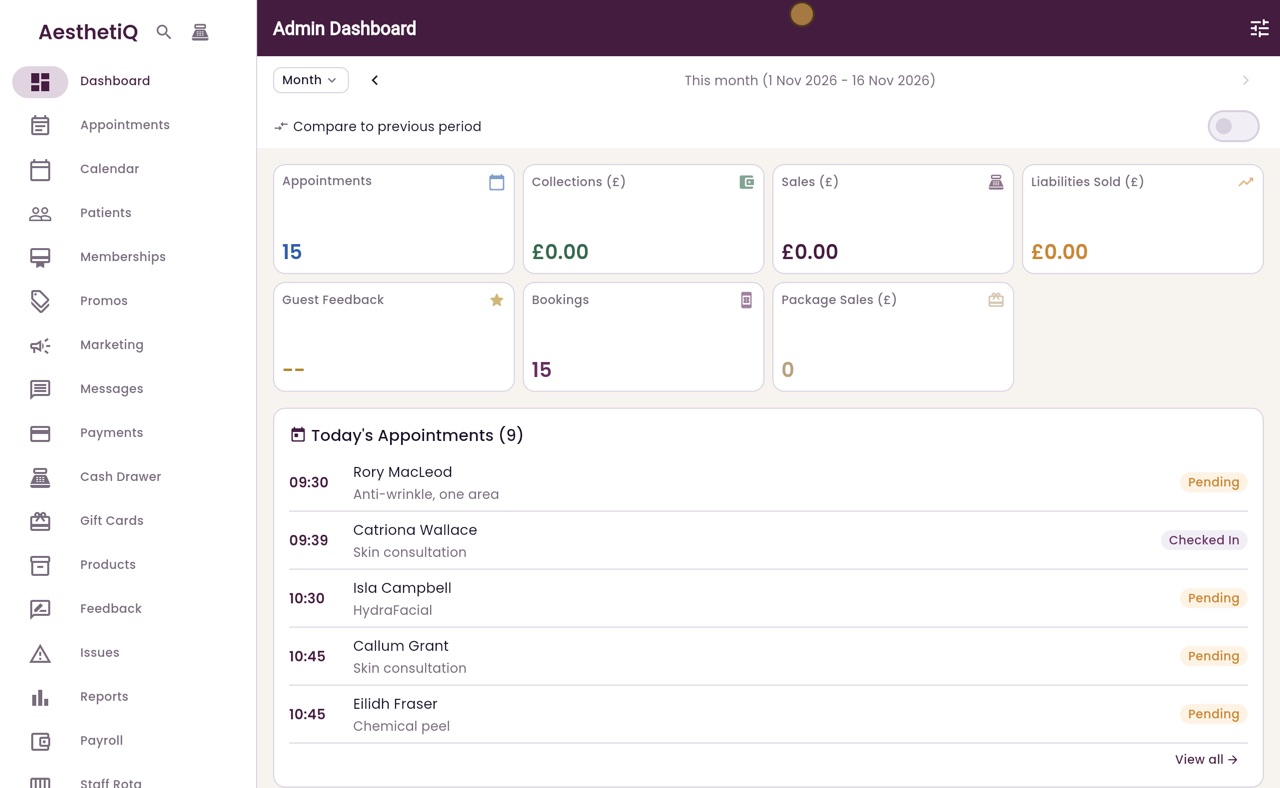
Hi, I am Libby. Every sale at the till ends with the receipt on screen, and you can print it for the patient.
- 02Ryan
Make the sale
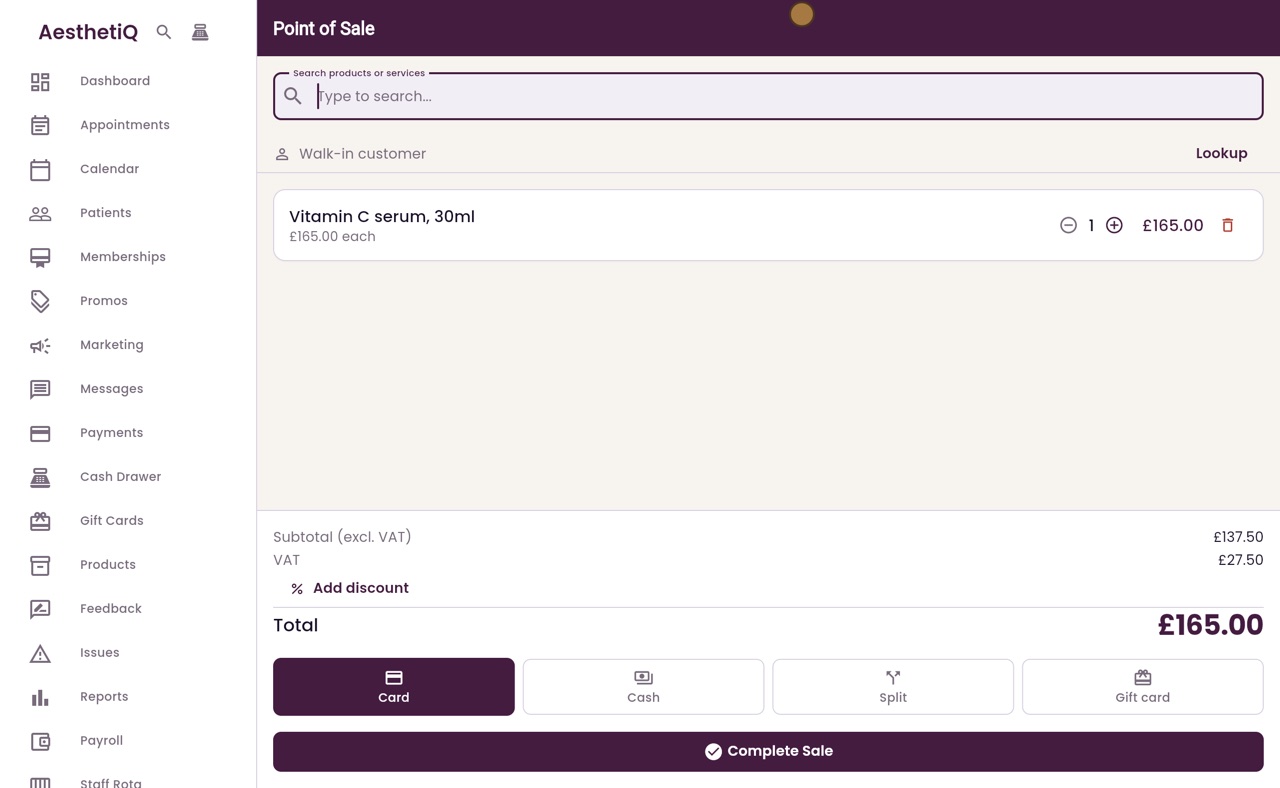
Thanks Libby. A patient is buying a vitamin C serum. Click the till icon at the top of the sidebar, type serum in the search box, and click Vitamin C serum.
- 03Ryan
Take the payment
She is paying by card. Click Complete Sale, then Charge, and she taps her card on the terminal.
- 04Ryan
What it shows
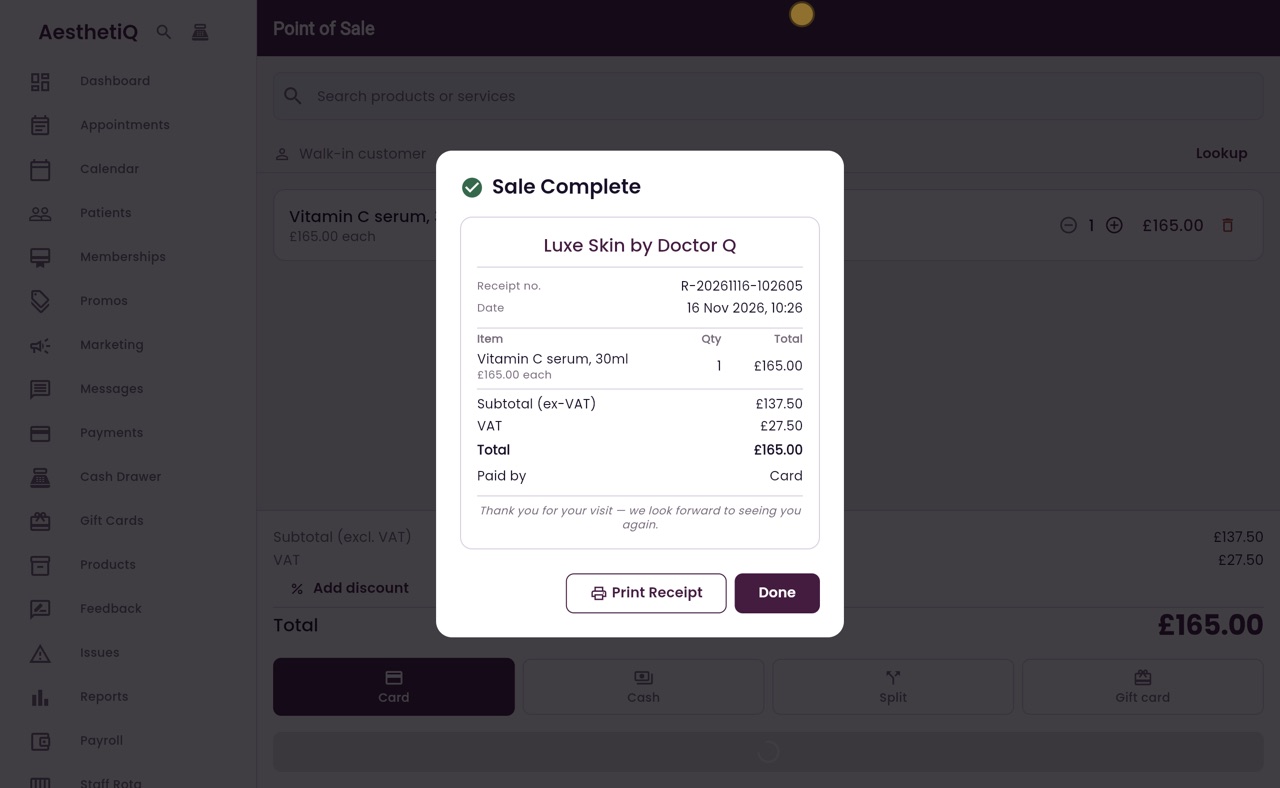
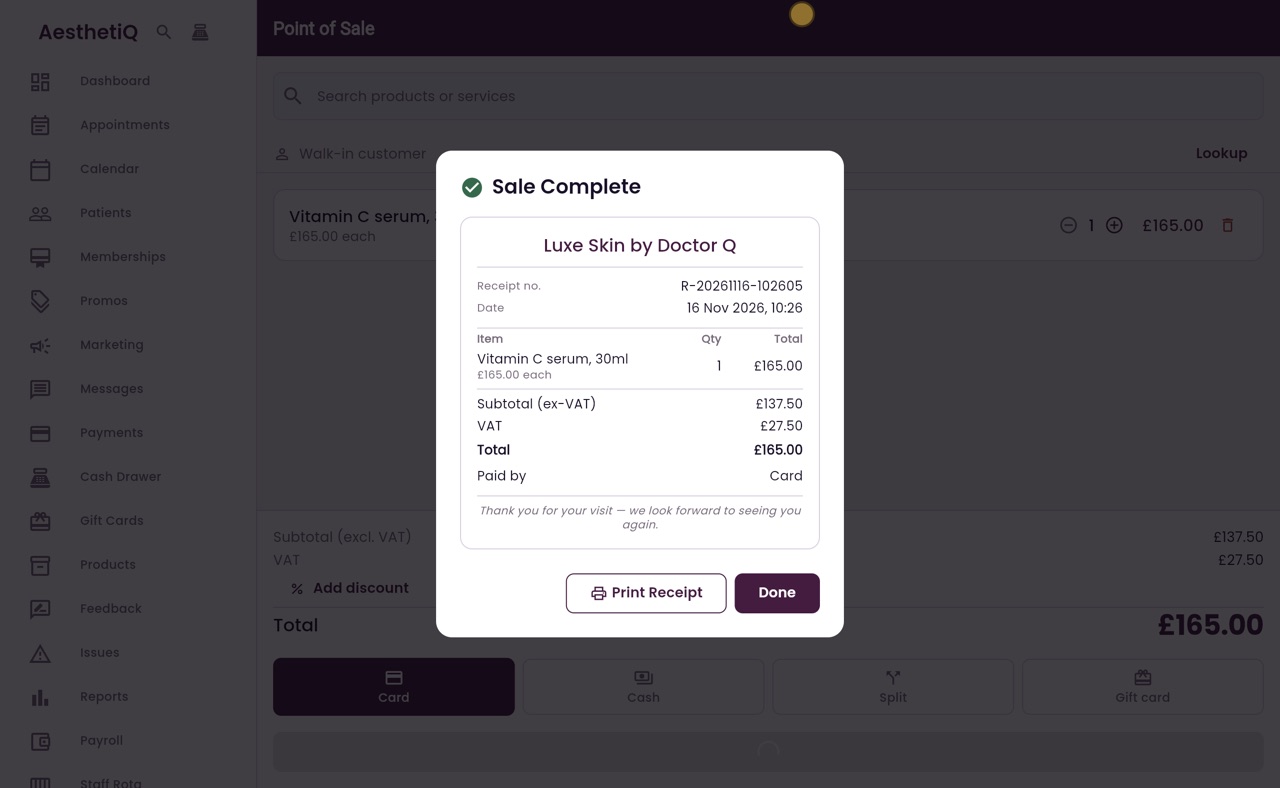
When the payment is approved, the receipt appears. It shows the clinic's name, the receipt number and date, what was bought, the VAT, the total, and how it was paid.
- 05Ryan
Print Receipt
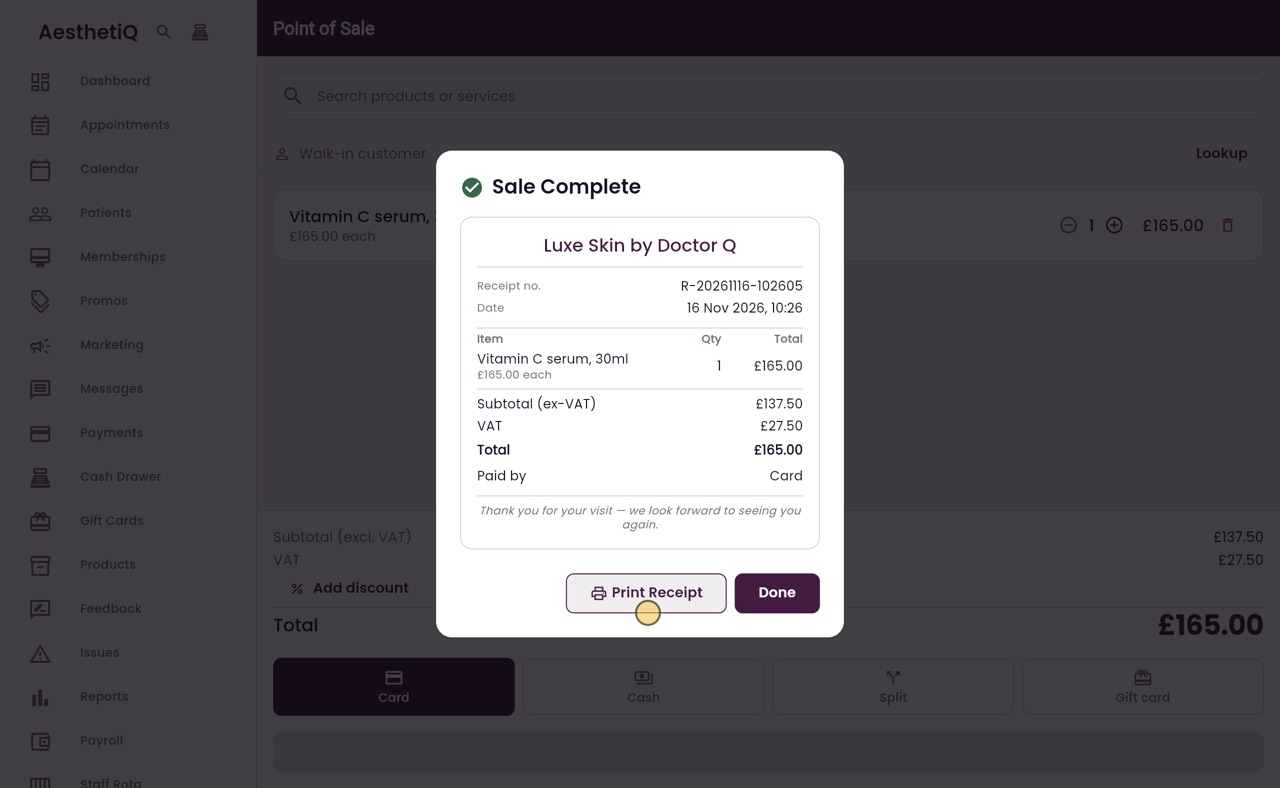
Print Receipt, at the bottom, opens the print window, where you choose the receipt printer and click Print.
- 06Ryan
Done
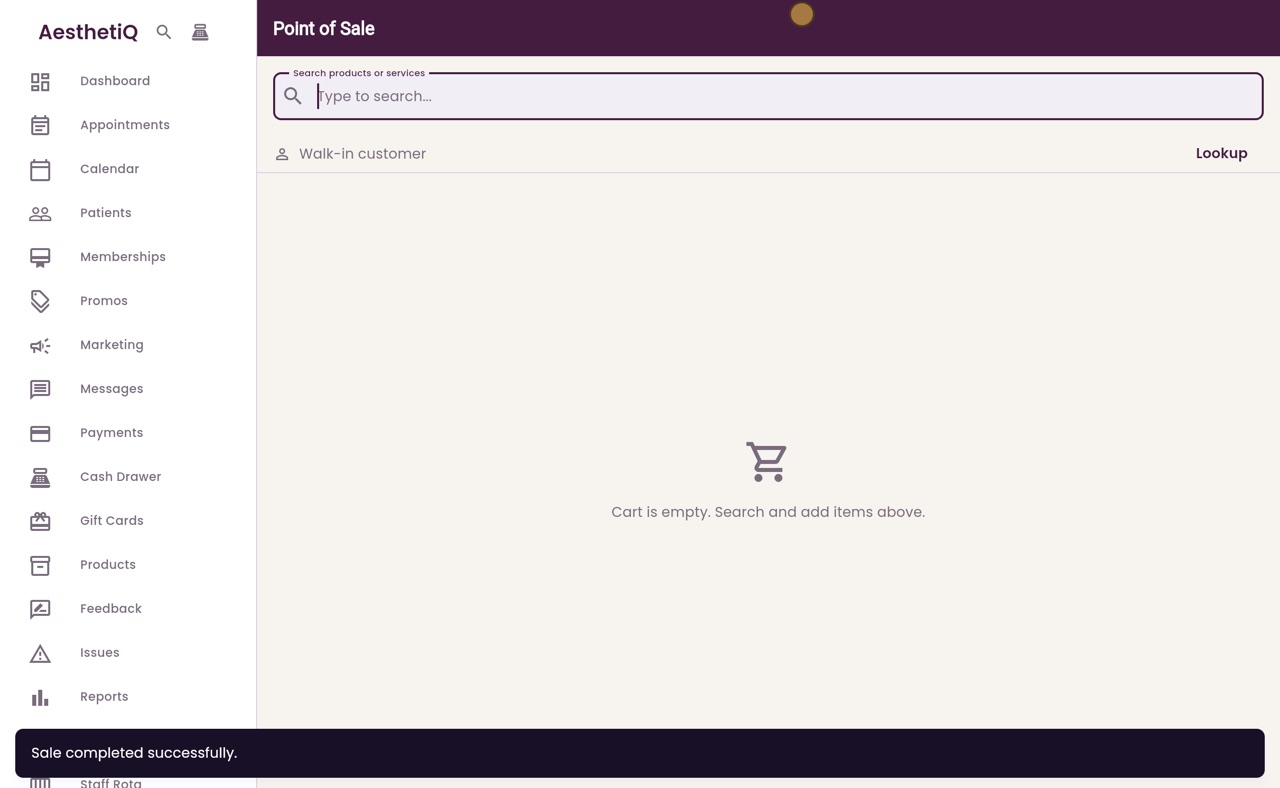
When it has printed, click Done, and the till is ready for the next sale.
- 07Libby
Done
That is printing a receipt. The receipt is made for a narrow till roll printer, and it prints on ordinary paper too.