Prepaid cards: setting up what you sell
Add the prepaid cards the clinic sells, such as pay £500 and get £550 of credit. Reception sells them from the patient's Wallet tab.
Where
Settings, then Prepaid Cards.
Price and credit
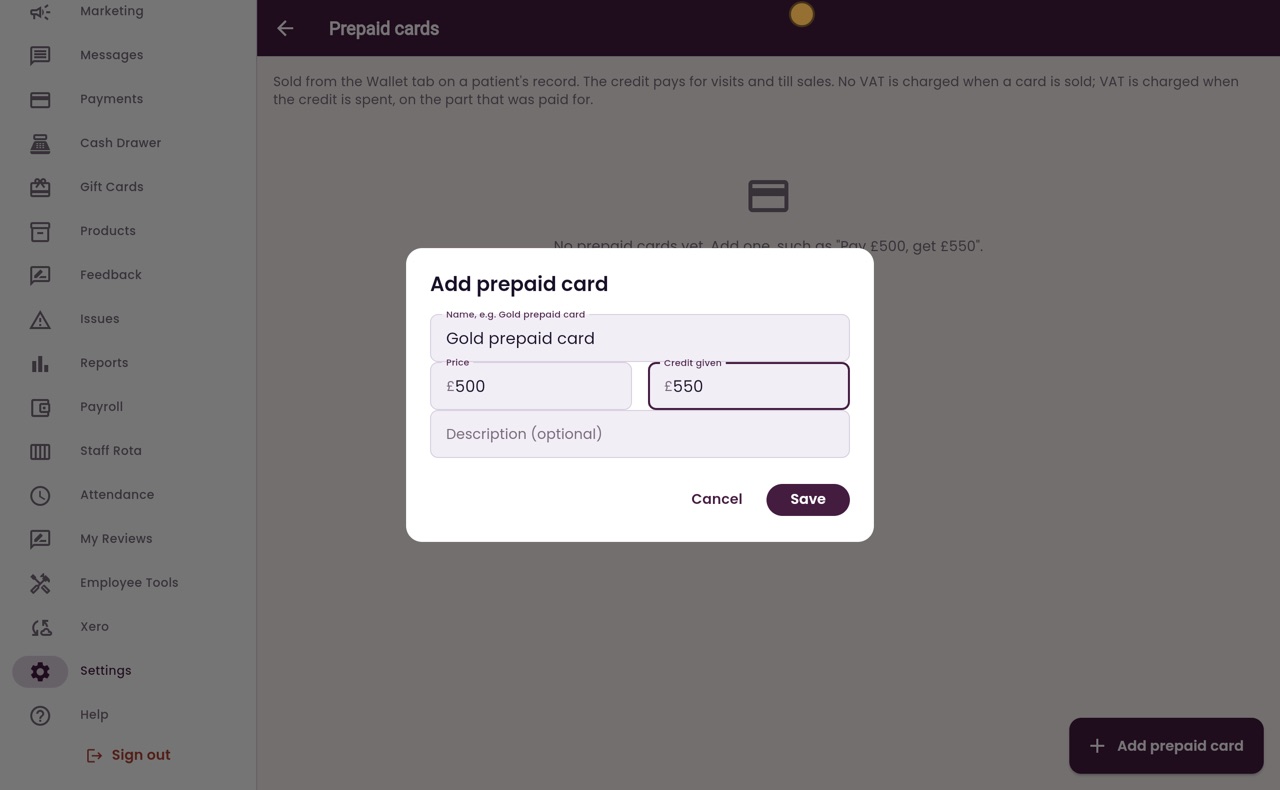
The price is what the patient pays. Credit given is what goes into their wallet, and must be at least the price.
VAT
No VAT when the card is sold. VAT is charged when the credit is spent, on the part that was paid for.
Step by step
- 01Libby
Prepaid cards
Hi, I am Libby. A prepaid card lets a patient pay up front and get extra credit, for example pay five hundred pounds and get five hundred and fifty pounds to spend. Here is how the clinic manager sets up the cards the clinic sells.
- 02Ryan
Open Prepaid Cards
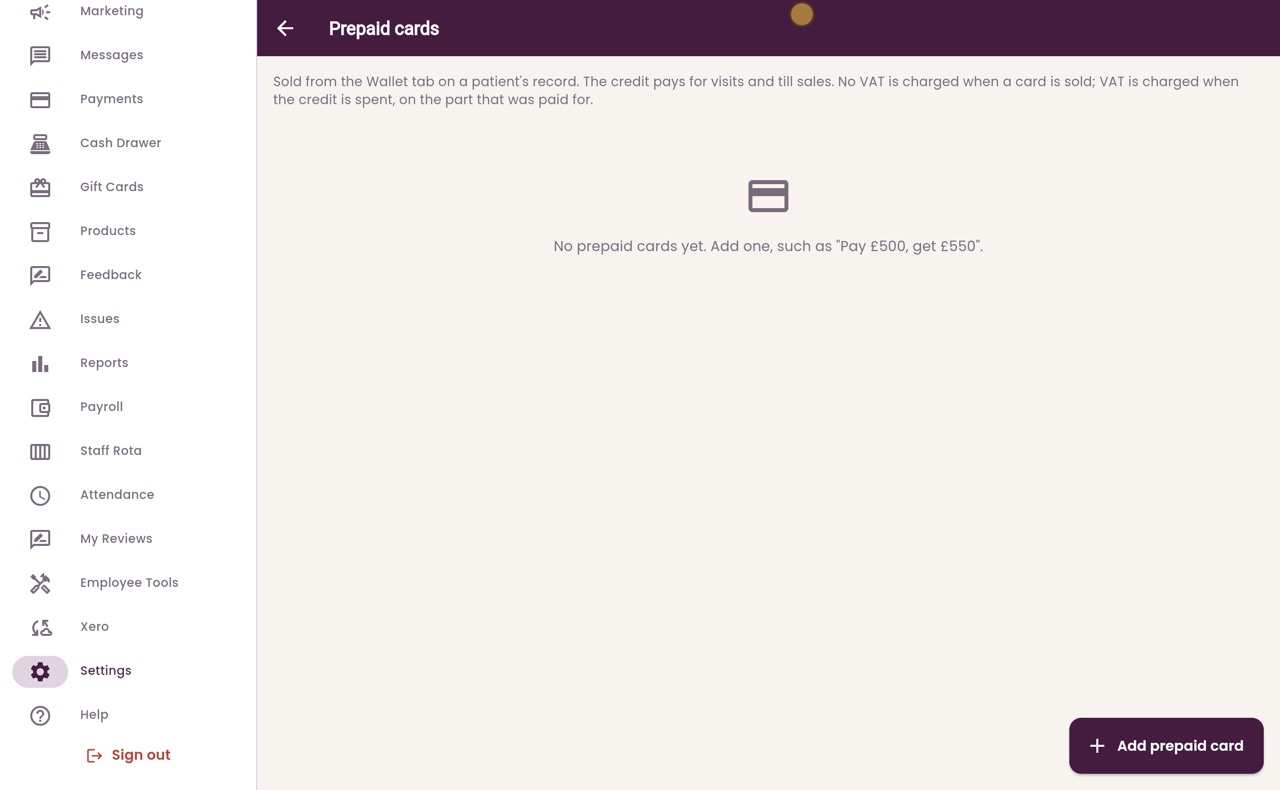
Thanks Libby. Click Settings in the menu, scroll down to Prepaid Cards, and click it.
- 03Ryan
How they work
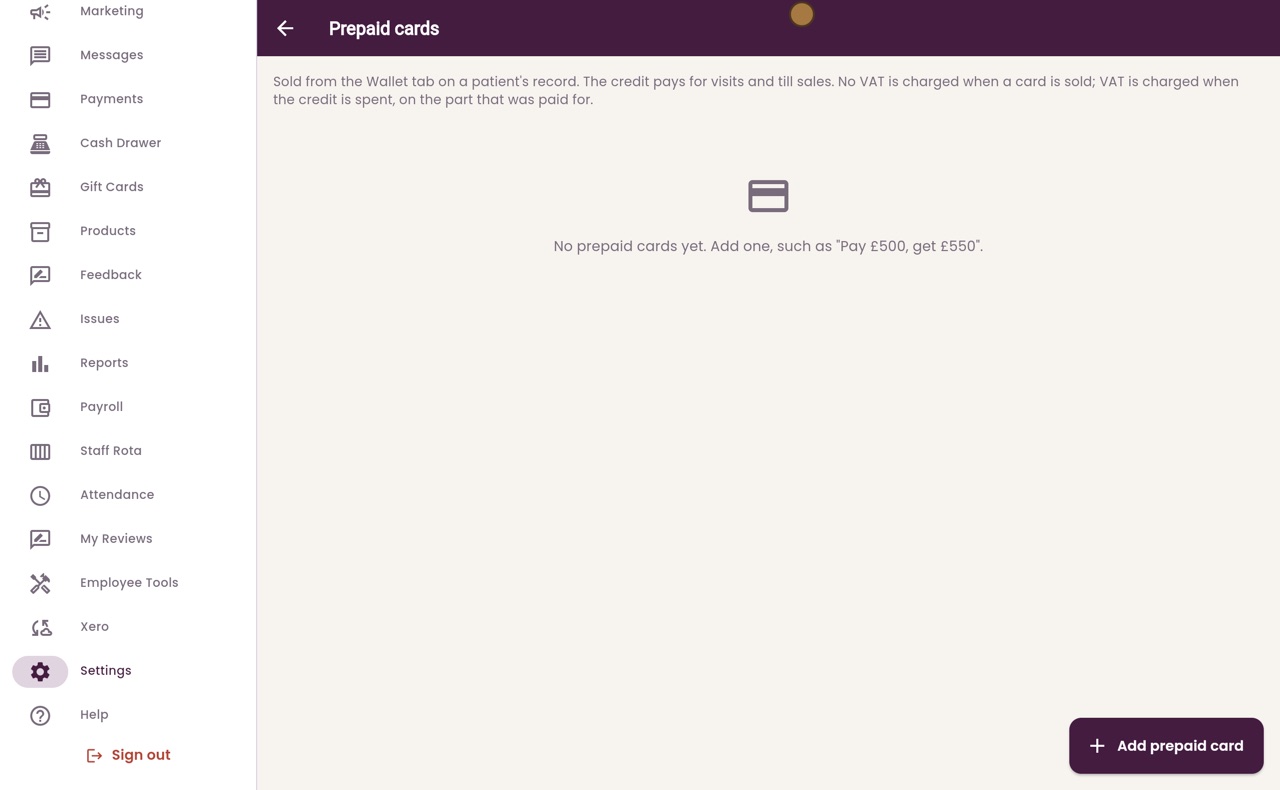
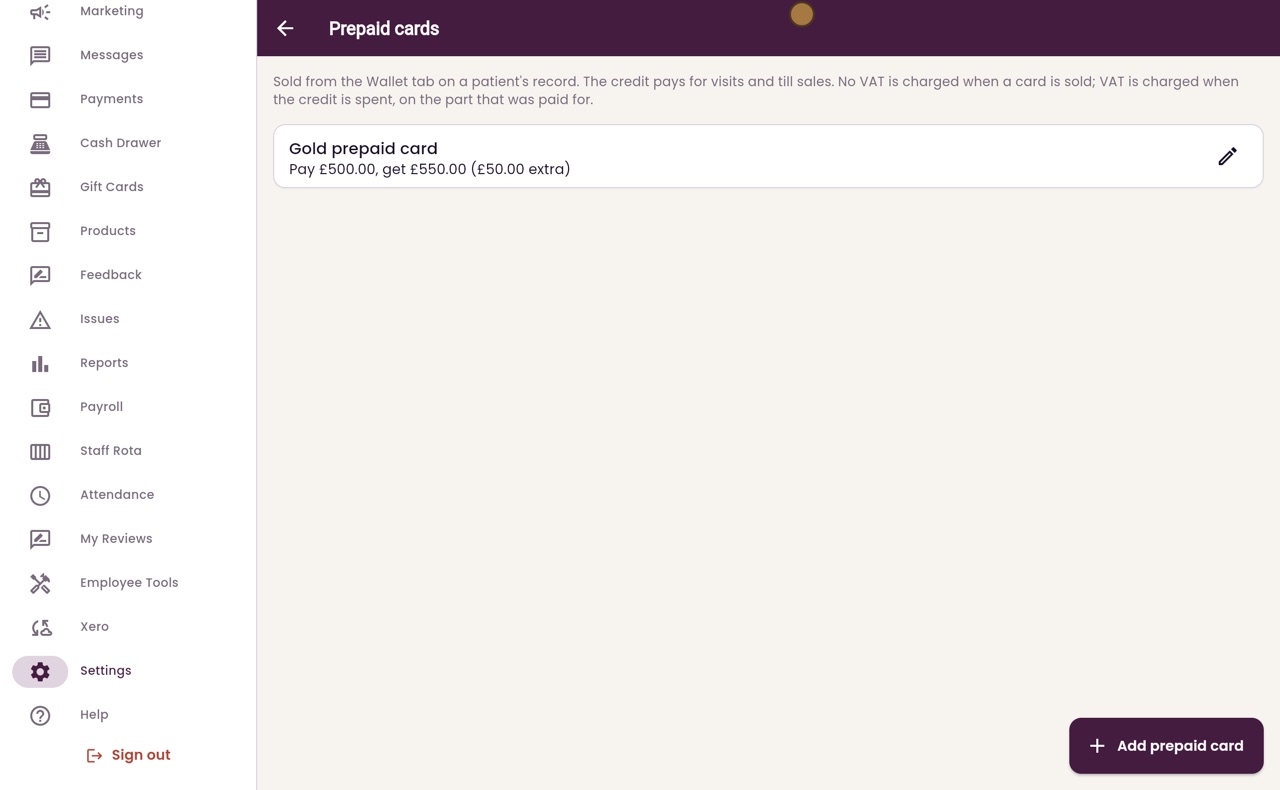
The note at the top explains how the cards work. They are sold from the Wallet tab on a patient's record, and the credit pays for visits and till sales. No VAT is charged when a card is sold. VAT is charged when the credit is spent, on the part that was paid for.
- 04Ryan
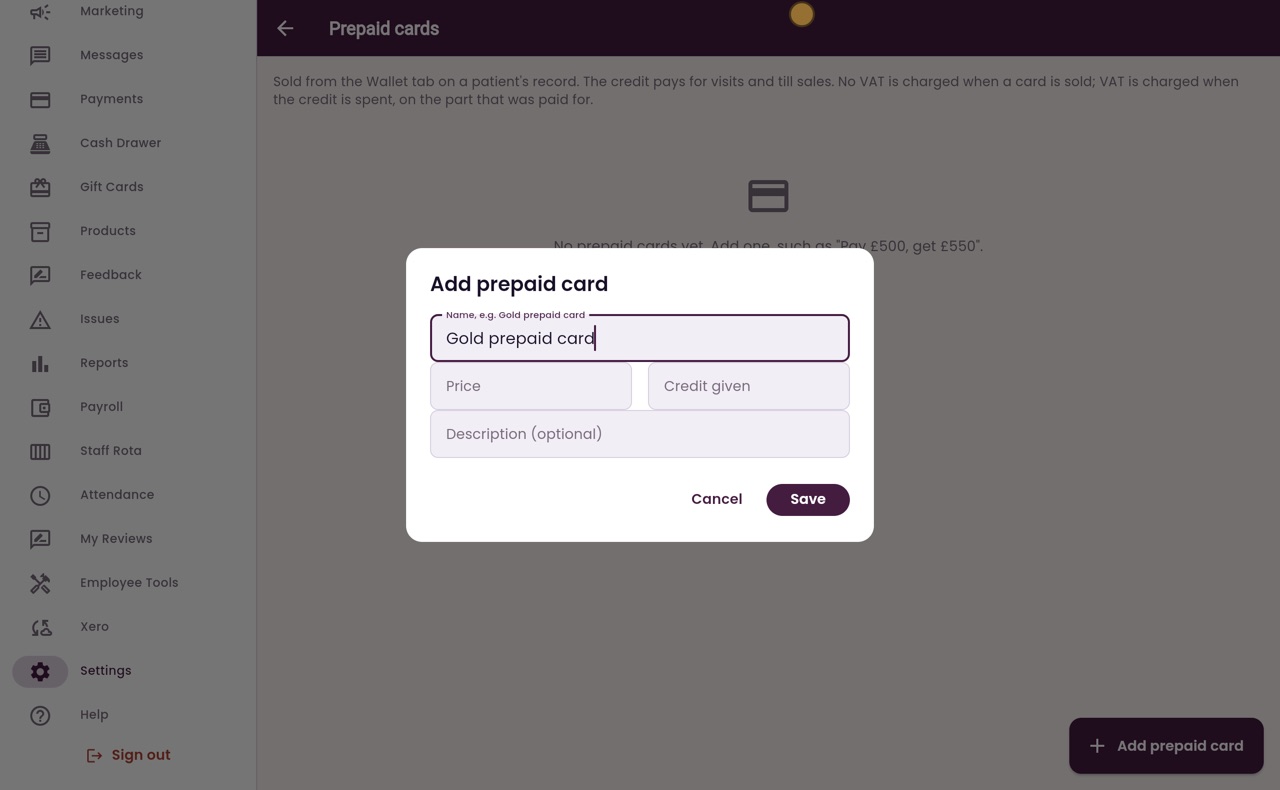
Name the card
Click Add prepaid card, and give the card a name. This one is the Gold prepaid card.
- 05Ryan
Price and credit
The patient pays five hundred pounds, so type 500 as the price. Under Credit given, type 550. That is fifty pounds of extra credit.
- 06Ryan
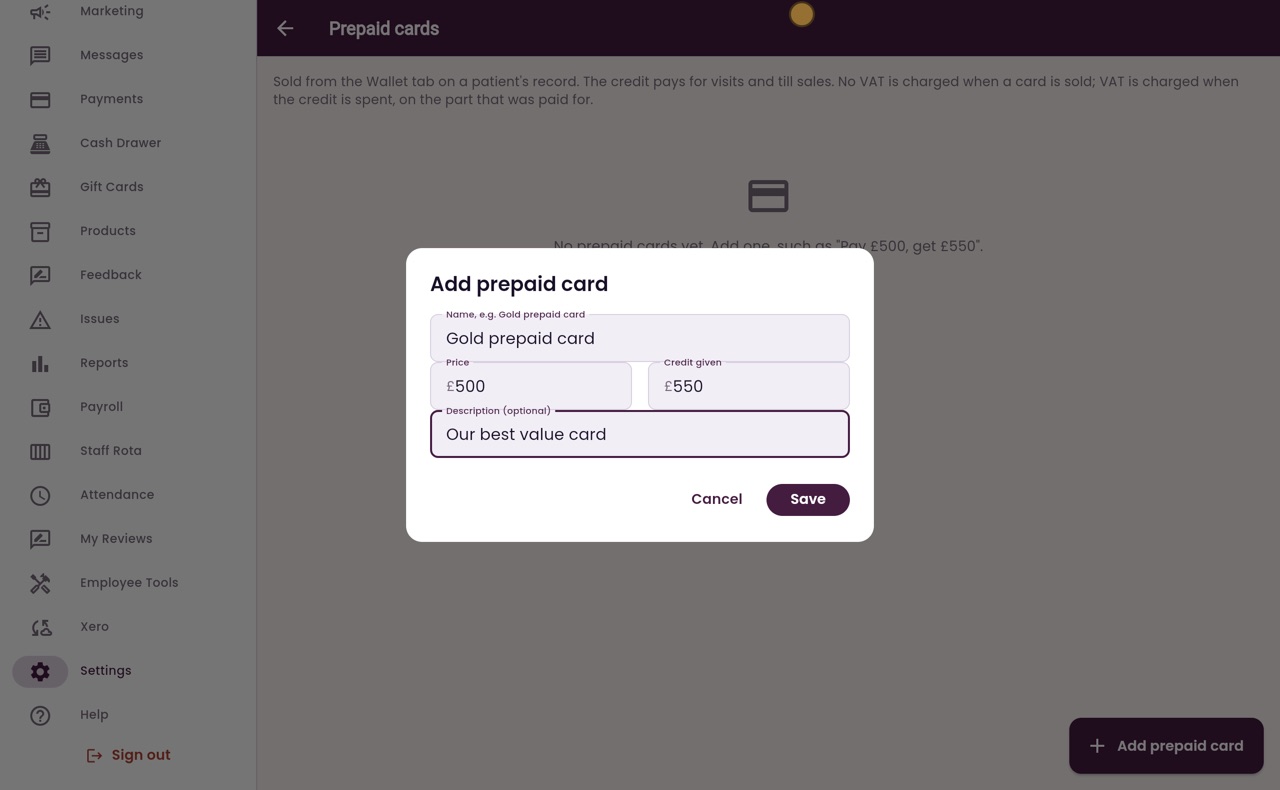
Description
You can add a short description. Reception sees it when they sell the card.
- 07Ryan
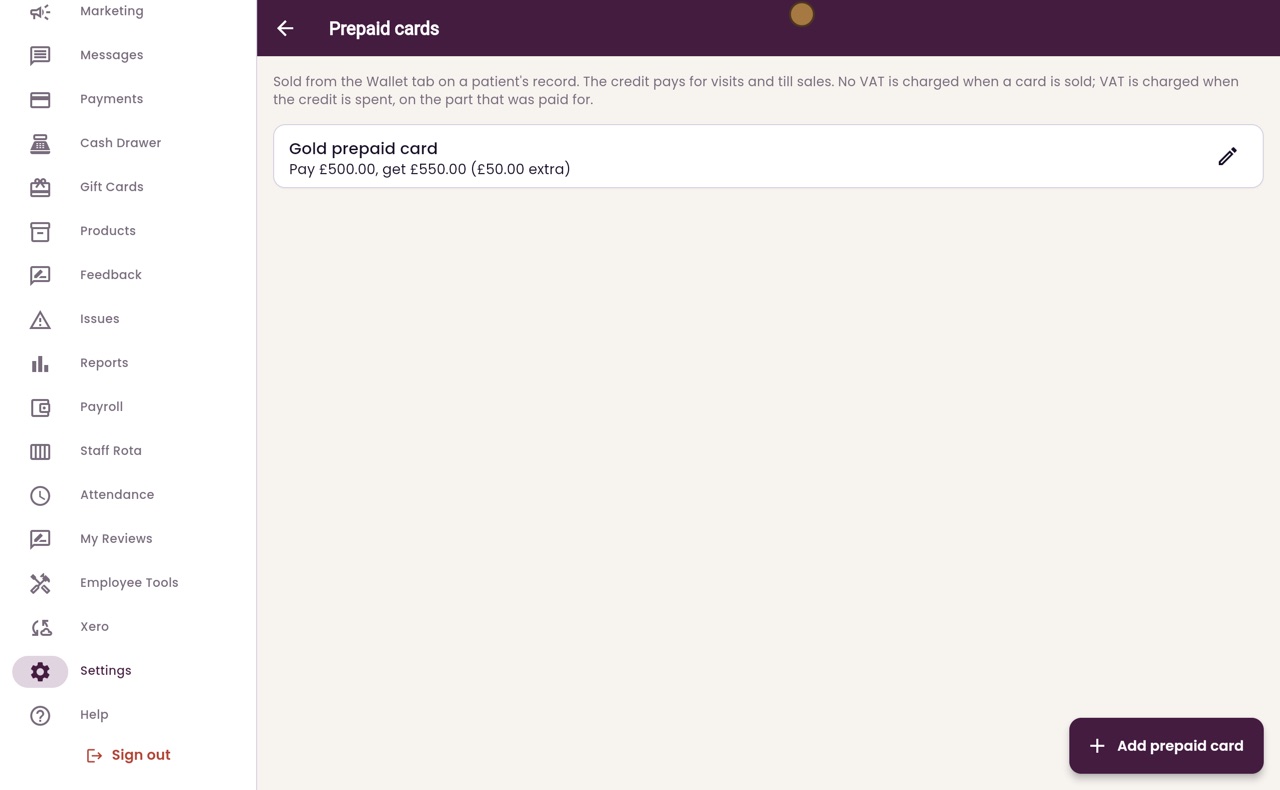
Save
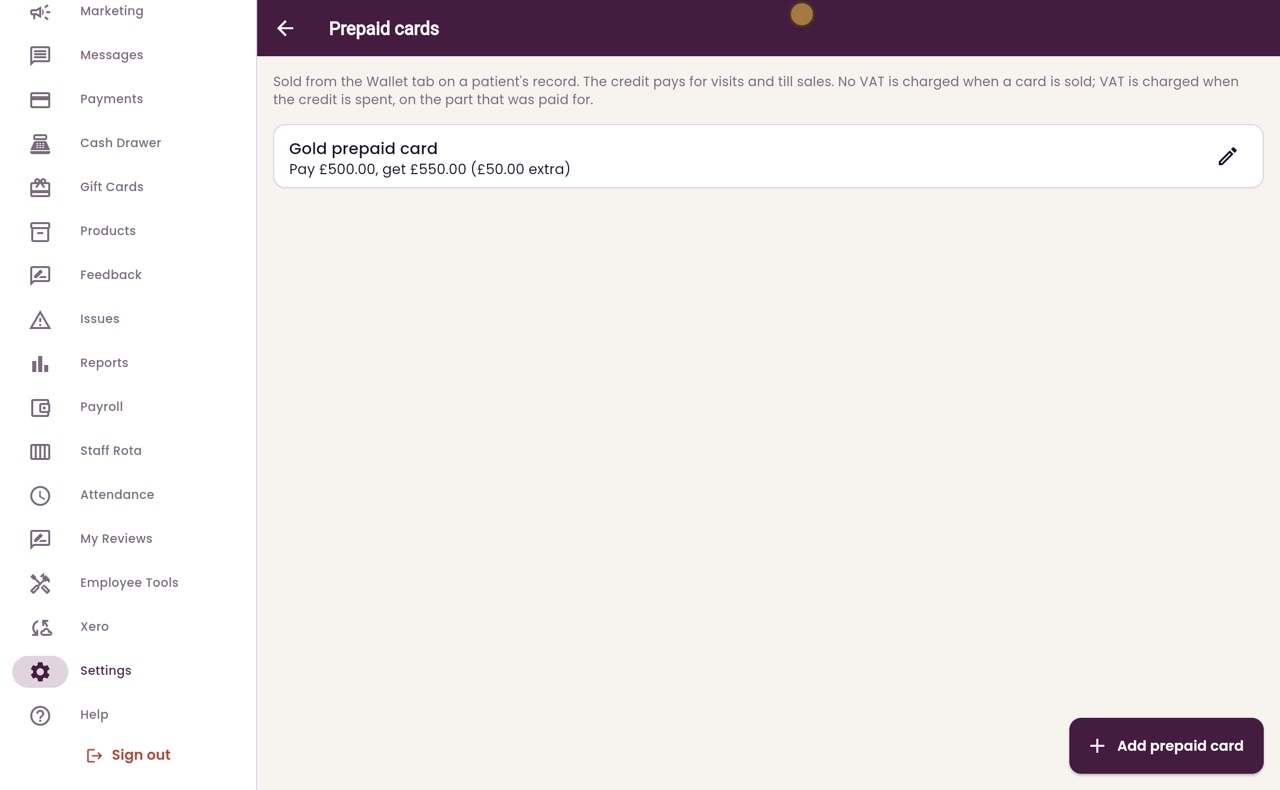
Click Save. The card is now on the list: pay five hundred pounds, get five hundred and fifty pounds, which is fifty pounds extra.
- 08Ryan
Changing a card
To change a card, click it. When the clinic stops selling a card, turn off Still sold and click Save. Here, nothing needs changing, so click Cancel.
- 09Libby
Done
That is setting up prepaid cards. Reception can now sell the Gold prepaid card from a patient's Wallet tab.