Staff performance reviews
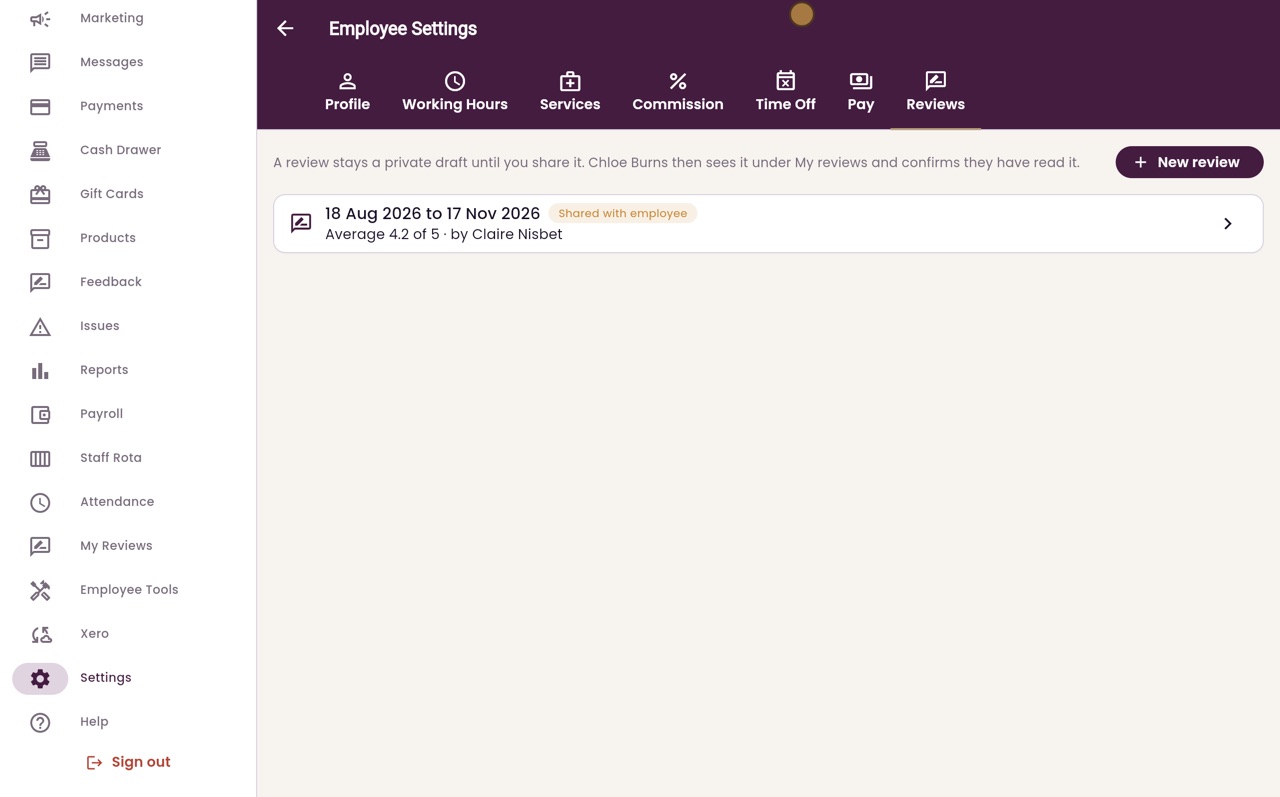
Write a review for a member of staff with a rating for each area, their strengths, what to improve and goals. It stays a private draft until you share it, and every review stays on their Reviews tab.
Where
Settings, Staff Management, the employee, then the Reviews tab.
Who
The clinic manager writes reviews. Each employee reads their own under My Reviews.
After
The employee confirms they have read it, and the review shows Acknowledged.
Step by step
- 01Libby
What a review is
Hi, I am Libby. A performance review records how a member of staff is doing, with a rating for each area and notes on strengths and goals. The clinic manager writes it, then shares it with the employee.
- 02Ryan
Open the employee
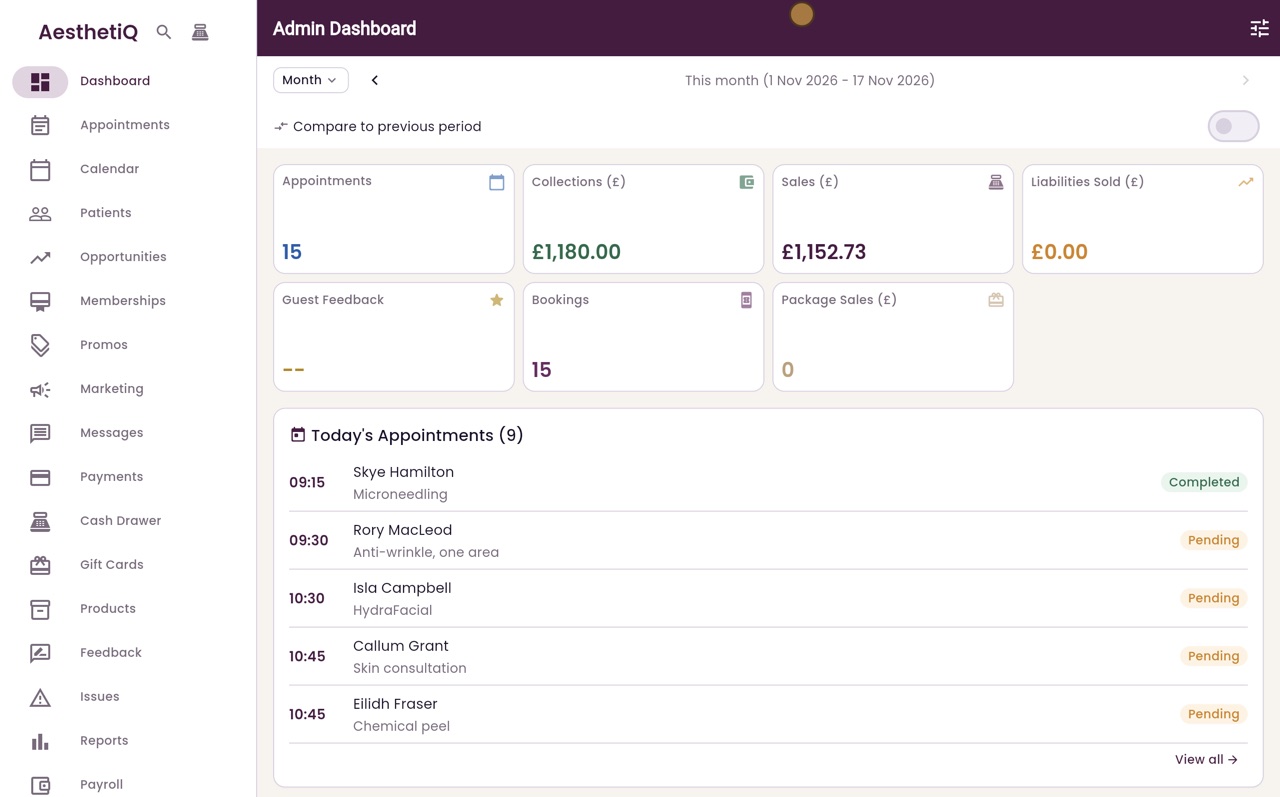
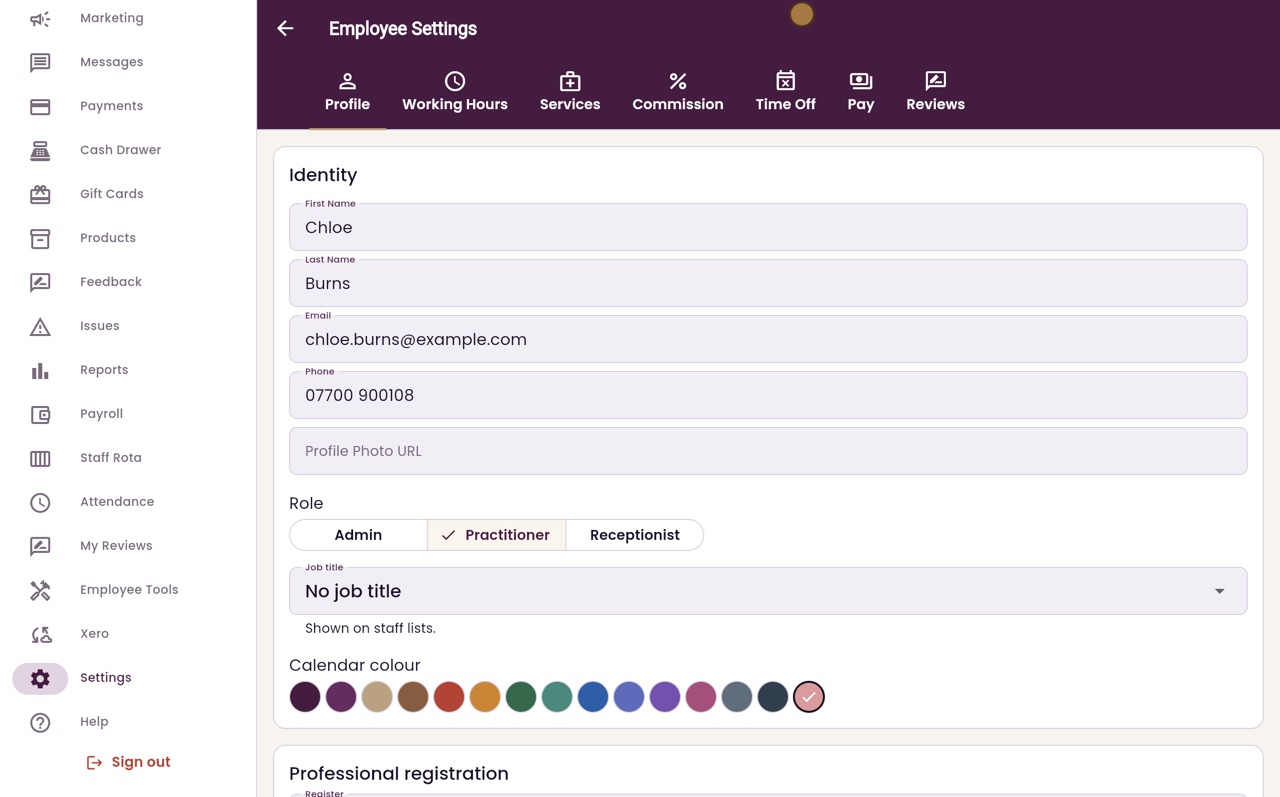
Thanks Libby. Click Settings in the menu, then Staff Management, and click Chloe Burns.
- 03Ryan
The Reviews tab
Her employee settings open. Click the Reviews tab. A review stays a private draft until you share it with her. Click New review.
- 04Ryan
Rate each area
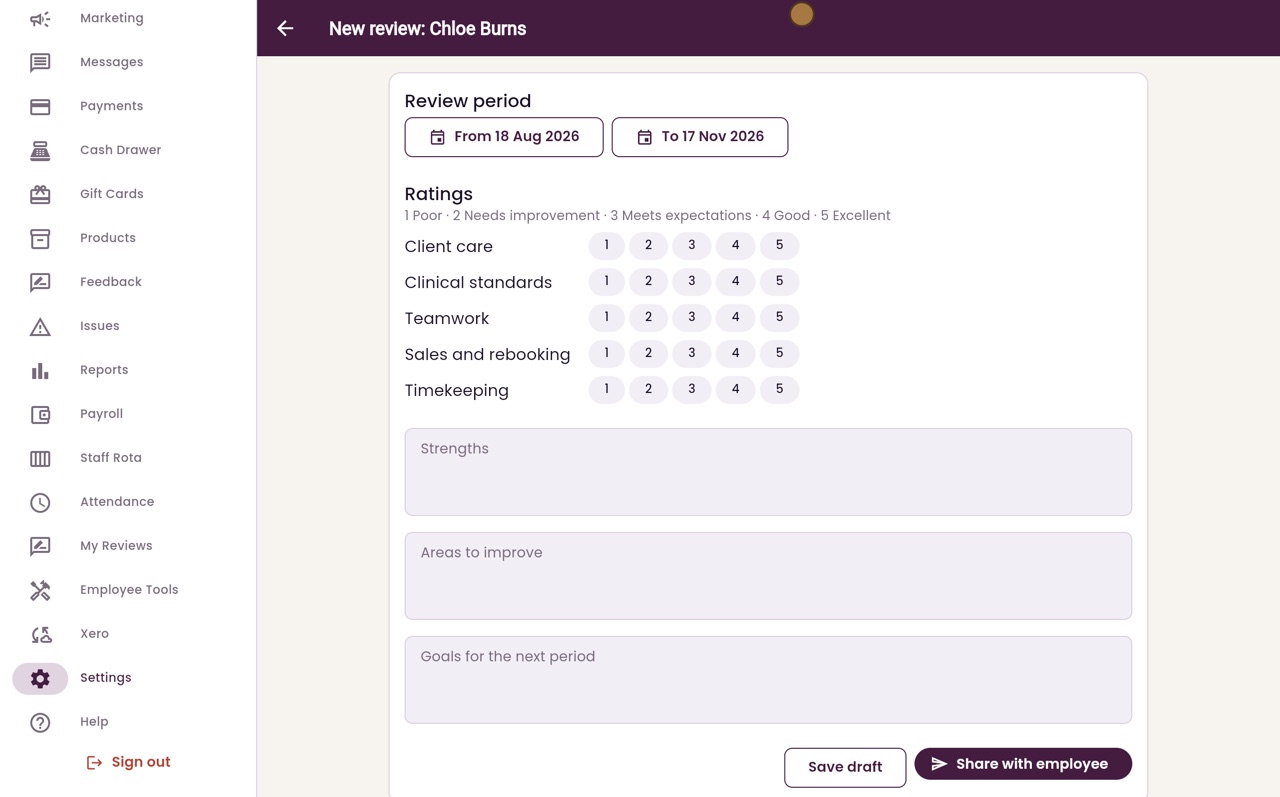
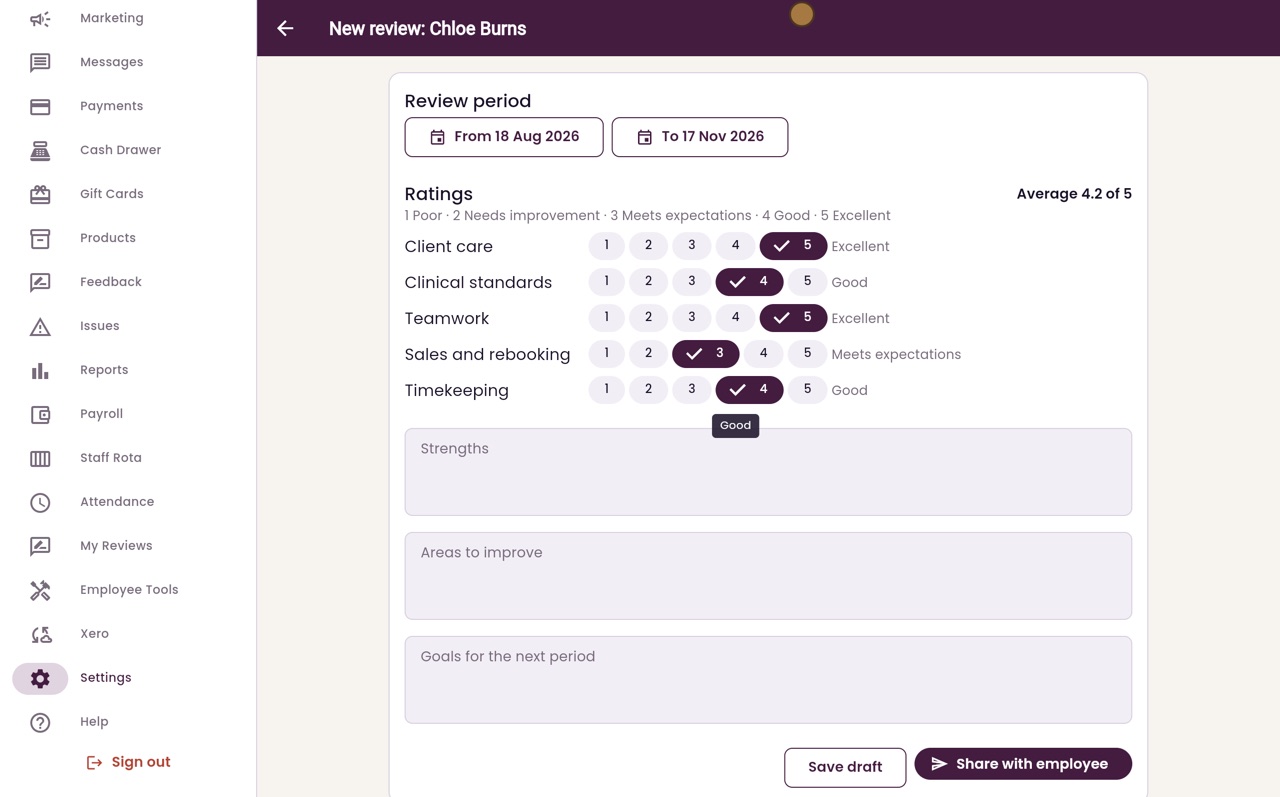
The review period is the last three months; click a date to change it. Rate each area from one, Poor, to five, Excellent. Chloe gets five for client care, four for clinical standards, five for teamwork, three for sales and rebooking, and four for timekeeping.
- 05Ryan
Strengths and goals
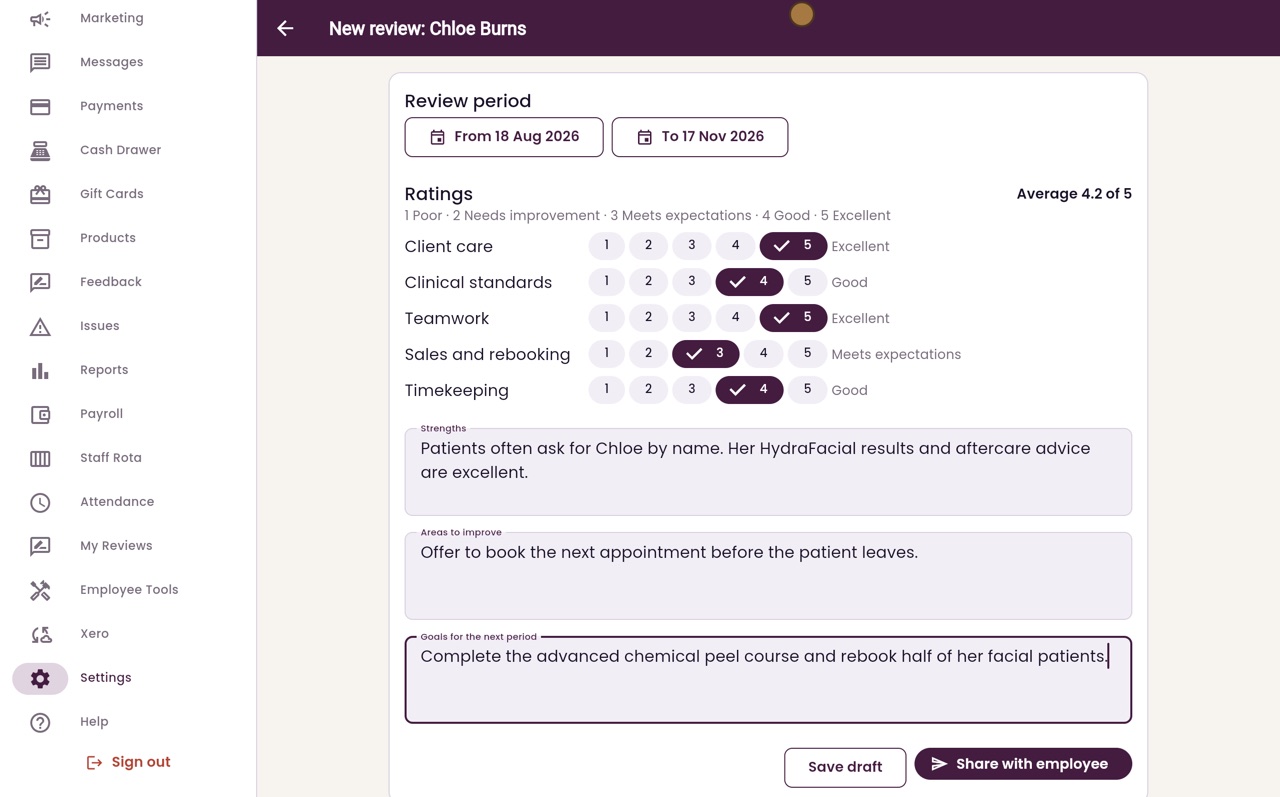
Then type her strengths, the areas to improve, and her goals for the next period.
- 06Ryan
Save the draft
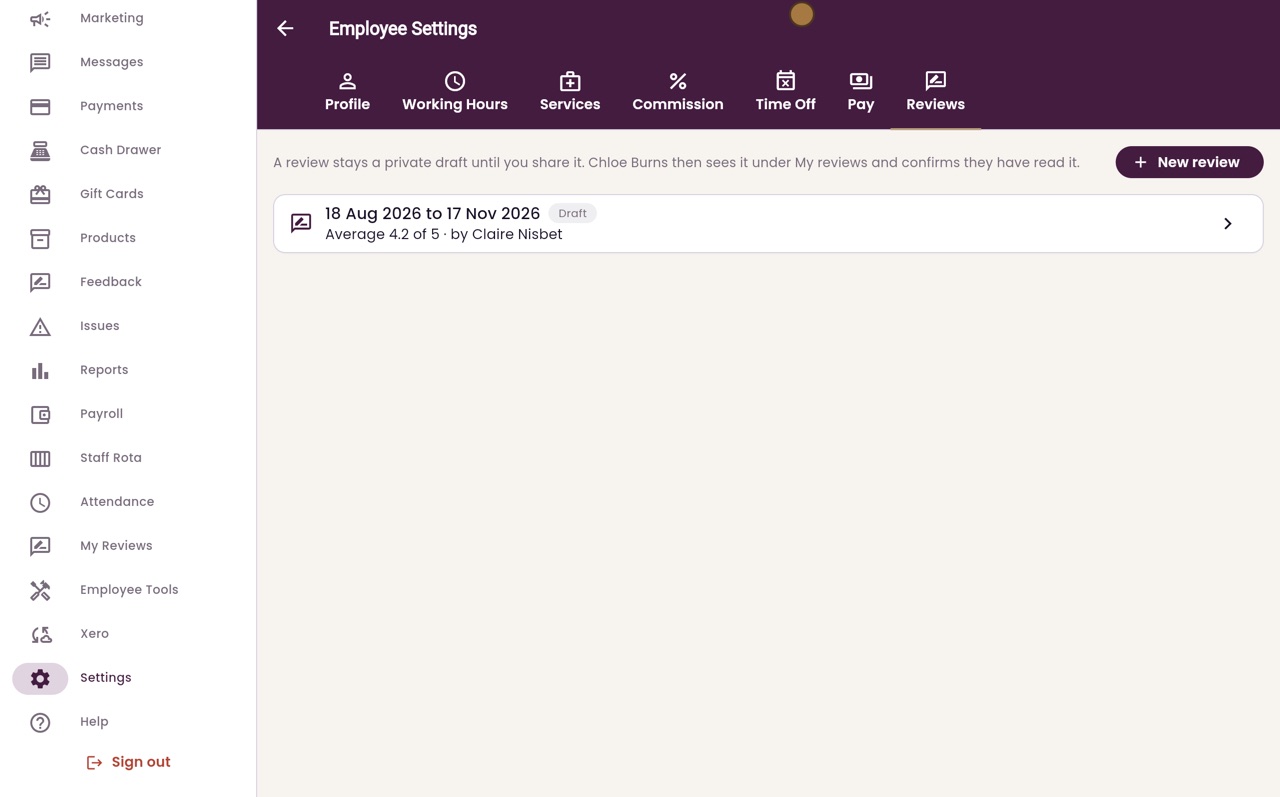
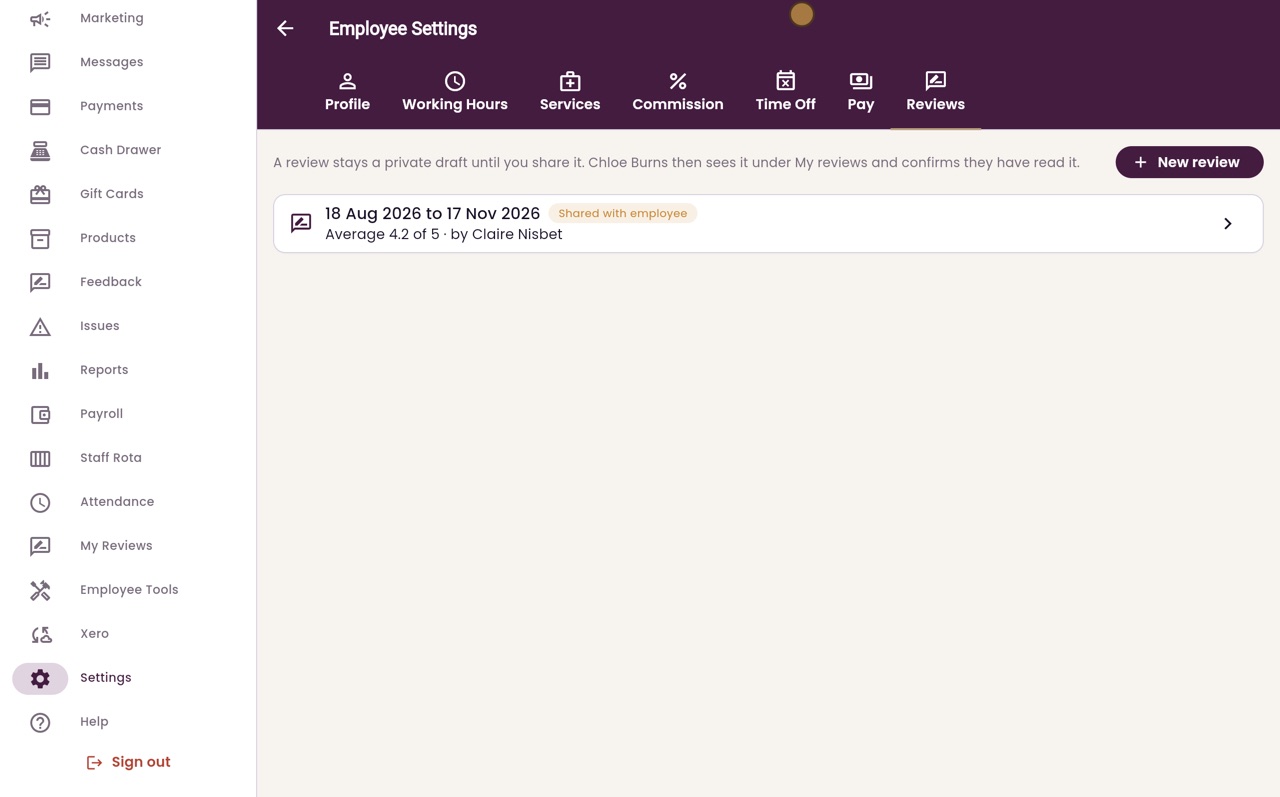
Click Save draft. The review is listed on the Reviews tab as a draft, with its average rating. Only managers can see it.
- 07Ryan
Share it
When you are ready, click the review to open it, and click Share with employee. AesthetiQ asks first, because a shared review cannot be changed. Click Share.
- 08Ryan
Their reviews
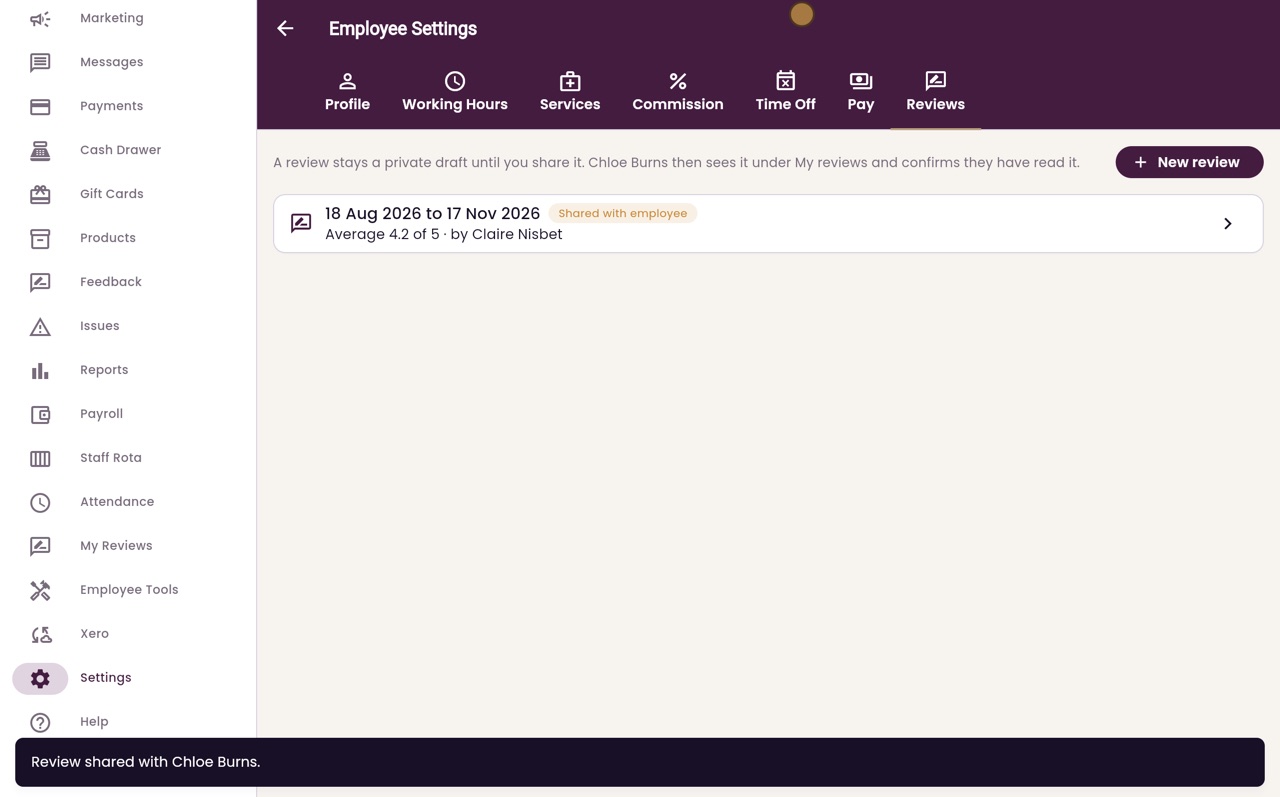
The review now shows Shared with employee. Chloe sees it under My Reviews and confirms she has read it. Each review stays on this tab, so you can look back over her reviews.
- 09Libby
Done
That is staff performance reviews. When Chloe confirms she has read it, the review shows Acknowledged, with the date.