Equipment and booking it
Add the machines your treatments need, say how many the clinic has, and choose the equipment on each treatment. AesthetiQ then never books more at once than the clinic has.
Where
Settings, then Equipment. Then Settings, Services, the treatment, Equipment needed.
Record
Name, how many the clinic has, notes, and whether it is in use.
After
Times when every machine is booked are not offered, on the booking site or in the staff booking screens.
Step by step
- 01Libby
Why add equipment
Hi, I am Libby. Some treatments need a machine, such as the HydraFacial machine. AesthetiQ can stop more bookings needing a machine at the same time than the clinic has.
- 02Ryan
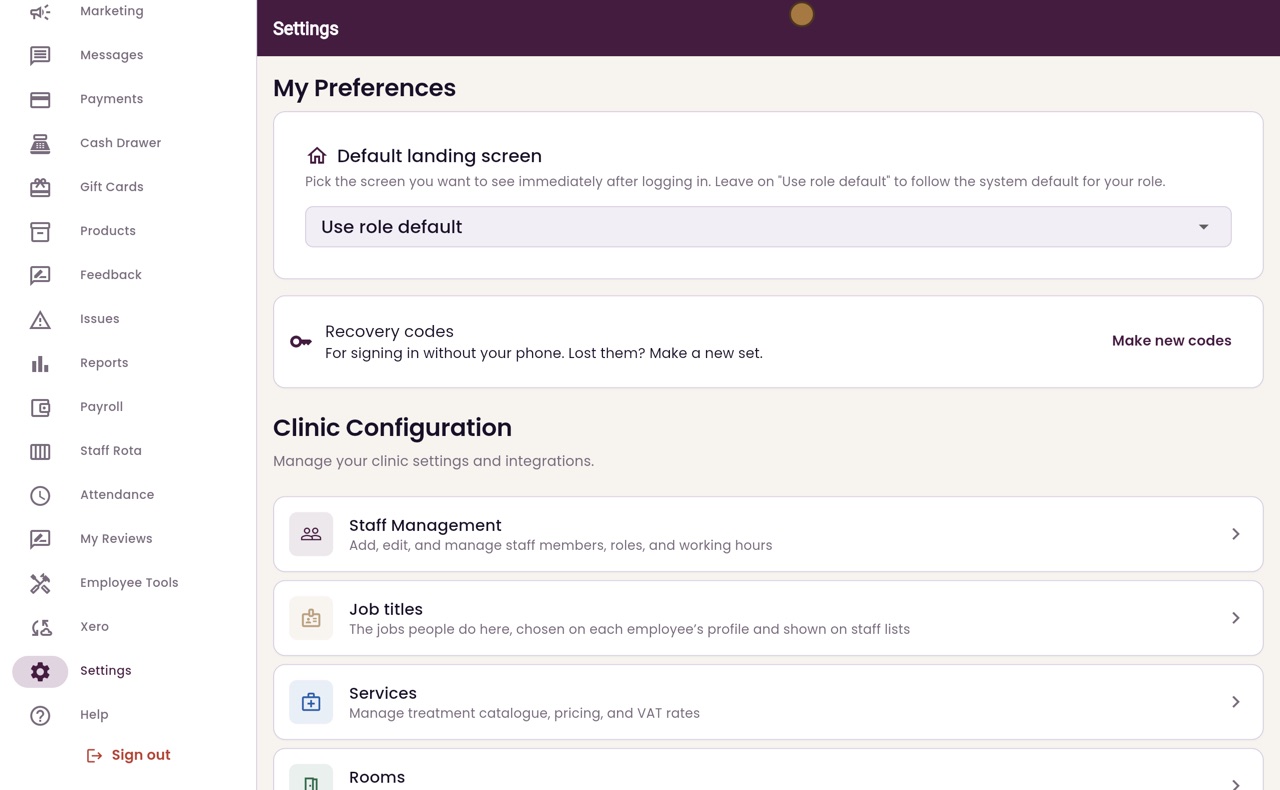
Open Equipment
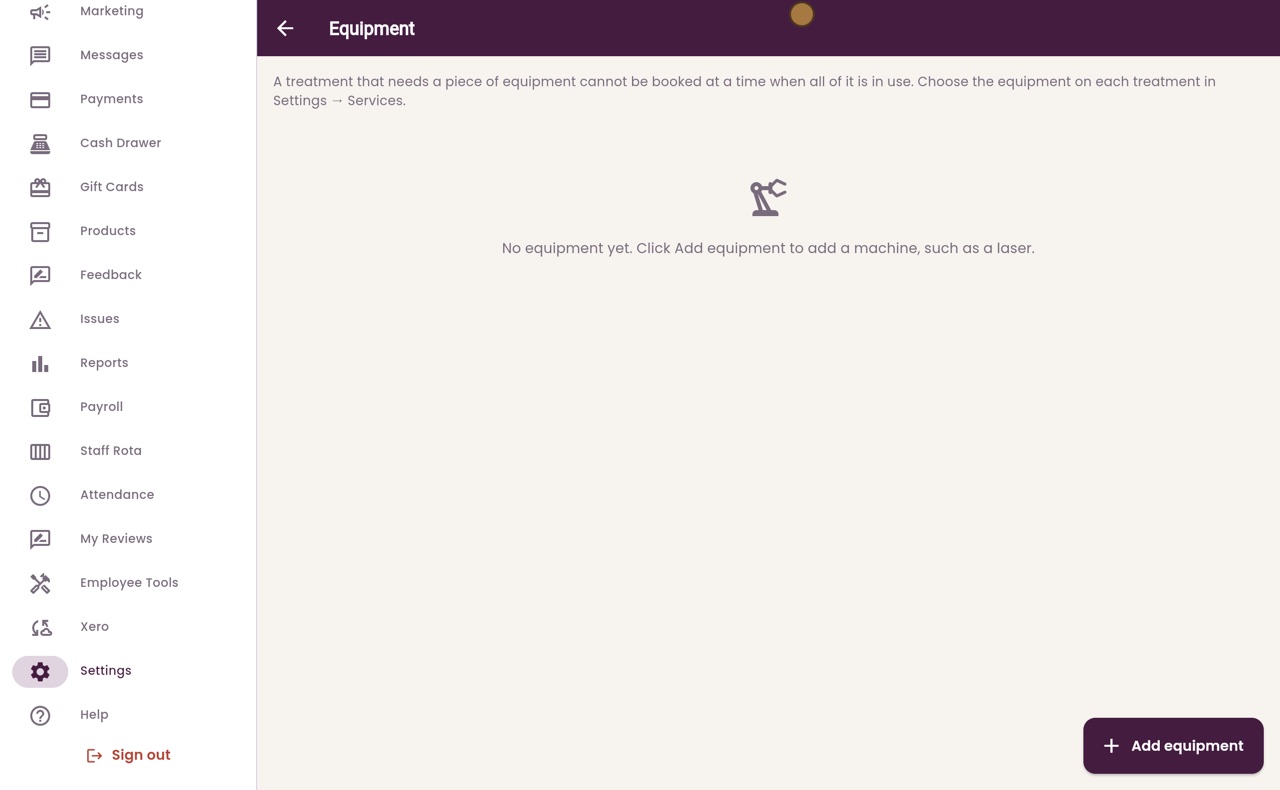
Thanks Libby. In Settings, click Equipment. There is no equipment yet. A treatment that needs equipment cannot be booked at a time when all of it is in use.
- 03Ryan
Add a machine
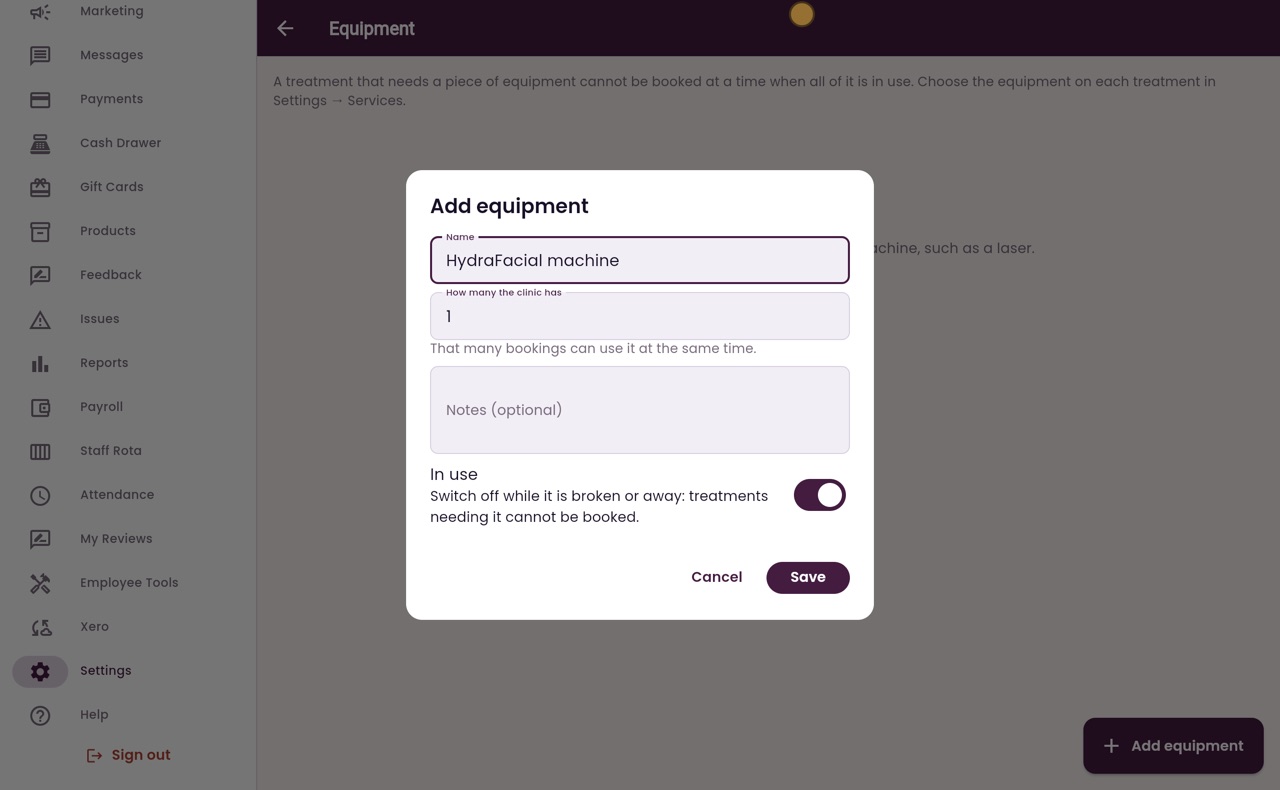
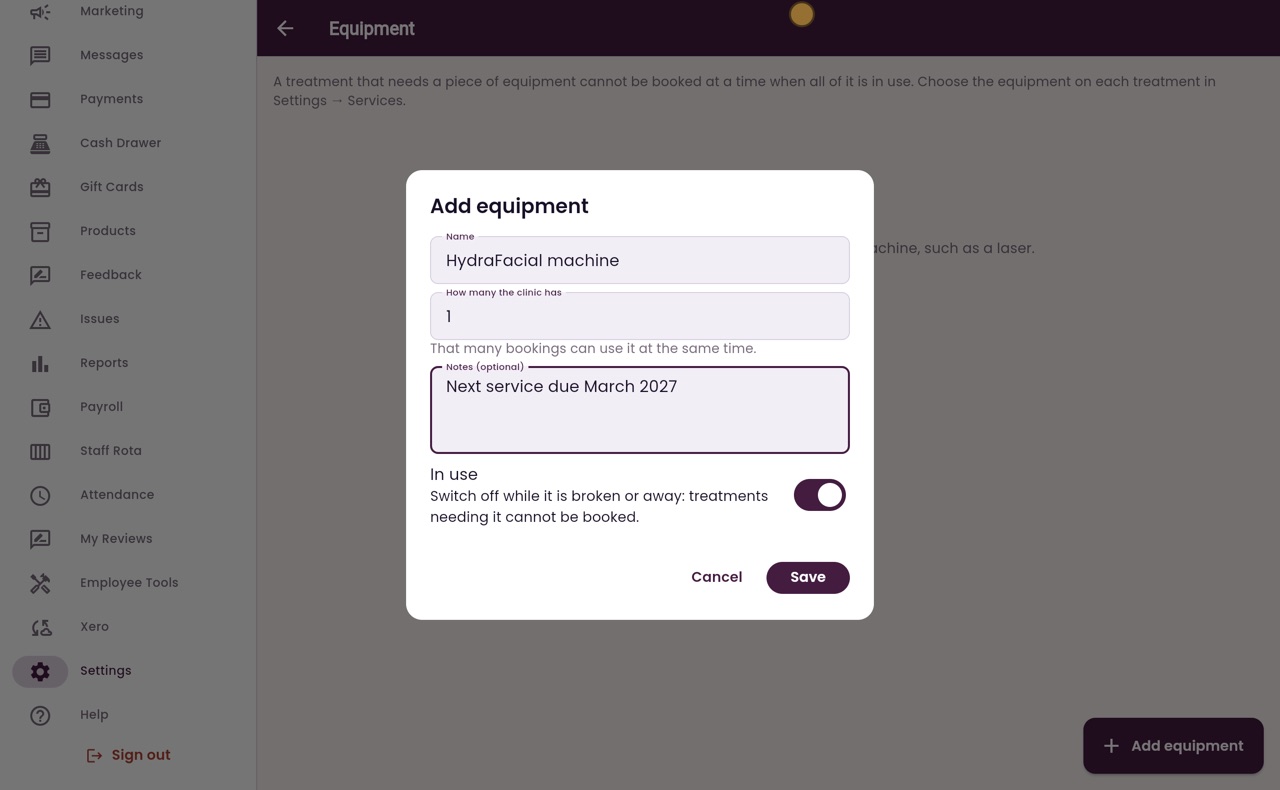
Click Add equipment and type the name, here HydraFacial machine. How many the clinic has is already one. That many bookings can use it at the same time.
- 04Ryan
Notes and In use
Add a note if it helps, such as when it is next serviced. In use is switched on. Switch it off while the machine is broken or away, and treatments needing it cannot be booked.
- 05Ryan
Save
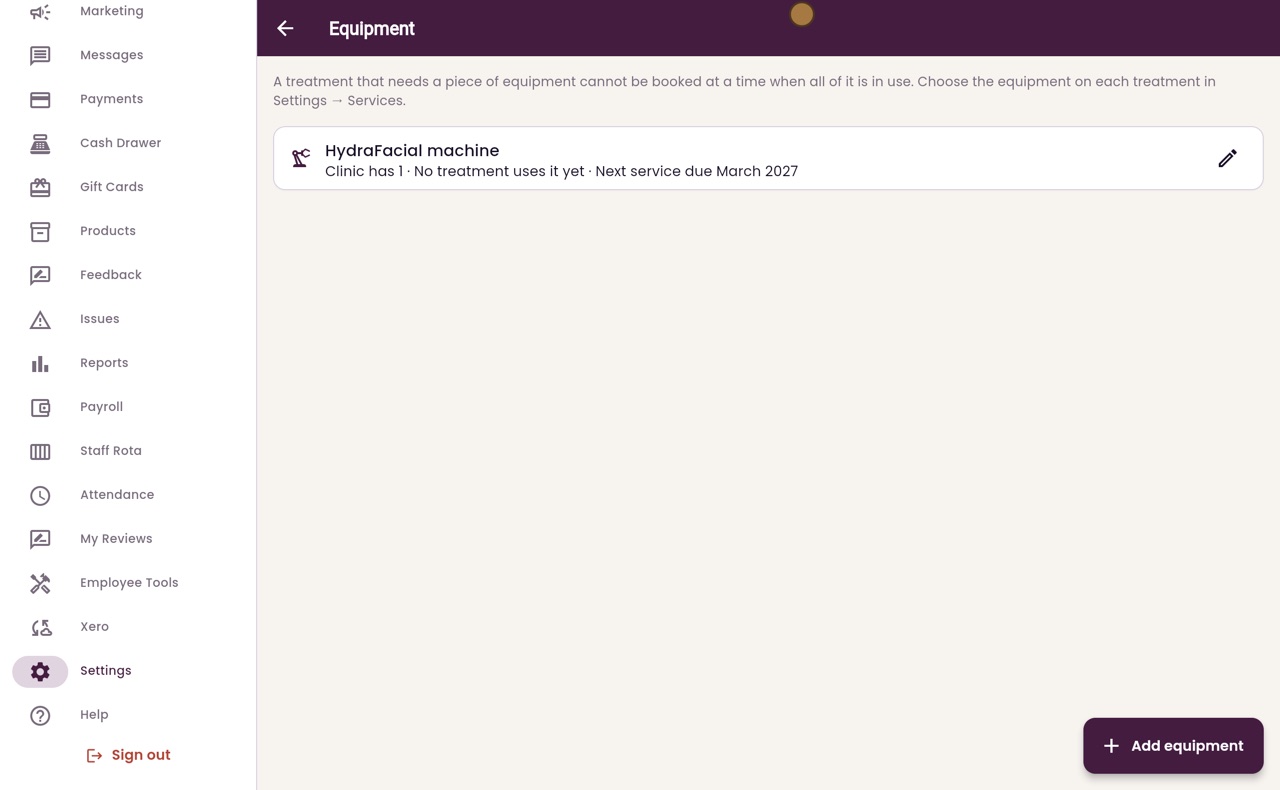
Click Save. The machine is on the list. The clinic has one, and no treatment uses it yet.
- 06Ryan
Open the treatment
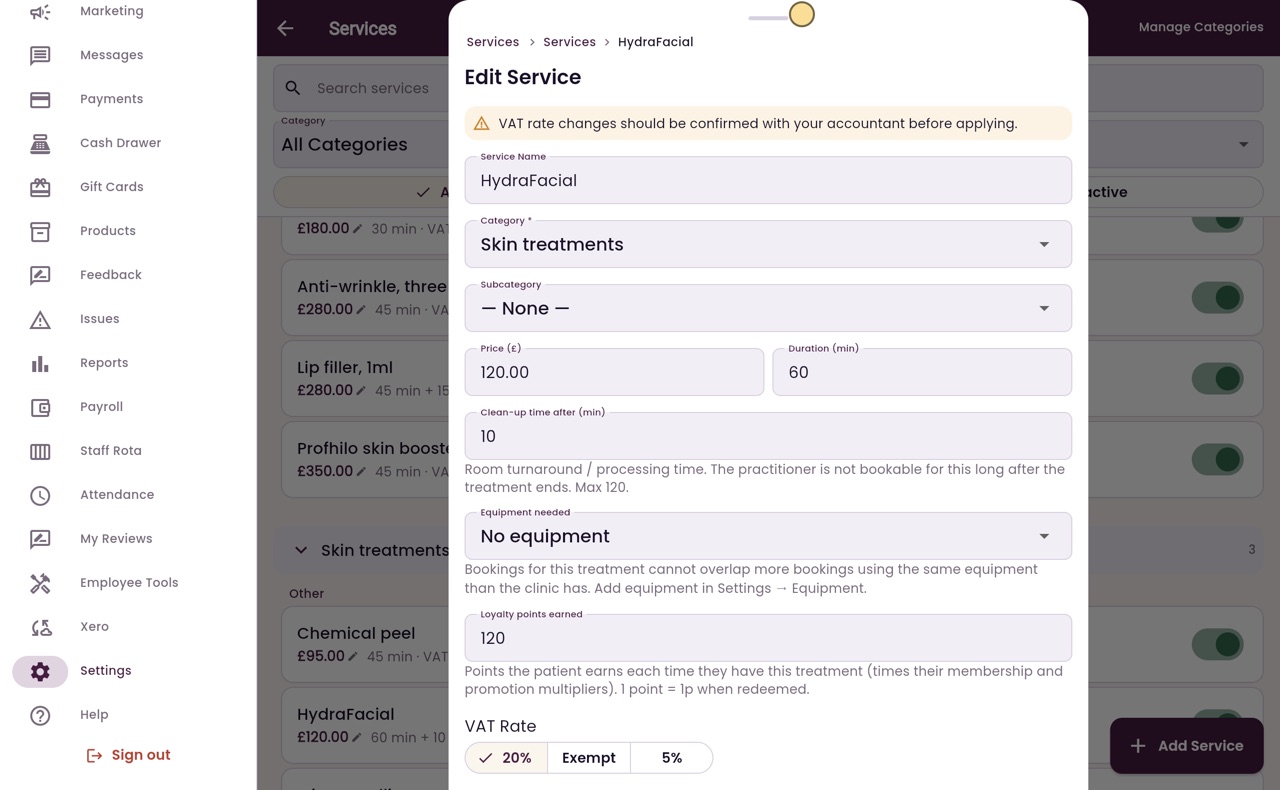
Now tell AesthetiQ which treatment needs it. Click Back, then Services, and click HydraFacial.
- 07Ryan
Equipment needed
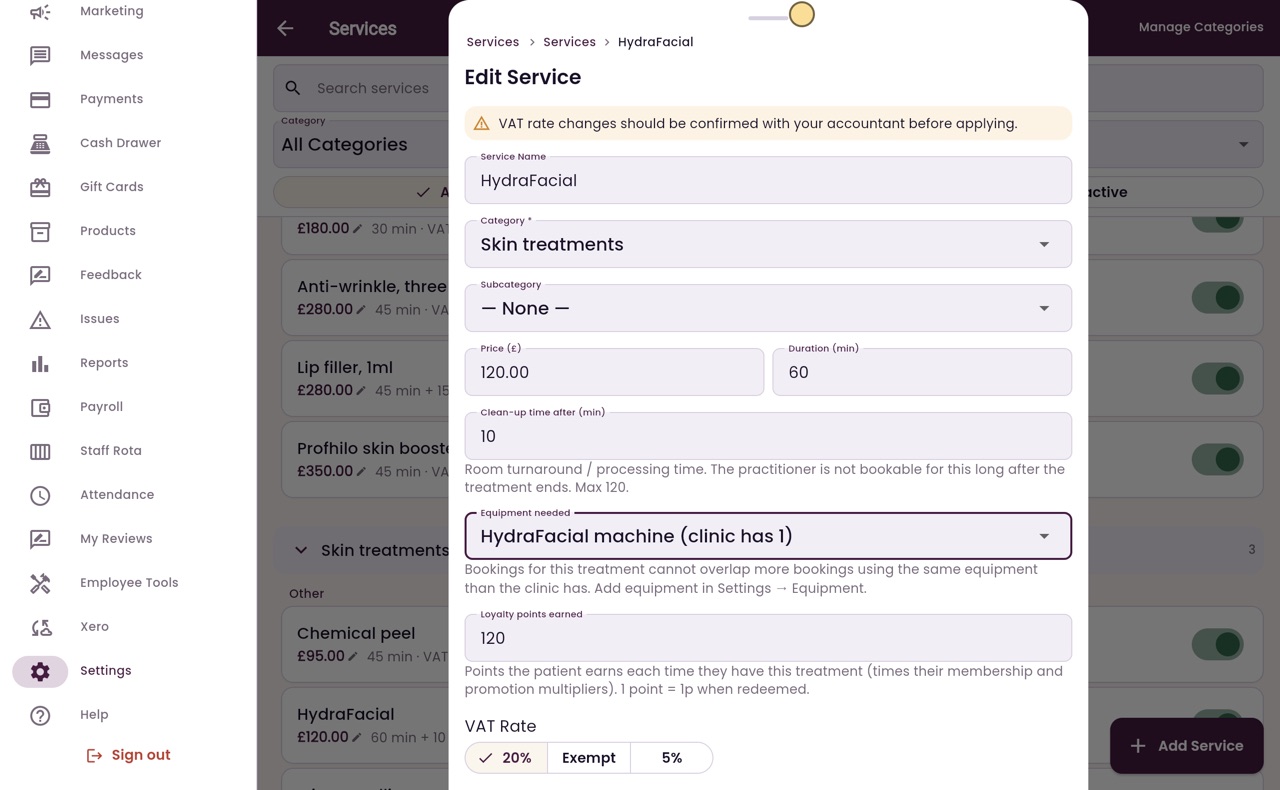
Under Equipment needed, choose HydraFacial machine. Bookings for this treatment cannot overlap more bookings using the machine than the clinic has.
- 08Ryan
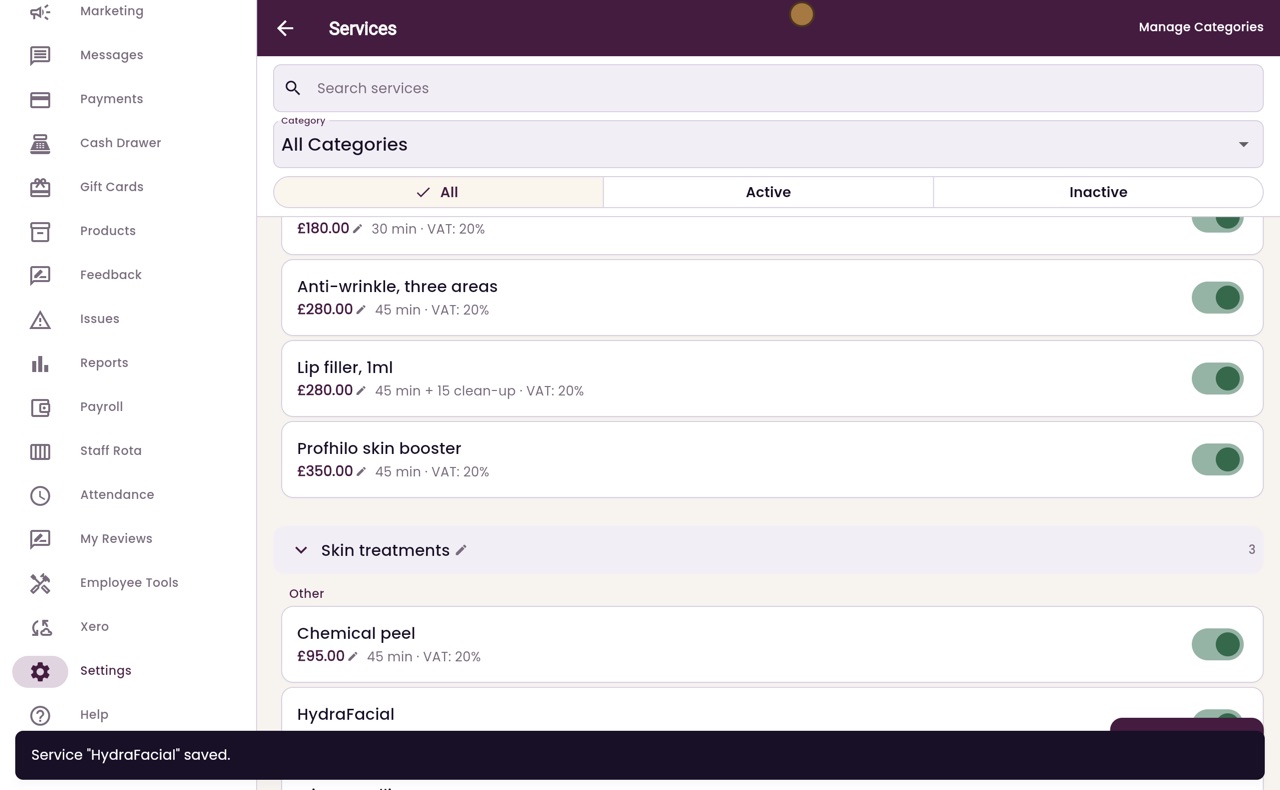
Save the treatment
Scroll down and click Save.
- 09Ryan
Used for
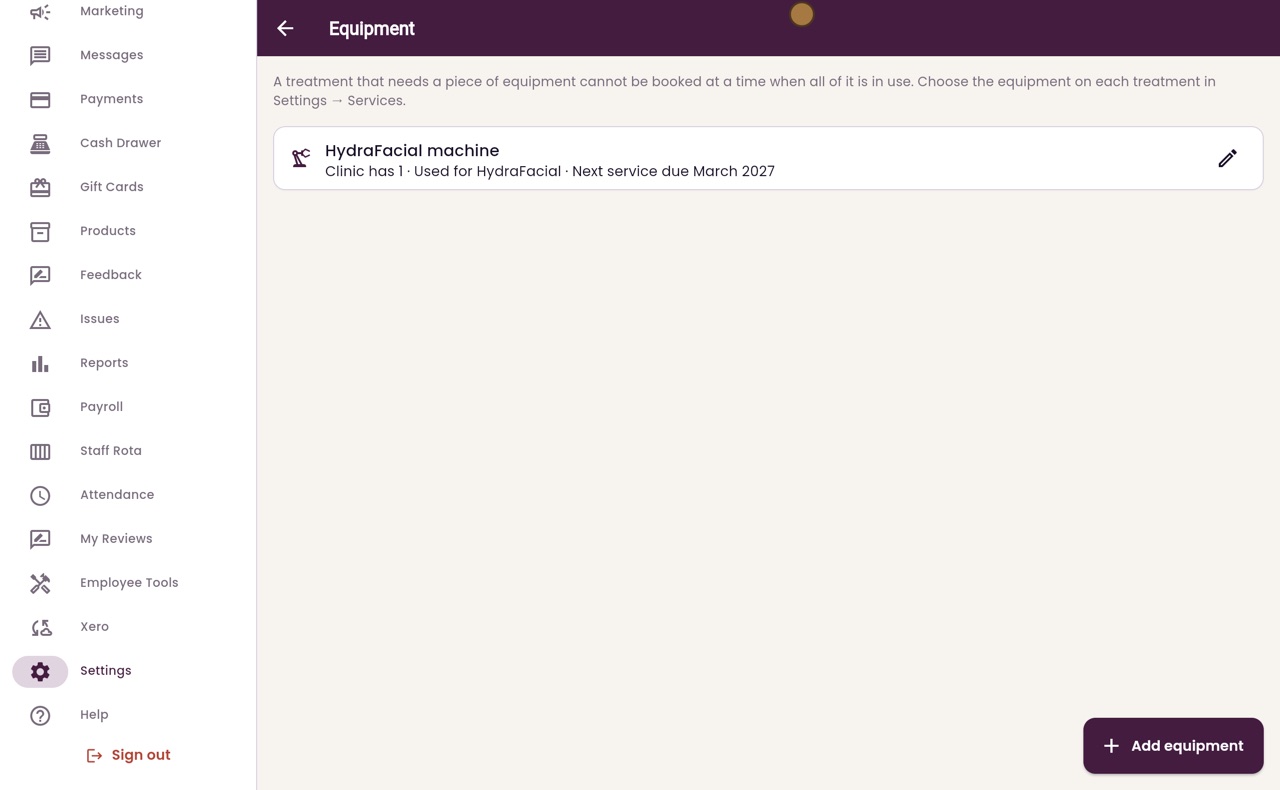
Back in Settings, open Equipment again. The machine now says it is used for HydraFacial.
- 10Ryan
On the calendar
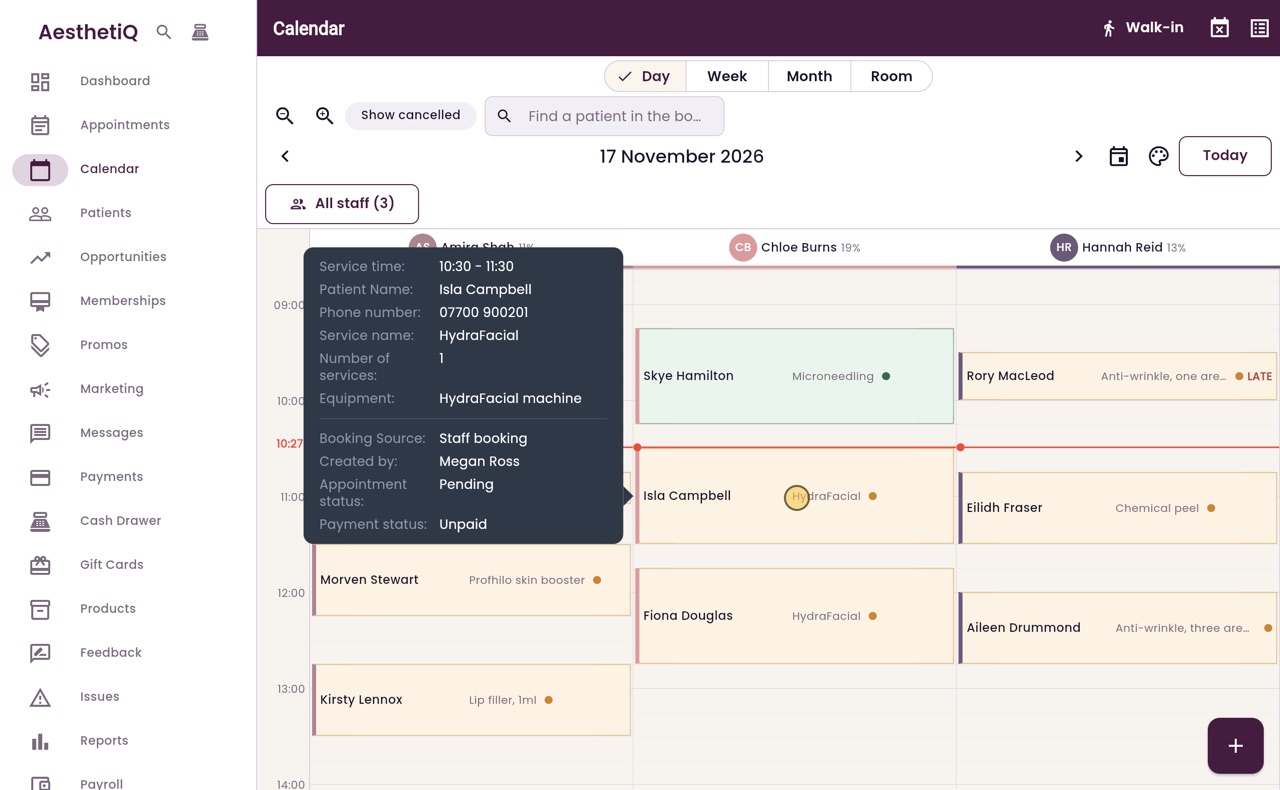
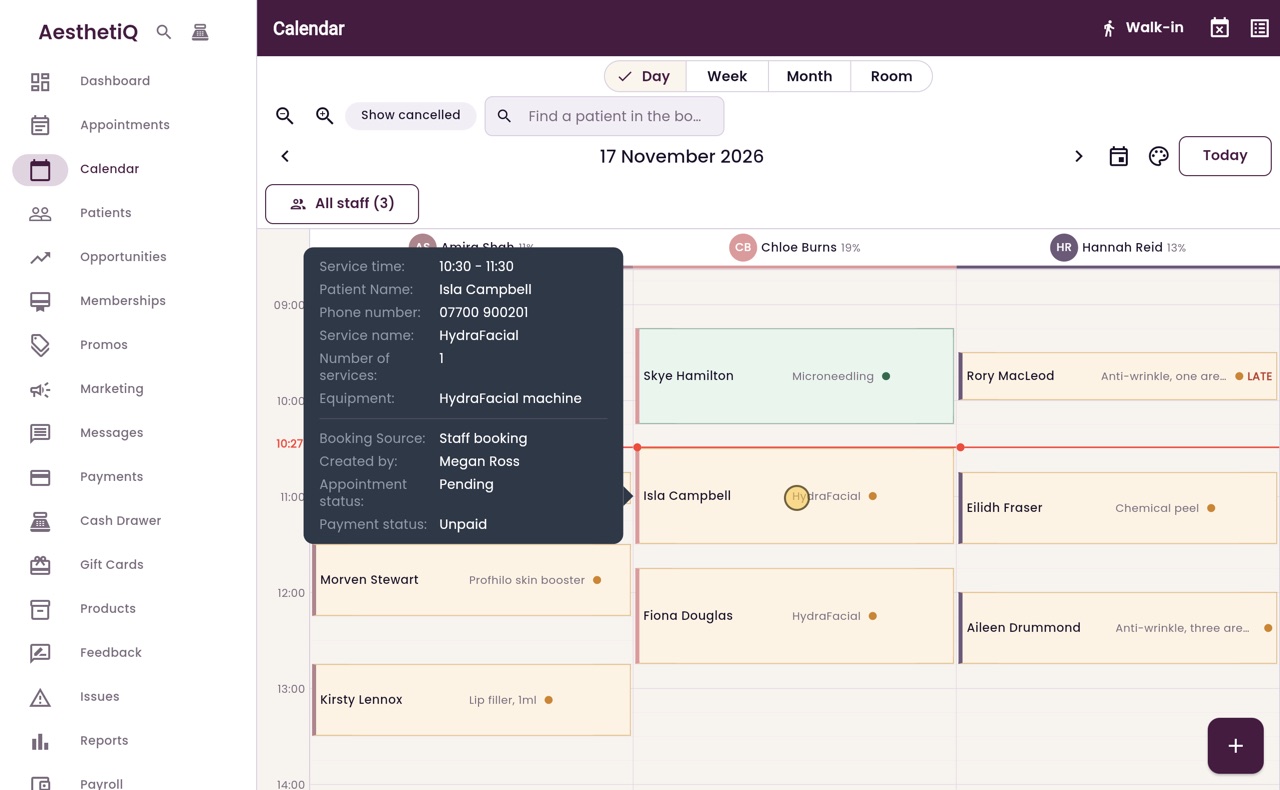
On the calendar, point at a HydraFacial appointment. The hover card now shows the equipment it uses, the HydraFacial machine.
- 11Libby
Done
That is setting up equipment. When a HydraFacial is booked, the booking site and the staff booking screens only offer times when the machine is free.